> ## Documentation Index
> Fetch the complete documentation index at: https://notes.kodekloud.com/llms.txt
> Use this file to discover all available pages before exploring further.
# Workflow Docker Build and Test
> This guide explains a GitHub Actions workflow for building, testing, and preparing Docker images for publishing to Docker Hub.
In this guide, we’ll walk through a GitHub Actions workflow that builds a Docker image, validates it with runtime tests, and prepares it for publishing to Docker Hub.
## 1. Authenticate with Docker Hub
Before building your container, log in to Docker Hub securely using the official `docker/login-action`.
```yaml theme={null}
jobs:
docker:
name: Containerization
needs: [unit-testing, code-coverage]
runs-on: ubuntu-latest
steps:
- name: Checkout Repository
uses: actions/checkout@v4
- name: Docker Hub Login
uses: docker/login-action@v2.2.0
with:
username: ${{ vars.DOCKERHUB_USERNAME }}
password: ${{ secrets.DOCKERHUB_PASSWORD }}
```
Store your Docker Hub credentials as [GitHub Secrets](/docs/github/creating-secrets-for-workflows) or repository variables to avoid exposing sensitive data in your workflow YAML.
## 2. Build the Image for Testing
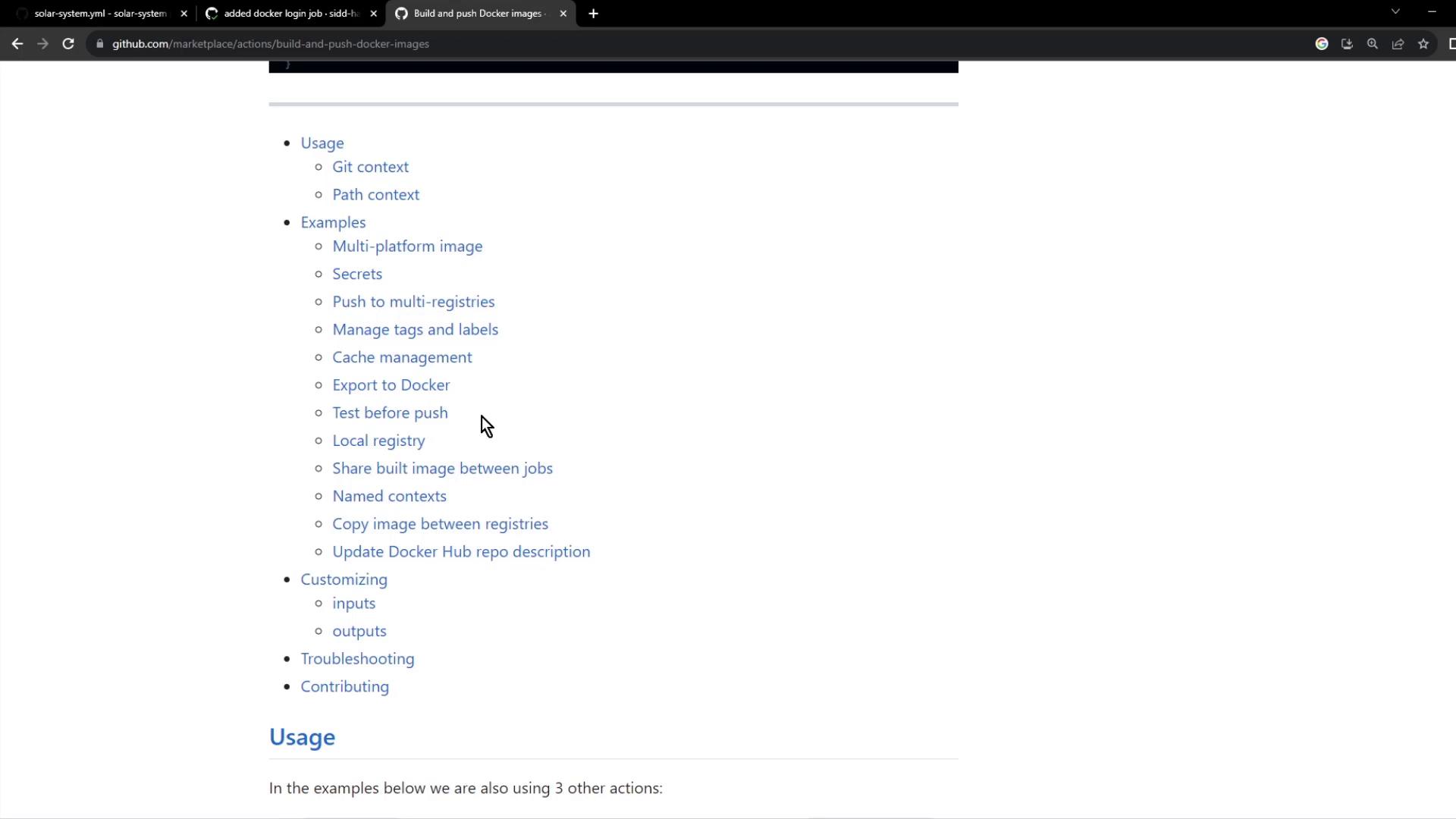
Use the `docker/build-push-action` to build your image locally without pushing it immediately. This allows you to run integration or health checks before publishing.
```yaml theme={null}
- name: Build Docker Image for Testing
uses: docker/build-push-action@v4
with:
context: .
push: false
tags: ${{ vars.DOCKERHUB_USERNAME }}/solar-system:${{ github.sha }}
```
For more customization options, refer to the official documentation: [docker/build-push-action](https://github.com/docker/build-push-action).
## 3. Define Your Dockerfile
Place a `Dockerfile` at the root of your repository to specify the container environment:
```dockerfile theme={null}
FROM node:18-alpine3.17
WORKDIR /usr/app
COPY package*.json ./
RUN npm install
COPY . .
# Placeholder environment variables for MongoDB credentials
ENV MONGO_URI=uriPlaceholder
ENV MONGO_USERNAME=usernamePlaceholder
ENV MONGO_PASSWORD=passwordPlaceholder
EXPOSE 3000
CMD ["npm", "start"]
```
Key steps:
* Start from an official Node.js Alpine base image.
* Install dependencies before copying the rest of the source code.
* Expose port **3000** and set `npm start` as the default command.
## 4. Run Container Tests
After building the image, verify that the application starts and responds to its health endpoint. Replace placeholders with your actual GitHub Secrets or repository variables.
```yaml theme={null}
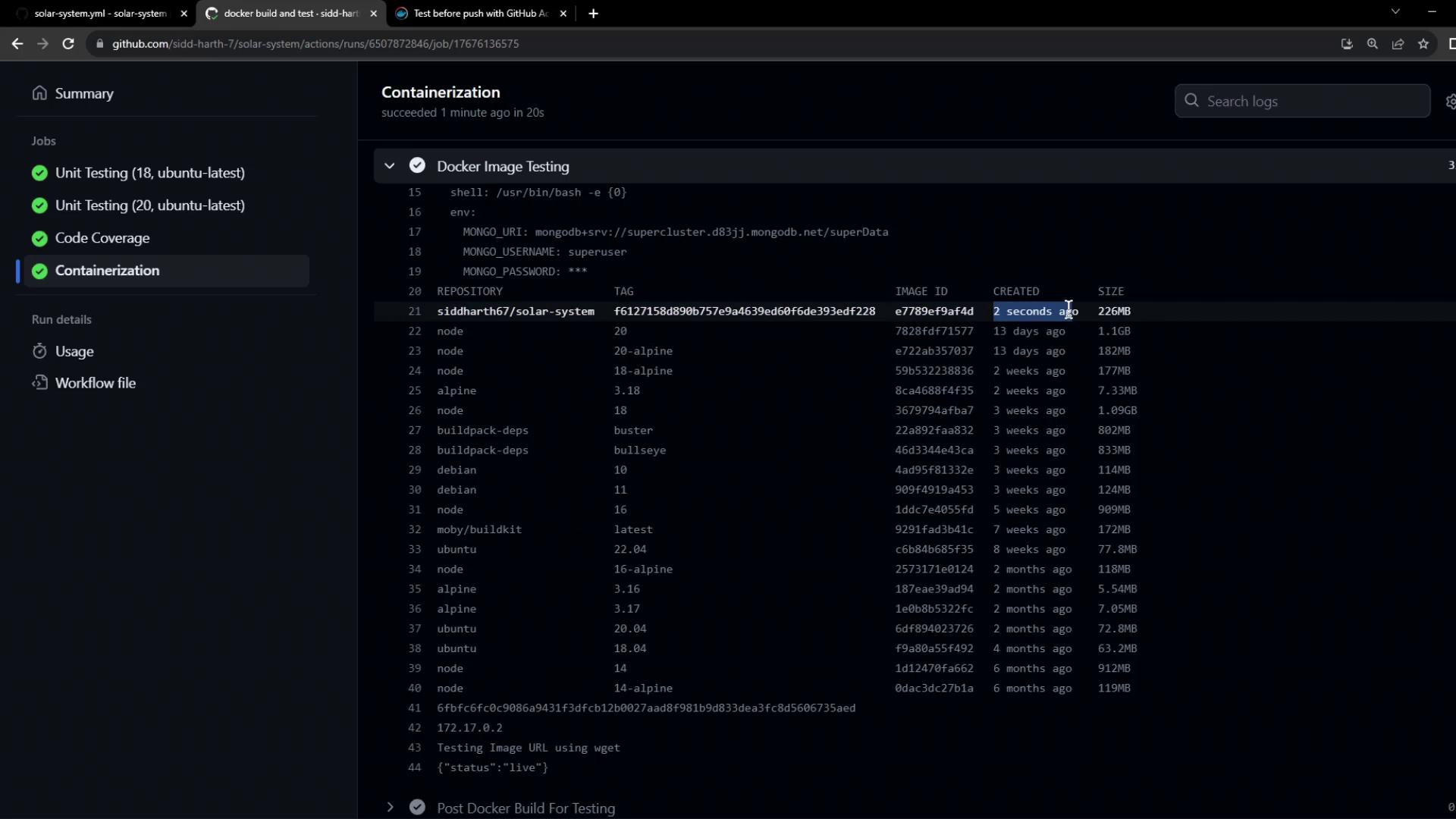
- name: Docker Image Testing
run: |
# List built images
docker images
# Run the container in detached mode
docker run --name solar-system-app -d \
-p 3000:3000 \
-e MONGO_URI=$MONGO_URI \
-e MONGO_USERNAME=$MONGO_USERNAME \
-e MONGO_PASSWORD=$MONGO_PASSWORD \
${{ vars.DOCKERHUB_USERNAME }}/solar-system:${{ github.sha }}
# Display container IP address
echo "Container IP:" $(docker inspect -f '{{range .NetworkSettings.Networks}}{{.IPAddress}}{{end}}' solar-system-app)
# Test the /live endpoint
echo "Testing /live endpoint"
wget -q -O - http://127.0.0.1:3000/live | grep live
```
Ensure that your application exposes health endpoints like `/live` or `/ready` to prevent false positives during automated testing.
## 5. Implement Health Endpoints in Your App
Add health-check routes in your Express application so the workflow can validate container readiness:
```javascript theme={null}
const express = require('express');
const os = require('os');
const path = require('path');
const app = express();
app.get('/', (req, res) => {
res.sendFile(path.join(__dirname, 'index.html'));
});
app.get('/os', (req, res) => {
res.json({ os: os.hostname(), env: process.env.NODE_ENV });
});
app.get('/live', (req, res) => {
res.json({ status: 'live' });
});
app.get('/ready', (req, res) => {
res.json({ status: 'ready' });
});
app.listen(3000, () => {
console.log('Server running on port 3000');
});
module.exports = app;
```
## 6. Monitor the Workflow in GitHub Actions
Once you push your changes, go to the **Actions** tab in your repository to review the workflow run.
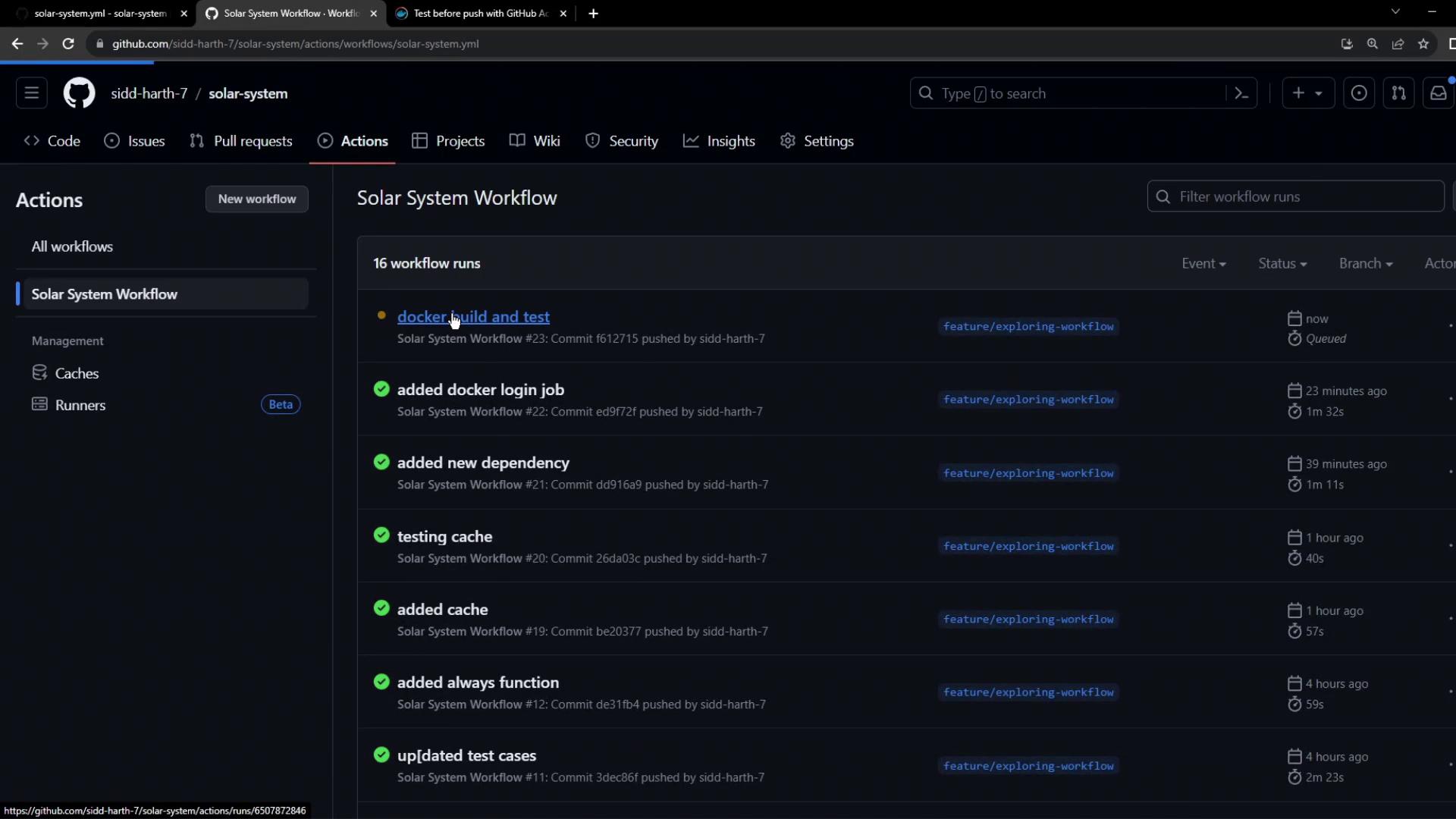
Select the **Containerization** job to inspect its steps:
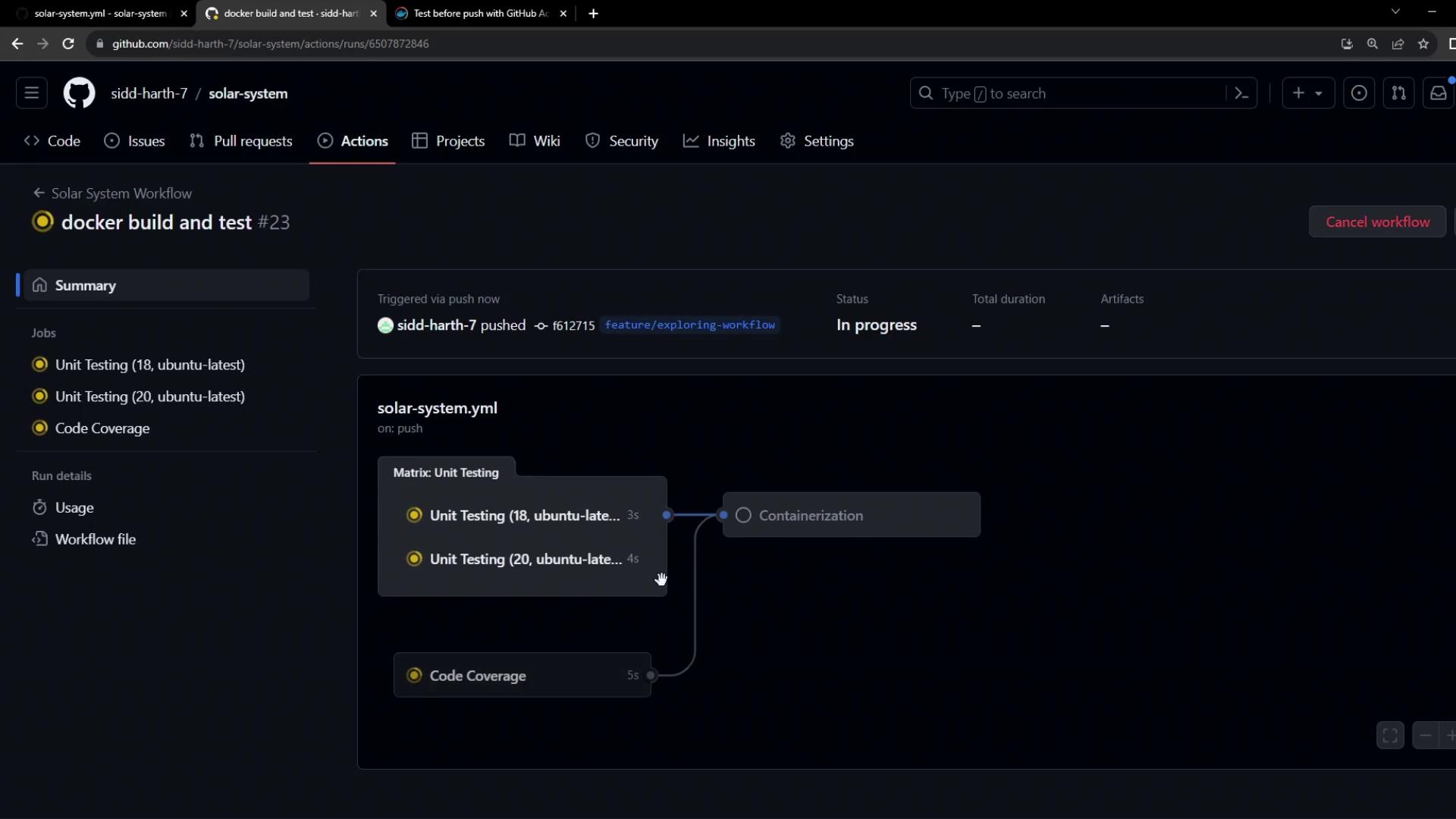
Watch each step transition to **success**:
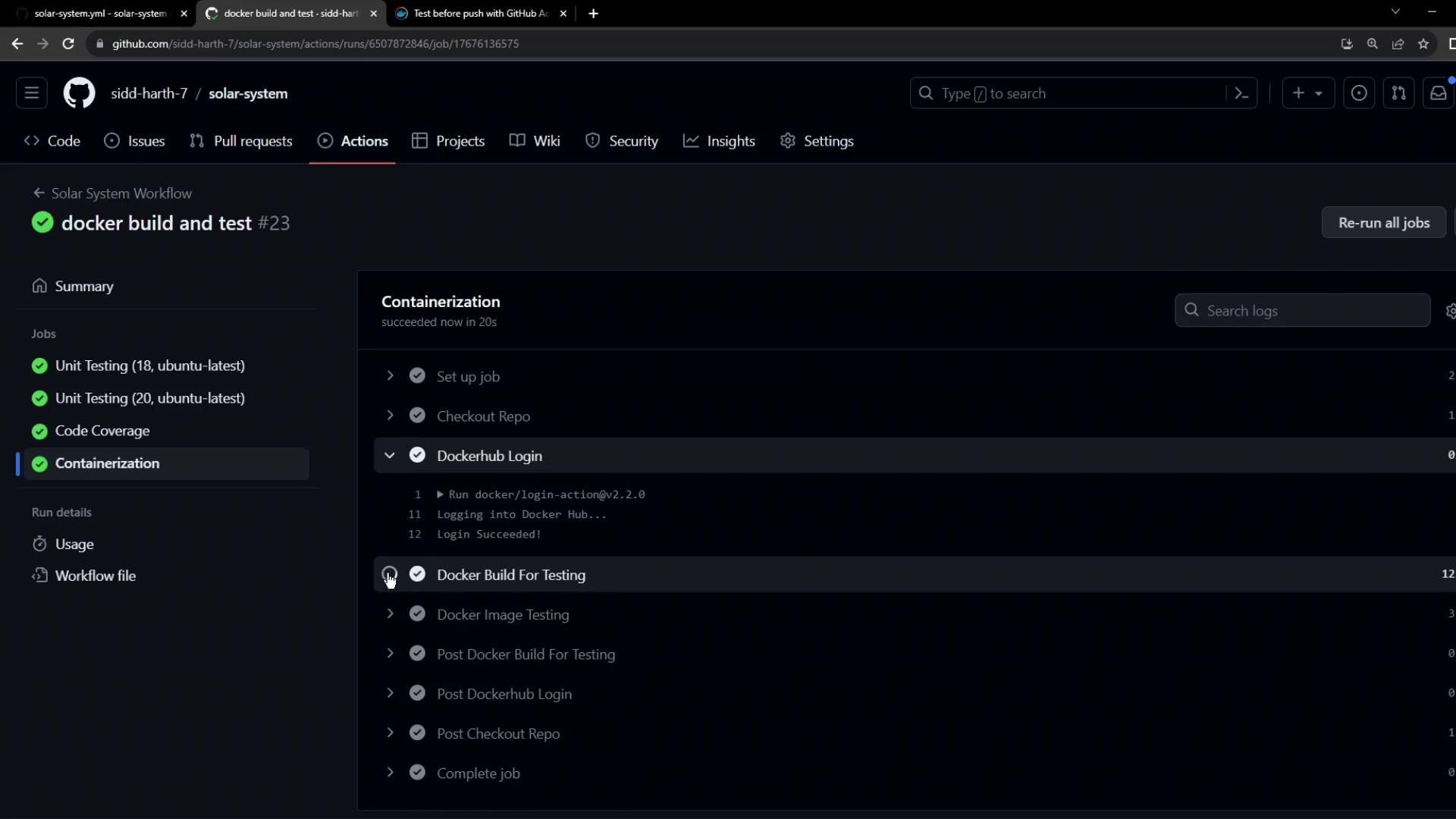
You can also inspect logs to confirm build arguments, container startup, and endpoint testing:
```bash theme={null}
/usr/bin/docker build --iidfile /tmp/docker-actions-toolkit/iidfile \
--tag siddharth67/solar-system:f61272158d890b757e9a4639ed60f6de393edf228 .
docker images
docker run --name solar-system-app -d \
-p 3000:3000 \
-e MONGO_URI=$MONGO_URI \
-e MONGO_USERNAME=$MONGO_USERNAME \
-e MONGO_PASSWORD=$MONGO_PASSWORD \
siddharth67/solar-system:6127158d890b757e9a46396d6de393edf228
export IP=$(docker inspect -f '{{range .NetworkSettings.Networks}}{{.IPAddress}}{{end}}' solar-system-app)
echo $IP
wget -q -O - http://127.0.0.1:3000/live | grep live
```
***
With your image successfully built and validated, you’re now ready to push it to Docker Hub. Continue to the next article to configure the push step in your workflow.
## Links and References
* [GitHub Actions: docker/login-action](https://github.com/docker/login-action)
* [GitHub Actions: docker/build-push-action](https://github.com/docker/build-push-action)
* [GitHub Secrets Documentation](https://docs.github.com/en/actions/security-guides/encrypted-secrets)
* [Express.js Health Checks](https://expressjs.com/)