> ## Documentation Index
> Fetch the complete documentation index at: https://notes.kodekloud.com/llms.txt
> Use this file to discover all available pages before exploring further.
# Configure Checkout Action
> Learn to add the actions/checkout step to your GitHub Actions workflow for repository code access in subsequent steps.
In this lesson, you’ll learn how to add the `actions/checkout` step to your GitHub Actions workflow, ensuring your repository code is available for subsequent steps.
## Prerequisites
* A GitHub repository
* Basic familiarity with GitHub Actions and YAML syntax
## 1. Browse the GitHub Marketplace
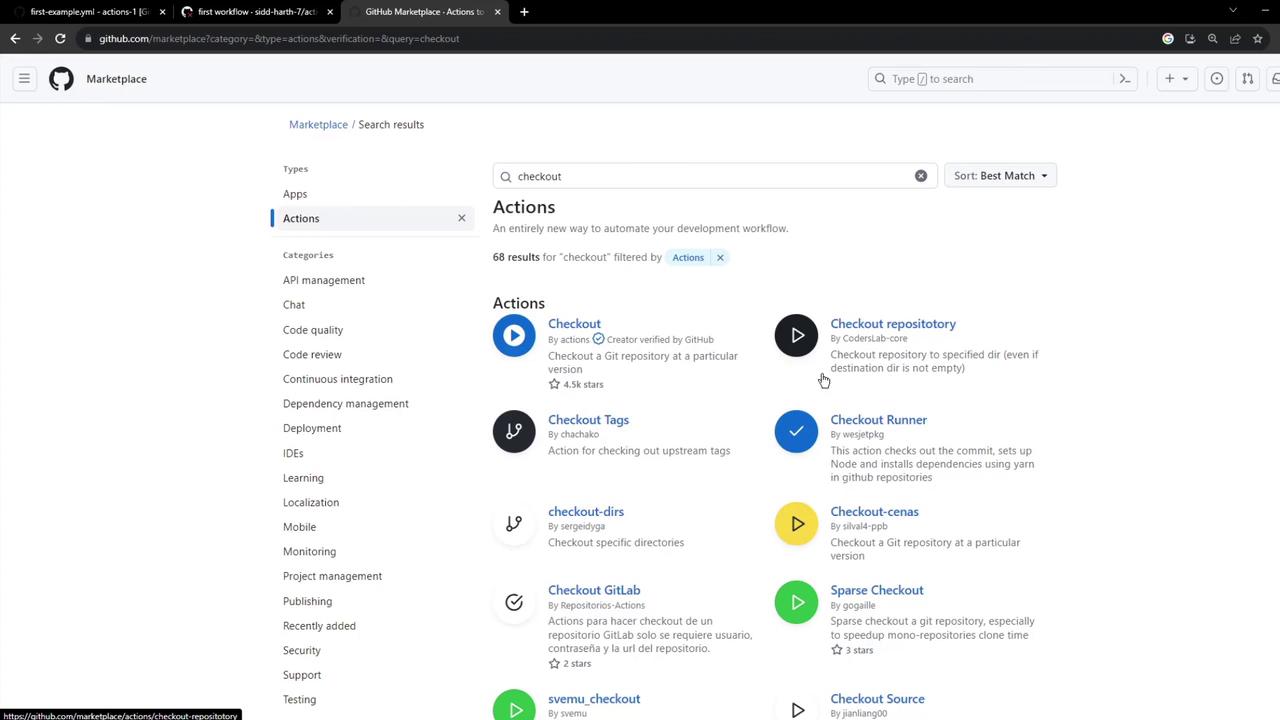
Visit the [GitHub Marketplace](https://github.com/marketplace?type=actions) and search for “checkout” to filter relevant actions.
## 2. Select the Official Checkout Action
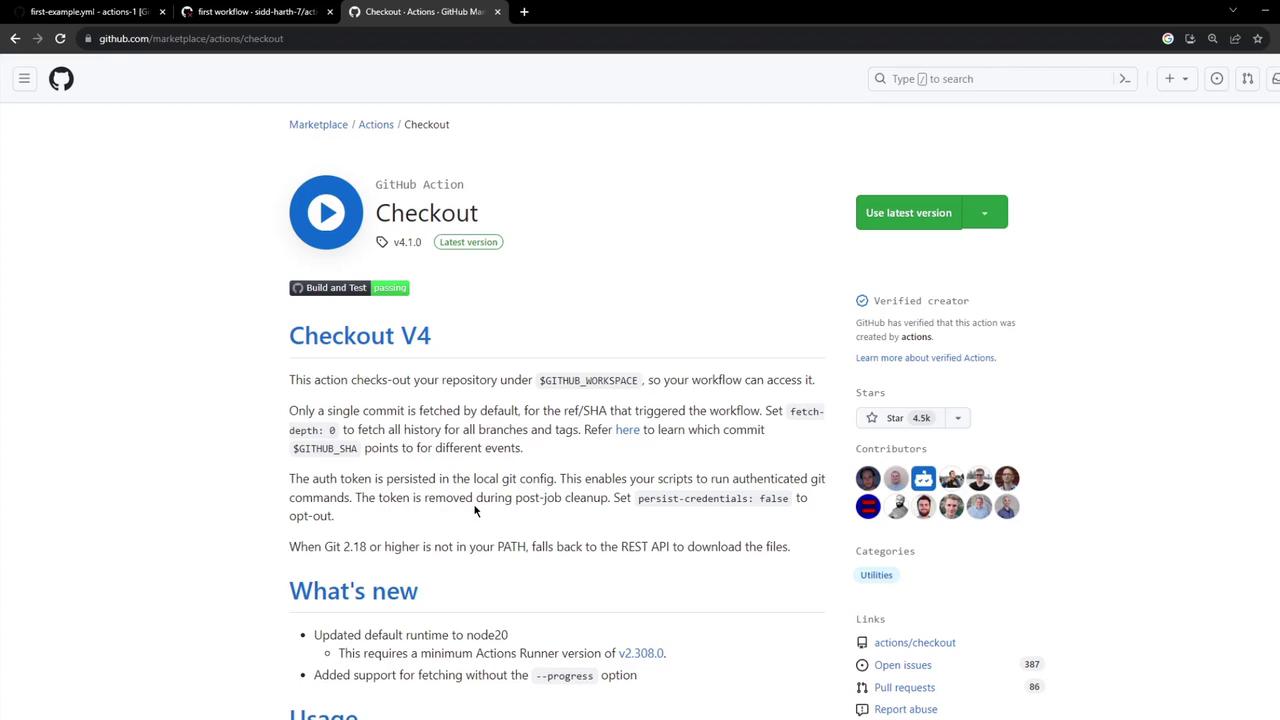
Choose the [Checkout Action](https://github.com/marketplace/actions/checkout) maintained by GitHub. Look for the verified badge next to the publisher name.
## 3. Review the Checkout Action Documentation
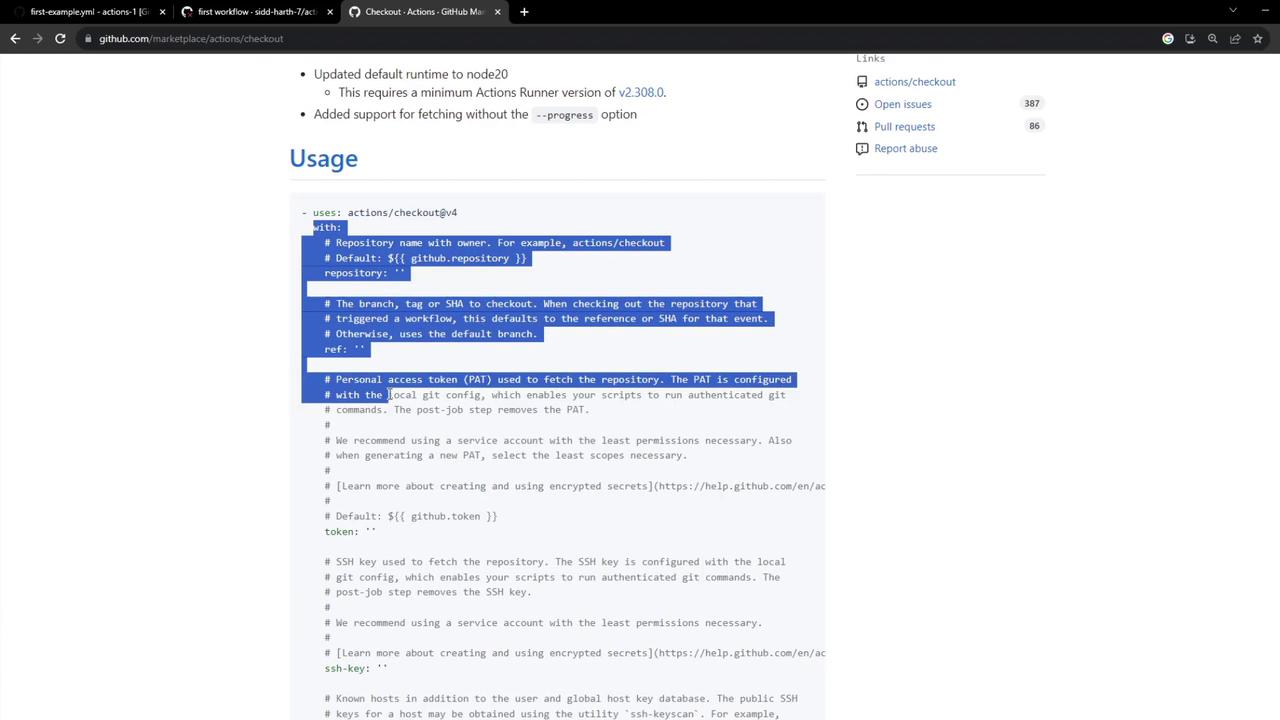
The `actions/checkout@v4` README contains usage examples and configurable options. Review it for advanced scenarios like submodule fetching or shallow clones.
## 4. Update Your Workflow File
Add the checkout step at the top of your job’s `steps` list so that all subsequent commands have access to your repository files.
```yaml theme={null}
name: My First Workflow
on: push
jobs:
first_job:
runs-on: ubuntu-latest
steps:
- name: Checkout Repository
uses: actions/checkout@v4
- name: Welcome message
run: echo "My first GitHub Actions Job"
- name: List files
run: ls
- name: Read file
run: cat README.md
```
If you omit `actions/checkout`, subsequent steps won’t have access to your code, leading to errors such as `file not found` when running commands like `ls` or `cat`.
For clarity, here’s an overview of each step in the workflow:
| Step Name | Action |
| ------------------- | ----------------------------------------- |
| Checkout Repository | `uses: actions/checkout@v4` |
| Welcome message | `run: echo "My first GitHub Actions Job"` |
| List files | `run: ls` |
| Read file | `run: cat README.md` |
## 5. Commit and Trigger the Workflow
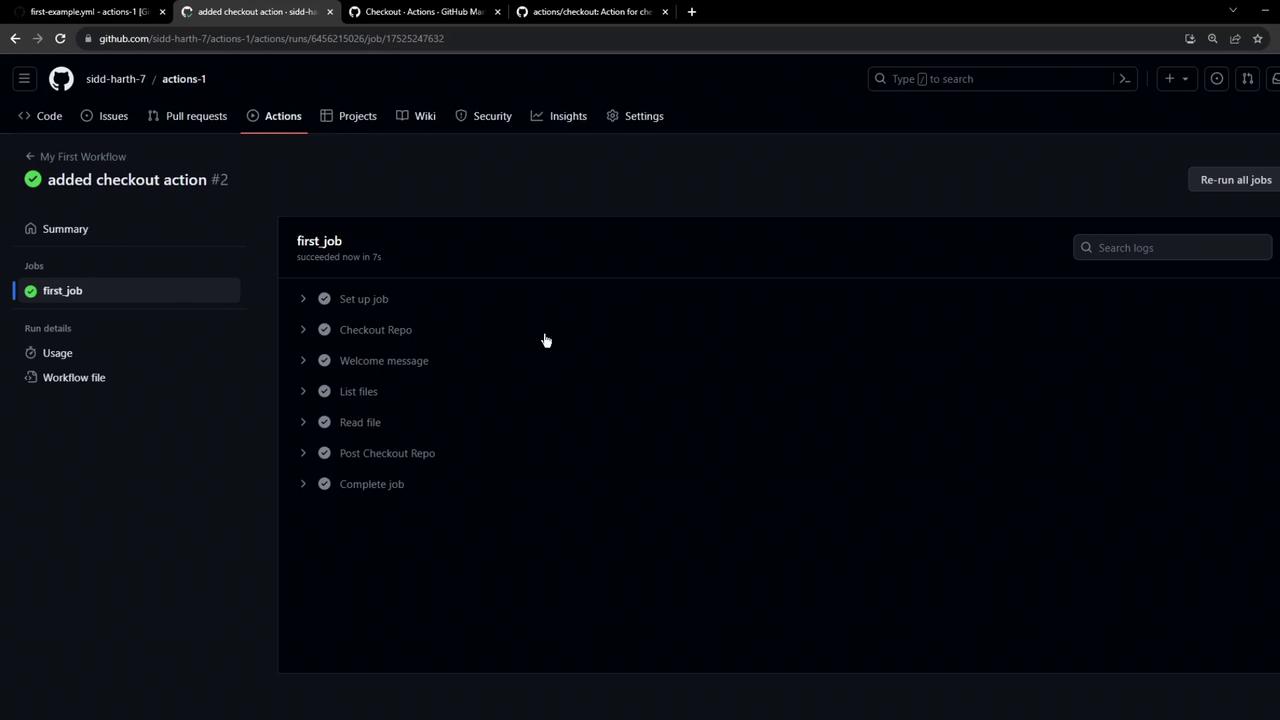
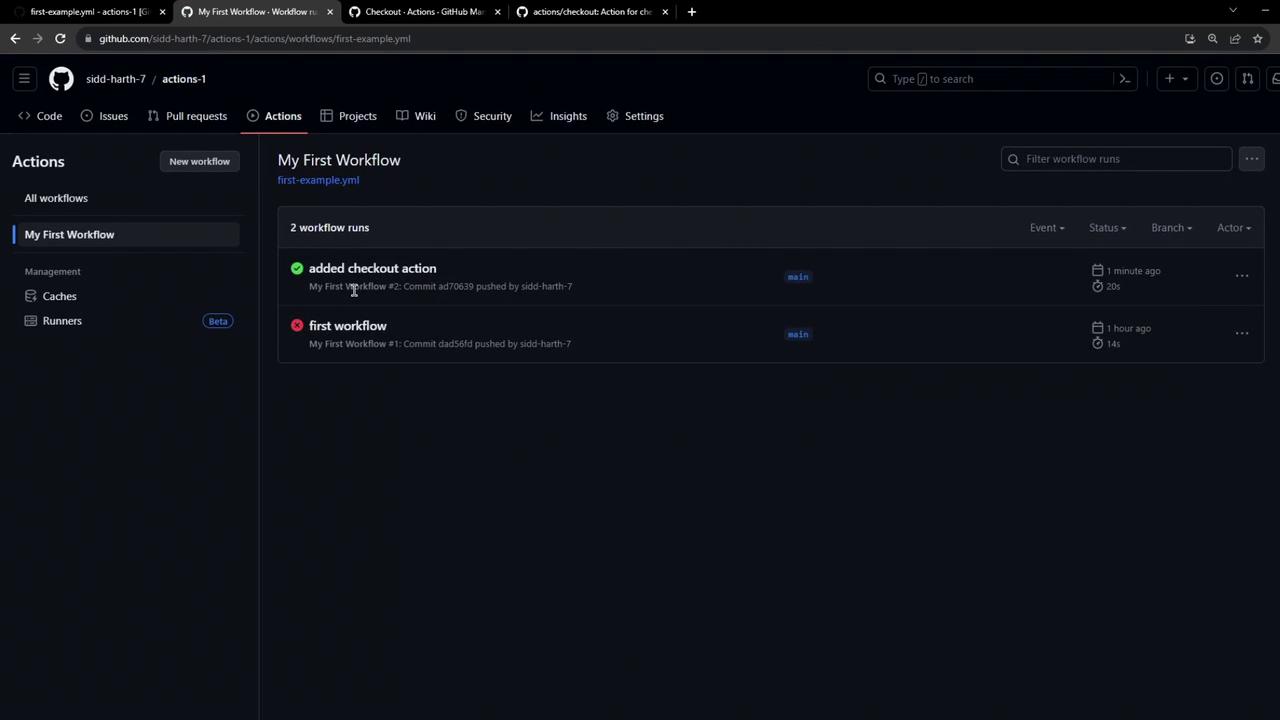
Commit your changes and push to GitHub. Navigate to the **Actions** tab to watch your workflow run live.
## 6. Inspect the Logs
In the job logs, you’ll see the checkout action pulling down your repository. To view hidden files (e.g., the `.github` directory), use:
Run `ls -a` to display all files, including those starting with a dot.
```bash theme={null}
ls -a
```
## 7. Review Workflow History
Return to the main **Actions** page to see past runs, both successful and failed, and download logs or enable timestamps.
## Links and References
* [actions/checkout@v4 README](https://github.com/actions/checkout/blob/v4/README.md)
* [GitHub Marketplace Actions](https://github.com/marketplace?type=actions)
* [GitHub Actions Documentation](https://docs.github.com/actions)