> ## Documentation Index
> Fetch the complete documentation index at: https://notes.kodekloud.com/llms.txt
> Use this file to discover all available pages before exploring further.
# Working with Repository Level Secrets
> Learn to securely manage repository-level secrets in GitHub Actions and avoid exposing sensitive data in your workflows.
In this guide, you’ll learn how to securely manage secrets at the repository level using GitHub Actions. We’ll cover why you should never store credentials in plain text, walk through creating secrets and variables, and show you how to reference them in your workflows.
***
## Why Use Repository-Level Secrets?
Storing sensitive data—like API keys, passwords, or tokens—directly in your workflow files exposes them to anyone with repository access. GitHub’s **repository-level secrets** provide a secure way to inject credentials into your CI/CD pipelines without risking leaks.
Never commit secrets or passwords in your YAML files or source code. Always use GitHub’s built-in secret management.
***
## Insecure Workflow Example
Below is an example that hardcodes a Docker password in plain text. This approach is vulnerable and not recommended:
```yaml theme={null}
name: Exploring Variables and Secrets
on:
push
env:
CONTAINER_REGISTRY: docker.io
DOCKER_USERNAME: siddharth1
IMAGE_NAME: github-actions-nginx
jobs:
docker:
runs-on: ubuntu-latest
steps:
- name: Docker Build
run: |
docker build -t ${{ env.CONTAINER_REGISTRY }}/${{ env.DOCKER_USERNAME }}/${{ env.IMAGE_NAME }}:latest
- name: Docker Login
env:
DOCKER_PASSWORD: $3CuRePaSsWoRd
run: |
docker login --username=${{ env.DOCKER_USERNAME }} --password=${{ env.DOCKER_PASSWORD }}
- name: Docker Publish
run: |
docker push ${{ env.CONTAINER_REGISTRY }}/${{ env.DOCKER_USERNAME }}/${{ env.IMAGE_NAME }}:latest
```
***
## GitHub Secrets & Variables: Scope Comparison
| Scope | Purpose | Example |
| -------------- | ------------------------------------------------------------ | ---------------------------- |
| Organization | Shared across multiple repositories | `ORGANIZATION_API_TOKEN` |
| Repository | Specific to a single repository | `DOCKER_PASSWORD`, `APP_KEY` |
| Environment | Tied to a deployment environment (e.g., staging, production) | `PROD_DB_CONNECTION` |
| Workflow-level | Defined in your YAML file (non-sensitive) | `env: IMAGE_VERSION: 1.2.3` |
***
## Running the Docker Container Locally
To verify your image builds correctly before pushing to a registry:
```bash theme={null}
docker run -d -p 8080:80 docker.io/siddharth1/github-actions-nginx:latest
```
Or with variables:
```bash theme={null}
docker run -d -p 8080:80 $CONTAINER_REGISTRY/$DOCKER_USERNAME/$IMAGE_NAME:latest
```
***
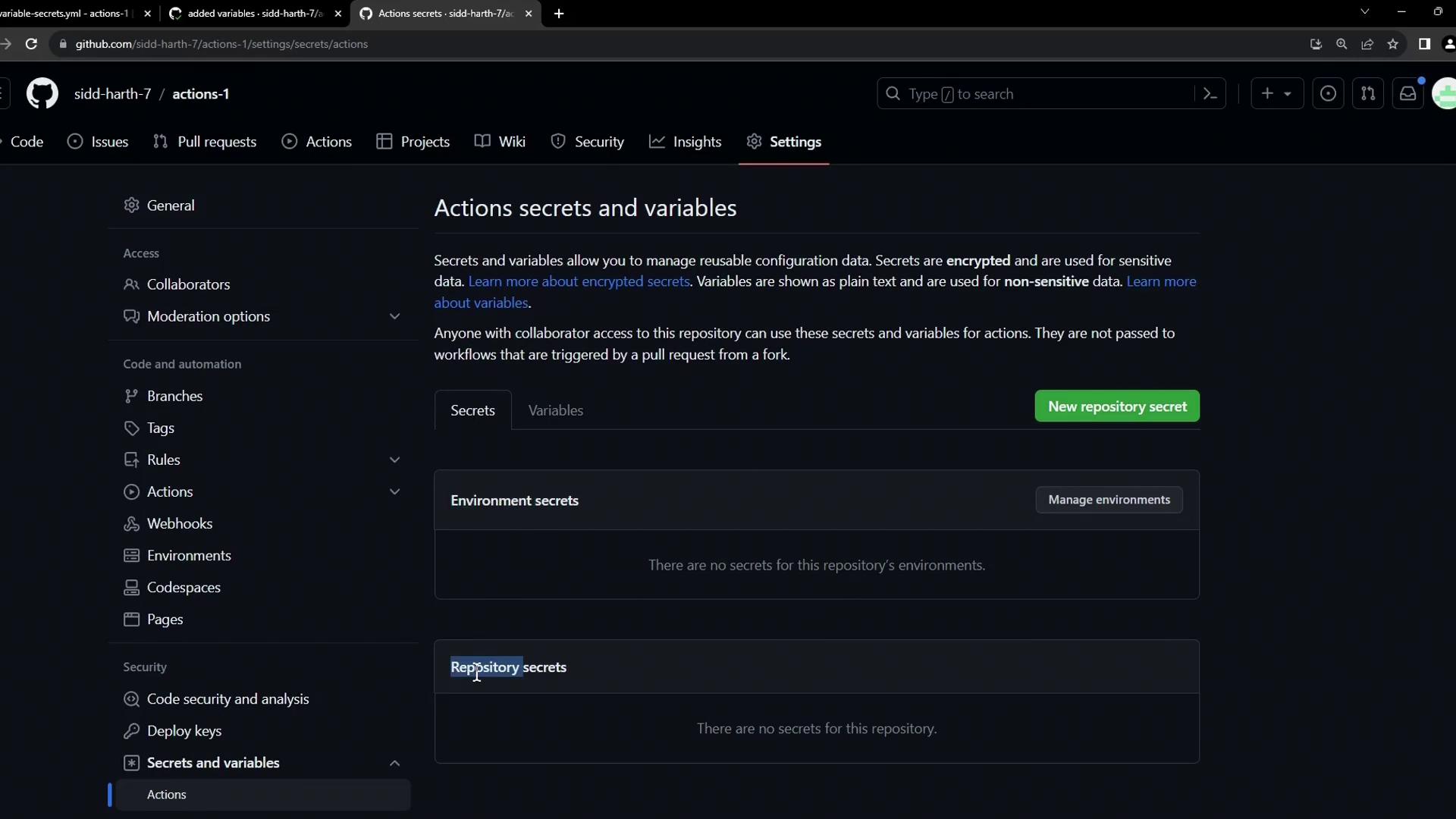
## Adding a Repository-Level Secret
1. Go to your repository’s **Settings**.
2. In the sidebar, select **Secrets and variables > Actions**.
3. Click **New repository secret** to add a new secret.
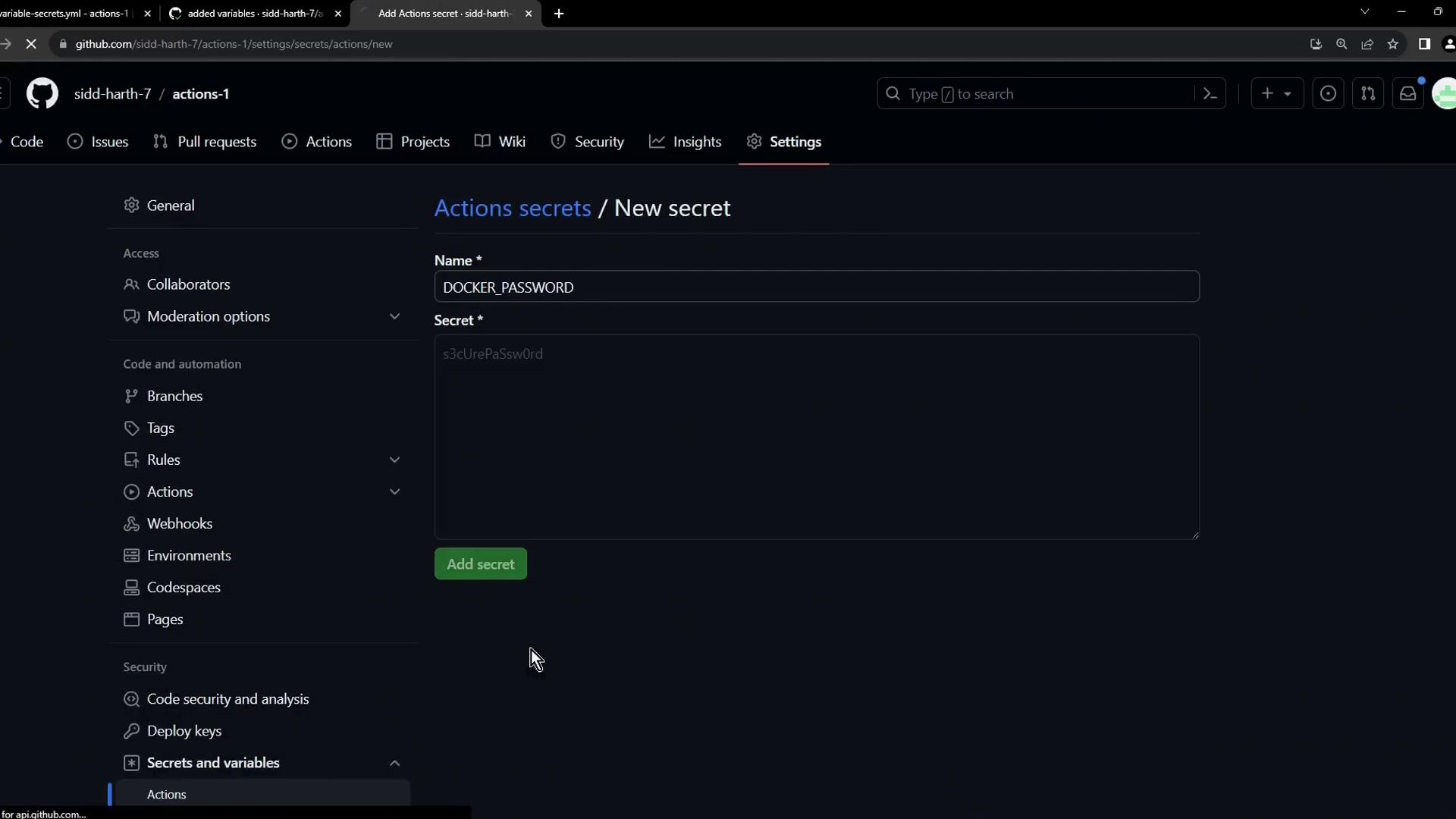
4. Enter **Name**: `DOCKER_PASSWORD`\
**Value**: your Docker registry password
5. Click **Add secret**.
***
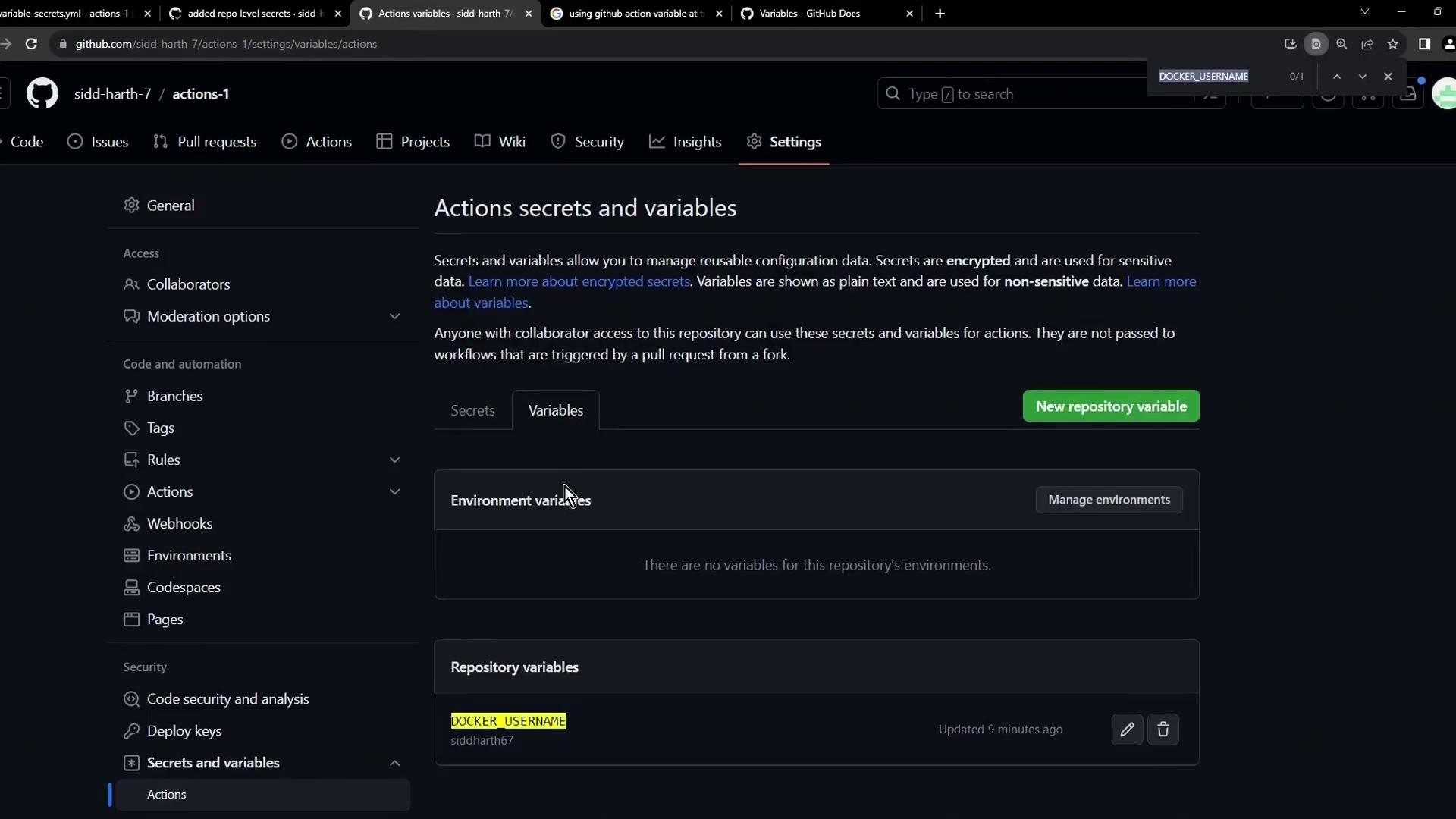
## Adding a Repository-Level Variable
Non-sensitive data (like usernames or image names) can be stored as repository variables:
1. Under **Secrets and variables > Actions**, click **New repository variable**.
2. Name it **DOCKER\_USERNAME**, then set its value.
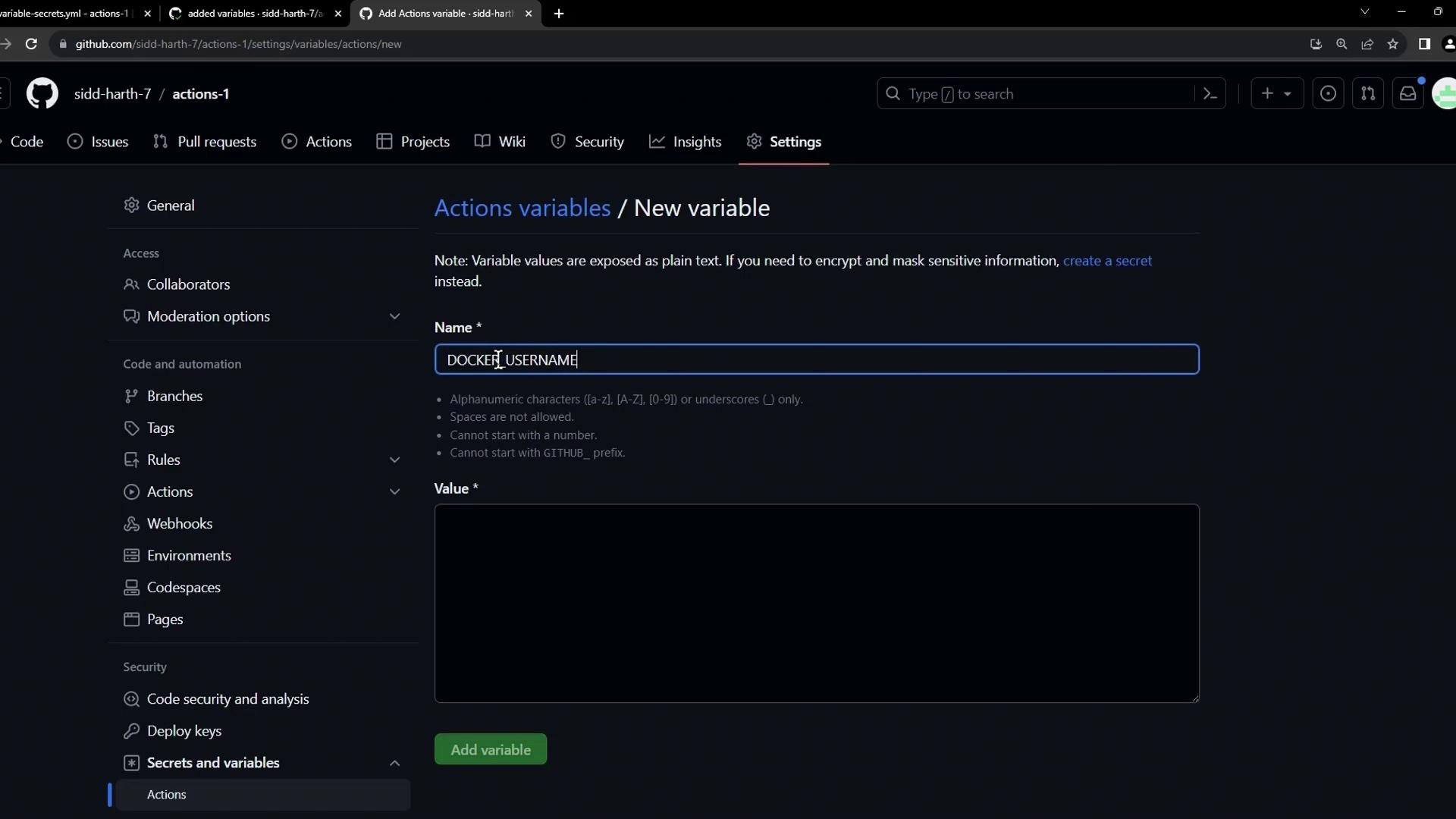
> Variables are visible in the repository UI but are kept separate from secrets.
***
## Referencing Secrets and Variables in Workflows
Update your workflow to use the newly created secrets and variables:
```yaml theme={null}
name: Exploring Variables and Secrets
on:
push
env:
CONTAINER_REGISTRY: docker.io
IMAGE_NAME: github-actions-nginx
jobs:
docker:
runs-on: ubuntu-latest
steps:
- name: Docker Build
run: |
docker build -t ${{ env.CONTAINER_REGISTRY }}/${{ vars.DOCKER_USERNAME }}/${{ env.IMAGE_NAME }}:latest
- name: Docker Login
run: |
docker login --username="${{ vars.DOCKER_USERNAME }}" \
--password="${{ secrets.DOCKER_PASSWORD }}"
- name: Docker Publish
run: |
docker push ${{ env.CONTAINER_REGISTRY }}/${{ vars.DOCKER_USERNAME }}/${{ env.IMAGE_NAME }}:latest
deploy:
needs: docker
runs-on: ubuntu-latest
steps:
- name: Docker Run
run: |
docker run -d -p 8080:80 \
${{ env.CONTAINER_REGISTRY }}/${{ vars.DOCKER_USERNAME }}/${{ env.IMAGE_NAME }}:latest
```
### Reference Syntax
* `${{ secrets.SECRET_NAME }}` for secrets
* `${{ vars.VAR_NAME }}` for repo-level variables
* `${{ env.ENV_VAR }}` for workflow-level environment variables
***
## Verifying the Workflow Run
After committing your changes, navigate to **Actions** in GitHub and select the latest workflow. You should see a successful run:
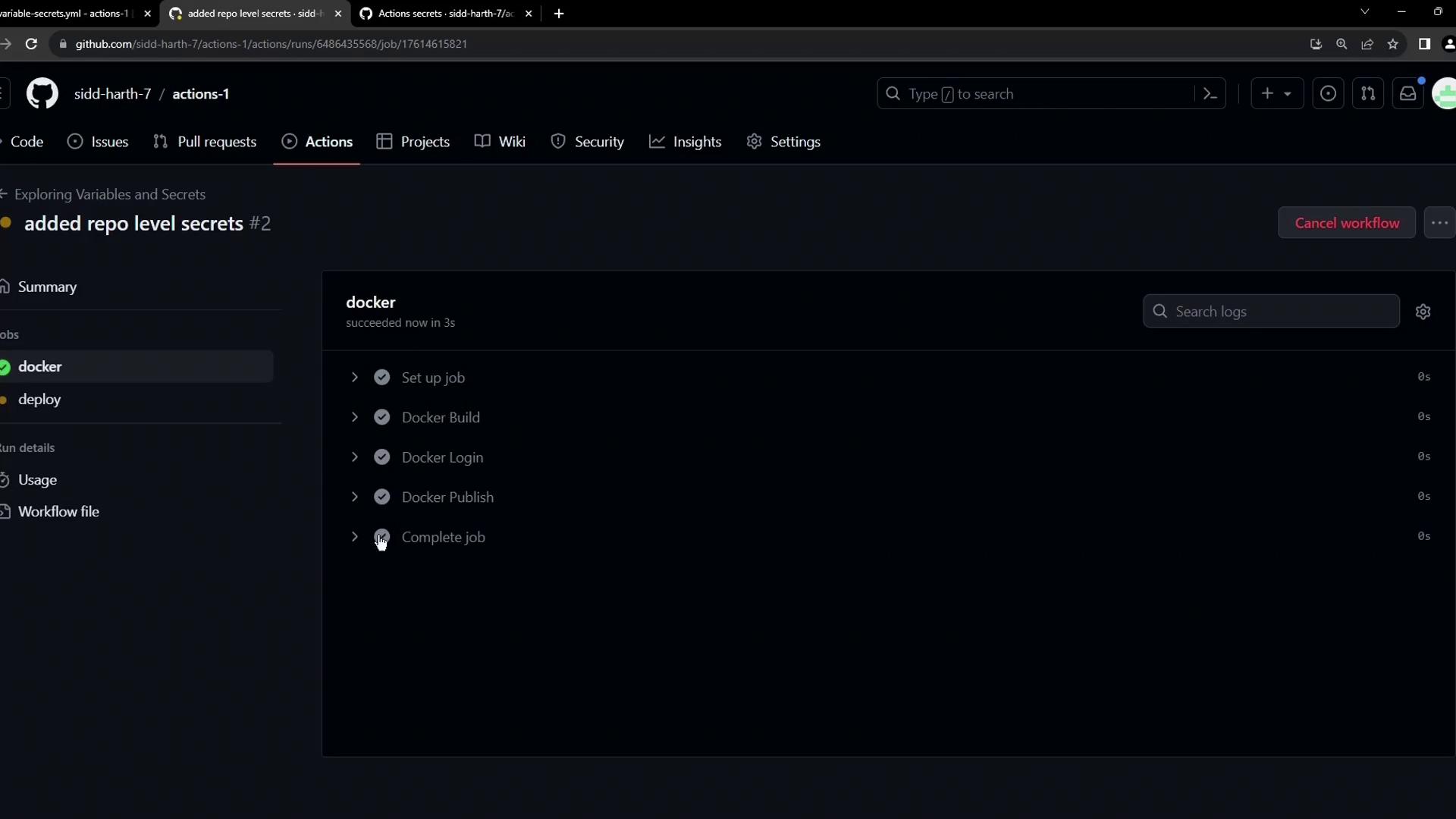
Expanding the **Docker Login** step confirms:
* The password is masked.
* The `DOCKER_USERNAME` is retrieved from the repository variable.
***
## Additional Resources
* [GitHub Actions: Encrypted secrets](https://docs.github.com/actions/security-guides/encrypted-secrets)
* [GitHub Actions: Variables](https://docs.github.com/actions/learn-github-actions/variables)
* [Managing environment secrets](https://docs.github.com/actions/deployment/targeting-different-environments/using-environments-for-deployment)