> ## Documentation Index
> Fetch the complete documentation index at: https://notes.kodekloud.com/llms.txt
> Use this file to discover all available pages before exploring further.
# Slack Notify GitHub Action
> Automate Slack notifications from GitHub Actions workflows to send build statuses, deployment alerts, and custom messages to any Slack channel.
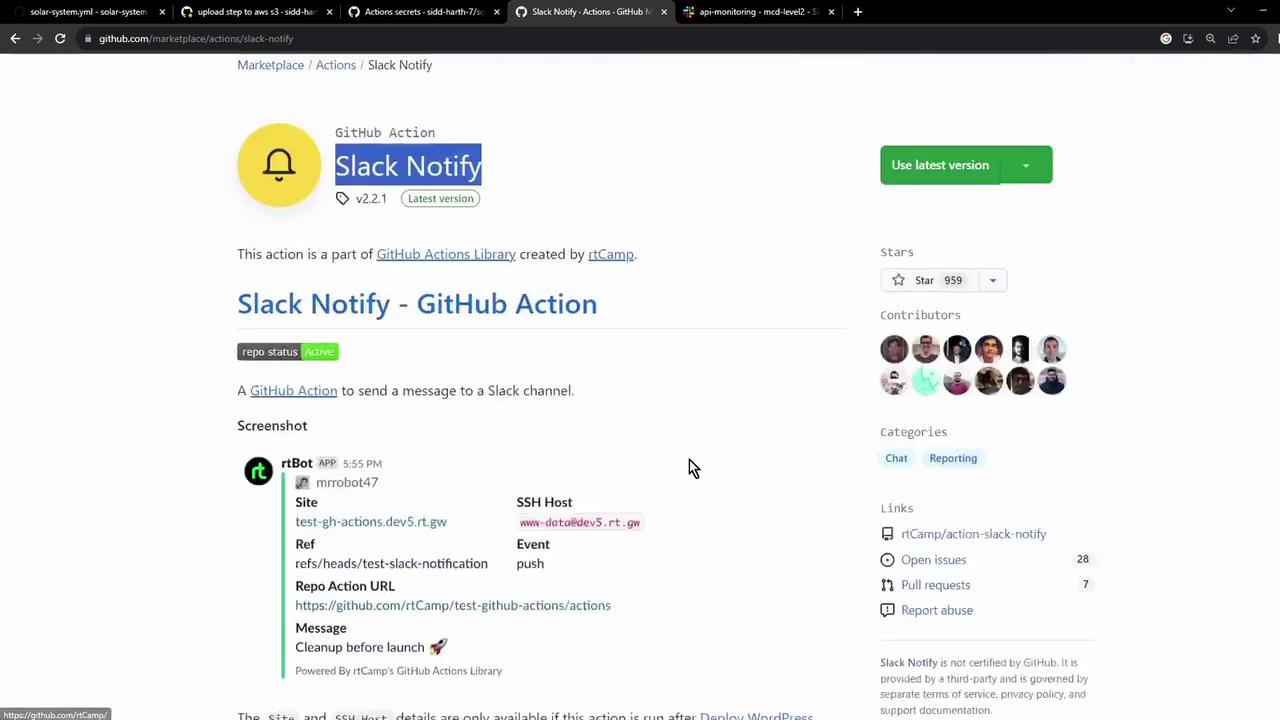
Learn how to automate Slack notifications directly from your GitHub Actions workflows using the [Slack Notify action by rtCamp](https://github.com/rtCamp/action-slack-notify). By the end of this guide, you’ll be able to send build statuses, deployment alerts, and custom messages to any Slack channel.
## Table of Contents
1. [Action Inputs Reference](#action-inputs-reference)
2. [Creating a Slack Channel & Webhook](#creating-a-slack-channel--webhook)
3. [Testing Your Webhook](#testing-your-webhook)
4. [Storing the Webhook as a GitHub Secret](#storing-the-webhook-as-a-github-secret)
5. [Adding the Slack Notification Job](#adding-the-slack-notification-job)
6. [Verifying Notifications in Slack](#verifying-notifications-in-slack)
7. [Using `if: always()` on Cancellation](#using-if-always-on-cancellation)
8. [Links and References](#links-and-references)
***
## Action Inputs Reference
Use the following environment variables to configure your Slack messages. At minimum, set `SLACK_CHANNEL` and `SLACK_WEBHOOK`.
| Variable | Description | Example |
| --------------- | ------------------------------------------------------------------- | --------------------------------------- |
| SLACK\_CHANNEL | Target Slack channel (name or ID) | `general` |
| SLACK\_WEBHOOK | Incoming Webhook URL (store securely as a secret) | `${{ secrets.SLACK_WEBHOOK }}` |
| SLACK\_COLOR | Message color: `good`, `warning`, `danger`, hex code, or job status | `${{ job.status }}` |
| SLACK\_ICON | URL to an icon or emoji | `https://github.com/rtCamp.png?size=48` |
| SLACK\_TITLE | Title of the notification | `Build Notification` |
| SLACK\_MESSAGE | Main message text, supports emojis | `Build Status :rocket:` |
| SLACK\_USERNAME | Username to display | `rtCamp` |
### Example Usage
```yaml theme={null}
- name: Slack Notification
uses: rtCamp/action-slack-notify@v2
env:
SLACK_CHANNEL: general
SLACK_WEBHOOK: ${{ secrets.SLACK_WEBHOOK }}
SLACK_COLOR: ${{ job.status }}
SLACK_ICON: https://github.com/rtCamp.png?size=48
SLACK_TITLE: Build Notification
SLACK_MESSAGE: 'Build Status :rocket:'
SLACK_USERNAME: rtCamp
```
Customize `SLACK_COLOR`, `SLACK_ICON`, and other fields to match your team’s branding or workflow context.
***
## Creating a Slack Channel & Webhook
1. In your Slack workspace, create a new channel (e.g., `github-actions-channel`).
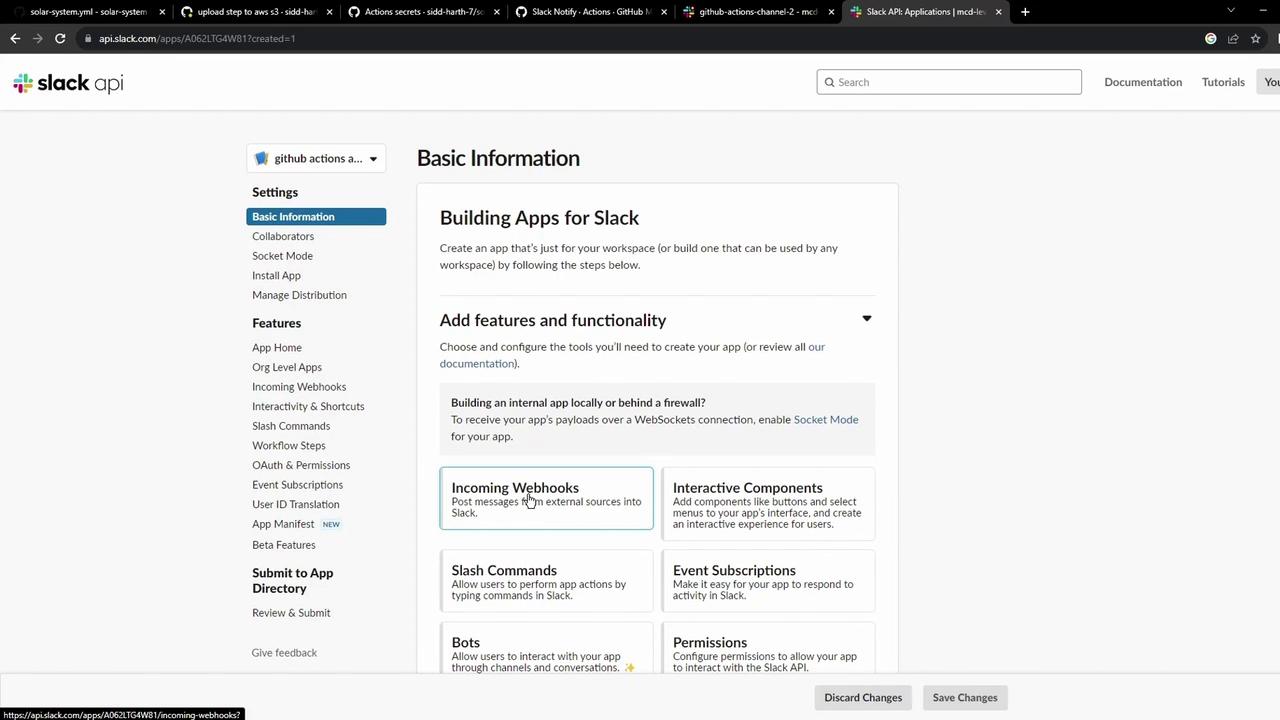
2. Navigate to [https://api.slack.com/apps](https://api.slack.com/apps) and click **Create New App** → **From scratch**.
3. Name the app **GitHub Actions application**, select your workspace, then **Create App**.
4. Under **Features**, enable **Incoming Webhooks** and click **Add to Workspace**.
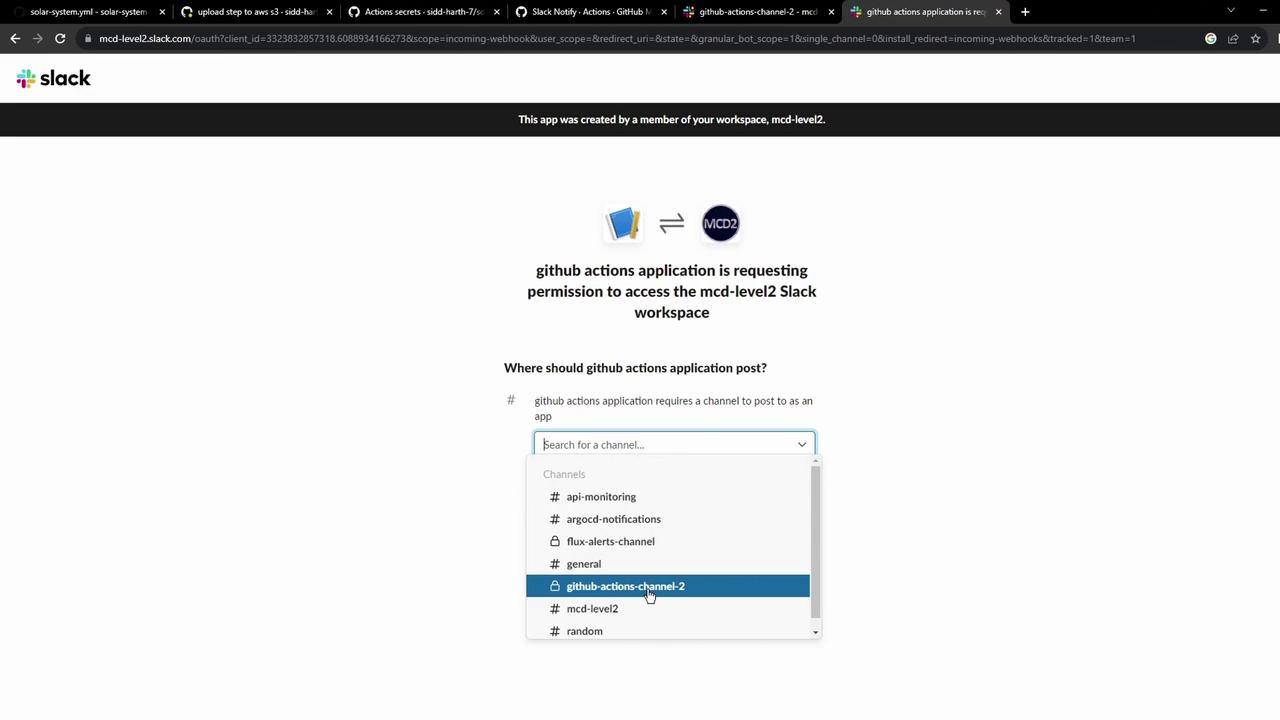
5. Choose your channel and click **Allow**. Copy the generated webhook URL.
***
## Testing Your Webhook
Before integrating into GitHub Actions, verify the webhook:
```bash theme={null}
curl -X POST -H 'Content-type: application/json' \
--data '{"text":"Hello, World!"}' YOUR_WEBHOOK_URL_HERE
```
***
## Storing the Webhook as a GitHub Secret
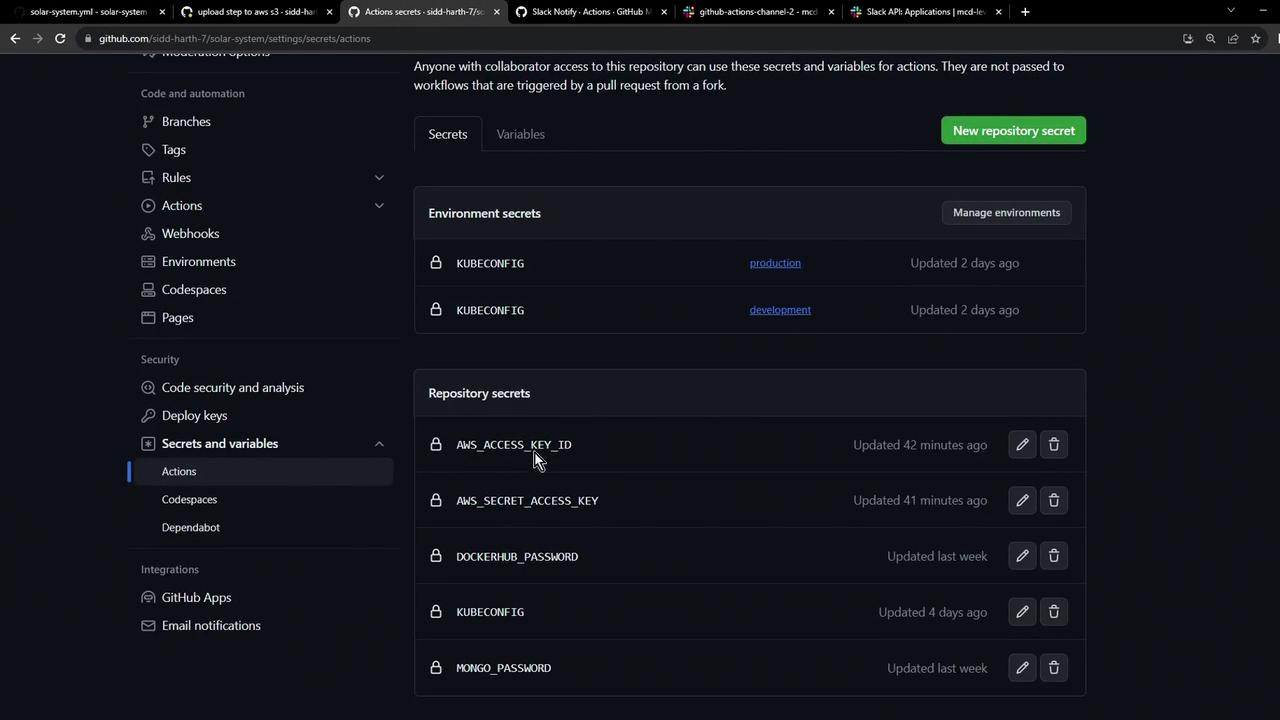
1. In your GitHub repository, go to **Settings > Secrets and variables > Actions**.
2. Click **New repository secret**, name it `SLACK_WEBHOOK`, and paste your webhook URL.
Never hard-code your Slack webhook URL in public workflows. Always use GitHub Secrets to protect sensitive information.
***
## Adding the Slack Notification Job
Incorporate the Slack notification at the end of your workflow to report statuses on success, failure, or cancellation. Below is a sample workflow:
```yaml theme={null}
on:
push:
branches:
- main
- 'feature/*'
env:
MONGO_URI: 'mongodb+srv://supercluster.d83jj.mongodb.net/superData'
MONGO_USERNAME: ${{ vars.MONGO_USERNAME }}
MONGO_PASSWORD: ${{ secrets.MONGO_PASSWORD }}
jobs:
unit-testing:
# ...
code-coverage:
# ...
dev-integration-testing:
# ...
prod-integration-testing:
# ...
slack-notification:
if: always()
name: Slack Notification
needs: [dev-integration-testing, prod-integration-testing]
continue-on-error: true
runs-on: ubuntu-latest
steps:
- uses: actions/checkout@v4
- name: Send Slack Notification
uses: rtCamp/action-slack-notify@v2
env:
SLACK_WEBHOOK: ${{ secrets.SLACK_WEBHOOK }}
SLACK_CHANNEL: github-actions-channel
SLACK_COLOR: ${{ job.status }}
SLACK_ICON: https://gitlab.com/sidd-harth/solar-system/-/raw/main/images/saturn.png
SLACK_TITLE: Workflow Status
SLACK_MESSAGE: ':hammer_and_wrench: Triggered by ${{ github.actor }}'
```
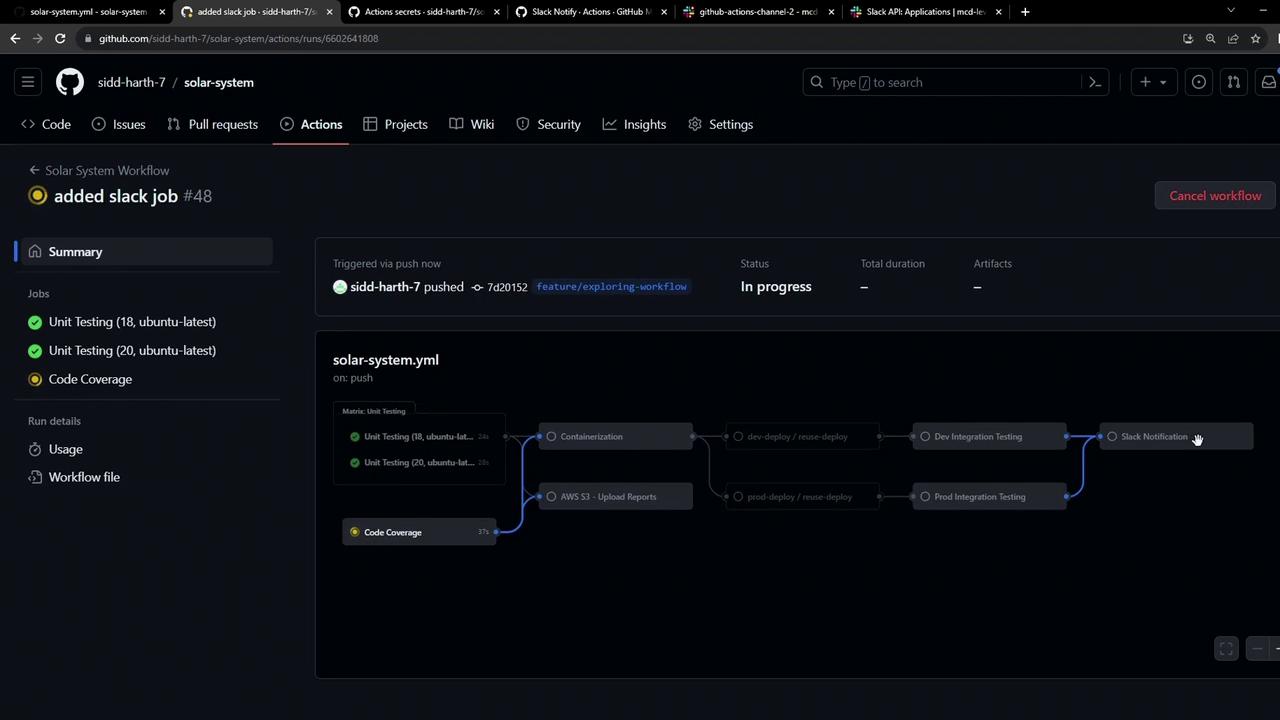
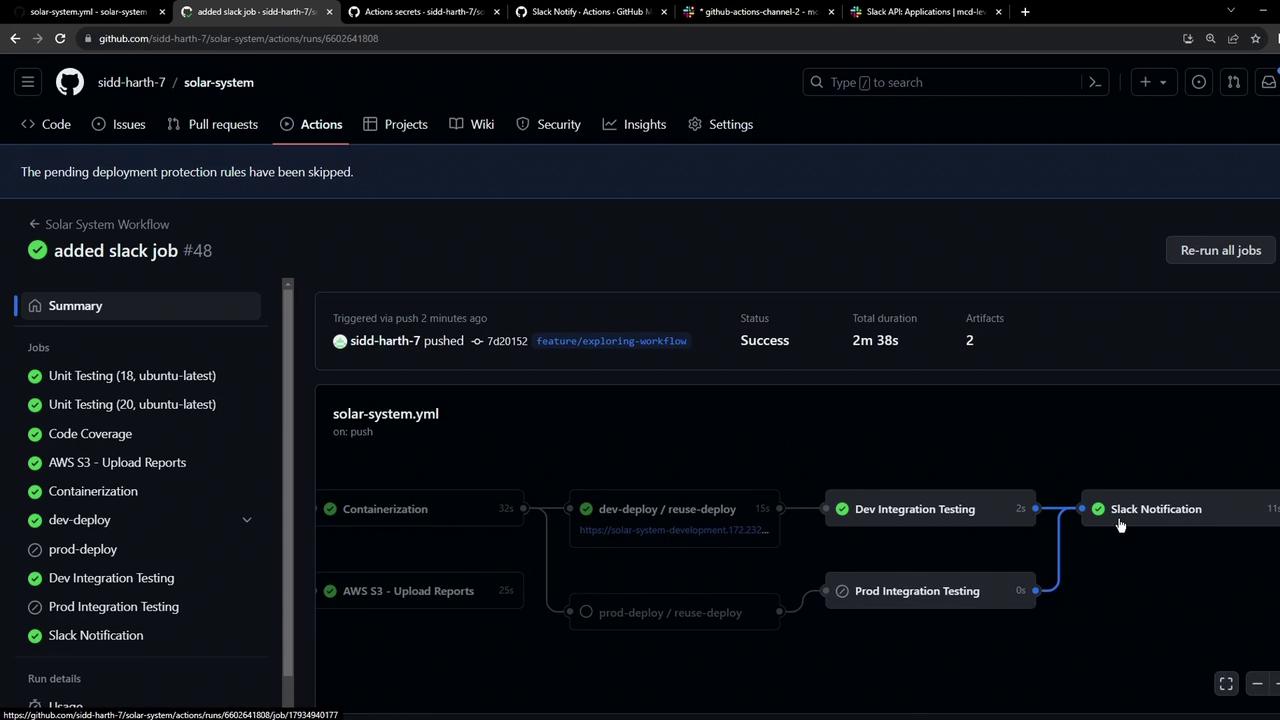
After the run completes, view the summary:
***
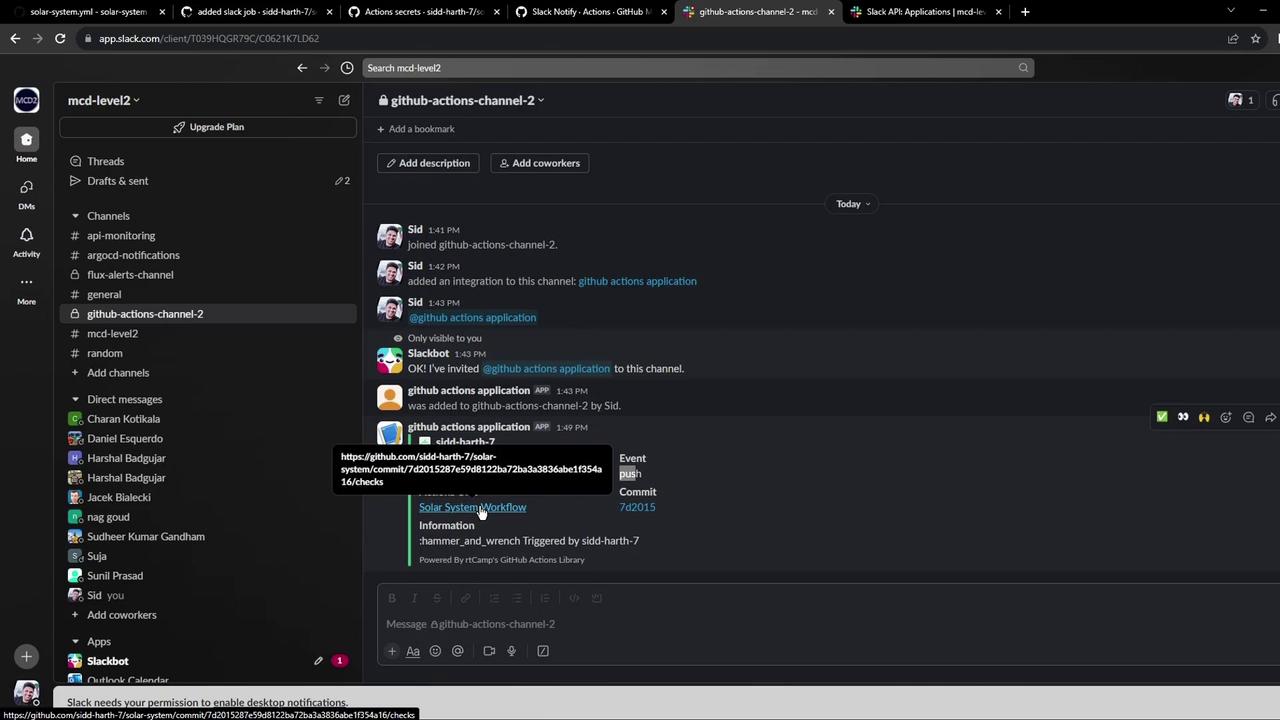
## Verifying Notifications in Slack
Open your Slack channel (`github-actions-channel`) and confirm receipt of the notification:
***
## Using `if: always()` on Cancellation
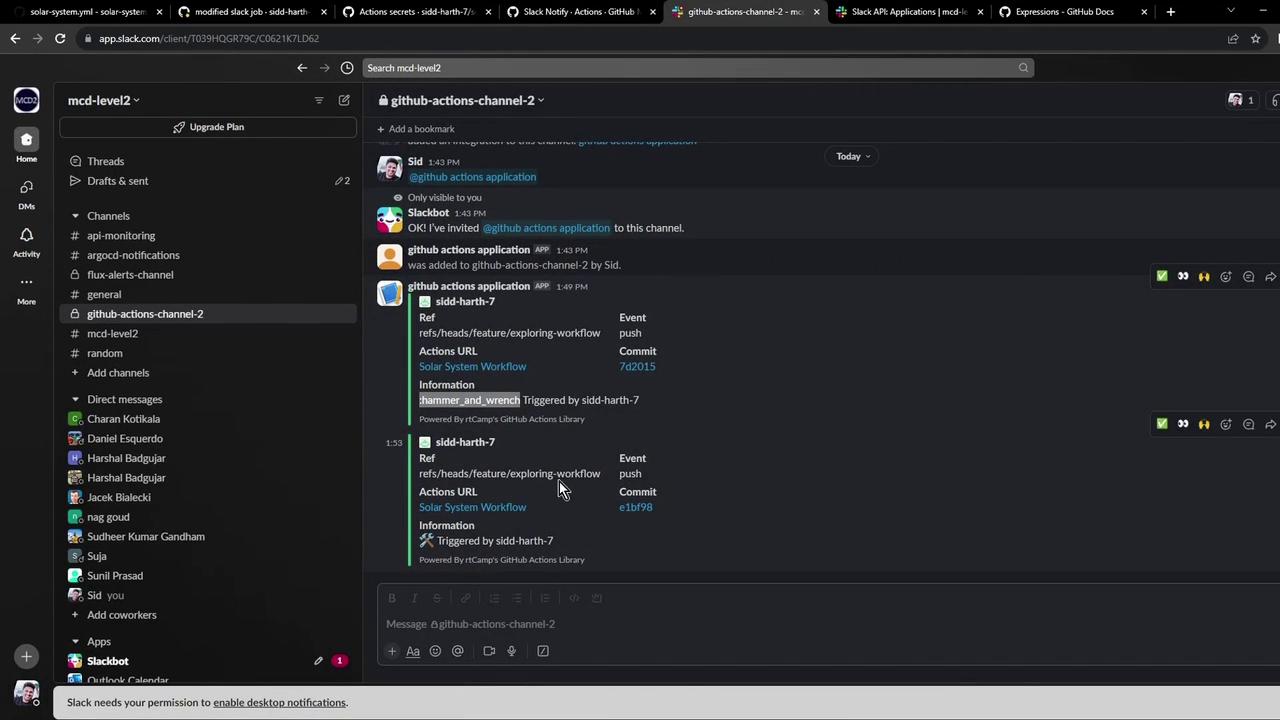
By using `if: always()`, your Slack notification step will run even if the workflow is manually canceled or fails. See [GitHub Actions expressions](https://docs.github.com/en/actions/learn-github-actions/expressions) for more details.
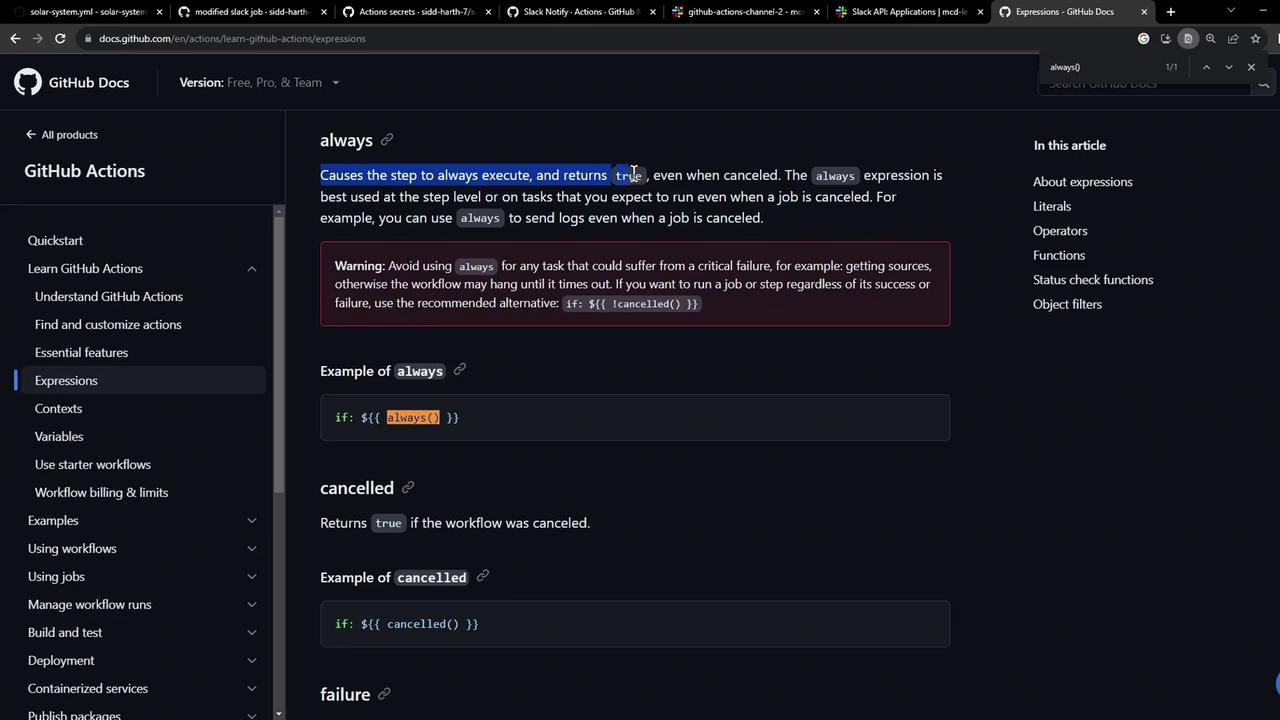
When you cancel the workflow mid-run, the notification still fires:
***
## Links and References
* [rtCamp/action-slack-notify GitHub Repository](https://github.com/rtCamp/action-slack-notify)
* [Slack Incoming Webhooks Documentation](https://api.slack.com/messaging/webhooks)
* [GitHub Actions Expressions](https://docs.github.com/en/actions/learn-github-actions/expressions)
* [GitHub Docs: Secrets](https://docs.github.com/en/actions/security-guides/encrypted-secrets)