> ## Documentation Index
> Fetch the complete documentation index at: https://notes.kodekloud.com/llms.txt
> Use this file to discover all available pages before exploring further.
# Adding a workflow status badge
> This article explains how to add a workflow status badge to a GitHub repository for visual indicators of CI/CD pipeline status.
A workflow status badge provides a quick visual indicator of your GitHub Actions workflow’s current state. Embedding this badge in your repository’s `README.md` (or any documentation page) helps contributors and visitors instantly see if your CI/CD pipelines are passing or failing.
## Benefits of Workflow Badges
* Improves transparency on build health
* Boosts contributor confidence
* Encourages proactive maintenance
Badges are dynamic images that update automatically each time your workflow runs. You can filter by branch or event to display the status you care about.
## Steps to Generate a Status Badge
1. Open the **Actions** tab in your GitHub repository.
2. Select the workflow you want to badge.
3. Click **Create status badge** (under **More** or directly on the workflow page).
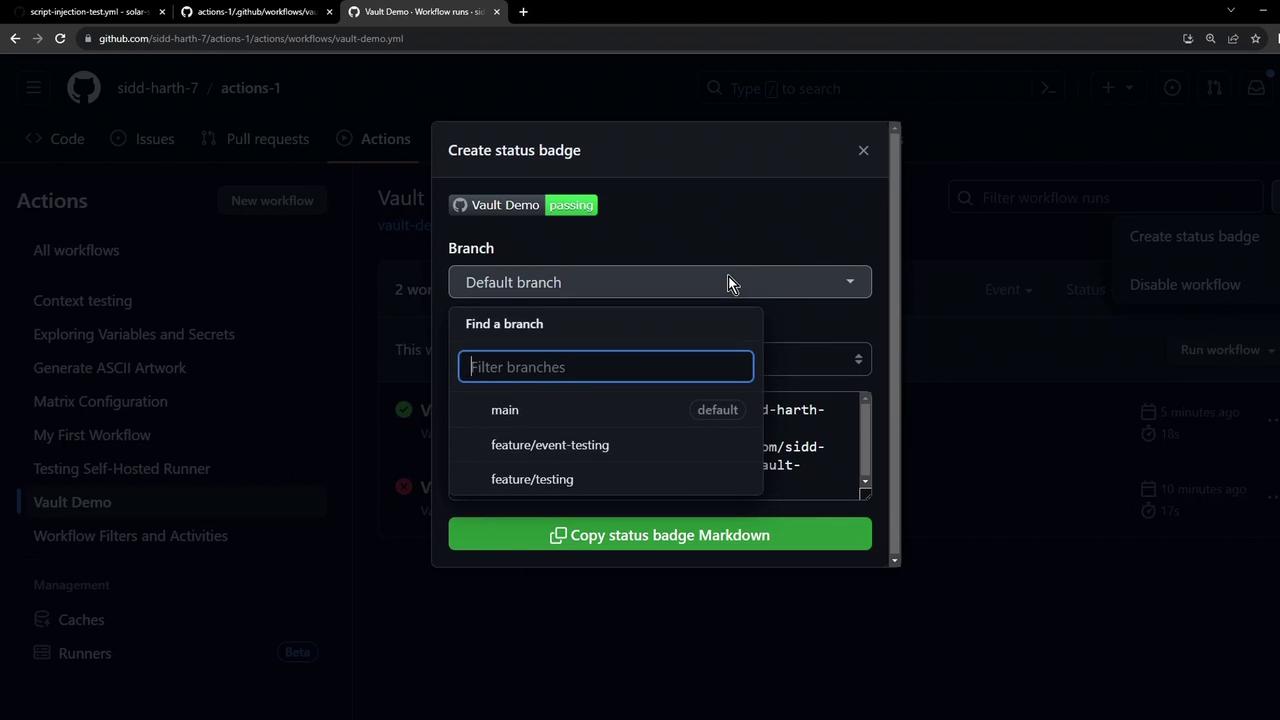
4. In the pop-up, choose your target branch (e.g., `main` or `develop`) and any event filters.
5. Click **Copy status badge Markdown** to grab the snippet.
### Badge Markdown Breakdown
| Component | Description | Example |
| --------- | ----------------------------------- | ------------------------------------------------------------------------------ |
| Alt text | Accessible name for the badge image | `Vault Demo` |
| Image URL | Workflow badge SVG | `https://github.com///actions/workflows/vault-demo.yml/badge.svg` |
| Link URL | Links to workflow run history | `https://github.com///actions/workflows/vault-demo.yml` |
## Embedding the Badge in Your README
Paste the copied snippet at the top of your `README.md`:
```markdown theme={null}
[](https://github.com/sidd-harth-7/actions-1/actions/workflows/vault-demo.yml)
```
Repeat for additional workflows (for example, **Exploring Variables and Secrets**).
Too many badges can clutter your README. Group or reorder them logically to maintain readability.
## Commit and Push
Commit your updates and push them to GitHub. To skip CI on this commit, include `[skip ci]`:
```bash theme={null}
git add README.md
git commit -m "docs: add workflow status badges [skip ci]"
git push
```
After pushing, visit your repository’s main page. The status badges will appear at the top of your README, reflecting real-time workflow results.
## Links and References
* [GitHub Actions Documentation](https://docs.github.com/actions)
* [Understanding GitHub Actions](https://docs.github.com/actions/learn-github-actions/understanding-github-actions)