> ## Documentation Index
> Fetch the complete documentation index at: https://notes.kodekloud.com/llms.txt
> Use this file to discover all available pages before exploring further.
# Context Manipulation with Copilot
> This guide explores context manipulation techniques to enhance GitHub Copilots code generation accuracy and relevance for specific projects.
Context is the key differentiator that determines whether GitHub Copilot offers generic code snippets or project-specific, high-value completions. By mastering context-manipulation techniques, you’ll guide Copilot’s AI to generate accurate, relevant code aligned with your coding standards and project needs.
In this guide, we’ll explore why context matters, define its types, and share practical tips to shape it effectively.
***
## Why Context Matters
Copilot relies on context to transform from a generic generator into a personalized coding assistant. Supplying the right information up front helps you:
* Improve suggestion relevance by guiding Copilot’s understanding
* Minimize back-and-forth clarifications for a smoother workflow
* Boost development efficiency by reducing post-generation edits
***
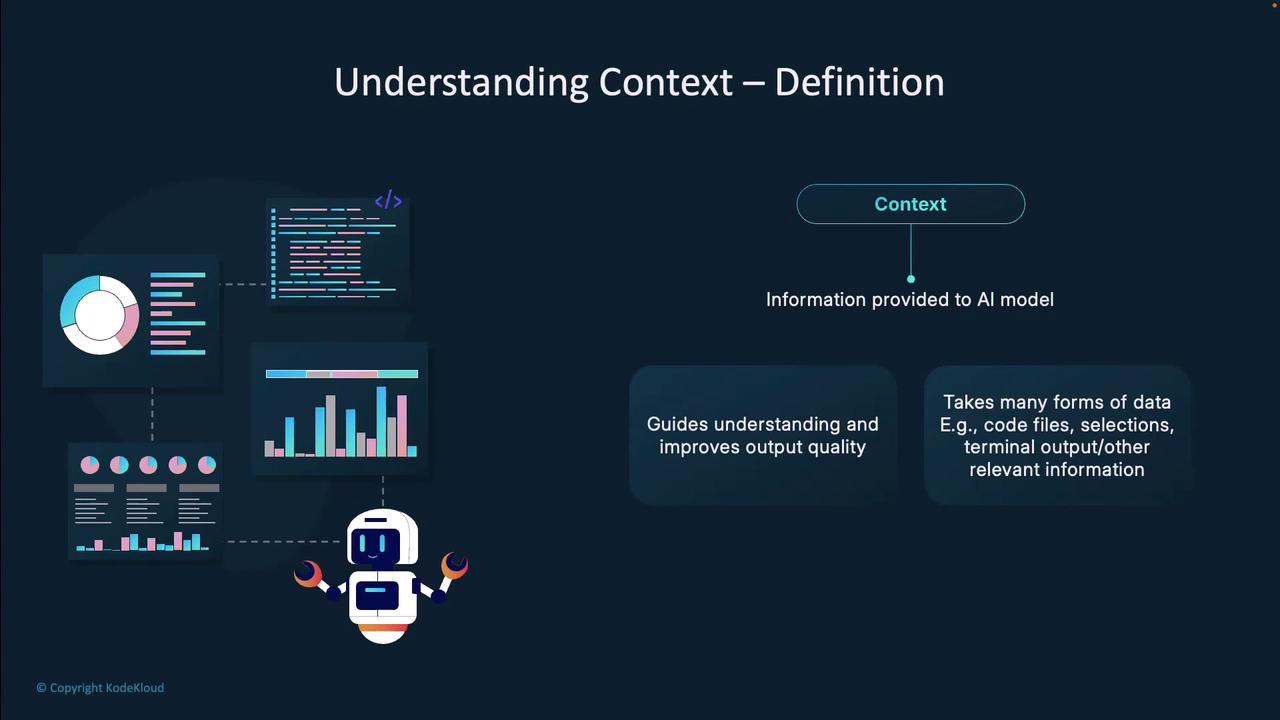
## Defining Context
Context includes any data provided to the AI model to help it understand your goals:
* Open files, project structure, and selected code in your editor
* Terminal output (error messages, command results)
* Project notes, documentation, or design specs
***
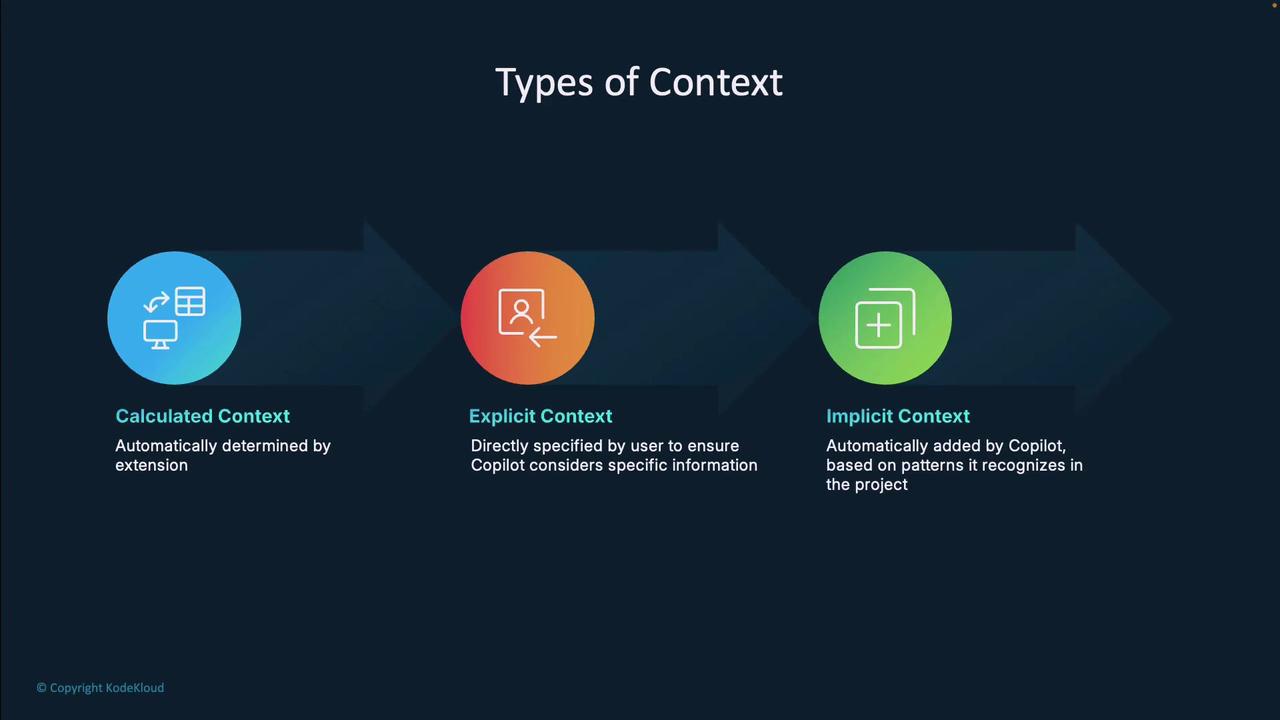
## Types of Context
Copilot’s suggestions draw from three primary context sources:
| Context Type | Description | Example |
| ------------ | --------------------------------------------------- | ----------------------------------------------- |
| Calculated | Files and snippets Copilot auto-selects as relevant | Analyzing prompt to pick matching project files |
| Explicit | Manually supplied via prompts, references, or files | `#selection`, file attachments |
| Implicit | Derived from open/edited files and selections | Current file buffer and highlighted code |
***
## Calculated Context
Calculated context minimizes manual work: Copilot analyzes your request and automatically includes relevant code snippets and files. For instance, in an Agentic Workspace scenario, it selects files that match your prompt criteria.
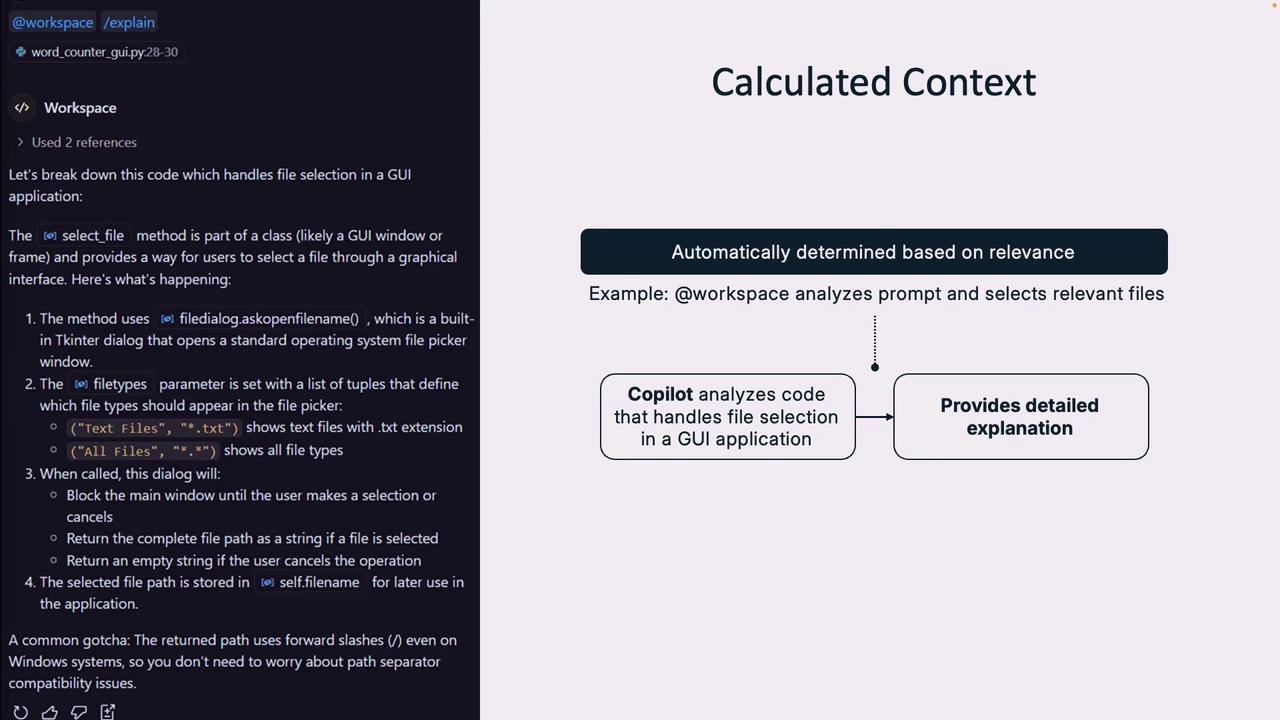
Below is a simplified example of a text-processing GUI that Copilot might pull into context:
```python theme={null}
import tkinter as tk
from tkinter import filedialog
from matplotlib.figure import Figure
class WordCountApp:
def __init__(self, root):
self.file_button = tk.Button(root, text="Select File", command=self.select_file)
self.file_button.pack(pady=5)
tk.Label(root, text="Number of top words:").pack()
self.n_words = tk.Entry(root)
self.n_words.insert(0, "20")
self.n_words.pack()
self.plot_button = tk.Button(root, text="Plot", command=self.plot)
self.plot_button.pack(pady=5)
self.plot_frame = tk.Frame(root)
self.plot_frame.pack(fill=tk.BOTH, expand=True)
self.filename = None
def select_file(self):
self.filename = filedialog.askopenfilename(
filetypes=[("Text Files", "*.txt"), ("All Files", "*.*")]
)
def plot(self):
if not self.filename:
return
for widget in self.plot_frame.winfo_children():
widget.destroy()
words = self.read_and_clean_text(self.filename)
word_count = self.count_words(words)
top_n = int(self.n_words.get())
sorted_counts = self.sort_by_count(word_count, top_n)
self.plot_word_count(sorted_counts)
def read_and_clean_text(self, path):
# Read file and return cleaned list of words
...
def count_words(self, words):
counts = {}
for w in words:
counts[w] = counts.get(w, 0) + 1
return counts
def sort_by_count(self, counts, n):
return dict(sorted(counts.items(), key=lambda x: x[1], reverse=True)[:n])
def plot_word_count(self, counts):
fig = Figure(figsize=(10, 6))
ax = fig.add_subplot(111)
ax.bar(counts.keys(), counts.values())
# Embed fig in self.plot_frame
```
***
## Explicit Context
Explicit context gives you full control over what Copilot considers. You can specify it by:
* Writing clear, descriptive prompts
* Using reference tags like `#selection`, `#editor`, or `#file:utils.py`
* Attaching files or data for Copilot to process
Combine natural language with context references for precise guidance. For example:\
“Refactor `#selection` to improve error handling in `#file:data_loader.py`.”
***
## Implicit Context
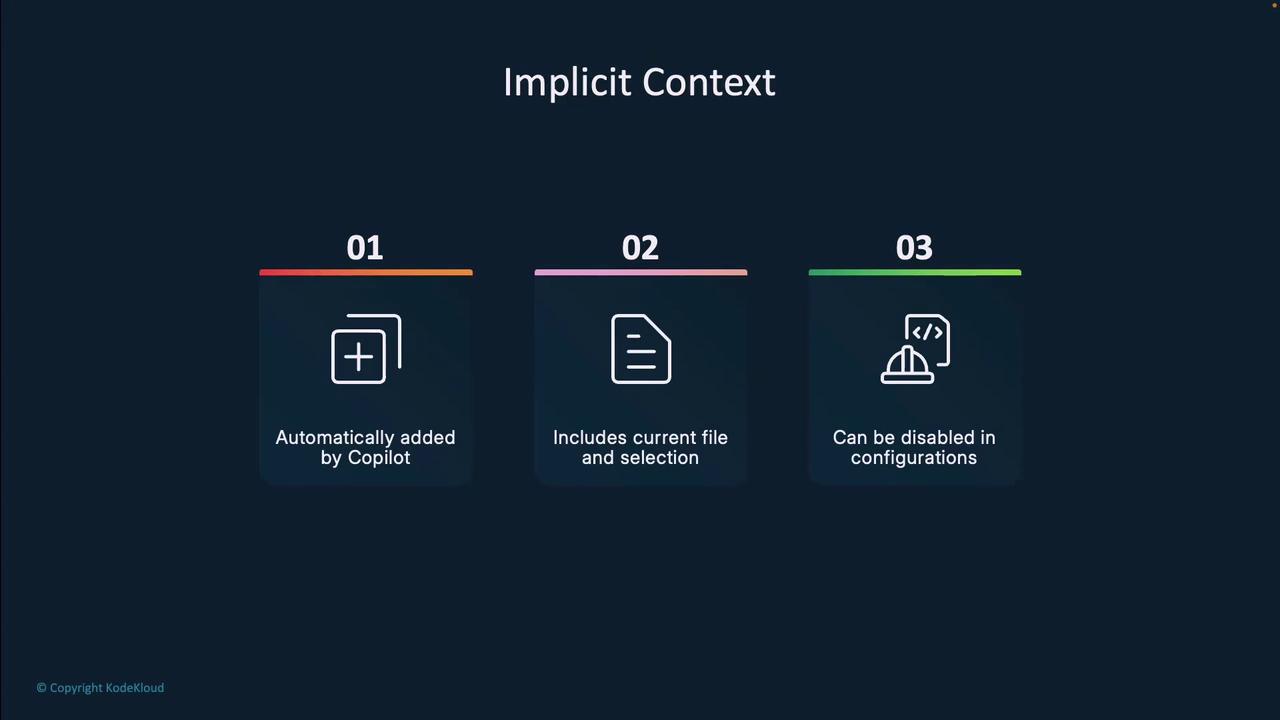
Implicit context is automatically inferred from your workspace activity:
* Captures the open file and any selected text
* Can be disabled in settings for more explicit control
In very large codebases, implicit context may include irrelevant files. Disable it in settings to prevent suggestion confusion.
***
## Additional Context Sources
Copilot can reference multiple environment inputs:
* Code files & project structure
* Current editor selection
* Terminal output (errors, command results)
* Source control diffs and commits
These sources give Copilot a full picture of your project when generating suggestions.
***
## Specialized Agents
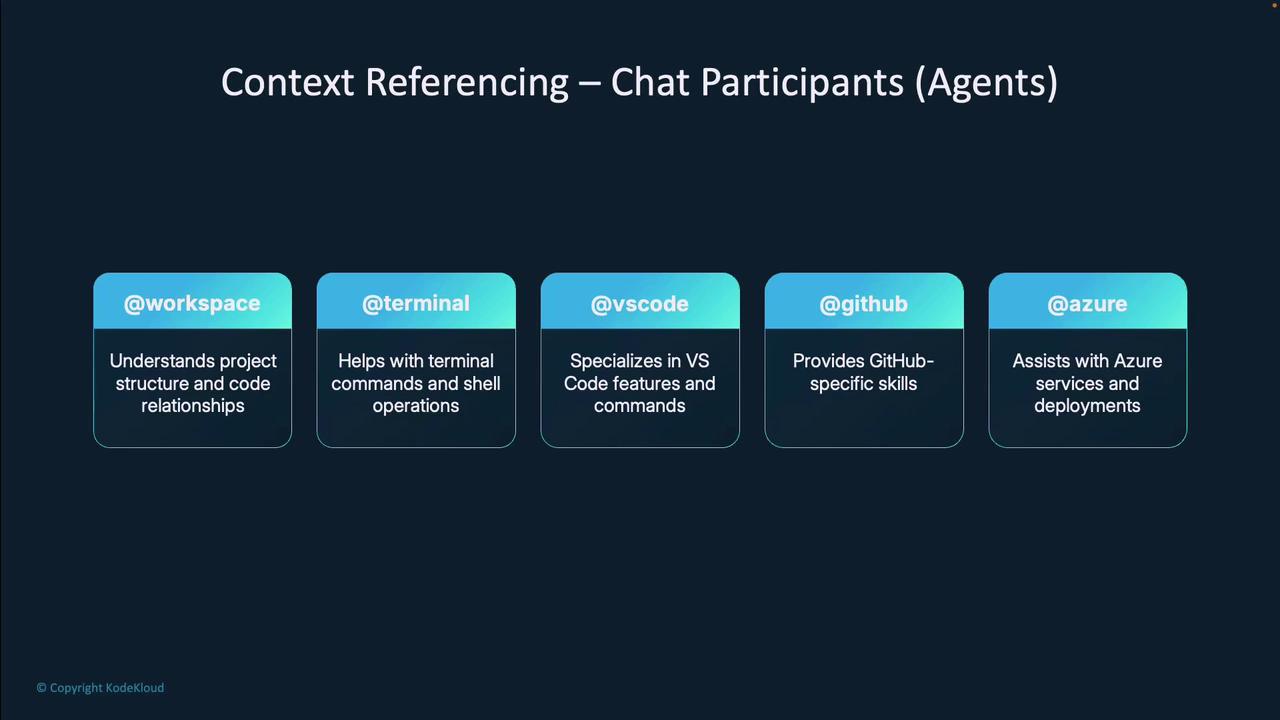
Invoke focused assistants with the `@` symbol to tap domain-specific knowledge:
| Agent | Purpose |
| ---------- | -------------------------------------------------- |
| @workspace | Understands project structure & code relationships |
| @terminal | Runs shell commands and interprets output |
| @vscode | Provides VS Code feature guidance |
| @github | Handles GitHub workflows and metadata |
| @azure | (Preview) Assists with Azure service deployments |
Mention `@workspace` or `@terminal` in your query to route questions to the right Copilot agent.
***
## Context Referencing in Prompts
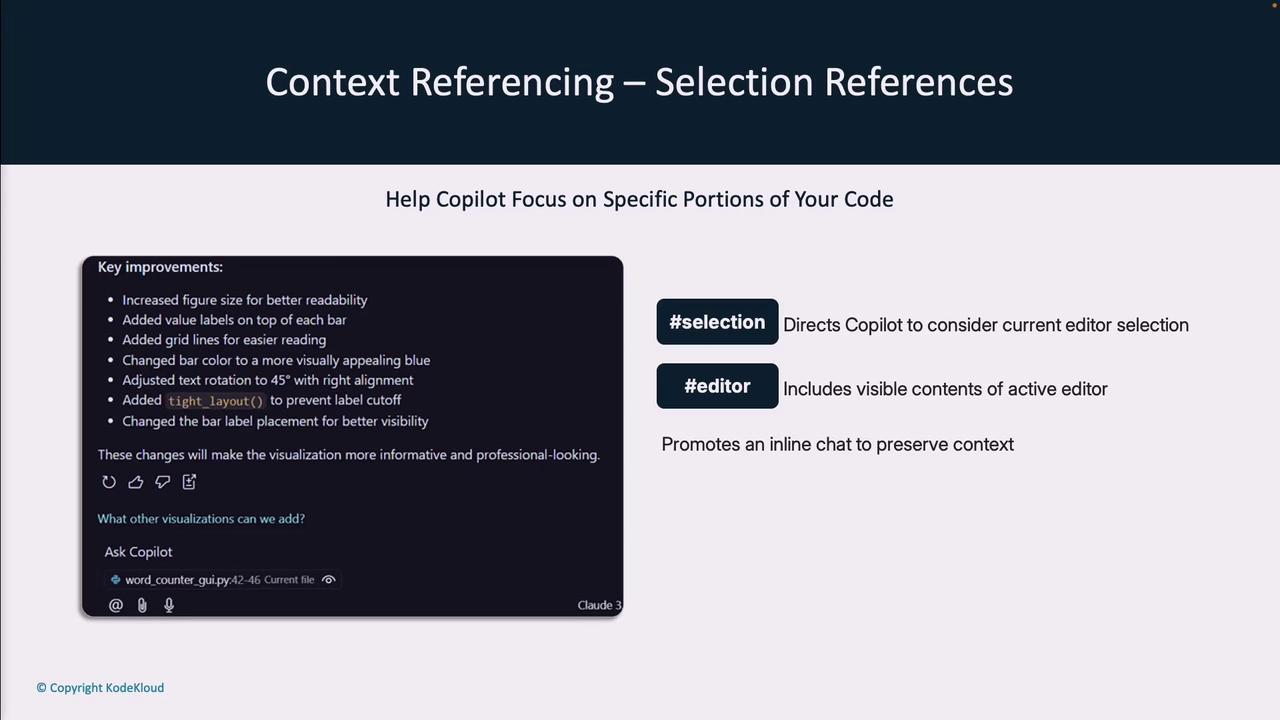
Use these tags to focus Copilot on specific parts of your code:
* `#file:filename.py` — Target a particular file
* `#symbol:MyClass` — Reference a class, function, or variable
* `#selection` — Include only the selected code
* `#editor` — Pass the full open file contents
These references combined with clear instructions let you zero-in on the exact code you’re working on.
***
## Terminal & Source Control References
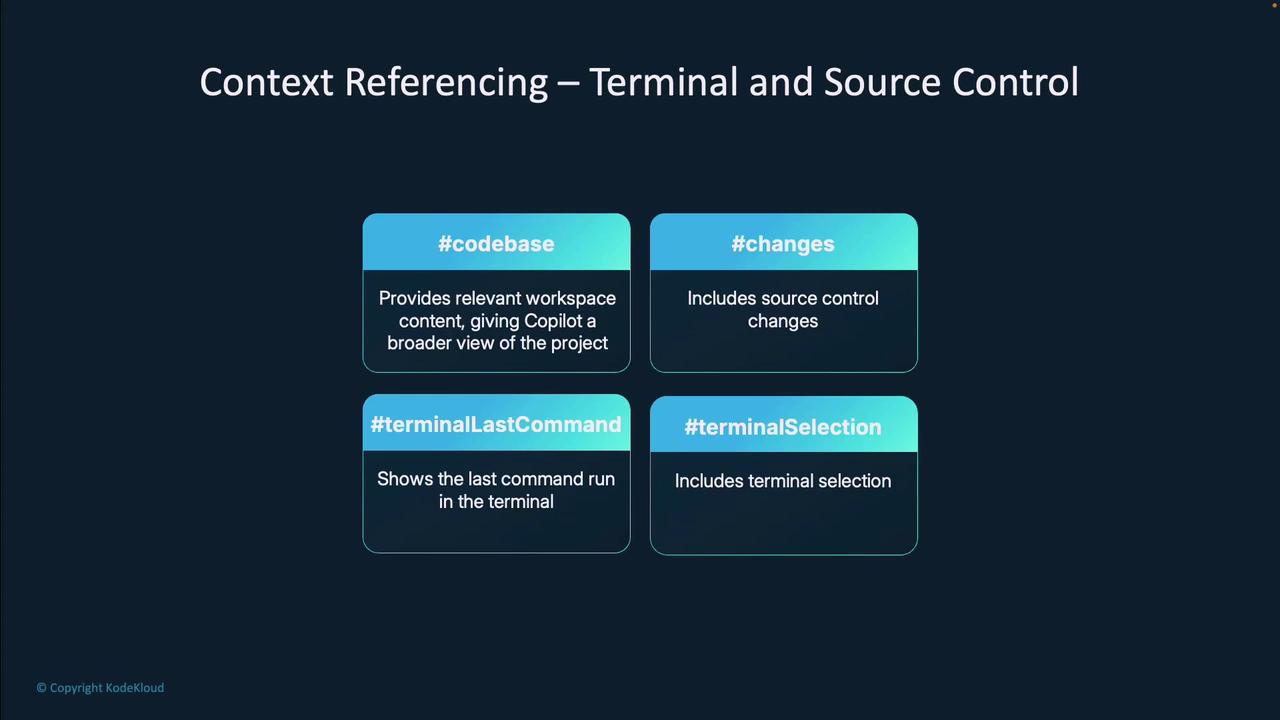
For debugging or reviewing recent changes, include:
* `#codebase` — Entire workspace context
* `#changes` — Git diffs and staged modifications
* `#terminalLastCommand` — Your last executed shell command
* `#terminalSelection` — Selected terminal output
***
## Custom Instructions
For ultimate control, add a `github-copilot-instructions.md` file in your repo root. Copilot will load these guidelines for every session:
```markdown theme={null}
# Project Context
This is a Word Count project that processes text files to count words.
## Project Structure
data/ # Contains input text files for processing
README.md # Project documentation
## Folder Details
### Root Folder (/)
- Main project files and configuration
- Primary workspace for source code
- Location for build and project configs
```
You can create multiple instruction files—for docs, testing, or deployment—while keeping context concise and focused.
***
## Links and References
* [GitHub Copilot Documentation](https://docs.github.com/copilot)
* [Copilot Context Management](https://docs.github.com/copilot/context)
* [VS Code Extensions](https://marketplace.visualstudio.com/vscode)
* [Python Tkinter Reference](https://docs.python.org/3/library/tkinter.html)
By strategically shaping and managing context, you’ll unlock Copilot’s full potential—generating accurate, relevant code suggestions that enhance your productivity every day.