> ## Documentation Index
> Fetch the complete documentation index at: https://notes.kodekloud.com/llms.txt
> Use this file to discover all available pages before exploring further.
# Demo GitHub Copilot for the Command Line
> This article provides a guide on using GitHub Copilot in the command line to enhance terminal productivity with AI-driven suggestions.
Welcome to our hands-on guide showing how to turbocharge your terminal with AI-driven suggestions. GitHub Copilot brings context-aware command completions, explanations, and chat directly into your shell—boosting productivity on macOS, Linux, and Windows.
## Getting Started
You can activate Copilot in your terminal using one of two methods:
| Method | Requirements | Key Commands |
| ----------------------- | ------------------------------------------------- | ----------------------------------------------------------------- |
| GitHub CLI | GitHub Copilot subscription, GitHub CLI installed | `brew install gh`
`gh extension install github/gh-copilot` |
| Windows Terminal Canary | Windows Terminal Canary build | Configure Copilot in Terminal settings |
### 1. GitHub CLI Method
A [GitHub Copilot subscription](https://github.com/features/copilot) is required (free for eligible users).
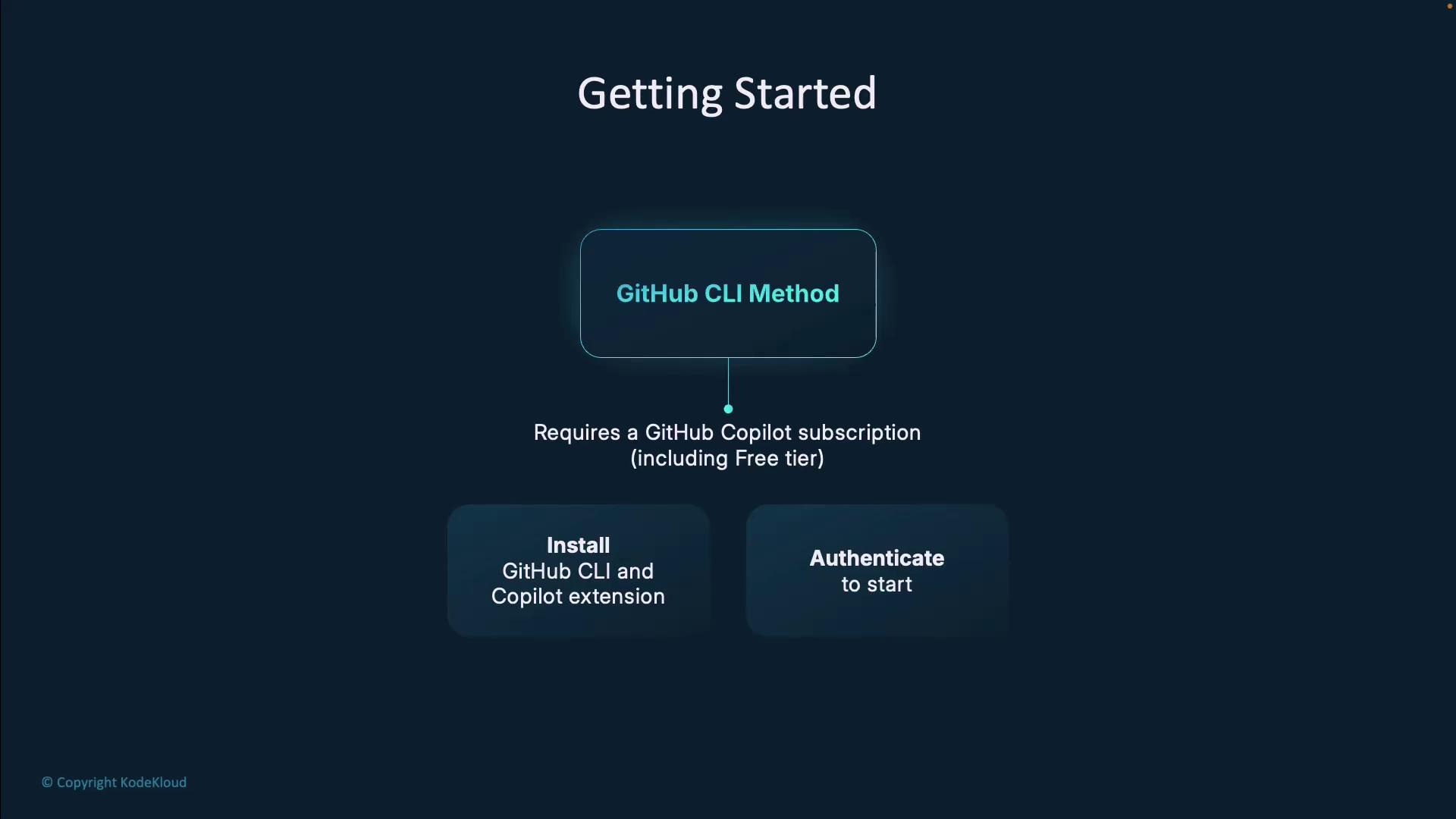
1. Install GitHub CLI
```bash theme={null}
# macOS (Homebrew)
brew install gh
# Ubuntu/Debian
sudo apt update && sudo apt install gh
```
2. Authenticate to GitHub
```bash theme={null}
gh auth login
```
3. Install Copilot extension
```bash theme={null}
gh extension install github/gh-copilot
```
4. Verify setup
```bash theme={null}
gh copilot --help
```
### 2. Windows Terminal Canary Method
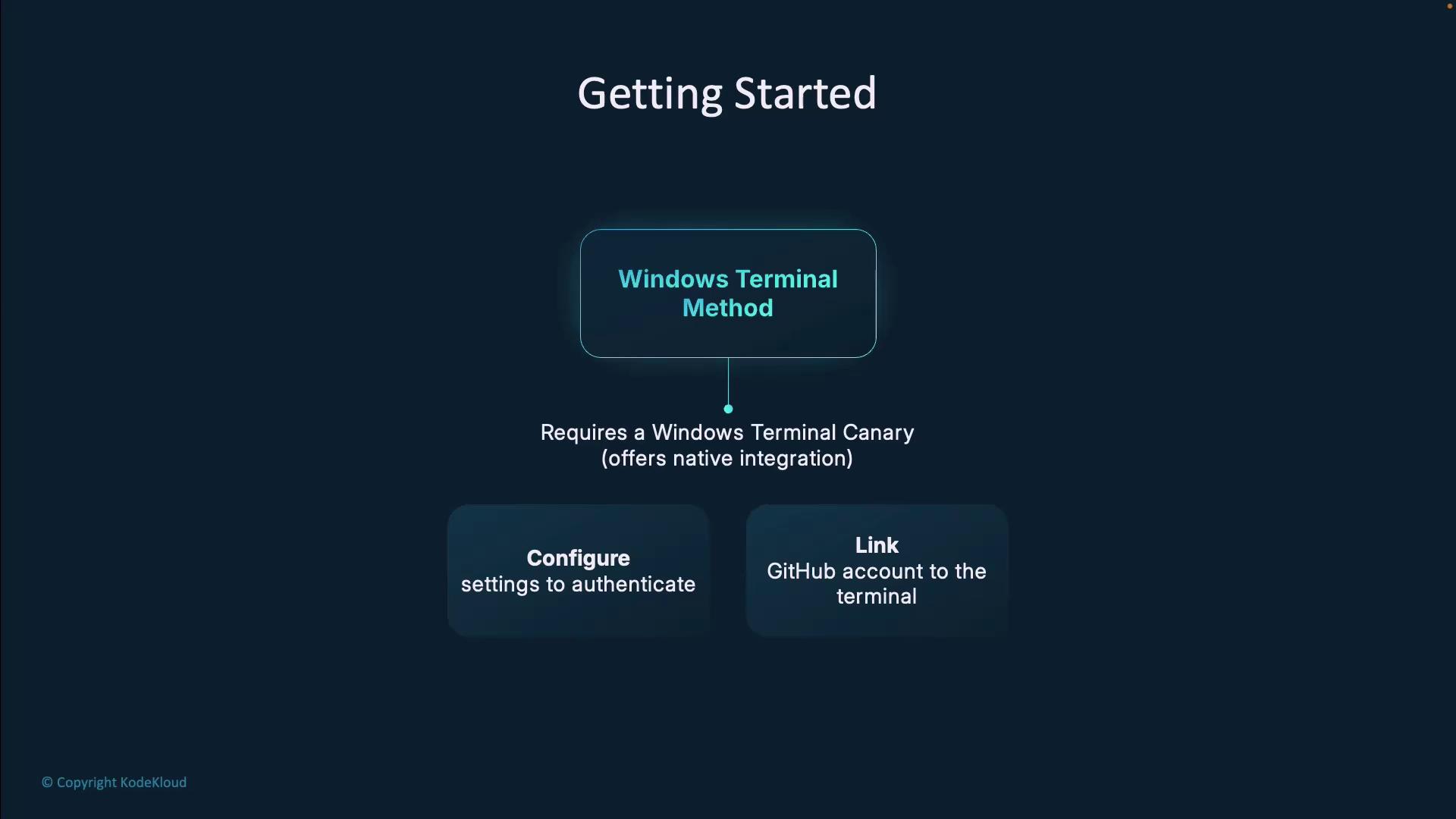
1. Install Windows Terminal Canary from the Microsoft Store.
2. Open **Settings → Copilot** and **Sign in with GitHub**.
3. Restart the terminal to enable AI suggestions natively.
***
## Context & Prompting
Copilot’s *prompt* is the code and comments around your cursor. Better context means smarter suggestions. Copilot now:
* Extracts nearby code, open tabs, and imports
* Scans project files for relevant patterns
* Achieves a \~35% acceptance rate on prompts (vs. \~20% at preview)
Experiment by including clear comments or function signatures before your cursor to get precise completions.
***
## Command-Line Features
* **Explain**: Summarize commands in plain English.
* **Suggest**: Generate ready-to-use commands.
* **Chat**: Interactive Q\&A via `gh copilot chat`.
***
## Shell Aliases
Save keystrokes by defining shortcuts in your shell config:
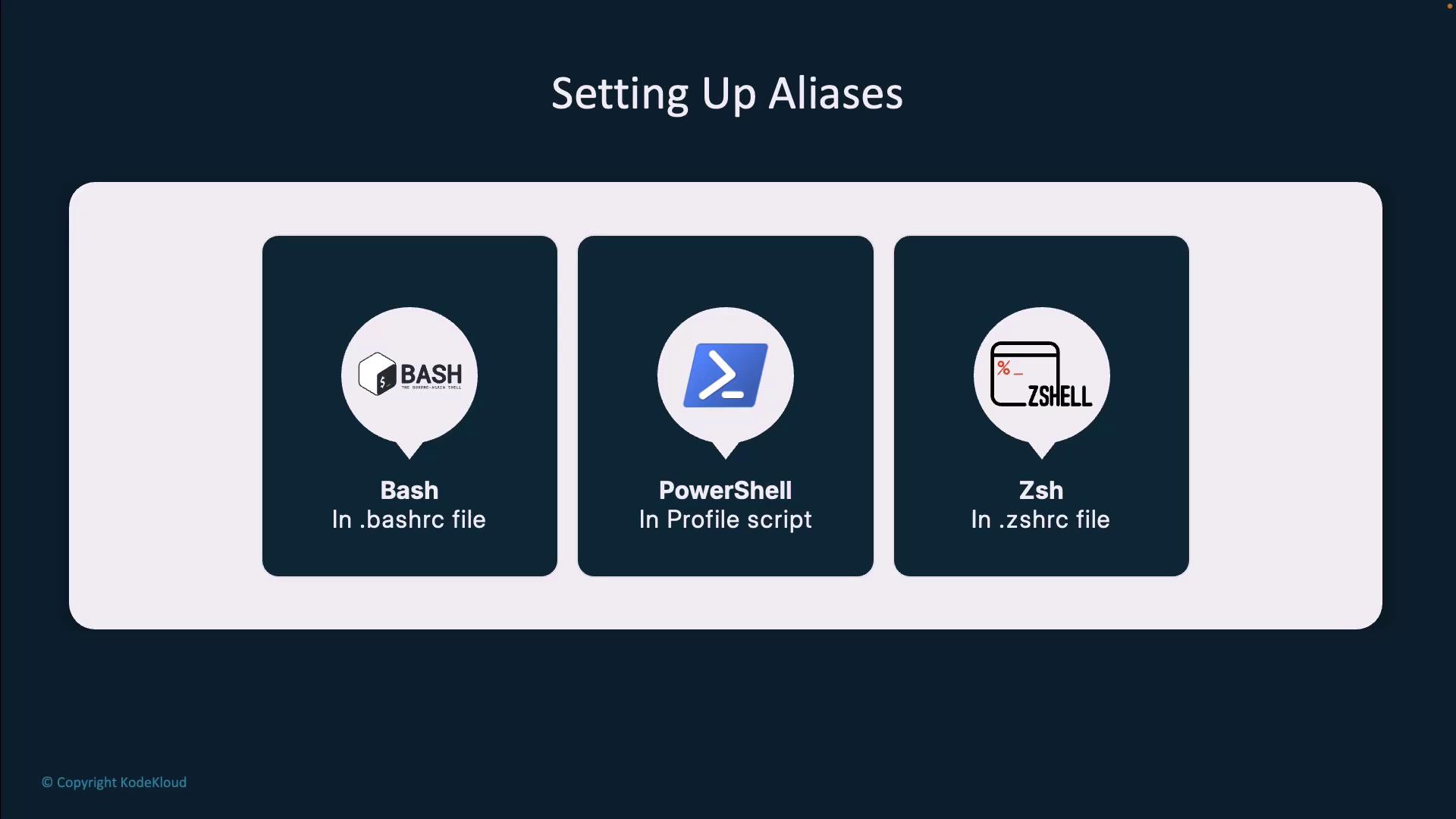
| Shell | Config File | Alias Example |
| ---------- | -------------- | ----------------------------------- |
| Bash | `~/.bashrc` | `alias ghcs="gh copilot suggest"` |
| Zsh | `~/.zshrc` | `alias ghce="gh copilot explain"` |
| PowerShell | Profile script | `Set-Alias ghcs gh copilot suggest` |
Reload your shell (`source ~/.bashrc` or restart) to apply.
***
## Practical Use Cases
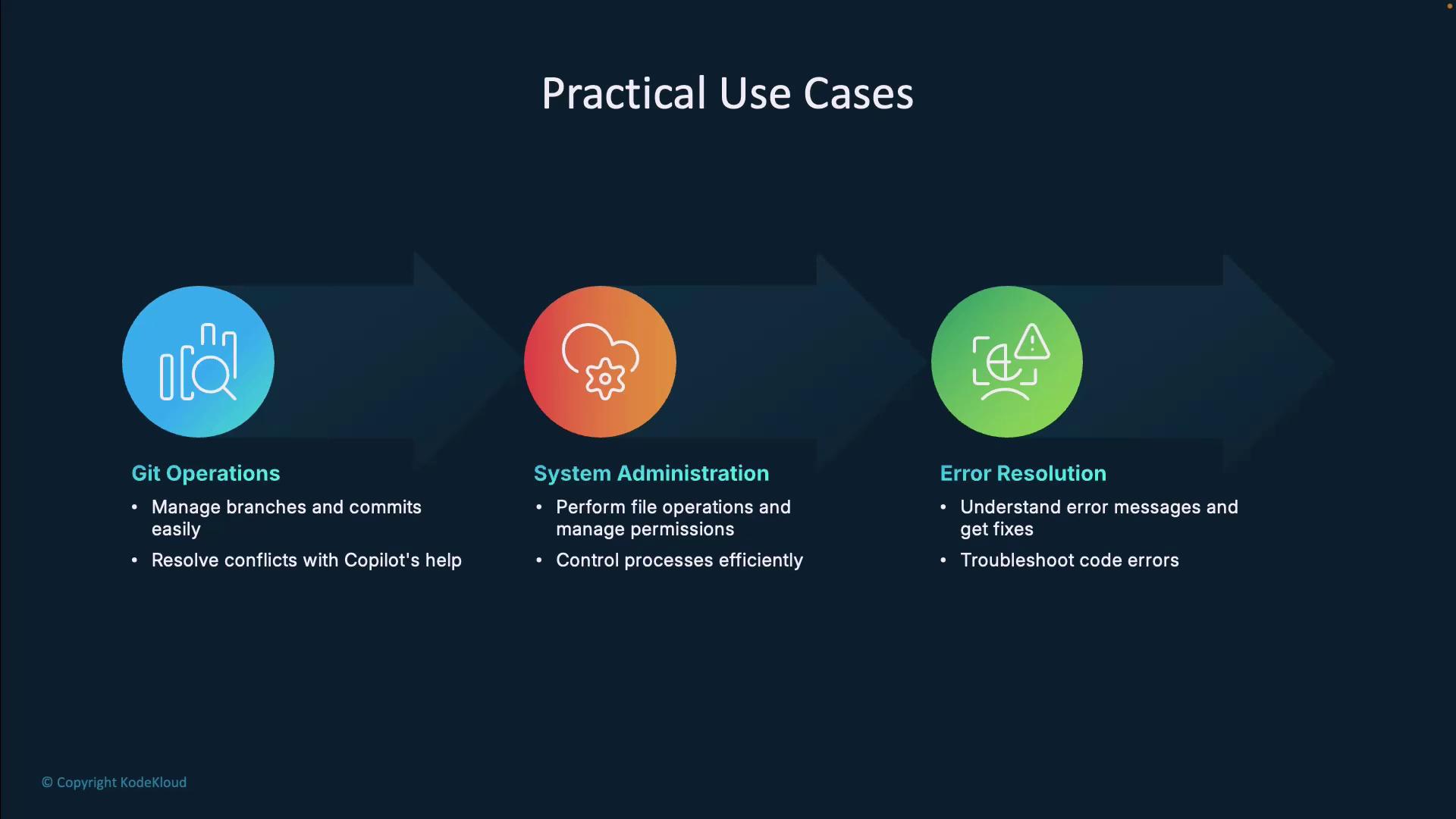
1. **Git Workflows**: Branch creation, commit messages, conflict resolution.
2. **SysAdmin Tasks**: File ops, permissions, process control.
3. **Error Debugging**: Convert cryptic errors into actionable fixes.
***
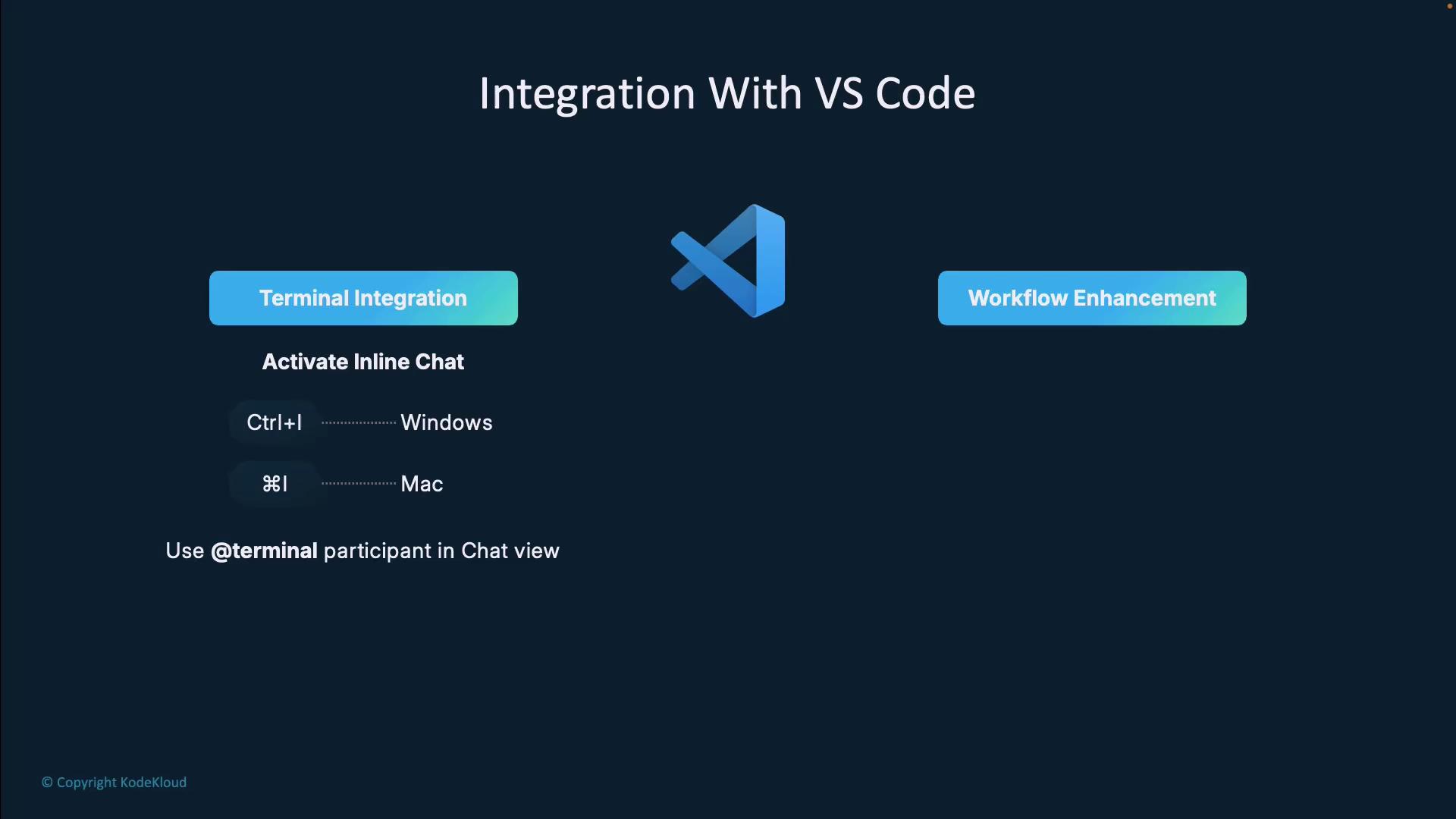
## VS Code Integration
Copilot extends into VS Code’s integrated terminal and chat:
* **Inline Chat**: Run “GitHub Copilot: Open Copilot Chat” from the Command Palette.
* **@Terminal Agent**: Prefix prompts with `@Terminal` to target shell commands.
***
## Best Practices
* Provide **clear prompts** and context (project name, file paths).
* **Review suggestions** carefully—especially for destructive commands.
* Rate responses to help Copilot improve over time.
Always inspect AI-generated commands before executing in production environments.
***
## Command-Line Demo
Try these hands-on examples:
1. **Authenticate**
```bash theme={null}
gh auth login
```
2. **Install**
```bash theme={null}
gh extension install github/gh-copilot
```
3. **Explain a Command**
```bash theme={null}
gh copilot explain "chmod 777 /test"
```
4. **Explain a Pipeline**
```bash theme={null}
gh copilot explain "find . -type f -name '*.js' | xargs grep 'function'"
```
5. **Suggest a Git Command**
```bash theme={null}
gh copilot suggest "delete a git branch"
```
Copilot proposes:
```bash theme={null}
git branch -d
git push origin --delete
```
***
## Links and References
* [GitHub Copilot Features](https://github.com/features/copilot)
* [GitHub CLI Documentation](https://cli.github.com/manual/)
* [Windows Terminal Releases](https://github.com/microsoft/terminal/releases)
* [Visual Studio Code Docs](https://code.visualstudio.com/docs)