> ## Documentation Index
> Fetch the complete documentation index at: https://notes.kodekloud.com/llms.txt
> Use this file to discover all available pages before exploring further.
# GitHub Copilot Agents
> This guide explores GitHub Copilot Agents and how to control context in prompts for precise AI assistance.
In this guide, we explore GitHub Copilot Agents and demonstrate how to control context in your prompts for more precise AI assistance.
## What Are Copilot Agents?
GitHub Copilot Agents are domain-specific assistants you can summon in the chat interface by typing `@` followed by their names. Each agent is optimized to access relevant contexts—such as your workspace files, terminal history, or editor settings—to deliver tailored suggestions and code snippets. These agents use advanced natural language processing (NLP) to understand your requests and generate contextually accurate responses.
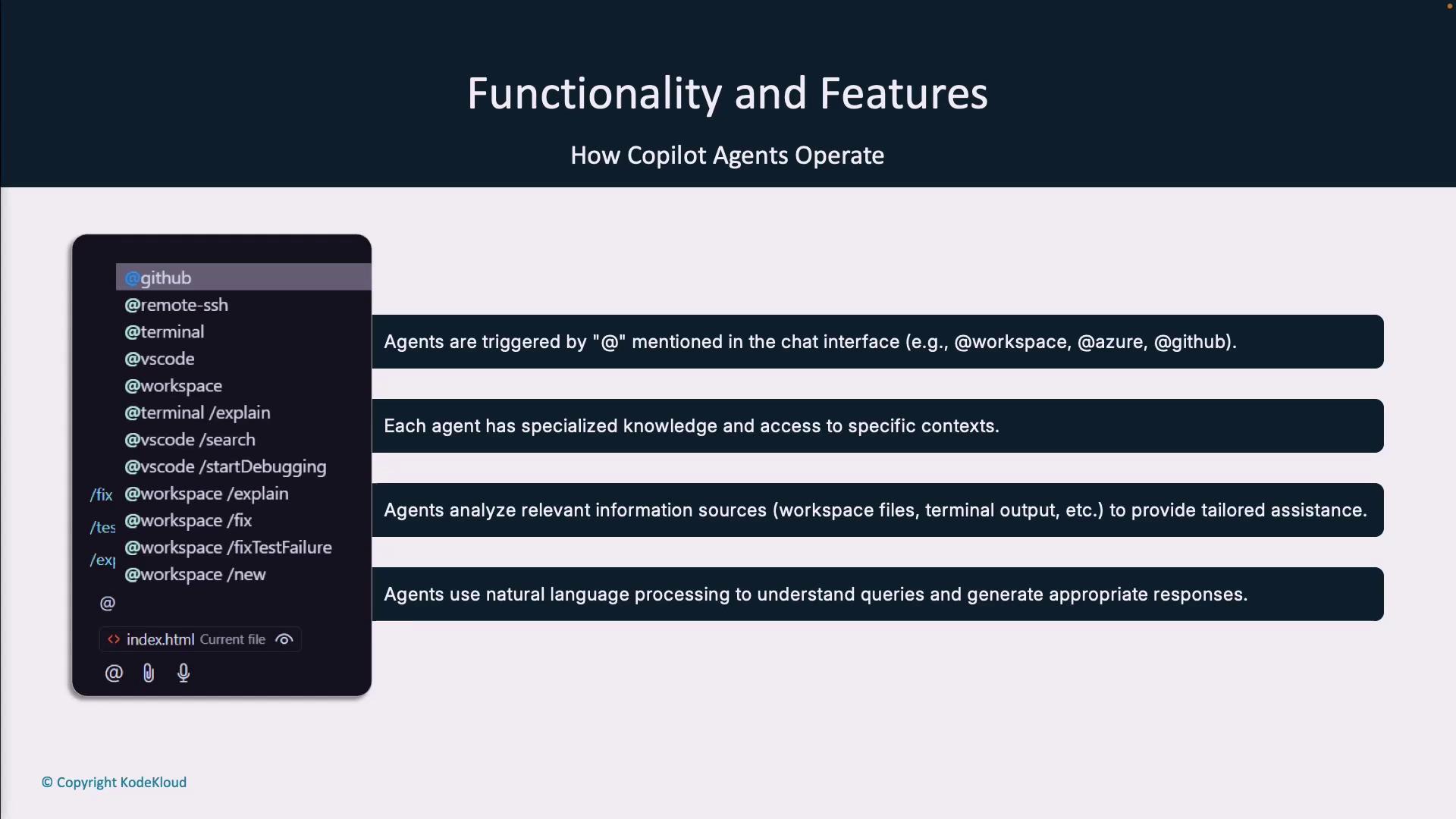
Each agent has unique training data and access scopes—choose the right one for your task to get the best results.
## Accessing and Invoking Agents
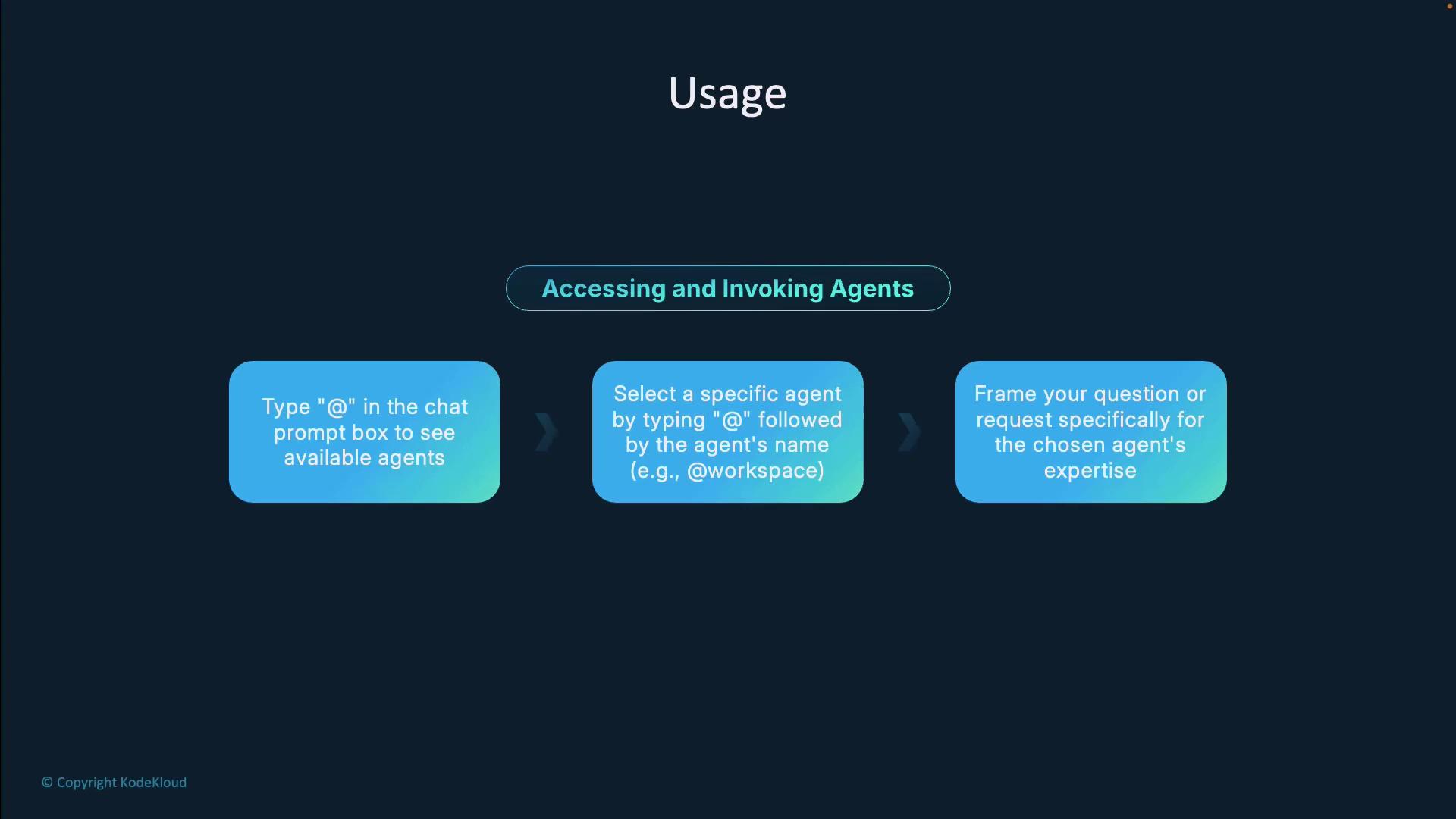
To view all available agents, type `@` in the Copilot chat prompt. A dropdown menu will list every agent you can interact with. Simply select an agent by typing `@agent-name`. For example:
```text theme={null}
@workspace
```
For optimal responses, frame your query according to the agent’s expertise.
## Common Agents and Their Domains
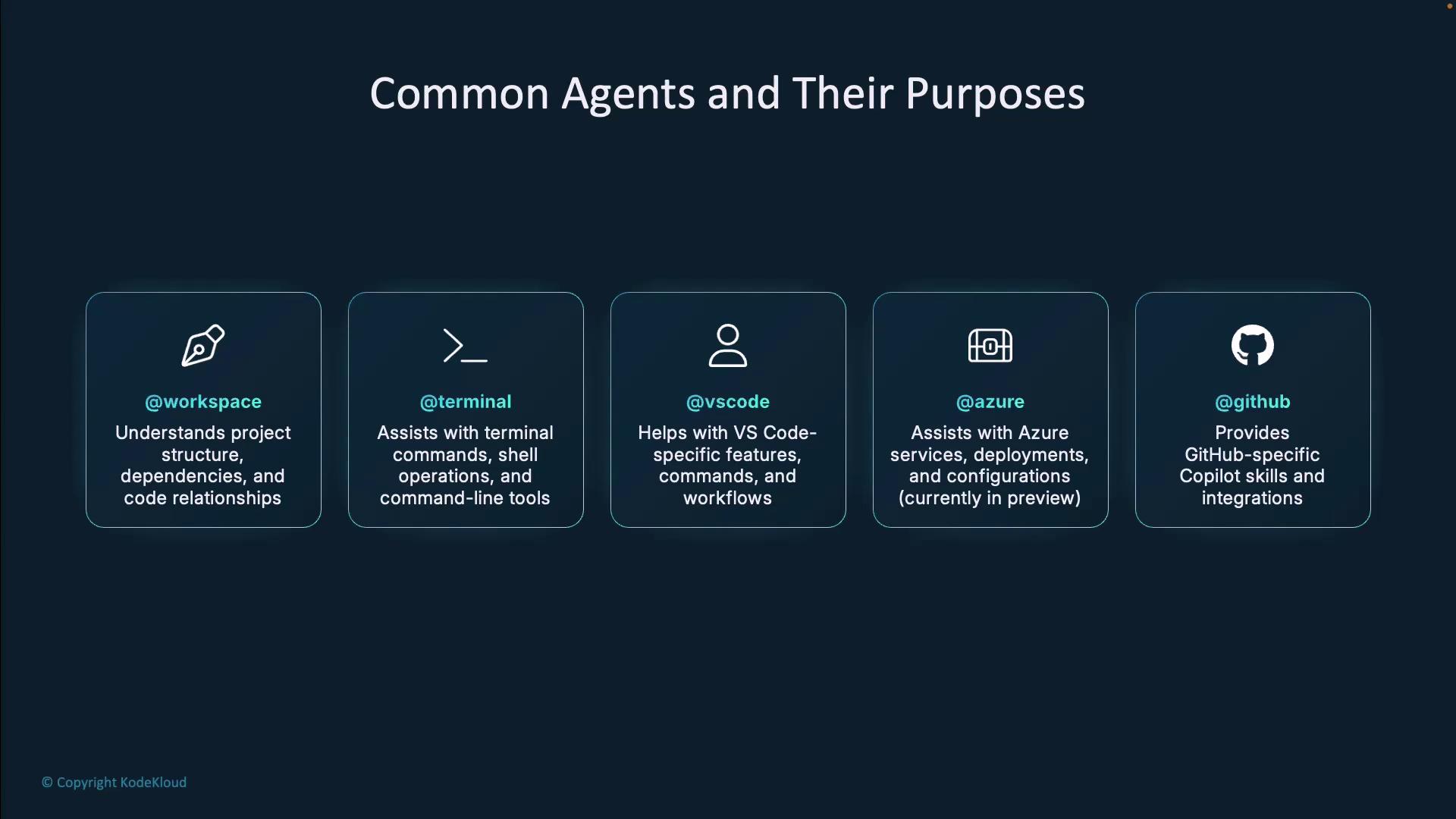
| Agent | Domain | Example Use Case |
| ---------------- | --------------------------------------------------- | ------------------------------------------------------- |
| @workspace | Project structure, dependencies, code relationships | Explain function calls across multiple modules |
| @terminal | Shell commands, environment setup, CLI tooling | Install dependencies or troubleshoot command errors |
| @vscode | VS Code settings, extensions, editor features | Enable Copilot Chat experimental features |
| @azure (preview) | Azure services, deployments, cloud configurations | Scaffold Azure Functions or ARM templates |
| @github | GitHub workflows, actions, repository integrations | Create CI/CD pipelines or manage pull request templates |
## Agents in Action: Mention-Based Workflow
Below is a step-by-step example of how to use mention-based agents in Visual Studio Code:
1. Open Copilot Chat (`Ctrl+Shift+P` → Copilot: Open Chat)
2. Type `@workspace` and ask a question:
```text theme={null}
@workspace Explain how this traffic simulation application works.
```
The agent will scan your entire project and highlight relevant functions. For instance:
```python theme={null}
def draw_traffic_light(surface, direction, state):
"""
Draws a circular traffic light for a given direction at a fixed offset
from the intersection.
"""
positions = {
'north': (CENTER_X, STOP_LINE['north'] - LIGHT_OFFSET),
'south': (CENTER_X, STOP_LINE['south'] + LIGHT_OFFSET),
'east': (STOP_LINE['east'] - LIGHT_OFFSET, CENTER_Y),
'west': (STOP_LINE['west'] + LIGHT_OFFSET, CENTER_Y)
}
pos = positions.get(direction)
color = LIGHT_COLORS[state]
pygame.draw.circle(surface, color, pos, LIGHT_RADIUS)
```
3. Switch to the Terminal agent to install and run the app:
```bash theme={null}
pip3 install pygame
python3 -m venv testenv
source testenv/bin/activate
pip install pygame
python main2.py
```
If you encounter an indentation error:
```plaintext theme={null}
(venv) jeremy@MACSTUDIO code % python main2.py
Traceback (most recent call last):
File "main2.py", line 220, in
main()
File "main2.py", line 216, in main
run_simulation()
IndentationError: unindent does not match any outer indentation level
```
Correct the indentation and rerun to launch the Pygame traffic light simulator.
4. For editor-specific queries, use the VS Code agent:
```text theme={null}
@vscode How do I enable Copilot Chat experimental features?
```
It will direct you to **Settings > Editor > Copilot**.
5. Generate tests across your codebase with Workspace:
```text theme={null}
@workspace fix tests
```
This produces comprehensive unit tests rather than file-scoped ones.
## Experimental Agent Mode
GitHub Copilot’s experimental Agent Mode lets Copilot autonomously suggest code, edit files, and run terminal commands. This mode can significantly accelerate repetitive tasks.
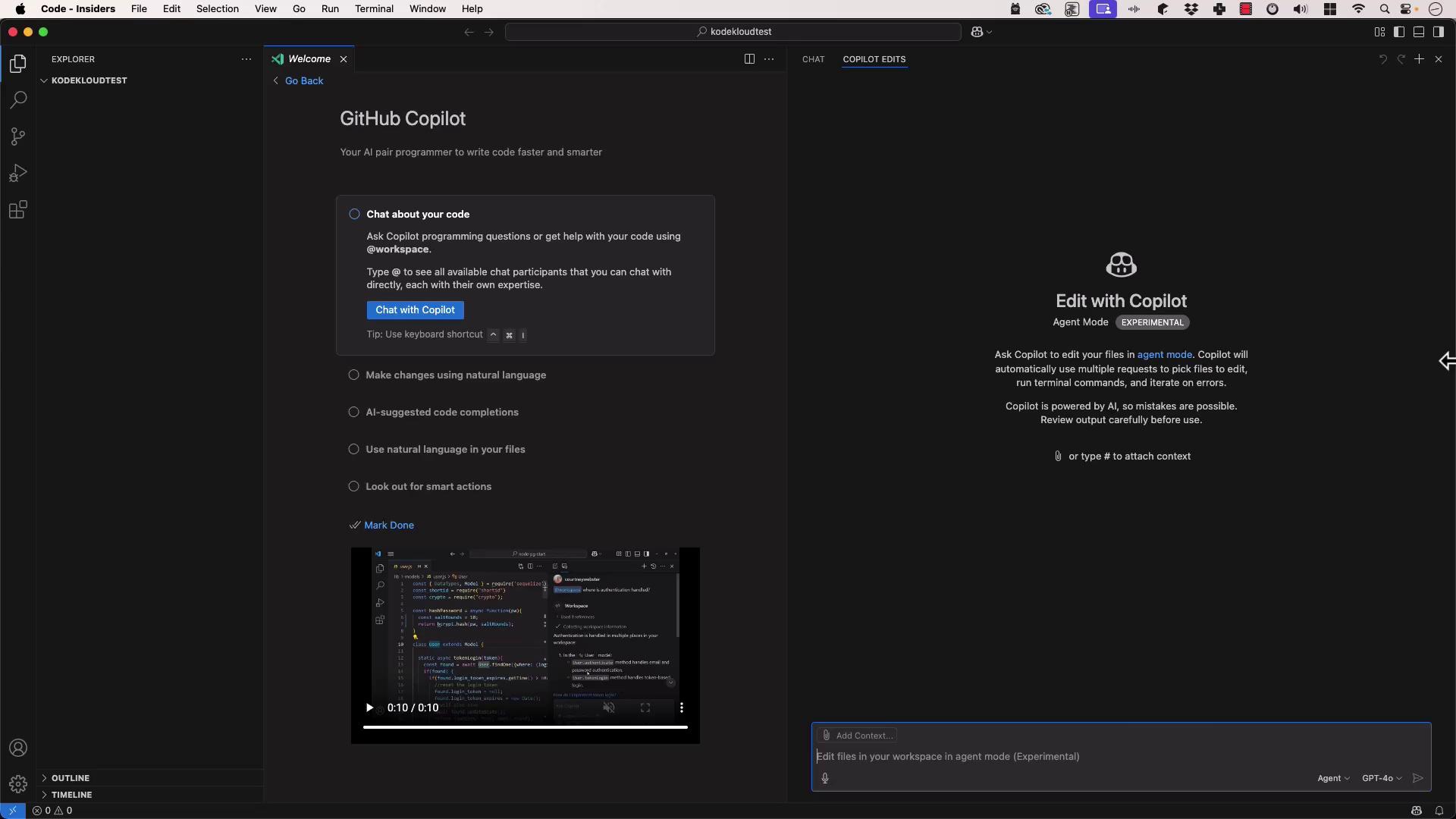
To enable Agent Mode:
1. Click the Agent Mode toggle in the lower-right corner of VS Code.
2. Request a new project scaffold:
```text theme={null}
Create a Python API application.
```
The agent will generate a virtual environment, install Flask, and produce `app.py`:
```python theme={null}
from flask import Flask
app = Flask(__name__)
@app.route('/')
def hello_world():
return 'Hello, World!'
if __name__ == '__main__':
app.run(debug=True)
```
And run:
```bash theme={null}
python3 -m venv venv
source venv/bin/activate && pip install Flask
source venv/bin/activate && python app.py
```
```plaintext theme={null}
* Running on http://127.0.0.1:5000/ (Press CTRL+C to quit)
* Restarting with stat
* Debugger is active!
* Debugger PIN: 371-990-415
127.0.0.1 - - [06/Mar/2025 14:45:21] "GET /" 200 -
```
Agent Mode is experimental. Review all changes before committing to avoid unintended edits.
From here, you can ask the agent to add a database layer:
```text theme={null}
Add an in-memory database with fields ID, name, and email.
```
The agent will update your Flask app and execute the necessary commands automatically.
## Summary
* Mention-based Copilot Agents (`@workspace`, `@terminal`, `@vscode`, etc.) scan specific contexts to deliver targeted assistance.
* Experimental Agent Mode enables Copilot to autonomously generate code, run commands, and modify files.
Leverage GitHub Copilot Agents to streamline your development workflow and boost productivity.
## Links and References
* [GitHub Copilot Documentation](https://docs.github.com/en/copilot)
* [VS Code Extension: GitHub Copilot](https://marketplace.visualstudio.com/items?itemName=GitHub.copilot)