> ## Documentation Index
> Fetch the complete documentation index at: https://notes.kodekloud.com/llms.txt
> Use this file to discover all available pages before exploring further.
# Slash Commands in Depth
> Explore GitHub Copilots slash commands in Visual Studio for enhanced coding productivity and seamless integration.
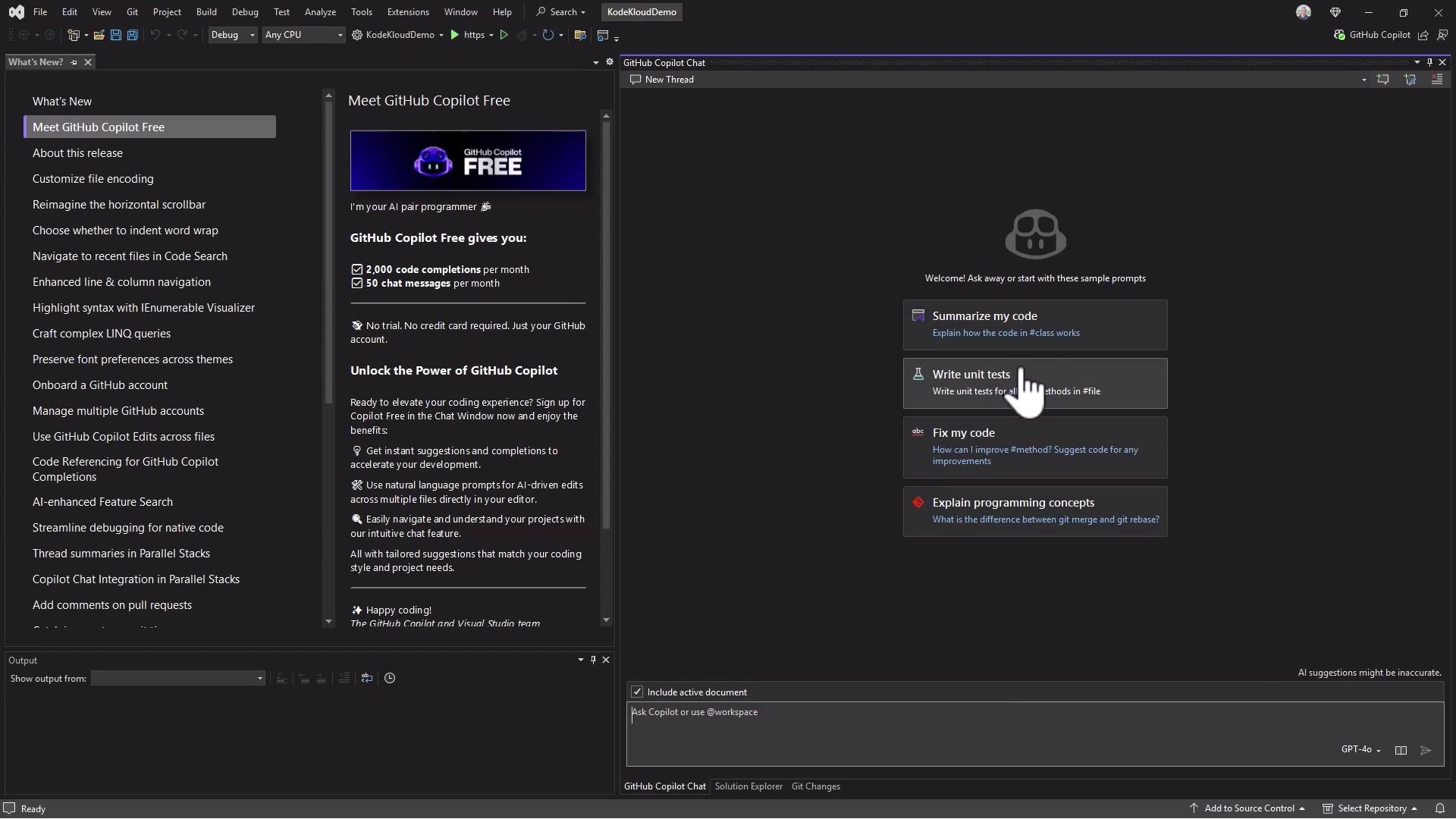
Unlock the full potential of GitHub Copilot’s slash commands right inside Visual Studio. While these powerful shortcuts also work in Visual Studio Code, Visual Studio Professional and Enterprise users enjoy **GitHub Copilot Free**—2,000 code completions and 50 chat messages per month—directly from their IDE without extra cost.
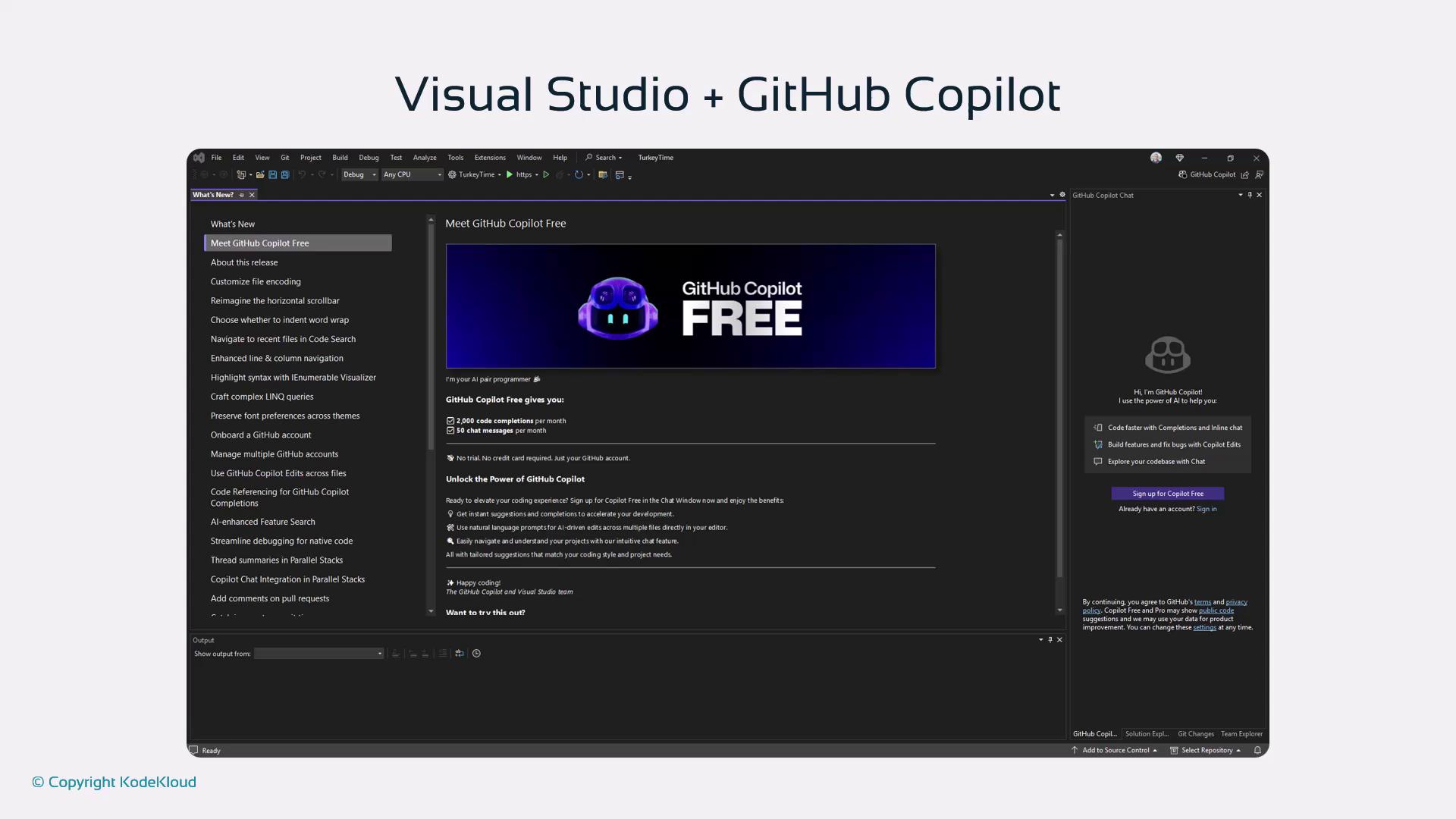
Visual Studio subscribers get **Copilot Free** automatically. Monthly limits reset on your billing date. To unlock unlimited completions, sign in with an existing GitHub Copilot subscription.
## Core Slash Commands
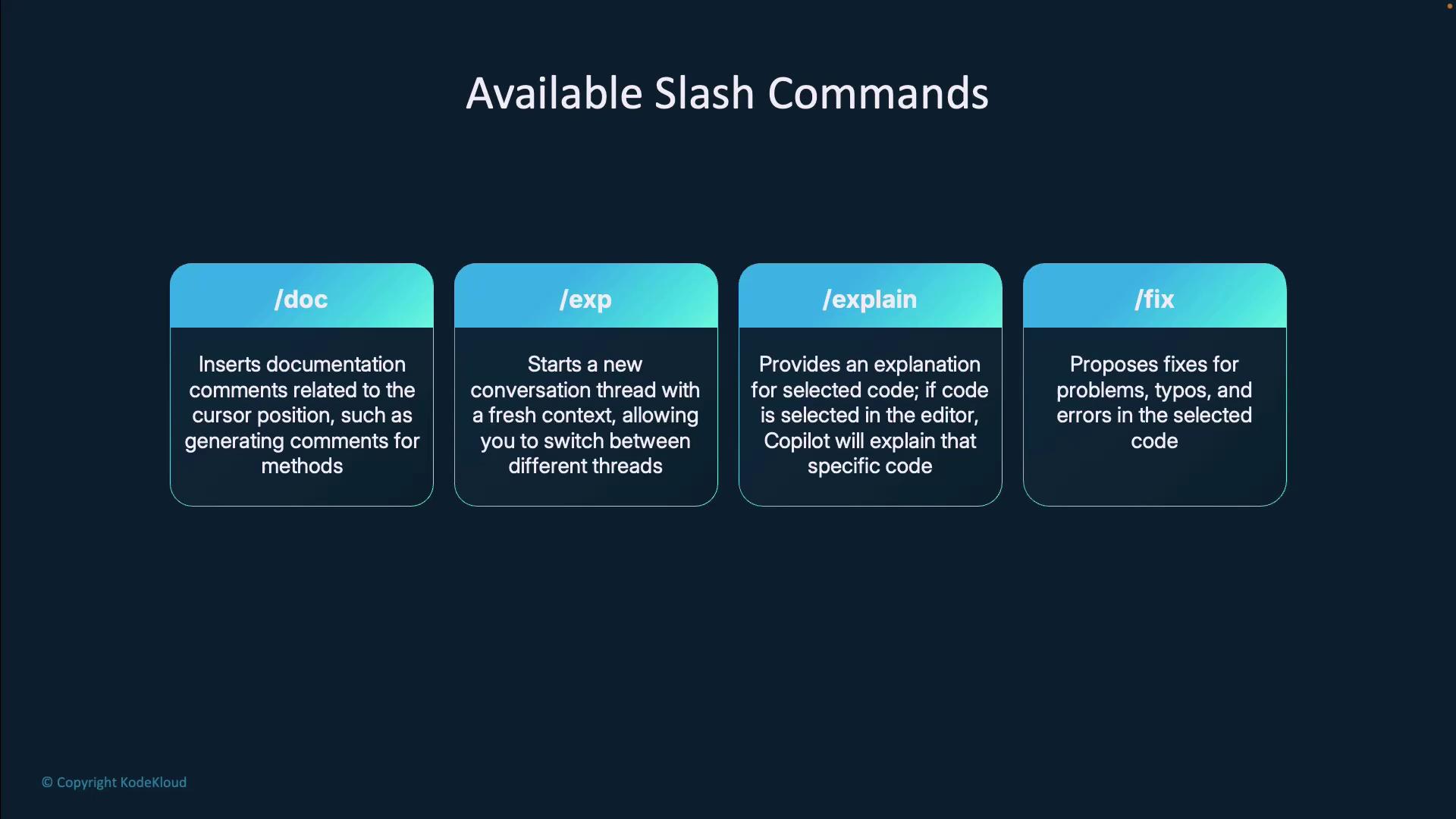
Use these four slash commands for everyday productivity:
| Command | Function | Languages |
| ---------- | ------------------------------------------------------------------ | ---------------------------- |
| `/doc` | Inserts documentation comments (PEP8 in Python; XML/Swagger in C#) | Python, C#, JavaScript, etc. |
| `/exp` | Starts a fresh chat session, clearing prior context | All supported languages |
| `/explain` | Generates a natural-language explanation of selected code | All supported languages |
| `/fix` | Proposes corrections for typos, syntax errors, and logic | All supported languages |
## Additional Slash Commands
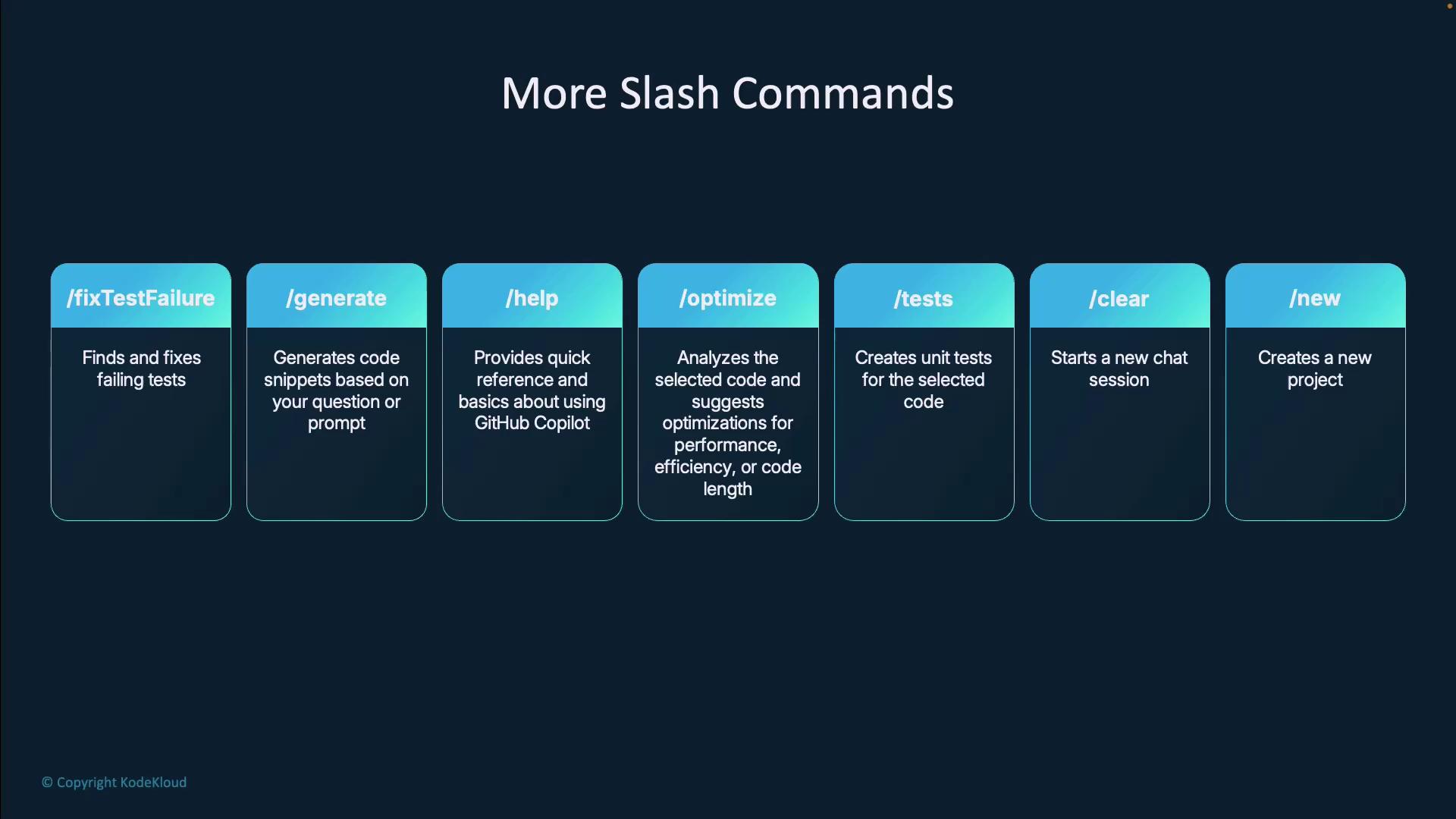
Beyond the essentials, Copilot offers specialized commands to streamline your workflow:
| Command | Description |
| ------------------- | ---------------------------------------------------------------------- |
| `/fix-test-failure` | Targets failing unit tests and suggests fixes. |
| `/generate` | Creates boilerplate code or full components (e.g., interfaces, views). |
| `/help` | Displays a quick reference of all available slash commands. |
| `/optimize` | Analyzes and suggests performance improvements. |
| `/test` | Auto-generates unit tests (including edge cases) for selected code. |
| `/clear` | Clears the chat context and starts a new session. |
| `/new` | Scaffolds a new project (Flask, React, Vue, Blazor, etc.). |
## How to Access Slash Commands
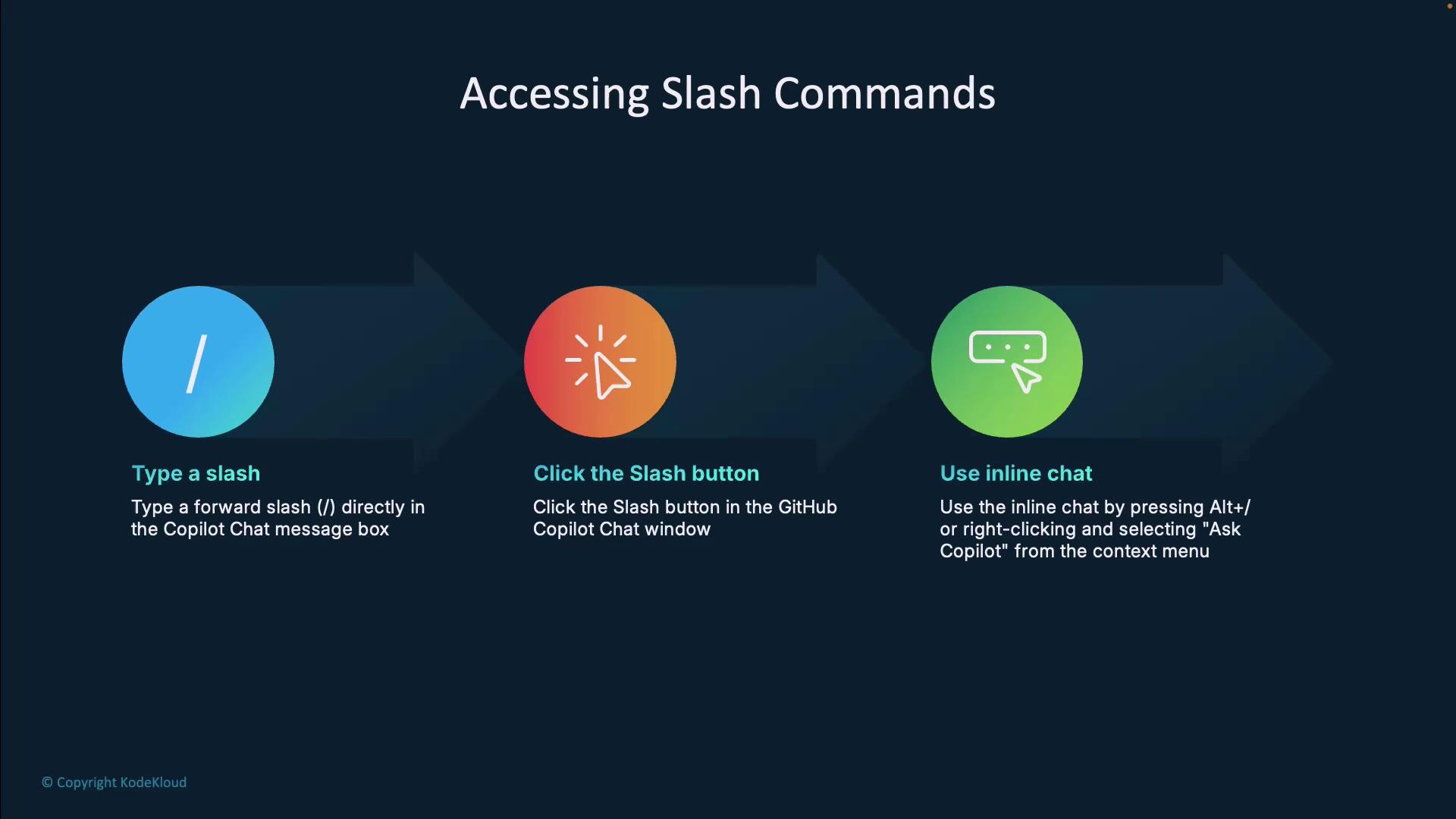
Invoke slash commands in three simple ways:
1. Type a forward slash (`/`) in the Copilot Chat message box.
2. Click the **Slash** button in the GitHub Copilot chat pane.
3. Use inline chat: press **Alt + /** (or your custom shortcut), right-click in the editor, and choose **Ask Copilot**.
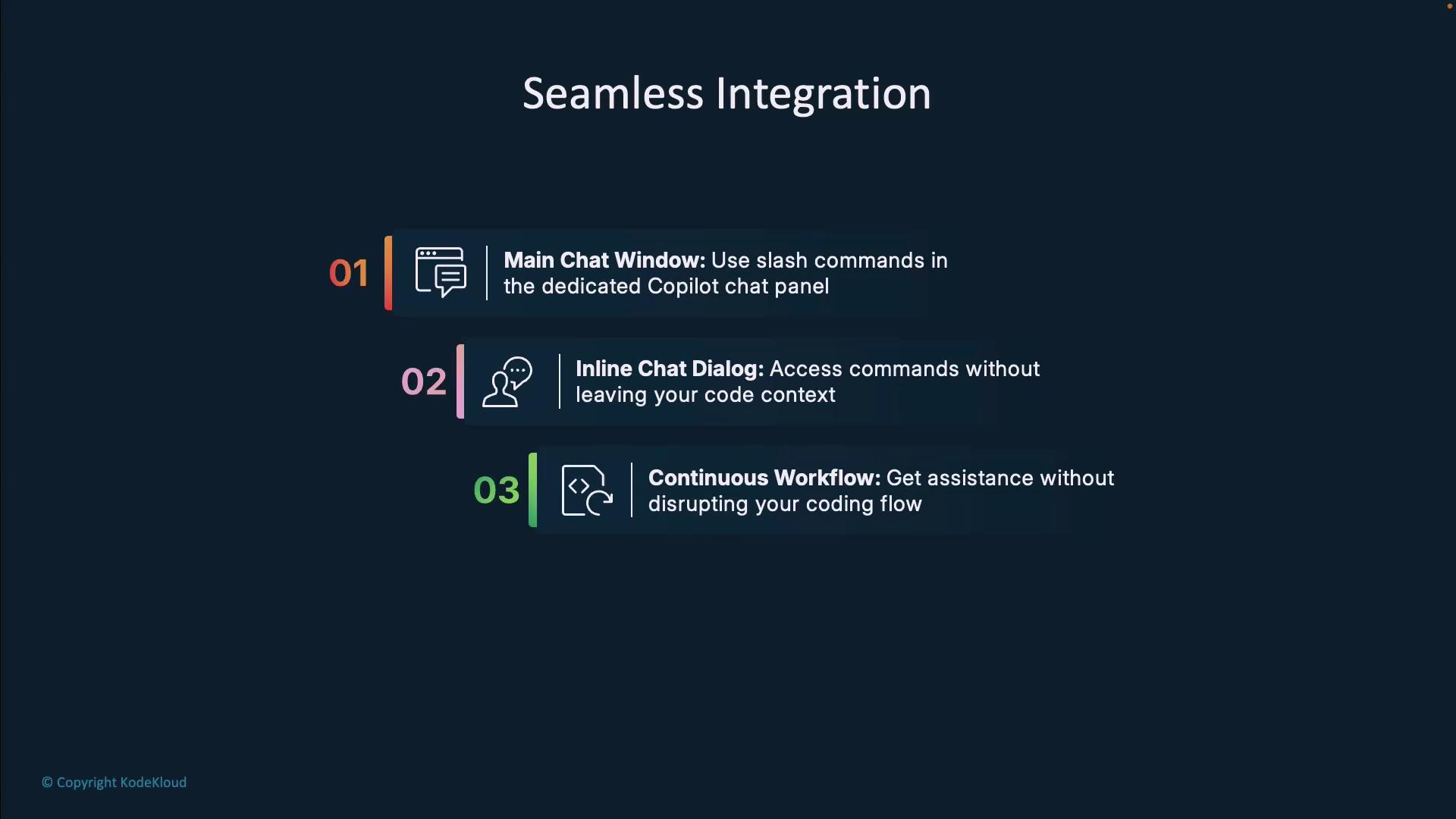
## Seamless Integration
Whether you prefer a dedicated chat window or inline interactions, slash commands keep you focused:
* **Dedicated Chat Pane**: Maintain a continuous conversation without switching contexts.
* **Inline Chat**: Invoke Copilot suggestions right beside your code.
* **Unified Workflow**: Both methods preserve your coding flow and history.
## Demo: Slash Commands in Visual Studio
Below is a quick walkthrough showing how slash commands speed up documentation, explanation, and testing tasks.
### 1. Generate XML Documentation
Open **Program.cs**, position the cursor, and type:
```csharp theme={null}
/doc
```
Copilot injects XML comments for methods and classes:
```csharp theme={null}
using KodexKloudDemo.Client.Pages;
using KodexKloudDemo.Components;
var builder = WebApplication.CreateBuilder(args);
builder.Services.AddRazorComponents()
.AddInteractiveWebAssemblyComponents();
var app = builder.Build();
if (app.Environment.IsDevelopment())
{
app.UseWebAssemblyDebugging();
}
else
{
app.UseExceptionHandler("/Error", createScopeForErrors: true);
// The default HSTS value is 30 days. You may want to change this for production scenarios.
app.UseHsts();
}
app.UseHttpsRedirection();
app.UseStaticFiles();
app.UseAntiforgery();
app.MapRazorComponents()
.AddInteractiveWebAssemblyRendererMode();
```
In a Razor component:
```razor theme={null}
@page "/counter"
@using Microsoft.AspNetCore.Components
Counter
Current count: @currentCount
@code {
///
/// The current count value.
///
private int currentCount = 0;
///
/// Increments the current count value by one.
///
private void IncrementCount()
{
currentCount++;
}
}
```
### 2. Explain Code with `/explain`
Select a block:
```csharp theme={null}
app.MapRazorComponents()
.AddInteractiveWebAssemblyRendererMode()
.AddAdditionalAssemblies(typeof(KodeKloudDemo.Client.Imports).Assembly);
```
Type `/explain` to get a step-by-step breakdown of each API call.
### 3. Generate Unit Tests with `/test`
Highlight methods and type:
```csharp theme={null}
/test
```
Copilot scaffolds an xUnit project and test files:
```bash theme={null}
dotnet new xunit -o KodeKloudDemo.Tests
cd KodeKloudDemo.Tests
```
In seconds, you’ll have a suite of unit tests covering the selected code paths.
If you use `/clear`, all previous chat history is lost. Make sure to save important context or prompts before resetting.
***
With these slash commands at your fingertips, you can document, explain, fix, test, and optimize your code—all without leaving your editor.
## Links and References
* [GitHub Copilot Slash Commands](https://docs.github.com/copilot/getting-started-with-github-copilot/overview-of-copilot-chat-features)
* [Visual Studio Documentation](https://docs.microsoft.com/visualstudio/)
* [Visual Studio Code Slash Commands](https://code.visualstudio.com/docs/editor/github)
* [PEP 257 – Python Docstring Conventions](https://www.python.org/dev/peps/pep-0257/)
* [xUnit Documentation](https://xunit.net/docs/)