> ## Documentation Index
> Fetch the complete documentation index at: https://notes.kodekloud.com/llms.txt
> Use this file to discover all available pages before exploring further.
# Quick Wins for Immediate Productivity Gains
> This guide explores six strategies to configure GitHub Copilot for immediate productivity improvements.
In this guide, we’ll explore six strategies to configure GitHub Copilot for immediate productivity improvements:
1. File-Based Configuration
2. Testing in `main.py`
3. Using the Completions Panel
4. Keyboard Shortcuts
5. Switching AI Models
6. Managing Context Windows
***
## 1. File-Based Configuration
Store custom instructions at the repository root to steer Copilot’s code generation.
```bash theme={null}
mkdir .github
touch .github/copilot-instructions.md
```
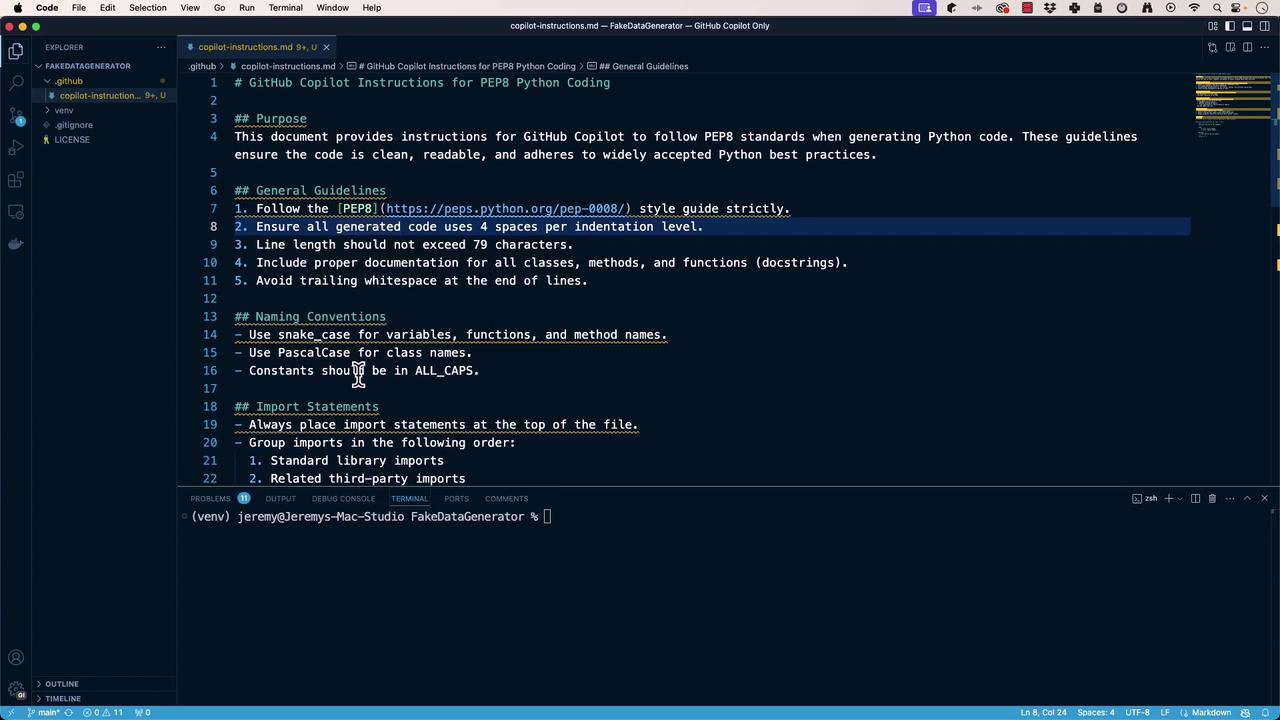
Anything you add to `copilot-instructions.md` will shape Copilot’s output. For example, to enforce PEP 8 in Python:
```markdown theme={null}
# Purpose
This document guides GitHub Copilot to produce Python code that strictly follows PEP 8 standards for readability and maintainability.
## General Guidelines
- Adhere to PEP 8: https://peps.python.org/pep-0008/
- Use four spaces per indentation level.
- Limit lines to 79 characters.
- Include docstrings for all modules, classes, and functions.
## Naming Conventions
- snake_case for variables, functions, and methods
- PascalCase for class names
- ALL_CAPS for constants
## Imports
1. Place imports at the top.
2. Order: standard → third-party → local.
3. One import per line.
4. Avoid wildcard imports.
```
With these guidelines, Copilot will generate clean, compliant code:
```python theme={null}
def calculate_sum(a: int, b: int) -> int:
"""
Calculate the sum of two integers.
Args:
a (int): First number.
b (int): Second number.
Returns:
int: Sum of the two numbers.
"""
return a + b
```
Well-defined instructions ensure consistent, high-quality suggestions across your team.
***
## 2. Testing in `main.py`
Validate that Copilot respects your file-based configuration:
```python theme={null}
# create a function to calculate the square of a number
```
Trigger Copilot and you may see:
```python theme={null}
def square_number(num: int) -> int:
"""
Calculate the square of a number.
Args:
num (int): Number to square.
Returns:
int: Square of the input number.
"""
return num * num
```
If the generated code doesn’t match your standards, retry or use Copilot Chat for better fidelity.
***
## 3. Using the Completions Panel
The Completions Panel lets you review multiple suggestions side-by-side:
1. Open with the Copilot icon or run **GitHub Copilot: Open Completions Panel**.
2. Enter your prompt, e.g.:
```python theme={null}
# create a function to calculate the square of a number
```
3. Compare suggestions and pick the one that aligns with your style.
***
## 4. Keyboard Shortcuts
Master these keybindings to speed up your workflow:
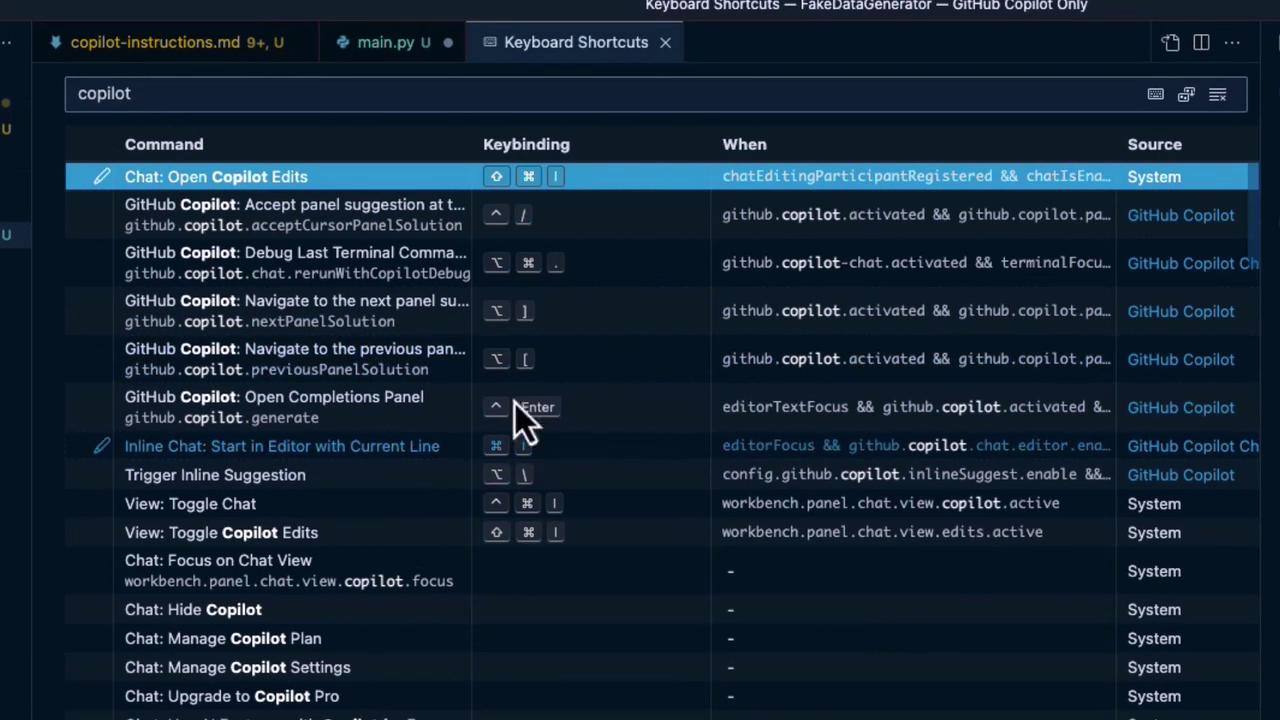
| Command | Keybinding | Condition |
| --------------------------- | ---------- | ----------------------------------------------------- |
| Chat: Open Copilot Edits | — | chatEditingParticipantRegistered && chatIsEnabled |
| Accept panel suggestion | ⌥\\ | github.copilot.acceptCursorPanelSolution |
| Next panel suggestion | ⌥\\ | github.copilot.nextPanelSolution |
| Previous panel suggestion | ⌥\[ | github.copilot.previousPanelSolution |
| Open Completions Panel | — | github.copilot.generate |
| Start Inline Chat in Editor | Enter | editorTextFocus && github.copilot.chat.editor.enabled |
| Trigger Inline Suggestion | ⌥\\ | editorFocus && github.copilot.chat.editor.enabled |
(On Windows/Linux, replace ⌥ with Alt.)
***
## 5. Switching AI Models
Different Copilot models excel at different tasks. Click the model selector in the lower-right corner to choose:
| Model | Strength | Ideal Use Case |
| ---------- | ---------------------------------- | ------------------------------------- |
| Claude 3.5 | Deep contextual reasoning | Summaries, refactoring |
| Sonnet | Fast, lightweight completions | Short snippets, boilerplate code |
| GPT-4 | Broad language understanding | Complex logic, detailed explanations |
| O1 Preview | Optimized for multi-step workflows | Step-by-step guides, automation flows |
For more details, see the [GitHub Copilot Models](https://docs.github.com/copilot).
***
## 6. Managing Context Windows
Copilot’s suggestions depend on the active context. Keep only your current files open to maintain focused and relevant completions.
Closing inactive tabs prevents context dilution and improves suggestion accuracy.
***
In this lesson, we covered:
* Defining file-based instructions
* Verifying behavior in `main.py`
* Leveraging the Completions Panel
* Memorizing keyboard shortcuts
* Selecting the optimal AI model
* Managing editor context
Next up: **Comment-Driven Development** and building a **Fake Data Generator**.
## Links and References
* [GitHub Copilot Documentation](https://docs.github.com/copilot)
* [PEP 8 Style Guide](https://peps.python.org/pep-0008/)
* [GitHub Copilot Models](https://docs.github.com/copilot)