> ## Documentation Index
> Fetch the complete documentation index at: https://notes.kodekloud.com/llms.txt
> Use this file to discover all available pages before exploring further.
# Troubleshooting Copilot
> This guide covers common GitHub Copilot issues, diagnostic tools, environment configurations, and tips for the Copilot Certification exam.
In this guide, we cover common GitHub Copilot issues, essential diagnostic tools, environment-specific configurations, and key tips for the Copilot Certification exam. Whether you’re a developer or preparing for certification, you’ll find structured solutions and best practices to streamline your Copilot experience.
## Common Issue Categories
GitHub Copilot problems generally fall into three main categories. Use the table below to quickly identify symptoms and possible fixes.
| Category | Symptoms | Quick Resolve |
| ------------------------- | ------------------------------------------ | --------------------------------------------- |
| Connection Problems | Timeouts, stalled suggestions | Check network/firewall, verify proxy settings |
| Extension Functionality | No inline completions, disabled Copilot | Enable extension, confirm language support |
| Authentication Challenges | Authorization errors, subscription invalid | Re-authenticate GitHub, renew Copilot license |
### 1. Connection Problems
Typical causes:
* Network firewalls or VPNs blocking AI service endpoints
* Misconfigured HTTP/HTTPS proxies
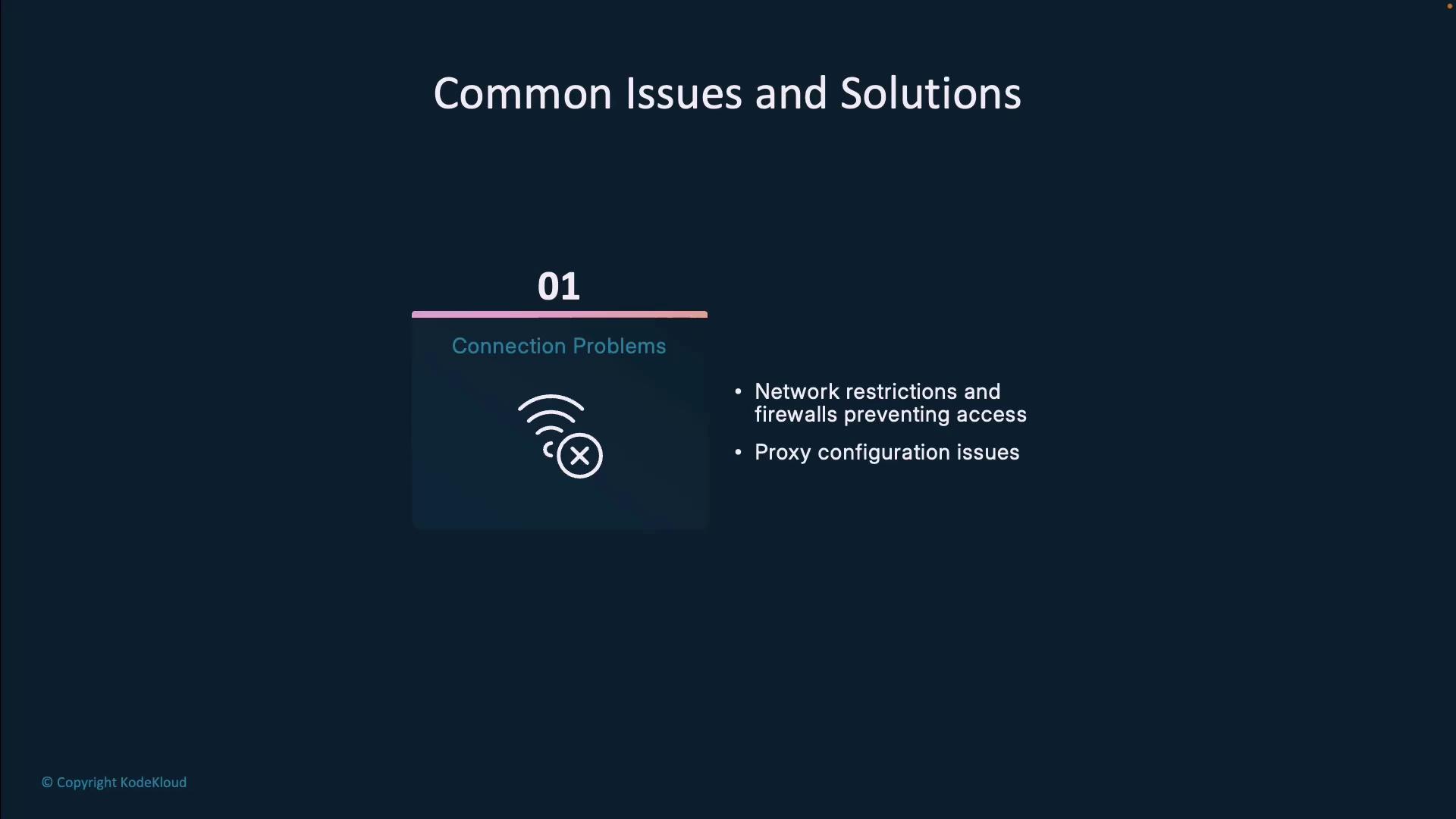
Ensure your corporate or personal firewall allows outbound access to GitHub’s AI service URLs.
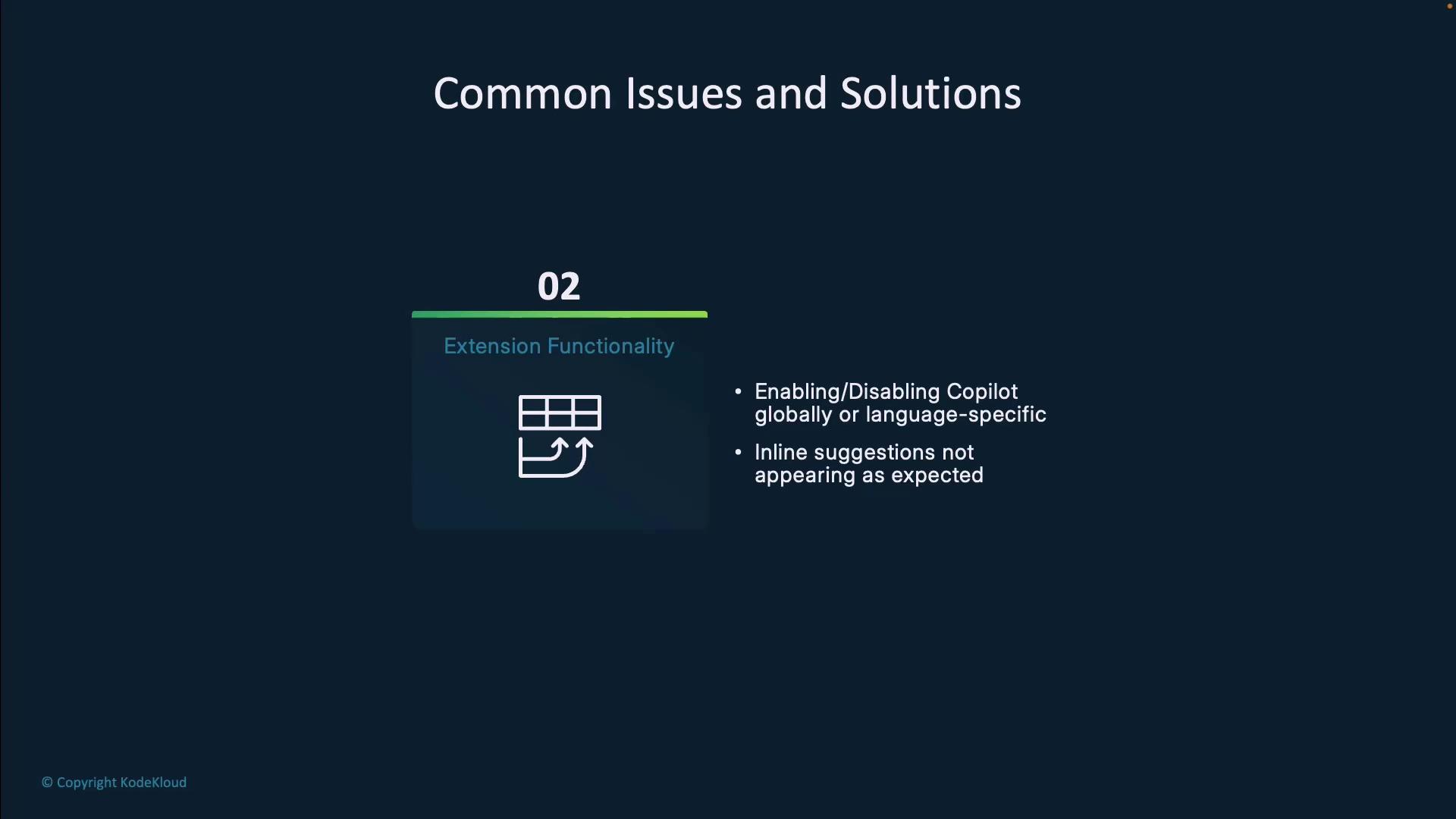
### 2. Extension Functionality Problems
Look out for:
* Copilot extension disabled globally or per-language
* Missing inline suggestions despite typing hints
### 3. Authentication Challenges
Symptoms include:
* OAuth or token authorization failures
* Subscription status errors (expired or unlinked account)
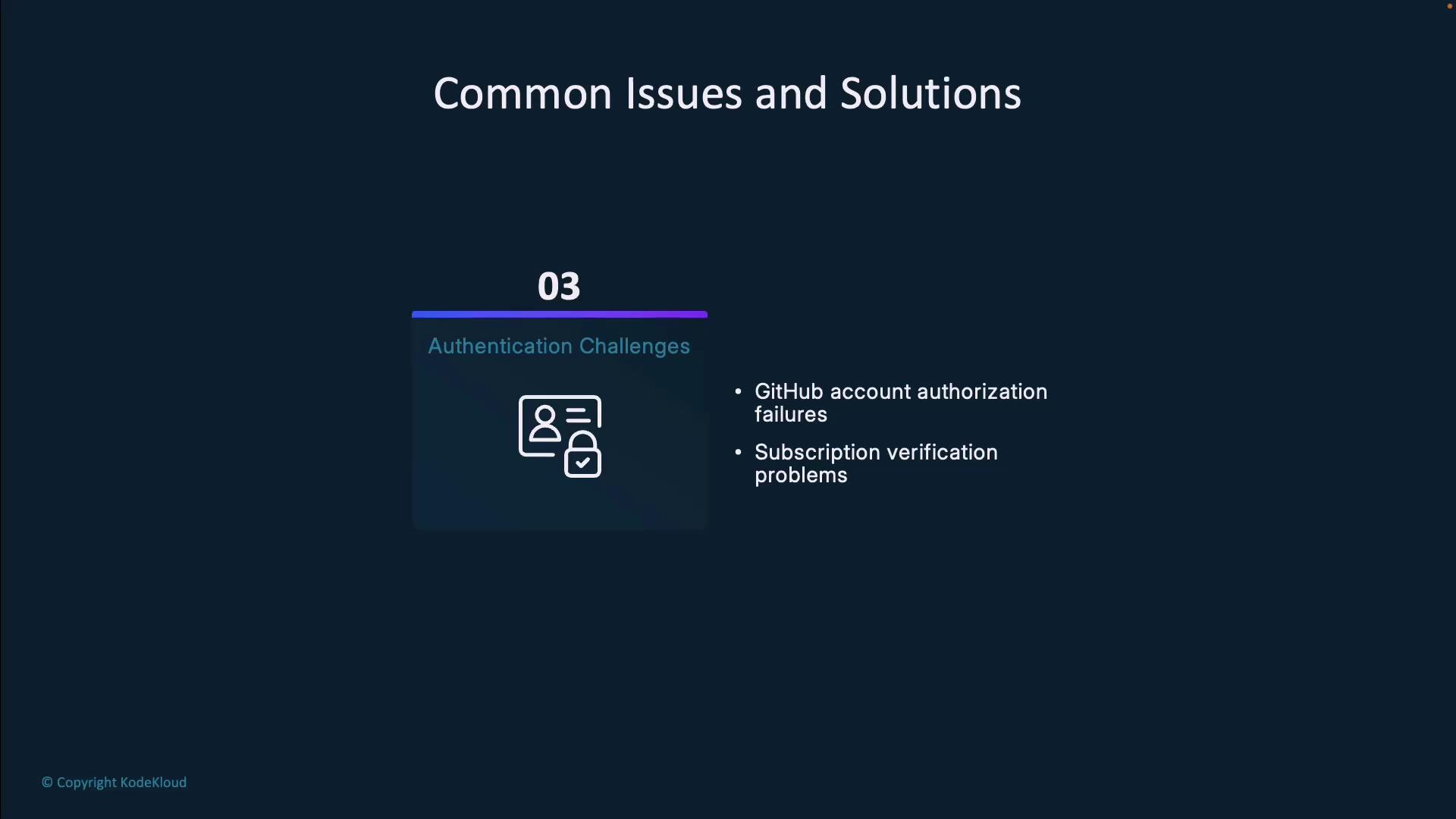
If your subscription has lapsed, you won’t receive completions even if the extension is enabled. Always check your GitHub billing page.
***
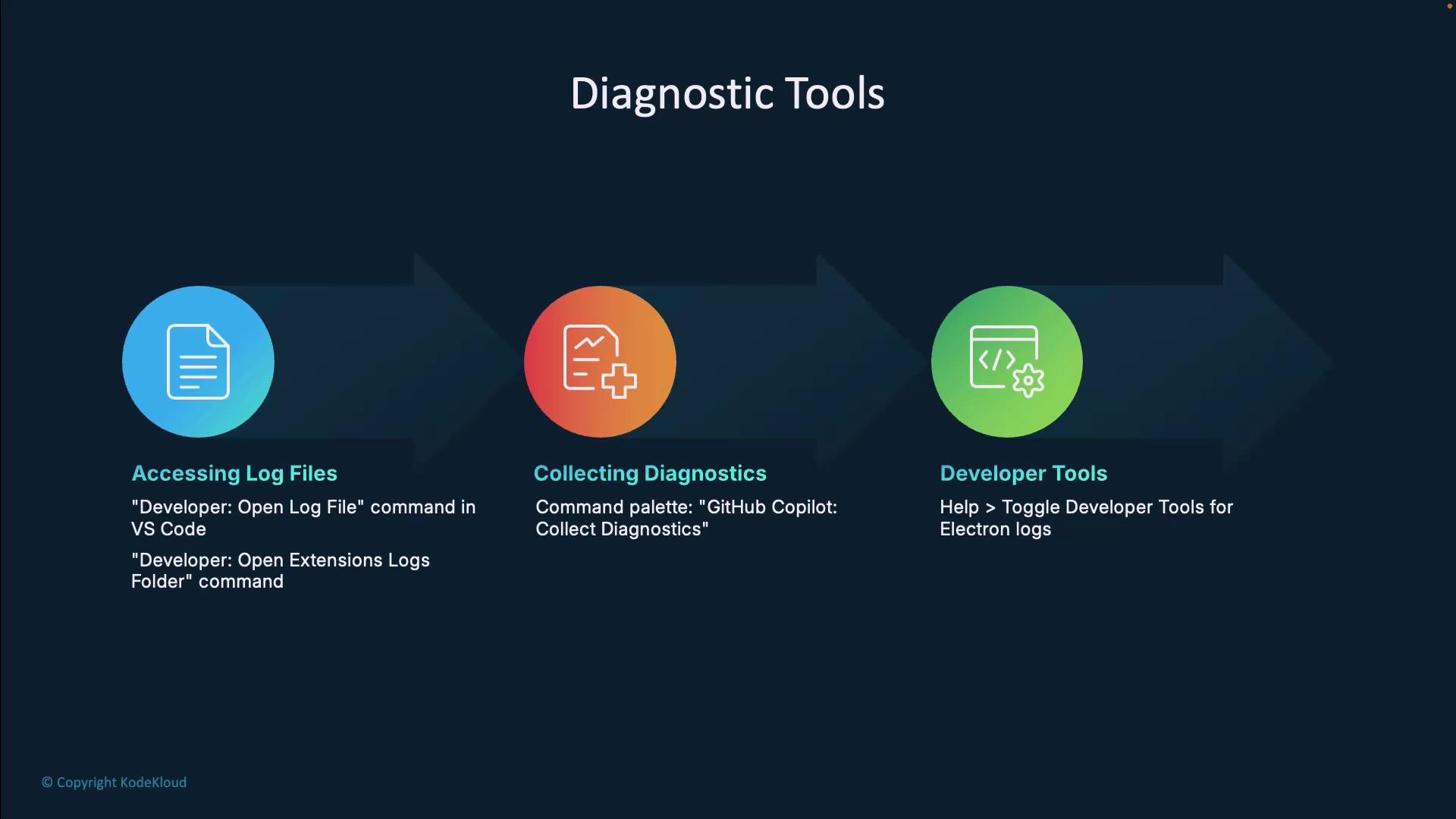
## Diagnostic Tools
Use these tools to gather information and pinpoint Copilot issues:
| Tool | Command | Purpose |
| ------------------------- | ------------------------------------- | ------------------------------------------------- |
| Open Extension Logs | Developer: Open Log File | View the active Copilot log stream in VS Code |
| Browse All Extension Logs | Developer: Open Extensions Log Folder | Inspect logs for all installed VS Code extensions |
| Collect Diagnostics | GitHub Copilot: Collect Diagnostics | Create a shareable report for GitHub support |
```bash theme={null}
# View the current Copilot extension log
Developer: Open Log File
# Browse all VS Code extension logs
Developer: Open Extensions Log Folder
# Generate a complete diagnostics report
GitHub Copilot: Collect Diagnostics
```
Diagnostic logs may include personal file paths and API tokens. Share them carefully and redact sensitive information before posting.
***
## Environment-Specific Troubleshooting
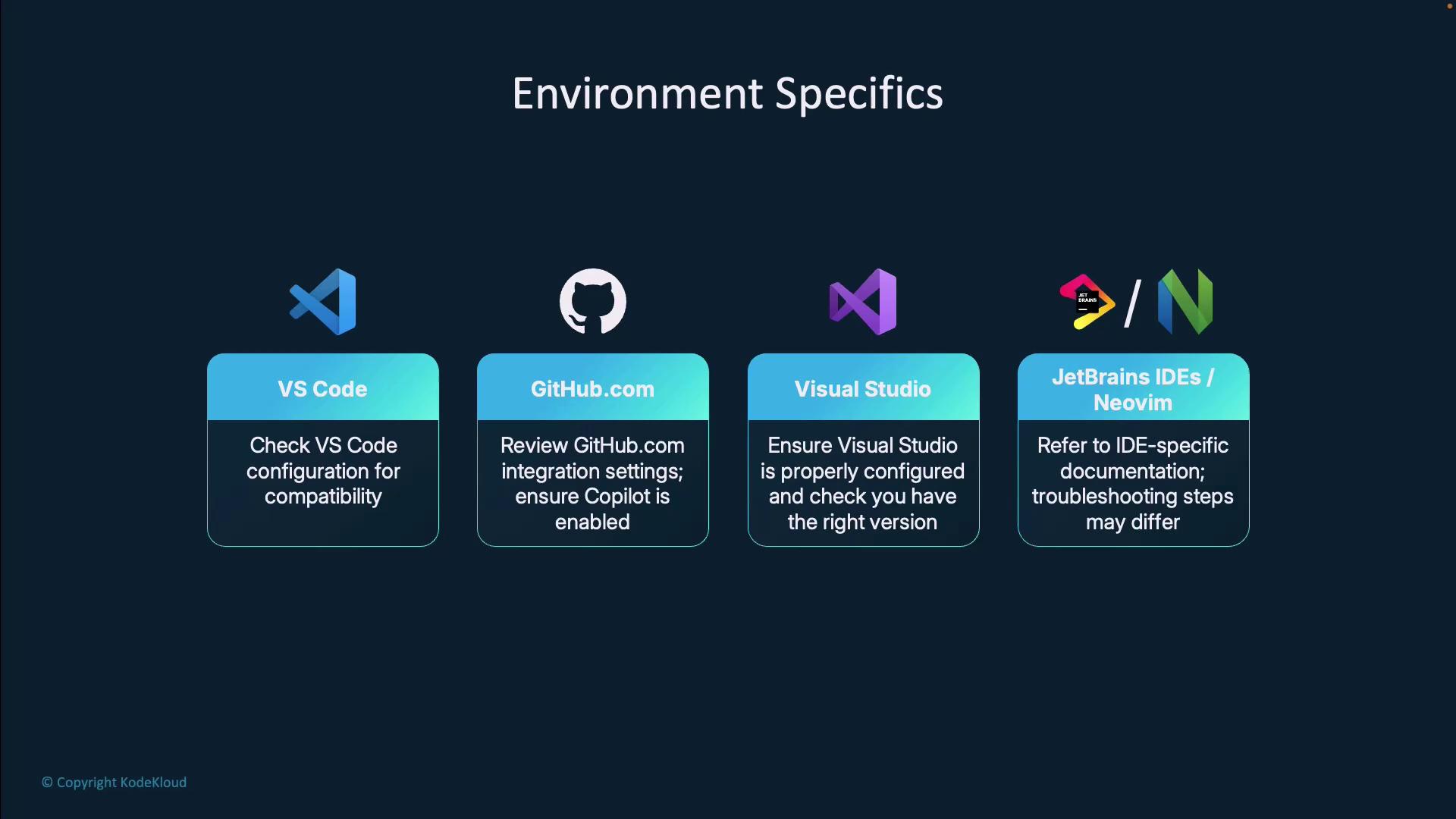
GitHub Copilot integrates with various development environments. Follow these recommendations:
* **VS Code**\
Install and update the “GitHub Copilot” extension, then confirm it’s enabled for your project’s languages.
* **GitHub.com Integration**\
In your [GitHub Settings](https://github.com/settings/copilot), verify Copilot is turned on for your user or organization.
* **Visual Studio**\
Add the GitHub Copilot extension via the Visual Studio Marketplace and ensure your IDE version is supported.
* **JetBrains IDEs & Neovim**\
Refer to the official docs for IntelliJ, PyCharm, or Neovim to configure Copilot correctly.
***
## Tips for the GitHub Copilot Certification Exam
Prepare effectively by focusing on these core areas:
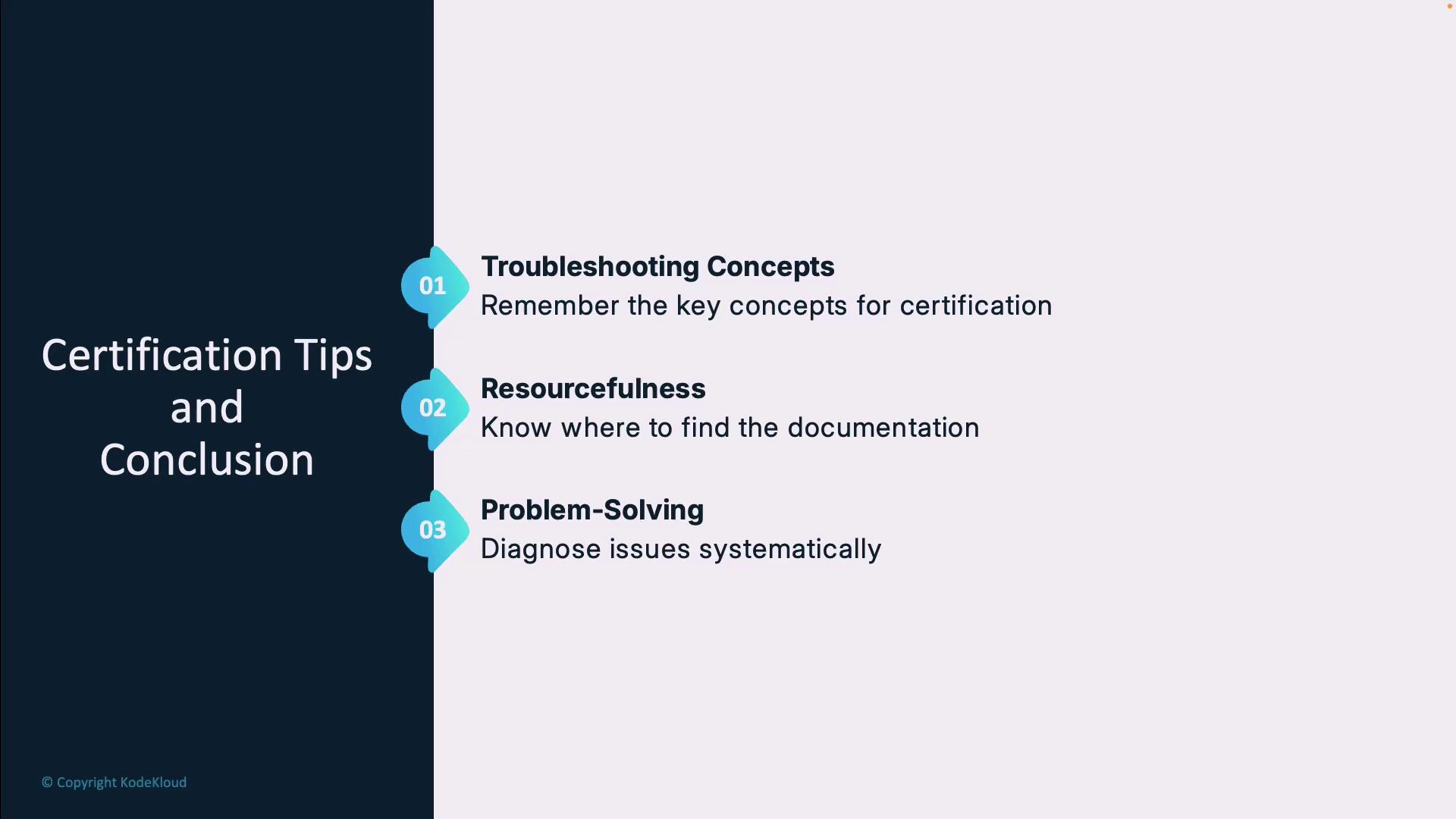
1. Troubleshooting Concepts\
Understand systematic diagnosis: identify symptoms, isolate root causes, and apply targeted fixes.
2. Resourcefulness\
Familiarize yourself with official [GitHub Copilot documentation](https://docs.github.com/copilot) and community forums.
3. Problem-Solving Skills\
Practice structured workflows and time-efficient debugging strategies.
Review scenario-based questions to sharpen your real-world troubleshooting skills before the exam.
***
## Links and References
* [GitHub Copilot Documentation](https://docs.github.com/copilot)
* [VS Code Extension Marketplace](https://marketplace.visualstudio.com/)
* [GitHub Status](https://www.githubstatus.com/)
By following this structured approach, you’ll resolve Copilot issues faster and be well-prepared for your certification exam.