> ## Documentation Index
> Fetch the complete documentation index at: https://notes.kodekloud.com/llms.txt
> Use this file to discover all available pages before exploring further.
# Demo Enable Sponsors
> How to enable GitHub Sponsors for a repository using .github/FUNDING.yml, surface a Sponsor button, handle branch protection, and complete account onboarding to receive payouts
Sponsorships let the GitHub community financially support a user, a repository, or an organization. This guide shows how to enable sponsorship for a repository using a `.github/FUNDING.yml` file, how GitHub surfaces the Sponsor button, and what account owners must do to receive payouts.
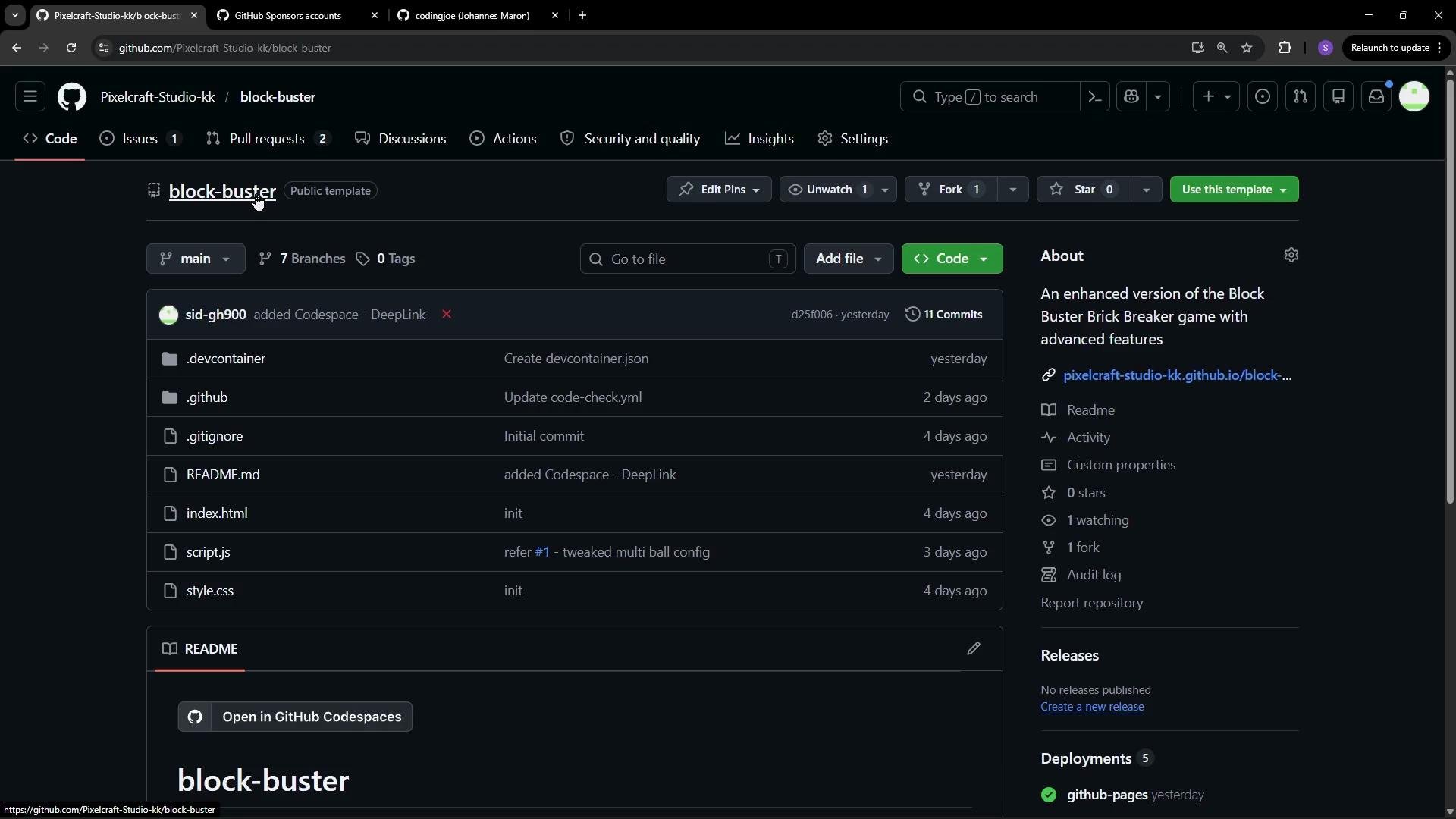
Back in my BlogBuster repository, assume I want to enable sponsorship for this project. One way to do that is from the repository Settings.
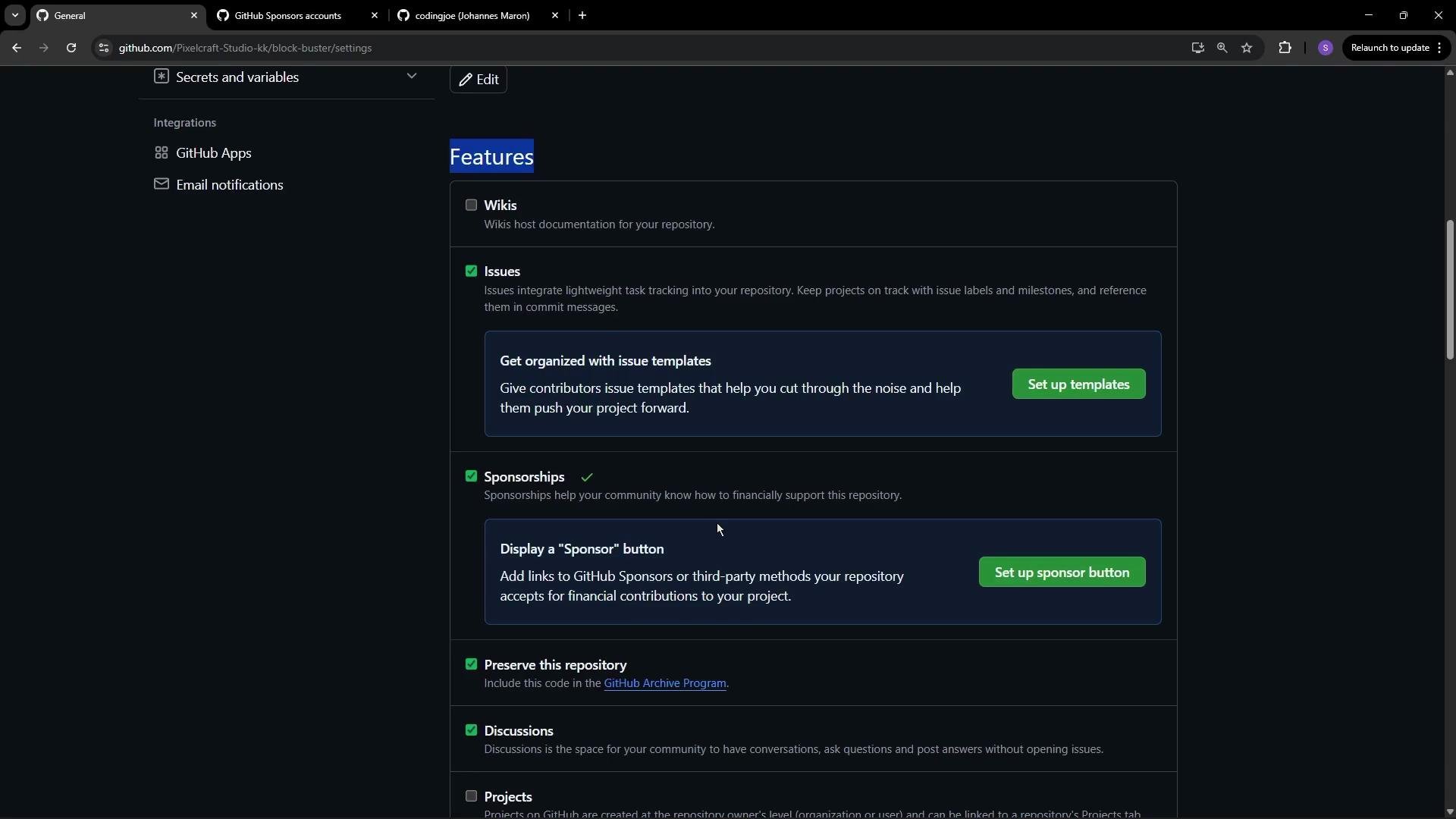
 In the repository Settings, under the Features section, enable the “Sponsorship” option. Turning this on allows a Sponsor button to appear on the repository and lets you declare one or more funding providers that visitors can choose from.
 How GitHub determines which funding options to show
* GitHub uses a configuration file named `FUNDING.yml` placed in the `.github` directory on the repository’s default branch (for example, `main`).
* That file declares supported providers and the account names or URLs to display when a visitor clicks the Sponsor button.
A template for supported platforms looks like this:
```yaml theme={null}
# .github/FUNDING.yml — supported funding model platforms (examples)
github: # Up to 4 GitHub Sponsors usernames, e.g., [user1, user2]
patreon: # Single Patreon username
open_collective: # Single Open Collective username
ko_fi: # Single Ko-fi username
tidelift: # Single Tidelift platform-name/package-name, e.g., npm/babel
community_bridge:# Single Community Bridge project-name, e.g., cloud-foundry
liberapay: # Single Liberapay username
issuehunt: # Single IssueHunt username
lfx_crowdfunding:# Single LFX Crowdfunding project-name, e.g., cloud-foundry
polar: # Single Polar username
buy_me_a_coffee: # Single Buy Me a Coffee username
thanks_dev: # Single thanks.dev username
custom: # Up to 4 custom sponsorship URLs, e.g., ['https://...', 'https://...']
```
Quick reference — common FUNDING.yml entries:
| Provider | Purpose | Example |
| --------------- | ---------------------------------- | ---------------------------------------------------- |
| GitHub Sponsors | Direct sponsor usernames (up to 4) | `github: ["sid-gh900","alice-mcberry"]` |
| Patreon | Patreon profile username | `patreon: "your-patreon-name"` |
| Open Collective | Open Collective slug | `open_collective: "acme-org"` |
| Ko-fi | Ko-fi username | `ko_fi: "your-kofi"` |
| Custom links | Any external funding URL (up to 4) | `custom: ["https://fund.me/project", "https://..."]` |
Example: only GitHub Sponsors
If you want the repository to list only GitHub Sponsors accounts, create `.github/FUNDING.yml` with the GitHub entries:
```yaml theme={null}
# .github/FUNDING.yml
github: ["sid-gh900", "alice-mcberry"]
# patreon:
# open_collective:
# ko_fi:
# ... other platforms commented out
```
This makes the Sponsor button present those two GitHub usernames as possible recipients.
Branch protection and committing FUNDING.yml
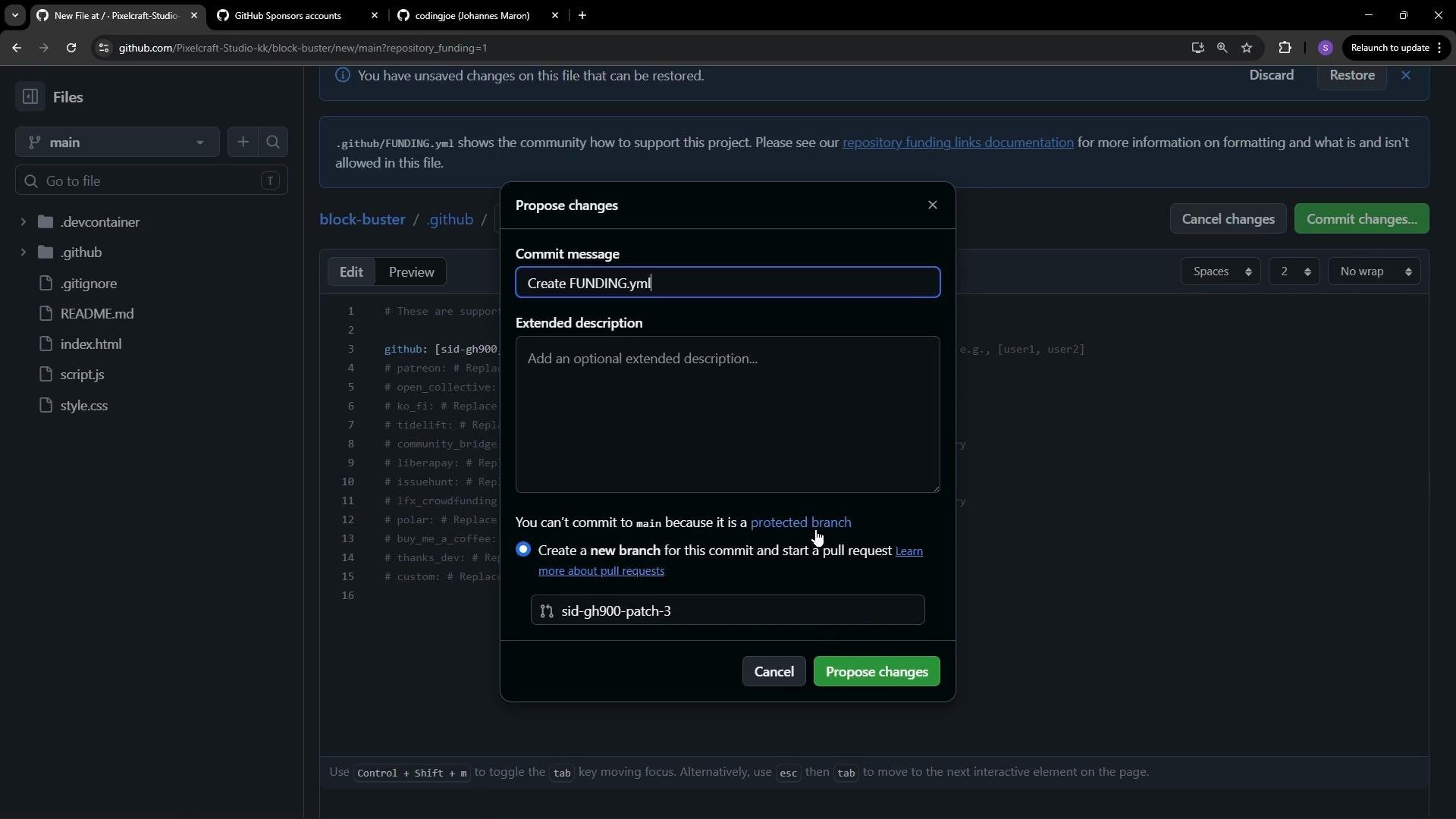
If your repository enforces branch protection on the default branch (for example, requiring pull requests and reviews), you may not be able to commit `FUNDING.yml` directly to `main`. In that case you have two main options:
* Create a new branch, add `.github/FUNDING.yml`, and open a pull request for the default branch; or
* If you are an admin and your policy allows it, temporarily permit admins to bypass the protection rules and commit directly.
How GitHub determines which funding options to show
* GitHub uses a configuration file named `FUNDING.yml` placed in the `.github` directory on the repository’s default branch (for example, `main`).
* That file declares supported providers and the account names or URLs to display when a visitor clicks the Sponsor button.
A template for supported platforms looks like this:
```yaml theme={null}
# .github/FUNDING.yml — supported funding model platforms (examples)
github: # Up to 4 GitHub Sponsors usernames, e.g., [user1, user2]
patreon: # Single Patreon username
open_collective: # Single Open Collective username
ko_fi: # Single Ko-fi username
tidelift: # Single Tidelift platform-name/package-name, e.g., npm/babel
community_bridge:# Single Community Bridge project-name, e.g., cloud-foundry
liberapay: # Single Liberapay username
issuehunt: # Single IssueHunt username
lfx_crowdfunding:# Single LFX Crowdfunding project-name, e.g., cloud-foundry
polar: # Single Polar username
buy_me_a_coffee: # Single Buy Me a Coffee username
thanks_dev: # Single thanks.dev username
custom: # Up to 4 custom sponsorship URLs, e.g., ['https://...', 'https://...']
```
Quick reference — common FUNDING.yml entries:
| Provider | Purpose | Example |
| --------------- | ---------------------------------- | ---------------------------------------------------- |
| GitHub Sponsors | Direct sponsor usernames (up to 4) | `github: ["sid-gh900","alice-mcberry"]` |
| Patreon | Patreon profile username | `patreon: "your-patreon-name"` |
| Open Collective | Open Collective slug | `open_collective: "acme-org"` |
| Ko-fi | Ko-fi username | `ko_fi: "your-kofi"` |
| Custom links | Any external funding URL (up to 4) | `custom: ["https://fund.me/project", "https://..."]` |
Example: only GitHub Sponsors
If you want the repository to list only GitHub Sponsors accounts, create `.github/FUNDING.yml` with the GitHub entries:
```yaml theme={null}
# .github/FUNDING.yml
github: ["sid-gh900", "alice-mcberry"]
# patreon:
# open_collective:
# ko_fi:
# ... other platforms commented out
```
This makes the Sponsor button present those two GitHub usernames as possible recipients.
Branch protection and committing FUNDING.yml
If your repository enforces branch protection on the default branch (for example, requiring pull requests and reviews), you may not be able to commit `FUNDING.yml` directly to `main`. In that case you have two main options:
* Create a new branch, add `.github/FUNDING.yml`, and open a pull request for the default branch; or
* If you are an admin and your policy allows it, temporarily permit admins to bypass the protection rules and commit directly.
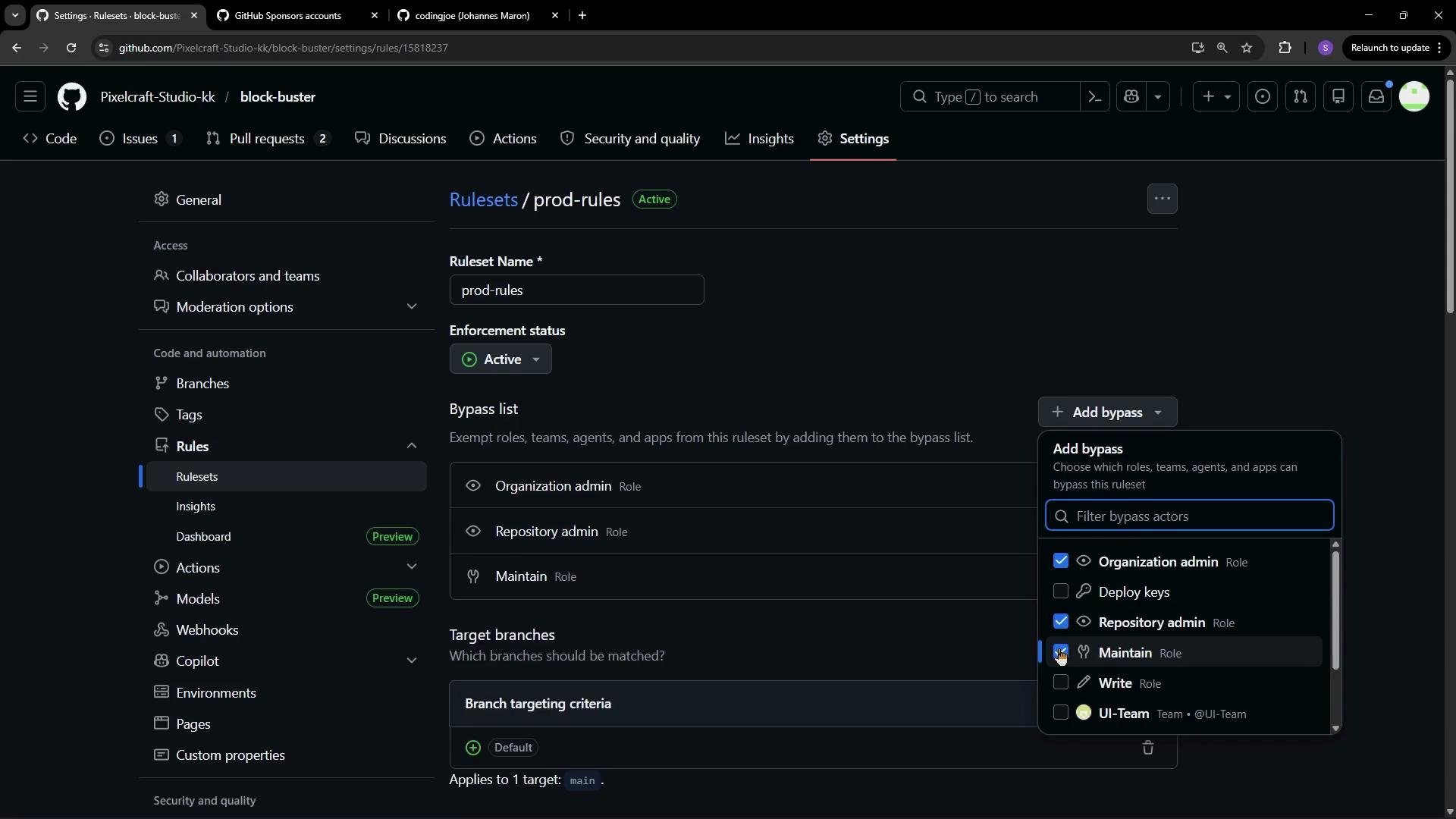
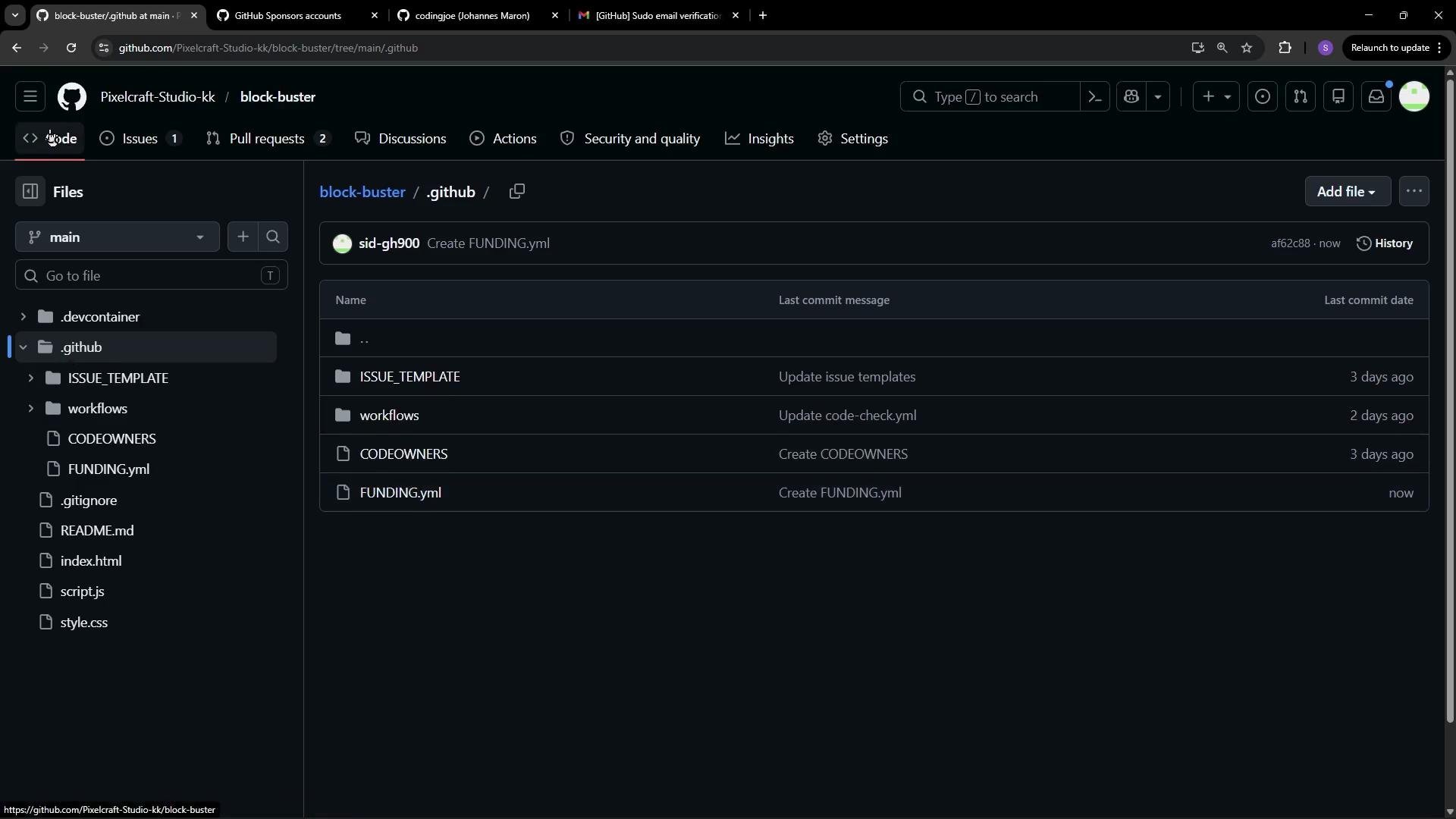
 In my case I adjusted the branch rule to allow repository admins to bypass the protection, then committed the `FUNDING.yml` file directly to `main`.
 After `.github/FUNDING.yml` is present on the default branch, the Sponsors button will appear on the repository UI. Visitors can click it to view available funding options.
 Receiving payments (GitHub Sponsors onboarding)
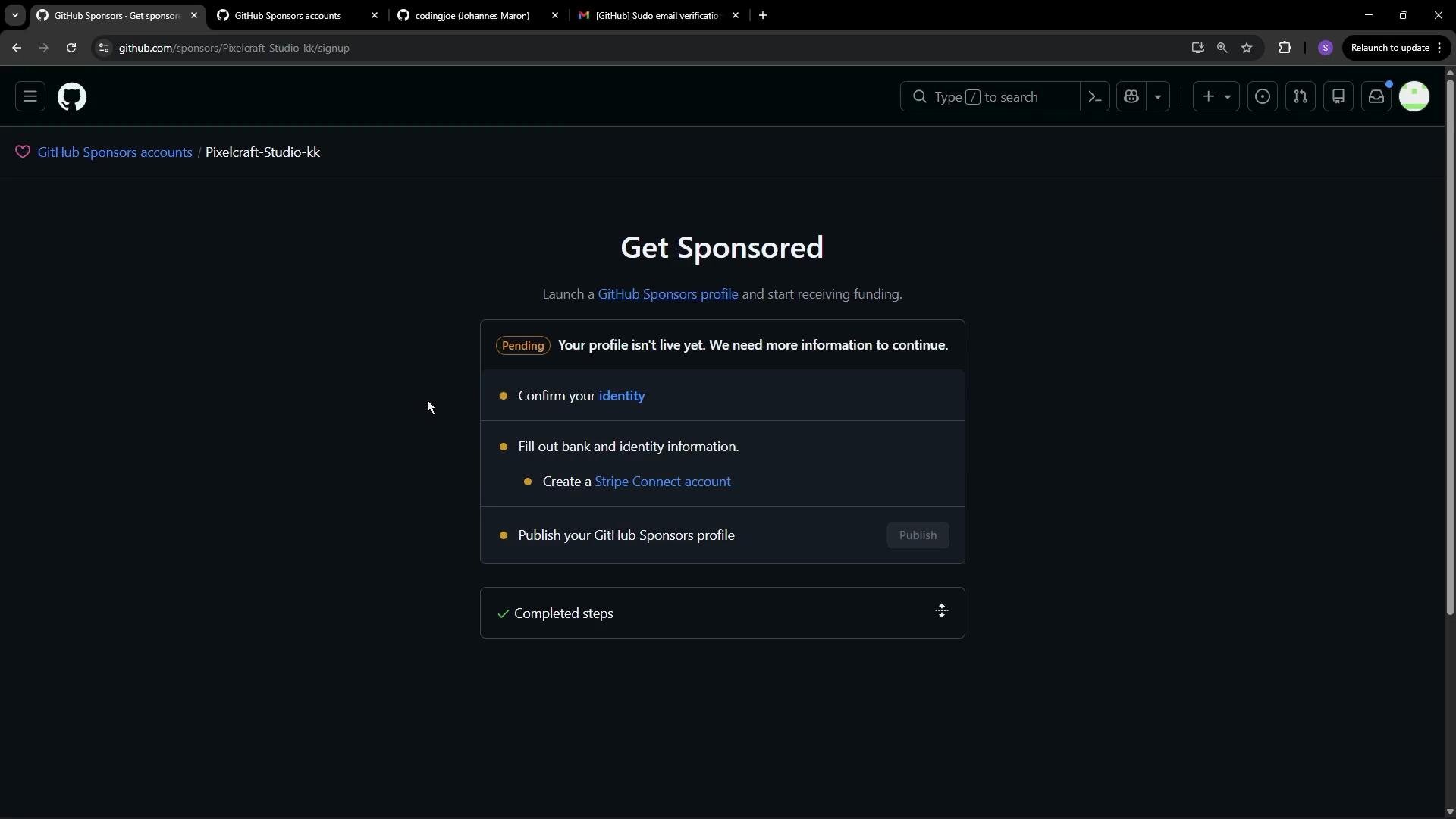
Declaring a sponsor destination in `FUNDING.yml` does not by itself enable payouts. Each GitHub Sponsors account must complete onboarding steps (identity verification, banking details, tax info) to accept funds. When configuring a sponsorship account you select your country, enter payout information, and finish verification.
Receiving payments (GitHub Sponsors onboarding)
Declaring a sponsor destination in `FUNDING.yml` does not by itself enable payouts. Each GitHub Sponsors account must complete onboarding steps (identity verification, banking details, tax info) to accept funds. When configuring a sponsorship account you select your country, enter payout information, and finish verification.
 Account-level sponsorship vs repository-level FUNDING.yml
* Repository-level `FUNDING.yml` controls which funding options a repository advertises.
* Account-level setup (user or organization) is required to accept payments. GitHub provides an accounts page listing organizations and users eligible for GitHub Sponsors.
When visiting a user or organization profile that has sponsorship enabled, visitors will see a Sponsor button. Clicking it opens a page where they can:
* Read about the author or project,
* Choose between tiers (monthly or one-time),
* Provide billing details and complete payment.
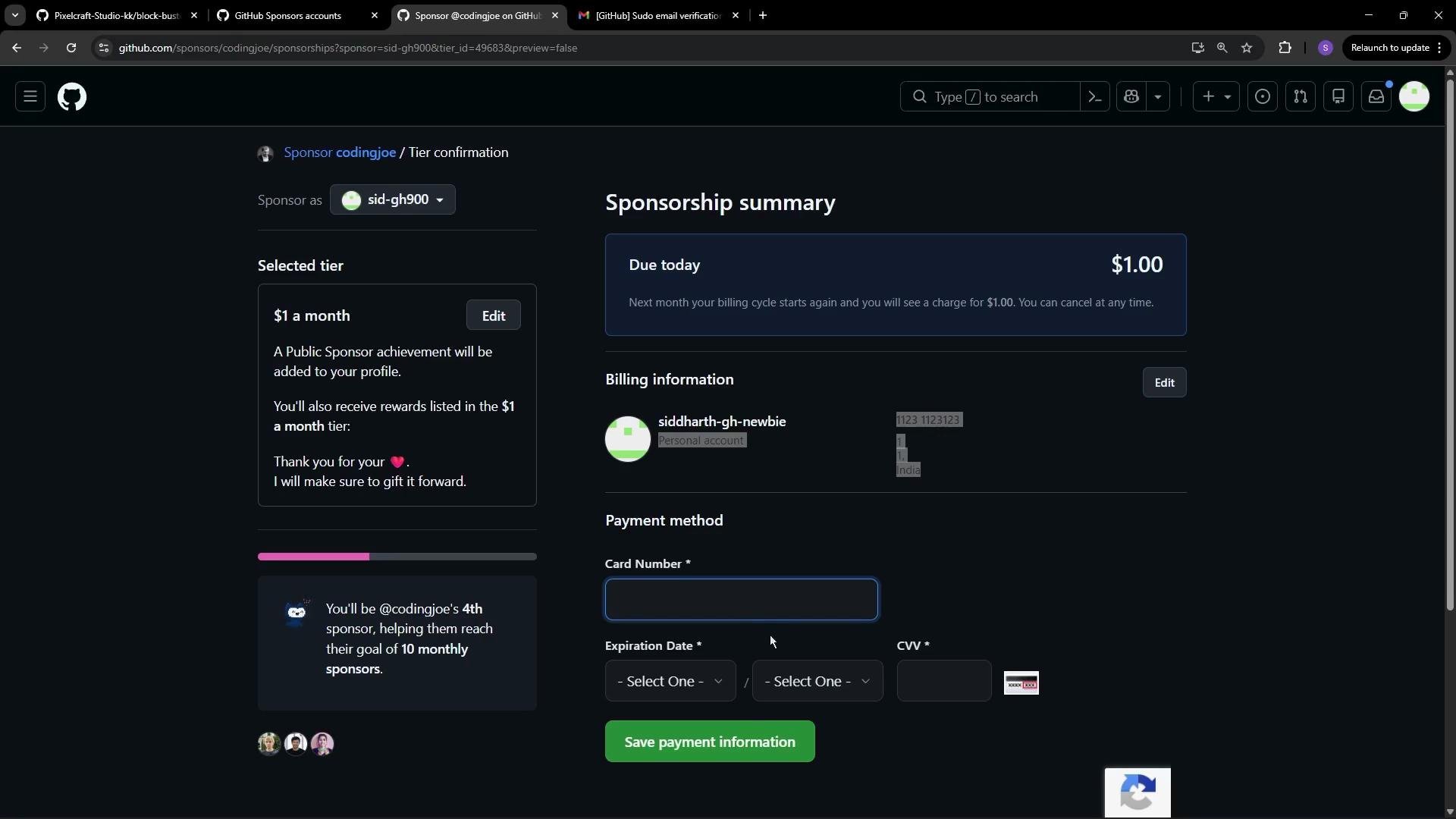
Here is an example of the sponsorship confirmation screen where a user confirms a \$1/month tier and fills billing information:
Account-level sponsorship vs repository-level FUNDING.yml
* Repository-level `FUNDING.yml` controls which funding options a repository advertises.
* Account-level setup (user or organization) is required to accept payments. GitHub provides an accounts page listing organizations and users eligible for GitHub Sponsors.
When visiting a user or organization profile that has sponsorship enabled, visitors will see a Sponsor button. Clicking it opens a page where they can:
* Read about the author or project,
* Choose between tiers (monthly or one-time),
* Provide billing details and complete payment.
Here is an example of the sponsorship confirmation screen where a user confirms a \$1/month tier and fills billing information:
 Place your `FUNDING.yml` at `.github/FUNDING.yml` on the repository's default branch (for example, `main`). If branch protection prevents a direct commit, open a pull request or temporarily allow admins to bypass the rule according to your workflow.
Summary
* Enable Sponsorship in repository Settings to show the Sponsor button.
* Use `.github/FUNDING.yml` to declare the providers and accounts to surface.
* Complete account-level GitHub Sponsors onboarding to receive payouts.
* If branch protection blocks direct commits, use a PR workflow or a temporary admin bypass.
Links and references
* GitHub Sponsors: [https://github.com/sponsors](https://github.com/sponsors)
* FUNDING.yml documentation: [https://docs.github.com/en/github/building-a-strong-community/adding-a-sponsor-button-to-your-repository](https://docs.github.com/en/github/building-a-strong-community/adding-a-sponsor-button-to-your-repository)
* GitHub branch protection rules: [https://docs.github.com/en/repositories/configuring-branches-and-merges-in-your-repository/configuring-protected-branches](https://docs.github.com/en/repositories/configuring-branches-and-merges-in-your-repository/configuring-protected-branches)
Place your `FUNDING.yml` at `.github/FUNDING.yml` on the repository's default branch (for example, `main`). If branch protection prevents a direct commit, open a pull request or temporarily allow admins to bypass the rule according to your workflow.
Summary
* Enable Sponsorship in repository Settings to show the Sponsor button.
* Use `.github/FUNDING.yml` to declare the providers and accounts to surface.
* Complete account-level GitHub Sponsors onboarding to receive payouts.
* If branch protection blocks direct commits, use a PR workflow or a temporary admin bypass.
Links and references
* GitHub Sponsors: [https://github.com/sponsors](https://github.com/sponsors)
* FUNDING.yml documentation: [https://docs.github.com/en/github/building-a-strong-community/adding-a-sponsor-button-to-your-repository](https://docs.github.com/en/github/building-a-strong-community/adding-a-sponsor-button-to-your-repository)
* GitHub branch protection rules: [https://docs.github.com/en/repositories/configuring-branches-and-merges-in-your-repository/configuring-protected-branches](https://docs.github.com/en/repositories/configuring-branches-and-merges-in-your-repository/configuring-protected-branches)