> ## Documentation Index
> Fetch the complete documentation index at: https://notes.kodekloud.com/llms.txt
> Use this file to discover all available pages before exploring further.
# Demo Describe Members Teams and Roles in a GitHub Organization
> Explains GitHub organization roles, members, outside collaborators, teams, and repository permissions and how to manage access and settings via the GitHub user interface.
In this lesson we'll explain how people are organized and granted access inside a GitHub organization. You'll learn how Owners, Members, Outside Collaborators, and Teams relate to repositories and permissions, and where to manage these settings in the GitHub UI.
## Viewing organization people
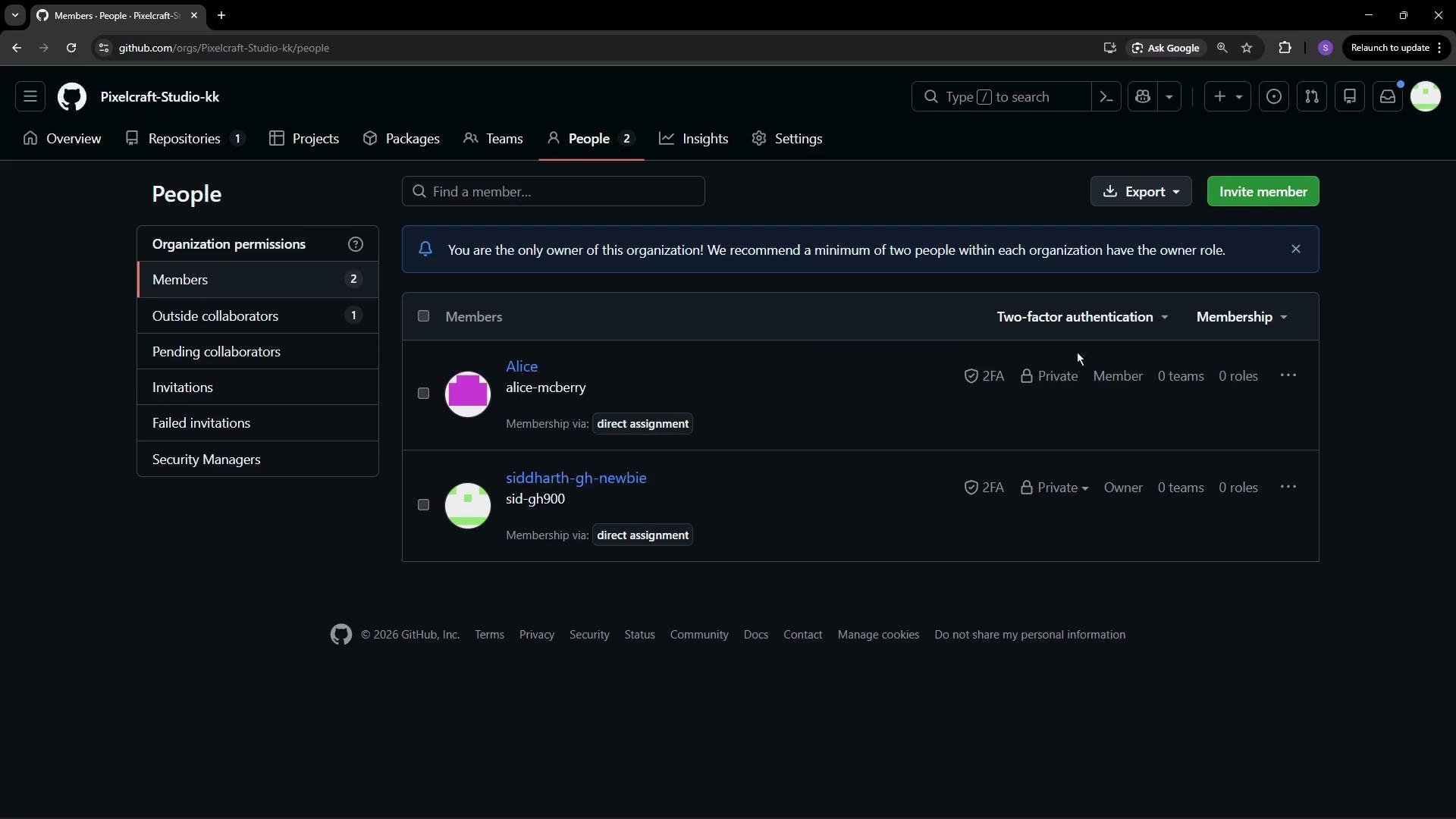
To inspect who belongs to an organization, open the organization’s People tab. Members are grouped into Owners and Members; Outside Collaborators are listed separately. Use the membership-type filters to locate Owners, Members, or Outside Collaborators quickly.
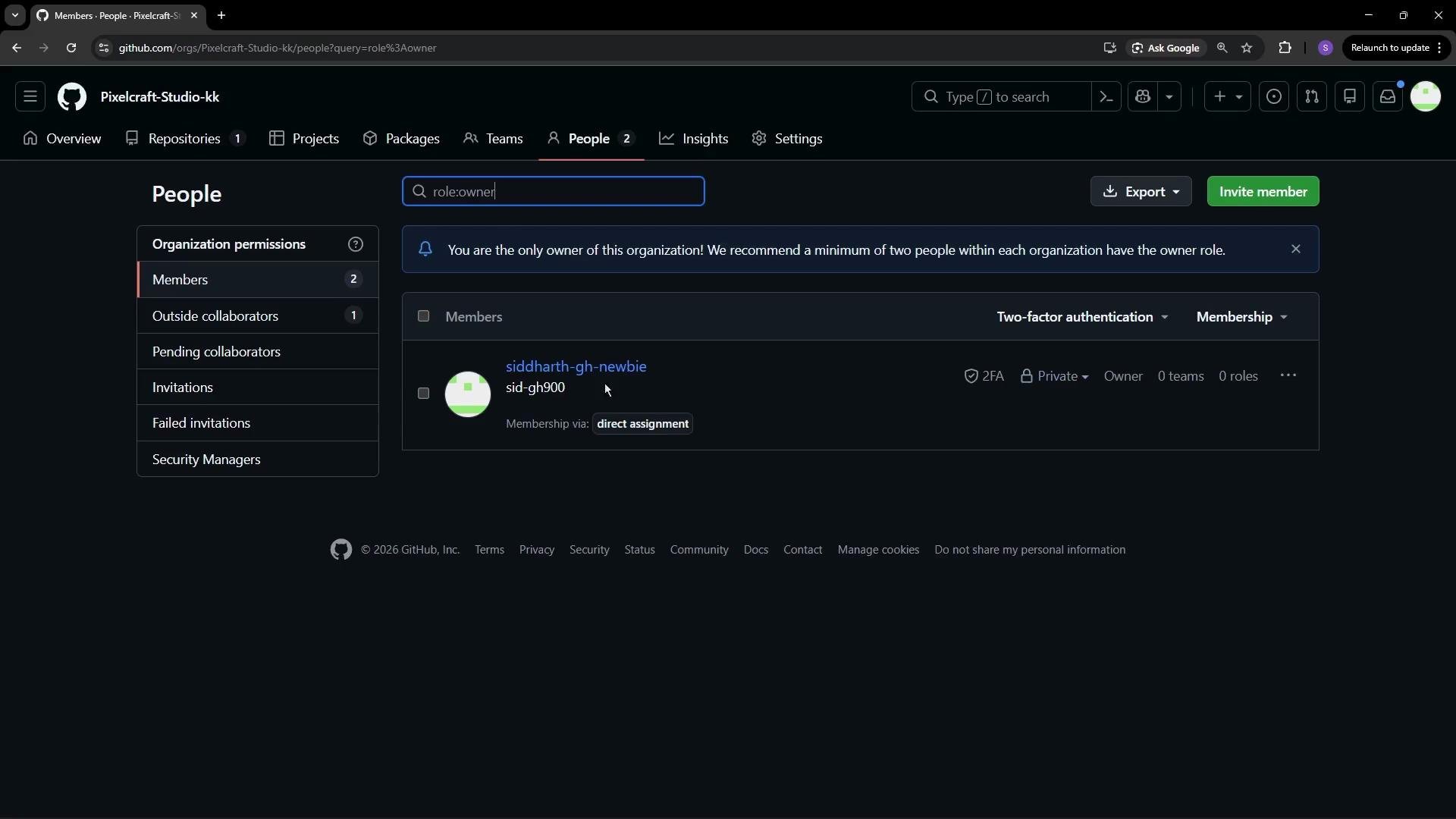
 ## Organization roles: Owners
Owners have full administrative control across the organization: they manage teams, member settings, billing, policies, and can delete the organization. The user who creates the organization is an Owner by default. Limit Owner assignments to trusted administrators.
## Organization roles: Owners
Owners have full administrative control across the organization: they manage teams, member settings, billing, policies, and can delete the organization. The user who creates the organization is an Owner by default. Limit Owner assignments to trusted administrators.
 ## Members: default and effective permissions
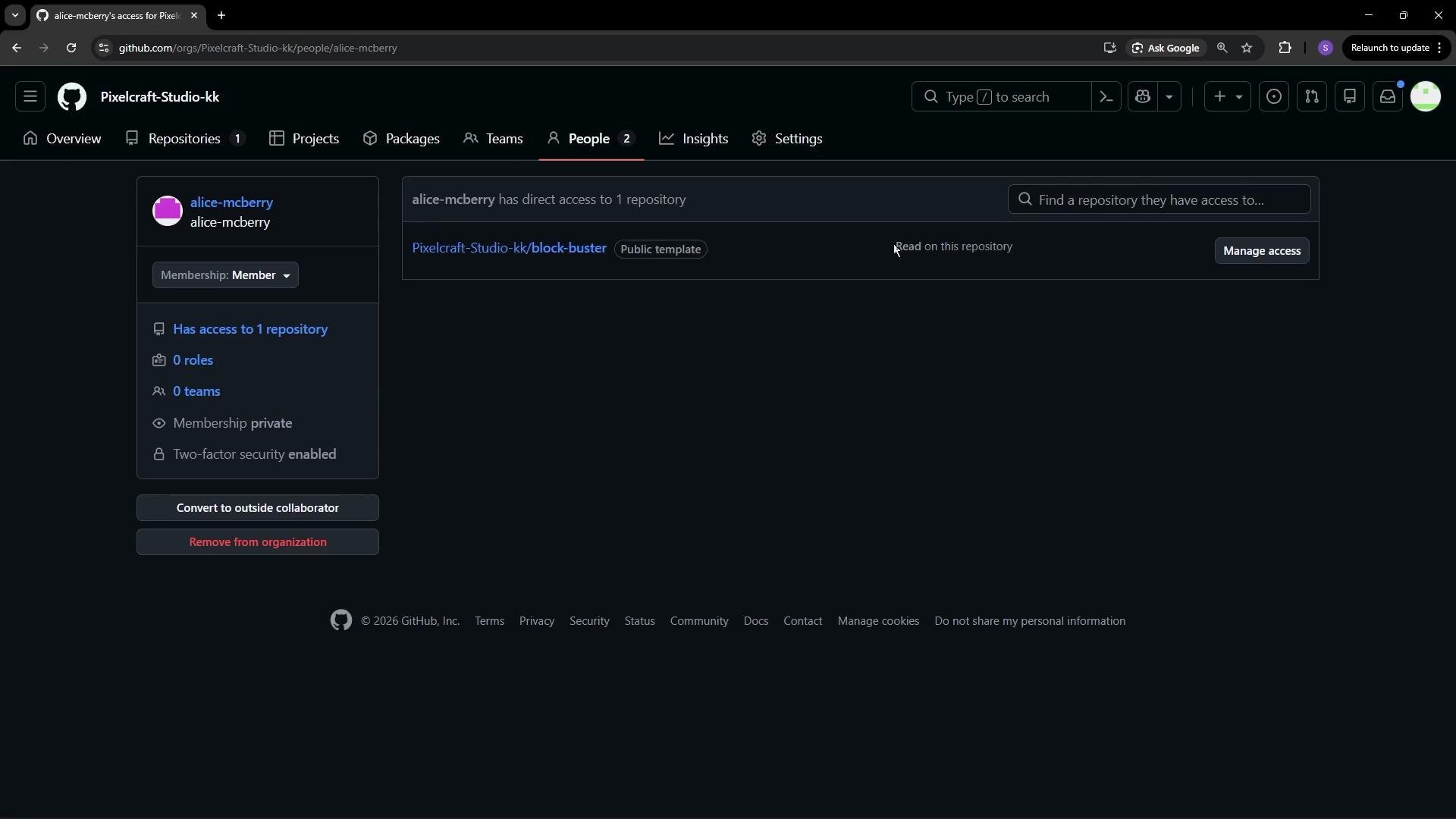
Organization Members receive the organization’s default repository permission (commonly `Read`), which you can configure. A member’s effective permissions may be raised or restricted by:
* Team memberships (teams can grant broader repo access).
* Repository-level collaborator settings (Manage access / Collaborators & teams).
* Organization or repository policy restrictions.
Open a member’s profile and select **Manage access** to review the repositories they can access and their permission levels.
## Members: default and effective permissions
Organization Members receive the organization’s default repository permission (commonly `Read`), which you can configure. A member’s effective permissions may be raised or restricted by:
* Team memberships (teams can grant broader repo access).
* Repository-level collaborator settings (Manage access / Collaborators & teams).
* Organization or repository policy restrictions.
Open a member’s profile and select **Manage access** to review the repositories they can access and their permission levels.
 ## Repository-level permissions
Repository permissions are managed from the repository **Settings → Collaborators & teams** (or **Manage access**). There you can add or remove collaborators, change roles, and create or assign custom roles when available.
## Repository-level permissions
Repository permissions are managed from the repository **Settings → Collaborators & teams** (or **Manage access**). There you can add or remove collaborators, change roles, and create or assign custom roles when available.
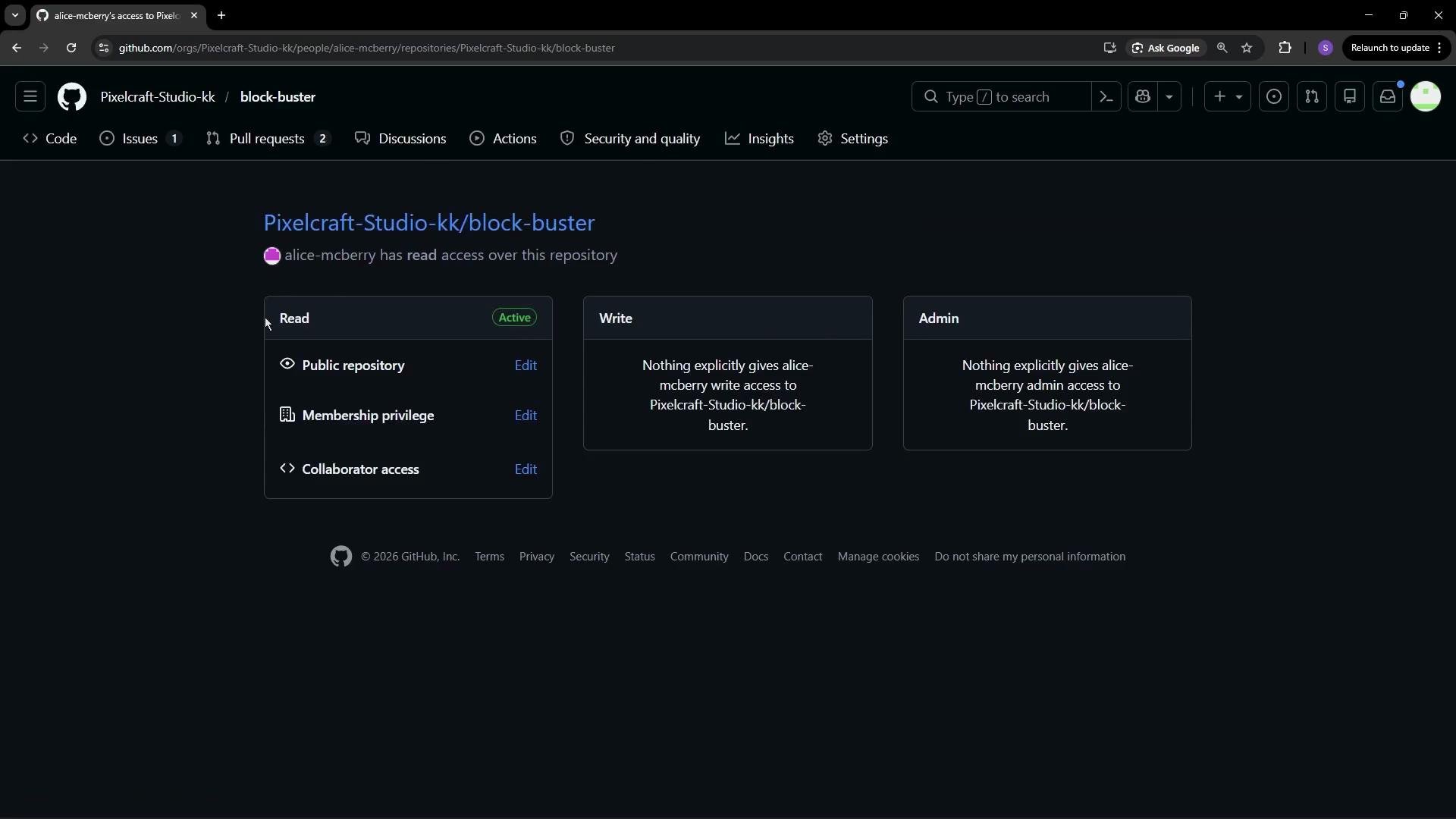
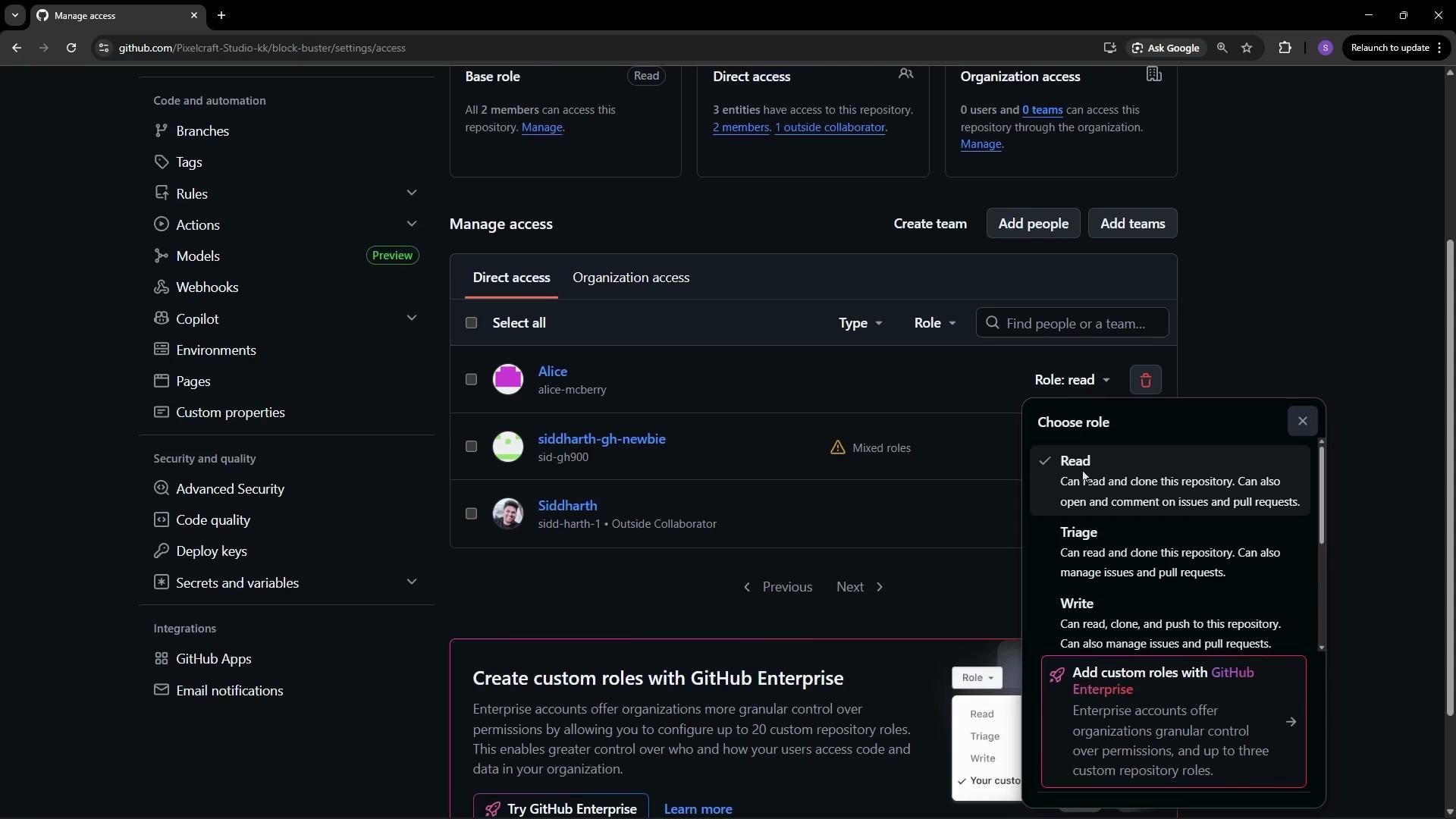 Summary of common repository roles:
| Role | Typical use | Effect |
| -------- | ------------------ | ----------------------------------------------------------- |
| `Read` | View code & issues | Clone and read-only access |
| `Triage` | Manage issues/PRs | Issue/PR management without write to code |
| `Write` | Contribute code | Push changes and merge PRs (depending on branch protection) |
| `Admin` | Full repo control | Manage settings, collaborators, webhooks |
For more details, see the official GitHub documentation on repository permissions: [Managing repository access](https://docs.github.com/en/organizations/managing-access-to-your-organizations-repositories).
## Outside collaborators
Outside collaborators are users who have access to one or more repositories but are not organization Members. This is useful for contractors, temporary contributors, or external partners. From the People tab you can view the repos they can access, invite them to become full organization Members, or remove their access.
Summary of common repository roles:
| Role | Typical use | Effect |
| -------- | ------------------ | ----------------------------------------------------------- |
| `Read` | View code & issues | Clone and read-only access |
| `Triage` | Manage issues/PRs | Issue/PR management without write to code |
| `Write` | Contribute code | Push changes and merge PRs (depending on branch protection) |
| `Admin` | Full repo control | Manage settings, collaborators, webhooks |
For more details, see the official GitHub documentation on repository permissions: [Managing repository access](https://docs.github.com/en/organizations/managing-access-to-your-organizations-repositories).
## Outside collaborators
Outside collaborators are users who have access to one or more repositories but are not organization Members. This is useful for contractors, temporary contributors, or external partners. From the People tab you can view the repos they can access, invite them to become full organization Members, or remove their access.
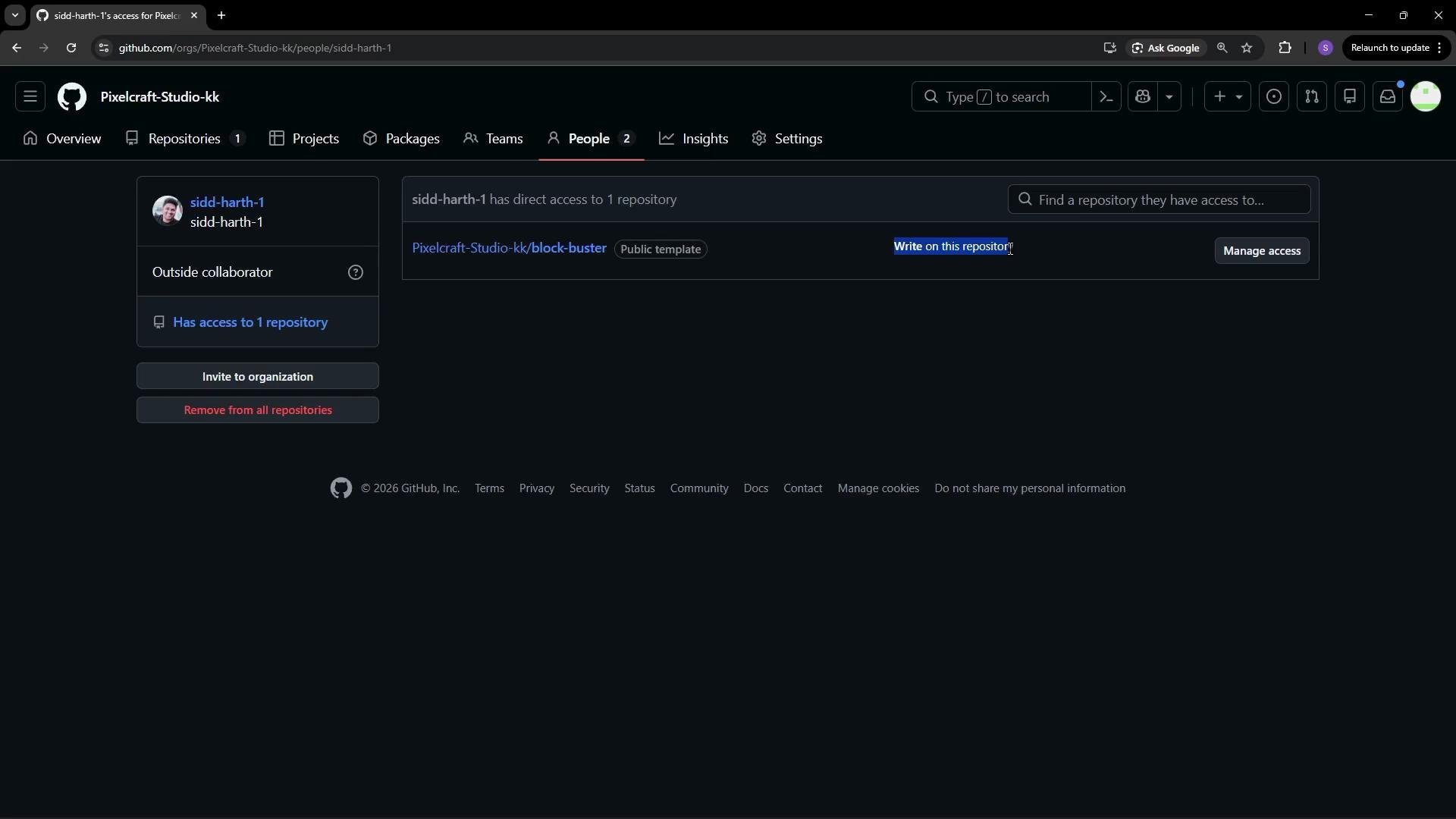 Use outside collaborators to grant repository-scoped access without making someone a full organization Member. Invite them as Members only when they need broader organization-level privileges.
## Teams: group-based access and notifications
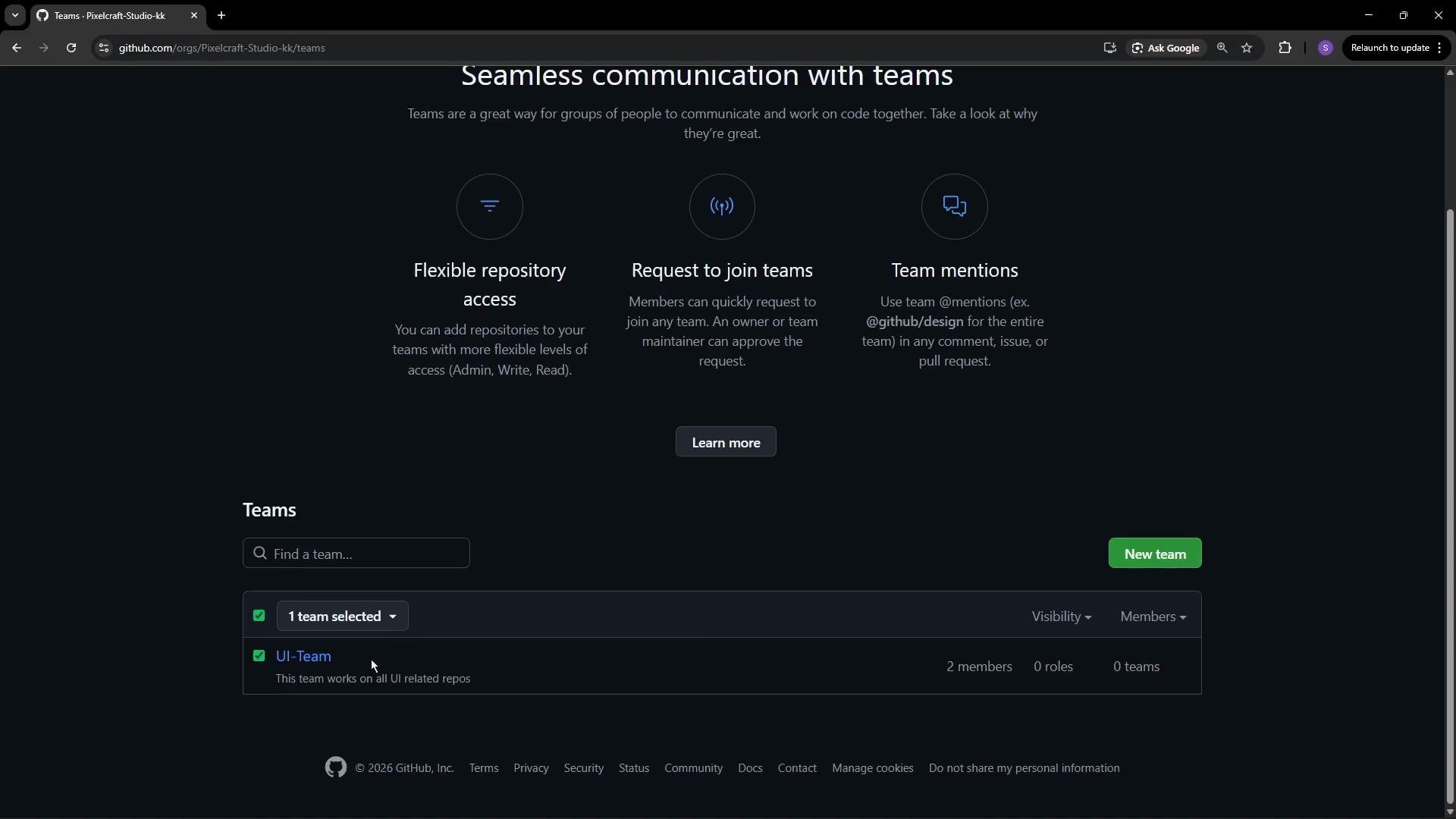
Teams let you group Members to manage repository access, notifications, and mentions efficiently. Typical workflows:
* Give `UI-Team` write access to front-end repositories.
* Give `Backend-Team` admin or write access to API repositories.
* Mention a team in an issue or PR to notify all team members with a single handle.
To create a team, supply a name, description, visibility (visible or secret), and notification settings. Teams can also be organized into parent/child hierarchies.
Use outside collaborators to grant repository-scoped access without making someone a full organization Member. Invite them as Members only when they need broader organization-level privileges.
## Teams: group-based access and notifications
Teams let you group Members to manage repository access, notifications, and mentions efficiently. Typical workflows:
* Give `UI-Team` write access to front-end repositories.
* Give `Backend-Team` admin or write access to API repositories.
* Mention a team in an issue or PR to notify all team members with a single handle.
To create a team, supply a name, description, visibility (visible or secret), and notification settings. Teams can also be organized into parent/child hierarchies.
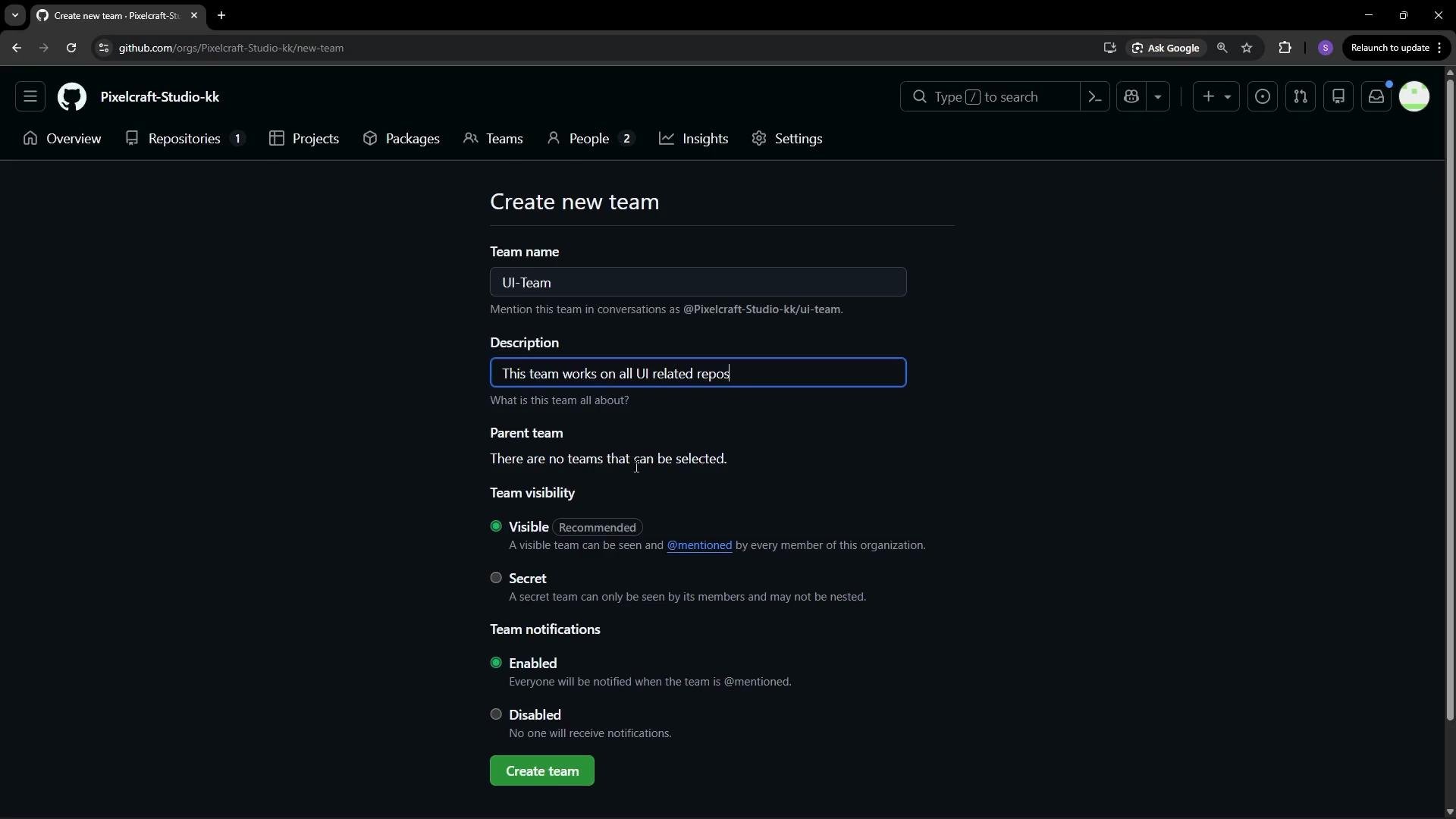 When you create a team, the creator is added as a team maintainer by default. You can invite additional members and assign other maintainers to manage the team.
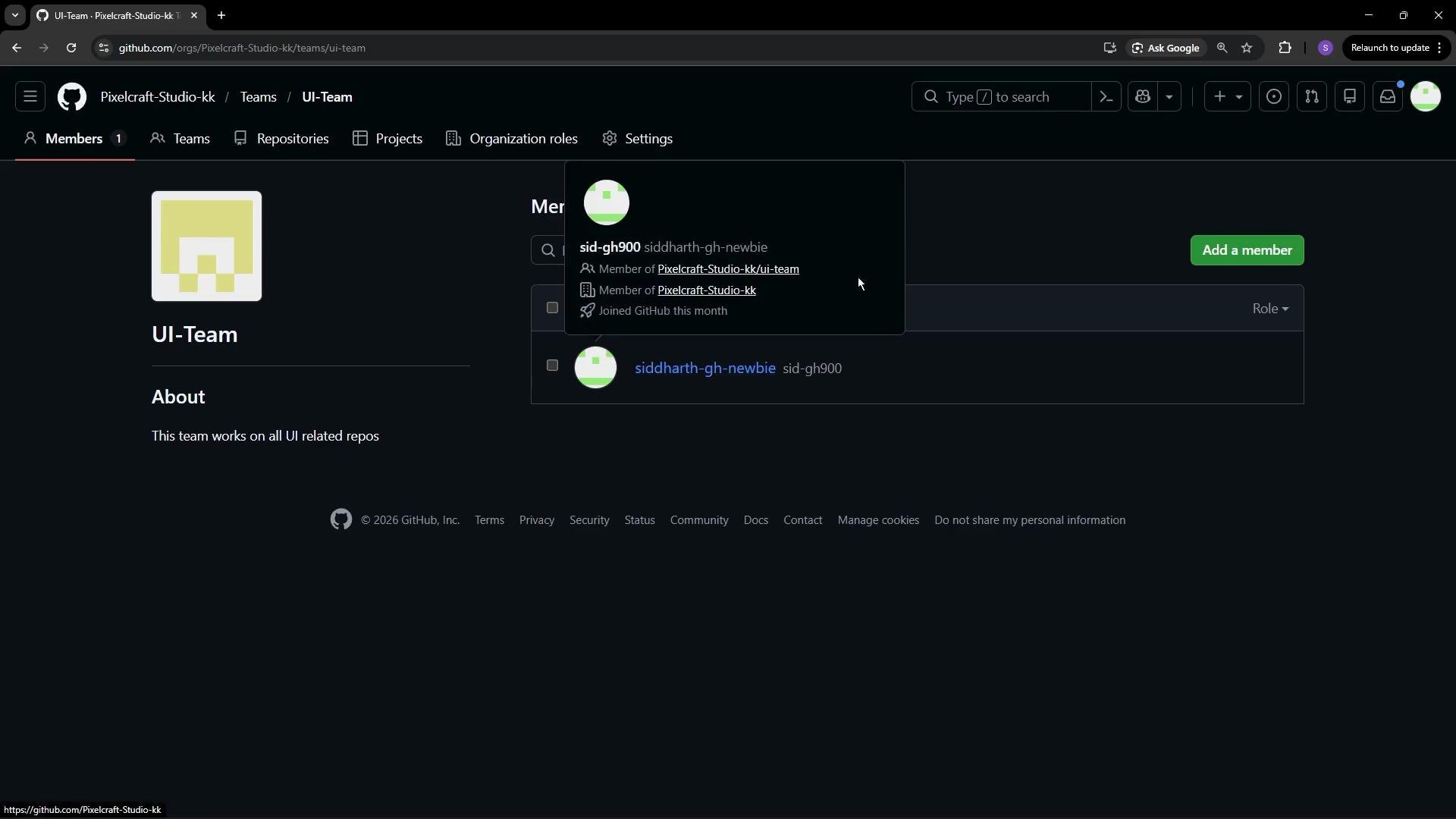 Teams support features such as flexible repository access scopes, team join requests, and team mentions.
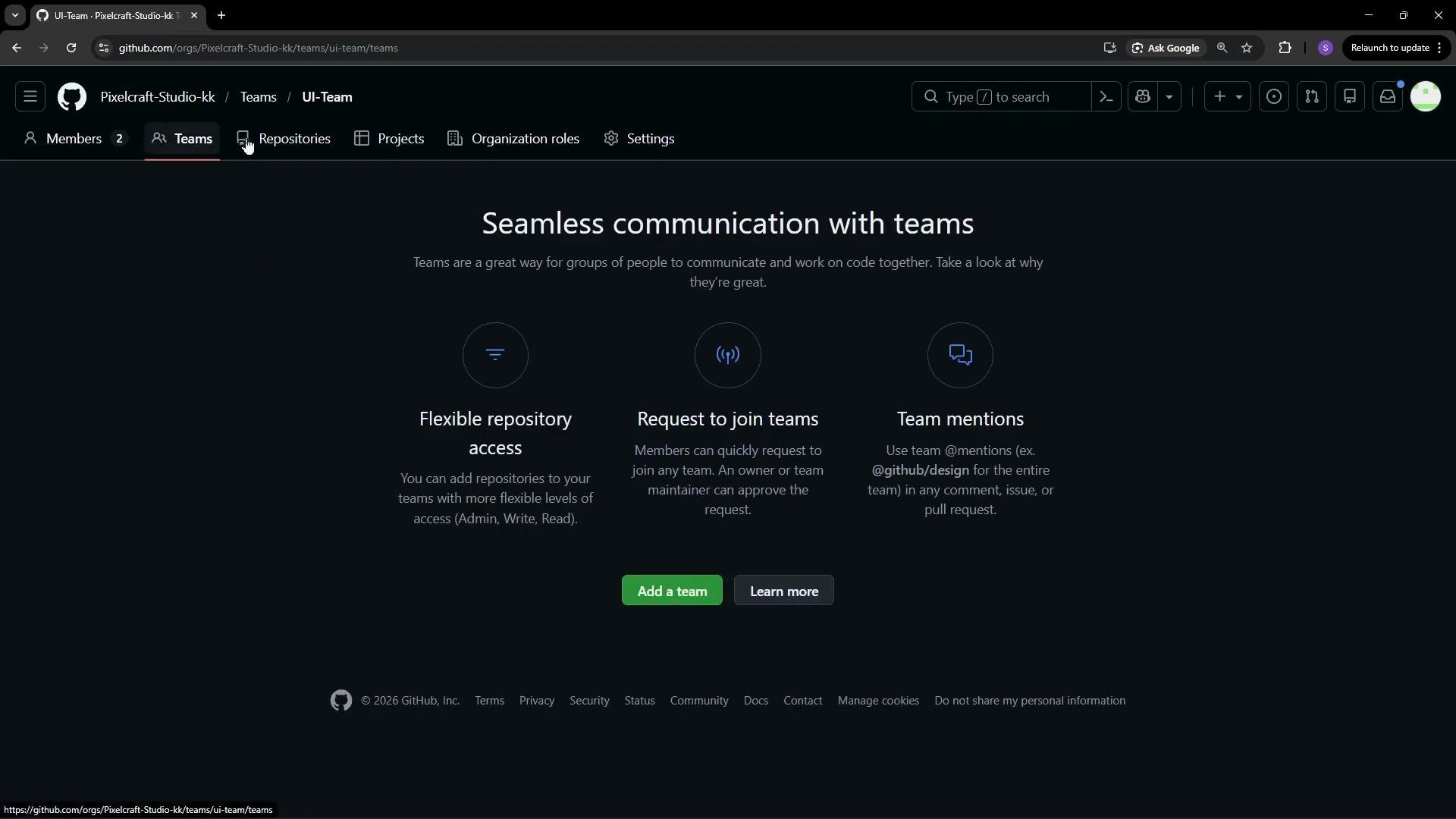 Once a team and its members are in place, you can mention the team in issues, pull requests, and comments to notify everyone in the group at once. Use the team handle format, for example: `@org/UI-Team`.
 Grant Owner status sparingly. Prefer teams and repository-level roles to minimize blast radius and adhere to the principle of least privilege.
## Quick reference
* Owners = full organization control — limit assignments.
* Members = organization-scoped users with a default repo permission.
* Outside collaborators = repo-scoped access without organization membership.
* Teams = group-based access, notifications, and easier management.
For additional reading and step-by-step UI guidance, visit:
* [GitHub Organizations documentation](https://docs.github.com/en/organizations)
* [Manage access to your repositories](https://docs.github.com/en/organizations/managing-access-to-your-organizations-repositories)
Grant Owner status sparingly. Prefer teams and repository-level roles to minimize blast radius and adhere to the principle of least privilege.
## Quick reference
* Owners = full organization control — limit assignments.
* Members = organization-scoped users with a default repo permission.
* Outside collaborators = repo-scoped access without organization membership.
* Teams = group-based access, notifications, and easier management.
For additional reading and step-by-step UI guidance, visit:
* [GitHub Organizations documentation](https://docs.github.com/en/organizations)
* [Manage access to your repositories](https://docs.github.com/en/organizations/managing-access-to-your-organizations-repositories)