> ## Documentation Index
> Fetch the complete documentation index at: https://notes.kodekloud.com/llms.txt
> Use this file to discover all available pages before exploring further.
# Demo Identify the Options for Repository Visibility
> Explains GitHub repository visibility options public private and internal, how to identify labels, change visibility, and apply best practices for secure access
This guide explains GitHub repository visibility: how to identify whether a repository is Public, Private, or Internal, and how to change visibility when you have the necessary permissions. It includes visual cues, step-by-step instructions, and best practices for making visibility changes safely.
Repositories can be classified as public, private, or internal.
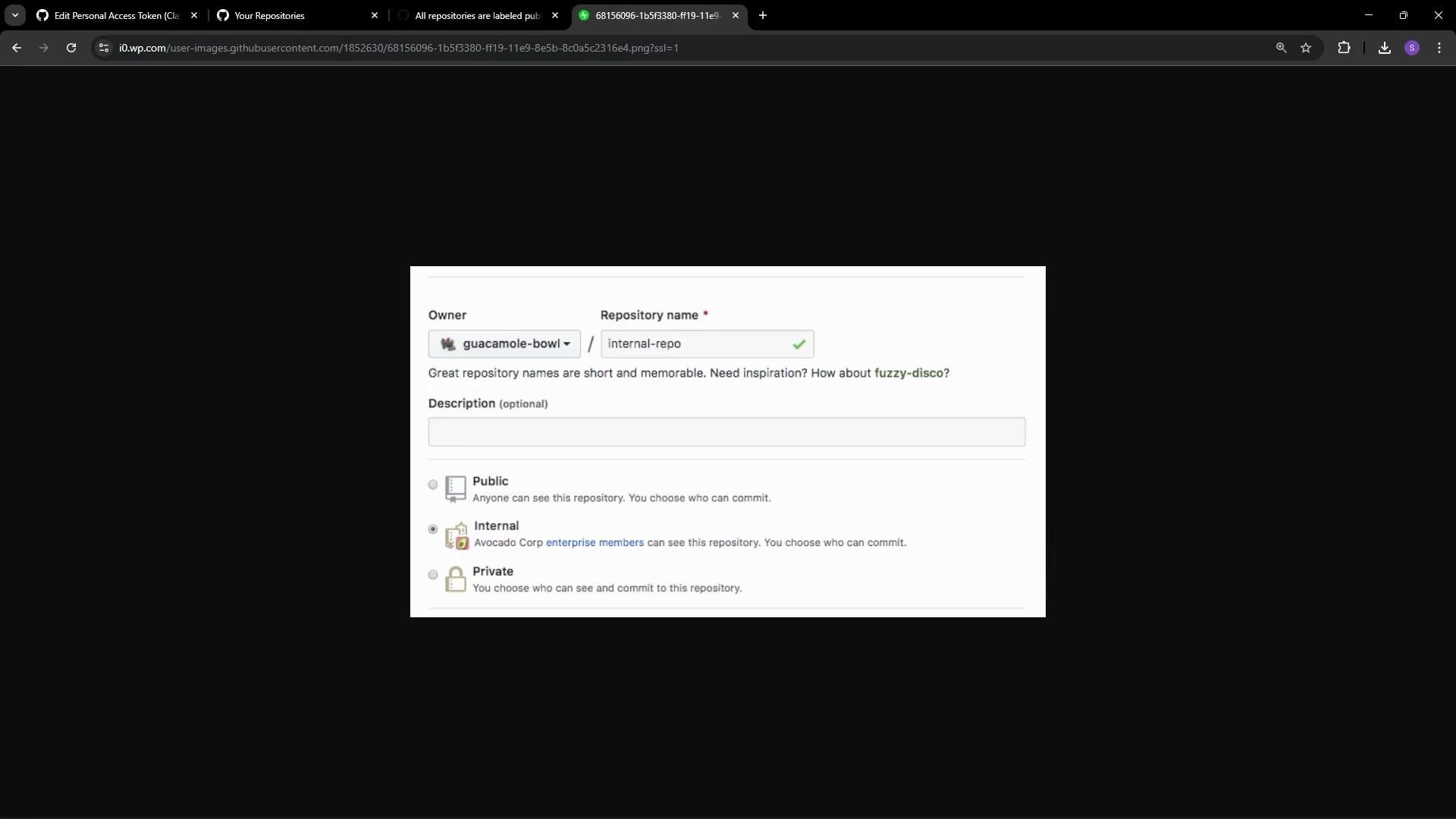 Repository visibility determines who can view and clone code, open issues, and contribute via pull requests:
* Public — Visible to anyone on the Internet. Public repos are ideal for open-source projects where transparency and community contributions are desired.
* Private — Access is restricted to specific collaborators, teams, or organization members you explicitly grant access to. Only authorized users can view or clone the repository.
* Internal — Available across an organization or enterprise account but not to the general public. Internal visibility requires a GitHub Enterprise plan (Cloud or Server).
Internal repositories are available for organizations on [GitHub Enterprise (Cloud and Server)](https://github.com/enterprise). They allow visibility across the organization or enterprise without exposing the repository to the public.
How these visibility options compare:
| Visibility | Who can access | Typical use case |
| ---------: | ------------------------------------------ | -------------------------------------------------------------------- |
| Public | Anyone on the Internet | Open-source projects, public documentation, community collaboration |
| Private | Specific collaborators, teams, org members | Proprietary code, pre-release development, private tools |
| Internal | Organization or enterprise members only | Internal tooling, company-only projects (requires GitHub Enterprise) |
All repositories display a visibility label so you can tell at a glance whether a repository is Public, Private, or Internal. GitHub also shows icons (for example, a lock icon for private repositories) alongside the label.
Repository visibility determines who can view and clone code, open issues, and contribute via pull requests:
* Public — Visible to anyone on the Internet. Public repos are ideal for open-source projects where transparency and community contributions are desired.
* Private — Access is restricted to specific collaborators, teams, or organization members you explicitly grant access to. Only authorized users can view or clone the repository.
* Internal — Available across an organization or enterprise account but not to the general public. Internal visibility requires a GitHub Enterprise plan (Cloud or Server).
Internal repositories are available for organizations on [GitHub Enterprise (Cloud and Server)](https://github.com/enterprise). They allow visibility across the organization or enterprise without exposing the repository to the public.
How these visibility options compare:
| Visibility | Who can access | Typical use case |
| ---------: | ------------------------------------------ | -------------------------------------------------------------------- |
| Public | Anyone on the Internet | Open-source projects, public documentation, community collaboration |
| Private | Specific collaborators, teams, org members | Proprietary code, pre-release development, private tools |
| Internal | Organization or enterprise members only | Internal tooling, company-only projects (requires GitHub Enterprise) |
All repositories display a visibility label so you can tell at a glance whether a repository is Public, Private, or Internal. GitHub also shows icons (for example, a lock icon for private repositories) alongside the label.
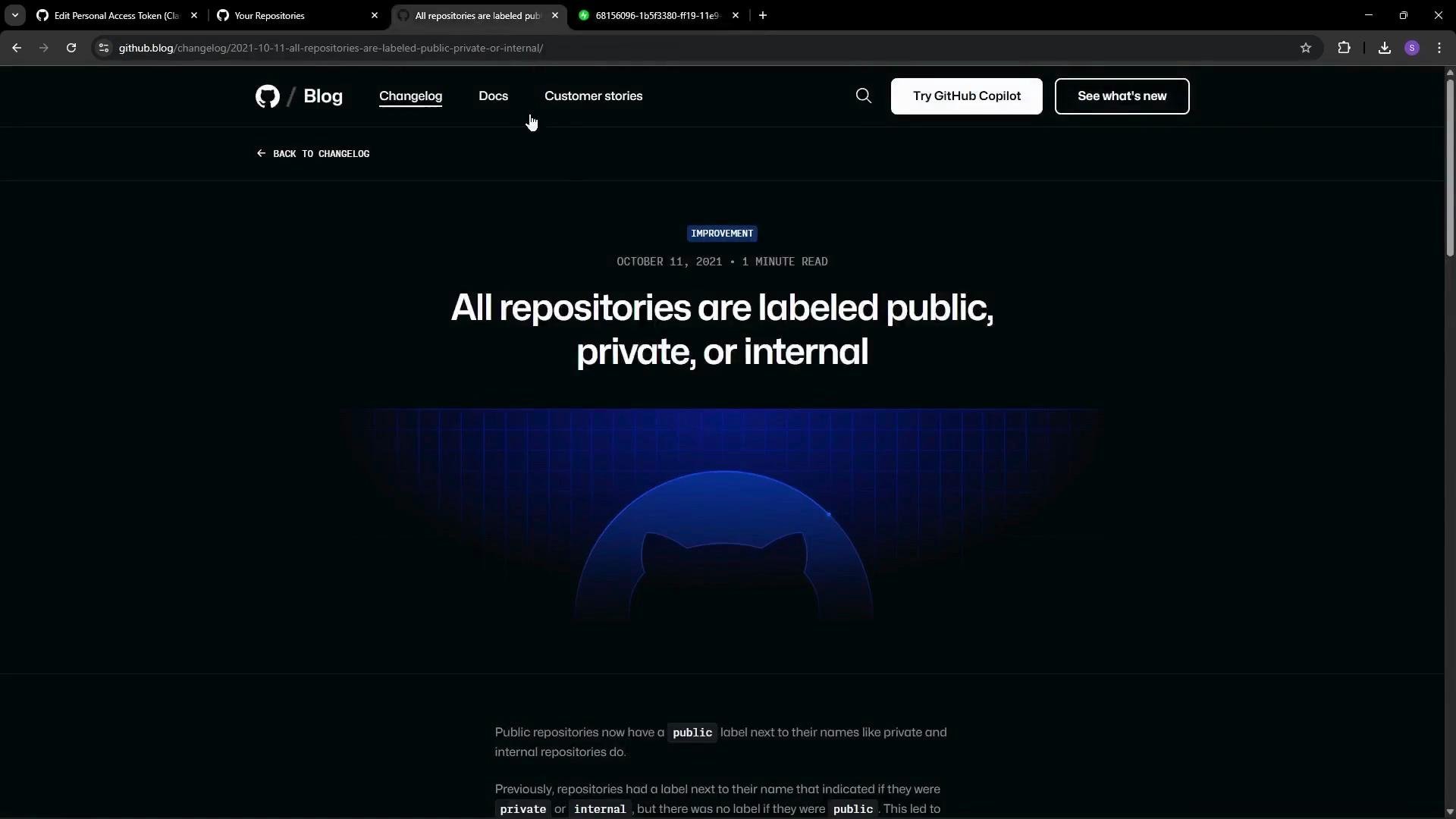 When browsing a profile or organization repository list, each repository displays its visibility label next to the repository name.
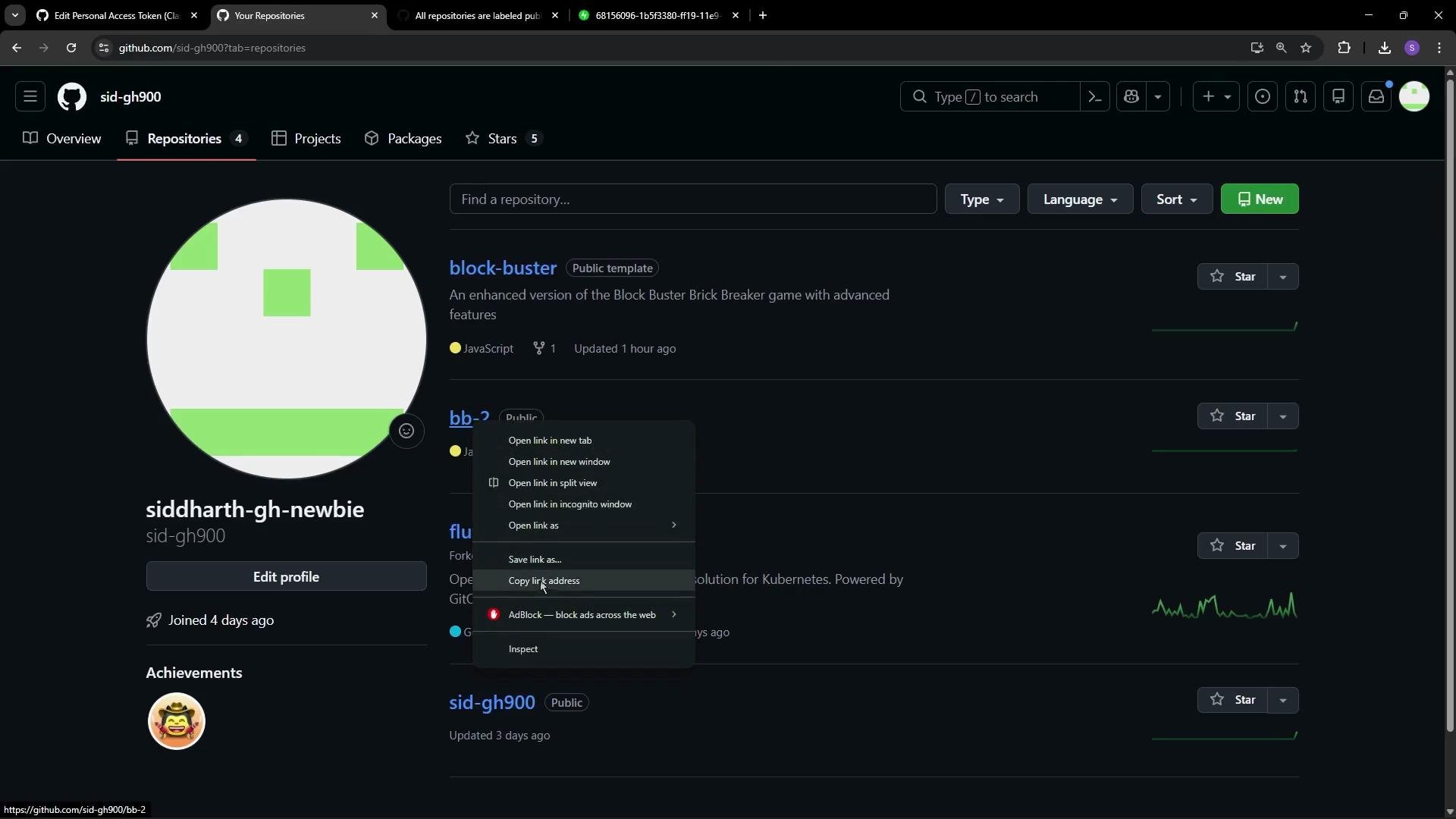 Example: The repository named `bb-2` is currently public, so other users (such as Alice) can view it. To change a repository’s visibility (for example, from public to private), you must be the repository owner or have administrative permissions on that repository.
How to change repository visibility (step-by-step)
1. Open the repository you own or maintain.
2. Go to Settings → scroll to the bottom to the "Danger Zone".
3. Select "Change repository visibility", choose the new visibility, and follow the confirmation prompts (GitHub may require you to type the repository name to confirm).
Example: The repository named `bb-2` is currently public, so other users (such as Alice) can view it. To change a repository’s visibility (for example, from public to private), you must be the repository owner or have administrative permissions on that repository.
How to change repository visibility (step-by-step)
1. Open the repository you own or maintain.
2. Go to Settings → scroll to the bottom to the "Danger Zone".
3. Select "Change repository visibility", choose the new visibility, and follow the confirmation prompts (GitHub may require you to type the repository name to confirm).
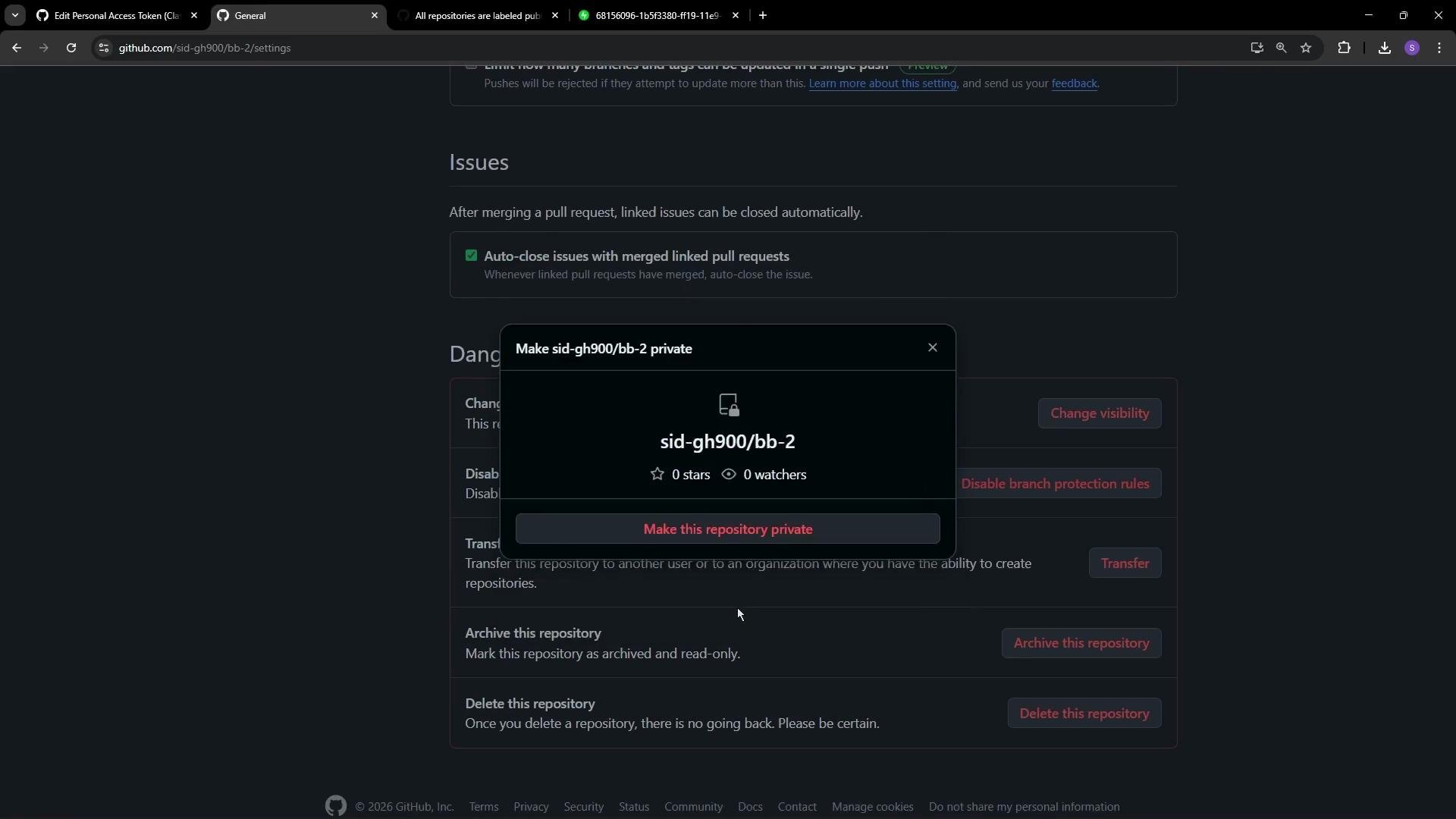 After changing visibility:
* The repository updates its visibility label (e.g., Private) and may display a lock icon to indicate restricted access.
* Only collaborators and users with granted access can view a private repository. Unauthorized users attempting to access it will receive a 404 (Not Found).
* GitHub will always prompt for confirmation before applying visibility changes; follow any additional prompts carefully.
Best practices and tips
* Verify repository access and collaborators before making a repo public—remove any sensitive data or credentials.
* Ensure branch protection rules and required checks are in place when opening a repository to the public.
* Confirm you have repository admin permissions before attempting any visibility changes.
Links and references
* [GitHub Docs: Changing a repository's visibility](https://docs.github.com/en/repositories/managing-your-repositorys-settings-and-features/managing-repository-settings/changing-a-repositorys-visibility)
* [GitHub Enterprise](https://github.com/enterprise)
After changing visibility:
* The repository updates its visibility label (e.g., Private) and may display a lock icon to indicate restricted access.
* Only collaborators and users with granted access can view a private repository. Unauthorized users attempting to access it will receive a 404 (Not Found).
* GitHub will always prompt for confirmation before applying visibility changes; follow any additional prompts carefully.
Best practices and tips
* Verify repository access and collaborators before making a repo public—remove any sensitive data or credentials.
* Ensure branch protection rules and required checks are in place when opening a repository to the public.
* Confirm you have repository admin permissions before attempting any visibility changes.
Links and references
* [GitHub Docs: Changing a repository's visibility](https://docs.github.com/en/repositories/managing-your-repositorys-settings-and-features/managing-repository-settings/changing-a-repositorys-visibility)
* [GitHub Enterprise](https://github.com/enterprise)