> ## Documentation Index
> Fetch the complete documentation index at: https://notes.kodekloud.com/llms.txt
> Use this file to discover all available pages before exploring further.
# The Codespace Lifecycle
> Overview of the GitHub Codespaces lifecycle, covering provisioning, operational states, persistence, rebuilding, saving work, cost management, and final deletion
The GitHub Codespaces lifecycle describes the journey of a cloud-hosted development environment from provisioning to termination. Understanding this lifecycle helps you manage costs, protect work, and ensure reliable developer workflows.
 ## Quick overview: lifecycle phases
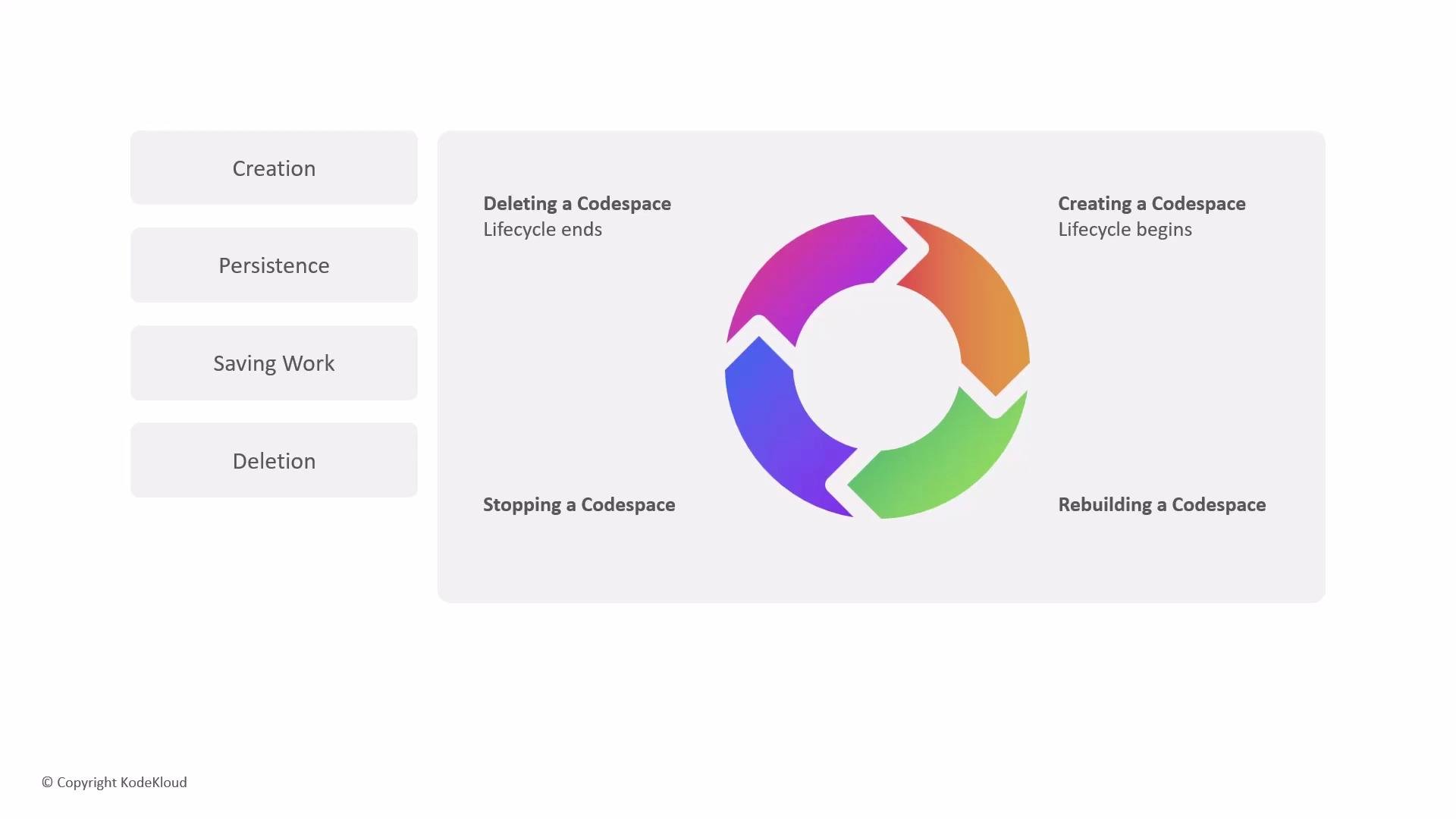
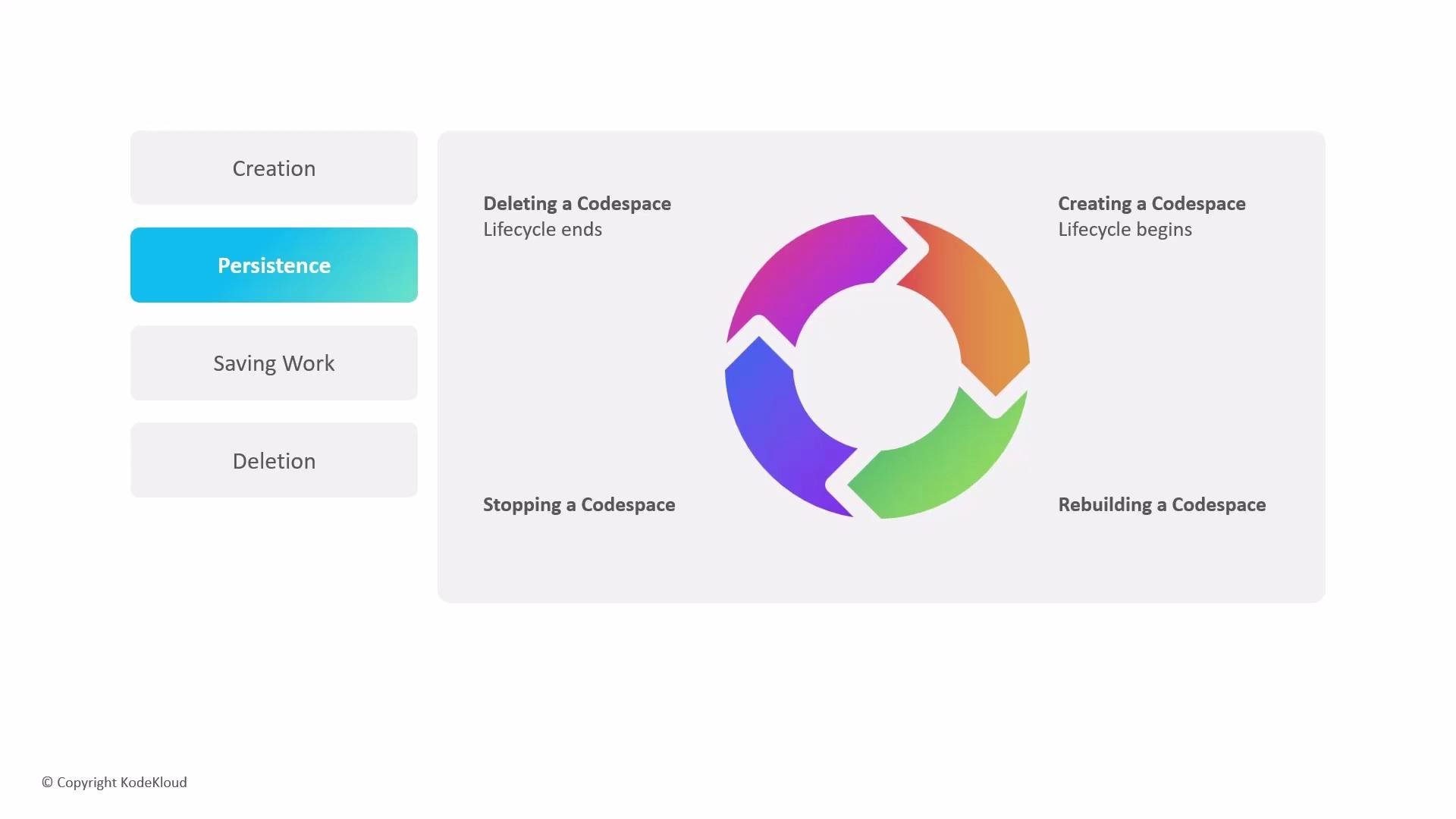
1. Provisioning (creation) — a VM and persistent storage are allocated; the development container image is built or pulled; connections and initialization run.
2. Active (connected) — you work in the Codespace, running terminals and services.
3. Idle / Stopped — compute is halted to save costs while persistent disk retains files.
4. Rebuild — the environment can be rebuilt from the repository configuration.
5. Deletion — VM and persistent storage are removed; data cannot be recovered.
## Provisioning (creation)
When you create a Codespace, GitHub performs several backend steps to prepare a reproducible development environment:
* Resource allocation: a virtual machine plus dedicated persistent disk are provisioned.
* Containerization: the devcontainer image is built or pulled using your repository’s configuration (`devcontainer.json`, Dockerfile).
* Connection setup: a secure channel is established between your client (browser or VS Code) and the VM.
* Post-creation configuration: setup scripts and extensions run to install dependencies and apply custom settings.
Recommendations:
* Keep your `devcontainer.json` and Dockerfiles small and cache-friendly to reduce creation and rebuild times.
* Use prebuilt images where available to speed provisioning.
## Operational states: connected, disconnected, stopped
Codespaces offers flexible states so you can pause and resume work without losing progress:
| State | What happens | Typical use case |
| ------------ | ----------------------------------------------------------------------------- | -------------------------------------------------------------------------------- |
| Connected | Your client (browser/VS Code) is attached; terminals and services run. | Active development and debugging. |
| Disconnected | Client is closed but the VM remains running; processes continue in the cloud. | Long-running processes you want to keep running while switching devices. |
| Stopped | VM is shut down to save compute; persistent disk retains file changes. | Save costs when not actively developing; restart later to resume. |
| Deleted | VM and its persistent storage are removed permanently. | Clean up old environments or reclaim resources; irreversible. |
| Rebuild | Container image and setup scripts re-run to restore or update environment. | Apply configuration changes, refresh dependencies, or recover a corrupted image. |
* Disconnecting preserves running processes but continues billing for the VM.
* Stopping conserves compute (and costs) while preserving files on disk.
* Rebuilding re-applies the repository-defined configuration and can refresh a corrupted or outdated environment.
## Quick overview: lifecycle phases
1. Provisioning (creation) — a VM and persistent storage are allocated; the development container image is built or pulled; connections and initialization run.
2. Active (connected) — you work in the Codespace, running terminals and services.
3. Idle / Stopped — compute is halted to save costs while persistent disk retains files.
4. Rebuild — the environment can be rebuilt from the repository configuration.
5. Deletion — VM and persistent storage are removed; data cannot be recovered.
## Provisioning (creation)
When you create a Codespace, GitHub performs several backend steps to prepare a reproducible development environment:
* Resource allocation: a virtual machine plus dedicated persistent disk are provisioned.
* Containerization: the devcontainer image is built or pulled using your repository’s configuration (`devcontainer.json`, Dockerfile).
* Connection setup: a secure channel is established between your client (browser or VS Code) and the VM.
* Post-creation configuration: setup scripts and extensions run to install dependencies and apply custom settings.
Recommendations:
* Keep your `devcontainer.json` and Dockerfiles small and cache-friendly to reduce creation and rebuild times.
* Use prebuilt images where available to speed provisioning.
## Operational states: connected, disconnected, stopped
Codespaces offers flexible states so you can pause and resume work without losing progress:
| State | What happens | Typical use case |
| ------------ | ----------------------------------------------------------------------------- | -------------------------------------------------------------------------------- |
| Connected | Your client (browser/VS Code) is attached; terminals and services run. | Active development and debugging. |
| Disconnected | Client is closed but the VM remains running; processes continue in the cloud. | Long-running processes you want to keep running while switching devices. |
| Stopped | VM is shut down to save compute; persistent disk retains file changes. | Save costs when not actively developing; restart later to resume. |
| Deleted | VM and its persistent storage are removed permanently. | Clean up old environments or reclaim resources; irreversible. |
| Rebuild | Container image and setup scripts re-run to restore or update environment. | Apply configuration changes, refresh dependencies, or recover a corrupted image. |
* Disconnecting preserves running processes but continues billing for the VM.
* Stopping conserves compute (and costs) while preserving files on disk.
* Rebuilding re-applies the repository-defined configuration and can refresh a corrupted or outdated environment.
 Set automatic stop timeouts for idle Codespaces to reduce costs. Organizations and users can configure stop timeouts so idle Codespaces are automatically stopped after a configured period.
## Saving and synchronizing your work
Files you edit inside a Codespace are stored on that Codespace’s persistent disk for the lifetime of the environment. Important points:
* Local changes on the Codespace disk exist only in that Codespace until you record them in Git and push to the remote repository.
* The integrated web editor has autosave enabled by default. When using the VS Code desktop client, enable autosave in VS Code or ensure you save files before committing.
* The default workspace path inside a Codespace is ` /workspaces/` — use that path when running scripts that expect the repository root.
Example Git workflow to make work permanent and shareable:
```bash theme={null}
# Save local edits, stage, commit, and push to the remote repository
git add .
git commit -m "Describe changes made in the Codespace"
git push origin HEAD
```
Tip: commit frequently and push before stopping or deleting a Codespace to avoid accidental data loss.
## Deletion and end of lifecycle
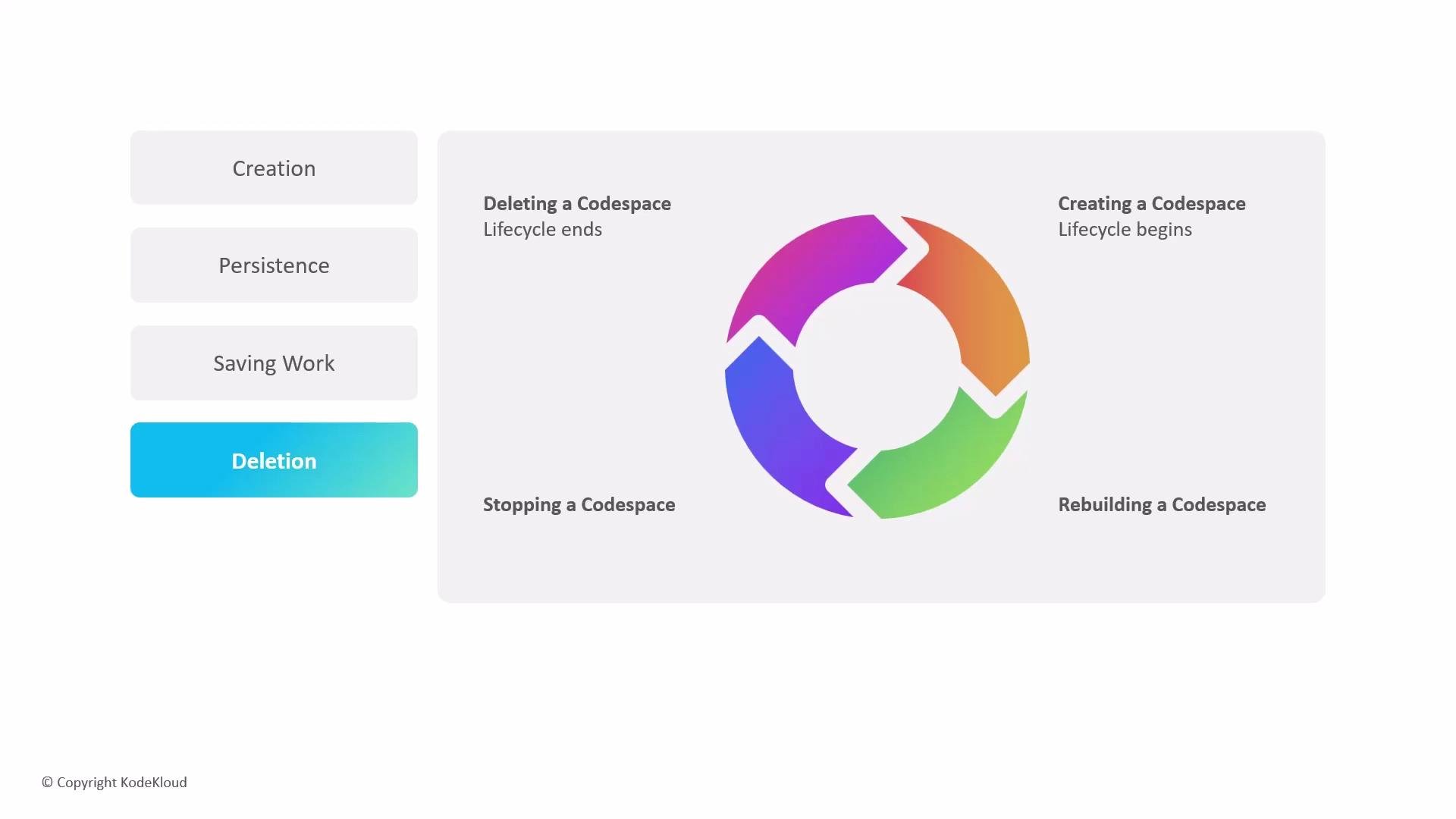
Deletion is final: when a Codespace is deleted, its VM and persistent storage are removed and cannot be recovered.
* You can create multiple Codespaces per branch but watch account and organization limits — you may need to delete older Codespaces when limits are reached.
* Consider exporting or merging important changes into branches or pull requests before deleting an environment.
Set automatic stop timeouts for idle Codespaces to reduce costs. Organizations and users can configure stop timeouts so idle Codespaces are automatically stopped after a configured period.
## Saving and synchronizing your work
Files you edit inside a Codespace are stored on that Codespace’s persistent disk for the lifetime of the environment. Important points:
* Local changes on the Codespace disk exist only in that Codespace until you record them in Git and push to the remote repository.
* The integrated web editor has autosave enabled by default. When using the VS Code desktop client, enable autosave in VS Code or ensure you save files before committing.
* The default workspace path inside a Codespace is ` /workspaces/` — use that path when running scripts that expect the repository root.
Example Git workflow to make work permanent and shareable:
```bash theme={null}
# Save local edits, stage, commit, and push to the remote repository
git add .
git commit -m "Describe changes made in the Codespace"
git push origin HEAD
```
Tip: commit frequently and push before stopping or deleting a Codespace to avoid accidental data loss.
## Deletion and end of lifecycle
Deletion is final: when a Codespace is deleted, its VM and persistent storage are removed and cannot be recovered.
* You can create multiple Codespaces per branch but watch account and organization limits — you may need to delete older Codespaces when limits are reached.
* Consider exporting or merging important changes into branches or pull requests before deleting an environment.
 Before stopping or deleting a Codespace, verify that all necessary work has been committed and pushed to the remote repository. Unpushed changes that exist only on the Codespace will be lost upon deletion.
## Links and references
* [GitHub Codespaces documentation](https://docs.github.com/codespaces)
* [Dev Containers (devcontainer.json) reference](https://containers.dev/)
* [Git basics](https://git-scm.com/book/en/v2)
Before stopping or deleting a Codespace, verify that all necessary work has been committed and pushed to the remote repository. Unpushed changes that exist only on the Codespace will be lost upon deletion.
## Links and references
* [GitHub Codespaces documentation](https://docs.github.com/codespaces)
* [Dev Containers (devcontainer.json) reference](https://containers.dev/)
* [Git basics](https://git-scm.com/book/en/v2)