> ## Documentation Index
> Fetch the complete documentation index at: https://notes.kodekloud.com/llms.txt
> Use this file to discover all available pages before exploring further.
# Demo Describe the Available Features of GitHub Desktop
> Guide to GitHub Desktop features and workflows including signing in, cloning repositories, configuring editors and Git identity, reviewing changes, committing with co-authors, and pushing or resolving conflicts
Explore GitHub Desktop and its primary features: signing in, cloning repositories, configuring editors and Git identity, making and reviewing changes, committing (including co-authors), and pushing to GitHub. This guide follows a typical workflow on Windows or macOS and highlights the visual actions GitHub Desktop provides alongside equivalent Git commands where useful.
## 1. Sign in to your account
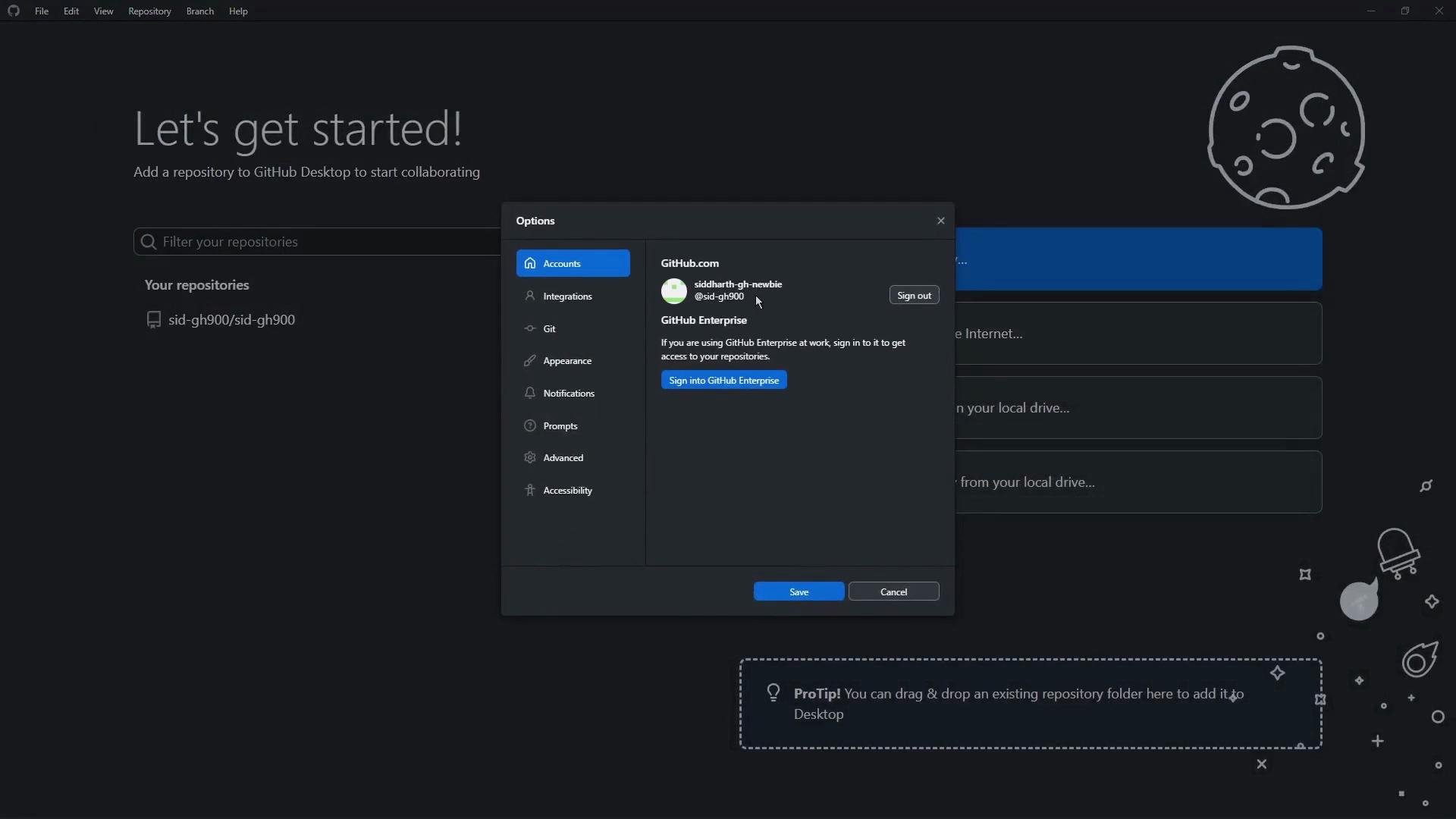
Open GitHub Desktop and sign in to your GitHub account:
* Windows: File → Options → Accounts
* macOS: GitHub Desktop → Preferences → Accounts
You can sign into either [GitHub.com](https://github.com) or a [GitHub Enterprise](https://enterprise.github.com/) instance. When you sign in via the browser, you will be asked to authorize GitHub Desktop — review the requested permissions and continue to authorize.
 ## 2. Repositories and workspaces
After signing in, GitHub Desktop displays options for repositories and workspaces. You can:
* Clone repositories from GitHub or by URL
* Create new local repositories
* Add existing local repositories to the app
To clone a repo, click Clone and provide the repository URL plus a local directory. Example values:
```text theme={null}
Repository URL or GitHub username and repository
https://github.com/sid-gh900/sid-gh900.git
Local path
C:\Users\SilentShadow\Documents\GitHub\sid-gh900
```
Cloning copies the remote repository to your machine so you can edit, commit, and push changes.
## 3. View and review changes
GitHub Desktop presents two primary panes that matter during development:
* Changes view — shows unstaged or new local modifications with a diff preview.
* History view — lists past commits and allows inspecting commit details.
You can toggle between split and unified diffs to inspect changes more clearly.
## 2. Repositories and workspaces
After signing in, GitHub Desktop displays options for repositories and workspaces. You can:
* Clone repositories from GitHub or by URL
* Create new local repositories
* Add existing local repositories to the app
To clone a repo, click Clone and provide the repository URL plus a local directory. Example values:
```text theme={null}
Repository URL or GitHub username and repository
https://github.com/sid-gh900/sid-gh900.git
Local path
C:\Users\SilentShadow\Documents\GitHub\sid-gh900
```
Cloning copies the remote repository to your machine so you can edit, commit, and push changes.
## 3. View and review changes
GitHub Desktop presents two primary panes that matter during development:
* Changes view — shows unstaged or new local modifications with a diff preview.
* History view — lists past commits and allows inspecting commit details.
You can toggle between split and unified diffs to inspect changes more clearly.
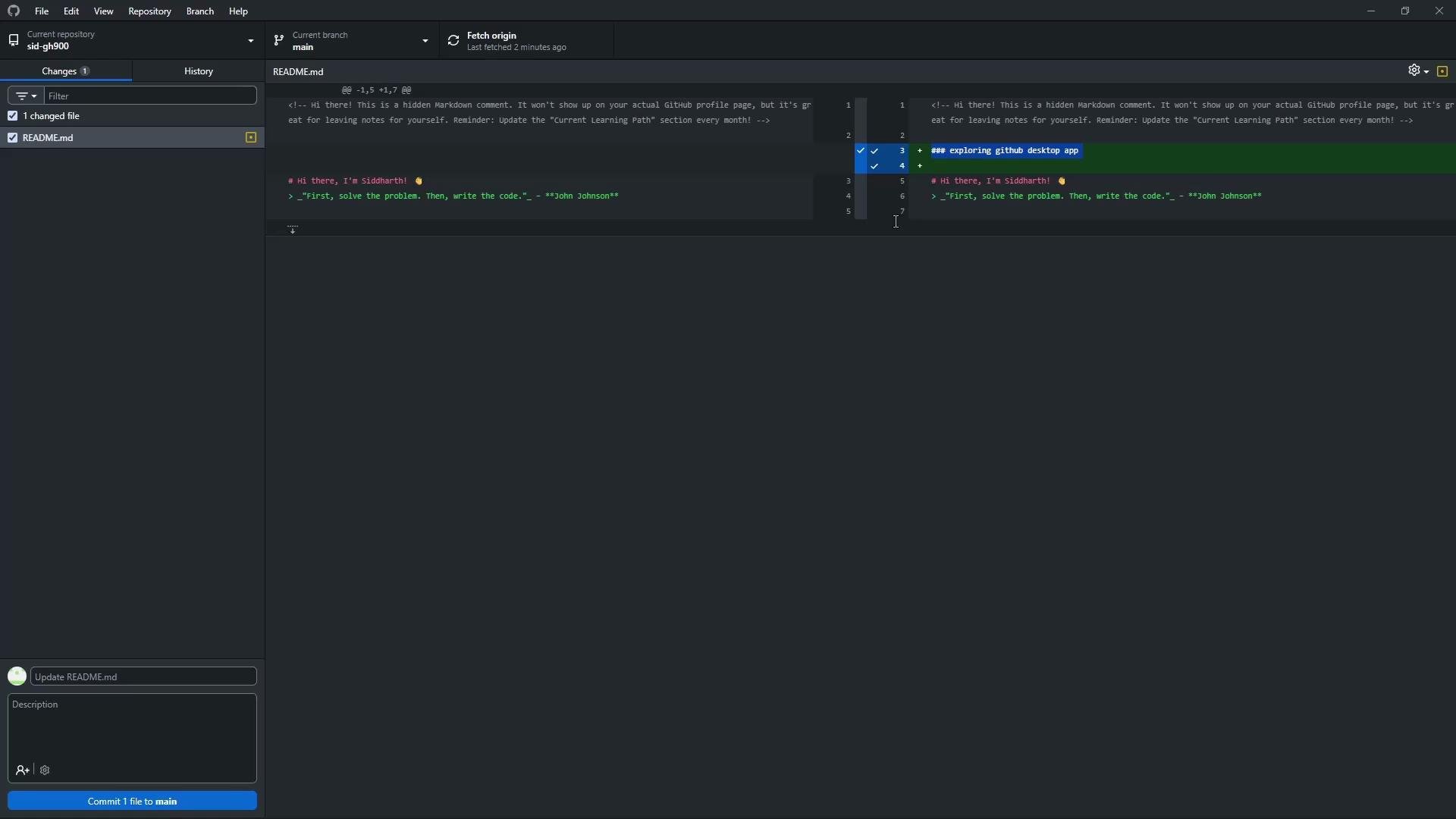 Example: adding a single line to README.md will appear in the Changes tab. GitHub Desktop also displays diffs for binary files such as images.
## 4. Configure editor and shell integrations
Set your preferred editor and shell so you can open files from the app:
* Windows/Mac: Options → Integrations (macOS: Preferences → Integrations)\
GitHub Desktop auto-detects installed editors. Common choices include [Visual Studio Code](https://code.visualstudio.com/) and [Git Bash](https://gitforwindows.org/) (Windows).
## 5. Set Git identity and default branch
Ensure commits are attributed properly:
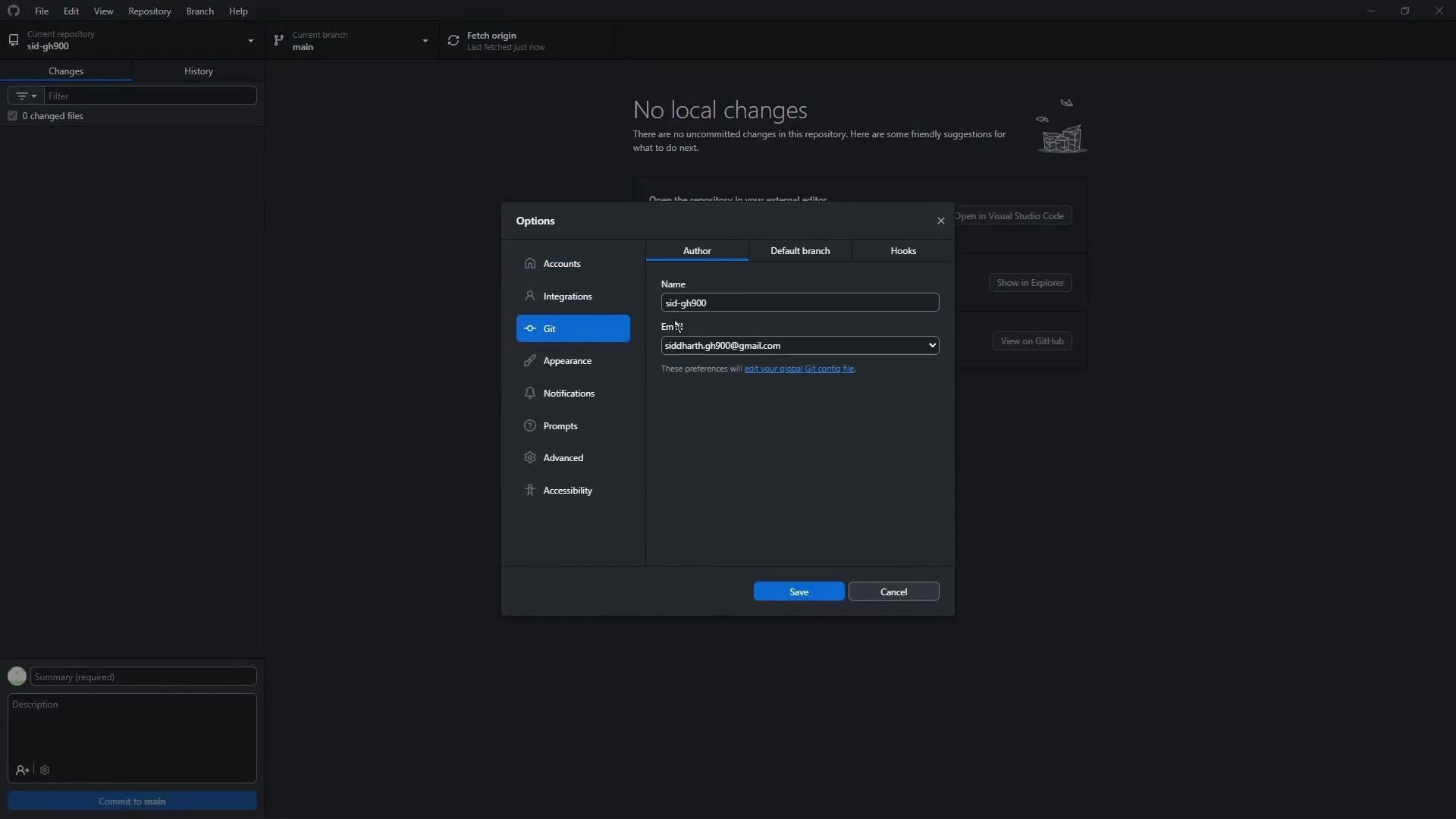
* Windows/Mac: Options → Git (macOS: Preferences → Git)\
Set your author name and email used in commit metadata. New repositories created in GitHub Desktop default to the `main` branch unless changed.
Set your Git name and email globally on your machine if you use multiple tools. This prevents mismatched commit attribution across GUIs and the command line.
Example: adding a single line to README.md will appear in the Changes tab. GitHub Desktop also displays diffs for binary files such as images.
## 4. Configure editor and shell integrations
Set your preferred editor and shell so you can open files from the app:
* Windows/Mac: Options → Integrations (macOS: Preferences → Integrations)\
GitHub Desktop auto-detects installed editors. Common choices include [Visual Studio Code](https://code.visualstudio.com/) and [Git Bash](https://gitforwindows.org/) (Windows).
## 5. Set Git identity and default branch
Ensure commits are attributed properly:
* Windows/Mac: Options → Git (macOS: Preferences → Git)\
Set your author name and email used in commit metadata. New repositories created in GitHub Desktop default to the `main` branch unless changed.
Set your Git name and email globally on your machine if you use multiple tools. This prevents mismatched commit attribution across GUIs and the command line.
 ## 6. Open and edit files
From the repository file list you can:
* Show in Explorer / Finder
* Open in Visual Studio Code
* Open with default program
After editing and saving, changes will instantly appear in the Changes tab with a side-by-side or unified diff.
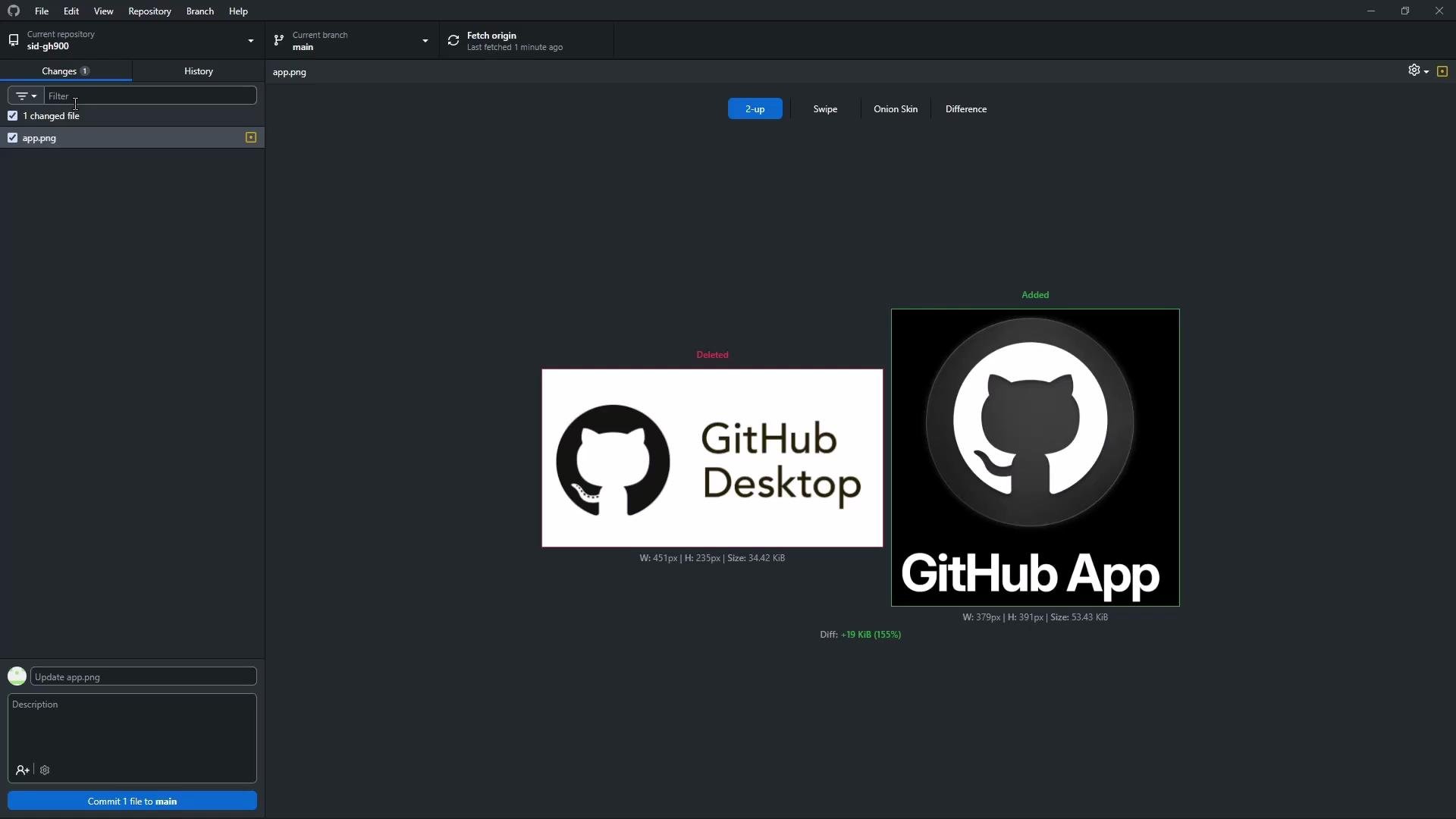
If you add a new file (for example, `app.png`) to the repository folder on disk, GitHub Desktop will list it as a new file ready to be committed.
Example PowerShell command to verify your working directory on Windows:
```powershell theme={null}
PS C:\Users\SilentShadow> pwd
Path
----
C:\Users\SilentShadow
PS C:\Users\SilentShadow>
```
When ready, enter a commit summary (for example: "add logo and update README"), commit locally, then push to the remote.
If you prefer the command line equivalent to push changes:
```bash theme={null}
git push origin main
```
It can take a few seconds for the GitHub web UI to reflect newly pushed content.
## 7. Manage binary file changes and image diffs
GitHub Desktop can display visual comparisons for image changes — for example, replacing `app.png` with a different image. Visual diff styles include split (side-by-side) and overlay/onion-skin comparisons, which help you confirm visual changes before committing.
## 6. Open and edit files
From the repository file list you can:
* Show in Explorer / Finder
* Open in Visual Studio Code
* Open with default program
After editing and saving, changes will instantly appear in the Changes tab with a side-by-side or unified diff.
If you add a new file (for example, `app.png`) to the repository folder on disk, GitHub Desktop will list it as a new file ready to be committed.
Example PowerShell command to verify your working directory on Windows:
```powershell theme={null}
PS C:\Users\SilentShadow> pwd
Path
----
C:\Users\SilentShadow
PS C:\Users\SilentShadow>
```
When ready, enter a commit summary (for example: "add logo and update README"), commit locally, then push to the remote.
If you prefer the command line equivalent to push changes:
```bash theme={null}
git push origin main
```
It can take a few seconds for the GitHub web UI to reflect newly pushed content.
## 7. Manage binary file changes and image diffs
GitHub Desktop can display visual comparisons for image changes — for example, replacing `app.png` with a different image. Visual diff styles include split (side-by-side) and overlay/onion-skin comparisons, which help you confirm visual changes before committing.
 ## 8. Add co-authors to commits
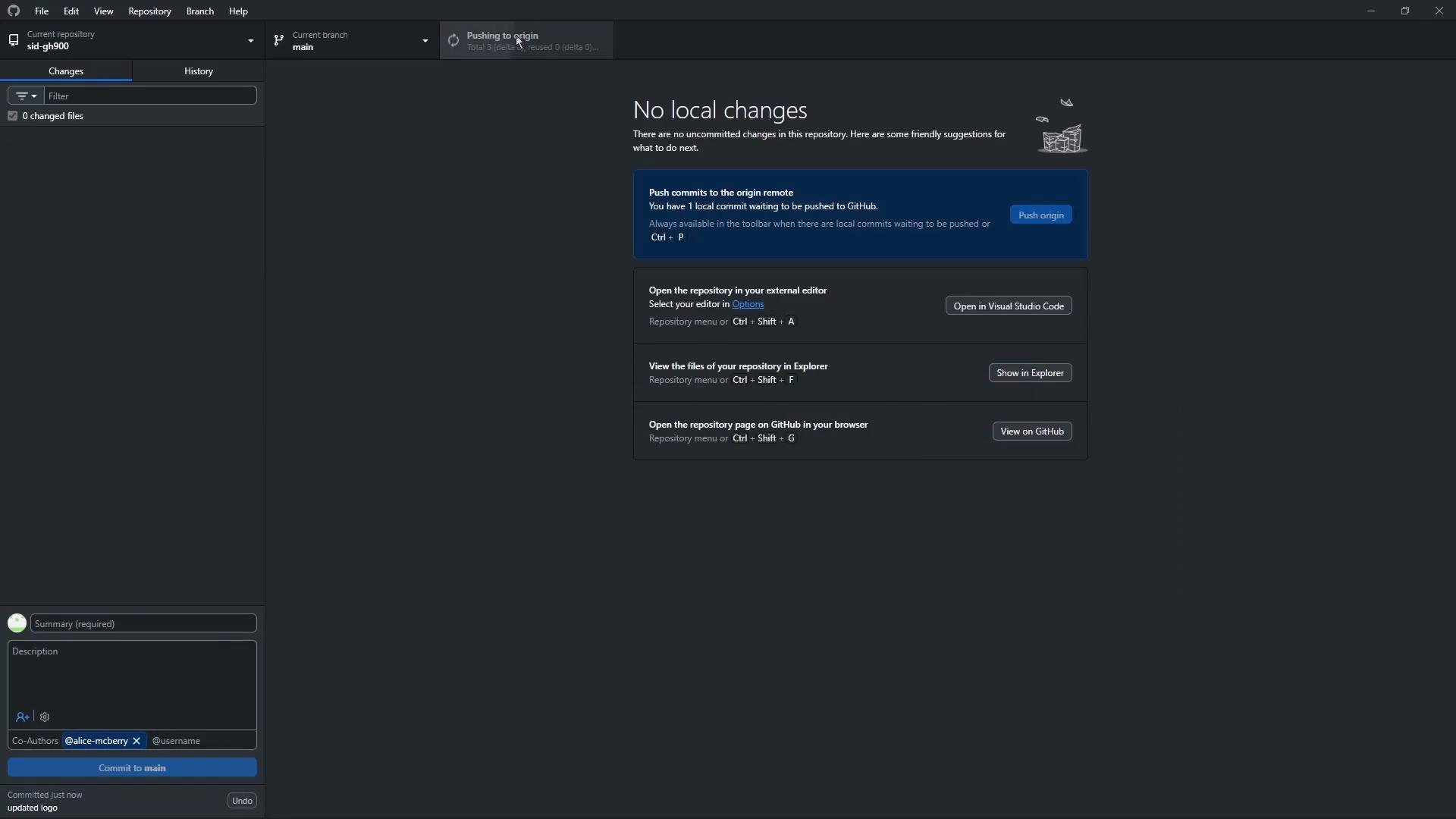
GitHub Desktop supports co-authored commits. Use the "Add co-authors" option in the commit area and type the co-author’s GitHub username. GitHub Desktop appends the `Co-authored-by:` trailer to the commit message so multiple contributors get credit.
Use co-author trailers to credit pair programming, mentorship, or collaborative edits. The co-author must have a GitHub account for linking from the commit view on the web.
Example: adding a co-author "Alice McVarish" and committing the updated logo will produce a commit that lists both the main author and the co-author in the web UI.
## 9. Push, pull, and resolve conflicts
After committing locally, push the commit to the remote. If the remote contains changes you don't yet have locally, fetch or pull first, resolve conflicts in the editor or through the app, then push.
Once pushed, the commit history on GitHub shows the author and any co-authors. The web UI may take a few moments to update.
## 8. Add co-authors to commits
GitHub Desktop supports co-authored commits. Use the "Add co-authors" option in the commit area and type the co-author’s GitHub username. GitHub Desktop appends the `Co-authored-by:` trailer to the commit message so multiple contributors get credit.
Use co-author trailers to credit pair programming, mentorship, or collaborative edits. The co-author must have a GitHub account for linking from the commit view on the web.
Example: adding a co-author "Alice McVarish" and committing the updated logo will produce a commit that lists both the main author and the co-author in the web UI.
## 9. Push, pull, and resolve conflicts
After committing locally, push the commit to the remote. If the remote contains changes you don't yet have locally, fetch or pull first, resolve conflicts in the editor or through the app, then push.
Once pushed, the commit history on GitHub shows the author and any co-authors. The web UI may take a few moments to update.
 ## 10. Summary of common workflows
GitHub Desktop provides a visual interface for the most common Git tasks but still allows opening a shell or editor when direct Git commands are required.
| Action | Menu / Location | Purpose |
| ---------------------- | --------------------------------------------------------- | ------------------------------------------------------- |
| Sign in | File → Options → Accounts (macOS: Preferences → Accounts) | Authorize and link your GitHub or Enterprise account |
| Clone repo | Clone repository dialog | Copy a remote repo to your local machine |
| Configure editor/shell | Options → Integrations | Open files in your preferred editor or shell |
| Set Git identity | Options → Git | Ensure commits have correct author name and email |
| Stage & commit | Changes view | Review diffs, add commit summary, include co-authors |
| Push / Pull | Top-right controls | Sync local commits with remote and fetch remote changes |
| View history | History tab | Inspect prior commits and diffs |
## 11. Example repository view
Below is a snapshot of the example repository `sid-gh900` used in this walkthrough. It includes a README and an `app.png` file added during the demo.
## 10. Summary of common workflows
GitHub Desktop provides a visual interface for the most common Git tasks but still allows opening a shell or editor when direct Git commands are required.
| Action | Menu / Location | Purpose |
| ---------------------- | --------------------------------------------------------- | ------------------------------------------------------- |
| Sign in | File → Options → Accounts (macOS: Preferences → Accounts) | Authorize and link your GitHub or Enterprise account |
| Clone repo | Clone repository dialog | Copy a remote repo to your local machine |
| Configure editor/shell | Options → Integrations | Open files in your preferred editor or shell |
| Set Git identity | Options → Git | Ensure commits have correct author name and email |
| Stage & commit | Changes view | Review diffs, add commit summary, include co-authors |
| Push / Pull | Top-right controls | Sync local commits with remote and fetch remote changes |
| View history | History tab | Inspect prior commits and diffs |
## 11. Example repository view
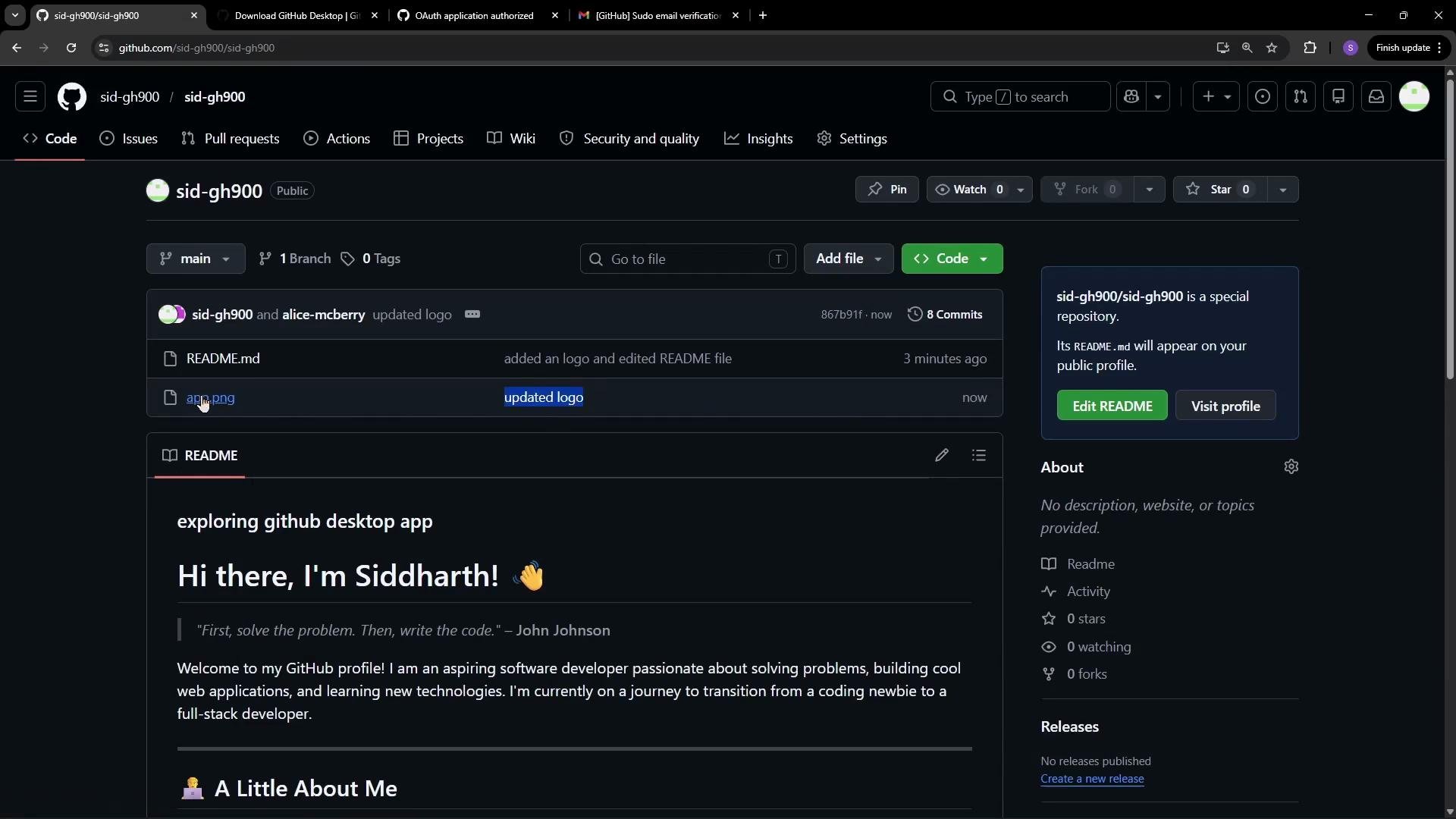
Below is a snapshot of the example repository `sid-gh900` used in this walkthrough. It includes a README and an `app.png` file added during the demo.
 ## Links and references
* [GitHub Desktop](https://desktop.github.com/)
* [GitHub](https://github.com/)
* [GitHub Enterprise](https://enterprise.github.com/)
* [Visual Studio Code](https://code.visualstudio.com/)
* [Git Bash for Windows](https://gitforwindows.org/)
* [Git SCM](https://git-scm.com/)
If multiple tools are used on the same machine, keep a consistent Git name and email to avoid mismatched commit attribution. Verify settings in both GitHub Desktop and your global Git config.
## Links and references
* [GitHub Desktop](https://desktop.github.com/)
* [GitHub](https://github.com/)
* [GitHub Enterprise](https://enterprise.github.com/)
* [Visual Studio Code](https://code.visualstudio.com/)
* [Git Bash for Windows](https://gitforwindows.org/)
* [Git SCM](https://git-scm.com/)
If multiple tools are used on the same machine, keep a consistent Git name and email to avoid mismatched commit attribution. Verify settings in both GitHub Desktop and your global Git config.