> ## Documentation Index
> Fetch the complete documentation index at: https://notes.kodekloud.com/llms.txt
> Use this file to discover all available pages before exploring further.
# Demo Describe the Features of the User Profile
> Guide to GitHub user profile features and customization including profile README, pinned repositories, contributions calendar, achievements, contact details, and tips for curating a public presence
This guide walks through the primary features of a GitHub user profile: what you can customize, how profile READMEs work, how contributions and achievements appear, and quick tips for curating your public presence on GitHub.
I’m signed into GitHub in a browser with a newly created account. The account was created only a few hours ago, so it currently has no public repositories and no visible contributions. You can edit profile details directly from your profile page or the Settings menu, but first let’s inspect a more active profile to understand the typical features and layout.
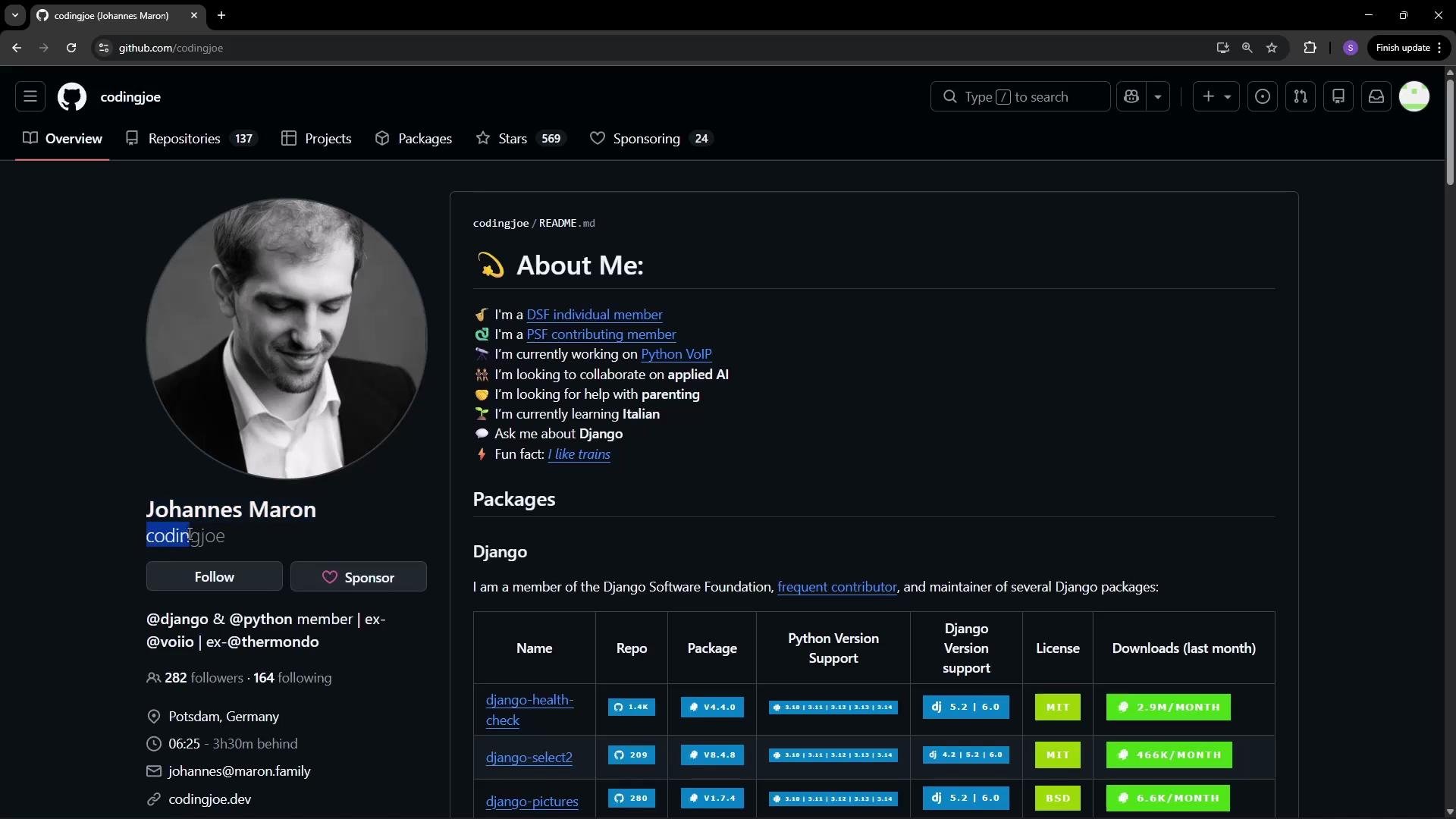
To find users, repositories, or other content on GitHub, use the global search. In this example, I searched for a user named “Coding Joe” so we can review a profile with clear activity and metadata.
 ## Profile header and contact details
The top of a profile lets you present your public identity on GitHub. Typical editable fields include:
| Field | Purpose | Where to edit |
| ---------------------------- | ---------------------------------------------------------- | ------------------------------ |
| Profile picture | Visual identity for comments and commits | Edit profile |
| Display name | How your name appears across GitHub (e.g., Johannes Maron) | Edit profile |
| Username | Your unique GitHub handle shown in URLs and mentions | Account creation / Settings |
| Bio / About | Short description of who you are, your focus, and links | Edit profile or profile README |
| Location / Time zone / Email | Optional contact details | Edit profile |
| Website & social links | Link to personal site, Twitter, LinkedIn, etc. | Edit profile |
Scrolling further down a profile reveals a Sponsoring and Sponsors section. GitHub supports sponsorship for maintainers and projects; you can sponsor others or be sponsored. Sponsorship is a broader topic—see the GitHub Sponsors docs for details.
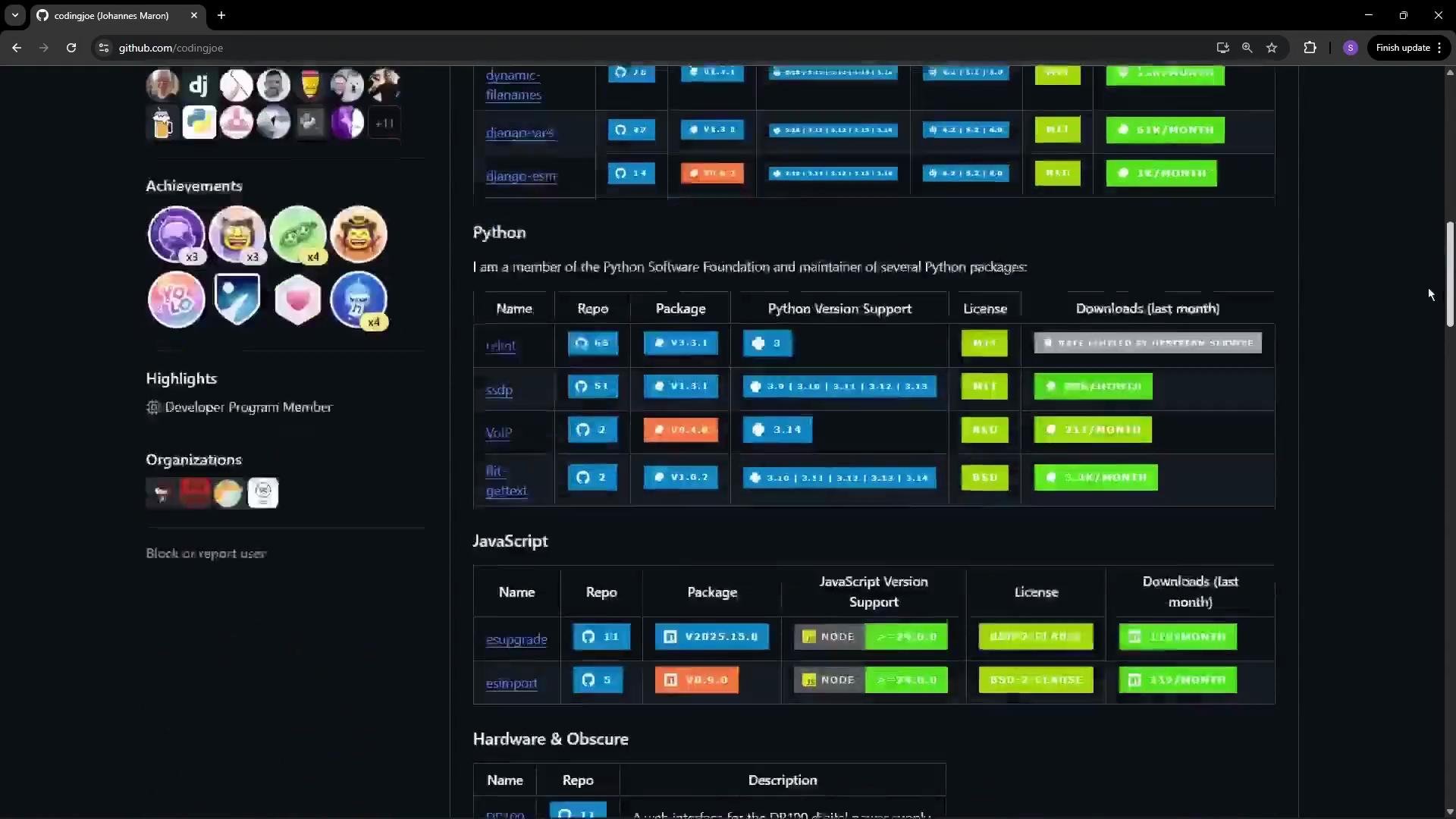
Profiles also display achievements—automatic badges earned for milestones and special contributions (for example, an Arctic Code Vault Contributor badge or a badge for co-authoring commits that are merged). Badges are granted automatically when criteria are met.
Profiles list organizations you belong to and include an optional profile README (the “About” section) where you can provide a richer introduction, links, project highlights, or even a mini portfolio.
## Profile header and contact details
The top of a profile lets you present your public identity on GitHub. Typical editable fields include:
| Field | Purpose | Where to edit |
| ---------------------------- | ---------------------------------------------------------- | ------------------------------ |
| Profile picture | Visual identity for comments and commits | Edit profile |
| Display name | How your name appears across GitHub (e.g., Johannes Maron) | Edit profile |
| Username | Your unique GitHub handle shown in URLs and mentions | Account creation / Settings |
| Bio / About | Short description of who you are, your focus, and links | Edit profile or profile README |
| Location / Time zone / Email | Optional contact details | Edit profile |
| Website & social links | Link to personal site, Twitter, LinkedIn, etc. | Edit profile |
Scrolling further down a profile reveals a Sponsoring and Sponsors section. GitHub supports sponsorship for maintainers and projects; you can sponsor others or be sponsored. Sponsorship is a broader topic—see the GitHub Sponsors docs for details.
Profiles also display achievements—automatic badges earned for milestones and special contributions (for example, an Arctic Code Vault Contributor badge or a badge for co-authoring commits that are merged). Badges are granted automatically when criteria are met.
Profiles list organizations you belong to and include an optional profile README (the “About” section) where you can provide a richer introduction, links, project highlights, or even a mini portfolio.
 ## Pinned repositories and the repository list
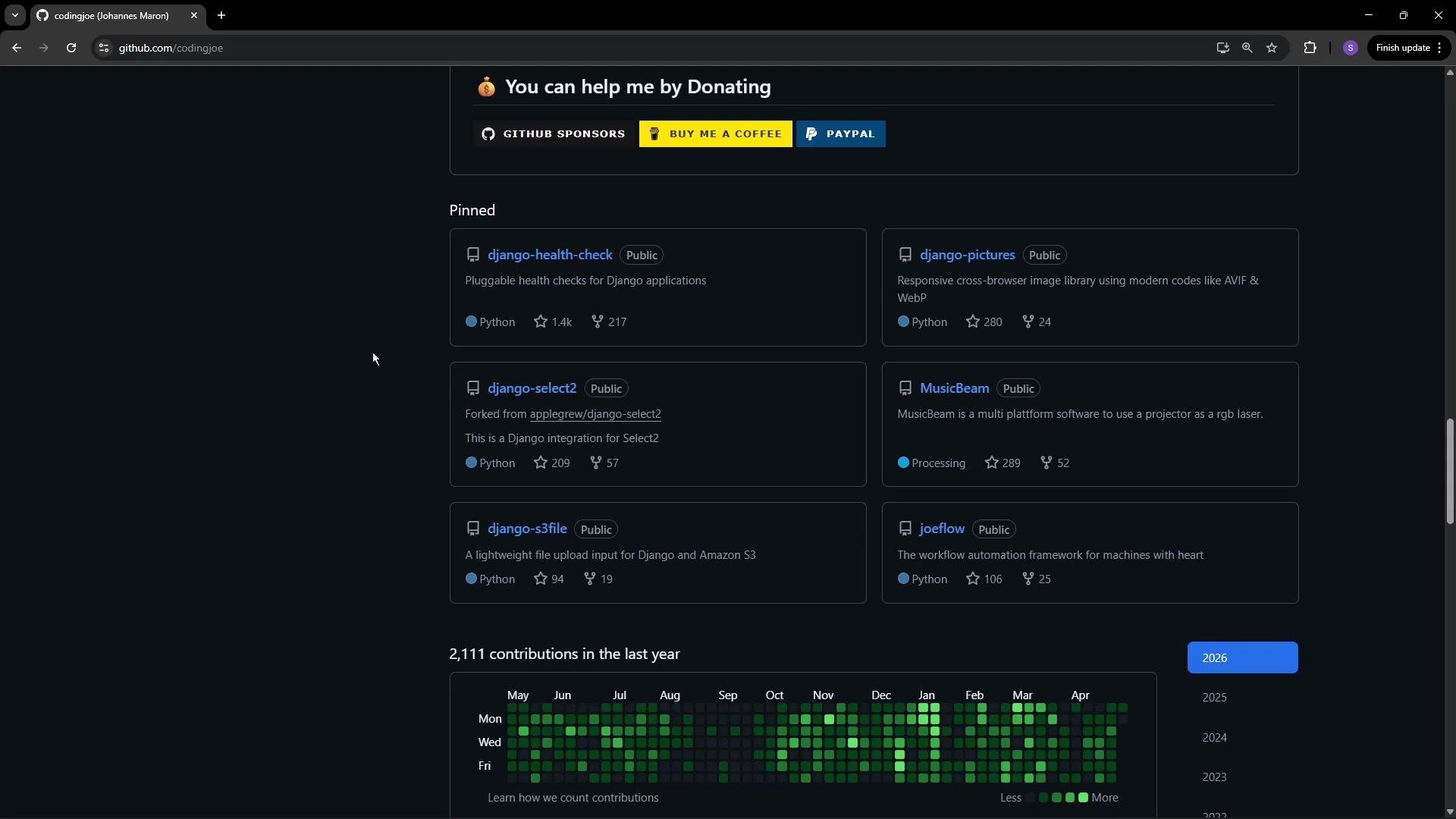
Pinned repositories let you curate which projects appear on the front of your profile. If you have many repositories, pinning ensures visitors see the projects you want to highlight first. Below the pinned section, GitHub lists all repositories you own and shows counts for Repositories, Projects, Stars, and Sponsors.
## Pinned repositories and the repository list
Pinned repositories let you curate which projects appear on the front of your profile. If you have many repositories, pinning ensures visitors see the projects you want to highlight first. Below the pinned section, GitHub lists all repositories you own and shows counts for Repositories, Projects, Stars, and Sponsors.
 ## Contributions calendar and activity
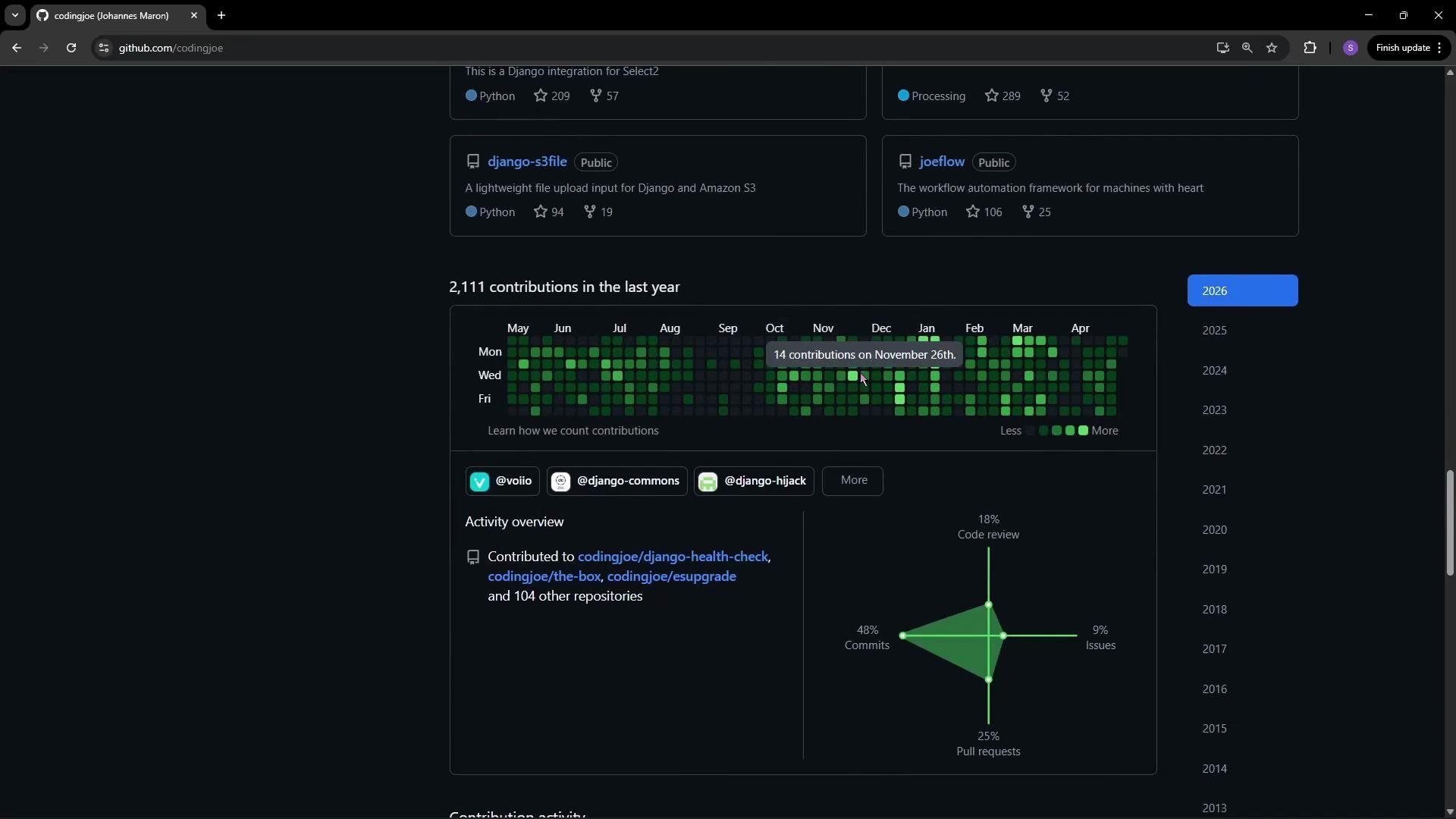
The contributions calendar (heatmap) visualizes activity throughout the year. Each cell represents contributions for a specific date. If you’ve been active for multiple years, GitHub displays separate heatmaps for each year. Below the calendar, a detailed activity timeline summarizes recent commits, PRs, issues, and reviews.
## Contributions calendar and activity
The contributions calendar (heatmap) visualizes activity throughout the year. Each cell represents contributions for a specific date. If you’ve been active for multiple years, GitHub displays separate heatmaps for each year. Below the calendar, a detailed activity timeline summarizes recent commits, PRs, issues, and reviews.
 Stars are a bookmarking and discovery feature: starring a repository signals interest and adds it to your starred list. You can browse another user’s starred repositories and star them yourself; starred repos can be organized into lists.
## Quick actions and profile settings
Because my account is new, my profile shows very little information. To add details to your profile:
* Click Edit profile on your profile page or open Settings > Public profile.
* Add your name, bio, pronouns, company, location, time zone, email, and social links.
* Pin repositories you want visitors to see first.
I updated the displayed name to Siddharth Barahalikar and saved the profile — this display name appears across GitHub when I contribute or when people mention me. You can change this later at any time.
Avoid exposing sensitive personal information (like private email addresses or exact home addresses) in your public profile or README. Use links to controlled contact channels instead.
## Profile README — make your profile more engaging
One of the most powerful profile features is the profile README. To create a profile README:
1. Create a **public** repository whose name exactly matches your GitHub username.
2. Initialize it with a `README.md` file.
3. Edit `README.md` with whatever content you want to display on your profile (Markdown, badges, images, tables, etc.).
For example, I created a public repository named `sid-gh900` and initialized it with a README.
Stars are a bookmarking and discovery feature: starring a repository signals interest and adds it to your starred list. You can browse another user’s starred repositories and star them yourself; starred repos can be organized into lists.
## Quick actions and profile settings
Because my account is new, my profile shows very little information. To add details to your profile:
* Click Edit profile on your profile page or open Settings > Public profile.
* Add your name, bio, pronouns, company, location, time zone, email, and social links.
* Pin repositories you want visitors to see first.
I updated the displayed name to Siddharth Barahalikar and saved the profile — this display name appears across GitHub when I contribute or when people mention me. You can change this later at any time.
Avoid exposing sensitive personal information (like private email addresses or exact home addresses) in your public profile or README. Use links to controlled contact channels instead.
## Profile README — make your profile more engaging
One of the most powerful profile features is the profile README. To create a profile README:
1. Create a **public** repository whose name exactly matches your GitHub username.
2. Initialize it with a `README.md` file.
3. Edit `README.md` with whatever content you want to display on your profile (Markdown, badges, images, tables, etc.).
For example, I created a public repository named `sid-gh900` and initialized it with a README.
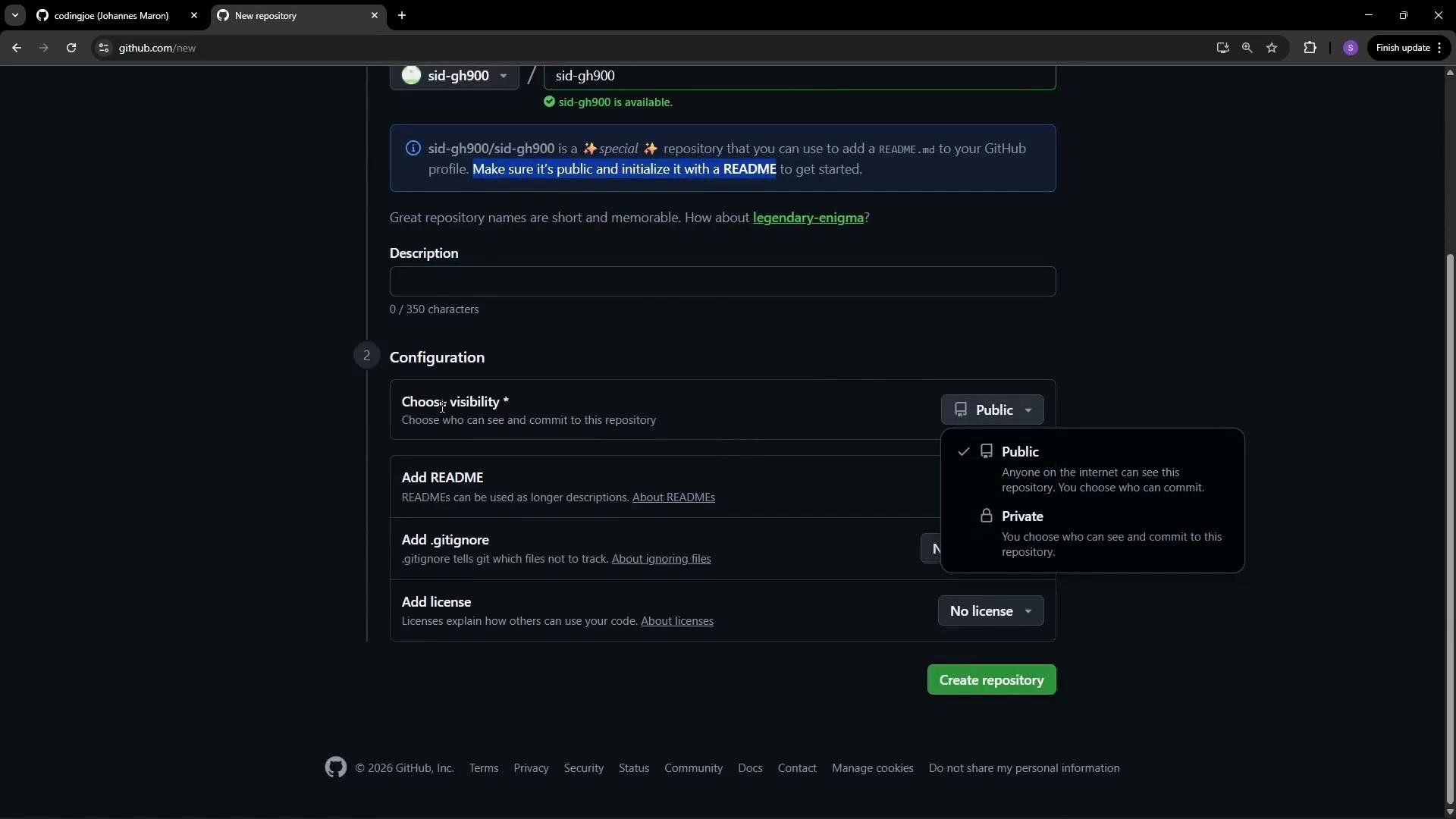 To make a profile README appear on your public profile: create a public repository whose name exactly matches your GitHub username, initialize it with a `README.md`, and then edit that README to contain the content you want displayed on your profile.
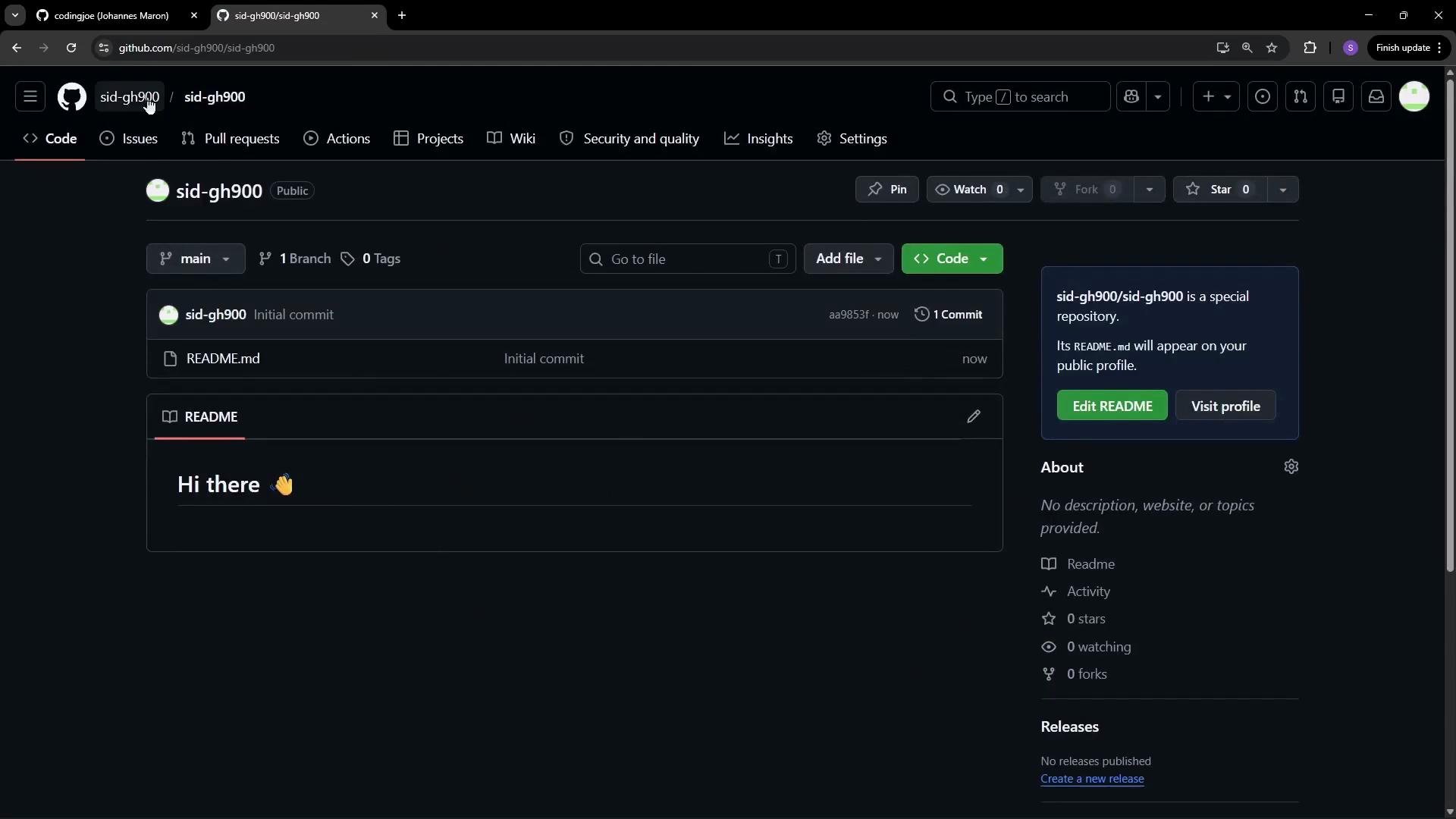
After creating the repository, GitHub recognizes it as the special profile repository and shows a note to that effect.
To make a profile README appear on your public profile: create a public repository whose name exactly matches your GitHub username, initialize it with a `README.md`, and then edit that README to contain the content you want displayed on your profile.
After creating the repository, GitHub recognizes it as the special profile repository and shows a note to that effect.
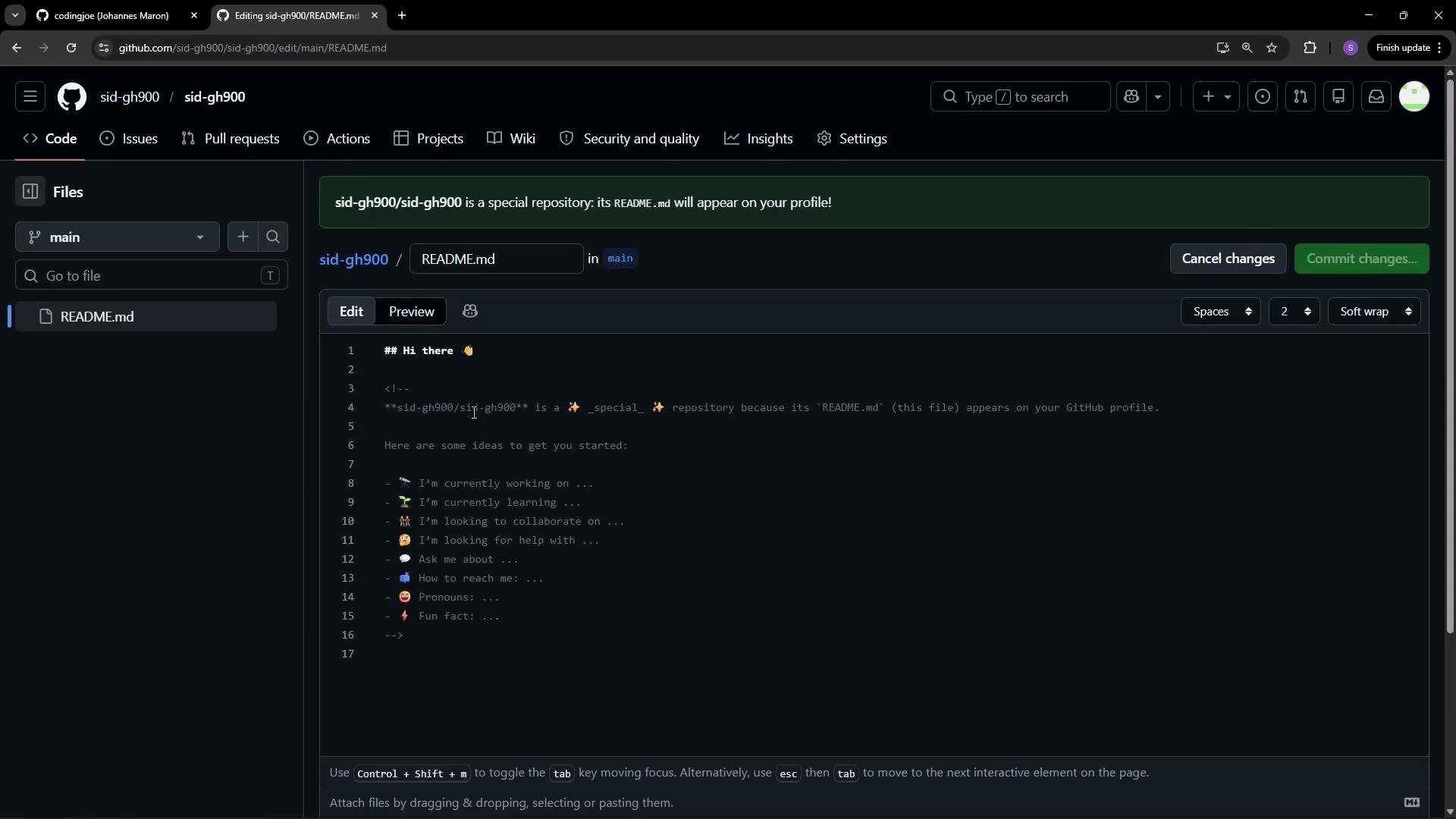
 You can edit the README directly in GitHub’s online editor: modify the Markdown, preview it, and commit the changes to the repository’s default branch (usually `main`).
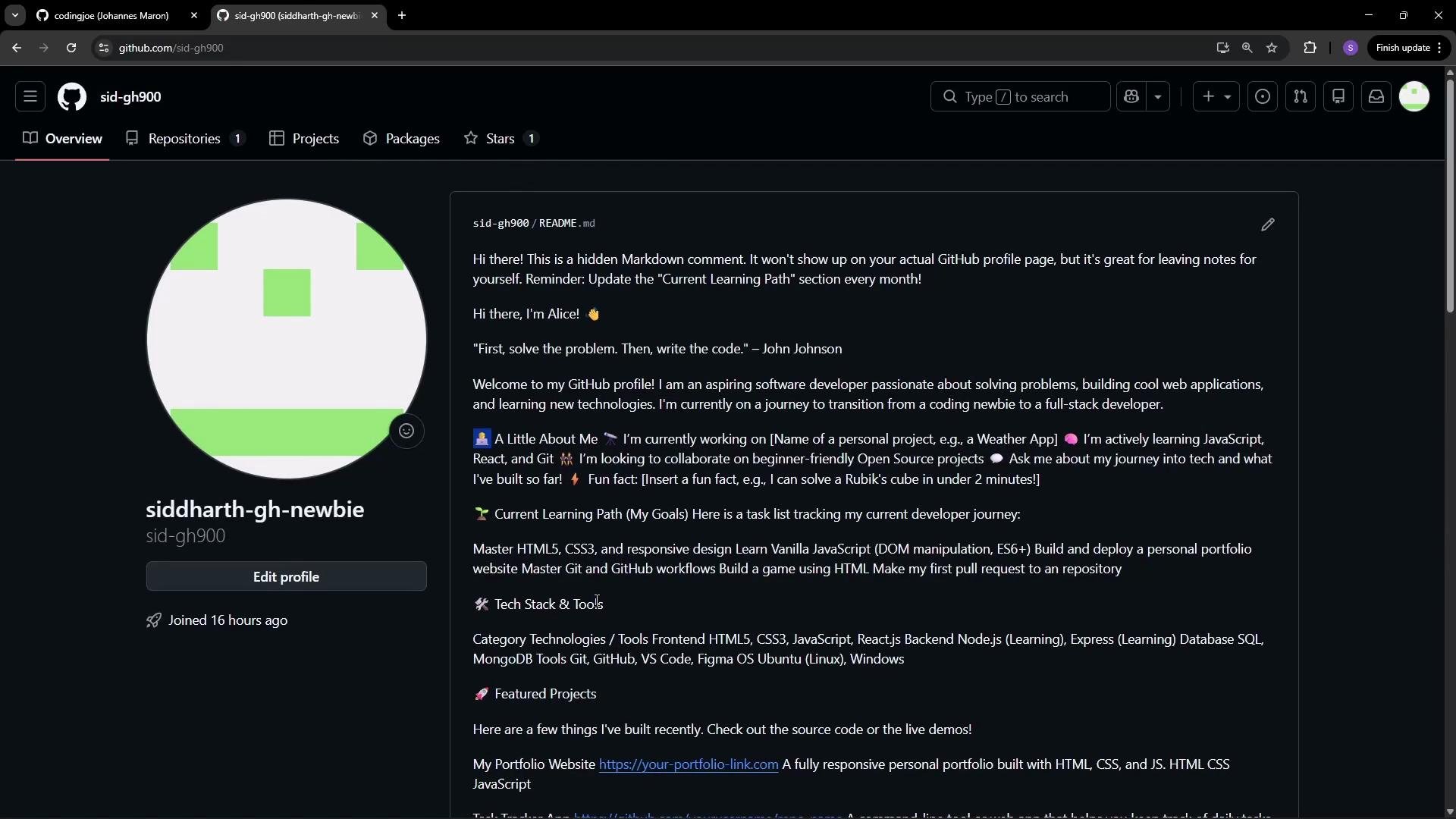
 After committing your changes, the README renders on your public profile. Use Markdown for headings, tables, badges, images, and layout to create a professional-looking introduction, project highlights, or a mini-portfolio.
 ## Final notes and next steps
* Add repositories and make contributions to populate the contributions graph and repository list.
* Use the profile README to surface your most important projects and information.
* Pin repositories to highlight the work you want visitors to see first.
* Consider exploring GitHub Sponsors if you maintain open source projects and want to accept funding.
Further reading:
* GitHub Docs — Profile README: [https://docs.github.com/en/account-and-profile/setting-up-and-managing-your-github-profile/managing-your-profile-readme](https://docs.github.com/en/account-and-profile/setting-up-and-managing-your-github-profile/managing-your-profile-readme)
* GitHub Docs — GitHub Sponsors: [https://docs.github.com/en/sponsors](https://docs.github.com/en/sponsors)
## Final notes and next steps
* Add repositories and make contributions to populate the contributions graph and repository list.
* Use the profile README to surface your most important projects and information.
* Pin repositories to highlight the work you want visitors to see first.
* Consider exploring GitHub Sponsors if you maintain open source projects and want to accept funding.
Further reading:
* GitHub Docs — Profile README: [https://docs.github.com/en/account-and-profile/setting-up-and-managing-your-github-profile/managing-your-profile-readme](https://docs.github.com/en/account-and-profile/setting-up-and-managing-your-github-profile/managing-your-profile-readme)
* GitHub Docs — GitHub Sponsors: [https://docs.github.com/en/sponsors](https://docs.github.com/en/sponsors)