> ## Documentation Index
> Fetch the complete documentation index at: https://notes.kodekloud.com/llms.txt
> Use this file to discover all available pages before exploring further.
# Basic Formatting Syntax
> Guide to essential Markdown formatting for documentation and READMEs covering headings, emphasis, lists, tables, blockquotes, links, images, code blocks, and accessibility and SEO tips
This guide covers the essential Markdown formatting you’ll use in documentation and README files: headings, emphasis, lists, tables, blockquotes, links, images, and code. Each section includes concise examples you can copy and adapt.
## Headings
Create headings with the hash symbol `#`. The number of hashes defines the level (one `#` = H1, six `######` = H6). Use H1 for the main document title and subsections with H2–H4 to keep content scannable for readers and search engines.
```markdown theme={null}
# H1: Project Documentation Header
## H2: Sub-Section Header
### H3: Feature Header
#### H4: Detail Header
##### H5: Minor Header
###### H6: Smallest Header
```
Use only one `#` (H1) per document when possible and structure content with H2/H3 for accessibility and SEO.
## Emphasis
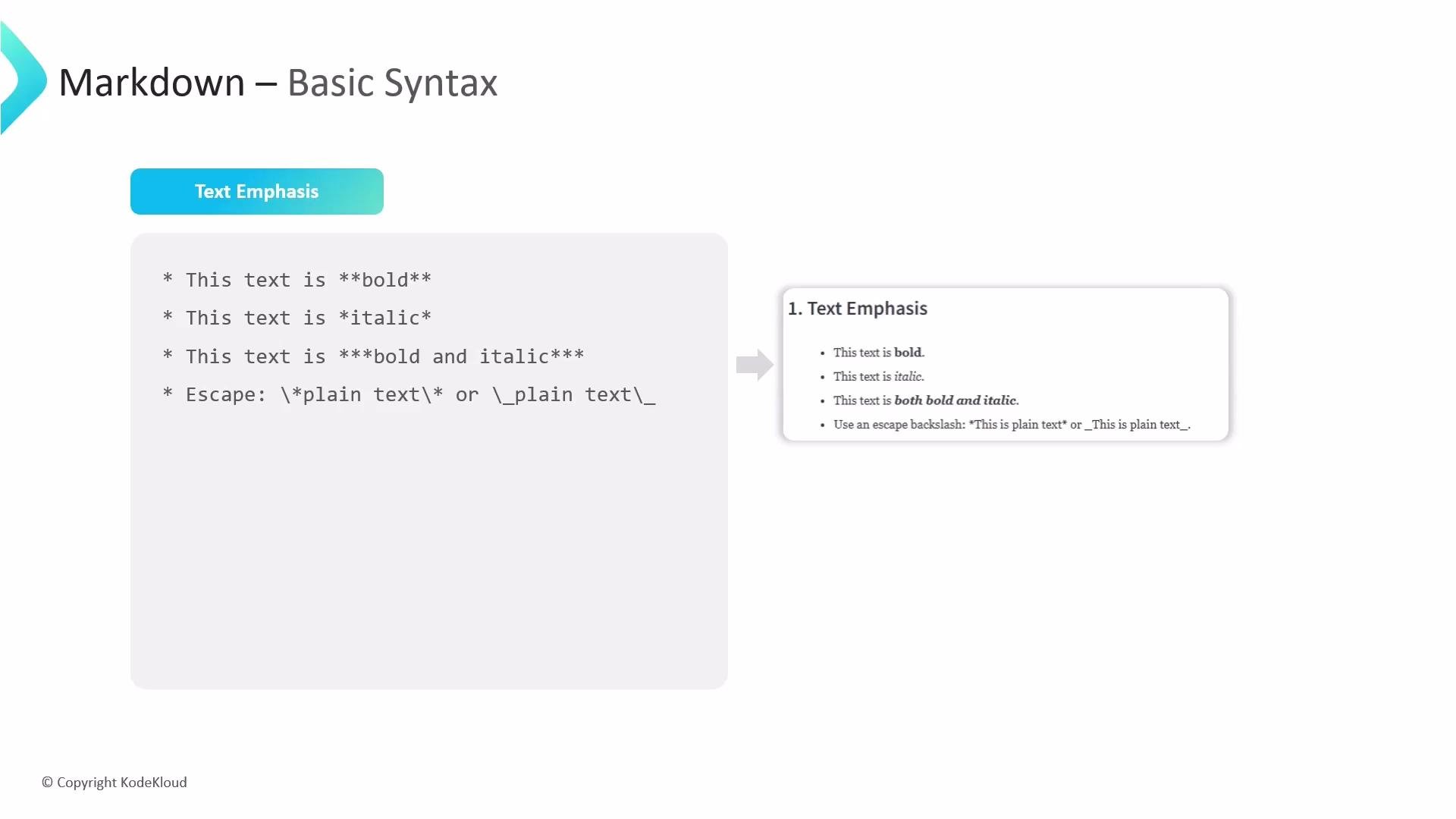
Use asterisks `*` or underscores `_` to emphasize text.
* One `*` or `_` for italic
* Two `**` or `__` for bold
* Three `***` or `___` for bold + italic
```markdown theme={null}
*italic* _italic_
**bold** __bold__
***bold italic*** ___bold italic___
```
To summarize these markers, here’s a quick reference:
| Effect | Markup examples |
| ------------- | ---------------------------- |
| Italic | `*text*` or `_text_` |
| Bold | `**text**` or `__text__` |
| Bold + Italic | `***text***` or `___text___` |
 ## Escaping Markdown Characters
If you need to show literal Markdown characters (for example, an asterisk) without rendering them, escape with a backslash `\`.
```markdown theme={null}
This is a literal asterisk: \*
This shows a backslash-escaped underscore: \_
```
## Links and Images
Links and images share a similar syntax. Put the link text in square brackets and the URL in parentheses; prefix with `!` to embed an image.
```markdown theme={null}
[Display text](https://example.com)

```
Best practices:
* Use clear link text that describes the destination.
* Add descriptive alt text for images to improve accessibility and SEO.
* For local images in docs, use relative paths.
## Lists
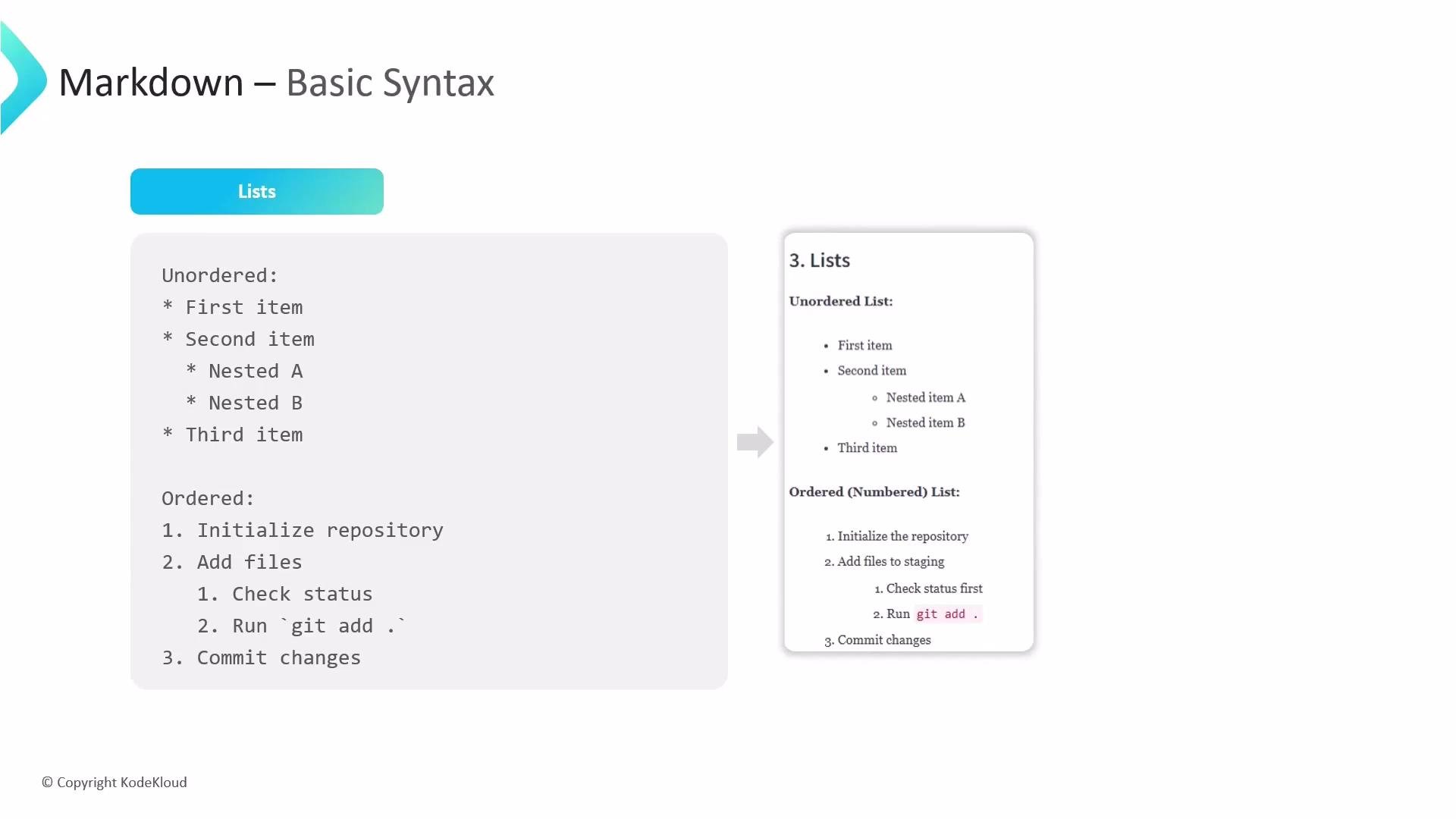
Use unordered or ordered lists to break down steps or items. Unordered lists accept `-`, `*`, or `+`. For ordered lists, use numbers followed by a period. Indent to create nested lists (2–4 spaces is common).
```markdown theme={null}
- Item A
- Nested item A.1
- Nested item A.2
* Item B
+ Item C
1. First step
2. Second step
1. Sub-step
2. Sub-step
```
## Escaping Markdown Characters
If you need to show literal Markdown characters (for example, an asterisk) without rendering them, escape with a backslash `\`.
```markdown theme={null}
This is a literal asterisk: \*
This shows a backslash-escaped underscore: \_
```
## Links and Images
Links and images share a similar syntax. Put the link text in square brackets and the URL in parentheses; prefix with `!` to embed an image.
```markdown theme={null}
[Display text](https://example.com)

```
Best practices:
* Use clear link text that describes the destination.
* Add descriptive alt text for images to improve accessibility and SEO.
* For local images in docs, use relative paths.
## Lists
Use unordered or ordered lists to break down steps or items. Unordered lists accept `-`, `*`, or `+`. For ordered lists, use numbers followed by a period. Indent to create nested lists (2–4 spaces is common).
```markdown theme={null}
- Item A
- Nested item A.1
- Nested item A.2
* Item B
+ Item C
1. First step
2. Second step
1. Sub-step
2. Sub-step
```
 ## Tables
Markdown tables use pipes `|` to separate columns and dashes `-` to separate headers from rows. Put inline code in backticks when table cells contain snippets or commands.
```markdown theme={null}
| Feature | Command | Description |
|---------|----------------|--------------------|
| Status | `git status` | Working tree state |
| Log | `git log` | Commit history |
| Branch | `git branch` | Manage branches |
```
When to use tables:
* To compare features or commands.
* To present structured data clearly for readers and search engines.
## Blockquotes
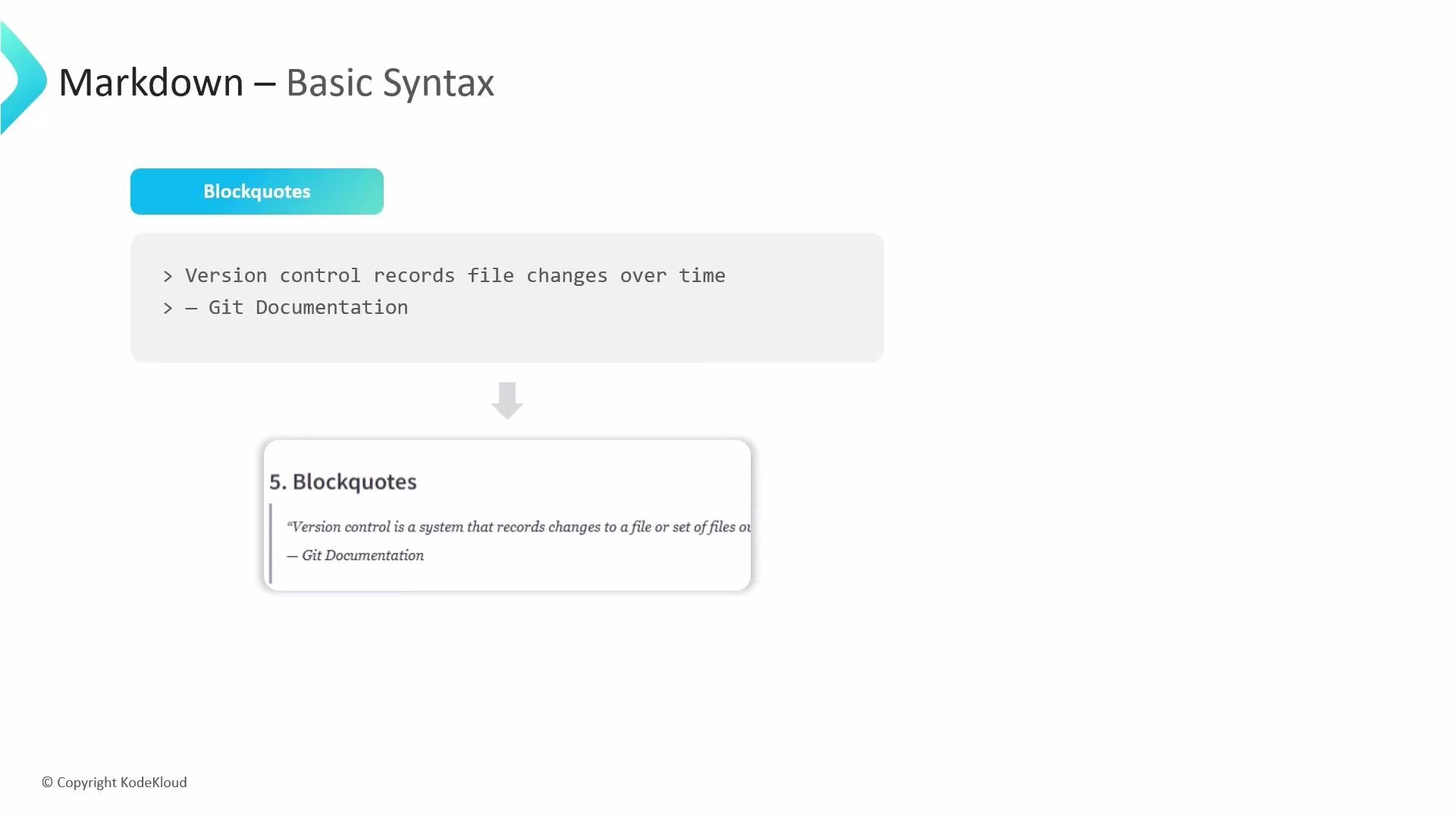
Blockquotes start with `>` and are useful for highlighting tips, notes, or quoted text.
```markdown theme={null}
> This is a blockquote about version control:
> Always commit with clear messages.
```
## Tables
Markdown tables use pipes `|` to separate columns and dashes `-` to separate headers from rows. Put inline code in backticks when table cells contain snippets or commands.
```markdown theme={null}
| Feature | Command | Description |
|---------|----------------|--------------------|
| Status | `git status` | Working tree state |
| Log | `git log` | Commit history |
| Branch | `git branch` | Manage branches |
```
When to use tables:
* To compare features or commands.
* To present structured data clearly for readers and search engines.
## Blockquotes
Blockquotes start with `>` and are useful for highlighting tips, notes, or quoted text.
```markdown theme={null}
> This is a blockquote about version control:
> Always commit with clear messages.
```
 ## Inline Code and Fenced Code Blocks
Use single backticks for inline code and triple backticks for fenced code blocks. Specify the language immediately after the opening triple backticks to enable syntax highlighting.
Inline:
```markdown theme={null}
`print("hello")`
```
Fenced block with language:
```python theme={null}
# A larger code block with language specified
def greet(name):
return f"Hello, {name}"
print(greet("World"))
```
Always specify the language after the opening triple backticks (for example, `python`) so renderers can apply proper syntax highlighting.
## Quick SEO & Accessibility Tips
* Use descriptive headings and alt text for images.
* Keep link text meaningful (avoid "click here").
* Use code fences and language tags for better indexing and readability.
That covers the core Markdown features you'll use most often when writing documentation and READMEs.
## Inline Code and Fenced Code Blocks
Use single backticks for inline code and triple backticks for fenced code blocks. Specify the language immediately after the opening triple backticks to enable syntax highlighting.
Inline:
```markdown theme={null}
`print("hello")`
```
Fenced block with language:
```python theme={null}
# A larger code block with language specified
def greet(name):
return f"Hello, {name}"
print(greet("World"))
```
Always specify the language after the opening triple backticks (for example, `python`) so renderers can apply proper syntax highlighting.
## Quick SEO & Accessibility Tips
* Use descriptive headings and alt text for images.
* Keep link text meaningful (avoid "click here").
* Use code fences and language tags for better indexing and readability.
That covers the core Markdown features you'll use most often when writing documentation and READMEs.