> ## Documentation Index
> Fetch the complete documentation index at: https://notes.kodekloud.com/llms.txt
> Use this file to discover all available pages before exploring further.

# Demo Explain Slash Commands

> Explains GitHub slash commands that insert alerts, code blocks, collapsible details, tables and templates to quickly compose rich Markdown in issues, pull requests, and discussions.

In this lesson you'll learn how GitHub's slash commands speed up composing rich Markdown content—such as alerts, code fences with syntax highlighting, collapsible details, and tables—without typing all the Markdown or HTML manually.

Slash commands are available where the editor accepts rich issue/PR/discussion content (issues, pull requests, and discussions). They are not available in static README editors.

<Callout icon="lightbulb" color="#1CB2FE">
  Slash commands work in Issues, Pull Requests, and Discussions. They are not available in static README Markdown editors.
</Callout>

How to open the slash menu

* Create a new issue, a pull request body, or a discussion comment.
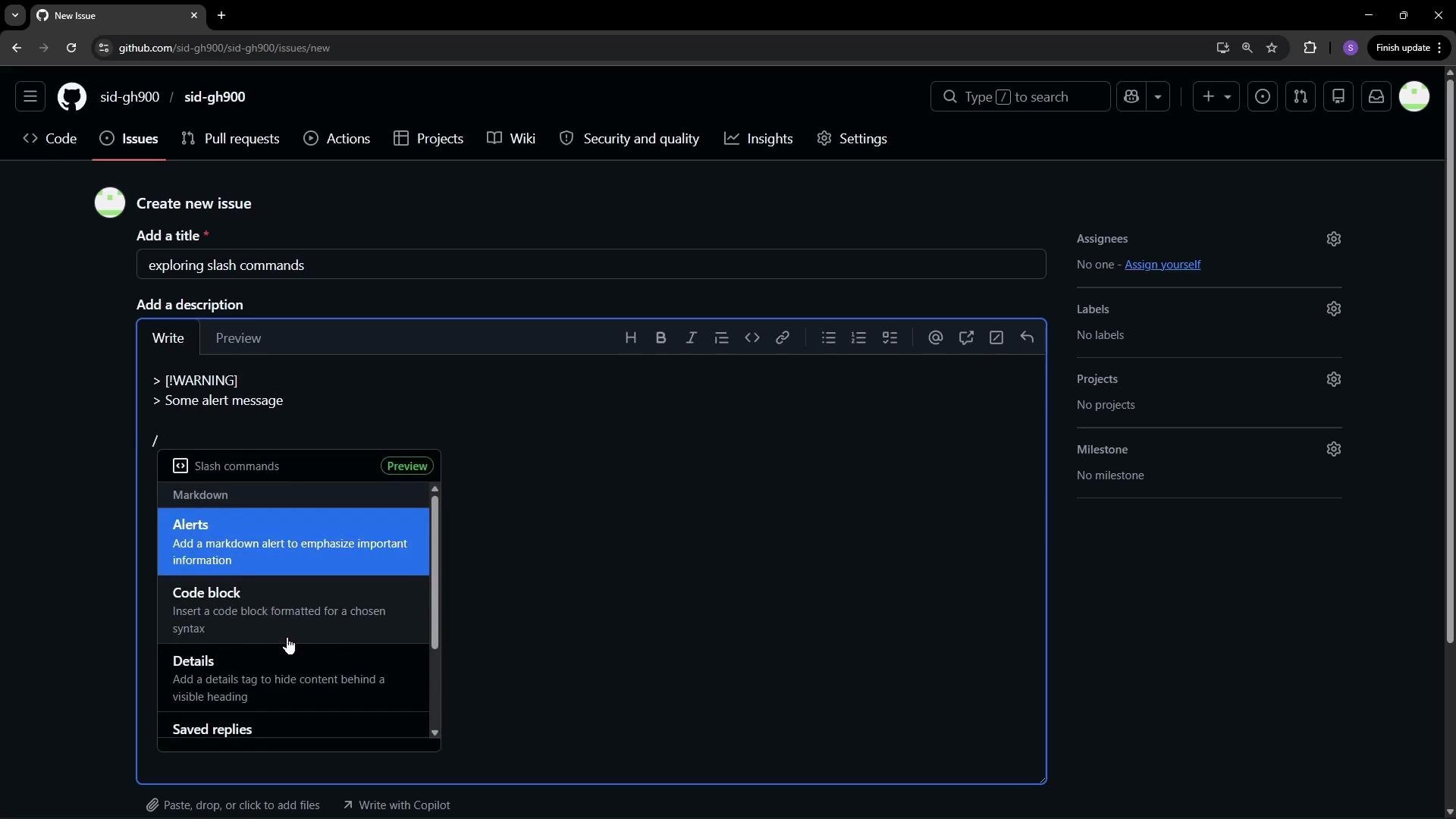
* Type a forward slash (`/`) to open the slash menu. The editor will display quick inserts such as Alerts, Code block, Details, Saved replies, Templates, and Table.
* Choose an item from the menu to insert a fully-formed snippet you can edit.

<Frame>
  <img src="https://mintcdn.com/kodekloud-c4ac6d9a/UUYFvHM79dCKO7ER/images/GitHub-Foundations-Certification/GitHub-Markdown/Demo-Explain-Slash-Commands/github-new-issue-slash-commands.jpg?fit=max&auto=format&n=UUYFvHM79dCKO7ER&q=85&s=495fd751d11a2328ad9926d814129657" alt="The image shows a GitHub interface where a new issue is being created with a title &#x22;exploring slash commands&#x22; and a description containing an alert message. There's a dropdown menu for slash commands with options like Alerts and Code block." width="1920" height="1080" data-path="images/GitHub-Foundations-Certification/GitHub-Markdown/Demo-Explain-Slash-Commands/github-new-issue-slash-commands.jpg" />
</Frame>

Common slash-command inserts
Below is a concise overview of common slash-command inserts you’ll encounter and how to use them.

| Insert                    | What it does                                                                                | Example                                                         |
| ------------------------- | ------------------------------------------------------------------------------------------- | --------------------------------------------------------------- |
| Alerts                    | Adds a visually prominent alert or callout to draw attention to warnings, notes, or tips.   | See the Alert example below.                                    |
| Code block                | Inserts a fenced code block and lets you pick a language for syntax highlighting.           | See the JavaScript example below.                               |
| Details (collapsible)     | Inserts an HTML `<details>` block so long content can be hidden behind a clickable summary. | See the Details example below.                                  |
| Table                     | Prompts for rows/columns and inserts a Markdown table skeleton.                             | See the 4×4 table example below.                                |
| Saved replies / Templates | Reuse or insert prewritten content such as issue templates or commonly used responses.      | Configure in repository settings (Saved replies and Templates). |

Examples

Alerts

* The Alerts insert creates a prominent message block. A portable Markdown pattern for a warning is a blockquote with bold text and an emoji:

```markdown theme={null}
> **⚠️ Warning**
> This action is irreversible. Make sure you understand the consequences before proceeding.
```

Code blocks

* The Code block insert produces a fenced code block with a language option so the editor can highlight syntax. Example JavaScript:

```javascript theme={null}
var a = -1;
console.log(a);
```

Details (collapsible content)

* The Details insert adds an HTML `<details>` block. This is supported in GitHub-flavored Markdown and is useful for hiding long sections until the reader expands them:

```html theme={null}
<details>
  <summary>Details</summary>
  <p>
    Long Paragraph Long Paragraph Long Paragraph Long Paragraph Long Paragraph
  </p>
</details>
```

Tables

* The Table insert prompts you for the number of columns and rows, then inserts a Markdown table skeleton. Replace headers and cells with your values. Example 4×4 table:

```markdown theme={null}
| Header | Header | Header | Header |
|--------|--------|--------|--------|
| Cell   | Cell   | Cell   | Cell   |
| Cell   | Cell   | Cell   | Cell   |
| Cell   | Cell   | Cell   | Cell   |
```

Other useful inserts

* Saved replies and Templates let you quickly reuse structured content across issues, PRs, and discussions—helpful for maintaining consistent responses and reducing repetitive typing.

Best practices and tips

* Use the slash menu to avoid manually typing fences, alignment pipes, or HTML tags.
* Combine inserts: for example, put a code block inside a Details block to hide long examples.
* Review and edit the inserted snippet—slash commands provide a starting point that you can tailor to your needs.

Links and references

* [GitHub Docs — Writing on GitHub](https://docs.github.com/en/get-started/writing-on-github)
* [GitHub Docs — Issue and pull request templates](https://docs.github.com/en/issues/using-labels-and-milestones-to-track-work/about-issue-and-pull-request-templates)

<CardGroup>
  <Card title="Watch Video" icon="video" cta="Learn more" href="https://learn.kodekloud.com/user/courses/github-foundation-certification/module/42c15655-2217-4c66-8d0a-2472a3b15e43/lesson/8bb1b5d3-d4a0-43f9-b107-7e06f57e3e78" />

  <Card title="Practice Lab" icon="flask-conical" cta="Learn more" href="https://learn.kodekloud.com/user/courses/github-foundation-certification/module/42c15655-2217-4c66-8d0a-2472a3b15e43/lesson/4d8c6375-8b77-452b-94ce-d6e03c474daa" />
</CardGroup>
