> ## Documentation Index
> Fetch the complete documentation index at: https://notes.kodekloud.com/llms.txt
> Use this file to discover all available pages before exploring further.
# Demo Manage Notifications Through the GitHub Mobile app
> Guide to inviting repository collaborators and managing invitation notifications on GitHub web and Mobile, including accepting invites, device-based 2FA approval, and mobile notification settings.
This guide demonstrates how to invite collaborators to a GitHub repository and manage the resulting invitation notifications using both the GitHub web interface and the GitHub Mobile app. You'll learn how to:
* Send and track collaborator invitations.
* Locate and accept invitations from web notifications.
* Accept invitations on the GitHub Mobile app, including handling two-factor authentication (2FA) via device approval.
* Configure mobile notification preferences to reduce noise and surface high-priority alerts.
## Invite collaborators
1. Open your repository on GitHub and go to Settings → Manage access (or “Collaborators and teams” depending on your repository type). See the Manage access docs for details.
2. Click **Invite a collaborator** (or **Add people**) and enter the collaborator’s username, full name, or email.
3. Send the invitation. The invite remains in the Pending state until the recipient accepts it.
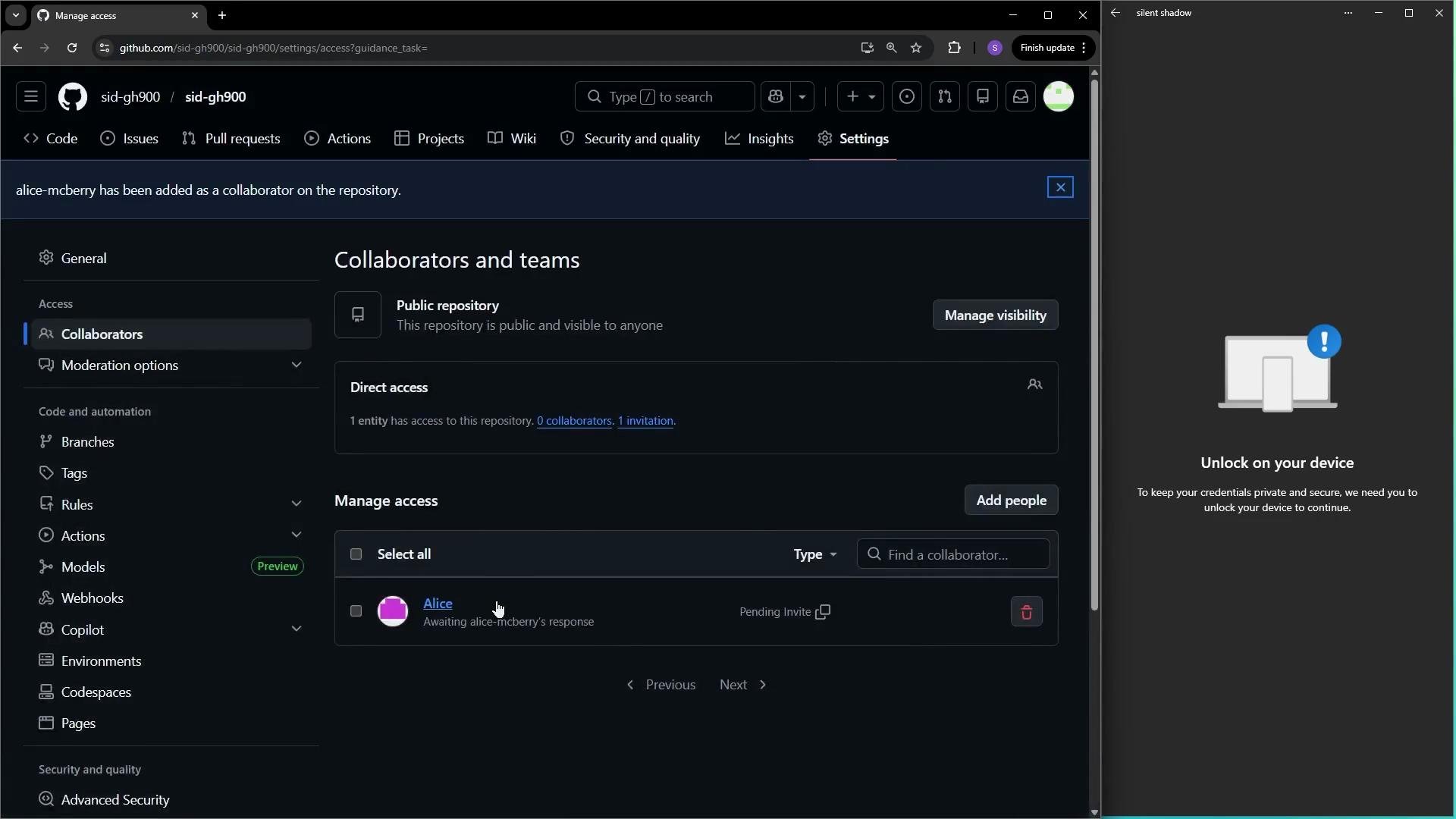 After sending the invite, the recipient will see a pending invitation. They can accept it from the GitHub website (via Notifications) or from the GitHub Mobile app.
## Where recipients find invitations
Use the following quick comparison to decide where to accept invitations:
| Platform | How to access invitations | Typical actions |
| ---------- | ------------------------------------------: | ----------------------------------------------------------------------------------------- |
| Web | Click the Notifications (bell) icon | Accept or Decline the invite directly from the notification |
| Mobile app | Open the Inbox tab in the GitHub Mobile app | Tap invitation, view owner details, Accept or Decline; supports device-based 2FA approval |
## Accepting invitations via the web notifications
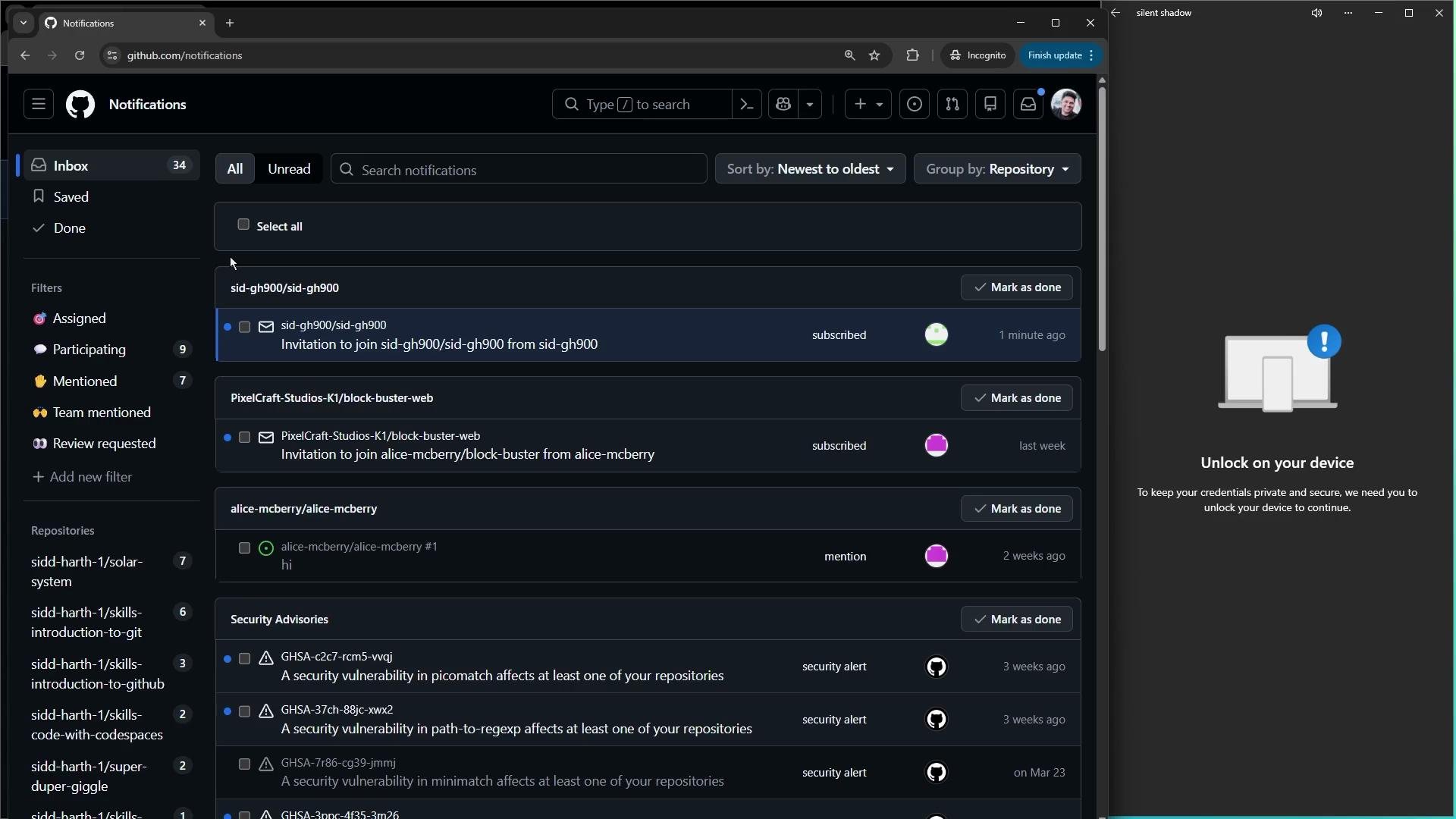
* Sign in to GitHub as the invited user.
* Click the Notifications (bell) icon in the upper-right corner.
* Locate the repository invitation notification and choose **Accept** or **Decline**.
After sending the invite, the recipient will see a pending invitation. They can accept it from the GitHub website (via Notifications) or from the GitHub Mobile app.
## Where recipients find invitations
Use the following quick comparison to decide where to accept invitations:
| Platform | How to access invitations | Typical actions |
| ---------- | ------------------------------------------: | ----------------------------------------------------------------------------------------- |
| Web | Click the Notifications (bell) icon | Accept or Decline the invite directly from the notification |
| Mobile app | Open the Inbox tab in the GitHub Mobile app | Tap invitation, view owner details, Accept or Decline; supports device-based 2FA approval |
## Accepting invitations via the web notifications
* Sign in to GitHub as the invited user.
* Click the Notifications (bell) icon in the upper-right corner.
* Locate the repository invitation notification and choose **Accept** or **Decline**.
 ## Using GitHub Mobile to accept invitations and sign in with device approval
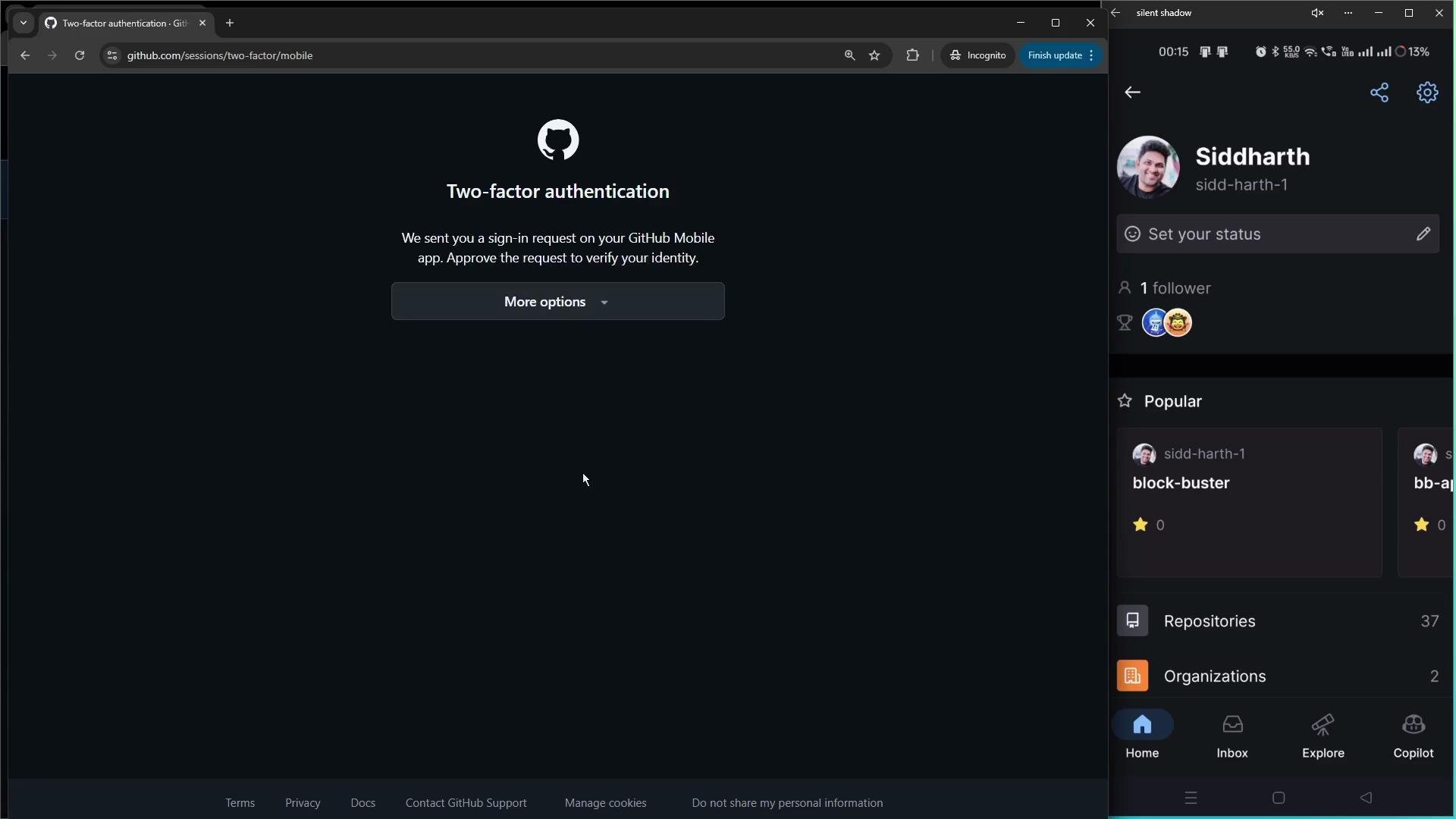
The GitHub Mobile app (Android and iOS) lets you accept invitations on the go and supports device approval as part of two-factor authentication (2FA). When 2FA is enabled you can either enter a code from an authenticator app or approve the sign-in request from a registered device.
Steps to accept via mobile:
* Install and open the GitHub Mobile app.
* If signing in from a different device, approve the sign-in request on your registered device (or enter a 2FA code).
* Open the **Inbox** tab (bottom navigation) to see notifications, including repository invitations.
* Tap an invitation to view repository owner details and choose **Accept** or **Decline**. Notification filters and focused views help surface important items.
## Using GitHub Mobile to accept invitations and sign in with device approval
The GitHub Mobile app (Android and iOS) lets you accept invitations on the go and supports device approval as part of two-factor authentication (2FA). When 2FA is enabled you can either enter a code from an authenticator app or approve the sign-in request from a registered device.
Steps to accept via mobile:
* Install and open the GitHub Mobile app.
* If signing in from a different device, approve the sign-in request on your registered device (or enter a 2FA code).
* Open the **Inbox** tab (bottom navigation) to see notifications, including repository invitations.
* Tap an invitation to view repository owner details and choose **Accept** or **Decline**. Notification filters and focused views help surface important items.
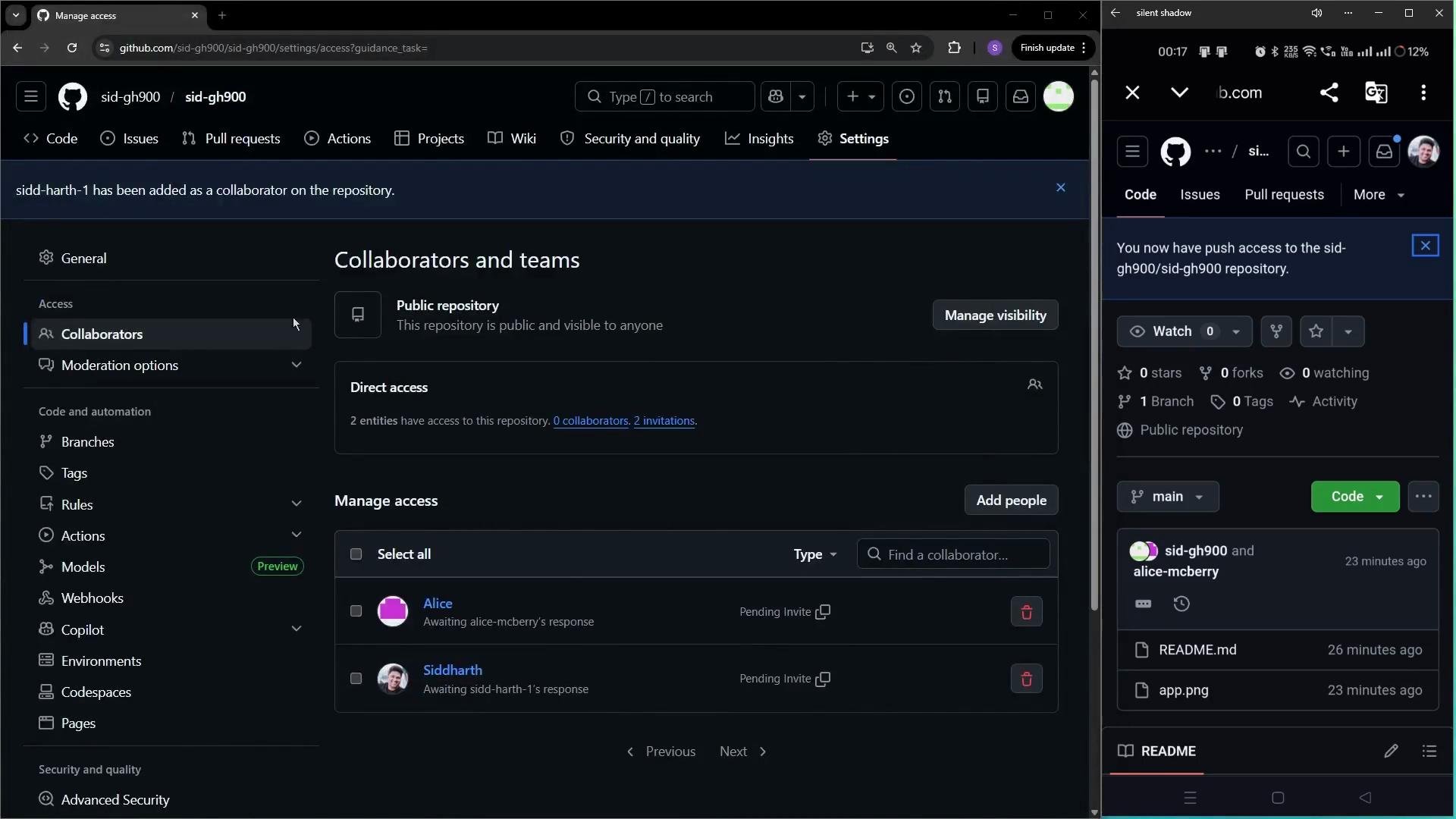
 Once you accept an invite in the mobile app, the repository owner will see the invite status change from Pending to Collaborator. Refresh the repository’s Collaborators list on the web to verify the new collaborator and their access level.
 ## Notification settings in GitHub Mobile
Control how and when you receive notifications from the mobile app by adjusting these options:
| Setting | What it controls | Example |
| ------------------------------- | -------------------------------------------- | ------------------------------------------------------------------ |
| Working hours | Limits when push notifications are delivered | Set weekdays 9:00–17:00 to avoid off-hour alerts |
| Push notification types | Choose which events trigger a push | Enable direct mentions and PR reviews, disable low-priority events |
| Filters / Focused notifications | Show only high-priority items in the Inbox | Focus on assigned issues and requested reviews |
Adjust these settings from the mobile app: tap your profile photo → **Settings** → **Notifications**.
If you use device approval for sign-in, approving a request grants access to the device requesting sign-in. Keep authentication devices secure and never approve unexpected requests.
## Summary
* Invite collaborators from Settings → Manage access (or Collaborators and teams); invited users remain in Pending until acceptance.
* Recipients can accept invitations via the GitHub website Notifications or the GitHub Mobile app.
* GitHub Mobile supports device approval for 2FA and provides inbox filters, working hours, and push settings to manage notification timing and relevance.
## Links and References
* Manage access / Collaborators: [https://docs.github.com/en/repositories/managing-your-repositorys-settings-and-features/managing-repository-settings/managing-repository-collaborators](https://docs.github.com/en/repositories/managing-your-repositorys-settings-and-features/managing-repository-settings/managing-repository-collaborators)
* Notifications in GitHub: [https://docs.github.com/en/notifications](https://docs.github.com/en/notifications)
* GitHub Mobile: [https://docs.github.com/en/get-started/using-github/getting-started-with-github-mobile](https://docs.github.com/en/get-started/using-github/getting-started-with-github-mobile)
* Two-factor authentication (2FA): [https://docs.github.com/en/authentication/securing-your-account-with-two-factor-authentication-2fa/about-two-factor-authentication](https://docs.github.com/en/authentication/securing-your-account-with-two-factor-authentication-2fa/about-two-factor-authentication)
## Notification settings in GitHub Mobile
Control how and when you receive notifications from the mobile app by adjusting these options:
| Setting | What it controls | Example |
| ------------------------------- | -------------------------------------------- | ------------------------------------------------------------------ |
| Working hours | Limits when push notifications are delivered | Set weekdays 9:00–17:00 to avoid off-hour alerts |
| Push notification types | Choose which events trigger a push | Enable direct mentions and PR reviews, disable low-priority events |
| Filters / Focused notifications | Show only high-priority items in the Inbox | Focus on assigned issues and requested reviews |
Adjust these settings from the mobile app: tap your profile photo → **Settings** → **Notifications**.
If you use device approval for sign-in, approving a request grants access to the device requesting sign-in. Keep authentication devices secure and never approve unexpected requests.
## Summary
* Invite collaborators from Settings → Manage access (or Collaborators and teams); invited users remain in Pending until acceptance.
* Recipients can accept invitations via the GitHub website Notifications or the GitHub Mobile app.
* GitHub Mobile supports device approval for 2FA and provides inbox filters, working hours, and push settings to manage notification timing and relevance.
## Links and References
* Manage access / Collaborators: [https://docs.github.com/en/repositories/managing-your-repositorys-settings-and-features/managing-repository-settings/managing-repository-collaborators](https://docs.github.com/en/repositories/managing-your-repositorys-settings-and-features/managing-repository-settings/managing-repository-collaborators)
* Notifications in GitHub: [https://docs.github.com/en/notifications](https://docs.github.com/en/notifications)
* GitHub Mobile: [https://docs.github.com/en/get-started/using-github/getting-started-with-github-mobile](https://docs.github.com/en/get-started/using-github/getting-started-with-github-mobile)
* Two-factor authentication (2FA): [https://docs.github.com/en/authentication/securing-your-account-with-two-factor-authentication-2fa/about-two-factor-authentication](https://docs.github.com/en/authentication/securing-your-account-with-two-factor-authentication-2fa/about-two-factor-authentication)