> ## Documentation Index
> Fetch the complete documentation index at: https://notes.kodekloud.com/llms.txt
> Use this file to discover all available pages before exploring further.
# Demo Explain Basic Repository Navigation
> Guide to GitHub repository navigation and common Git workflows covering branches, forking, cloning, committing, pull requests, remotes, syncing upstream, and best practices for collaboration.
Let's explore a GitHub repository and the common Git/GitHub workflows used to collaborate on code. A GitHub repository is a project folder that stores your files, tracks every change, and supports collaboration across branches and forks. Repositories can be public or private and are the standard unit of work on GitHub.
Before examining the repository UI, here are a few core terms you should know. These are used throughout this guide with examples from the public repository `fluxcd/flux2`.
| Term | What it means | Quick example |
| -------------------------- | ------------------------------------------------------------------------------------------------------------------------------ | --------------------------------------------------------------------- |
| Branch | A parallel line of development inside the same repository. `main` (or `master`) typically holds production-ready code. | `git switch -c feature-one` |
| Fork | A copy of a repository under your account used to propose changes to the original. | `your-username/flux2` |
| Clone | A local copy of a repository (files + history). | `git clone https://github.com/sid-gh900/flux2.git` |
| Pull Request (PR) | A request to merge changes from one branch into another, usually reviewed before merging. | Open PR from `your-username/flux2:feature-one` to `fluxcd/flux2:main` |
| Remote / Upstream / Origin | Remote = hosted repository URL. `origin` typically refers to your fork; `upstream` is the original repository you forked from. | `git remote add upstream https://github.com/fluxcd/flux2.git` |
Branches
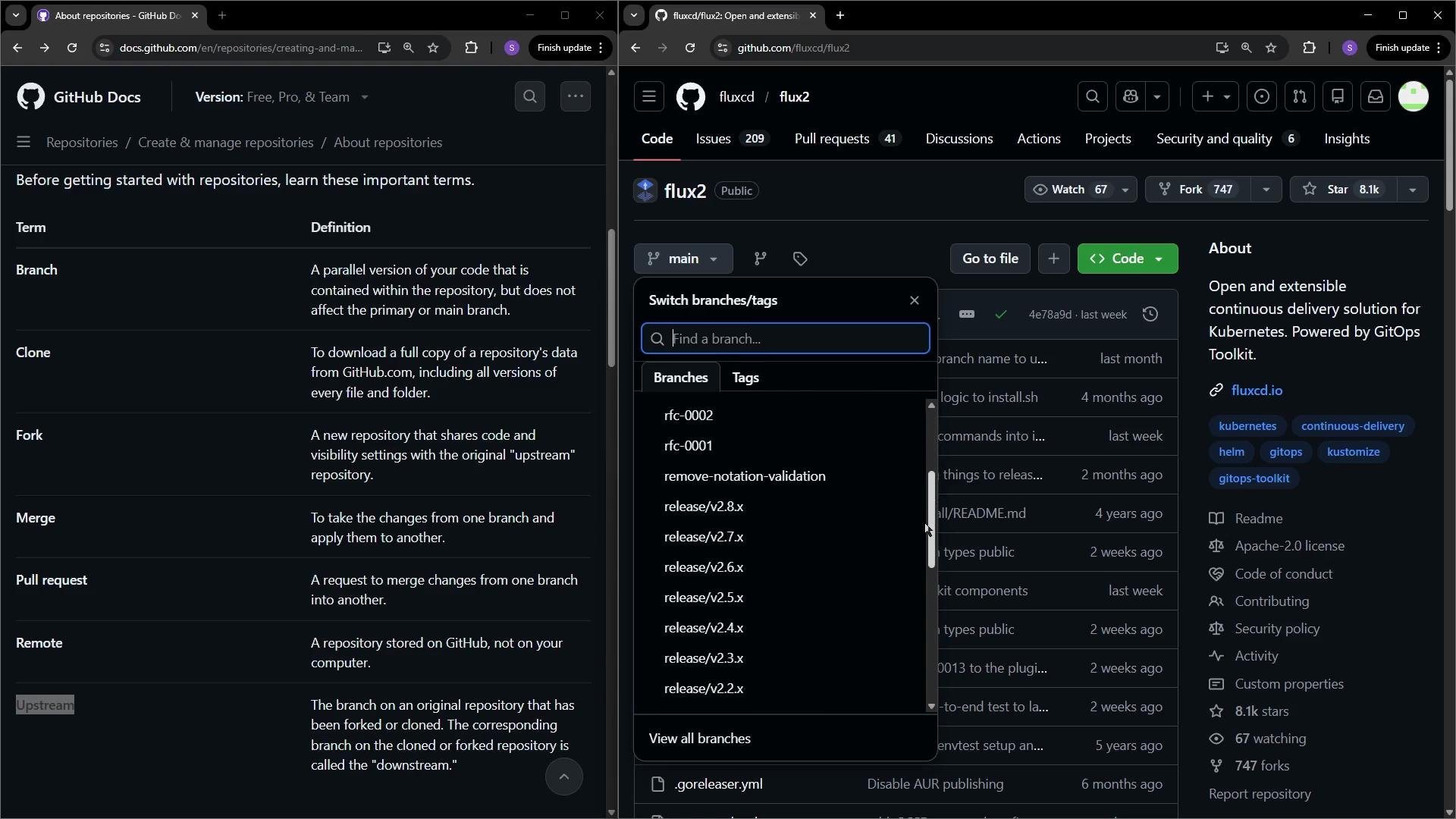
* A branch represents an independent line of development inside the same repository. Use feature branches for work in progress and reserve `main` for stable, production-ready code.
 Forking
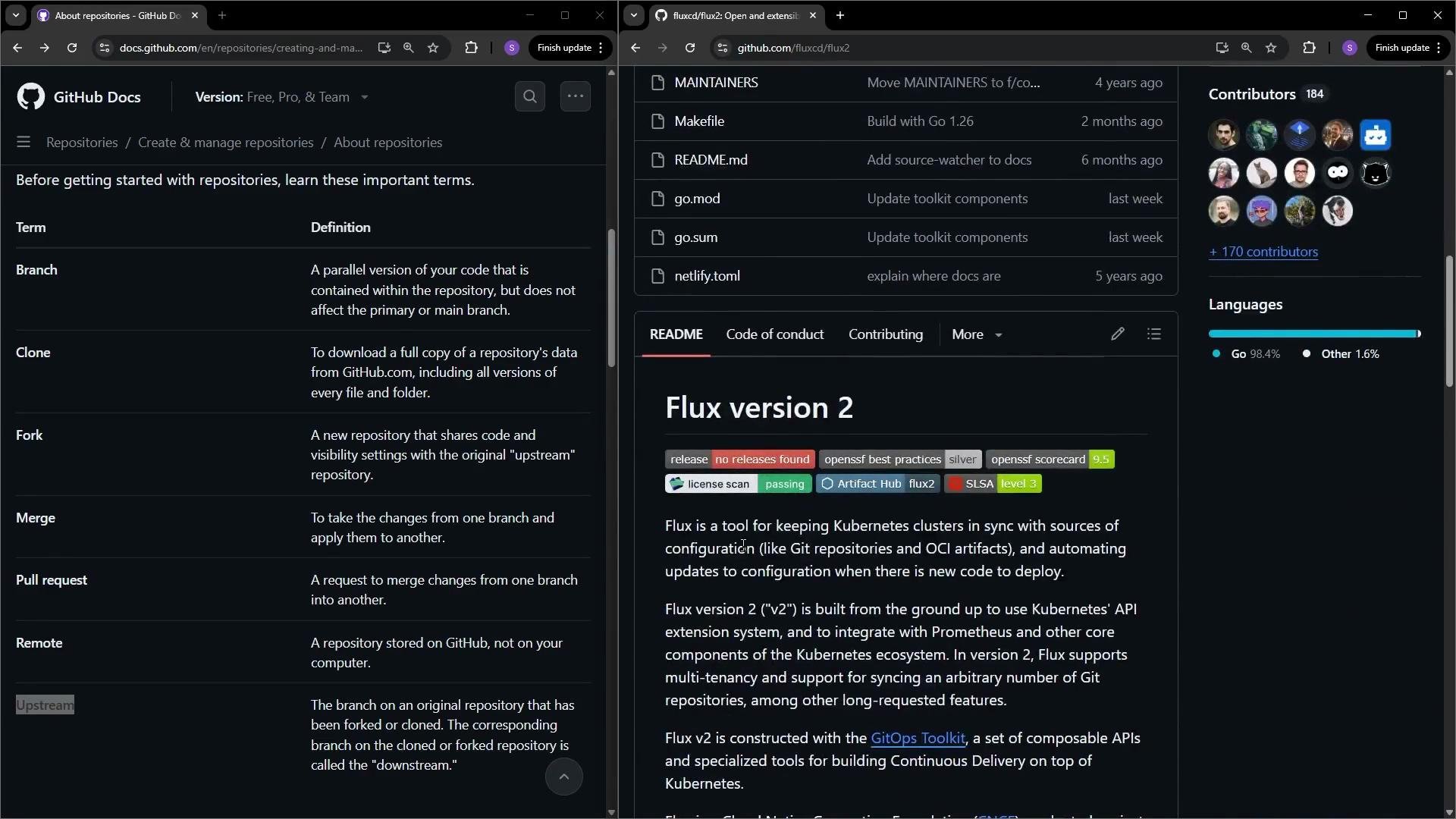
* Fork a repository when you want to propose changes but don't have write access to the original. Forking creates a copy under your account where you can freely make changes and later open a pull request against the original repository.
* When you click "Fork" on GitHub, you will be asked where to fork and whether to fork only the default branch or all branches. After forking you'll have a repo like `your-username/flux2` that shows it was forked from `fluxcd/flux2`.
Forking
* Fork a repository when you want to propose changes but don't have write access to the original. Forking creates a copy under your account where you can freely make changes and later open a pull request against the original repository.
* When you click "Fork" on GitHub, you will be asked where to fork and whether to fork only the default branch or all branches. After forking you'll have a repo like `your-username/flux2` that shows it was forked from `fluxcd/flux2`.
 Cloning
* Cloning copies the repository (including history) to your local machine. You can clone via the GitHub CLI or with native `git` using HTTPS or SSH.
Example with GitHub CLI:
```bash theme={null}
gh repo clone sid-gh900/flux2
```
Example with git (HTTPS):
```bash theme={null}
git clone https://github.com/sid-gh900/flux2.git
```
Open the repository locally:
```bash theme={null}
cd flux2
ls
```
Typical repository contents (example):
```text theme={null}
AGENTS.md CONTRIBUTING.md Dockerfile MAINTAINERS README.md
CODE_OF_CONDUCT.md DCO LICENSE Makefile action
cmd docs go.mod install manifests
pkg tests netlify.toml rfcs
```
Working with branches locally
* Avoid making changes directly on `main`. Create a feature branch to isolate your work, then push it to your fork and open a pull request when ready.
Create a new branch (modern Git):
```bash theme={null}
git switch -c feature-one
```
Or with the older command:
```bash theme={null}
git checkout -b feature-one
```
* After creating the branch, edit files locally or use the GitHub web UI to edit and commit.
Editing and committing (web UI)
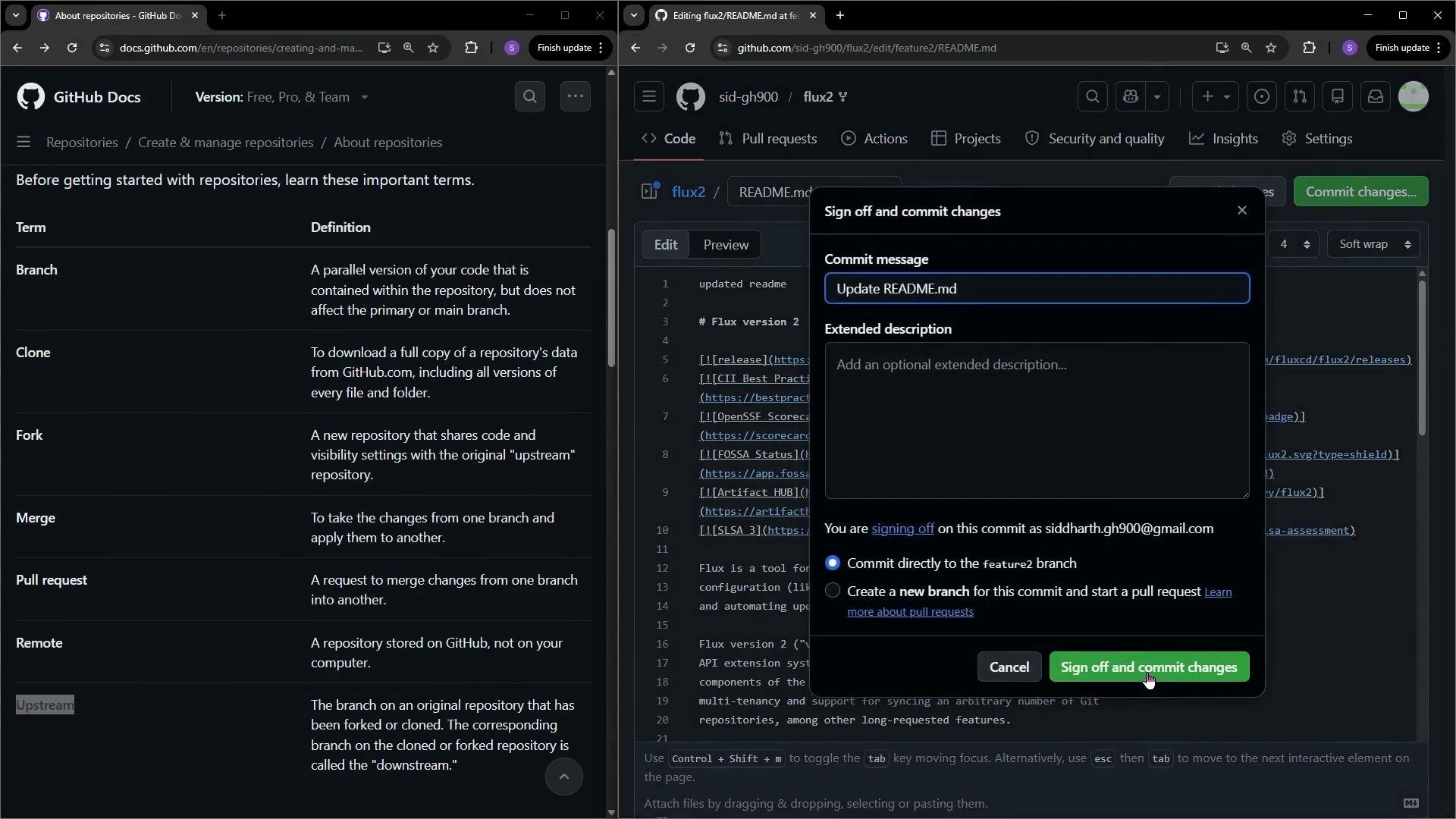
* GitHub allows editing files directly in your fork's web UI. When you commit to a non-default branch, GitHub will typically show an option to compare and open a pull request to merge those changes back into the target branch.
Cloning
* Cloning copies the repository (including history) to your local machine. You can clone via the GitHub CLI or with native `git` using HTTPS or SSH.
Example with GitHub CLI:
```bash theme={null}
gh repo clone sid-gh900/flux2
```
Example with git (HTTPS):
```bash theme={null}
git clone https://github.com/sid-gh900/flux2.git
```
Open the repository locally:
```bash theme={null}
cd flux2
ls
```
Typical repository contents (example):
```text theme={null}
AGENTS.md CONTRIBUTING.md Dockerfile MAINTAINERS README.md
CODE_OF_CONDUCT.md DCO LICENSE Makefile action
cmd docs go.mod install manifests
pkg tests netlify.toml rfcs
```
Working with branches locally
* Avoid making changes directly on `main`. Create a feature branch to isolate your work, then push it to your fork and open a pull request when ready.
Create a new branch (modern Git):
```bash theme={null}
git switch -c feature-one
```
Or with the older command:
```bash theme={null}
git checkout -b feature-one
```
* After creating the branch, edit files locally or use the GitHub web UI to edit and commit.
Editing and committing (web UI)
* GitHub allows editing files directly in your fork's web UI. When you commit to a non-default branch, GitHub will typically show an option to compare and open a pull request to merge those changes back into the target branch.
 Committing and pushing from your local machine
```bash theme={null}
git add README.md
git commit -m "exploring repo options"
git push -u origin feature-one
```
* The `-u origin feature-one` flag sets the remote tracking relationship so future `git push` and `git pull` work without specifying the branch. Once pushed, open a pull request from `your-username/flux2:feature-one` to `fluxcd/flux2:main` (or the appropriate target branch).
Merging and Pull Requests
* Merging applies changes from one branch into another. A pull request (PR) is used to propose and review those changes before merging. GitHub often provides a "Compare & pull request" prompt immediately after you push a branch.
Remotes, origin, and upstream
* A remote is a named reference to a hosted repository URL. After cloning your fork, `origin` usually points to your fork. Add an `upstream` remote to track updates from the original repository you forked.
Add the upstream remote:
```bash theme={null}
git remote add upstream https://github.com/fluxcd/flux2.git
```
Verify remotes:
```bash theme={null}
git remote -v
```
Sample output:
```text theme={null}
origin https://github.com/sid-gh900/flux2.git (fetch)
origin https://github.com/sid-gh900/flux2.git (push)
upstream https://github.com/fluxcd/flux2.git (fetch)
upstream https://github.com/fluxcd/flux2.git (push)
```
Syncing with upstream: common workflows
* Fetch updates from the original project:
```bash theme={null}
git fetch upstream
```
* Update your local `main` with upstream changes:
```bash theme={null}
git checkout main
git pull upstream main
```
* Bring your feature branch up to date by rebasing or merging:
```bash theme={null}
git checkout feature-one
git rebase main
# or
git merge main
```
Best practices summary
* Work on feature branches, not `main`.
* Keep your fork in sync with `upstream`.
* Push branches to your fork and open a pull request for review when ready.
Best practice: Work on feature branches (not `main`), keep your fork in sync with `upstream`, and open a pull request for review when your changes are ready.
Links and references
* GitHub Docs: [https://docs.github.com/](https://docs.github.com/)
* Git documentation: [https://git-scm.com/docs](https://git-scm.com/docs)
* GitHub CLI: [https://cli.github.com/](https://cli.github.com/)
Committing and pushing from your local machine
```bash theme={null}
git add README.md
git commit -m "exploring repo options"
git push -u origin feature-one
```
* The `-u origin feature-one` flag sets the remote tracking relationship so future `git push` and `git pull` work without specifying the branch. Once pushed, open a pull request from `your-username/flux2:feature-one` to `fluxcd/flux2:main` (or the appropriate target branch).
Merging and Pull Requests
* Merging applies changes from one branch into another. A pull request (PR) is used to propose and review those changes before merging. GitHub often provides a "Compare & pull request" prompt immediately after you push a branch.
Remotes, origin, and upstream
* A remote is a named reference to a hosted repository URL. After cloning your fork, `origin` usually points to your fork. Add an `upstream` remote to track updates from the original repository you forked.
Add the upstream remote:
```bash theme={null}
git remote add upstream https://github.com/fluxcd/flux2.git
```
Verify remotes:
```bash theme={null}
git remote -v
```
Sample output:
```text theme={null}
origin https://github.com/sid-gh900/flux2.git (fetch)
origin https://github.com/sid-gh900/flux2.git (push)
upstream https://github.com/fluxcd/flux2.git (fetch)
upstream https://github.com/fluxcd/flux2.git (push)
```
Syncing with upstream: common workflows
* Fetch updates from the original project:
```bash theme={null}
git fetch upstream
```
* Update your local `main` with upstream changes:
```bash theme={null}
git checkout main
git pull upstream main
```
* Bring your feature branch up to date by rebasing or merging:
```bash theme={null}
git checkout feature-one
git rebase main
# or
git merge main
```
Best practices summary
* Work on feature branches, not `main`.
* Keep your fork in sync with `upstream`.
* Push branches to your fork and open a pull request for review when ready.
Best practice: Work on feature branches (not `main`), keep your fork in sync with `upstream`, and open a pull request for review when your changes are ready.
Links and references
* GitHub Docs: [https://docs.github.com/](https://docs.github.com/)
* Git documentation: [https://git-scm.com/docs](https://git-scm.com/docs)
* GitHub CLI: [https://cli.github.com/](https://cli.github.com/)