> ## Documentation Index
> Fetch the complete documentation index at: https://notes.kodekloud.com/llms.txt
> Use this file to discover all available pages before exploring further.
# Repository Templates
> Explains repository templates as reusable project scaffolding that generate new repositories with consistent structure and independent commit history, and compares templates to forks and clones.
Repository templates are reusable blueprints for new projects. They provide a consistent project skeleton—directory layout, configuration files, documentation, and starter code—so teams can create new repositories that follow organizational standards from day one.
## How repository templates work
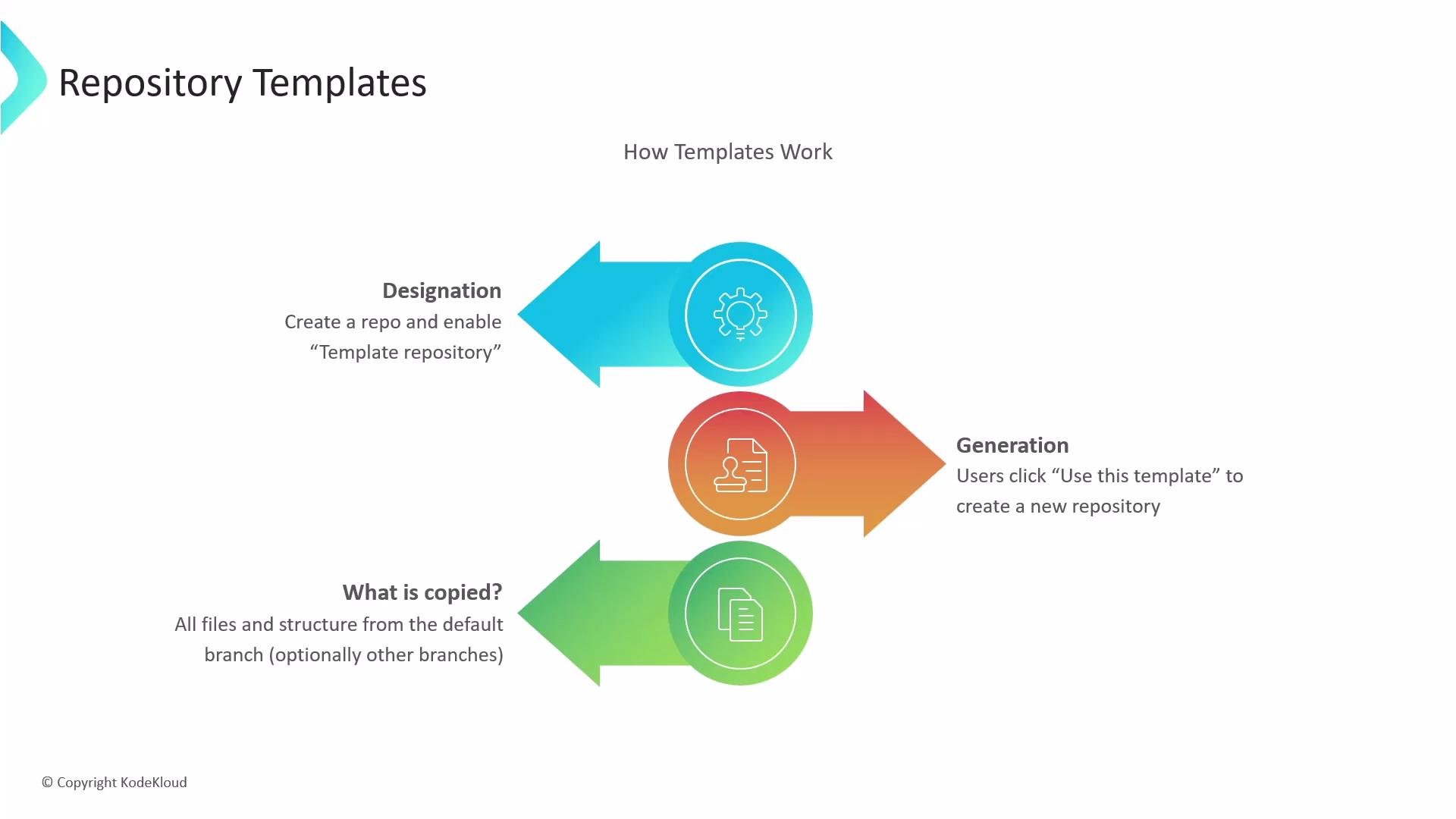
1. Create a repository containing the files, directories, and any starter content you want every new project to include.
2. Enable the repository's template setting (often found in the repository options or settings).
3. Anyone with appropriate access can create a new repository from the template by clicking the `Use this template` button. The new repository is generated instantly using the template’s content.
What gets copied?
* The entire directory structure and all files from the template’s default branch are copied into the new repository.
* Some hosting platforms may offer options to include additional branches at creation time, but the default branch is what is copied by default.
* The new repository starts with a fresh commit history; commits from the template are not preserved.
 Quick steps to enable and use a template (example):
1. Open repository Settings → Template repository → enable.
2. Click `Use this template`.
3. Choose a repository name, visibility, and create.
For teams automating repo creation, many platforms also provide APIs to programmatically generate repositories from templates.
## Technical difference vs. forking or cloning
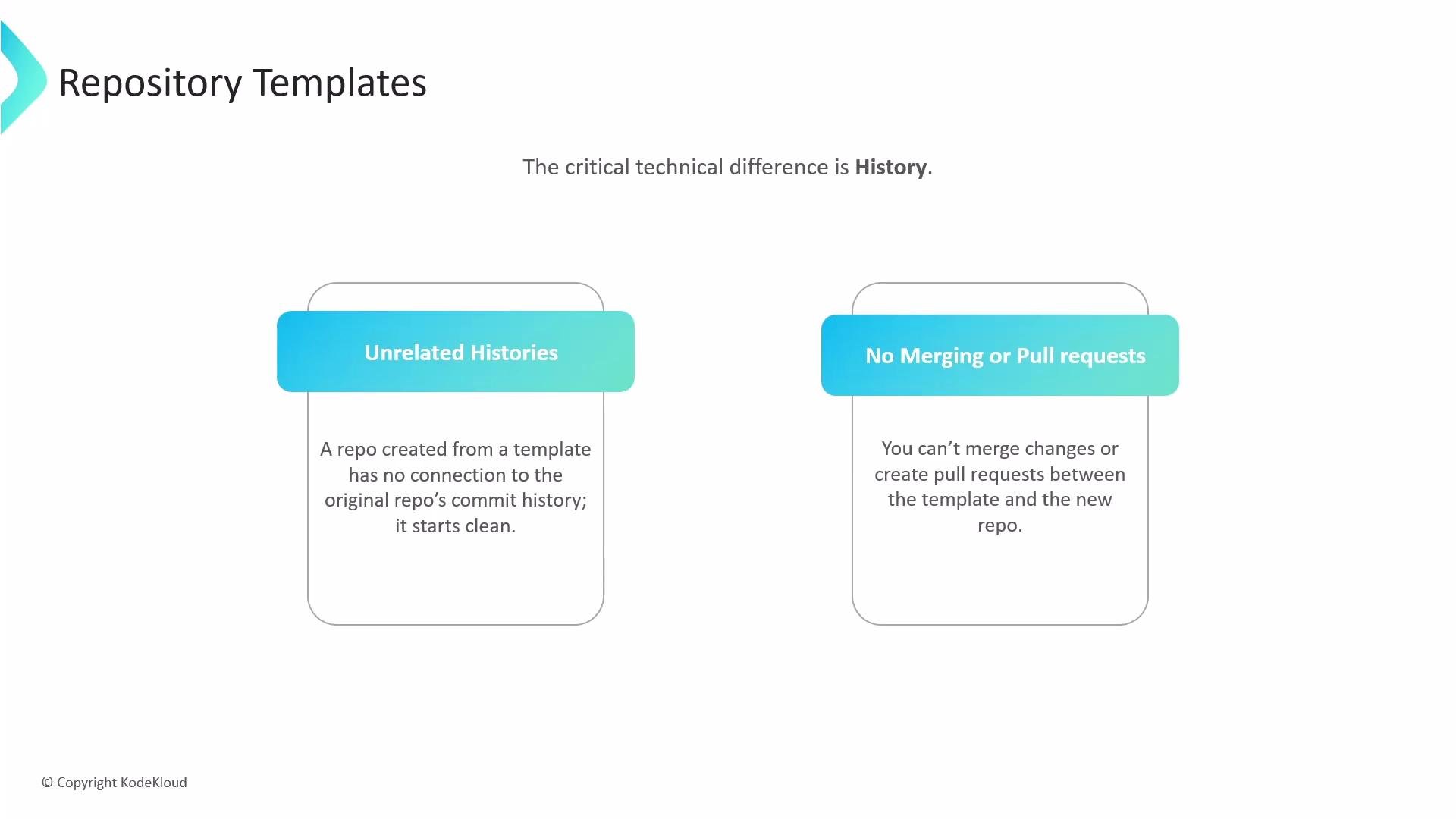
The critical technical distinction is commit history and synchronization.
* A repository created from a template has no commit history from the template; it starts with a new, independent history.
* Because the histories are unrelated, you cannot open pull requests to merge changes from the original template into the repositories generated from it.
* Templates are intended to provide one-time scaffolding at creation time, not to keep derived repositories synchronized with the source.
Quick steps to enable and use a template (example):
1. Open repository Settings → Template repository → enable.
2. Click `Use this template`.
3. Choose a repository name, visibility, and create.
For teams automating repo creation, many platforms also provide APIs to programmatically generate repositories from templates.
## Technical difference vs. forking or cloning
The critical technical distinction is commit history and synchronization.
* A repository created from a template has no commit history from the template; it starts with a new, independent history.
* Because the histories are unrelated, you cannot open pull requests to merge changes from the original template into the repositories generated from it.
* Templates are intended to provide one-time scaffolding at creation time, not to keep derived repositories synchronized with the source.
 Use a repository template to standardize project setup and generate fresh repositories with consistent scaffolding. If you need ongoing synchronization between a source repo and its derivatives, use forks, submodules, or a CI-driven synchronization workflow instead.
## Comparison: Template vs Fork vs Clone
| Feature | Repository Template | Fork | Clone |
| ----------------------- | ------------------------------------ | -------------------------------------------------------- | --------------------------- |
| Commit history copied | No — new history | Yes — retains original history | Yes — local copy of history |
| Ongoing synchronization | No (one-time copy) | Possible via pull requests | Manual or via remotes |
| Typical use case | Standardized starter repos | Contribute to open source or diverge with shared history | Local development, backups |
| How to create | Click `Use this template` or use API | Click Fork | `git clone ` |
## When to use templates
* Starting a new project that must follow organizational standards.
* Bootstrapping repositories for consistent CI/CD, licensing, CODEOWNERS, or README structure.
* Providing a predictable developer onboarding experience with starter code and docs.
## Useful links and references
* [GitHub: Creating a repository from a template](https://docs.github.com/en/repositories/creating-and-managing-repositories/creating-a-repository-from-a-template)
* [Git Basics — Forking a repository](https://docs.github.com/en/get-started/quickstart/fork-a-repo)
Summary: Repository templates are ideal for enforcing consistent project structure and generating new repositories with a clean history. They are not a mechanism for ongoing synchronization between template and derivative repositories—use forks or other workflows when shared commit history and ongoing merges are required.
Use a repository template to standardize project setup and generate fresh repositories with consistent scaffolding. If you need ongoing synchronization between a source repo and its derivatives, use forks, submodules, or a CI-driven synchronization workflow instead.
## Comparison: Template vs Fork vs Clone
| Feature | Repository Template | Fork | Clone |
| ----------------------- | ------------------------------------ | -------------------------------------------------------- | --------------------------- |
| Commit history copied | No — new history | Yes — retains original history | Yes — local copy of history |
| Ongoing synchronization | No (one-time copy) | Possible via pull requests | Manual or via remotes |
| Typical use case | Standardized starter repos | Contribute to open source or diverge with shared history | Local development, backups |
| How to create | Click `Use this template` or use API | Click Fork | `git clone ` |
## When to use templates
* Starting a new project that must follow organizational standards.
* Bootstrapping repositories for consistent CI/CD, licensing, CODEOWNERS, or README structure.
* Providing a predictable developer onboarding experience with starter code and docs.
## Useful links and references
* [GitHub: Creating a repository from a template](https://docs.github.com/en/repositories/creating-and-managing-repositories/creating-a-repository-from-a-template)
* [Git Basics — Forking a repository](https://docs.github.com/en/get-started/quickstart/fork-a-repo)
Summary: Repository templates are ideal for enforcing consistent project structure and generating new repositories with a clean history. They are not a mechanism for ongoing synchronization between template and derivative repositories—use forks or other workflows when shared commit history and ongoing merges are required.