> ## Documentation Index
> Fetch the complete documentation index at: https://notes.kodekloud.com/llms.txt
> Use this file to discover all available pages before exploring further.
# Demo Describe How to Pin an Issue
> Guide showing GitHub issue actions and steps to pin an issue so it remains at the top of a repository's Issues list, with related management options.
This guide walks through common actions available on a GitHub issue page and shows how to pin an issue so it remains visible at the top of the repository's Issues list.
I'm signed in as the Siddharth Barahalikar user and opening a single issue in this repository. The issue body contains a small JavaScript example showing a bug where duplicating array elements while iterating causes exponential ball growth:
```javascript theme={null}
// script.js
case 'multiBall':
if (gameState.balls.length < 5) { // This check is insufficient because it pushes into the same array while iterating
gameState.balls.forEach(ball => {
gameState.balls.push({...ball});
});
}
```
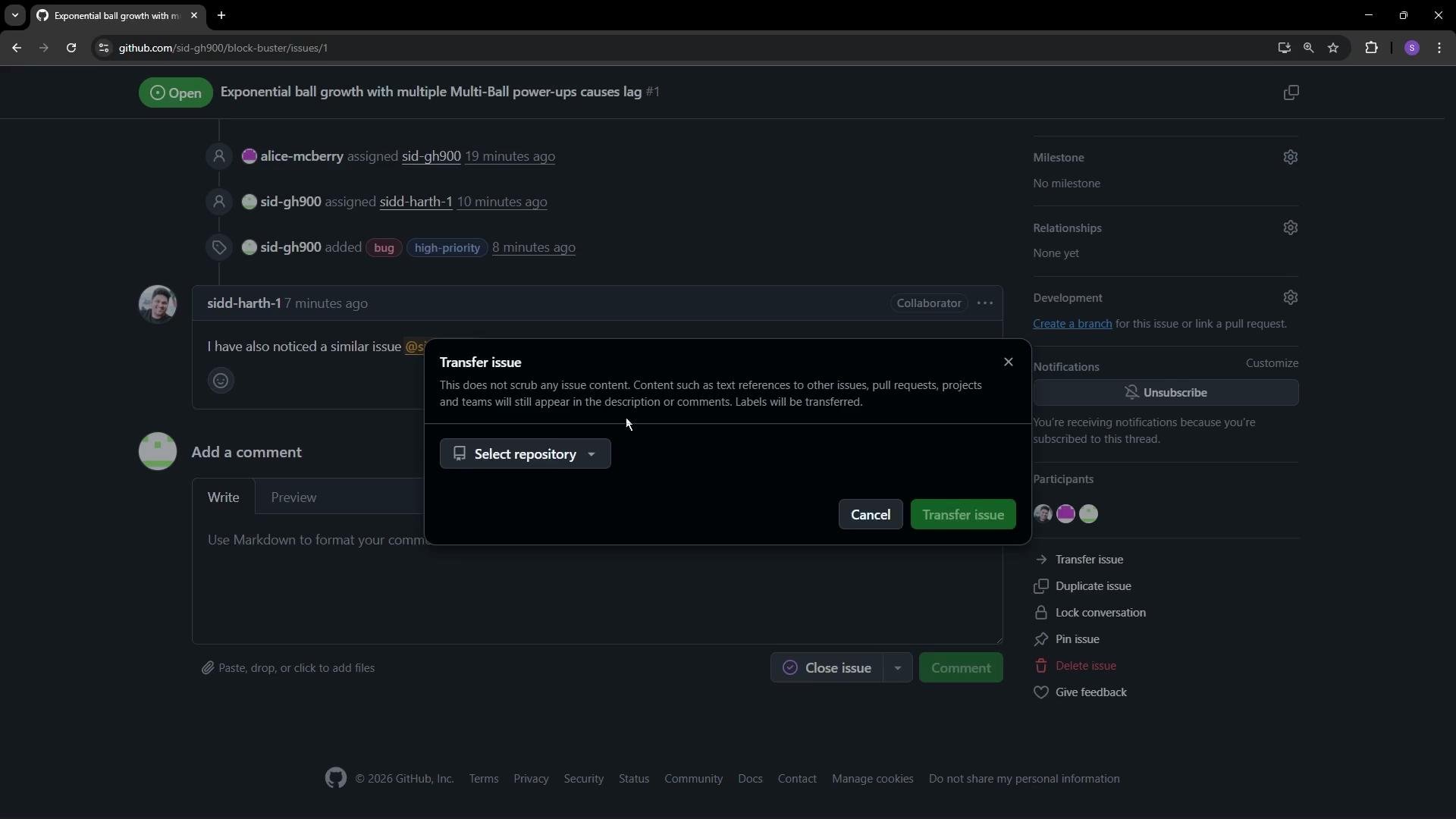
Below are the most common actions available from the issue menu and when to use them.
* Transfer issue\
Move an issue from one repository to another (for example, if a front-end bug was mistakenly opened in a back-end repo). The transfer moves the issue body, comments, and assignees. Labels and milestones are transferred only if the destination repository already has labels or milestones with the exact same names.
 * Duplicate issue\
Create a new issue pre-filled with the current issue’s details. Useful for splitting a large task into smaller issues or creating a similar task without retyping the content.
* Lock conversation\
Prevent new comments, reactions, or votes on the issue. Use this to stop spam, conclude an unproductive debate, or indicate a discussion has ended. You can include a short reason when locking.
* Pin issue\
Pinning places the issue at the top of the repository’s Issues list so it’s visible to all visitors. Ideal for high-priority bugs, important announcements, or tasks you want to surface above other issues. Each repository can have up to three pinned issues.
A repository can have a maximum of three pinned issues at any time. Use pins for the most important items you want contributors and visitors to see first.
* Delete issue\
Permanently removes the issue from the repository. This action is irreversible and should be used with caution.
* Give feedback\
Opens a shortcut to submit feedback directly to GitHub about the Issues experience.
Table: quick reference for issue menu actions
| Action | When to use it | Result |
| ----------------- | ----------------------------------------------- | ---------------------------------------------------------------------------------------------------- |
| Transfer issue | Issue belongs in another repository | Moves body, comments, assignees; transfers labels/milestones only if same names exist in destination |
| Duplicate issue | Create a similar or split task | Opens a new issue pre-filled with current issue details |
| Lock conversation | End a discussion or stop spam | Prevents new comments, reactions, and votes |
| Pin issue | Surface high-priority items | Sticks issue to top of Issues list (max 3 per repo) |
| Delete issue | Remove invalid or sensitive content permanently | Permanently deletes the issue |
| Give feedback | Report Problems or suggest improvements | Opens GitHub feedback dialog |
How to pin an issue — quick steps
1. Open the issue you want to highlight.
2. Click the issue menu (•••) in the issue header.
3. Choose the “Pin issue” option from the dropdown.
4. The pinned issue will appear at the top of the repository’s Issues tab for all visitors.
We used the Pin option in this example. After pinning, the issue appears at the top of the Issues tab. When a repository has many open issues, pinned items help ensure new visitors and contributors immediately see the highest-priority tasks.
Deleting an issue is permanent. If you might need the conversation or context later, consider locking or transferring the issue instead of deleting it.
Further reading and references
* [GitHub Issues documentation](https://docs.github.com/en/issues)
* [Managing repositories on GitHub](https://docs.github.com/en/repositories)
* Duplicate issue\
Create a new issue pre-filled with the current issue’s details. Useful for splitting a large task into smaller issues or creating a similar task without retyping the content.
* Lock conversation\
Prevent new comments, reactions, or votes on the issue. Use this to stop spam, conclude an unproductive debate, or indicate a discussion has ended. You can include a short reason when locking.
* Pin issue\
Pinning places the issue at the top of the repository’s Issues list so it’s visible to all visitors. Ideal for high-priority bugs, important announcements, or tasks you want to surface above other issues. Each repository can have up to three pinned issues.
A repository can have a maximum of three pinned issues at any time. Use pins for the most important items you want contributors and visitors to see first.
* Delete issue\
Permanently removes the issue from the repository. This action is irreversible and should be used with caution.
* Give feedback\
Opens a shortcut to submit feedback directly to GitHub about the Issues experience.
Table: quick reference for issue menu actions
| Action | When to use it | Result |
| ----------------- | ----------------------------------------------- | ---------------------------------------------------------------------------------------------------- |
| Transfer issue | Issue belongs in another repository | Moves body, comments, assignees; transfers labels/milestones only if same names exist in destination |
| Duplicate issue | Create a similar or split task | Opens a new issue pre-filled with current issue details |
| Lock conversation | End a discussion or stop spam | Prevents new comments, reactions, and votes |
| Pin issue | Surface high-priority items | Sticks issue to top of Issues list (max 3 per repo) |
| Delete issue | Remove invalid or sensitive content permanently | Permanently deletes the issue |
| Give feedback | Report Problems or suggest improvements | Opens GitHub feedback dialog |
How to pin an issue — quick steps
1. Open the issue you want to highlight.
2. Click the issue menu (•••) in the issue header.
3. Choose the “Pin issue” option from the dropdown.
4. The pinned issue will appear at the top of the repository’s Issues tab for all visitors.
We used the Pin option in this example. After pinning, the issue appears at the top of the Issues tab. When a repository has many open issues, pinned items help ensure new visitors and contributors immediately see the highest-priority tasks.
Deleting an issue is permanent. If you might need the conversation or context later, consider locking or transferring the issue instead of deleting it.
Further reading and references
* [GitHub Issues documentation](https://docs.github.com/en/issues)
* [Managing repositories on GitHub](https://docs.github.com/en/repositories)