> ## Documentation Index
> Fetch the complete documentation index at: https://notes.kodekloud.com/llms.txt
> Use this file to discover all available pages before exploring further.
# Demo Describe the Configuration Options for Projects
> Guide to creating and configuring GitHub Projects boards to import issues and PRs, use draft issues, customize fields like Priority, switch views, and save team views.
If your team is launching Block Buster v2.0 and needs a single source of truth for features, bug fixes, and pull requests, GitHub Projects provides a flexible way to plan and track that work. This guide walks through creating a project board, importing repository items, using draft issues, switching views for more detail, adding custom fields (like Priority), and saving views so your team shares a consistent layout.
Create a new project
* Open the repository and choose Projects.
* Create a new project and pick a template. GitHub offers templates such as Team Planning, Kanban, Feature Release, Bug Tracker, Iterative Development, Product Launch, Roadmap, and Team Retrospective — or you can start from scratch.
* For this walkthrough we’ll start with an empty board template and import issues and pull requests from the repository.
 Name and import items
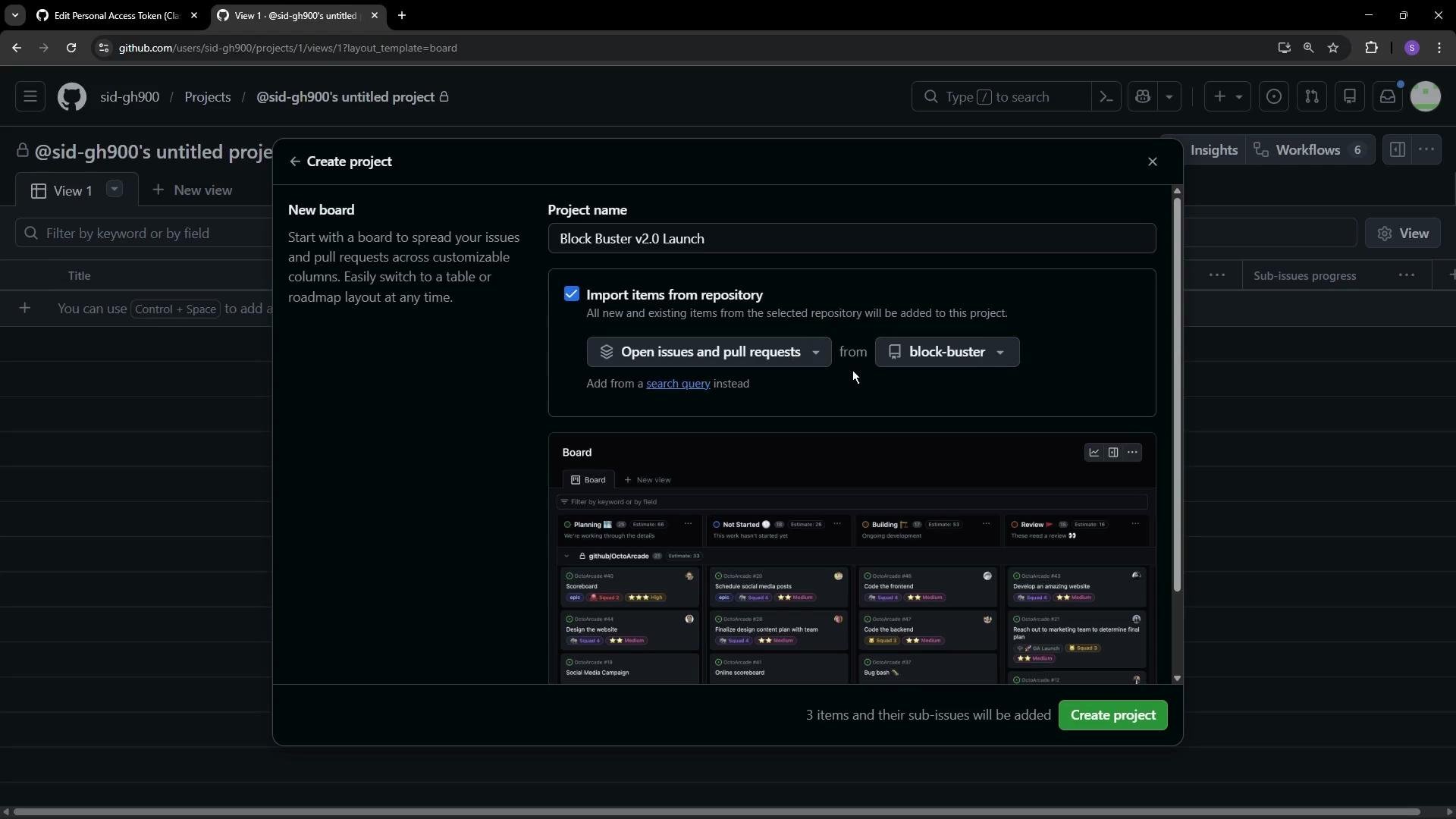
* Give the project a descriptive name, for example: "Block Buster v2.0 Launch".
* Configure the project to import open issues and pull requests from the Block Blaster repository (or another repo).
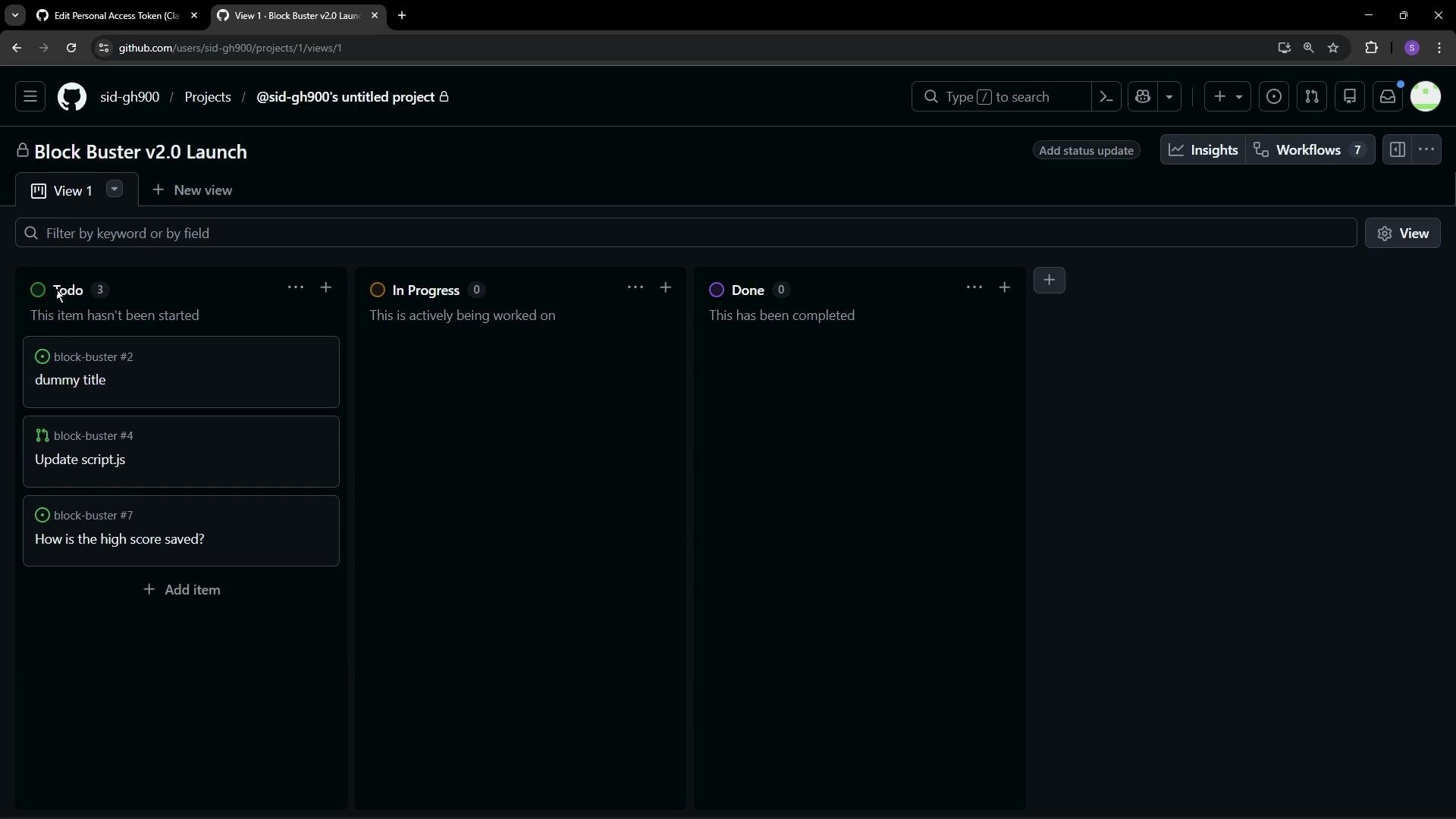
* When the board is created it will import currently open issues and PRs and place them in the default columns (Todo / In Progress / Done).
The imported items appear in the Todo column by default. You can enable project automation to move cards automatically when linked issues or PRs are closed, or you can drag cards between columns manually.
Name and import items
* Give the project a descriptive name, for example: "Block Buster v2.0 Launch".
* Configure the project to import open issues and pull requests from the Block Blaster repository (or another repo).
* When the board is created it will import currently open issues and PRs and place them in the default columns (Todo / In Progress / Done).
The imported items appear in the Todo column by default. You can enable project automation to move cards automatically when linked issues or PRs are closed, or you can drag cards between columns manually.
 Capture ideas with draft issues
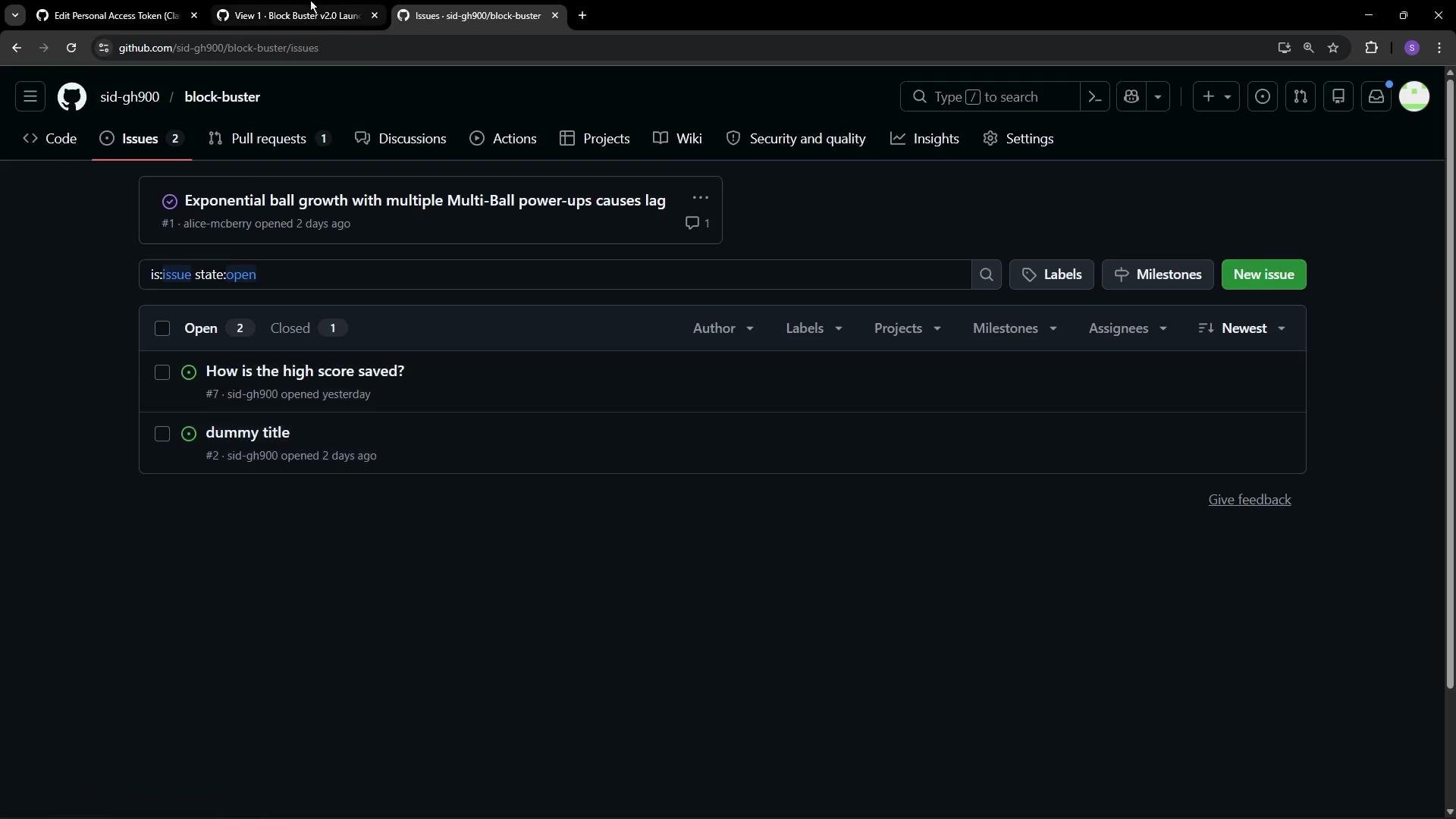
* Use draft issues on the board to capture early ideas or work items that you’re not ready to publish to the repository.
* Example draft items:
* Create a new laser power-up (draft)
* Design five new space-theme levels (draft)
* Update documentation for new power-ups (draft)
Draft issues are stored in the project but are not published to the repository until you choose to publish them. Use drafts to collect and refine ideas before they become repository issues.
Capture ideas with draft issues
* Use draft issues on the board to capture early ideas or work items that you’re not ready to publish to the repository.
* Example draft items:
* Create a new laser power-up (draft)
* Design five new space-theme levels (draft)
* Update documentation for new power-ups (draft)
Draft issues are stored in the project but are not published to the repository until you choose to publish them. Use drafts to collect and refine ideas before they become repository issues.
 View modes: Board, Table, Roadmap
* Board view gives a visual workflow (columns) for quick triage and manual movement of cards.
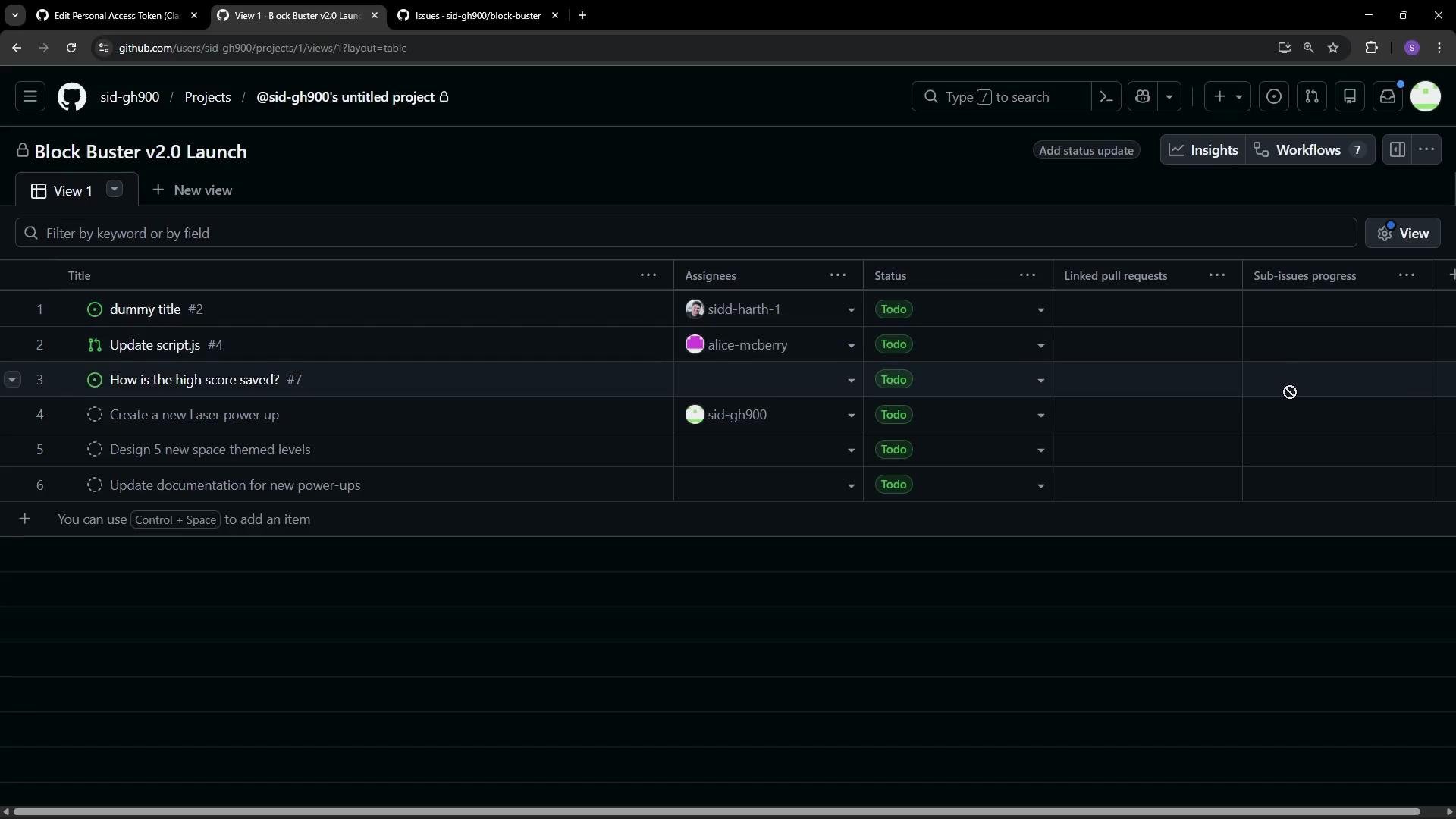
* Table view exposes metadata columns (assignees, linked PRs, sub-issues, labels, milestones, custom fields) so you can filter, sort, assign, and manage relationships.
* Roadmap view focuses on time-based planning and milestones.
In Table view you can:
* Assign items to team members (note: draft items can only be assigned after publishing).
* Link PRs to issues and monitor sub-issue progress.
* Use horizontal scroll to reveal additional columns and settings.
View modes: Board, Table, Roadmap
* Board view gives a visual workflow (columns) for quick triage and manual movement of cards.
* Table view exposes metadata columns (assignees, linked PRs, sub-issues, labels, milestones, custom fields) so you can filter, sort, assign, and manage relationships.
* Roadmap view focuses on time-based planning and milestones.
In Table view you can:
* Assign items to team members (note: draft items can only be assigned after publishing).
* Link PRs to issues and monitor sub-issue progress.
* Use horizontal scroll to reveal additional columns and settings.
 Customize fields and add Priority
* Click Add field to surface repository fields (labels, milestone, reviewers, parent issue) or create custom fields.
* Custom field types: text, number, date, single select, iteration.
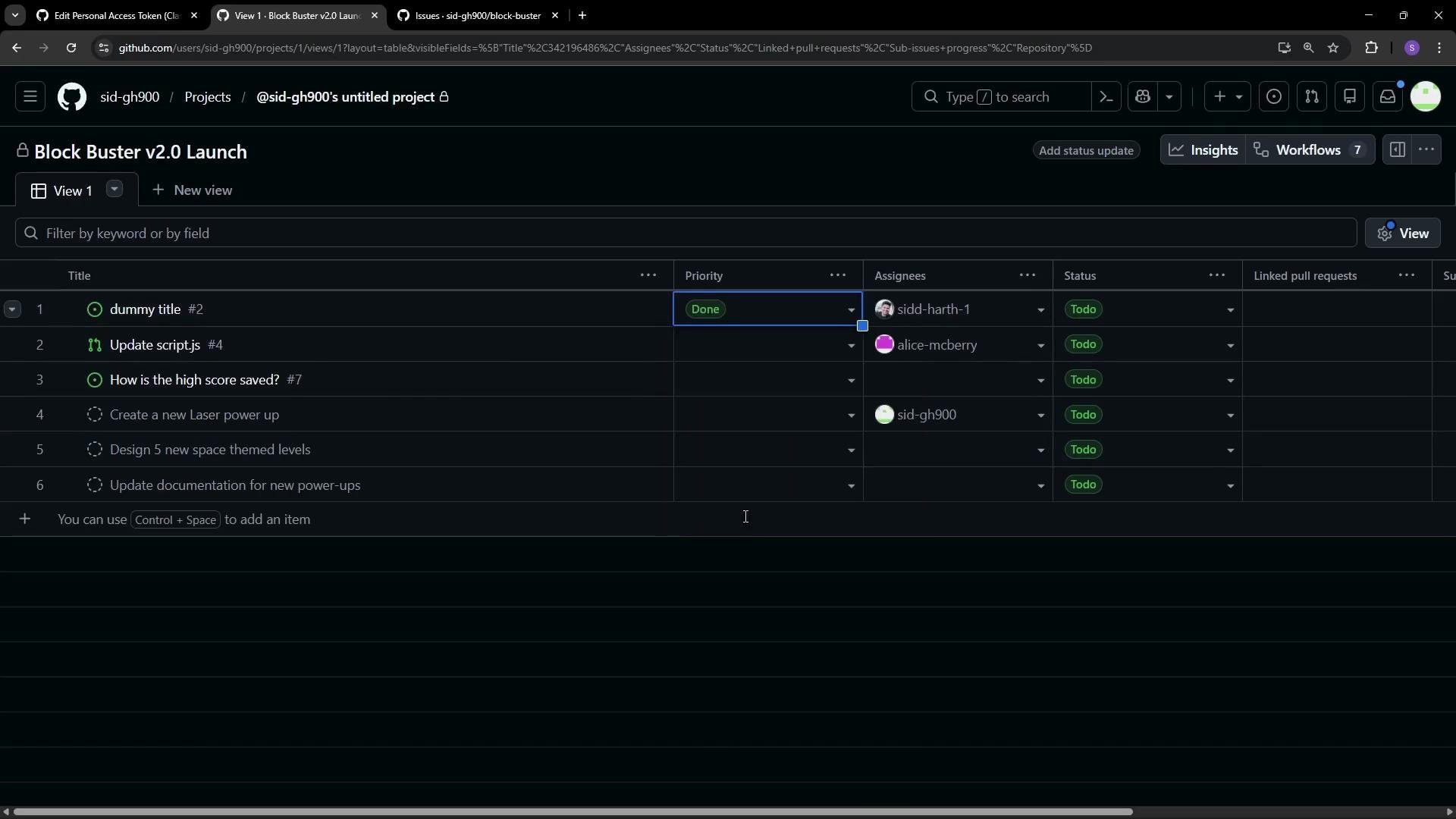
* A common custom field is `Priority`. Create a single-select custom field named Priority and add options such as High, Medium, Low, and Done. Assign colors to make status clear at a glance:
* Low — blue
* Medium — orange
* High — red
* Done — green
Once the Priority field is added it will appear in Table view and can also be shown on the Board. Set priorities for cards (for example, mark the laser power-up and documentation updates as High), then filter and sort by Priority.
Customize fields and add Priority
* Click Add field to surface repository fields (labels, milestone, reviewers, parent issue) or create custom fields.
* Custom field types: text, number, date, single select, iteration.
* A common custom field is `Priority`. Create a single-select custom field named Priority and add options such as High, Medium, Low, and Done. Assign colors to make status clear at a glance:
* Low — blue
* Medium — orange
* High — red
* Done — green
Once the Priority field is added it will appear in Table view and can also be shown on the Board. Set priorities for cards (for example, mark the laser power-up and documentation updates as High), then filter and sort by Priority.
 Group, sort, and save views
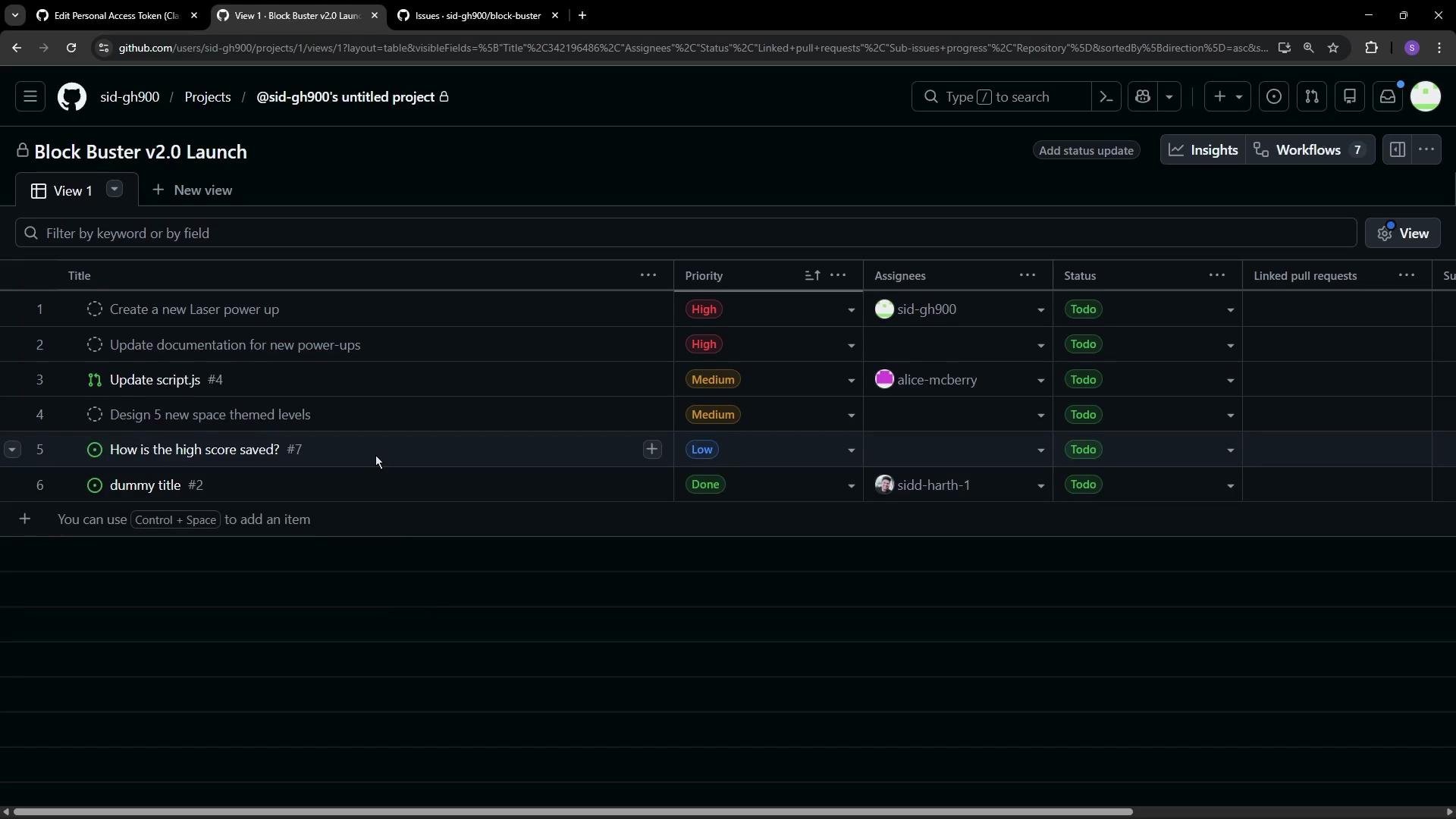
* After adding fields and populating data, group or sort items by Priority (or any other field).
* Use ascending or descending sorts and click Save view to persist the configuration so everyone on the team sees the same columns, filters, and sort order.
* Saved views help maintain consistency during sprint planning, releases, or cross-team coordination.
Group, sort, and save views
* After adding fields and populating data, group or sort items by Priority (or any other field).
* Use ascending or descending sorts and click Save view to persist the configuration so everyone on the team sees the same columns, filters, and sort order.
* Saved views help maintain consistency during sprint planning, releases, or cross-team coordination.
 Templates quick reference
| Template | Use case |
| -------------------------------- | ---------------------------------------------------------------- |
| Team Planning | High-level team coordination and backlog grooming |
| Kanban | Continuous work flow with columns like Todo / In Progress / Done |
| Feature Release / Product Launch | Coordinate cross-functional tasks for releases |
| Bug Tracker | Triage and prioritize bug fixes |
| Iterative Development | Timeboxed iterations (sprints) |
| Roadmap | Visualize milestones and time-based planning |
| Team Retrospective | Capture feedback and improvements post-sprint |
Links and references
* GitHub Projects documentation: [https://docs.github.com/en/issues/organizing-your-work-with-projects](https://docs.github.com/en/issues/organizing-your-work-with-projects)
Draft issues are not visible in the repository’s issue list until published. Remember to publish drafts you want tracked as repository issues or linked to pull requests.
Summary
* Use GitHub Projects to centralize planning and tracking for releases like Block Buster v2.0.
* Choose a template (or start from scratch) and import issues/PRs to populate your board quickly.
* Capture early ideas with draft issues, then publish when ready.
* Switch between Board, Table, and Roadmap views to balance visual workflow and metadata detail.
* Add custom fields (for example, `Priority`) and save sorted/filtered views for consistent team visibility.
Further reading
* [Organizing your work with Projects on GitHub](https://docs.github.com/en/issues/organizing-your-work-with-projects)
Templates quick reference
| Template | Use case |
| -------------------------------- | ---------------------------------------------------------------- |
| Team Planning | High-level team coordination and backlog grooming |
| Kanban | Continuous work flow with columns like Todo / In Progress / Done |
| Feature Release / Product Launch | Coordinate cross-functional tasks for releases |
| Bug Tracker | Triage and prioritize bug fixes |
| Iterative Development | Timeboxed iterations (sprints) |
| Roadmap | Visualize milestones and time-based planning |
| Team Retrospective | Capture feedback and improvements post-sprint |
Links and references
* GitHub Projects documentation: [https://docs.github.com/en/issues/organizing-your-work-with-projects](https://docs.github.com/en/issues/organizing-your-work-with-projects)
Draft issues are not visible in the repository’s issue list until published. Remember to publish drafts you want tracked as repository issues or linked to pull requests.
Summary
* Use GitHub Projects to centralize planning and tracking for releases like Block Buster v2.0.
* Choose a template (or start from scratch) and import issues/PRs to populate your board quickly.
* Capture early ideas with draft issues, then publish when ready.
* Switch between Board, Table, and Roadmap views to balance visual workflow and metadata detail.
* Add custom fields (for example, `Priority`) and save sorted/filtered views for consistent team visibility.
Further reading
* [Organizing your work with Projects on GitHub](https://docs.github.com/en/issues/organizing-your-work-with-projects)