> ## Documentation Index
> Fetch the complete documentation index at: https://notes.kodekloud.com/llms.txt
> Use this file to discover all available pages before exploring further.
# Demo Project View and Insights
> Explains GitHub Projects automation and Insights, showing how workflows sync project boards with repository issues and visualize progress with charts
In this lesson we’ll examine how GitHub Projects keeps your board and repository in sync using project workflows (automation) and how the Insights dashboards help you measure progress over time. You’ll learn how board actions can trigger repository changes and how repository events can update cards on your board automatically.
I’m back in the project view and the repository. Notice one of the issues on the project board has been automatically marked as closed.
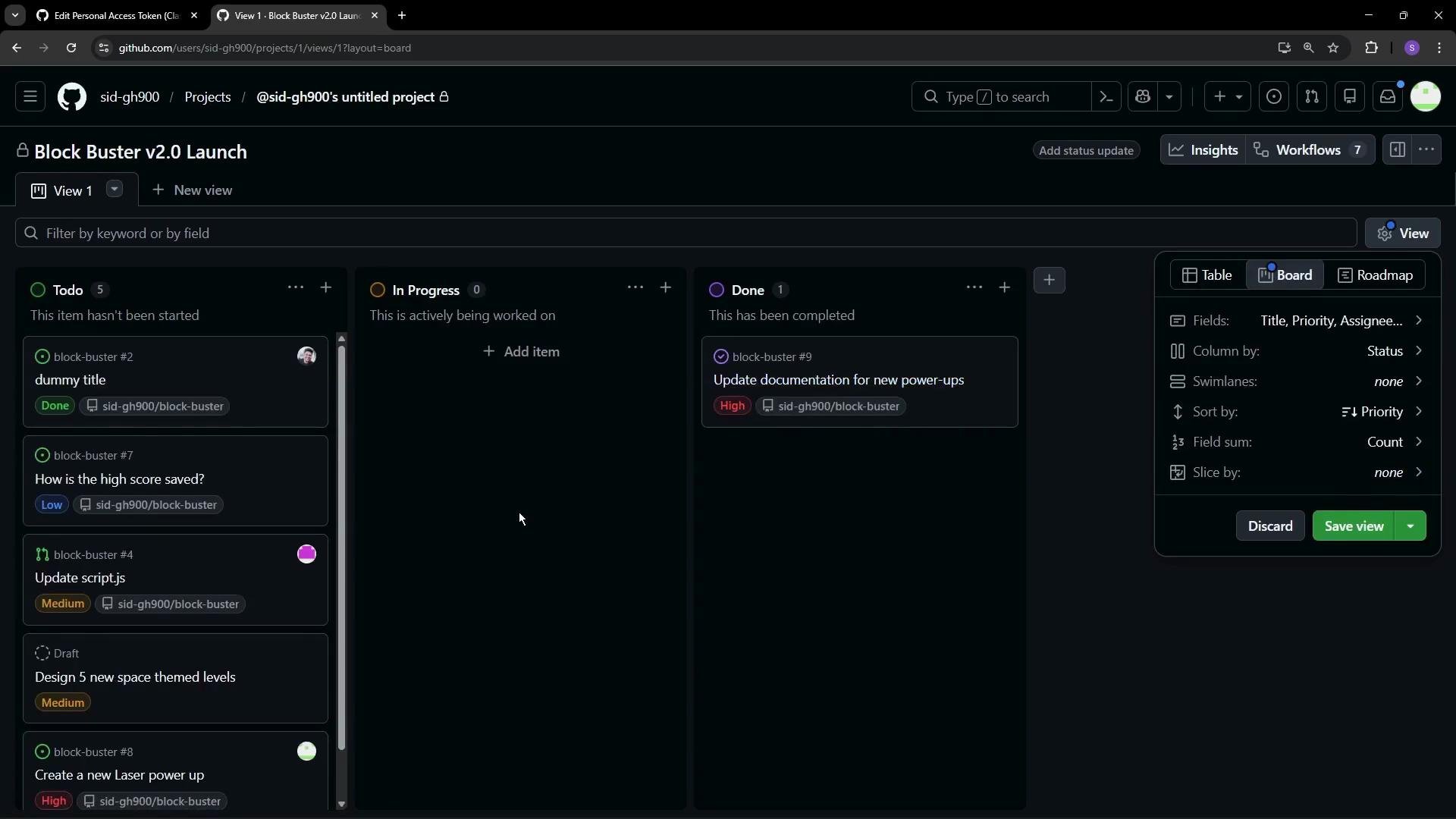
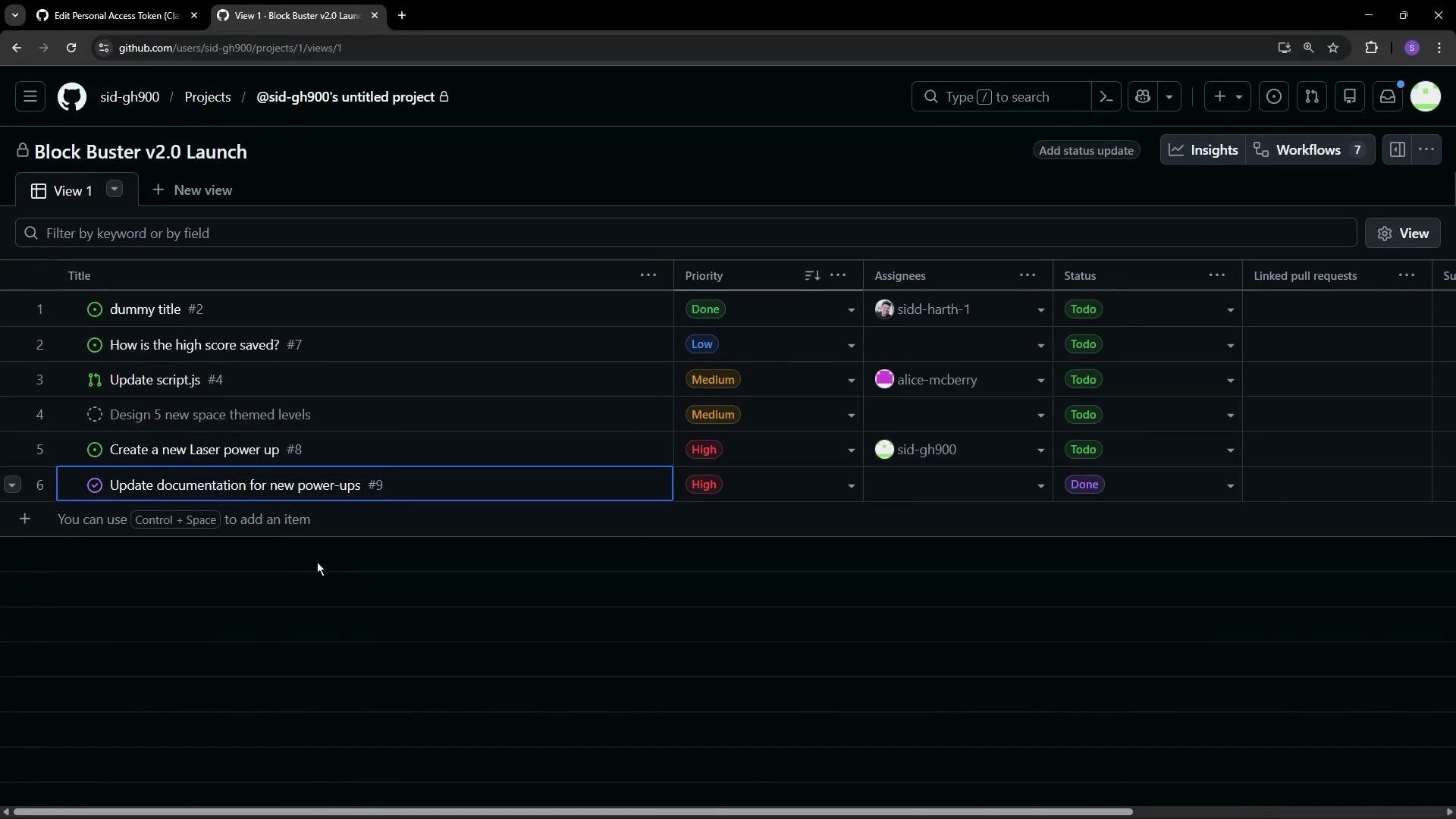 That card moved from the “To do” column to “Done” without manual intervention — project automation handled the update. Let’s step through how this synchronization works.
Switching to the board view you can see the issue was moved to the Done column after it was closed in the repository’s Issues page.
That card moved from the “To do” column to “Done” without manual intervention — project automation handled the update. Let’s step through how this synchronization works.
Switching to the board view you can see the issue was moved to the Done column after it was closed in the repository’s Issues page.
 ## How project automation works
Project automation is implemented as workflows powered by GitHub Actions. Some workflows are enabled by default, while others are available but disabled. You can enable, disable, or edit workflows to control how your project reacts to board or repository events.
Project automation in GitHub Projects runs as workflows backed by [GitHub Actions](https://learn.kodekloud.com/user/courses/github-actions). These workflows can react to board status changes, issue opens/closes, pull request events, and other triggers — keeping the project board and repository in sync.
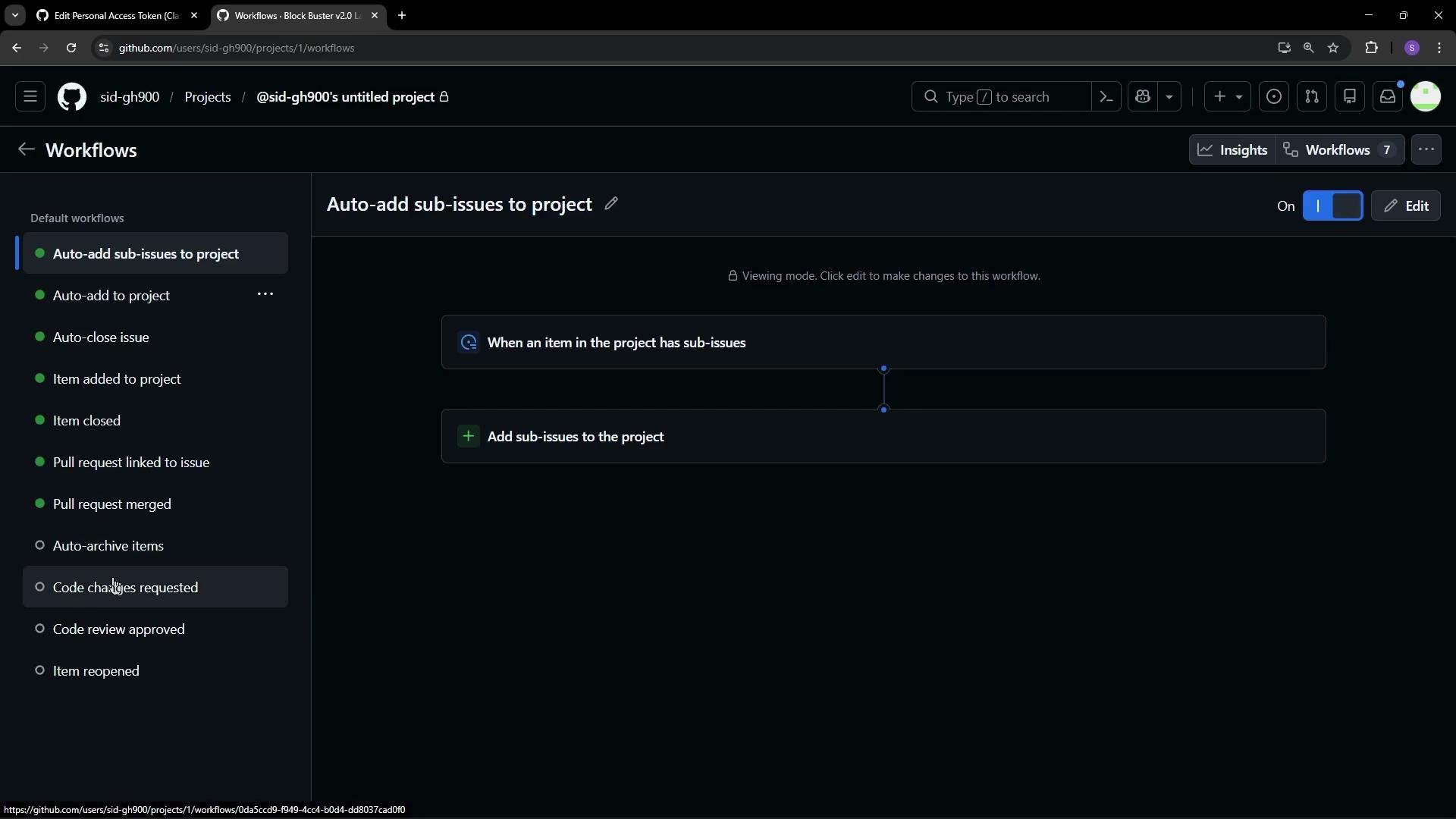
The project settings list several default workflows with clear behaviors. Common defaults include auto-adding child issues to a project, auto-closing issues when a card is marked Done, auto-archiving old items, and updating card status when an issue or PR is closed.
## How project automation works
Project automation is implemented as workflows powered by GitHub Actions. Some workflows are enabled by default, while others are available but disabled. You can enable, disable, or edit workflows to control how your project reacts to board or repository events.
Project automation in GitHub Projects runs as workflows backed by [GitHub Actions](https://learn.kodekloud.com/user/courses/github-actions). These workflows can react to board status changes, issue opens/closes, pull request events, and other triggers — keeping the project board and repository in sync.
The project settings list several default workflows with clear behaviors. Common defaults include auto-adding child issues to a project, auto-closing issues when a card is marked Done, auto-archiving old items, and updating card status when an issue or PR is closed.
 ### Example: Auto-close issue workflow
The `Auto-close issue` workflow will close the associated issue in the repository when its project card status is changed to `Done`.
### Example: Auto-close issue workflow
The `Auto-close issue` workflow will close the associated issue in the repository when its project card status is changed to `Done`.
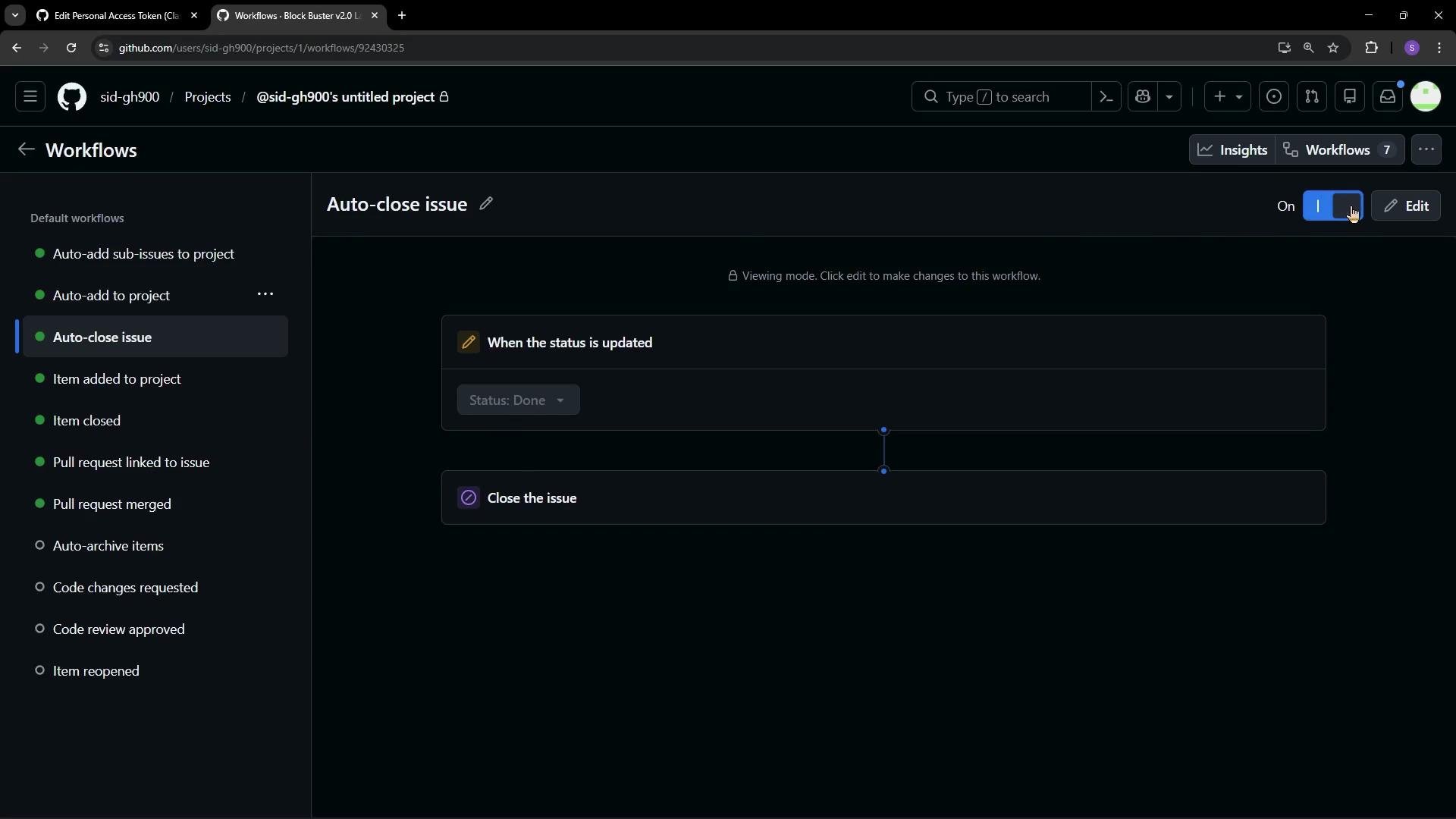 To demonstrate, I changed the status of the “Create a new Laser power-up” card from To do to Done on the project board. That action triggered the workflow and automatically closed the issue in the repository.
Initially, the issue was open in the repository Issues page:
To demonstrate, I changed the status of the “Create a new Laser power-up” card from To do to Done on the project board. That action triggered the workflow and automatically closed the issue in the repository.
Initially, the issue was open in the repository Issues page:
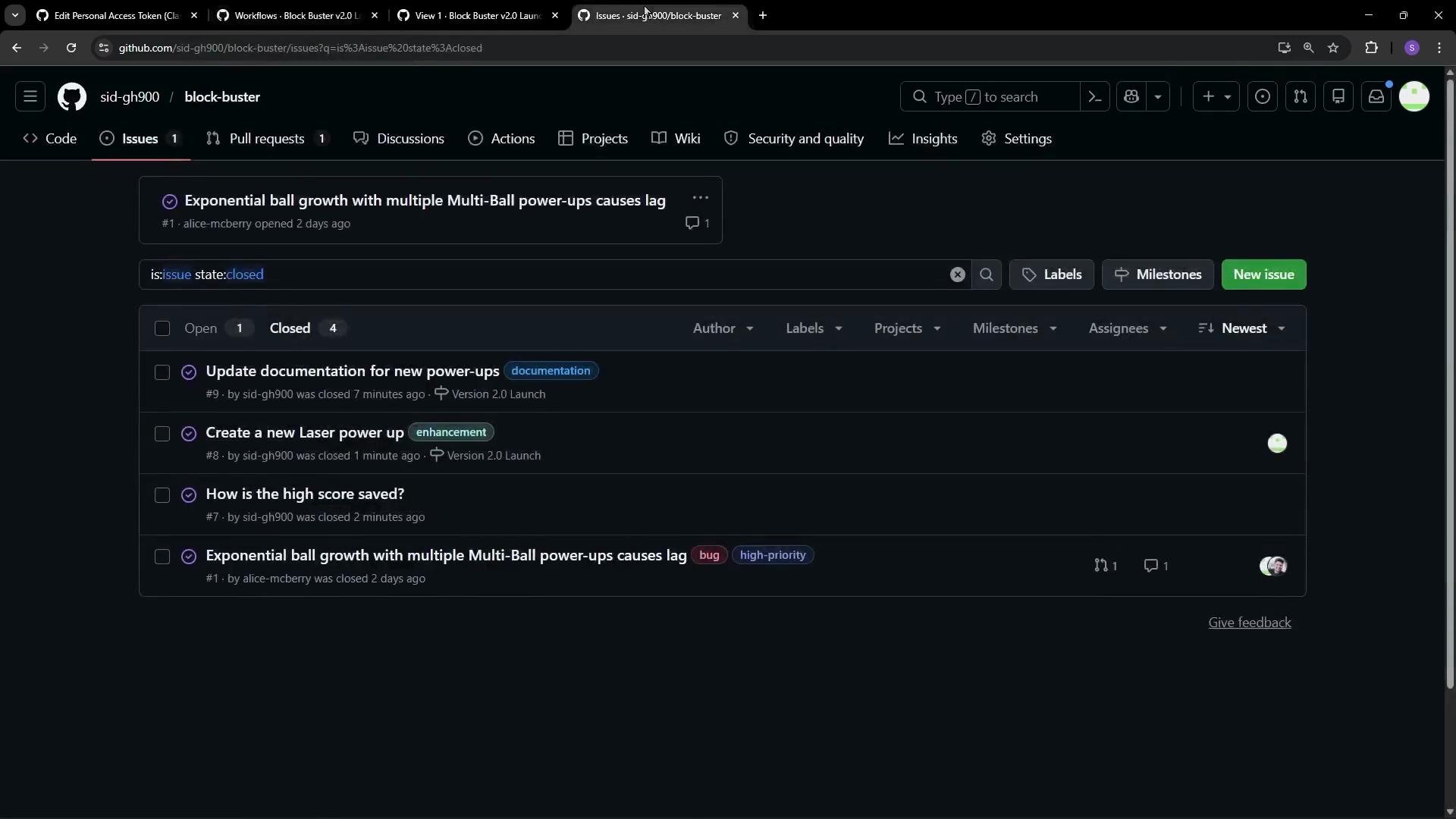
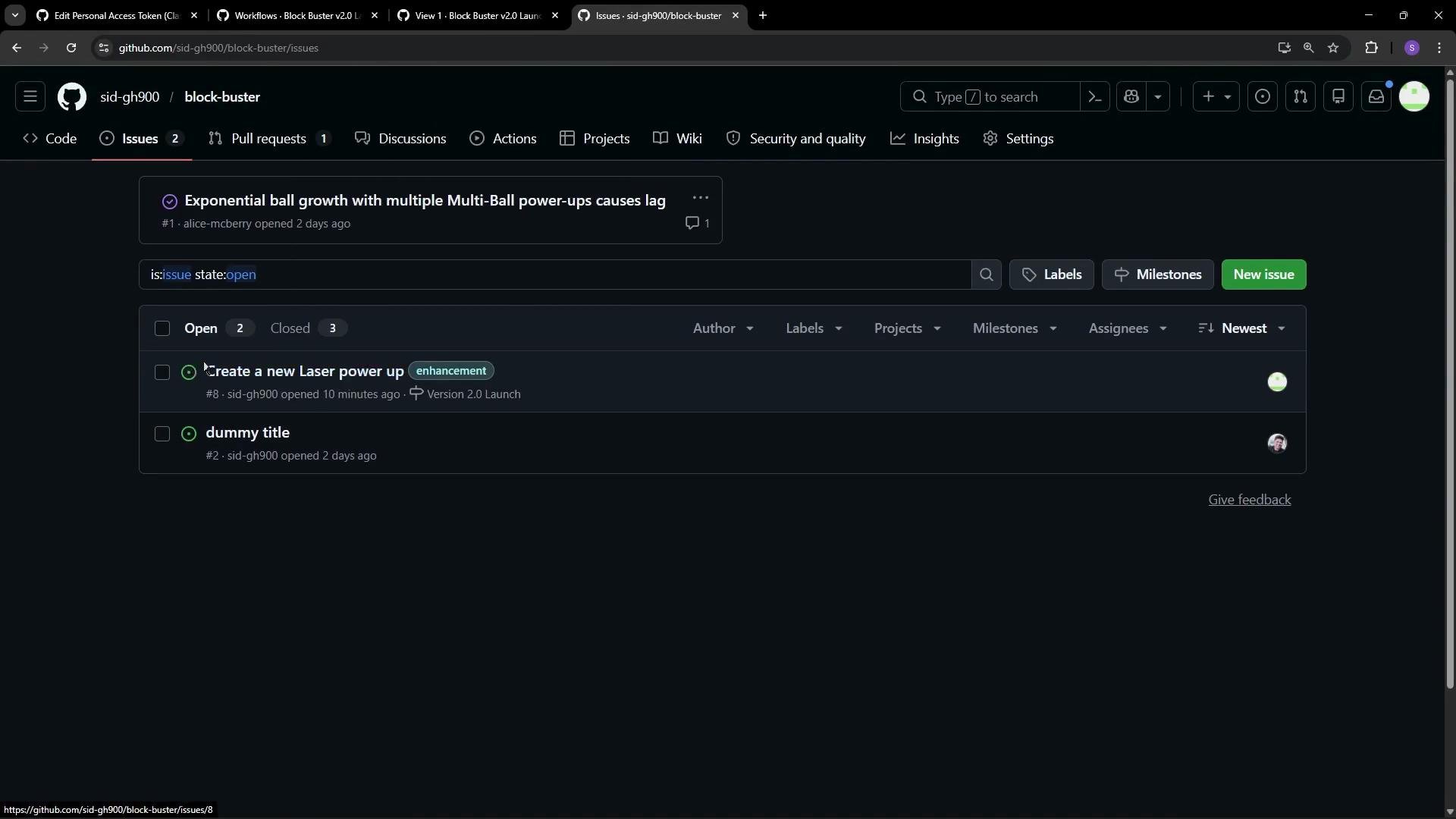 After marking the card Done, the automation closed the issue. Refreshing the Issues page shows the item under closed issues. The reverse also works: the `Item closed` workflow updates a project card’s status to `Done` when the linked issue or pull request is closed.
You can edit any workflow to change the triggers and actions, or disable it if you prefer manual control. Other default workflows you may encounter (often disabled) include auto-archive items, code change request, and item reopen — each automating a different project behavior.
After marking the card Done, the automation closed the issue. Refreshing the Issues page shows the item under closed issues. The reverse also works: the `Item closed` workflow updates a project card’s status to `Done` when the linked issue or pull request is closed.
You can edit any workflow to change the triggers and actions, or disable it if you prefer manual control. Other default workflows you may encounter (often disabled) include auto-archive items, code change request, and item reopen — each automating a different project behavior.
 ### Quick reference: Default project workflows
| Workflow name | Typical behavior | Default state |
| -------------------------------- | --------------------------------------------------------: | ---------------------- |
| `Auto-add sub-issues to project` | Adds child issues to the same project automatically | Enabled / configurable |
| `Auto-close issue` | Closes linked issue when card is moved to `Done` | Often enabled |
| `Item closed` | Sets the card status to `Done` when an issue/PR is closed | Often enabled |
| `Auto-archive items` | Archives stale cards after a set period | Often disabled |
| `Item reopen` | Reopens card status when corresponding issue/PR reopens | Often disabled |
(States can vary by repository or organization; check your project settings to confirm.)
## Insights: charts and metrics for project health
The Insights section provides charts and metrics to help you monitor project progress over time. The default visualization is the Burn up chart, which shows the count of open vs. completed items across a chosen time range.
### Quick reference: Default project workflows
| Workflow name | Typical behavior | Default state |
| -------------------------------- | --------------------------------------------------------: | ---------------------- |
| `Auto-add sub-issues to project` | Adds child issues to the same project automatically | Enabled / configurable |
| `Auto-close issue` | Closes linked issue when card is moved to `Done` | Often enabled |
| `Item closed` | Sets the card status to `Done` when an issue/PR is closed | Often enabled |
| `Auto-archive items` | Archives stale cards after a set period | Often disabled |
| `Item reopen` | Reopens card status when corresponding issue/PR reopens | Often disabled |
(States can vary by repository or organization; check your project settings to confirm.)
## Insights: charts and metrics for project health
The Insights section provides charts and metrics to help you monitor project progress over time. The default visualization is the Burn up chart, which shows the count of open vs. completed items across a chosen time range.
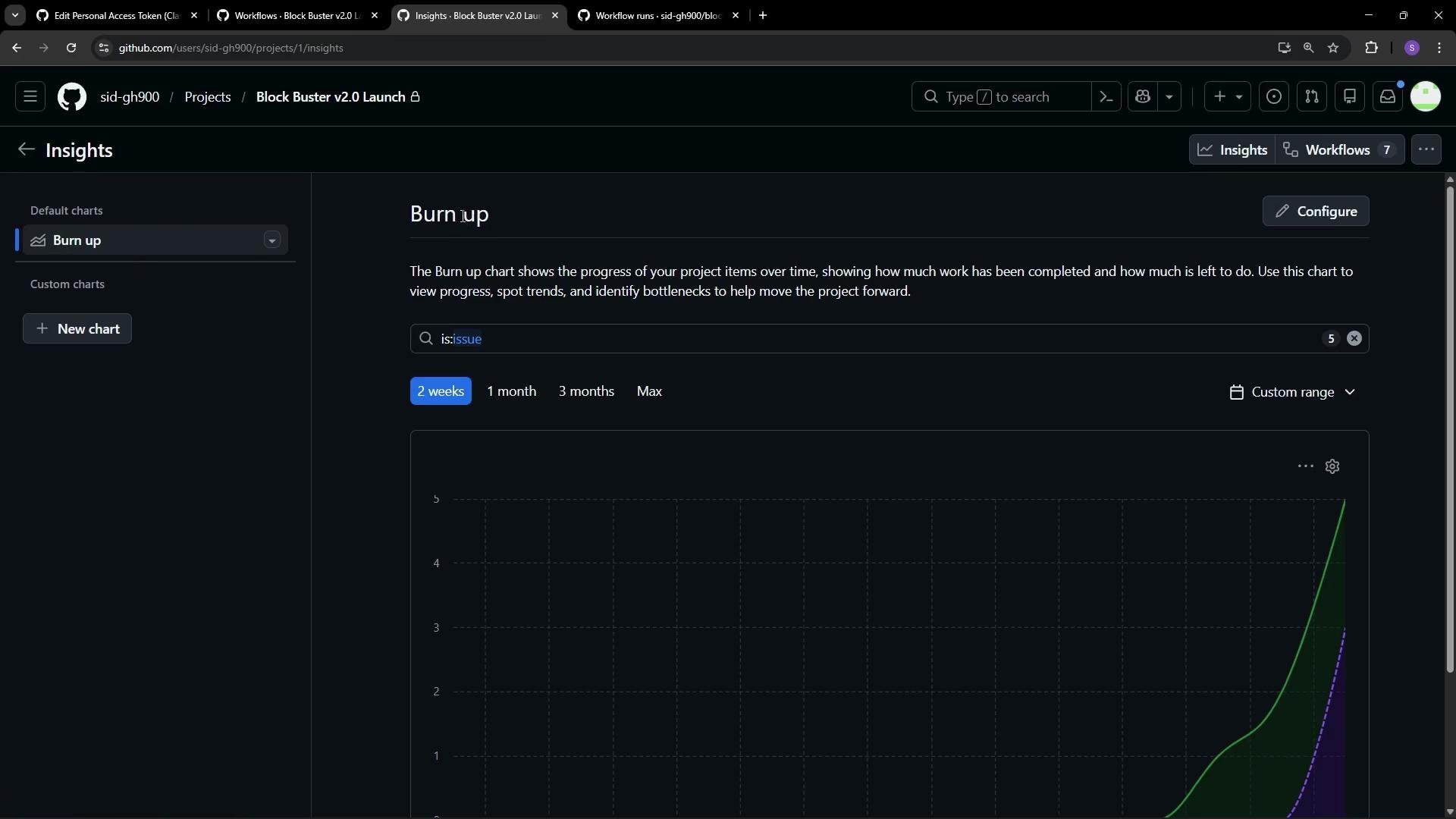 By default the chart may display the last two weeks. The green line represents currently open items and the purple line represents closed items. You can adjust:
* Time range (last week, two weeks, month, custom)
* Data scope (issues, pull requests, or both)
* Visualization type (burn up, stacked column, x–y axis)
* Grouping (milestones, assignees, labels)
These options let you create custom charts that surface the metrics most important to your workflow.
By default the chart may display the last two weeks. The green line represents currently open items and the purple line represents closed items. You can adjust:
* Time range (last week, two weeks, month, custom)
* Data scope (issues, pull requests, or both)
* Visualization type (burn up, stacked column, x–y axis)
* Grouping (milestones, assignees, labels)
These options let you create custom charts that surface the metrics most important to your workflow.
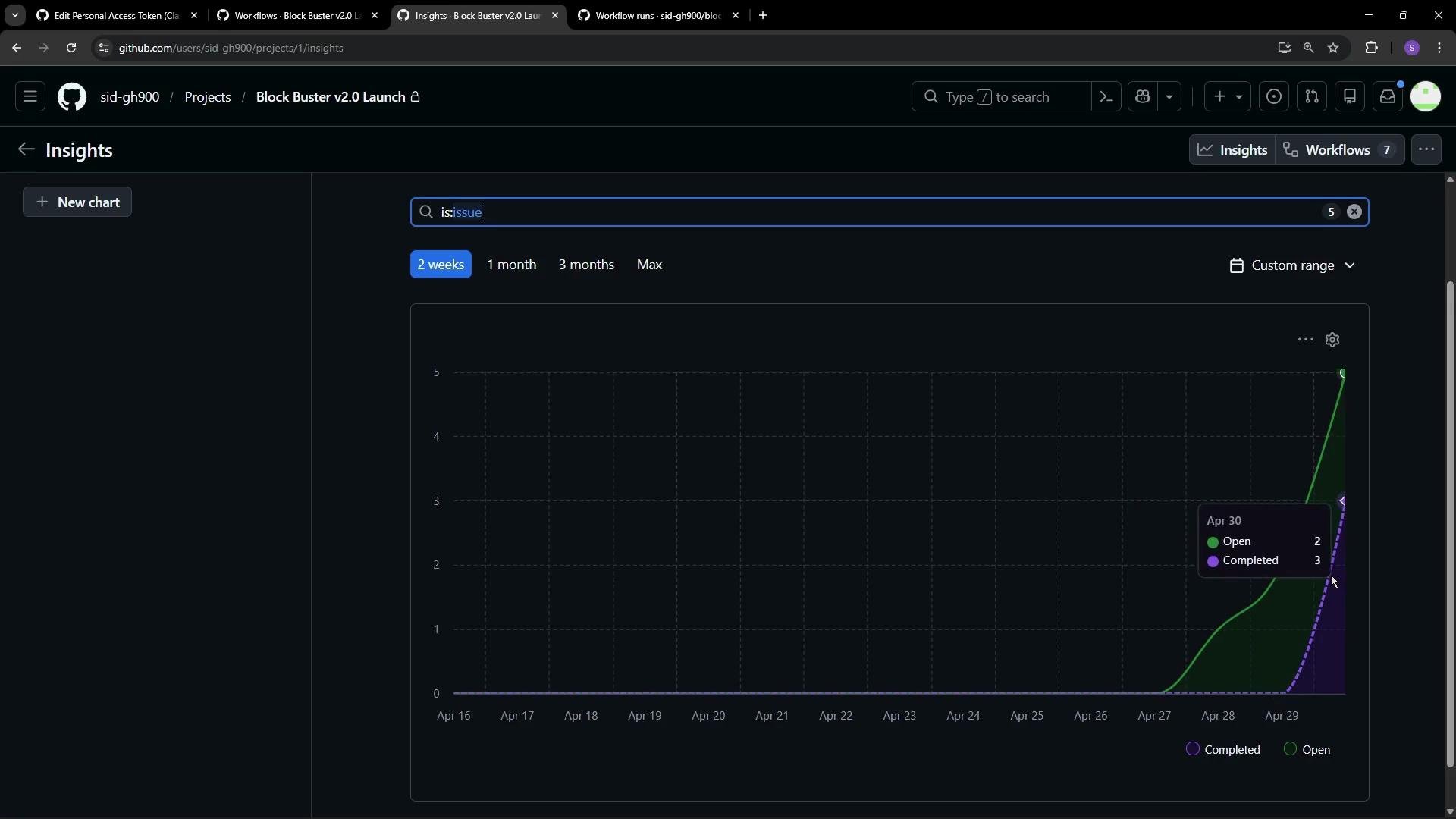 Use Insights to identify trends (e.g., rising open items, burst of completions) and to refine workflows or team priorities. Combining automation and Insights gives you both control (via workflows) and visibility (via charts), enabling more predictable project delivery.
## Links and references
* [GitHub Projects documentation](https://docs.github.com/en/issues/organizing-your-work-with-project-boards)
* [GitHub Actions overview](https://learn.kodekloud.com/user/courses/github-actions)
* [Tracking project progress with Insights](https://docs.github.com/en/organizing-your-work-with-projects/working-with-projects/viewing-insights)
Use Insights to identify trends (e.g., rising open items, burst of completions) and to refine workflows or team priorities. Combining automation and Insights gives you both control (via workflows) and visibility (via charts), enabling more predictable project delivery.
## Links and references
* [GitHub Projects documentation](https://docs.github.com/en/issues/organizing-your-work-with-project-boards)
* [GitHub Actions overview](https://learn.kodekloud.com/user/courses/github-actions)
* [Tracking project progress with Insights](https://docs.github.com/en/organizing-your-work-with-projects/working-with-projects/viewing-insights)