> ## Documentation Index
> Fetch the complete documentation index at: https://notes.kodekloud.com/llms.txt
> Use this file to discover all available pages before exploring further.
# Explaining Labels
> Explains using repository labels to categorize, prioritize, and automate issues and pull requests, with best practices, common labels, searching examples, and governance tips.
Labels are lightweight metadata tags you attach to issues, pull requests, and discussions to categorize, prioritize, and triage work. When applied consistently, labels help teams filter work, create custom views, and speed up contributor onboarding by making the intent and context of an item immediately visible.
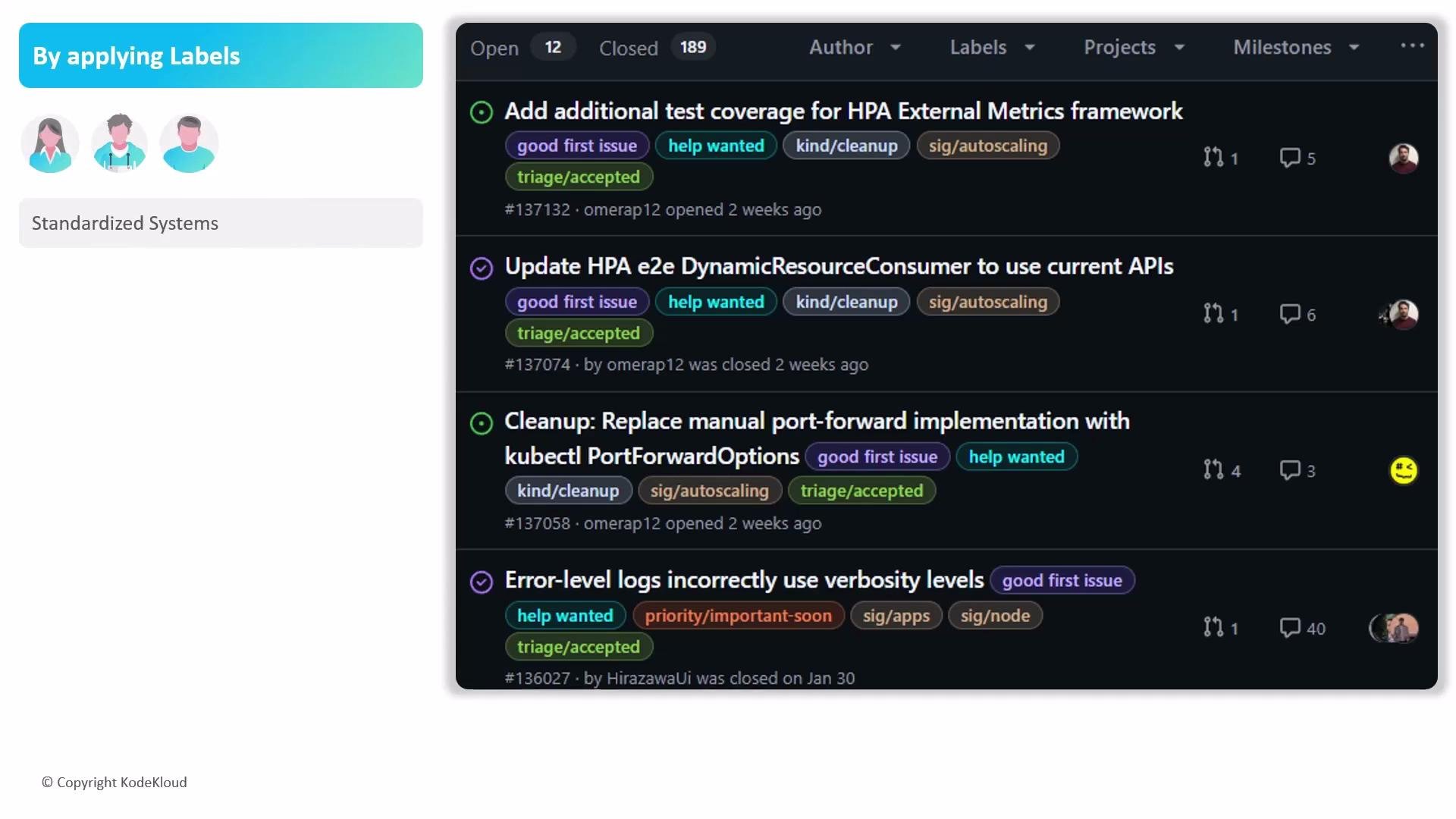 Labels are repository-scoped and reusable across that repository. They typically describe the nature, priority, or status of a work item. Below are common standard labels and when to use them.
| Label | Purpose | When to use |
| ------------------ | ----------------------------------------------------- | ------------------------------------------------------------------------------ |
| `bug` | Indicates unintended behavior or a functional defect. | For reproducible issues that break functionality or produce incorrect results. |
| `documentation` | Requests new or improved docs. | When code is fine but documentation is missing or unclear. |
| `duplicate` | Marks overlap with an existing item. | Use when an issue or PR has already been reported or implemented. |
| `enhancement` | Requests new features or improvements. | For non-critical feature requests or UX improvements. |
| `good first issue` | Entry-level task for new contributors. | Small, well-scoped tasks with clear instructions. |
| `help wanted` | Signals maintainers seek assistance. | For tasks maintainers cannot prioritize but welcome community contributions. |
| `invalid` | Item is not relevant or incorrectly filed. | Not applicable to the project scope or created in error. |
| `question` | Needs clarification or more information. | For items that require discussion before work begins. |
| `wontfix` | No further work will be performed. | When the team decides not to address an issue or request. |
In addition to these defaults, create custom labels to match your workflow (e.g., `needs-triage`, `high priority`, `security`). Use a consistent naming and color scheme so contributors can interpret label meanings reliably across the repository.
Labels are scoped to individual repositories. Define a documented naming standard and color palette so contributors and automation can consistently interpret label intent.
## Searching and automating with labels
Labels enable powerful filtering and can trigger automation such as GitHub Actions or project workflows.
Example: find open issues labeled as high priority:
```text theme={null}
is:issue is:open label:"high priority"
```
Example GitHub Actions trigger that responds when an issue is labeled:
```yaml theme={null}
on:
issues:
types: [labeled]
```
Within such a workflow you can inspect the label name and automate tasks like assigning reviewers, adding additional labels, posting comments, or moving items between project columns.
Avoid label sprawl. Too many overlapping labels reduce clarity—periodically audit labels, merge similar ones, and document meaning to keep the system useful.
## Best practices
* Document your label taxonomy in CONTRIBUTING.md or a repository README so newcomers can find and use labels correctly.
* Limit the number of “status” labels (e.g., `triaged`, `in progress`, `blocked`) vs. semantic labels (e.g., `bug`, `enhancement`) to avoid confusion.
* Standardize colors and prefixes if you use cross-repo conventions (e.g., `priority:high`, `area:frontend`).
* Automate routine label actions where possible (assign owners, set SLA reminders, move project cards).
* Use `good first issue` and `help wanted` to increase discoverability—GitHub indexes these labels for external contributors.
## Links and references
* [GitHub: About labels](https://docs.github.com/en/issues/using-labels-and-milestones-to-track-work/about-labels)
* [GitHub: Labeling issues and pull requests](https://docs.github.com/en/issues/labeling-your-issues-and-pull-requests)
* [GitHub Actions: Events that trigger workflows (issues)](https://docs.github.com/en/actions/using-workflows/events-that-trigger-workflows#issues)
By defining clear labels and keeping them organized, your project will gain faster triage, better routing of work, and an improved contributor experience.
Labels are repository-scoped and reusable across that repository. They typically describe the nature, priority, or status of a work item. Below are common standard labels and when to use them.
| Label | Purpose | When to use |
| ------------------ | ----------------------------------------------------- | ------------------------------------------------------------------------------ |
| `bug` | Indicates unintended behavior or a functional defect. | For reproducible issues that break functionality or produce incorrect results. |
| `documentation` | Requests new or improved docs. | When code is fine but documentation is missing or unclear. |
| `duplicate` | Marks overlap with an existing item. | Use when an issue or PR has already been reported or implemented. |
| `enhancement` | Requests new features or improvements. | For non-critical feature requests or UX improvements. |
| `good first issue` | Entry-level task for new contributors. | Small, well-scoped tasks with clear instructions. |
| `help wanted` | Signals maintainers seek assistance. | For tasks maintainers cannot prioritize but welcome community contributions. |
| `invalid` | Item is not relevant or incorrectly filed. | Not applicable to the project scope or created in error. |
| `question` | Needs clarification or more information. | For items that require discussion before work begins. |
| `wontfix` | No further work will be performed. | When the team decides not to address an issue or request. |
In addition to these defaults, create custom labels to match your workflow (e.g., `needs-triage`, `high priority`, `security`). Use a consistent naming and color scheme so contributors can interpret label meanings reliably across the repository.
Labels are scoped to individual repositories. Define a documented naming standard and color palette so contributors and automation can consistently interpret label intent.
## Searching and automating with labels
Labels enable powerful filtering and can trigger automation such as GitHub Actions or project workflows.
Example: find open issues labeled as high priority:
```text theme={null}
is:issue is:open label:"high priority"
```
Example GitHub Actions trigger that responds when an issue is labeled:
```yaml theme={null}
on:
issues:
types: [labeled]
```
Within such a workflow you can inspect the label name and automate tasks like assigning reviewers, adding additional labels, posting comments, or moving items between project columns.
Avoid label sprawl. Too many overlapping labels reduce clarity—periodically audit labels, merge similar ones, and document meaning to keep the system useful.
## Best practices
* Document your label taxonomy in CONTRIBUTING.md or a repository README so newcomers can find and use labels correctly.
* Limit the number of “status” labels (e.g., `triaged`, `in progress`, `blocked`) vs. semantic labels (e.g., `bug`, `enhancement`) to avoid confusion.
* Standardize colors and prefixes if you use cross-repo conventions (e.g., `priority:high`, `area:frontend`).
* Automate routine label actions where possible (assign owners, set SLA reminders, move project cards).
* Use `good first issue` and `help wanted` to increase discoverability—GitHub indexes these labels for external contributors.
## Links and references
* [GitHub: About labels](https://docs.github.com/en/issues/using-labels-and-milestones-to-track-work/about-labels)
* [GitHub: Labeling issues and pull requests](https://docs.github.com/en/issues/labeling-your-issues-and-pull-requests)
* [GitHub Actions: Events that trigger workflows (issues)](https://docs.github.com/en/actions/using-workflows/events-that-trigger-workflows#issues)
By defining clear labels and keeping them organized, your project will gain faster triage, better routing of work, and an improved contributor experience.