> ## Documentation Index
> Fetch the complete documentation index at: https://notes.kodekloud.com/llms.txt
> Use this file to discover all available pages before exploring further.
# How to Use Project Workflows
> Guide to GitHub Projects workflows that automate assigning new issues and pull requests to a To do status and compare built-in, Actions, and GraphQL automation options
Project workflows let you automate routine project management tasks inside GitHub Projects. Choose the level of automation that fits your needs:
* Built-in workflows — Fast, no-code automations for common project tasks.
* [GitHub Actions](https://learn.kodekloud.com/user/courses/github-actions) — Highly customizable CI/CD and automation when you need conditional logic or custom scripts.
* [GraphQL API](https://docs.github.com/en/graphql) — Programmatic access for large-scale integrations and advanced automation.
Below is a concise comparison to help you pick the right approach.
| Automation Type | Best for | Example |
| ------------------ | ---------------------------------------------------------: | ---------------------------------------------------------- |
| Built-in workflows | Teams who want quick, no-code automation in Projects | Automatically move newly added items into a "To do" column |
| GitHub Actions | Complex or conditional automations with custom logic | Add an item to a project only when specific labels exist |
| GraphQL API | Large-scale programmatic integrations or custom dashboards | Bulk sync project state with an external tool |
Project workflows reduce manual steps by automatically ingesting new issues and pull requests into your project board with consistent statuses — keeping your project board current and reducing administrative overhead.
What we’ll do: enable the "Item added to project" workflow so any new issue or pull request added to the project automatically receives the `To do` status.
The first step is to access the project menu.
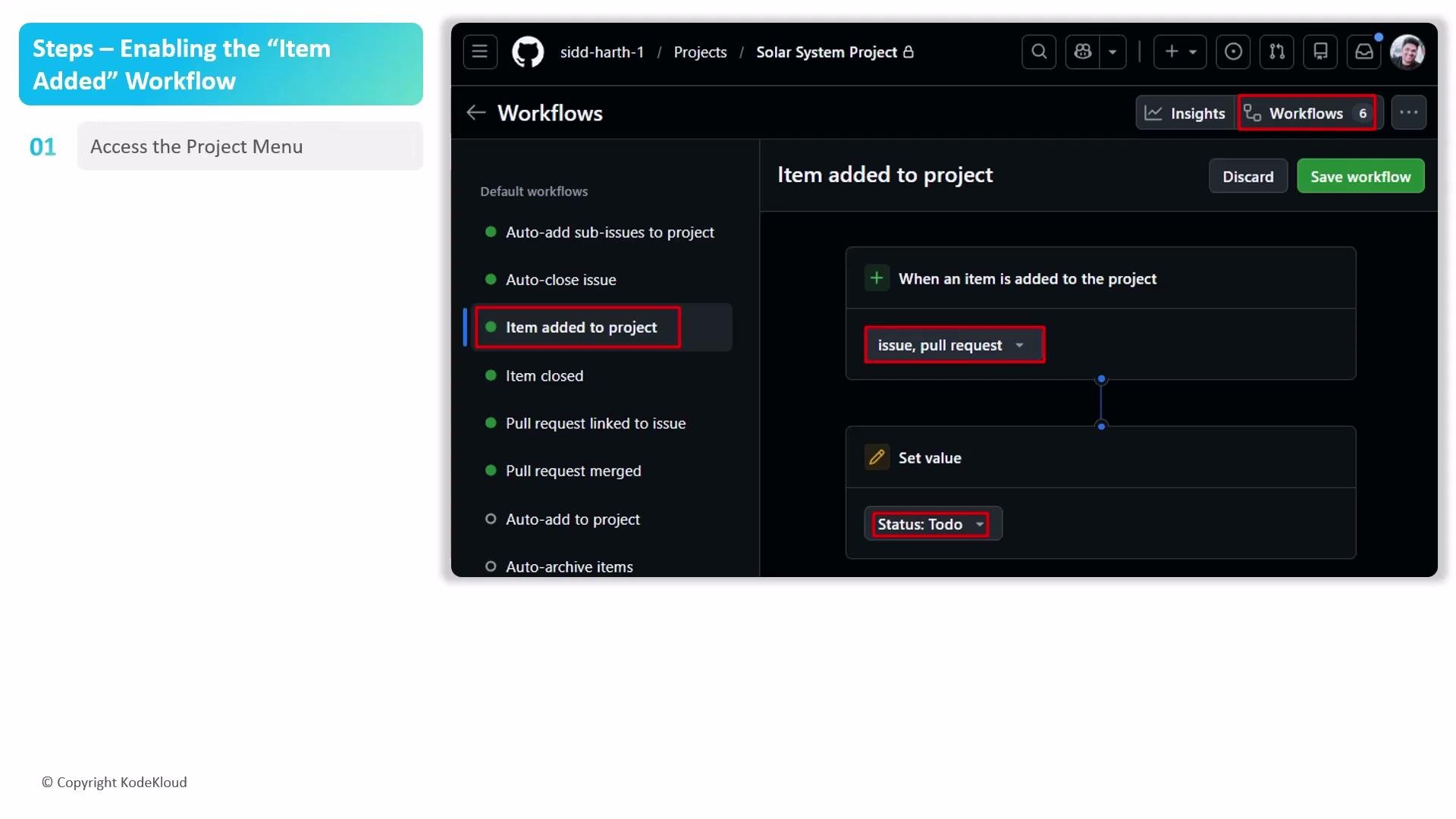 Steps to enable the workflow
1. Open your GitHub project and click the menu button in the top-right corner.
2. From the drop-down, select **Workflows** to open the project automation management interface.
3. In the Workflows sidebar, expand the default workflows group and click the **Item added to project** workflow — this trigger runs when an issue or pull request is added.
4. In the configuration panel, confirm the filters include both Issues and Pull Requests so every new item type triggers the automation.
5. Under the action settings:
* Choose **Set value**.
* Select the **Status** field.
* Set the value to `To do` (this places all newly added items into the To do column).
6. If you need to modify the workflow, click **Edit** (top right), make your changes, then click **Save** and turn on the workflow to enable it.
Make sure the filters include both Issues and Pull Requests if you want the automation to apply to both types. If you only include one type, items of the other type will not trigger the workflow.
Steps to enable the workflow
1. Open your GitHub project and click the menu button in the top-right corner.
2. From the drop-down, select **Workflows** to open the project automation management interface.
3. In the Workflows sidebar, expand the default workflows group and click the **Item added to project** workflow — this trigger runs when an issue or pull request is added.
4. In the configuration panel, confirm the filters include both Issues and Pull Requests so every new item type triggers the automation.
5. Under the action settings:
* Choose **Set value**.
* Select the **Status** field.
* Set the value to `To do` (this places all newly added items into the To do column).
6. If you need to modify the workflow, click **Edit** (top right), make your changes, then click **Save** and turn on the workflow to enable it.
Make sure the filters include both Issues and Pull Requests if you want the automation to apply to both types. If you only include one type, items of the other type will not trigger the workflow.
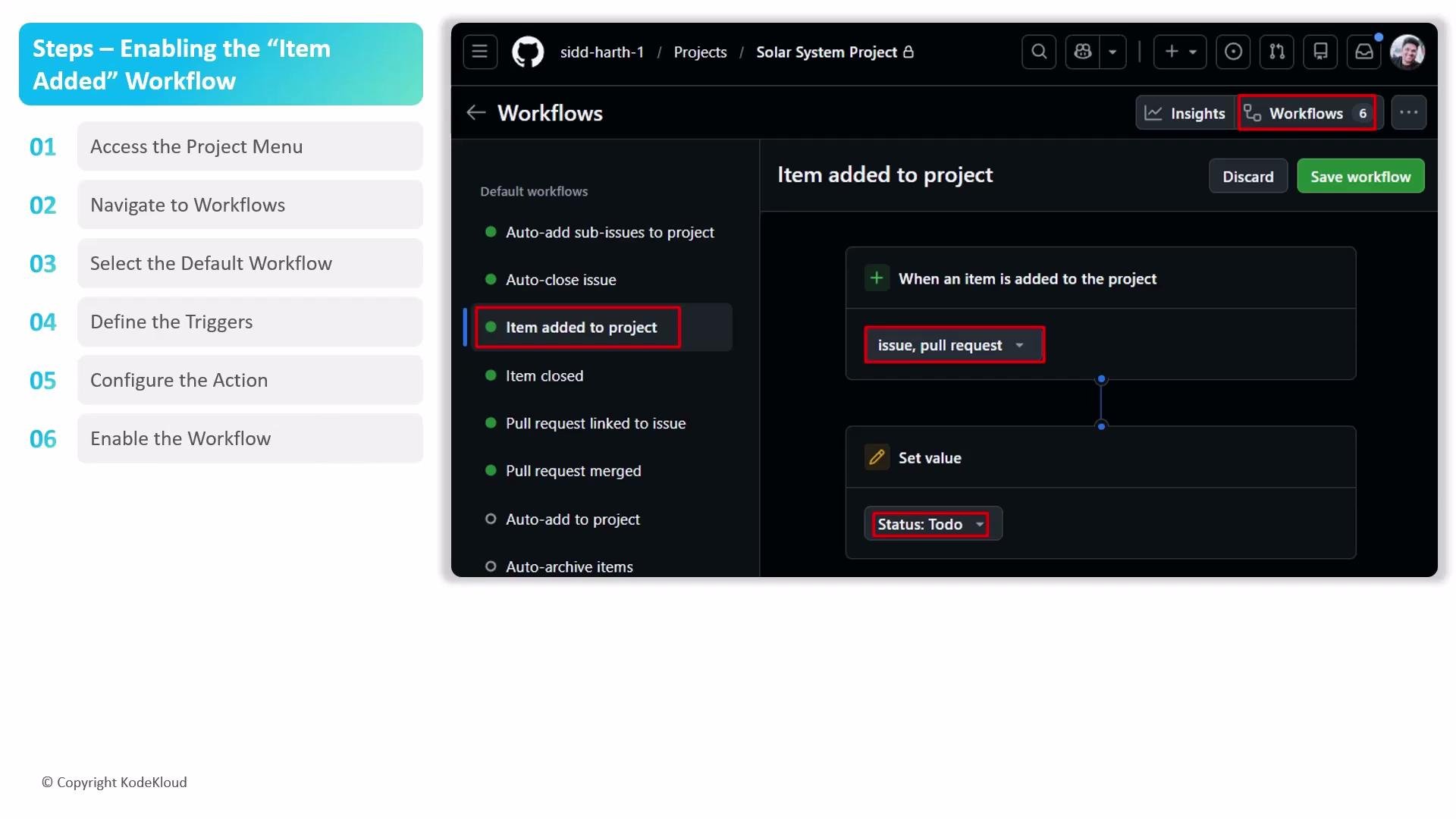 After enabling the workflow
* Test by adding a new issue and a new pull request to confirm both are assigned the `To do` status.
* Revisit the Workflows UI to adjust filters or field values as your process evolves.
* Audit your workflow periodically to ensure it still aligns with team conventions or any new custom fields.
You must have appropriate project permissions (usually project admin or maintainer) to enable or edit project workflows. If you can’t access Workflows, request access from a project administrator.
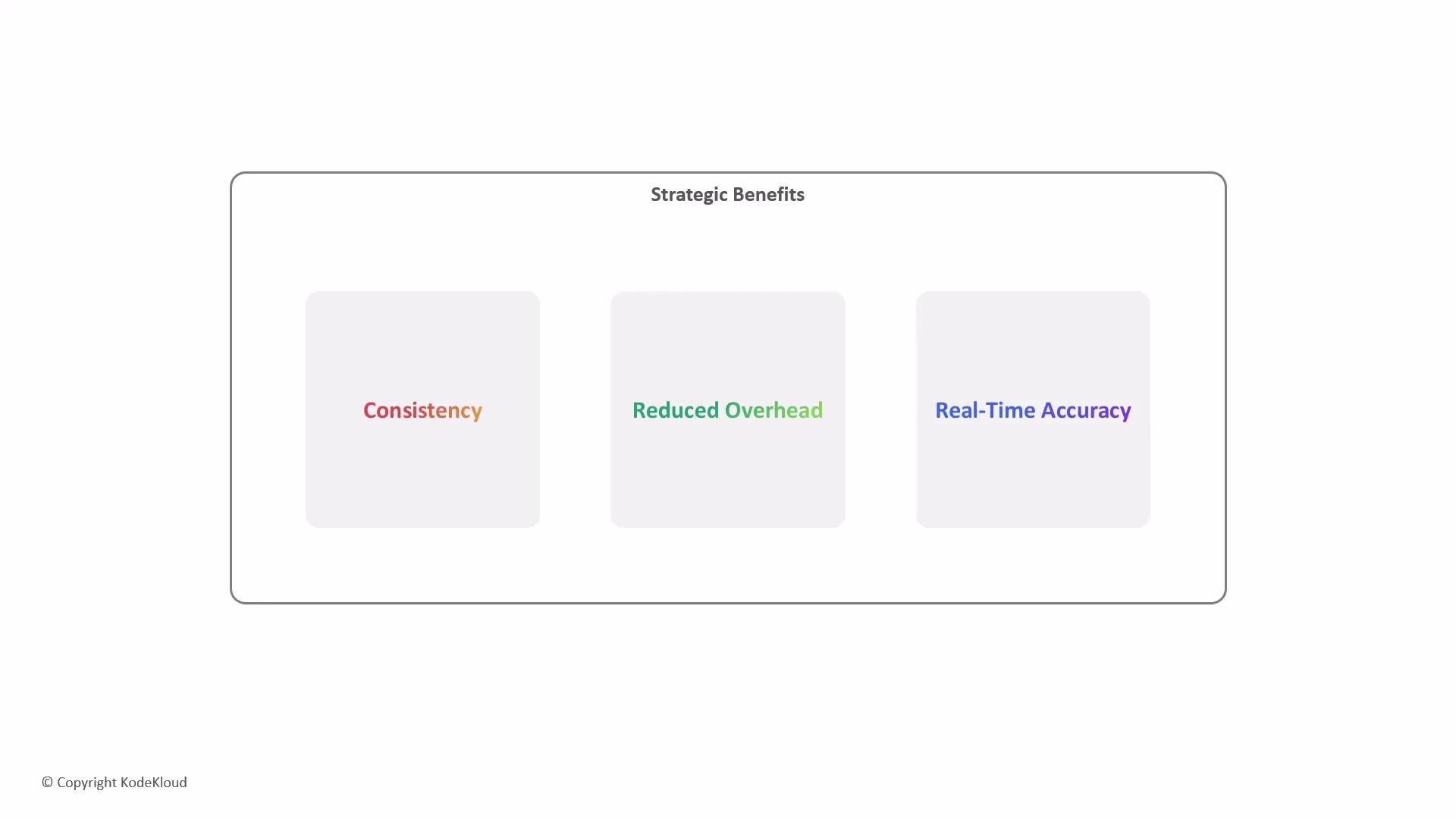
Strategic benefits of using project workflows
* Consistency — Automatically place every new item into the initial phase so nothing is missed.
* Reduced overhead — Remove repetitive administrative work like dragging items between columns.
* Real-time accuracy — Keep project boards synchronized with repository activity, giving stakeholders an up-to-date view of progress.
After enabling the workflow
* Test by adding a new issue and a new pull request to confirm both are assigned the `To do` status.
* Revisit the Workflows UI to adjust filters or field values as your process evolves.
* Audit your workflow periodically to ensure it still aligns with team conventions or any new custom fields.
You must have appropriate project permissions (usually project admin or maintainer) to enable or edit project workflows. If you can’t access Workflows, request access from a project administrator.
Strategic benefits of using project workflows
* Consistency — Automatically place every new item into the initial phase so nothing is missed.
* Reduced overhead — Remove repetitive administrative work like dragging items between columns.
* Real-time accuracy — Keep project boards synchronized with repository activity, giving stakeholders an up-to-date view of progress.
 Links and references
* [GitHub Actions](https://learn.kodekloud.com/user/courses/github-actions) — Create custom workflows when built-in automations aren’t enough.
* [GitHub GraphQL API](https://docs.github.com/en/graphql) — Programmatic access for advanced or large-scale automation.
* GitHub Projects Workflows — Configure and manage automations from the Project > Workflows UI.
Links and references
* [GitHub Actions](https://learn.kodekloud.com/user/courses/github-actions) — Create custom workflows when built-in automations aren’t enough.
* [GitHub GraphQL API](https://docs.github.com/en/graphql) — Programmatic access for advanced or large-scale automation.
* GitHub Projects Workflows — Configure and manage automations from the Project > Workflows UI.