> ## Documentation Index
> Fetch the complete documentation index at: https://notes.kodekloud.com/llms.txt
> Use this file to discover all available pages before exploring further.
# Artifacts Storing Job Data
> This article explores how artifacts capture and persist files produced during job execution in GitLab CI/CD pipelines.
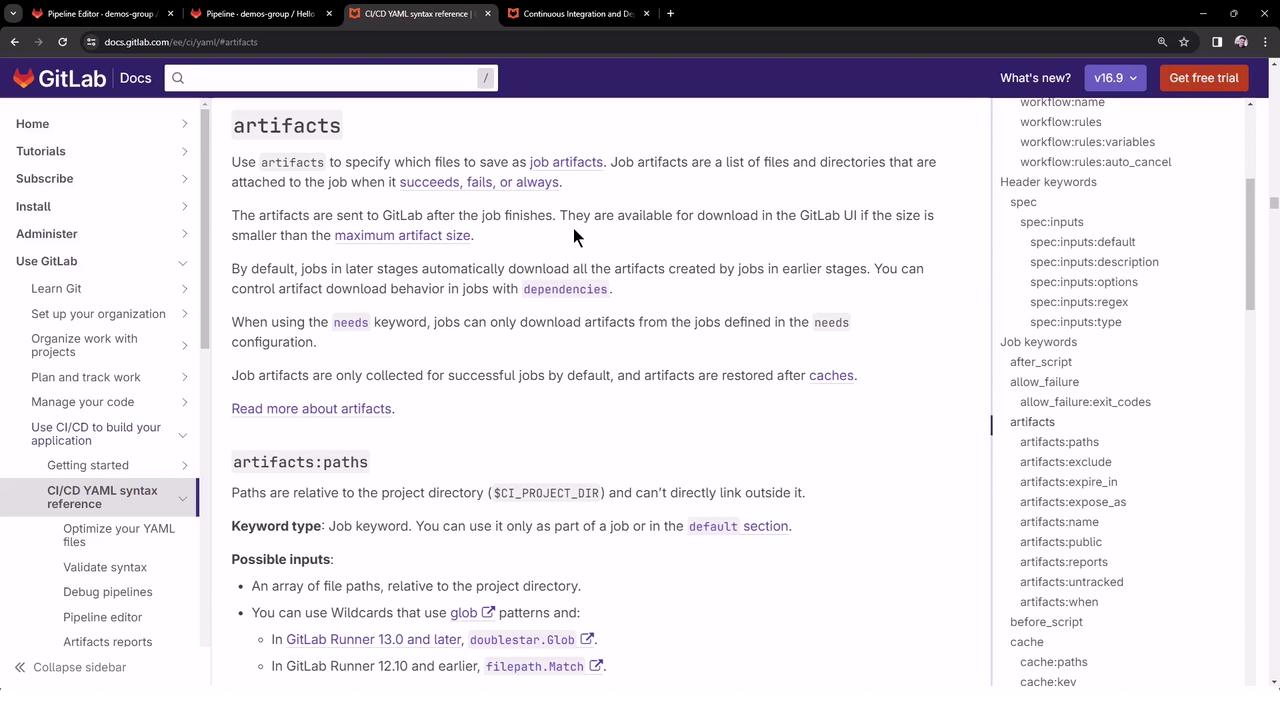
In this article, we’ll explore how **artifacts** capture and persist files produced during job execution in your GitLab CI/CD pipelines. You’ll learn how to configure artifacts in `.gitlab-ci.yml`, pass them between stages, and view them in the UI.
## What Are Artifacts?
In GitLab CI/CD, artifacts are archives of files and directories generated by a job. They are:
* Uploaded to GitLab when a job finishes.
* Automatically downloaded by downstream jobs in the same pipeline.
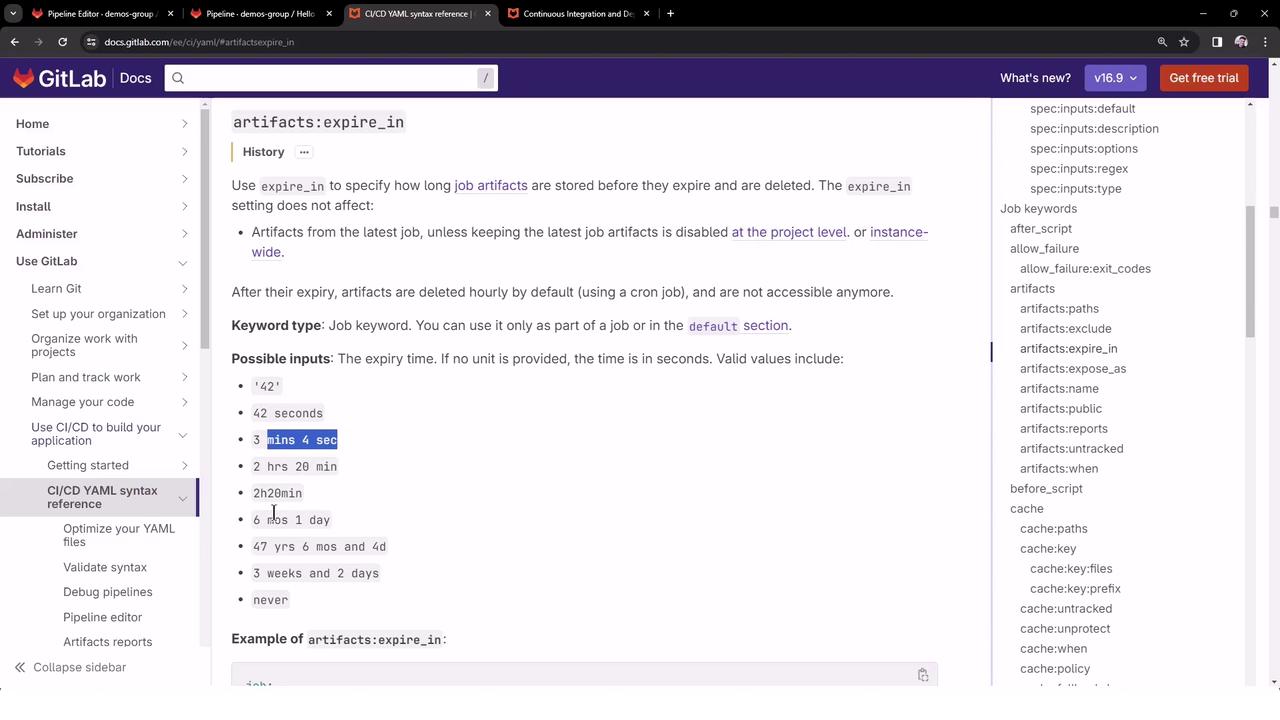
* Retained according to the `expire_in` policy you define.
Artifacts are uploaded only if the job’s status matches the `when` setting (e.g., `on_success` or `always`). Use the `dependencies` or `needs` keywords to control which upstream artifacts a job downloads.
## Configuring Artifacts
Under the `artifacts` section of a job, you can define several options. The table below summarizes the most common:
| Option | Description | Example |
| ---------- | -------------------------------------------------------------- | -------------------------------------- |
| paths | List of files or directories to archive | `paths: [binaries/, .config]` |
| expire\_in | Duration to keep artifacts (e.g., `3 days`, `1 week`, `never`) | `expire_in: 3 days` |
| expose\_as | Label to display artifacts in the Merge Request | `expose_as: 'Test Report'` |
| name | Custom name for the artifact archive | `name: "job1-artifacts-{{CI_JOB_ID}}"` |
| when | Upload condition (`on_success`, `on_failure`, `always`) | `when: on_failure` |
### Example: Defining Artifacts
```yaml theme={null}
job:
script:
- make build
artifacts:
paths:
- binaries/
- .config
expire_in: 1 week
when: on_success
name: "build-artifacts-{{CI_JOB_ID}}"
```
## End-to-End Pipeline Example
Below is a simple three-stage pipeline where the `build_job` creates a file, then passes it to `test_job` and `deploy_job`.
```yaml theme={null}
stages:
- build
- test
- deploy
build_job:
stage: build
before_script:
- gem install cowsay
- sleep 30s
script:
- cowsay -f dragon "Run for cover, I am a DRAGON....RAWR" > dragon.txt
artifacts:
name: "Dragon Text File"
paths:
- dragon.txt
when: on_success
expire_in: 3 days
test_job:
stage: test
needs: ["build_job"]
script:
- sleep 10s
- grep -i "dragon" dragon.txt
deploy_job:
stage: deploy
needs: ["build_job"]
script:
- cat dragon.txt
- echo "deploying …"
```
With this setup:
1. **build\_job** generates `dragon.txt` and uploads it.
2. **test\_job** and **deploy\_job** automatically download the artifact.
3. Artifacts expire after three days.
## Pipeline Execution and Logs
### build\_job
```bash theme={null}
$ gem install cowsay
Successfully installed cowsay-3.0.0
$ sleep 30s
$ cowsay -f dragon "Run for cover, I am a DRAGON....RAWR" > dragon.txt
Uploading artifacts for successful job
Finding dragon.txt based on provided path
Creating archive (zip, tar, etc.)
POST /api/v4/projects/:id/jobs/:job_id/artifacts
201 Created
```
### test\_job
```bash theme={null}
Downloading artifacts for build_job (ID=6027836005)...
Downloading artifacts from coordinator… ok
host=storage.googleapis.com id=6027836005 responseStatus=200 ok
$ sleep 10s
$ grep -i "dragon" dragon.txt
Run for cover, I am a DRAGON....RAWR
```
### deploy\_job
```bash theme={null}
Downloading artifacts for build_job (ID=6027836005)...
Downloading artifacts from coordinator… ok
host=storage.googleapis.com id=6027836005 responseStatus=200 ok
$ cat dragon.txt
Run for cover, I am a DRAGON....RAWR
$ echo "deploying …"
deploying …
```
## Viewing Artifacts in GitLab UI
In the **Pipeline** view, jobs that produce artifacts display an **Artifacts** badge. Clicking **Browse** or **Download** lets you inspect and retrieve the files.
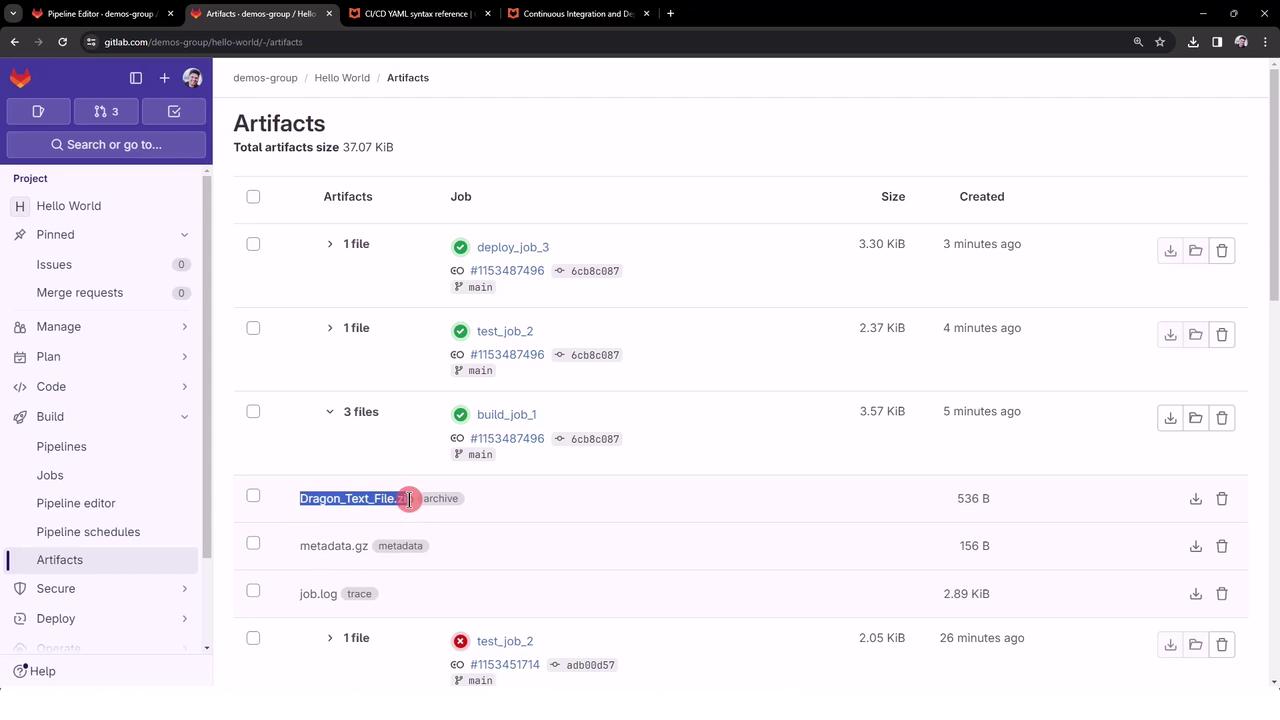
Artifacts also appear under the **Artifacts** tab on each job’s detail page, alongside logs and metadata.
***
## References
* [GitLab CI/CD YAML Reference](https://docs.gitlab.com/ee/ci/yaml/#jobs)
* [Using Dependencies and Needs](https://docs.gitlab.com/ee/ci/yaml/#needs)
* [GitLab Pipeline Artifacts Documentation](https://docs.gitlab.com/ee/ci/pipelines/job_artifacts.html)