> ## Documentation Index
> Fetch the complete documentation index at: https://notes.kodekloud.com/llms.txt
> Use this file to discover all available pages before exploring further.
# Executing Shell Scripts in a Job
> Streamline GitLab CI/CD pipelines by using standalone shell scripts for improved readability, maintainability, and version control of build logic.
Streamline your GitLab CI/CD pipelines by extracting complex commands into standalone shell scripts. This approach improves readability, maintainability, and version control for your build logic.
## 1. Example Inline Job
Below is a simple `.gitlab-ci.yml` that installs the `cowsay` gem and runs commands directly:
```yaml theme={null}
workflow:
name: Generate ASCII Artwork
ascii_job:
before_script:
- gem install cowsay
script:
- echo "Generating ASCII Artwork using COWSAY Program"
- cowsay -f dragon "Run for cover, I am a DRAGON....RAWR" >> dragon.txt
- grep -i "dragon" dragon.txt
- cat dragon.txt
after_script:
- echo "Executed at the end, can be used for cleaning/removing content"
```
While this works, embedding multiple commands can quickly clutter your CI file.
Extract repetitive or lengthy command sequences into versioned scripts to keep your pipeline definitions clean and reusable.
## 2. Create a Dedicated Shell Script
1. Open the **GitLab Web IDE**.
2. Add a file named `ascii-script.sh` at your repository root:
```bash theme={null}
#!/bin/sh
echo "Generating ASCII Artwork using COWSAY Program"
cowsay -f dragon "Run for cover, I am a DRAGON....RAWR" >> dragon.txt
grep -i "dragon" dragon.txt
cat dragon.txt
ls -ltr
```
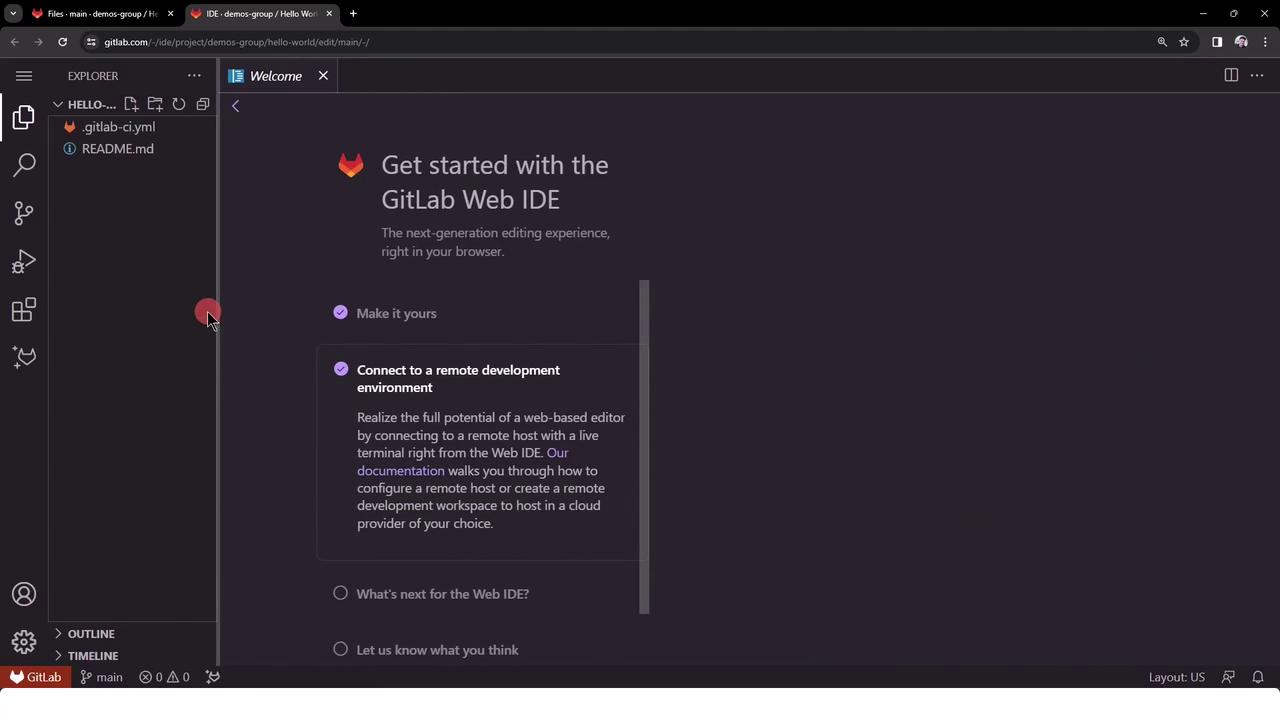
Save and commit `ascii-script.sh` so it’s tracked by Git.
## 3. Update Your CI Configuration
Modify `.gitlab-ci.yml` to invoke the script instead of inline commands:
```yaml theme={null}
workflow:
name: Generate ASCII Artwork
ascii_job:
before_script:
- gem install cowsay
script:
- ./ascii-script.sh
after_script:
- echo "Executed at the end, can be used for cleaning/removing content"
```
Commit and push your changes. The pipeline will now call the external script.
## 4. Monitor Pipeline Status
Navigate to **CI/CD > Pipelines** in the GitLab UI to view your job status in real time.
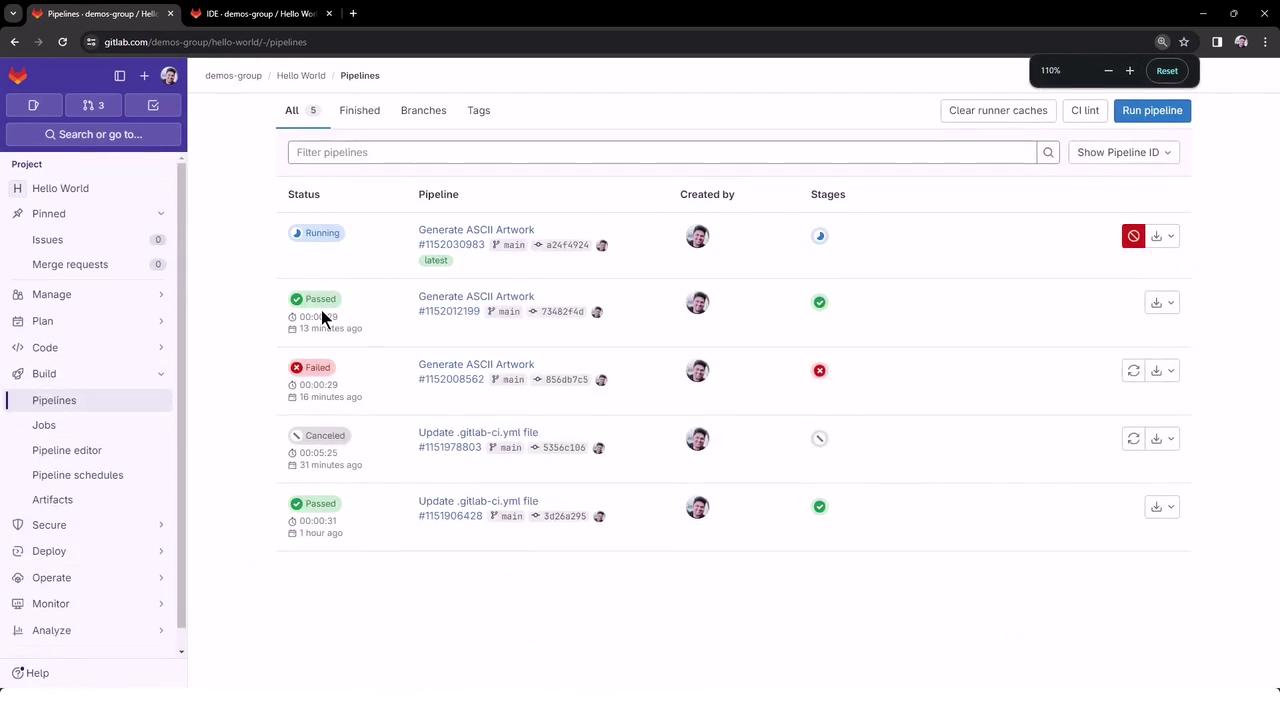
You should see the `ascii_job` running under the “Generate ASCII Artwork” pipeline.
## 5. Handling Permission Errors
If your script isn’t executable, GitLab will report a permission denied error:
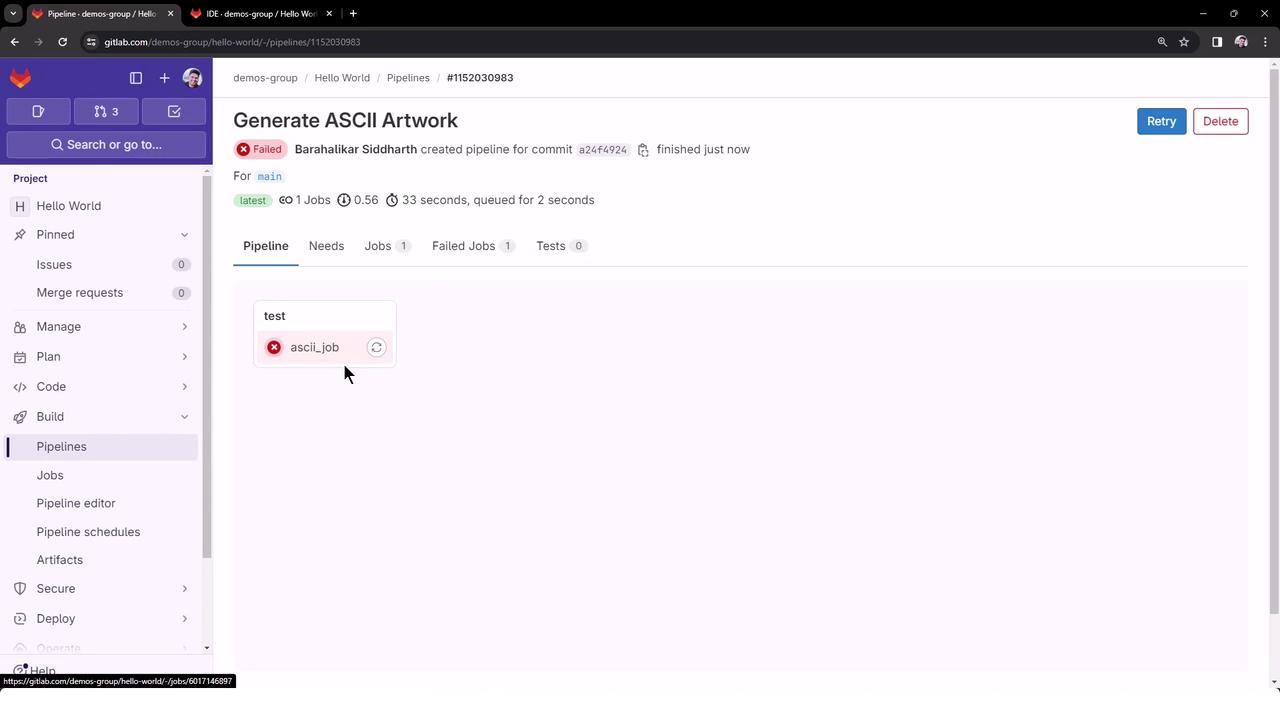
```bash theme={null}
$ gem install cowsay
Successfully installed cowsay-0.3.0
1 gem installed
$ ./ascii-script.sh
/usr/bin/bash: ./ascii-script.sh: Permission denied
ERROR: Job failed: exit code 1
```
Always ensure your shell scripts have execute permissions. Without `chmod +x`, GitLab runners cannot run them.
## 6. Grant Execute Permissions
Add a `chmod` step in `before_script` to make the script executable:
```yaml theme={null}
workflow:
name: Generate ASCII Artwork
ascii_job:
before_script:
- gem install cowsay
- chmod +x ascii-script.sh
script:
- ./ascii-script.sh
after_script:
- echo "Executed at the end, can be used for cleaning/removing content"
```
Commit and push. The next pipeline run will apply the new permissions automatically.
## 7. Confirm Successful Execution
Once fixed, your job logs should show:
```bash theme={null}
$ chmod +x ascii-script.sh
$ ./ascii-script.sh
Generating ASCII Artwork using COWSAY Program
| Run for cover, I am a DRAGON....RAWR |
total 32
-rwxrwxr-x 1 root root 185 Jan 25 19:32 ascii-script.sh
-rw-rw-r-- 1 root root 6181 Jan 25 19:32 README.md
-rw-rw-r-- 1 root root 270 Jan 25 19:32 .gitlab-ci.yml
-rw-r--r-- 1 root root 948 Jan 25 19:32 dragon.txt
Running after_script
Job succeeded
```
With this pattern, your `.gitlab-ci.yml` stays concise, and complex logic lives in maintainable, version-controlled scripts.
***
## Links and References
* [GitLab CI/CD pipelines](https://docs.gitlab.com/ee/ci/pipelines/)
* [GitLab Web IDE](https://docs.gitlab.com/ee/user/project/web_ide/)