> ## Documentation Index
> Fetch the complete documentation index at: https://notes.kodekloud.com/llms.txt
> Use this file to discover all available pages before exploring further.
# Masking Variables using Project Settings
> Learn to secure your GitLab CI/CD pipeline by masking sensitive variables in project settings to prevent accidental exposure.
In this tutorial, you’ll learn how to secure your GitLab CI/CD pipeline by masking sensitive variables—such as passwords—within your project’s settings. By keeping secrets out of your repository and hiding them from job logs, you reduce the risk of accidental exposure.
## Why Mask Variables?
Hardcoding credentials in `.gitlab-ci.yml` can lead to leaks if your repo is public or if someone gains read access. Masked variables let you:
* Store secrets outside the codebase
* Prevent values from appearing in pipeline output
* Manage credentials centrally
Project-level variables are available to all jobs by default. Use **Environment scope** and **Protected** flags to limit where and by whom they can be used.
## Example: Hardcoded Password in `.gitlab-ci.yml`
```yaml theme={null}
docker_push:
stage: docker
needs:
- docker_testing
variables:
PASSWORD: %3cUrePaSswd
script:
- echo "docker login --username=$USERNAME --password=$PASSWORD"
- echo "docker push $REGISTRY/$IMAGE:$VERSION"
```
Embedding `PASSWORD` directly in the YAML exposes it in your repository and logs—a significant security risk.
## Storing a Masked Variable in Project Settings
Follow these steps to add a masked variable in GitLab:
1. Go to **Settings > CI/CD** in your project.
2. Expand the **Variables** section.
3. Click **Add variable**.
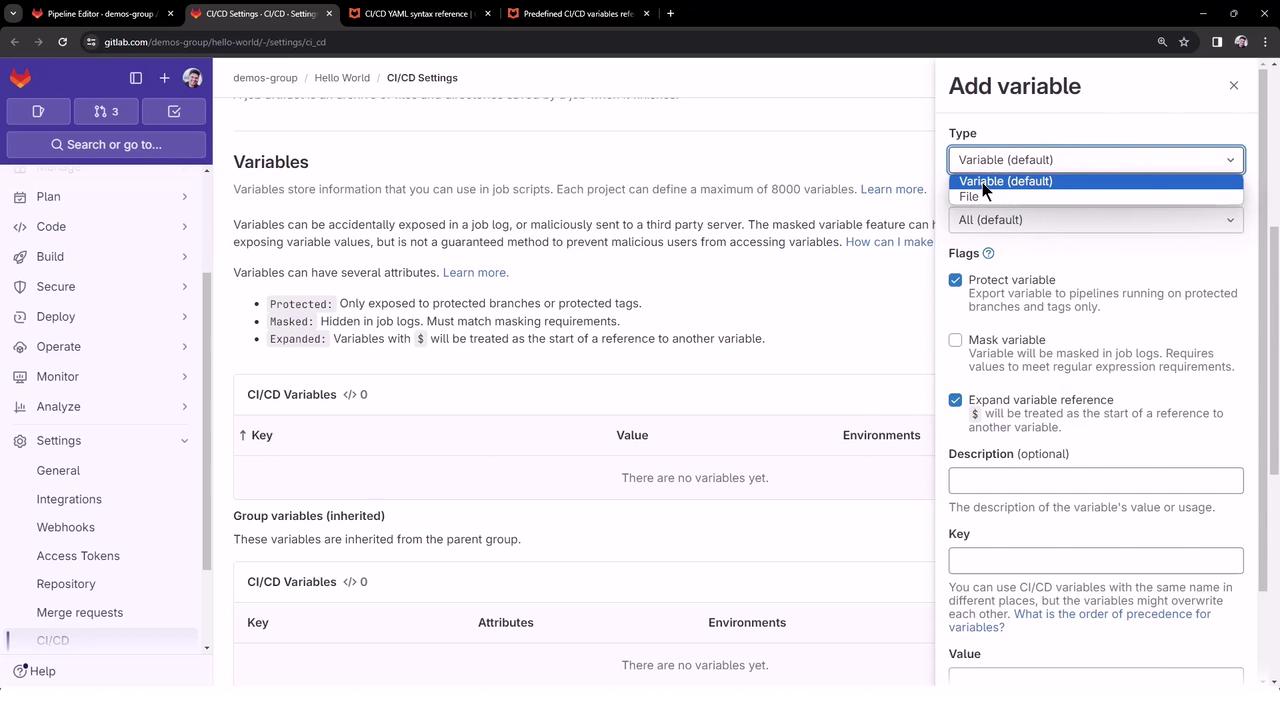
Configure the variable:
| Option | Description |
| --------------------- | ----------------------------------------------- |
| **Key** | `DOCKER_PASSWORD` |
| **Value** | `s3cUrePaSsW0rd` |
| **Masked** | Hides the value from job logs |
| **Protected** | Only available on protected branches (optional) |
| **Environment scope** | Use `*` to allow in all environments |
Once saved, your variable appears in the list with a **masked** flag.
Anyone with Developer or Maintainer permissions can reveal or edit the variable value in project settings.

## Referencing the Variable in `.gitlab-ci.yml`
You no longer need to define `PASSWORD` at the job level. Simply call the masked variable:
```yaml theme={null}
docker_push:
stage: docker
needs:
- docker_testing
script:
- echo "docker login --username=$USERNAME --password=$DOCKER_PASSWORD"
- echo "docker push $REGISTRY/$IMAGE:$VERSION"
```
The global variable `$DOCKER_PASSWORD` is automatically injected into the job environment.
## Simplifying the Pipeline for Demos
To run only specific jobs (e.g., `docker_push` and `deploy_ec2`), hide others by prefixing their names with a dot (`.`). Hidden jobs appear in the editor but are skipped at runtime:
```yaml theme={null}
stages:
- build
- test
- docker
- deploy
variables:
USERNAME: dockerUsername
REGISTRY: docker.io/$USERNAME
IMAGE: imageName
VERSION: $CI_PIPELINE_ID
.build_file:
script: [...]
.test_file:
.docker_build:
.docker_testing:
docker_push:
stage: docker
needs:
- docker_testing
script:
- echo "docker login --username=$USERNAME --password=$DOCKER_PASSWORD"
- echo "docker push $REGISTRY/$IMAGE:$VERSION"
deploy_ec2:
stage: deploy
script:
- cat dragon.txt
- echo "deploying ..."
- echo "Username - $USERNAME and Password - $DOCKER_PASSWORD"
```
Hidden jobs (`.build_file`, `.test_file`, etc.) will not execute, ensuring only `docker_push` and `deploy_ec2` run in your demo.
## Example Pipeline Run
After pushing your changes, the pipeline triggers with just the visible jobs:
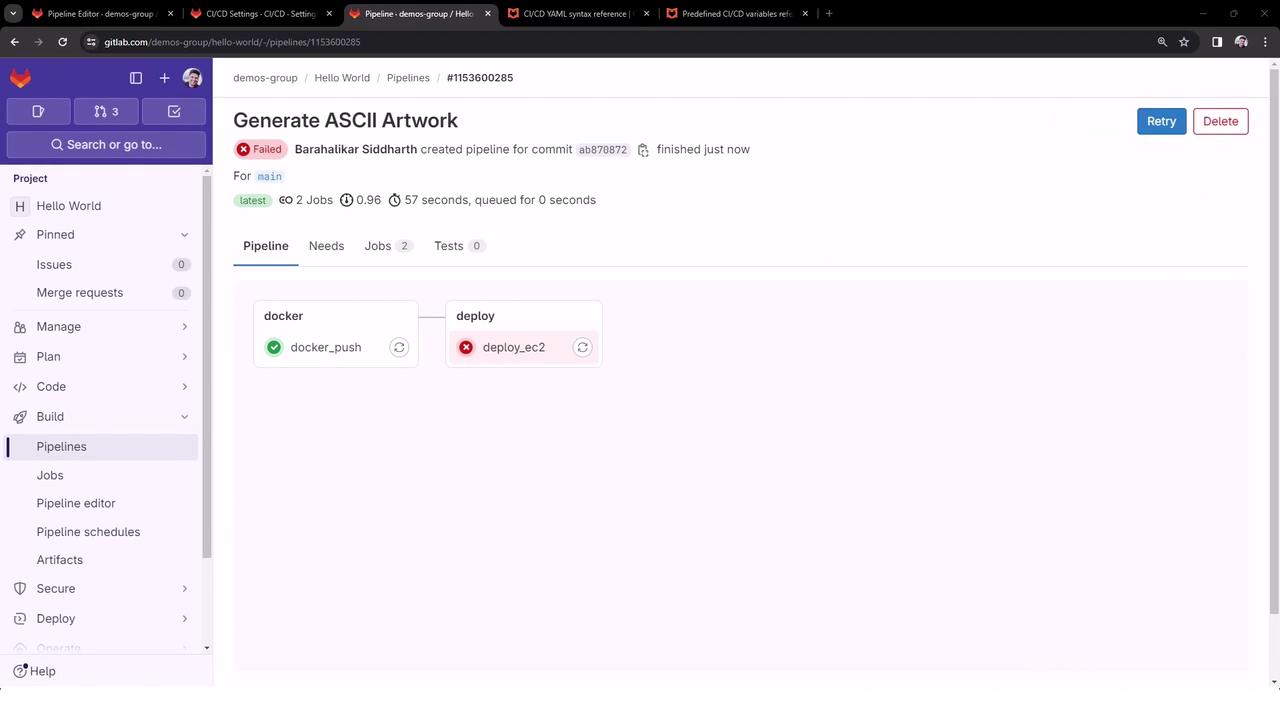
### docker\_push Logs
```bash theme={null}
$ echo "docker login --username=dockerUsername --password=[MASKED]"
docker login --username=dockerUsername --password='[MASKED]'
docker push $REGISTRY/$IMAGE:$VERSION
```
The password is injected from CI/CD settings and masked in the output.
### deploy\_ec2 Logs
```bash theme={null}
$ cat dragon.txt
cat: dragon.txt: No such file or directory
ERROR: Job failed: exit code 1
```
Although this job fails due to a missing file, it clearly demonstrates that `$DOCKER_PASSWORD` would be available—and masked—here as well.
## Summary
By storing sensitive values in GitLab’s CI/CD settings and enabling the **Masked** flag, you can:
* Eliminate secrets from your code repository
* Prevent credentials from appearing in job logs
* Reference variables globally using `$VARIABLE_NAME`
Secure your pipeline today by moving all sensitive variables to project settings!
## Links and References
* [GitLab CI/CD Variables](https://docs.gitlab.com/ee/ci/variables/)
* [GitLab Pipeline Configuration Reference](https://docs.gitlab.com/ee/ci/yaml/)