> ## Documentation Index
> Fetch the complete documentation index at: https://notes.kodekloud.com/llms.txt
> Use this file to discover all available pages before exploring further.
# Pipeline Schedules
> Automate pipeline runs in GitLab CI/CD by defining schedules that trigger at regular intervals or custom cron expressions.
Automate your pipeline runs by defining schedules that trigger at regular intervals—hourly, daily, weekly—or according to a custom cron expression. With pipeline schedules you can:
* Execute deployments on a fixed timetable
* Run maintenance or data sync scripts without manual intervention
* Inject environment-specific variables for each run
## Prerequisites
Before you begin:
* A GitLab project with a `.gitlab-ci.yml` file
* At least one job defined in your pipeline (e.g., `deploy-job`)
* Maintainer or Owner permissions to manage CI/CD settings
## 1. Define the Deployment Job
In your `.gitlab-ci.yml`, create a job that references a CI/CD variable. This example echoes deployment steps using a custom variable, `$DEPLOY_VARIABLE`:
```yaml theme={null}
deploy-job:
stage: deploy
script:
- echo "Deploying application..."
- echo "Application successfully deployed to $DEPLOY_VARIABLE environment"
```
## 2. Configure a Pipeline Schedule
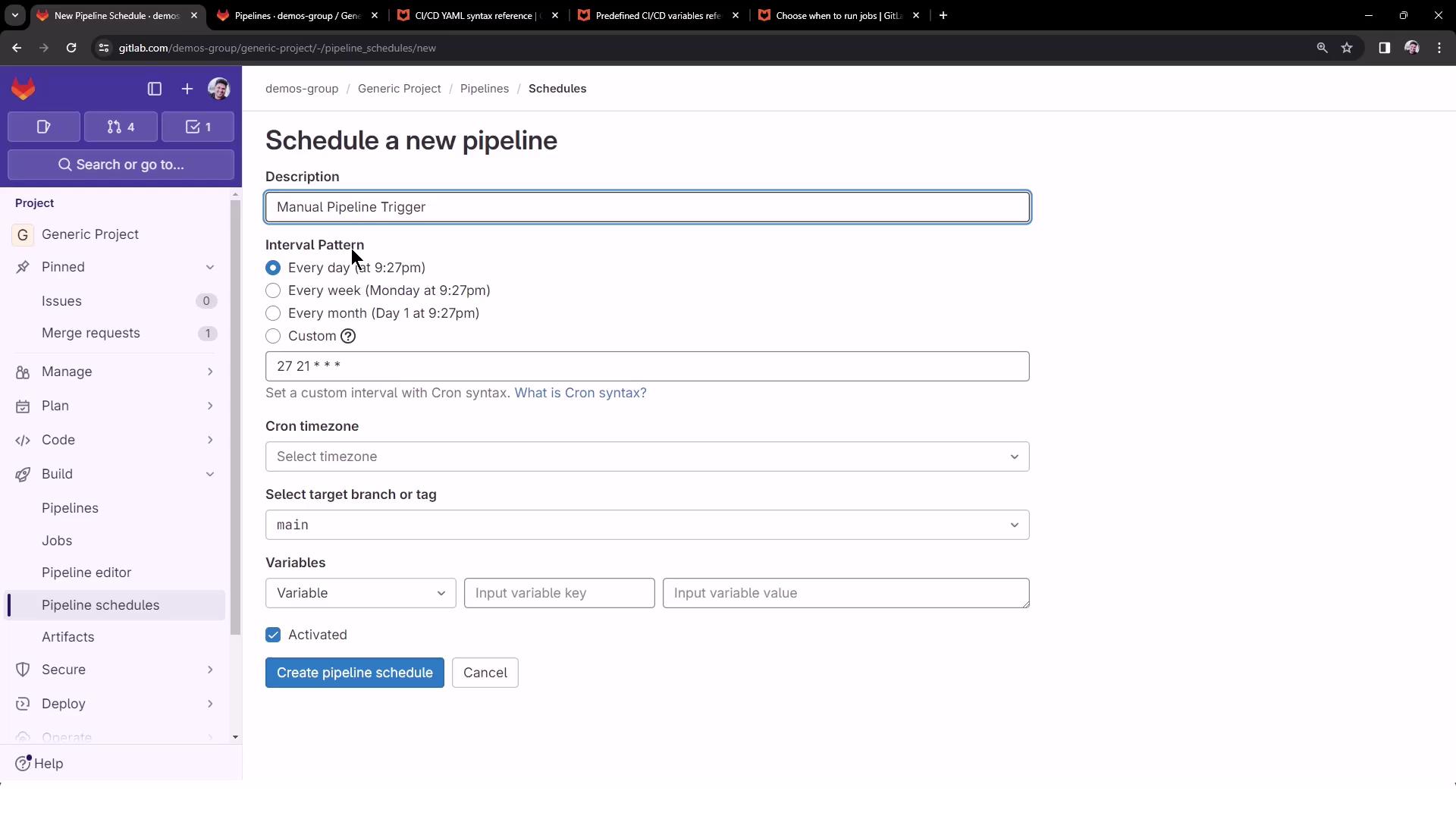
1. In your GitLab project, navigate to **CI/CD > Schedules**.
2. Click **New schedule** to open the scheduling form.
### Select an Interval
Choose from presets (e.g., daily at 21:27) or specify a custom cron expression:
Cron expressions must follow the format `minute hour day-of-month month day-of-week`. For a full reference, see the [Cron Descriptor Guide](https://en.wikipedia.org/wiki/Cron).
```cron theme={null}
0 0 1 1 * # Runs once a year at midnight on January 1
```
| Parameter | Description | Example |
| --------------- | --------------------------------- | ----------------------------------- |
| Interval | Preset or custom cron | `0 0 1 1 *` |
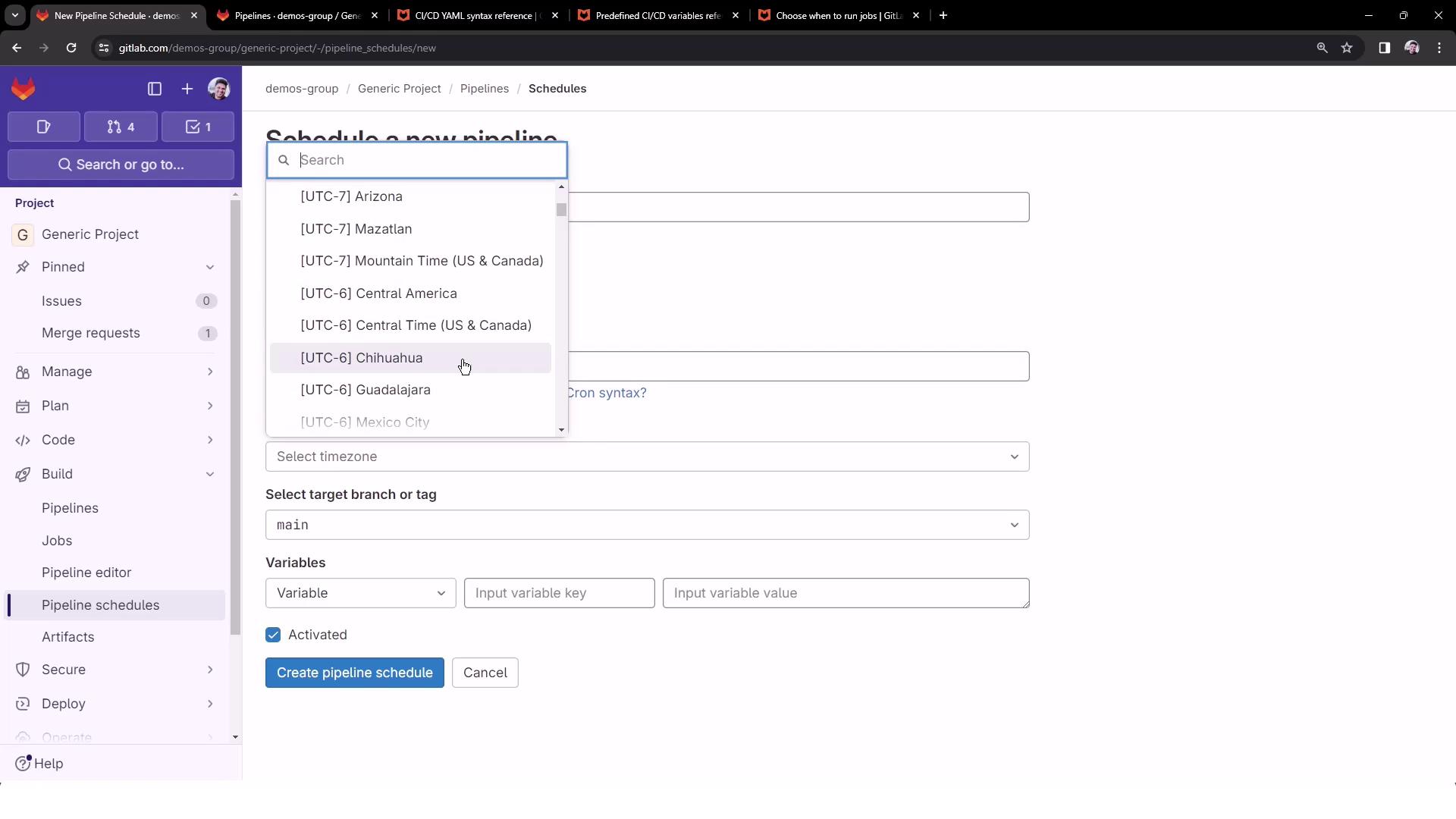
| Timezone | Region-specific timezone | `Asia/Kolkata (Mumbai)` |
| Target branch | Branch or tag for the schedule | `main` |
| CI/CD variables | Key-value pairs for this schedule | `DEPLOY_VARIABLE=manual deployment` |
## 3. Add Variables and Create the Schedule
Specify any CI/CD variables needed by your job. For our `deploy-job`, define:
| Key | Value |
| ---------------- | ----------------- |
| DEPLOY\_VARIABLE | manual deployment |
Ensure variable names match exactly what your `.gitlab-ci.yml` references. A typo will cause the job to fail.
Select **Enable schedule** and click **Create pipeline schedule**.
## 4. View and Manage Schedules
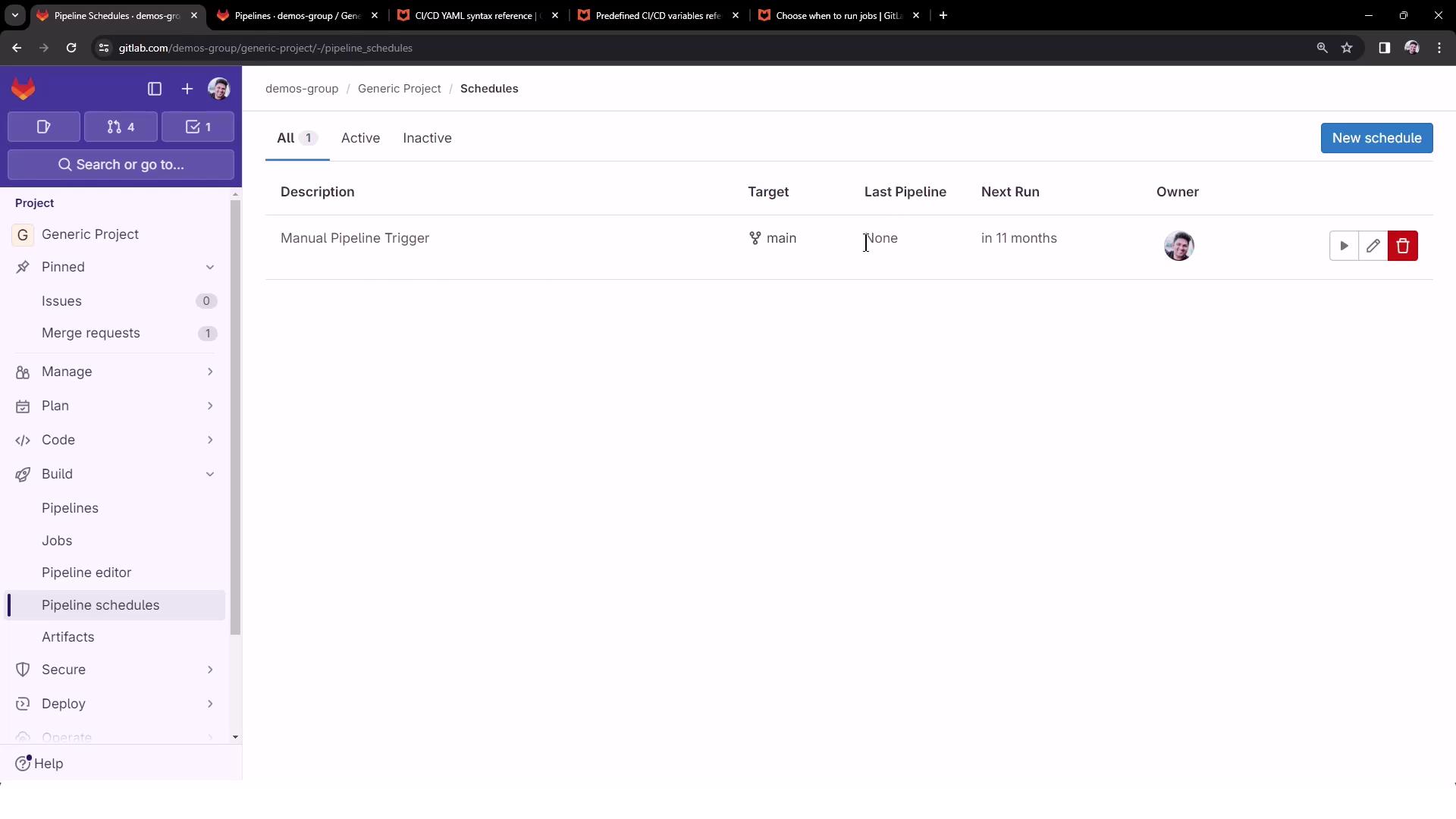
All pipeline schedules are listed with details like next run time, cron expression, and target branch. Use the **Play** button to trigger any schedule on demand.
## 5. Trigger and Verify the Scheduled Pipeline
1. Click the **Play** icon to start a run immediately.
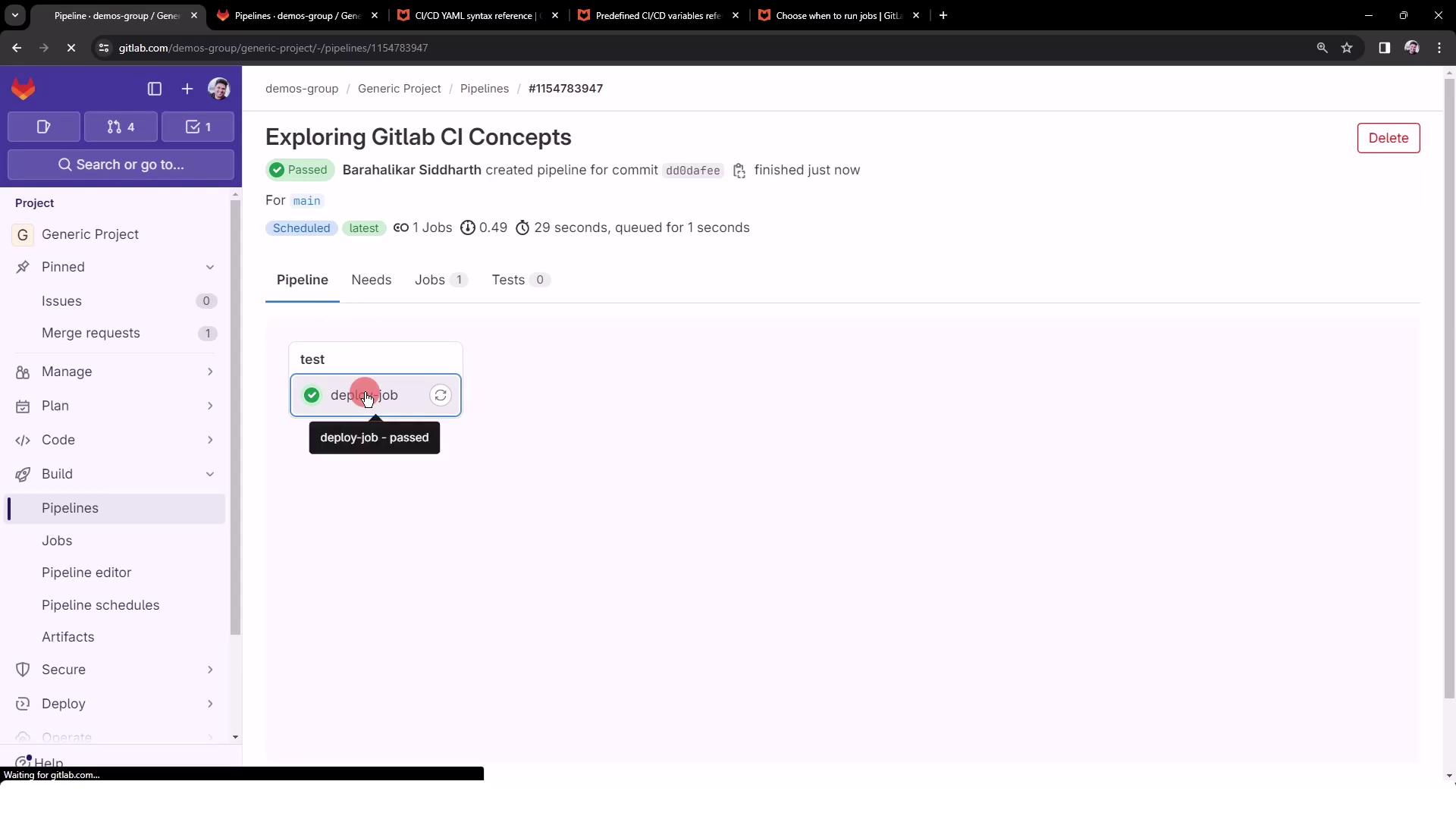
2. Go to **CI/CD > Pipelines** and look for a pipeline tagged **scheduled**.
3. Open the pipeline, then click the job (`deploy-job`) to review logs.
Example job log:
```bash theme={null}
$ echo "Deploying application..."
Deploying application...
$ echo "Application successfully deployed to $DEPLOY_VARIABLE environment"
Application successfully deployed to manual deployment environment
```
## 6. Edit or Remove Schedules
To adjust timing, update variables, or delete a schedule, return to **CI/CD > Schedules**, find the row, and click **Edit** or **Delete** as needed.
## Links and References
* [GitLab Pipeline Schedules Documentation](https://docs.gitlab.com/ee/ci/pipelines/schedules.html)
* [GitLab CI/CD Variables](https://docs.gitlab.com/ee/ci/variables/)
* [GitLab Cron Syntax Guide](https://docs.gitlab.com/ee/ci/yaml/#cron)