> ## Documentation Index
> Fetch the complete documentation index at: https://notes.kodekloud.com/llms.txt
> Use this file to discover all available pages before exploring further.
# Use Job Images
> Explains using Docker job images in GitLab CI to run Node.js, comparing installing Node during jobs versus using prebuilt images for faster reliable pipelines
In this lesson we’ll demonstrate how to run CI jobs inside a Docker image that already contains the required tooling (for example, Node.js). Using a prebuilt image avoids installing dependencies at runtime and makes pipelines faster and more reliable.
If a job runs without specifying a Node image, the runner uses the default image (often Ruby), and Node will not be available:
```yaml theme={null}
workflow:
name: Exploring GitLab CI Concepts
rules:
- if: $CI_COMMIT_BRANCH == 'main'
variables:
DEPLOY_VARIABLE: "PRODUCTION"
deploy-job:
resource_group: production
# timeout: 10s
script:
- node -v
- npm -v
```
Console output from such a job shows the Docker executor using the default image and then failing because Node is not installed:
```bash theme={null}
Using Docker executor with image ruby:3.1 ...
$ node -v
/usr/bin/bash: line 140: node: command not found
ERROR: Job failed: exit code 1
```
Options to make Node available to your job:
* Manually install Node.js in the job (works, but slow and error-prone).
* Use a Docker image that already contains Node.js (recommended).
Table: Comparison of approaches
| Approach | Pros | Cons |
| ------------------------------- | --------------------------------------- | ----------------------------------------------------- |
| Install in job (before\_script) | Works with any base image | Adds runtime overhead, duplicates work across runners |
| Use job image (`image:`) | Fast, repeatable, minimal setup per job | Must pick or build an appropriate image |
## Installing Node.js inside a job (before\_script)
You can install Node.js inside a job using the NodeSource installer. In many CI containers you run as root, so `sudo` is not required. Use a YAML literal block (`|`) to keep the multi-line shell script readable and executed as one script.
Example: shell commands to install Node.js (one-time reference)
```bash theme={null}
apt-get update && apt-get install -y ca-certificates curl gnupg
curl -fsSL https://deb.nodesource.com/gpgkey/nodesource-repo.gpg.key | gpg --dearmor -o /etc/apt/keyrings/nodesource.gpg
NODE_MAJOR=20
echo "deb [signed-by=/etc/apt/keyrings/nodesource.gpg] https://deb.nodesource.com/node_$NODE_MAJOR.x nodistro main" | tee /etc/apt/sources.list.d/nodesource.list
apt-get update && apt-get install -y nodejs
```
Example GitLab CI job that performs the install in `before_script` (note the YAML literal block):
```yaml theme={null}
workflow:
name: Exploring GitLab CI Concepts
rules:
- if: $CI_COMMIT_BRANCH == 'main'
variables:
DEPLOY_VARIABLE: "PRODUCTION"
deploy-job:
resource_group: production
# timeout: 10s
before_script:
- |
apt-get update && apt-get install -y ca-certificates curl gnupg
curl -fsSL https://deb.nodesource.com/gpgkey/nodesource-repo.gpg.key | gpg --dearmor -o /etc/apt/keyrings/nodesource.gpg
NODE_MAJOR=20
echo "deb [signed-by=/etc/apt/keyrings/nodesource.gpg] https://deb.nodesource.com/node_$NODE_MAJOR.x nodistro main" | tee /etc/apt/sources.list.d/nodesource.list
apt-get update && apt-get install -y nodejs
script:
- node -v
- npm -v
```
Console excerpt after a successful install (shows Node/npm versions):
```bash theme={null}
$ node -v
v20.11.0
$ npm -v
10.2.4
Job succeeded
```
Installing packages inside the job works, but every job runner will repeat these steps, which increases job runtime. Prefer using an image that already contains the tools you need.
## Use the image keyword to run the job in a Node.js container
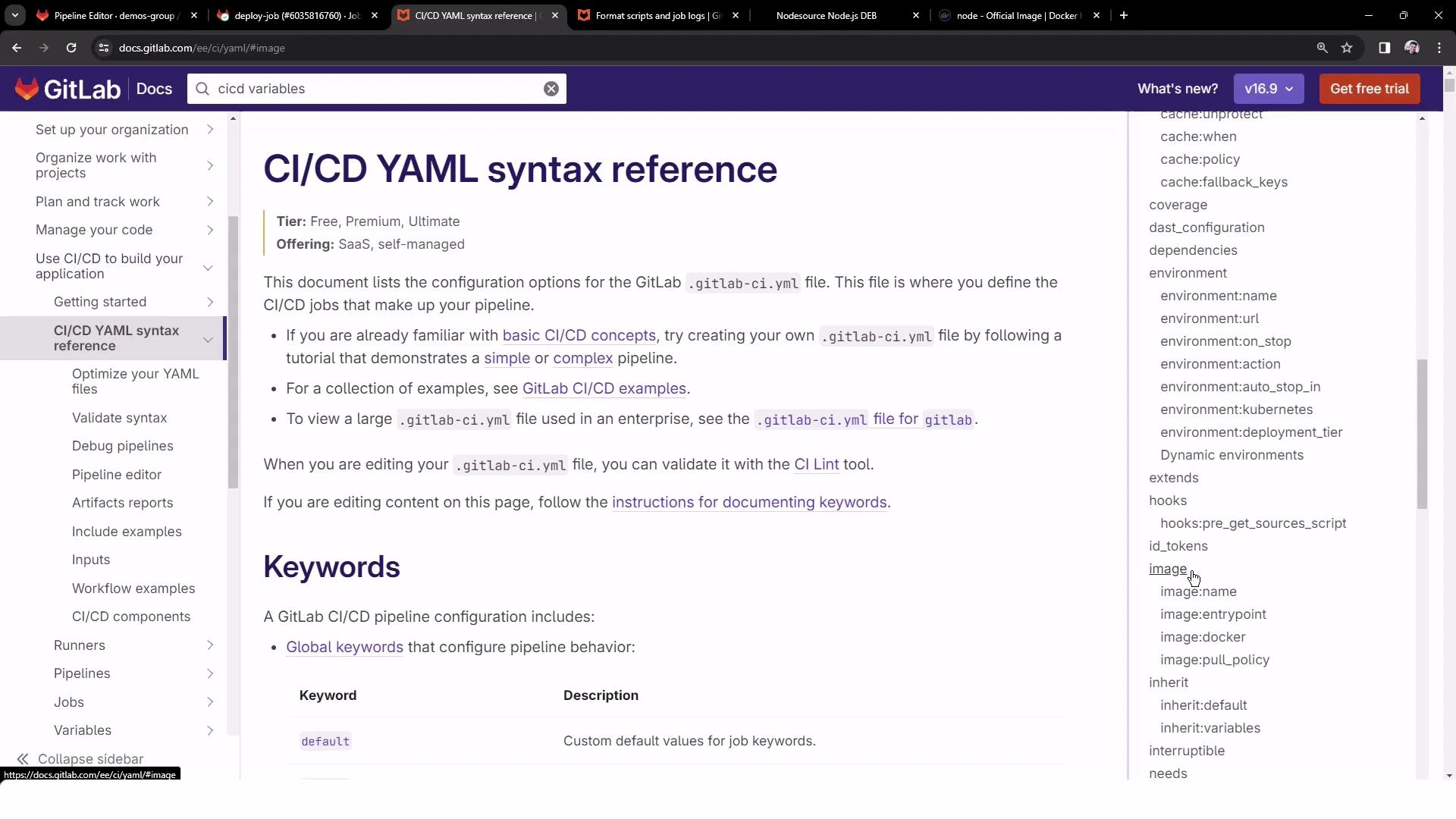
A more efficient approach is to run the job inside a container image that already includes Node.js. You can set an image globally under `default:` or per-job with the `image:` keyword. The [GitLab CI YAML reference](https://docs.gitlab.com/ee/ci/yaml/) documents these options and related settings (pull policy, entrypoint, etc.).
 Example: use a Node.js image at the job level (fast and simple):
```yaml theme={null}
workflow:
name: Exploring GitLab CI Concepts
rules:
- if: $CI_COMMIT_BRANCH == 'main'
variables:
DEPLOY_VARIABLE: "PRODUCTION"
deploy-job:
resource_group: production
# timeout: 10s
image: node:20-alpine3.18
script:
- node -v
- npm -v
```
When using the official Node image, the runner pulls the image and Node/npm are immediately available. This typically results in much faster jobs because you skip the installation steps.
Console excerpt showing a fast success using the Node image:
```bash theme={null}
Using Docker executor with image node:20-alpine3.18 ...
$ node -v
v20.11.0
$ npm -v
10.2.4
Job succeeded
```
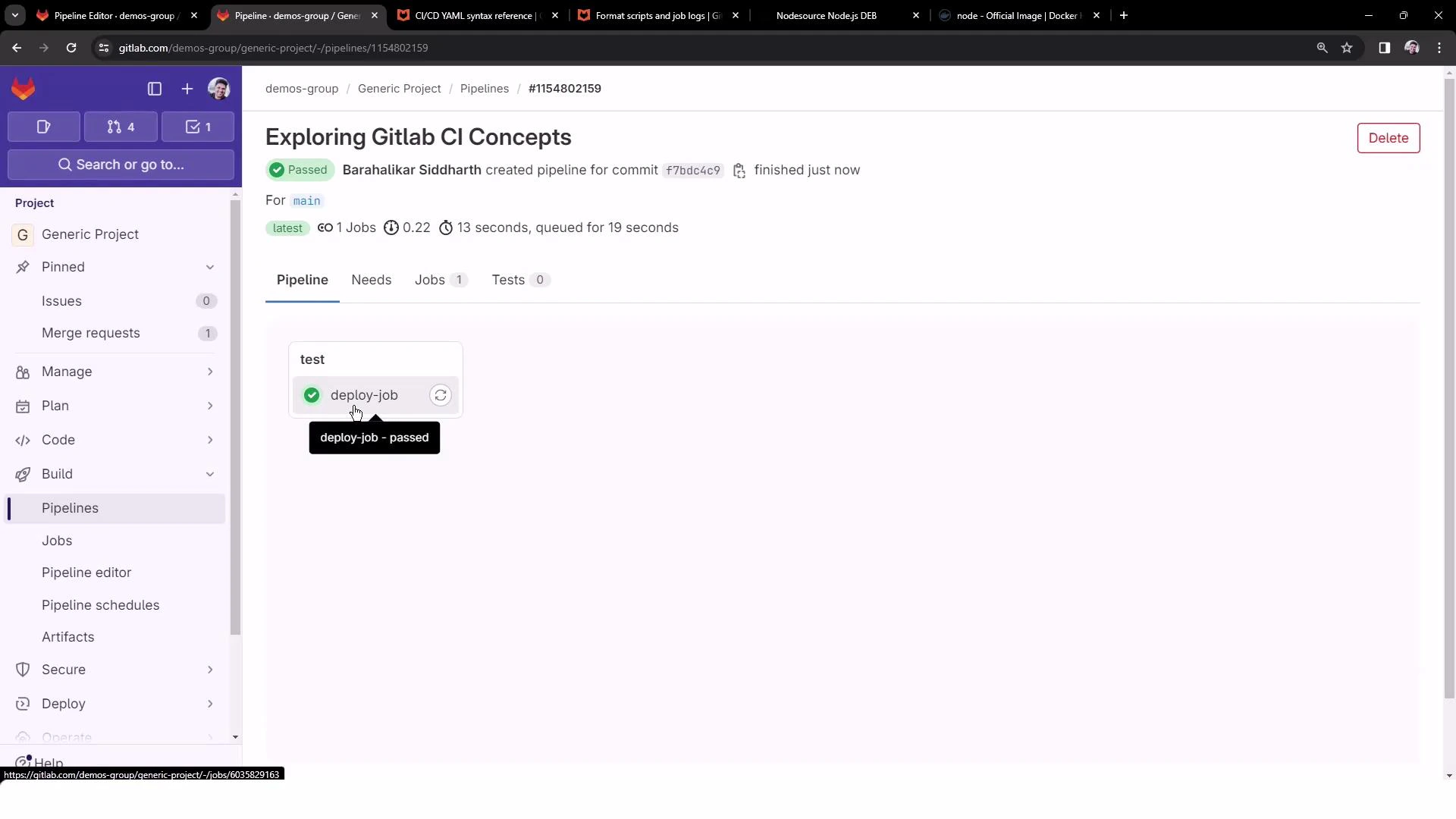
This is the same behavior shown in the pipeline UI when the job uses the Node image:
Example: use a Node.js image at the job level (fast and simple):
```yaml theme={null}
workflow:
name: Exploring GitLab CI Concepts
rules:
- if: $CI_COMMIT_BRANCH == 'main'
variables:
DEPLOY_VARIABLE: "PRODUCTION"
deploy-job:
resource_group: production
# timeout: 10s
image: node:20-alpine3.18
script:
- node -v
- npm -v
```
When using the official Node image, the runner pulls the image and Node/npm are immediately available. This typically results in much faster jobs because you skip the installation steps.
Console excerpt showing a fast success using the Node image:
```bash theme={null}
Using Docker executor with image node:20-alpine3.18 ...
$ node -v
v20.11.0
$ npm -v
10.2.4
Job succeeded
```
This is the same behavior shown in the pipeline UI when the job uses the Node image:
 Quick tips
* Use official images (for Node: node:\-alpine or node:\) when available for smaller images and consistent tooling.
* If your project needs extra packages, create a custom image with a Dockerfile and publish it to a registry.
* Set `image:` under `default:` if multiple jobs share the same runtime to reduce repetition.
## Summary
* Prefer using a Docker image that already contains the required language runtime (use the `image:` keyword).
* Installing software in `before_script` is possible (use YAML literal blocks for multi-line scripts) but is slower and duplicates effort across runners.
* You can set `image:` per-job or globally under `default:` depending on your pipeline needs.
Links and references
* [GitLab CI/CD YAML reference](https://docs.gitlab.com/ee/ci/yaml/)
* [NodeSource distributions (installer and repo)](https://github.com/nodesource/distributions)
* [Official Node Docker images on Docker Hub](https://hub.docker.com/_/node)
Quick tips
* Use official images (for Node: node:\-alpine or node:\) when available for smaller images and consistent tooling.
* If your project needs extra packages, create a custom image with a Dockerfile and publish it to a registry.
* Set `image:` under `default:` if multiple jobs share the same runtime to reduce repetition.
## Summary
* Prefer using a Docker image that already contains the required language runtime (use the `image:` keyword).
* Installing software in `before_script` is possible (use YAML literal blocks for multi-line scripts) but is slower and duplicates effort across runners.
* You can set `image:` per-job or globally under `default:` depending on your pipeline needs.
Links and references
* [GitLab CI/CD YAML reference](https://docs.gitlab.com/ee/ci/yaml/)
* [NodeSource distributions (installer and repo)](https://github.com/nodesource/distributions)
* [Official Node Docker images on Docker Hub](https://hub.docker.com/_/node)