> ## Documentation Index
> Fetch the complete documentation index at: https://notes.kodekloud.com/llms.txt
> Use this file to discover all available pages before exploring further.
# Use rules at Workflow Level
> Learn to implement workflow-level rules in GitLab CI/CD for dynamic variable setting and pipeline filtering based on branch patterns and file changes.
GitLab CI/CD lets you define `rules` at both the job and workflow levels. While job-level rules determine whether an individual job runs, **workflow-level rules** control if the entire pipeline is created. This approach helps you:
* Dynamically set variables.
* Match branch patterns using regex.
* Filter pipelines by file changes.
In this guide, you’ll learn how to implement workflow-level rules with real examples.
***
## Prerequisites
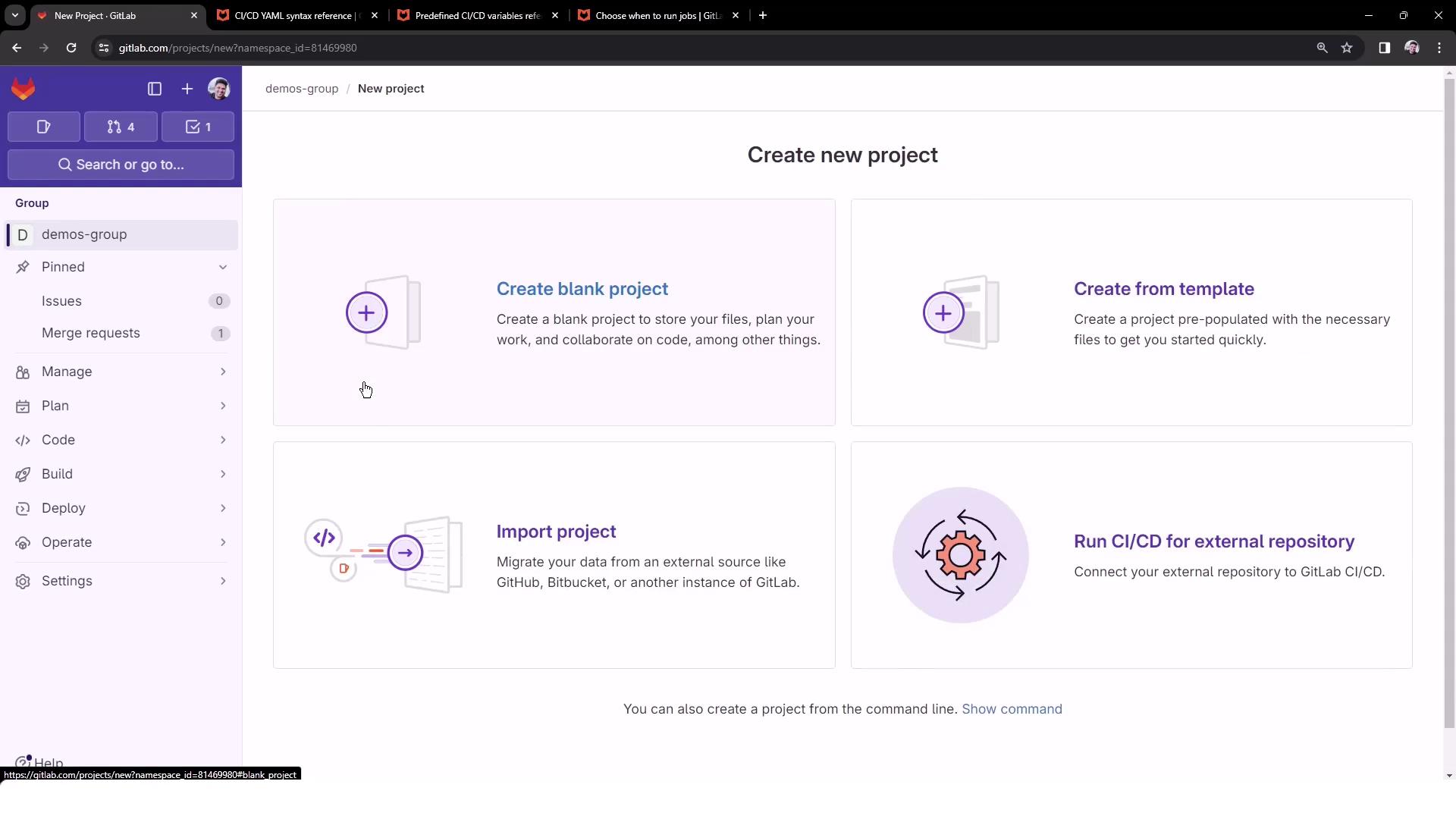
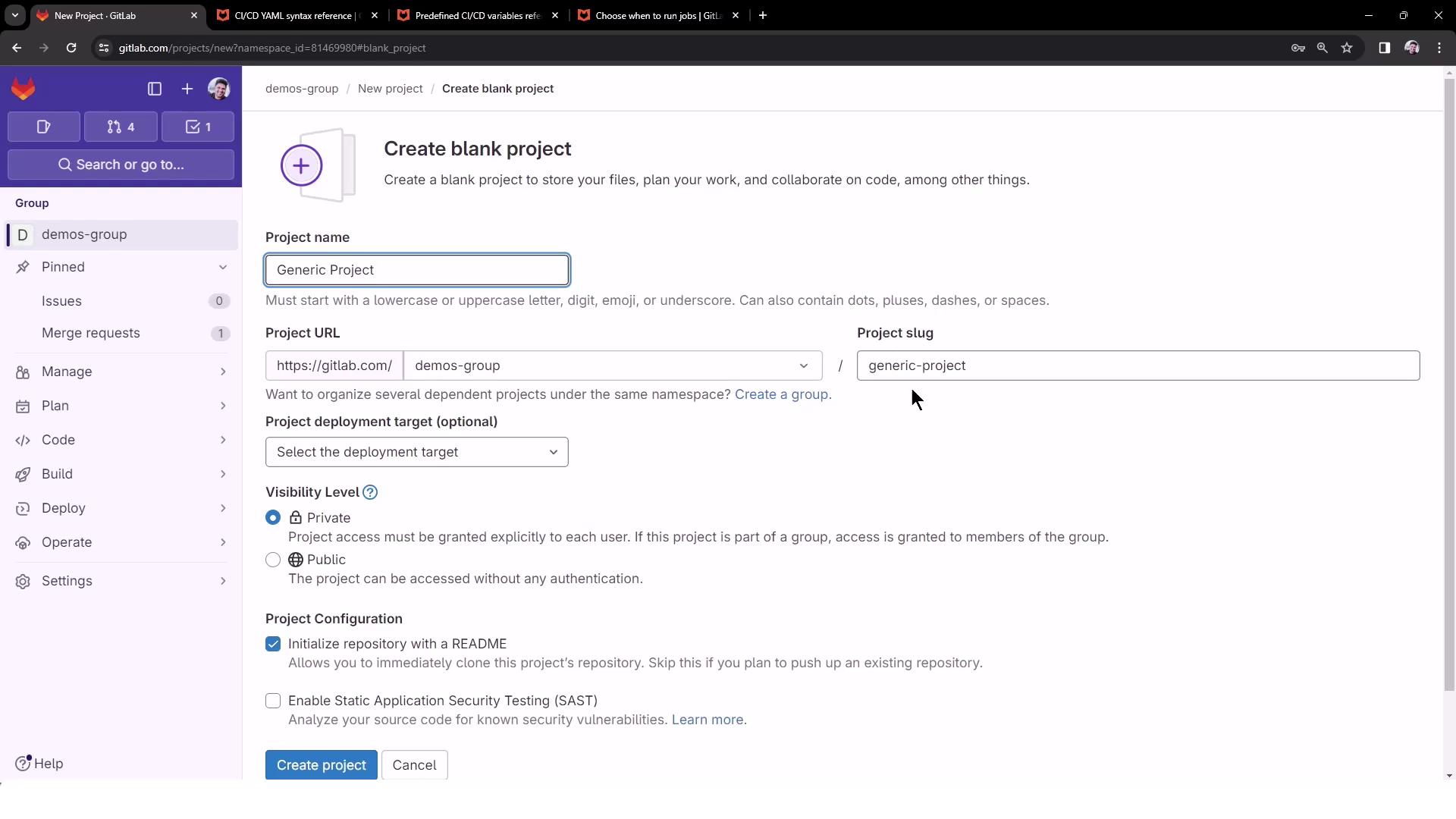
1. Create a new GitLab project under your `demos` group.
2. Name it `generic-project` (public) and initialize with a `README.md`.
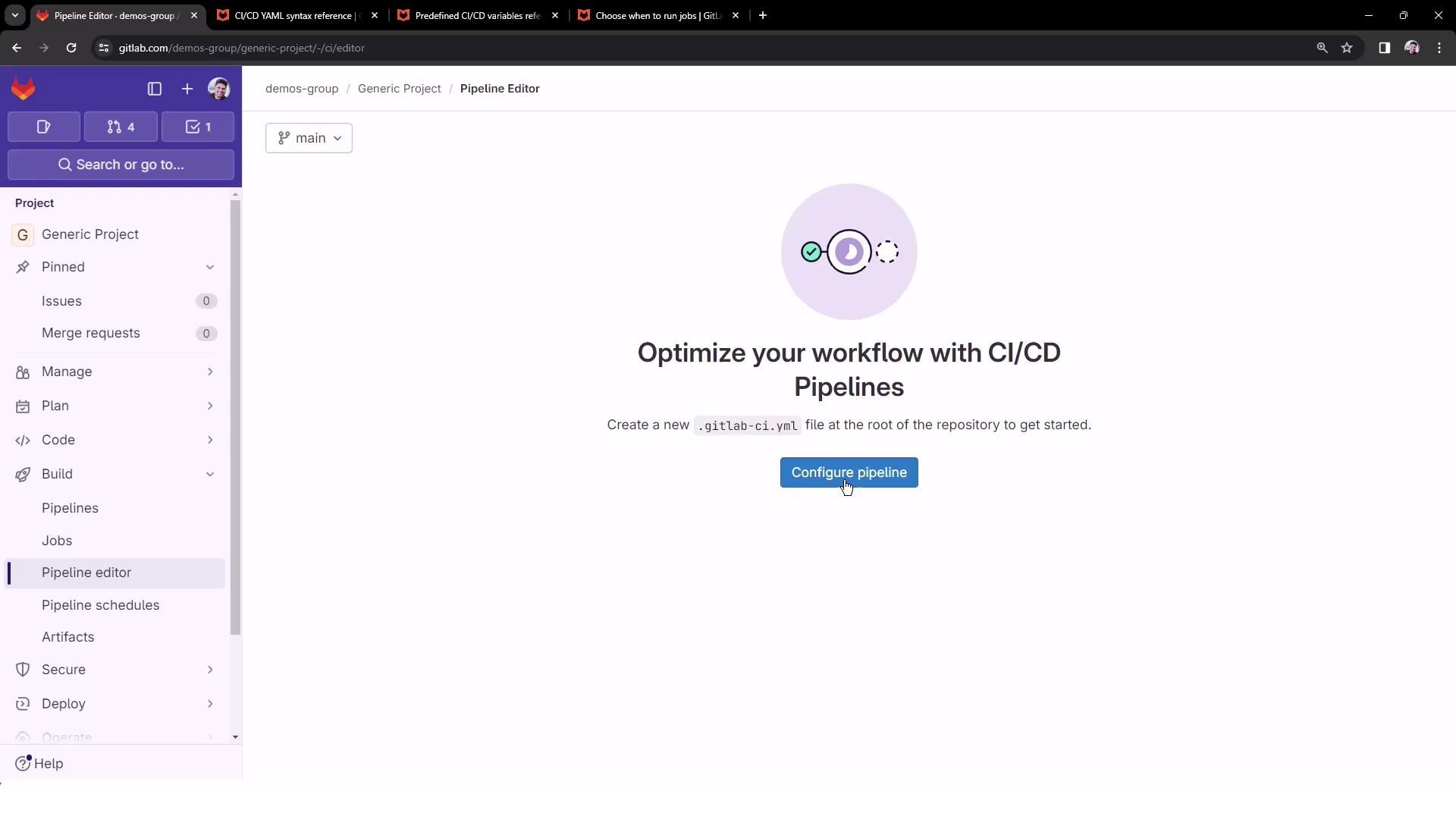
3. Open **CI/CD > Editor** to configure your pipeline.
***
## 1. Initial Pipeline Configuration
Add a minimal `.gitlab-ci.yml` to ensure your project has a pipeline:
```yaml theme={null}
workflow:
name: Exploring GitLab CI Concepts
deploy-job:
script:
- echo "Deploying application..."
- echo "Application successfully deployed to $DEPLOY_VARIABLE environment"
```
By default, no variables are set and the pipeline always runs. Let’s introduce workflow-level `rules` to change that.
***
## 2. Rule 1: Run Only on `main`
Trigger the pipeline **only** for pushes to `main`, and set `DEPLOY_VARIABLE` to `PRODUCTION`:
```yaml theme={null}
workflow:
name: Exploring GitLab CI Concepts
rules:
- if: $CI_COMMIT_BRANCH == "main"
variables:
DEPLOY_VARIABLE: "PRODUCTION"
deploy-job:
script:
- echo "Deploying application..."
- echo "Application successfully deployed to $DEPLOY_VARIABLE environment"
```
When you push to `main`:
```bash theme={null}
$ echo "Deploying application..."
Deploying application...
$ echo "Application successfully deployed to $DEPLOY_VARIABLE environment"
Application successfully deployed to PRODUCTION environment
```
***
## 3. Rule 2: Merge Requests from `feature/*`
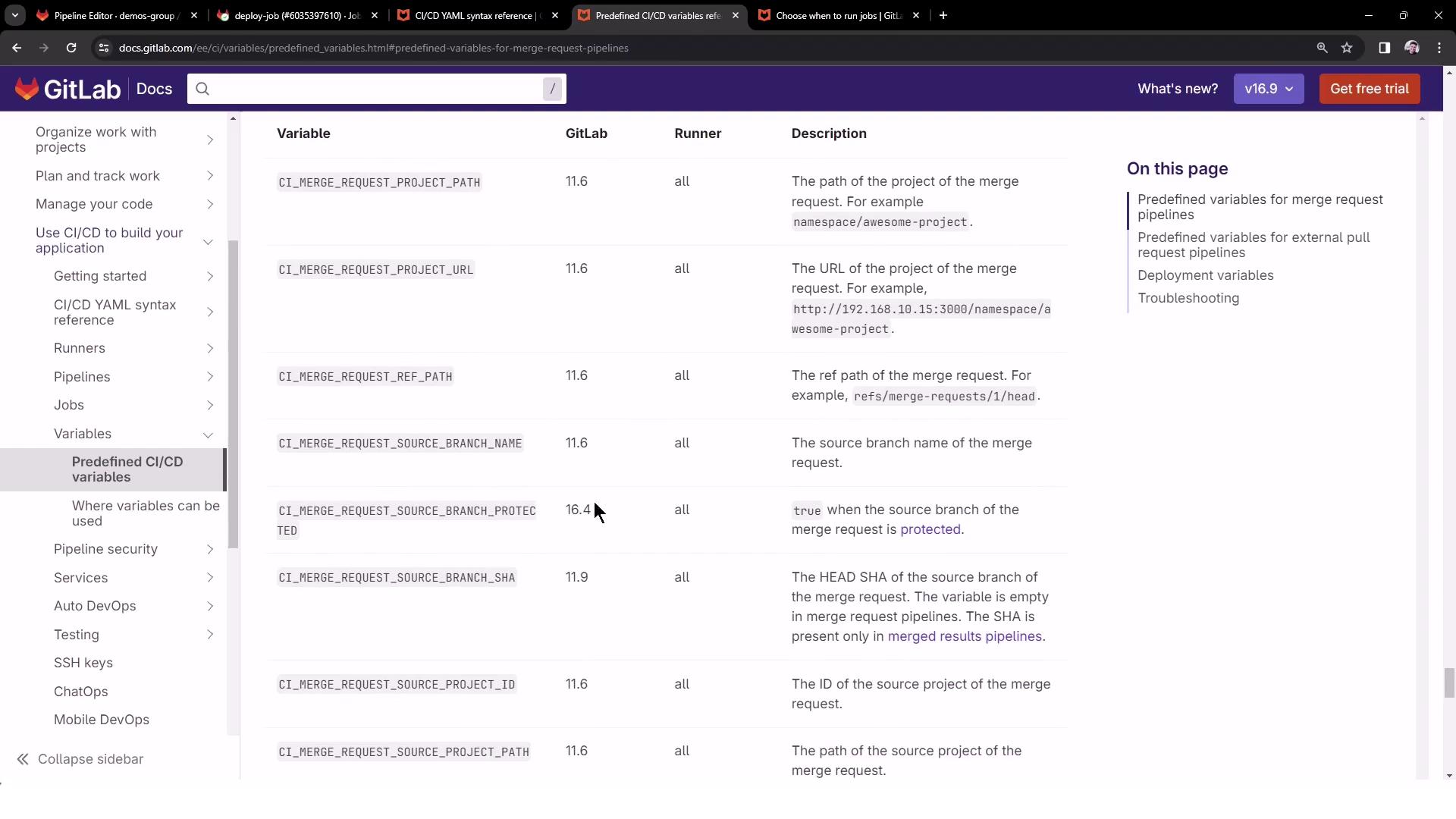
Only run pipelines on merge requests whose source branch matches `feature/*`. Use the predefined variable `CI_MERGE_REQUEST_SOURCE_BRANCH_NAME`:
```yaml theme={null}
workflow:
name: Exploring GitLab CI Concepts
rules:
- if: $CI_COMMIT_BRANCH == "main"
variables:
DEPLOY_VARIABLE: "PRODUCTION"
- if: '$CI_MERGE_REQUEST_SOURCE_BRANCH_NAME =~ /^feature\// && $CI_PIPELINE_SOURCE == "merge_request_event"'
variables:
DEPLOY_VARIABLE: "TESTING"
deploy-job:
script:
- echo "Deploying application..."
- echo "Application successfully deployed to $DEPLOY_VARIABLE environment"
```
Push to `feature/my-awesome-feature` and create an MR:
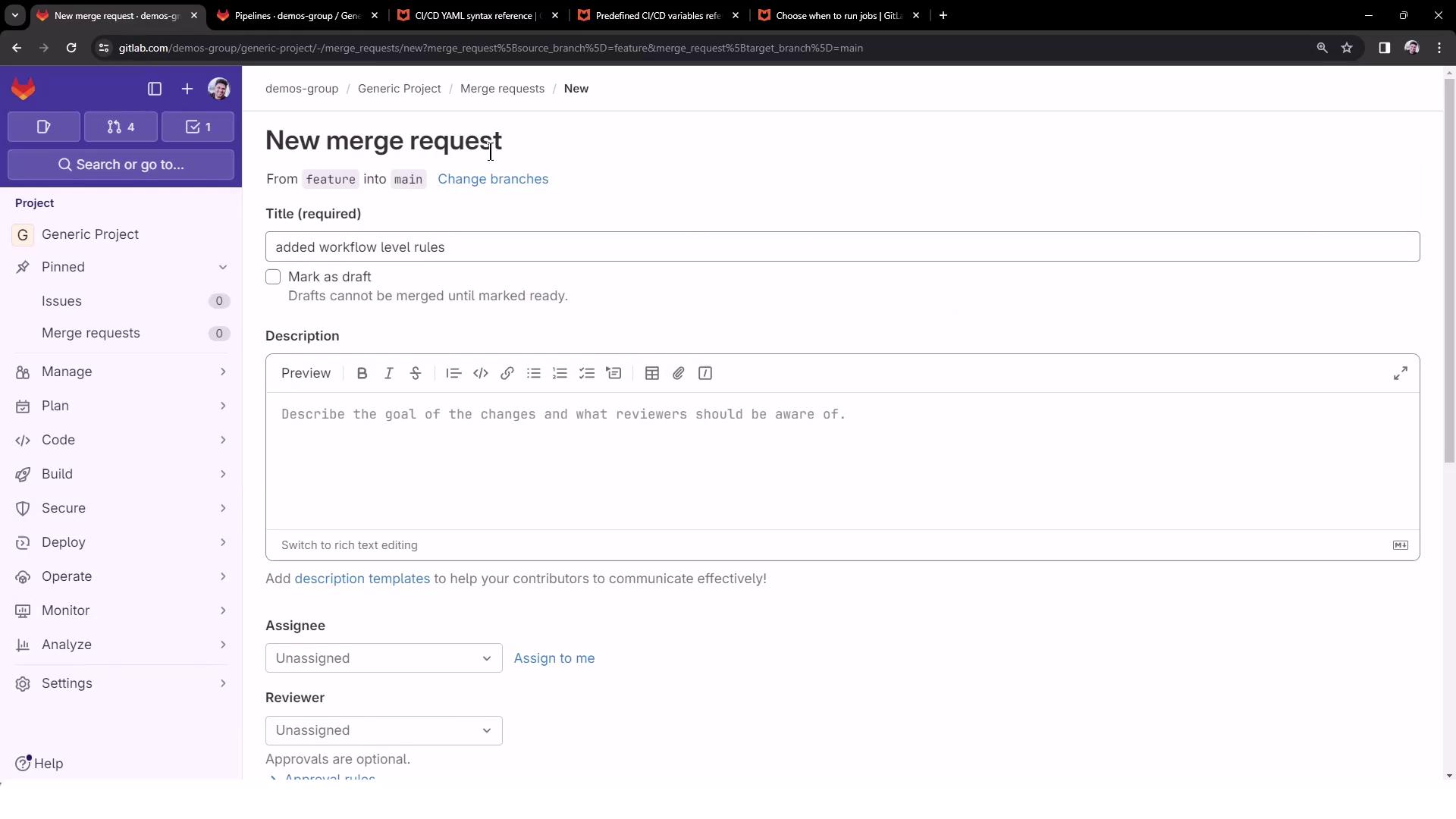
*No pipeline runs yet* because we haven’t introduced file-change filters.
***
## 4. Rule 3: File-Change Filtering
Use the `changes:` keyword to trigger pipelines only when certain files are modified. For example, run MR pipelines only if `README.md` changes:
```yaml theme={null}
workflow:
name: Exploring GitLab CI Concepts
rules:
- if: $CI_COMMIT_BRANCH == "main"
variables:
DEPLOY_VARIABLE: "PRODUCTION"
- if: '$CI_MERGE_REQUEST_SOURCE_BRANCH_NAME =~ /^feature\// && $CI_PIPELINE_SOURCE == "merge_request_event"'
changes:
- README.md
variables:
DEPLOY_VARIABLE: "TESTING"
deploy-job:
script:
- echo "Deploying application..."
- echo "Application successfully deployed to $DEPLOY_VARIABLE environment"
```
Update `README.md` in your feature branch and push. Now you’ll see a new pipeline:
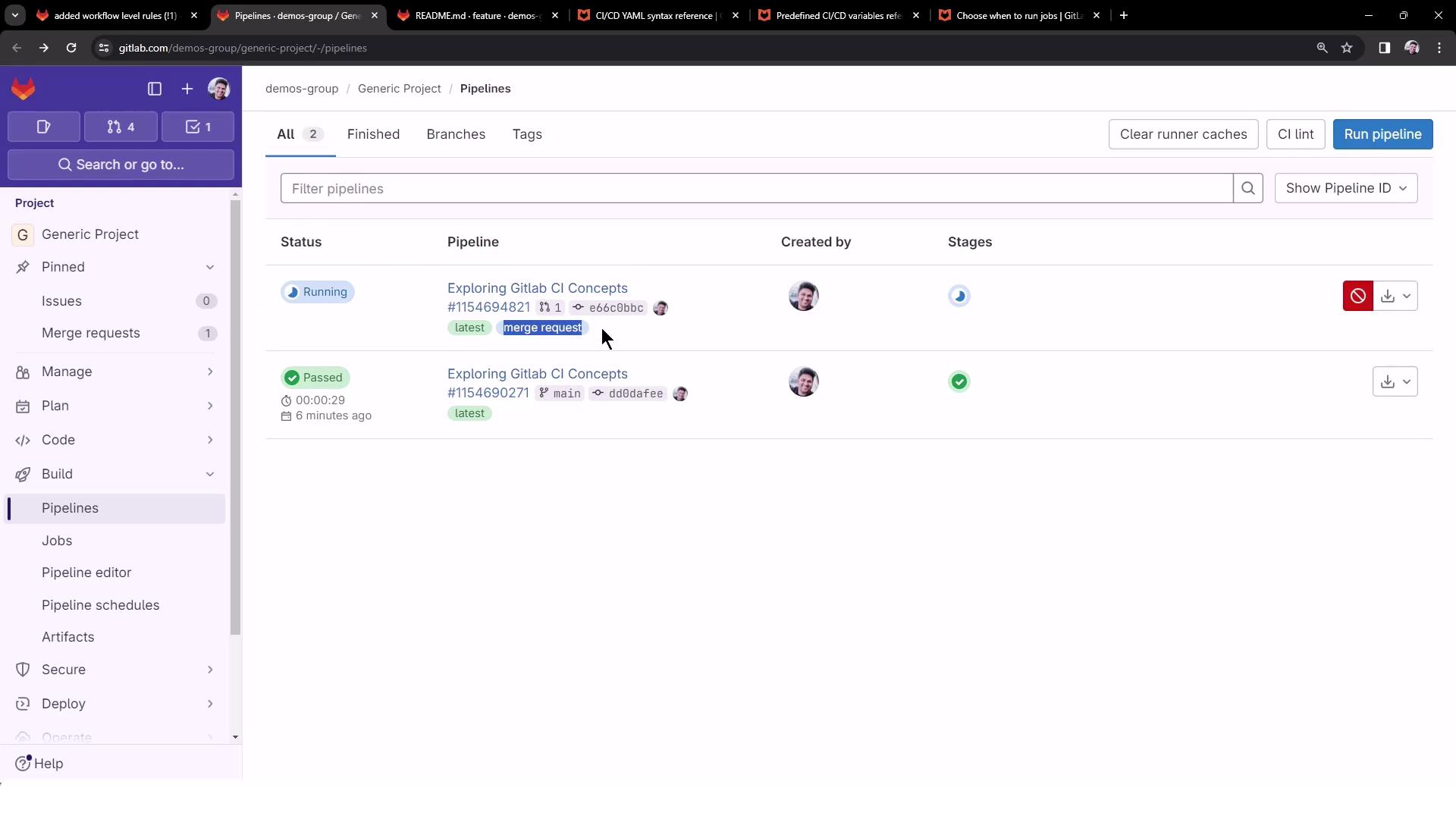
The job log confirms the `TESTING` variable:
```text theme={null}
$ echo "Deploying application..."
Deploying application...
$ echo "Application successfully deployed to $DEPLOY_VARIABLE environment"
Application successfully deployed to TESTING environment
```
***
## Summary of Workflow-Level Rules
| Rule | Trigger | Variable | Description |
| ----- | --------------------------------------------- | ---------- | ------------------------------------------------- |
| **1** | `CI_COMMIT_BRANCH == "main"` | PRODUCTION | Only build on `main` |
| **2** | MR event & source branch matches `feature/*` | TESTING | Run on feature-branch merge requests |
| **3** | Same as Rule 2 **and** `changes: [README.md]` | TESTING | Only when `README.md` is updated in the MR branch |
***
The first matching rule wins. If no rule matches, the pipeline won’t be created—no jobs will run.
***
## Final `.gitlab-ci.yml` Example
```yaml theme={null}
workflow:
name: Exploring GitLab CI Concepts
rules:
- if: '$CI_COMMIT_TITLE =~ /-draft$/'
when: never
- if: '$CI_PIPELINE_SOURCE == "merge_request_event"'
- if: '$CI_COMMIT_BRANCH == $CI_DEFAULT_BRANCH'
deploy-job:
script:
- echo "Deploying application..."
- echo "Application successfully deployed to $DEPLOY_VARIABLE environment"
```
Customize your `rules` with `when: manual`, `allow_failure`, or file filters to match your team’s workflow.
***
## Links and References
* [GitLab CI/CD documentation](https://docs.gitlab.com/ee/ci/)
* [Predefined CI/CD variables](https://docs.gitlab.com/ee/ci/variables/predefined_variables.html)
* [Rules keyword reference](https://docs.gitlab.com/ee/ci/yaml/#rules)