> ## Documentation Index
> Fetch the complete documentation index at: https://notes.kodekloud.com/llms.txt
> Use this file to discover all available pages before exploring further.
# Rollback Deployment
> This guide explains how to use GitLabs rollback feature to revert to a previous successful deployment, ensuring minimal downtime and restoring stability.
In this guide, you’ll learn how to use GitLab’s rollback feature to revert your environment to a previously successful release. Rollbacks are essential when a new deployment introduces regressions—such as a frozen UI—allowing you to restore stability with minimal downtime.
## Environment Rollback Overview
GitLab’s **Environment Rollback** creates a new deployment job for a selected, successful commit. Note that only the deploy stage runs; any artifacts from earlier stages (build, test) must be regenerated manually before triggering the rollback.
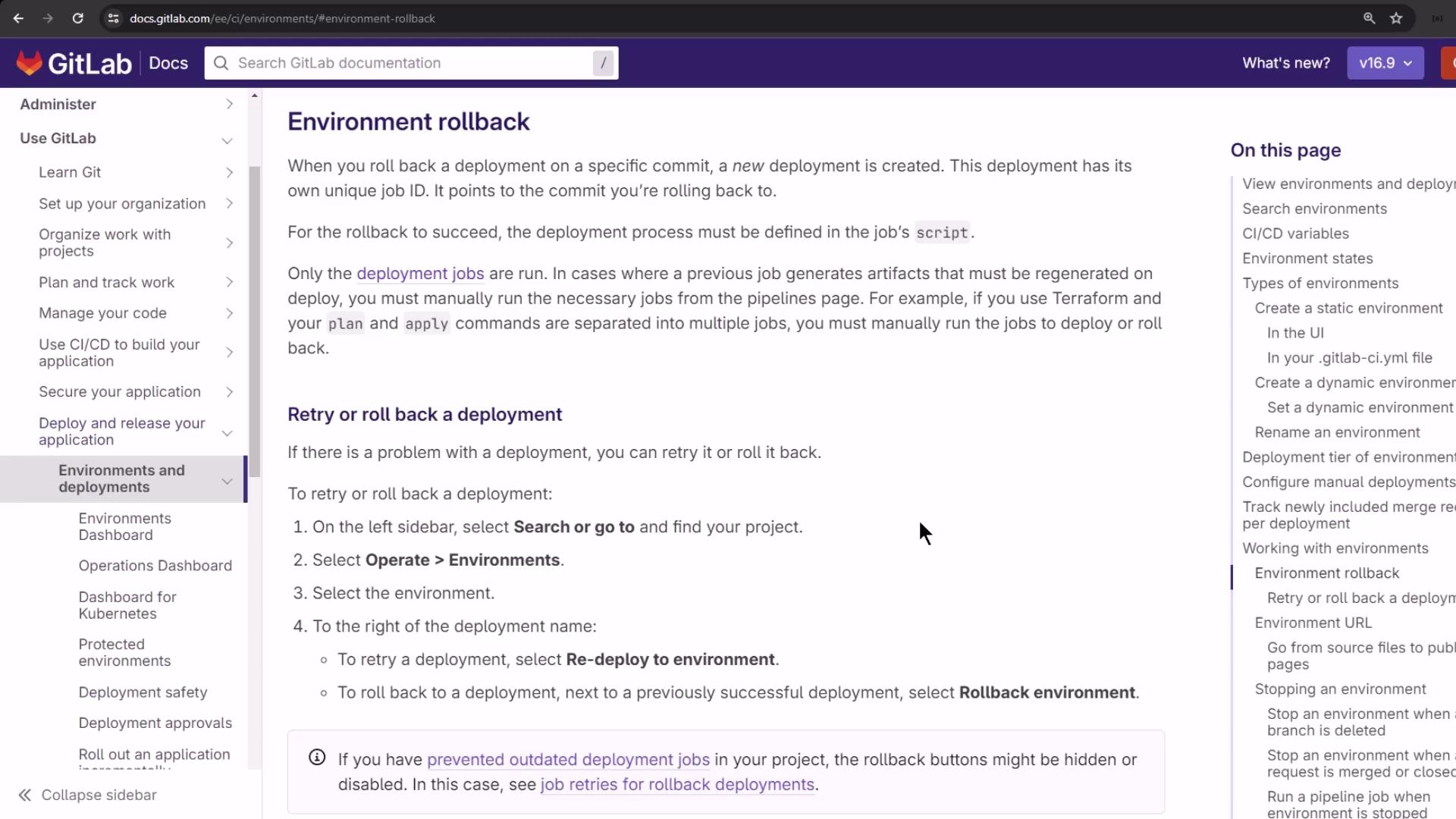
## Step 1: Select the Deployment to Roll Back
1. In GitLab, go to **Operations → Environments**.
2. Click on your target environment (e.g., **production**).
3. Locate the list of past deployments and identify a **successful** one. Only these can be rolled back.
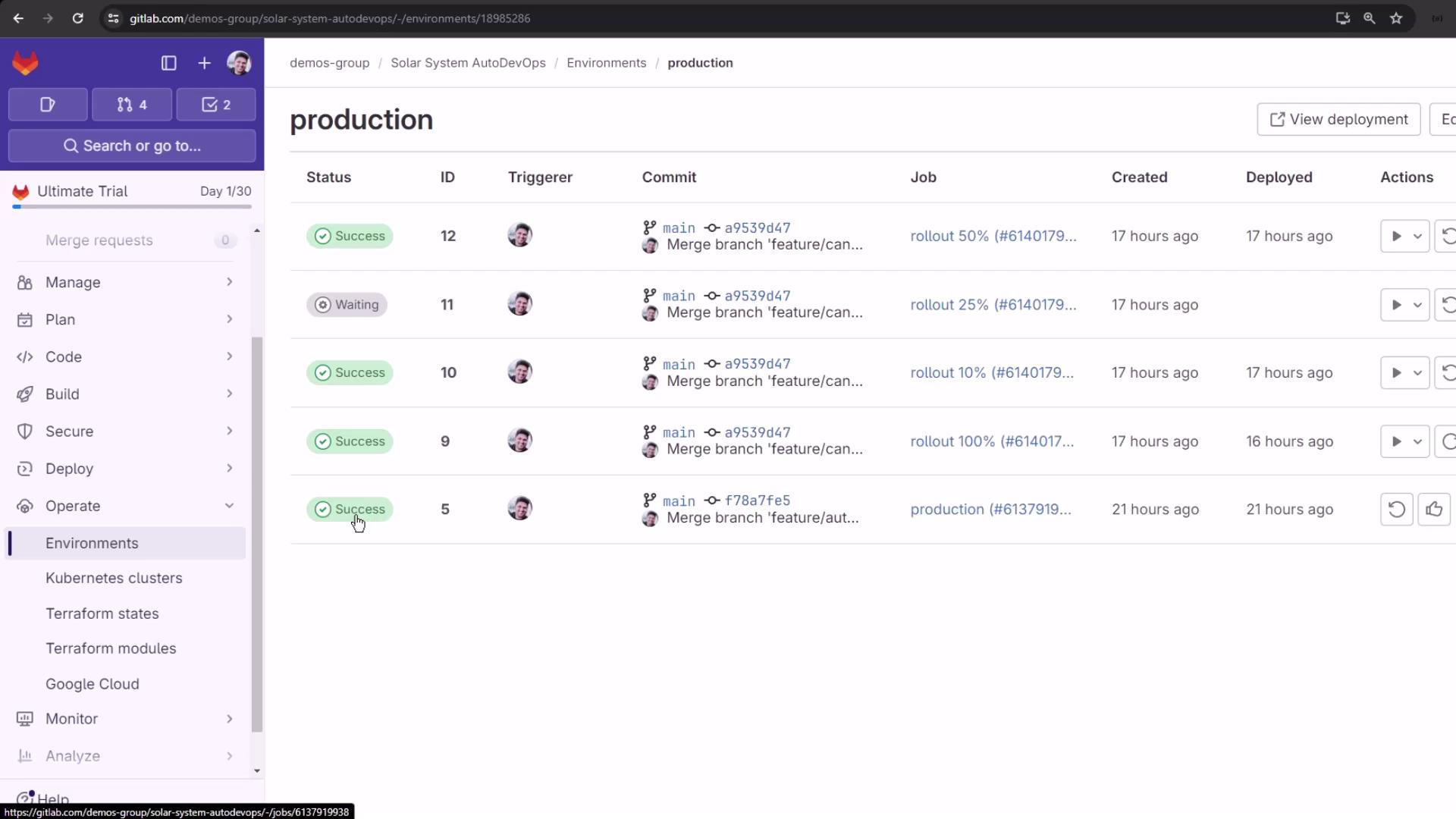
4. Click **Rollback** next to the chosen deployment. You can also click **Redeploy** to reapply the same commit without changes.
## Step 2: Confirm the Rollback
When you select **Rollback**, GitLab displays a confirmation dialog indicating the commit to revert to. Verify the commit details before proceeding.
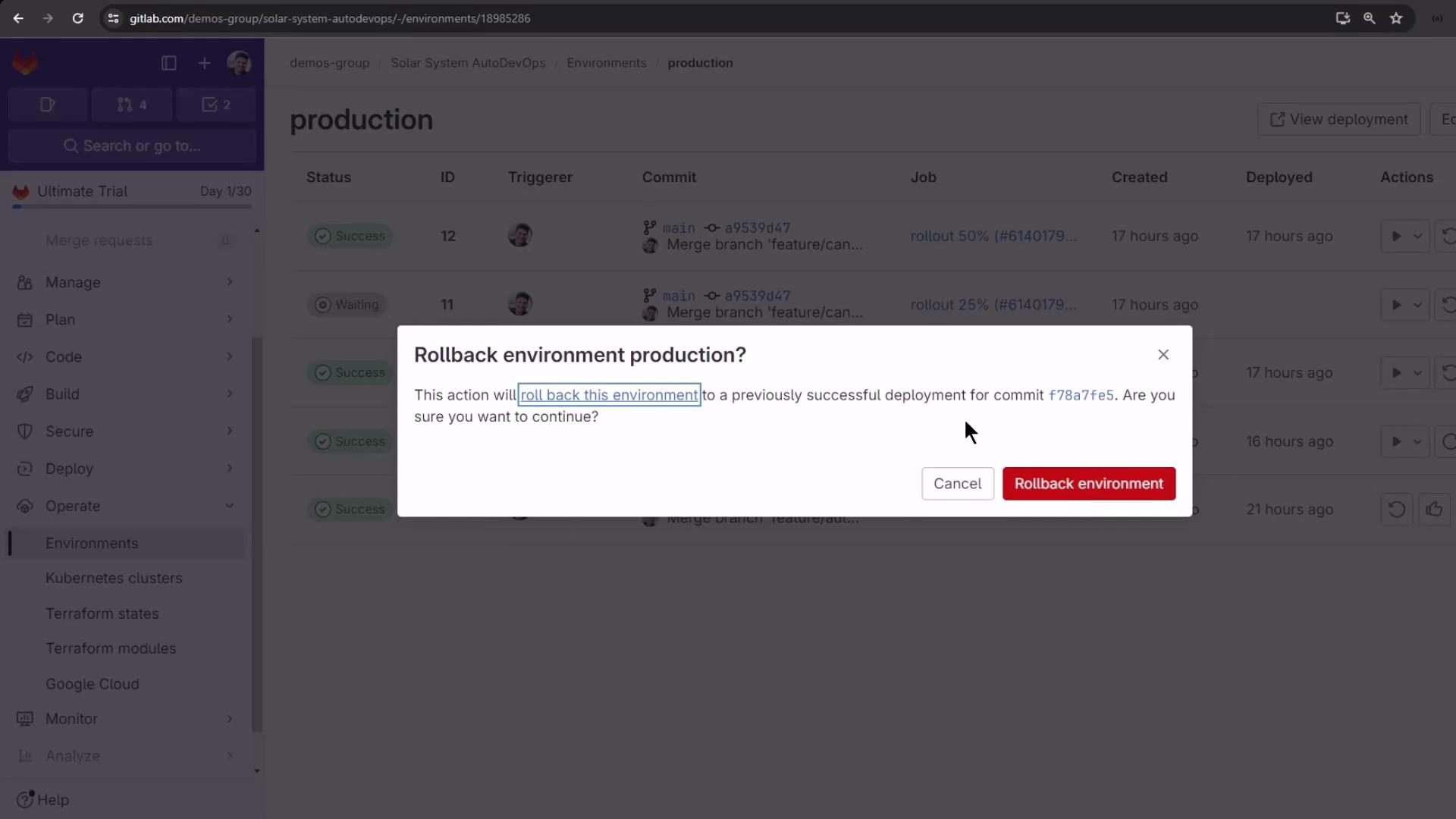
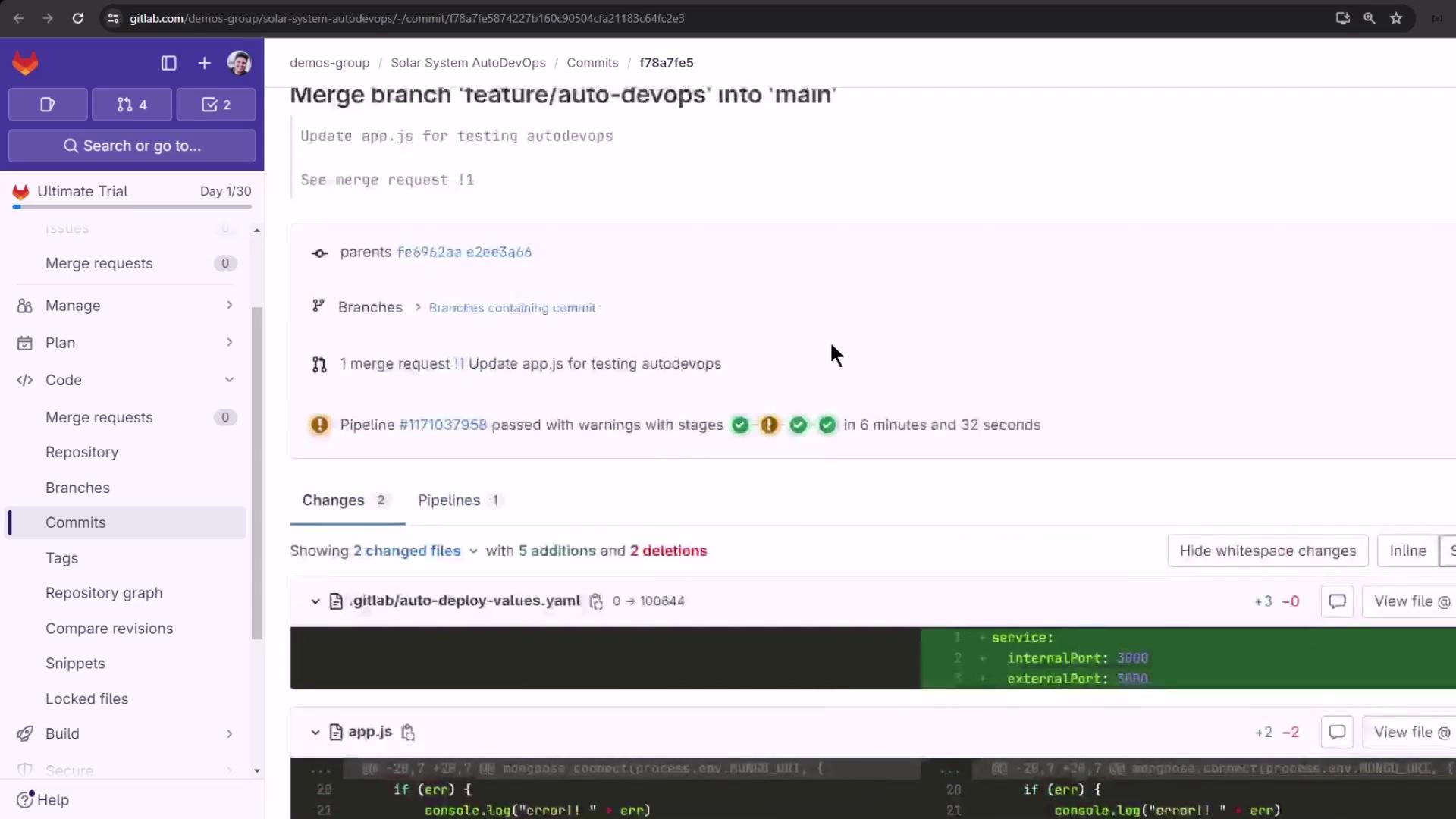
Click the commit hash in the confirmation dialog to review code changes and pipeline status before rolling back.
## Step 3: Approve Deployment & Restore Artifacts
Once confirmed, GitLab launches a new pipeline containing only the deploy job. Other stages (build, test) are skipped, so regenerate any required artifacts first.
Rollback pipelines do **not** rebuild artifacts. If your deployment depends on generated files, re-run those pipeline stages or upload artifacts manually before approving the rollback job.
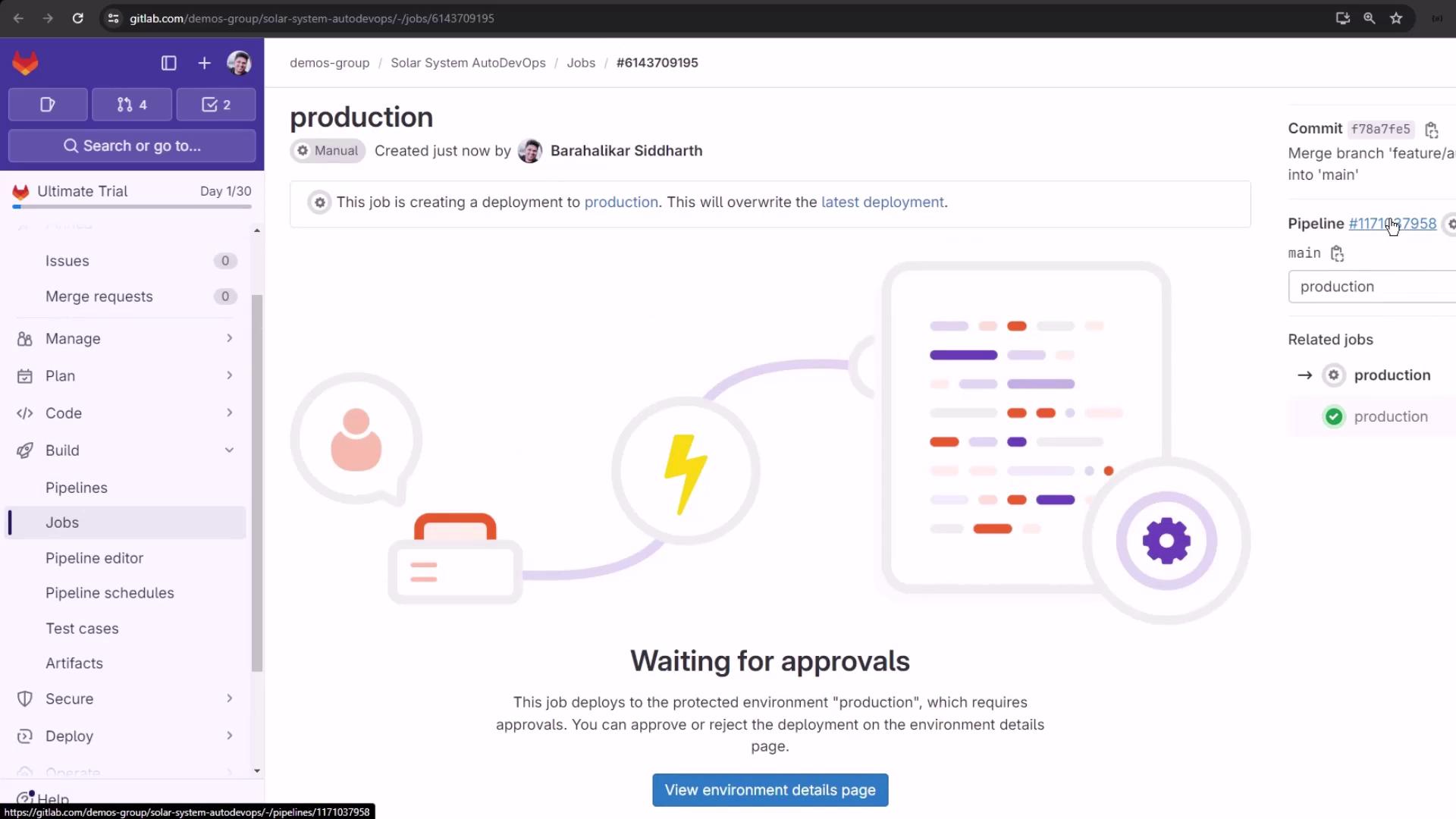
Approve and run the deploy job in the GitLab UI:
```bash theme={null}
# Approval is manual; no further jobs (build/test) will run.
```
### Common CLI Commands
| Action | Command | Description |
| ----------------------------- | -------------------------------- | --------------------------------------------------- |
| List current pods | `kubectl -n production get pods` | View pods in the production namespace |
| Regenerate or fetch artifacts | *(project-specific)* | Rebuild or download artifacts needed for deployment |
| Trigger the rollback deploy | Approve in GitLab UI | Only the deploy stage will execute |
## Step 4: Verify the Rollback in Kubernetes
Before initiating the rollback, inspect existing pods:
```bash theme={null}
kubectl -n production get pods
# Example output:
# production-84c4bd9684-2q8pt 1/1 Running 0 17h
# production-84c4bd9684-6pklc 1/1 Running 0 17h
# ... (additional pods)
```
GitLab’s Auto Deploy logs will confirm chart validation, secret replacement, and deployment steps:
```bash theme={null}
$ auto-deploy create_secret
$ auto-deploy deploy
WARNING: Kubernetes configuration file is group-readable. This is insecure.
Validating chart version...
Fetching previously deployed chart version... v2.80.1
Fetching deploying chart version... v2.80.1
The current chart is compatible with the previously deployed chart
secret "production-secret" deleted
secret/production-secret replaced
Deploying new stable release...
WARNING: Kubernetes configuration file is world-readable. This is insecure.
```
During the rollback, you’ll see old pods terminate and new ones start:
```bash theme={null}
kubectl -n production get pods
# Terminating old release:
# production-84c4bd9684-2q8pt 1/1 Terminating 0 17h
# ...
# Running new release:
# production-df6d64c-4gql7 1/1 Running 0 25s
# production-df6d64c-5xmtj 1/1 Running 0 15s
# ...
```
When all old pods are gone and new pods are **Running**, the rollback is complete.
## Step 5: Test the Restored Application
Visit your application’s URL to verify the previous UI is back online—confirm dynamic content and animations (e.g., the solar system demo) have returned.
***
## Links and References
* [GitLab Environment Rollback Documentation](https://docs.gitlab.com/ee/ci/environments/rollback_deployment.html)
* [Kubernetes Pods](https://kubernetes.io/docs/concepts/workloads/pods/)
* [GitLab CI/CD Pipelines](https://docs.gitlab.com/ee/ci/pipelines/)