> ## Documentation Index
> Fetch the complete documentation index at: https://notes.kodekloud.com/llms.txt
> Use this file to discover all available pages before exploring further.

# Switch to ULTIMATE Tier

> This guide explains how to activate a 30-day GitLab Ultimate trial and explore its exclusive features.

Unlock the full power of GitLab with the Ultimate subscription. In this guide, we’ll walk through activating a 30-day Ultimate trial and exploring key Ultimate-only features:

* Environment Dashboard
* Operations Dashboard
* Security Dashboard
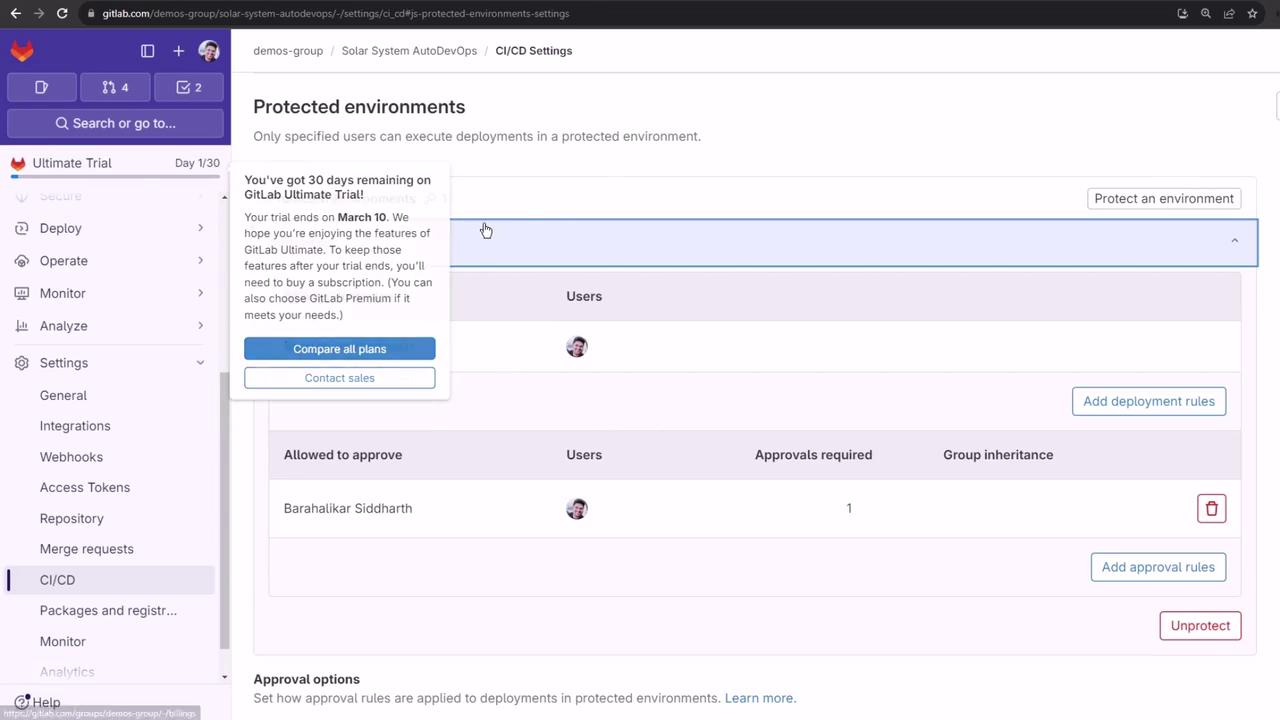
* Protected Environments

Each section includes step-by-step instructions, screenshots, and best practices.

## Activate Your 30-Day Ultimate Trial

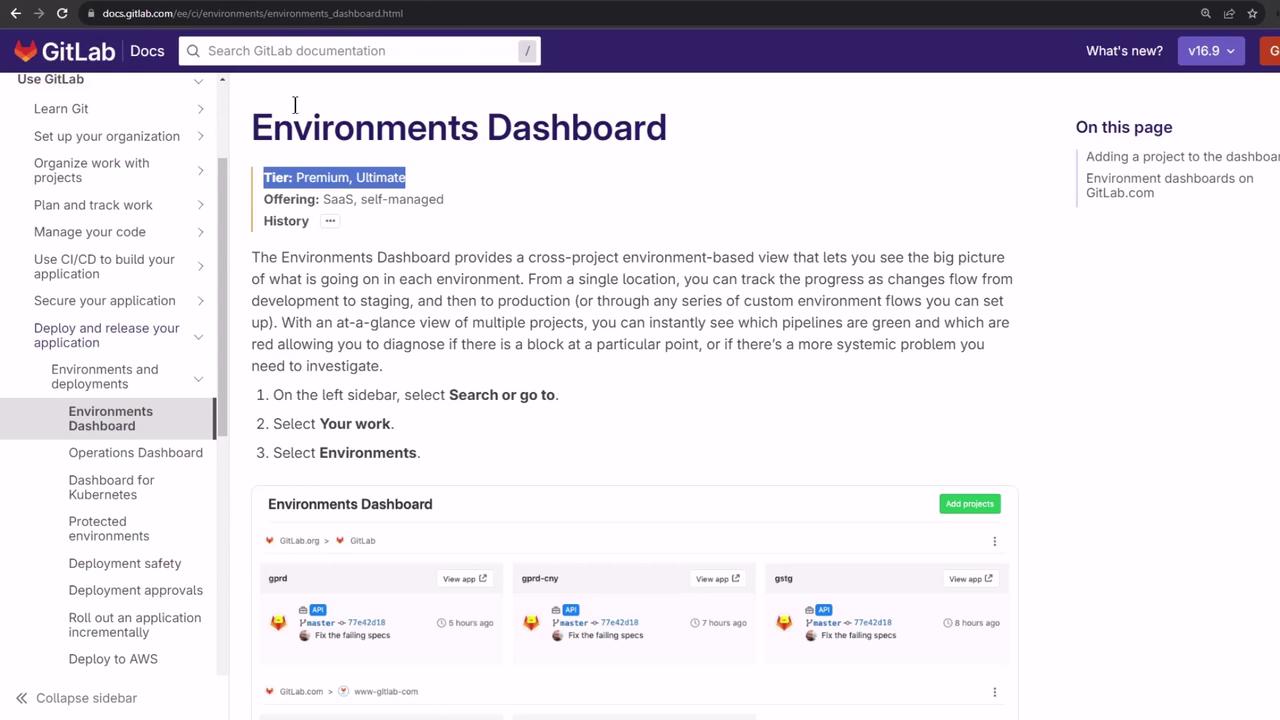
By default, the Environment, Operations, and Security dashboards are exclusive to Premium and Ultimate tiers. To test them on a Free account, start a 30-day Ultimate trial:

<Callout icon="lightbulb" color="#1CB2FE">
  Starting a trial does **not** commit you to a paid plan—your account reverts to Free when the trial ends.
</Callout>

1. Go to **Help → Documentation** in the top menu.
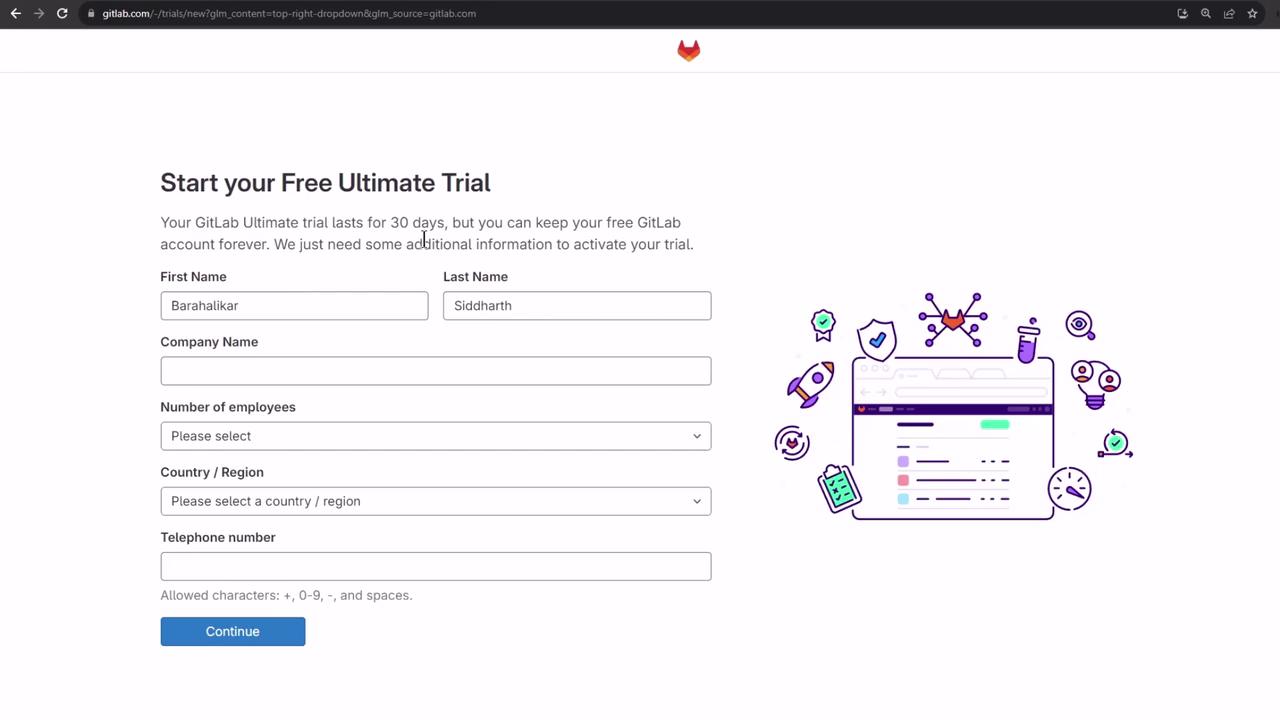
2. Click **Start an Ultimate trial** and fill in your details: name, company, employee count, country, and phone.
<Frame>
  ![The image shows a GitLab documentation page for the "Environments Dashboard," detailing its features and providing instructions on how to access it. The page includes a sidebar menu and a section displaying environment details.](https://kodekloud.com/kk-media/image/upload/v1752877161/notes-assets/images/GitLab-CICD-Architecting-Deploying-and-Optimizing-Pipelines-Switch-to-ULTIMATE-Tier/gitlab-environments-dashboard-docs.jpg)
</Frame>

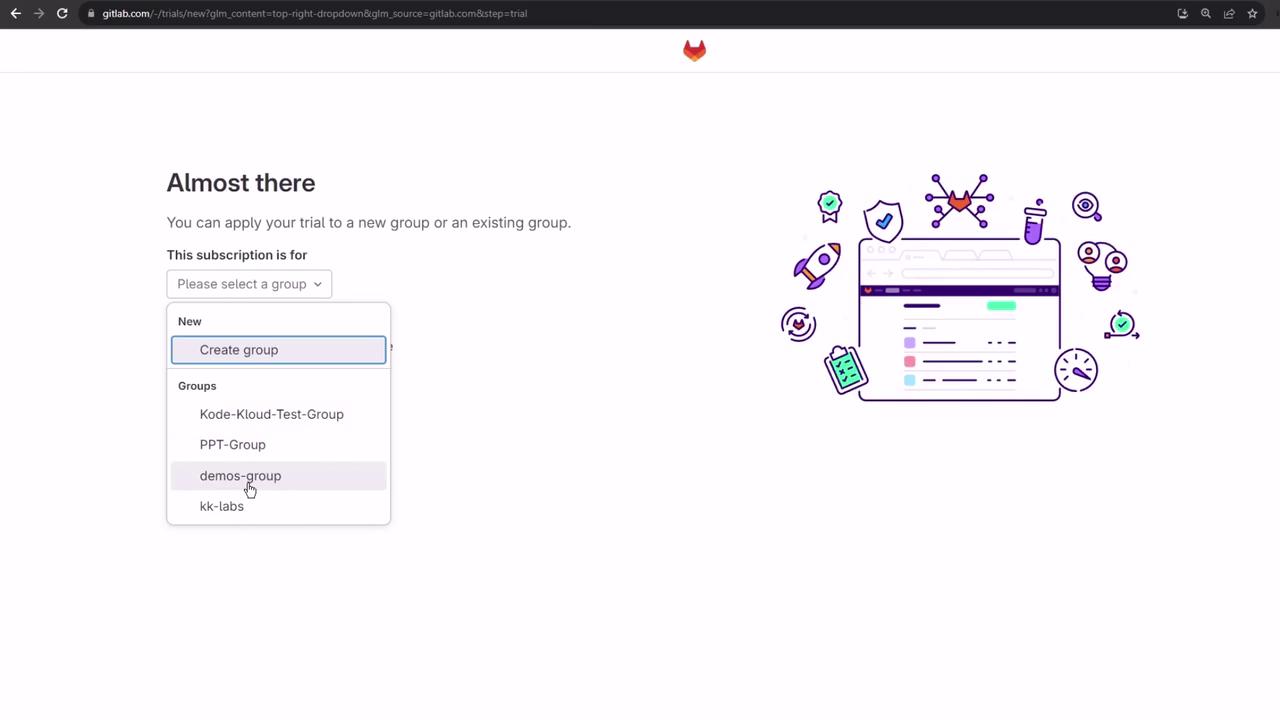
3. Choose the group for the trial, for example, `demos-group`.
4. Submit the form.
<Frame>
  ![The image shows a GitLab sign-up page for a free 30-day trial, with fields for personal and company information. There is also an illustration of a web interface surrounded by various icons.](https://kodekloud.com/kk-media/image/upload/v1752877162/notes-assets/images/GitLab-CICD-Architecting-Deploying-and-Optimizing-Pipelines-Switch-to-ULTIMATE-Tier/gitlab-signup-free-trial-page.jpg)
</Frame>

<Frame>
  ![The image shows a GitLab webpage where a user can apply a trial to a new or existing group, with a dropdown menu listing group options. On the right, there's an illustration of a web interface surrounded by icons like a rocket, lightbulbs, and a clock.](https://kodekloud.com/kk-media/image/upload/v1752877163/notes-assets/images/GitLab-CICD-Architecting-Deploying-and-Optimizing-Pipelines-Switch-to-ULTIMATE-Tier/gitlab-trial-application-interface.jpg)
</Frame>

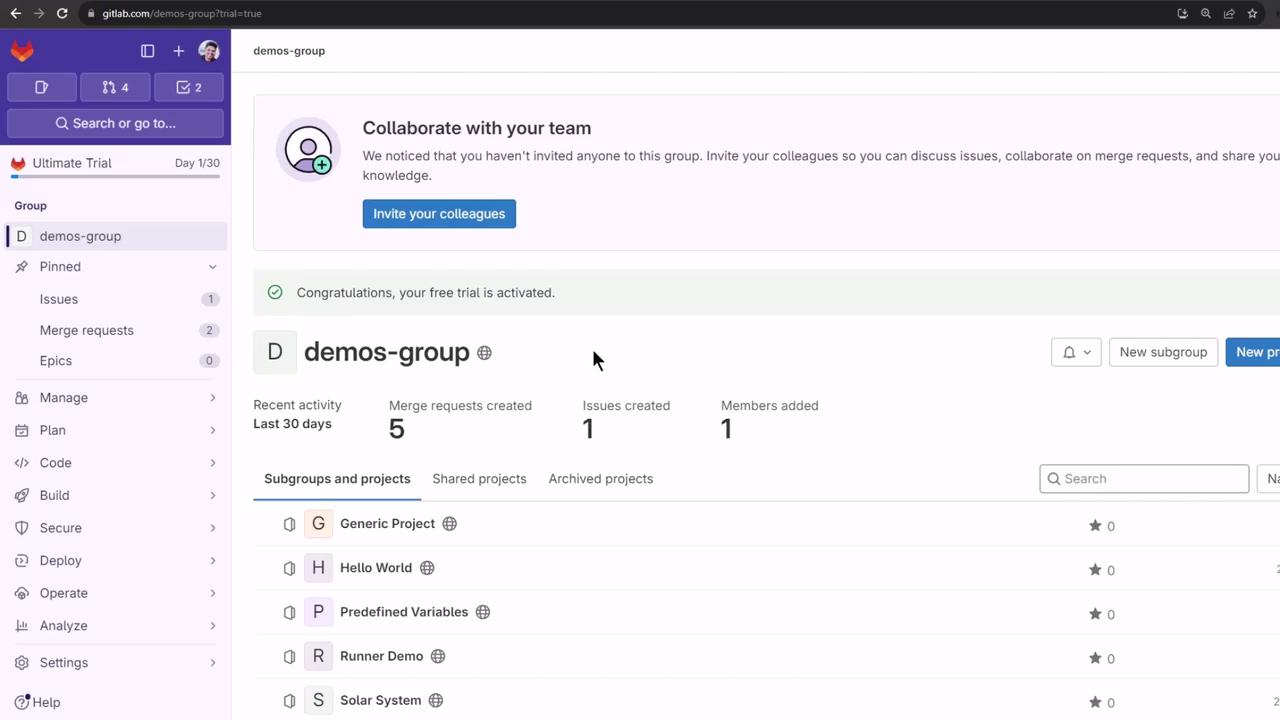
Once the trial is active, a confirmation dialog displays your start and end dates.

## Navigate the Demos Group Dashboard

After activation, head back to **Groups → demos-group** to see the new dashboards and features.
<Frame>
  ![The image shows a GitLab interface for a group named "demos-group," displaying recent activity, merge requests, and a list of projects. It also includes a notification about inviting colleagues to collaborate.](https://kodekloud.com/kk-media/image/upload/v1752877164/notes-assets/images/GitLab-CICD-Architecting-Deploying-and-Optimizing-Pipelines-Switch-to-ULTIMATE-Tier/gitlab-demos-group-activity-dashboard.jpg)
</Frame>

## Ultimate-Tier Dashboards at a Glance

| Dashboard              | Purpose                                      | Location                                            |
| ---------------------- | -------------------------------------------- | --------------------------------------------------- |
| Environment Dashboard  | Cross-project deployment status overview     | Group → Environments                                |
| Operations Dashboard   | Pipeline health, alerts, and metrics         | Group → Operations → Dashboard                      |
| Security Dashboard     | Vulnerability tracking and compliance status | Security & Compliance → Dashboard                   |
| Protected Environments | Deployment approval and access control       | Project → Settings → CI/CD → Protected Environments |

***

## Environment Dashboard

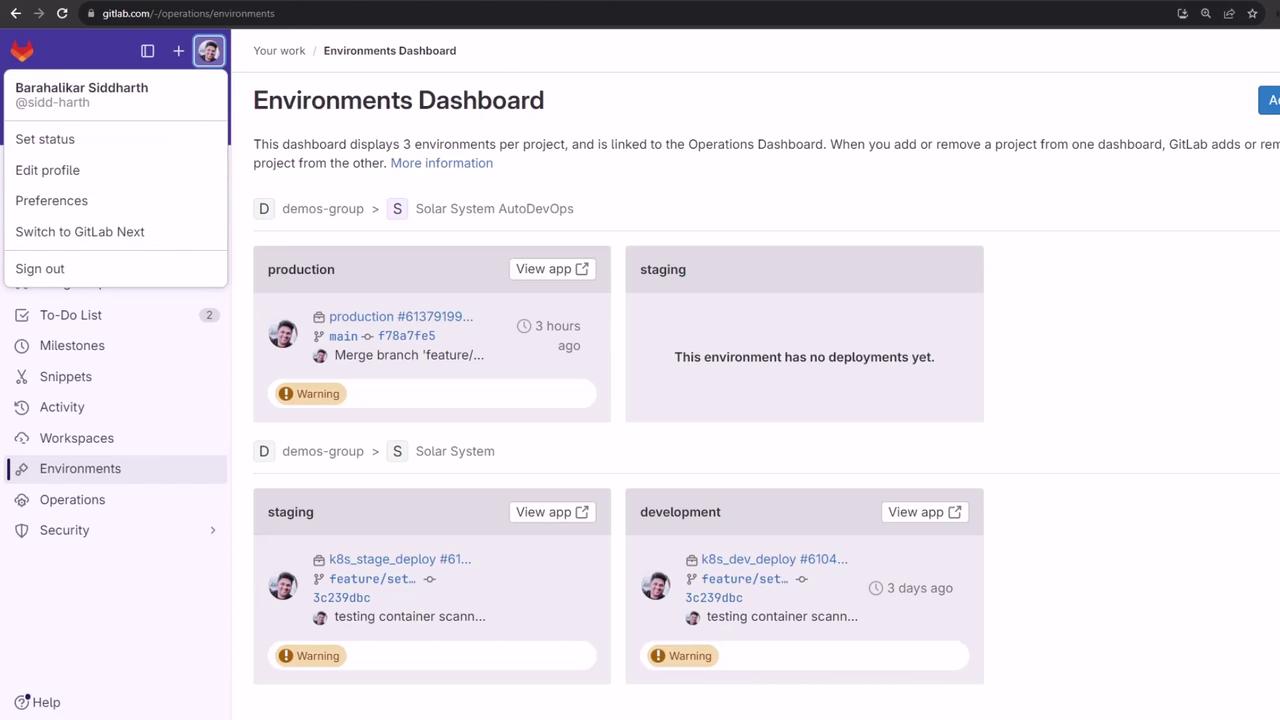
The Environment Dashboard aggregates deployments across all your projects:

1. In the group view, click **Manage Environments**.
2. Select projects (e.g., `solar-system`, `solar-system-auto-devops`).
3. Click **Add**.
<Frame>
  ![The image shows a GitLab Environments Dashboard with sections for production, staging, and development environments. It includes deployment details and warnings for each environment.](https://kodekloud.com/kk-media/image/upload/v1752877165/notes-assets/images/GitLab-CICD-Architecting-Deploying-and-Optimizing-Pipelines-Switch-to-ULTIMATE-Tier/gitlab-environments-dashboard-deployment.jpg)
</Frame>

You’ll see the latest production, staging, and development deployments in one place.

## Operations Dashboard

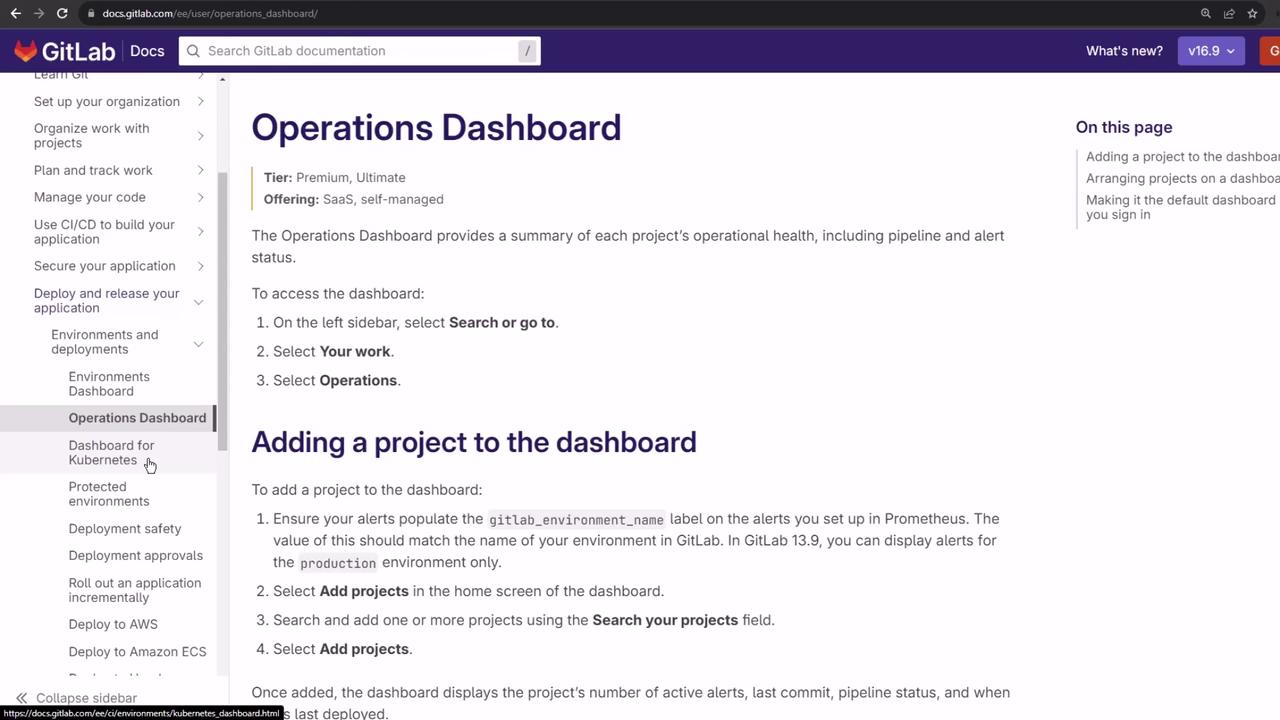
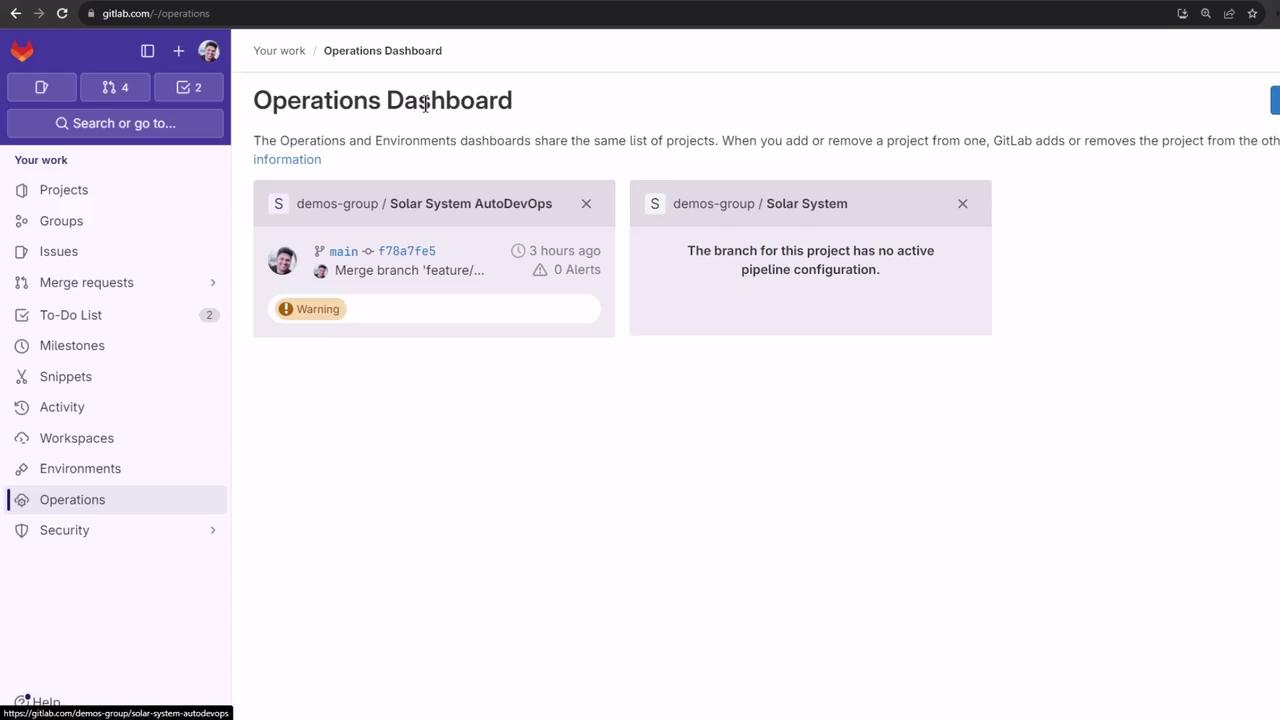
Monitor operational health, pipeline status, and incident alerts for each project:

1. Navigate to **Operations → Dashboard** in your group.
2. Click **Add projects** and choose the ones you want to track.
<Frame>
  ![The image shows a GitLab documentation page about the Operations Dashboard, detailing how to access and add projects to it. The sidebar includes navigation links for various GitLab features.](https://kodekloud.com/kk-media/image/upload/v1752877166/notes-assets/images/GitLab-CICD-Architecting-Deploying-and-Optimizing-Pipelines-Switch-to-ULTIMATE-Tier/gitlab-operations-dashboard-documentation.jpg)
</Frame>

<Frame>
  ![The image shows a GitLab Operations Dashboard with two projects listed, one with a warning and another without an active pipeline configuration. The sidebar includes options like Projects, Groups, and Issues.](https://kodekloud.com/kk-media/image/upload/v1752877167/notes-assets/images/GitLab-CICD-Architecting-Deploying-and-Optimizing-Pipelines-Switch-to-ULTIMATE-Tier/gitlab-operations-dashboard-projects.jpg)
</Frame>

## Security Dashboard

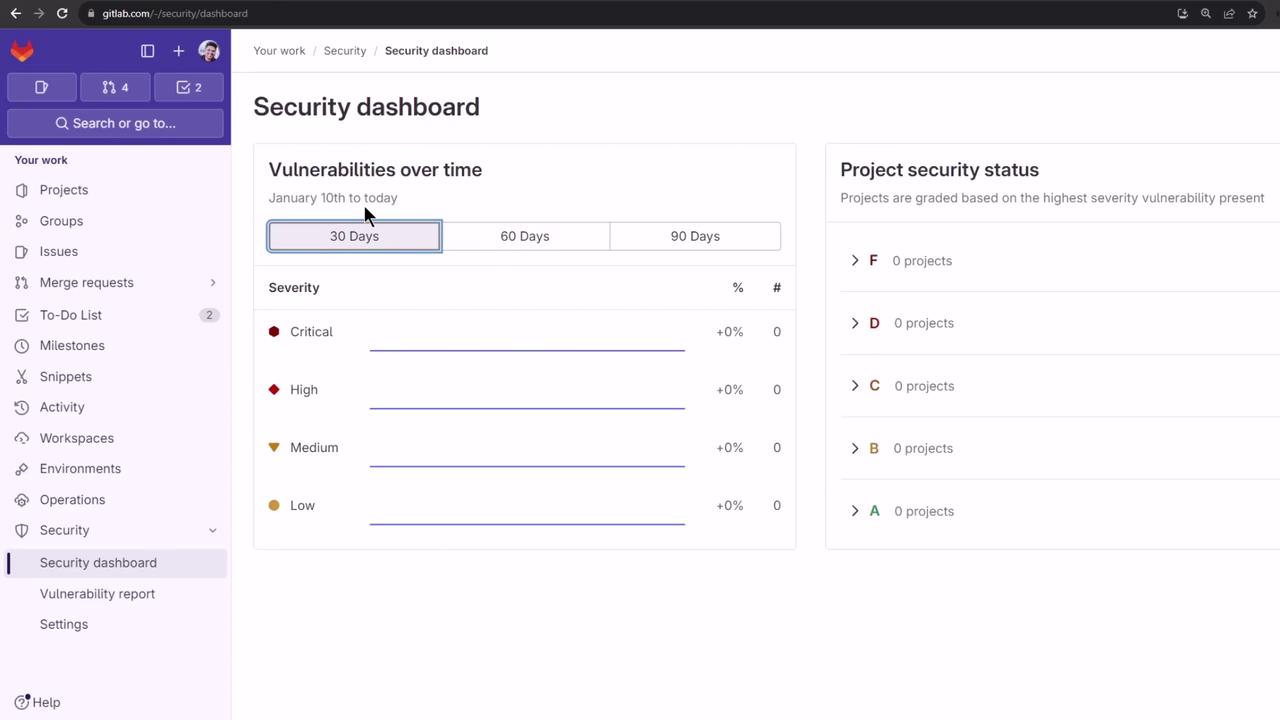
Track vulnerabilities and compliance status across projects:

1. Go to **Security & Compliance → Dashboard**.
2. Add your projects (e.g., `solar-system`, `solar-system-auto-devops`).
3. Run a pipeline with security scanning enabled.
<Frame>
  ![The image shows a security dashboard from GitLab, displaying vulnerabilities over time and project security status, with no vulnerabilities or projects listed.](https://kodekloud.com/kk-media/image/upload/v1752877168/notes-assets/images/GitLab-CICD-Architecting-Deploying-and-Optimizing-Pipelines-Switch-to-ULTIMATE-Tier/gitlab-security-dashboard-vulnerabilities.jpg)
</Frame>

After the pipeline completes, this view updates with any findings from the last 30 days.

## Protected Environments in CI/CD

Give only specific users or approvers the right to deploy to sensitive environments:

1. Open your project (e.g., **solar-system-auto-devops**).
2. Go to **Settings → CI/CD** and expand **Protected Environments**.
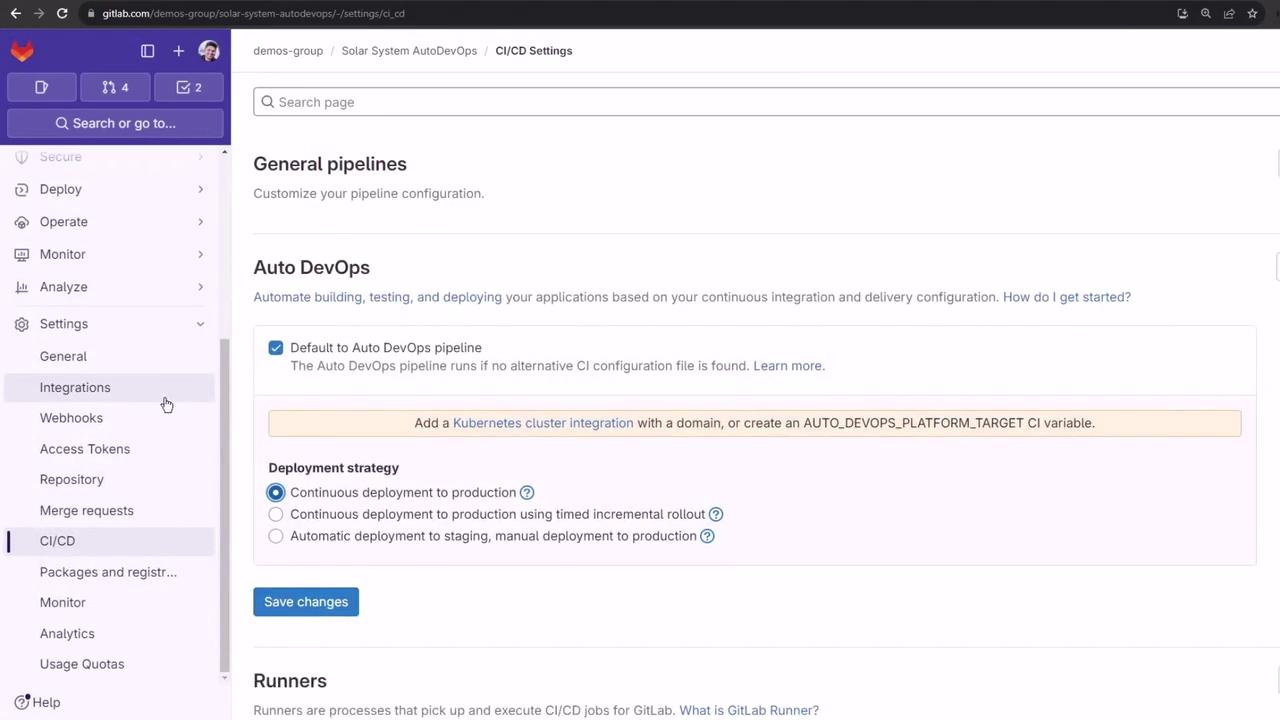
<Frame>
  ![The image shows a GitLab CI/CD settings page with options for configuring Auto DevOps and deployment strategies. The sidebar includes navigation options like Secure, Deploy, and Monitor.](https://kodekloud.com/kk-media/image/upload/v1752877170/notes-assets/images/GitLab-CICD-Architecting-Deploying-and-Optimizing-Pipelines-Switch-to-ULTIMATE-Tier/gitlab-ci-cd-settings-autodevops.jpg)
</Frame>

<Callout icon="triangle-alert" color="#FF6B6B">
  Protecting an environment is irreversible without removing rules—be cautious when specifying approvers.
</Callout>

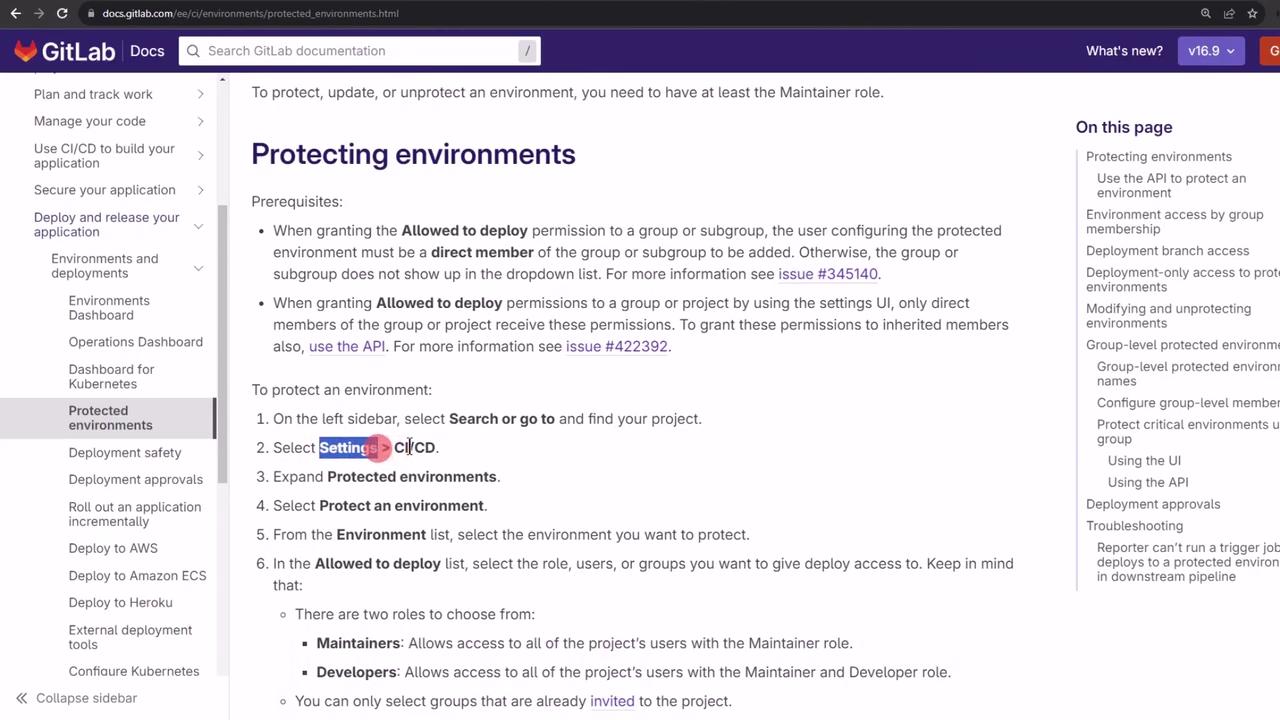
Refer to the official documentation for full details:

[Protected Environments Documentation](https://docs.gitlab.com/ee/ci/protected_environments/)
<Frame>
  ![The image shows a GitLab documentation page about protecting environments, with instructions and a sidebar menu for navigation.](https://kodekloud.com/kk-media/image/upload/v1752877171/notes-assets/images/GitLab-CICD-Architecting-Deploying-and-Optimizing-Pipelines-Switch-to-ULTIMATE-Tier/gitlab-protecting-environments-docs.jpg)
</Frame>

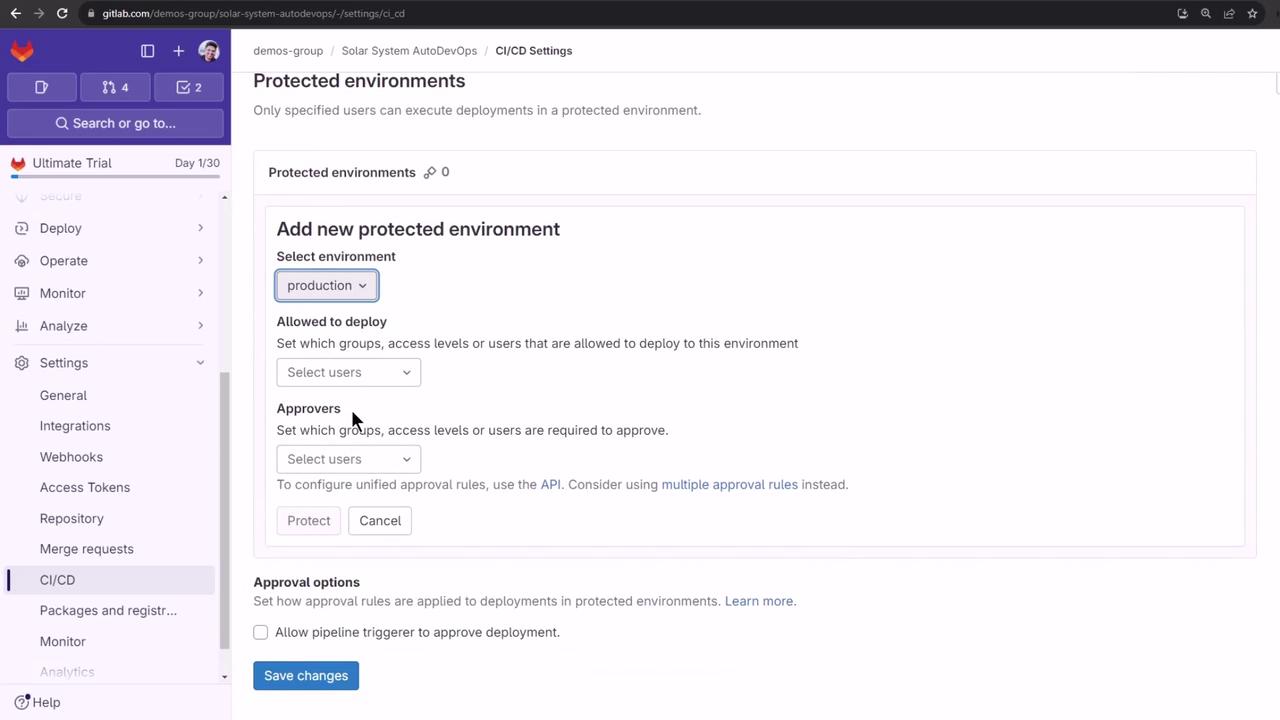
If **Protected Environments** doesn’t appear, refresh the page. Then click **Protect** to set a rule:
<Frame>
  ![The image shows a GitLab interface for setting up protected environments in CI/CD settings, where users can select environments, specify deployment permissions, and set approvers.](https://kodekloud.com/kk-media/image/upload/v1752877172/notes-assets/images/GitLab-CICD-Architecting-Deploying-and-Optimizing-Pipelines-Switch-to-ULTIMATE-Tier/gitlab-protected-environments-cicd.jpg)
</Frame>

* Select environment (e.g., `production`).
* Define who can deploy.
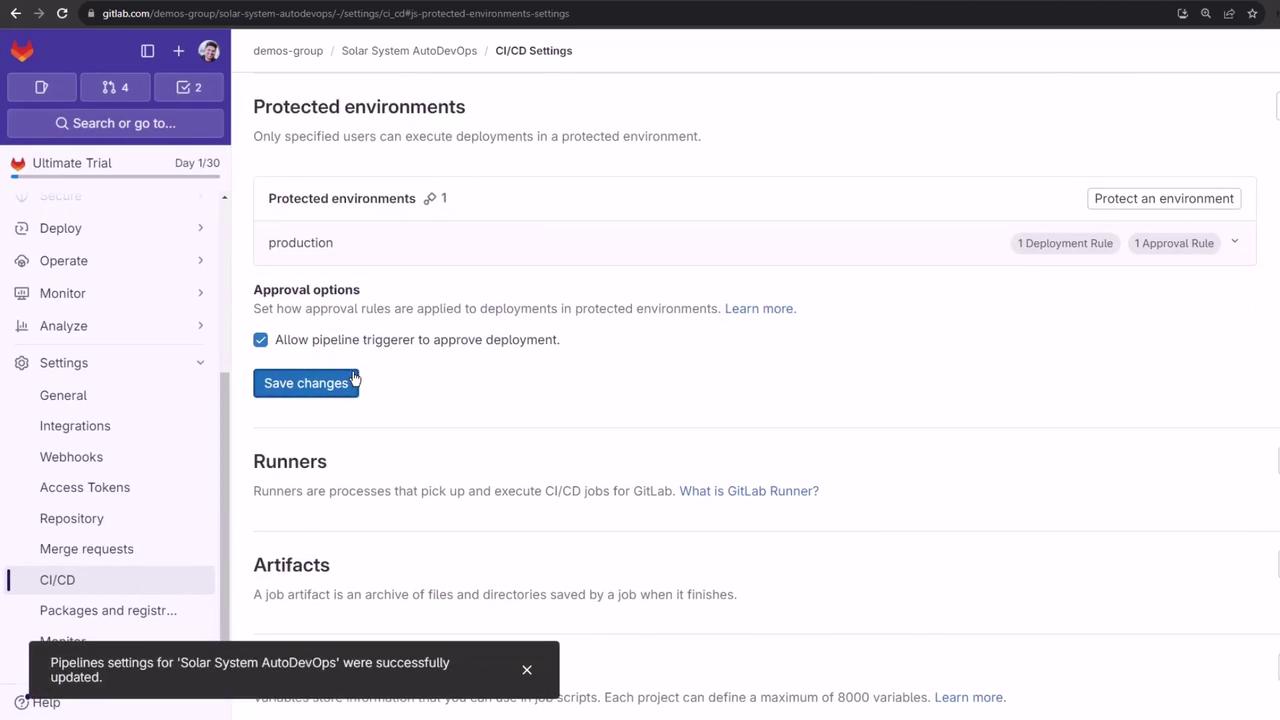
* Assign approvers and disable “Allow the person who triggered the pipeline to approve the deployment” for stricter controls.

After saving, you’ll see your deployment and approval rules listed:
<Frame>
  ![The image shows a GitLab CI/CD settings page for managing protected environments, with options for approval and deployment rules. A notification at the bottom indicates successful updates to the pipeline settings.](https://kodekloud.com/kk-media/image/upload/v1752877173/notes-assets/images/GitLab-CICD-Architecting-Deploying-and-Optimizing-Pipelines-Switch-to-ULTIMATE-Tier/gitlab-cicd-protected-environments-settings.jpg)
</Frame>

## Next Steps

Trigger another Auto DevOps pipeline to explore additional Ultimate-tier features and integrations. Stay tuned for guides on advanced security scanning, compliance reports, and performance insights.
<Frame>
  ![The image shows a GitLab CI/CD settings page for protected environments, with a pop-up message about a GitLab Ultimate Trial. It includes user permissions and approval settings.](https://kodekloud.com/kk-media/image/upload/v1752877174/notes-assets/images/GitLab-CICD-Architecting-Deploying-and-Optimizing-Pipelines-Switch-to-ULTIMATE-Tier/gitlab-ci-cd-protected-environments.jpg)
</Frame>

***

## Links and References

* [GitLab Documentation](https://docs.gitlab.com/)
* [Protected Environments Docs](https://docs.gitlab.com/ee/ci/protected_environments/)
* [Security & Compliance Docs](https://docs.gitlab.com/ee/user/application_security/)
* [Operations Dashboard Docs](https://docs.gitlab.com/ee/operations/dashboard/)

<CardGroup>
  <Card title="Watch Video" icon="video" cta="Learn more" href="https://learn.kodekloud.com/user/courses/gitlab-ci-cd-architecting-deploying-and-optimizing-pipelines/module/a6a5540f-e7d1-4820-afc8-2be1d6e3061a/lesson/9de6de9f-aef8-44c3-ab55-3224072fbc96" />
</CardGroup>