> ## Documentation Index
> Fetch the complete documentation index at: https://notes.kodekloud.com/llms.txt
> Use this file to discover all available pages before exploring further.
# Environment and Deployments
> This guide explains how to configure and manage environments and deployments in GitLab CI/CD.
In this guide, you’ll learn how to configure and manage **environments** and **deployments** in GitLab CI/CD. Environments represent the target locations—such as development, staging, or production—where your code runs. Each pipeline deployment creates a record, providing a clear history of changes and showing what version is currently live.
For full details, see the [Environments and Deployments reference in GitLab docs](https://docs.gitlab.com/ee/ci/environments/).
We’ll cover:
* Defining environments in `.gitlab-ci.yml`
* A sample pipeline with containerization, testing, and deployment
* Static vs. dynamic environments
* Creating environments in the GitLab UI
* Viewing, rolling back, and redeploying applications
***
## 1. Defining an Environment in `.gitlab-ci.yml`
You can declare environments directly in job definitions to track deployments and enable quick-access links.
### Simple Environment Declaration
```yaml theme={null}
deploy to production:
stage: deploy
script:
- git push production HEAD:main
environment: production
```
This tracks deployments under the `production` environment name.
### Expanded Environment Configuration
```yaml theme={null}
deploy to production:
stage: deploy
script:
- git push production HEAD:main
environment:
name: production
url: https://prod.example.com
```
* **name**: The identifier displayed in the GitLab UI.
* **url**: External link to the live application for rapid access.
***
## 2. Example Pipeline Configuration
Here’s a streamlined pipeline showcasing containerization, tests, and deployment to a Kubernetes namespace:
```yaml theme={null}
stages:
- containerization
- test
- dev-deploy
# 1. Build and push to GitLab Container Registry
publish_gitlab_container_registry:
stage: containerization
needs:
- docker_build
- docker_test
image: docker:24.0.5
services:
- docker:24.0.5-dind
script:
- docker load -i image/solar-system-image-$CI_PIPELINE_ID.tar
- docker login -u "$CI_REGISTRY_USER" -p "$CI_REGISTRY_PASSWORD"
- docker tag $DOCKER_USERNAME/solar-system:$IMAGE_VERSION $CI_REGISTRY_IMAGE/ss-image:$IMAGE_VERSION
- docker push $CI_REGISTRY_IMAGE/ss-image:$IMAGE_VERSION
# 2. Deploy to development on Kubernetes
k8s_dev_deploy:
stage: dev-deploy
image: alpine:3.7
before_script:
- wget -qO kubectl "https://storage.googleapis.com/kubernetes-release/release/$(wget -qO - https://storage.googleapis.com/kubernetes-release/release/stable.txt)/bin/linux/amd64/kubectl"
- chmod +x kubectl && mv kubectl /usr/local/bin/
- apk add --no-cache gettext
script:
- export KUBECONFIG=$DEV_KUBE_CONFIG
- kubectl version --client -o yaml
- kubectl config get-contexts
- kubectl get nodes
- export INGRESS_URL=$(kubectl -n ingress-nginx get svc ingress-nginx-controller -o jsonpath='{.status.loadBalancer.ingress[0].ip}')
- kubectl -n $NAMESPACE create secret generic mongo-db-creds \
--from-literal=MONGO_URI=$MONGO_URI \
--from-literal=MONGO_USERNAME=$MONGO_USERNAME \
--from-literal=MONGO_PASSWORD=$MONGO_PASSWORD \
--save-config \
--dry-run=client -o yaml | kubectl apply -f -
- for file in kubernetes/manifest/*.yaml; do envsubst < $file | kubectl apply -f -; done
- kubectl -n $NAMESPACE get all,secret,ing
artifacts:
reports:
dotenv: app_ingress_url.env
environment:
name: development
url: https://$INGRESS_URL
# 3. Integration tests against development
k8s_dev_integration_testing:
stage: dev-deploy
image: alpine:3.7
needs:
- k8s_dev_deploy
before_script:
- apk add --no-cache curl jq
script:
- echo "Testing endpoint: https://$INGRESS_URL"
- curl -s -k https://$INGRESS_URL/Live | jq -r .status | grep -i live
- curl -s -k https://$INGRESS_URL/ready | jq -r .status | grep -i ready
```
***
## 3. Static vs. Dynamic Environments
GitLab supports two environment types:
| Environment Type | Description | Creation Method |
| ---------------- | -------------------------------------------- | ------------------------------------------------------------ |
| Static | Predefined before pipeline runs | Manual via **Operations > Environments** in the UI |
| Dynamic | Generated on the fly by pipeline definitions | Specified in job’s `environment` section in `.gitlab-ci.yml` |
***
## 4. Creating a Static Environment
1. In GitLab, navigate to **Operations** > **Environments** > **New environment**.
2. Enter the **Name** and optional **External URL**.
3. (Optional) Link a GitLab Agent for Kubernetes.
4. Click **Save**.
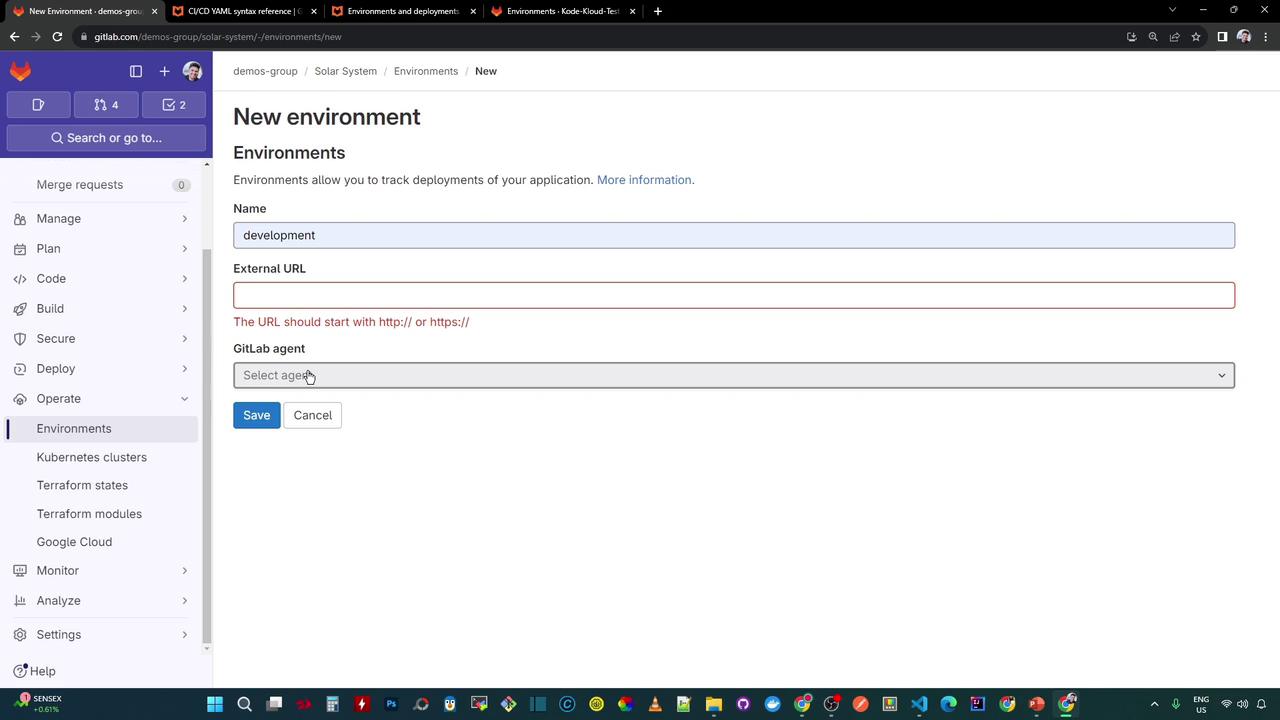
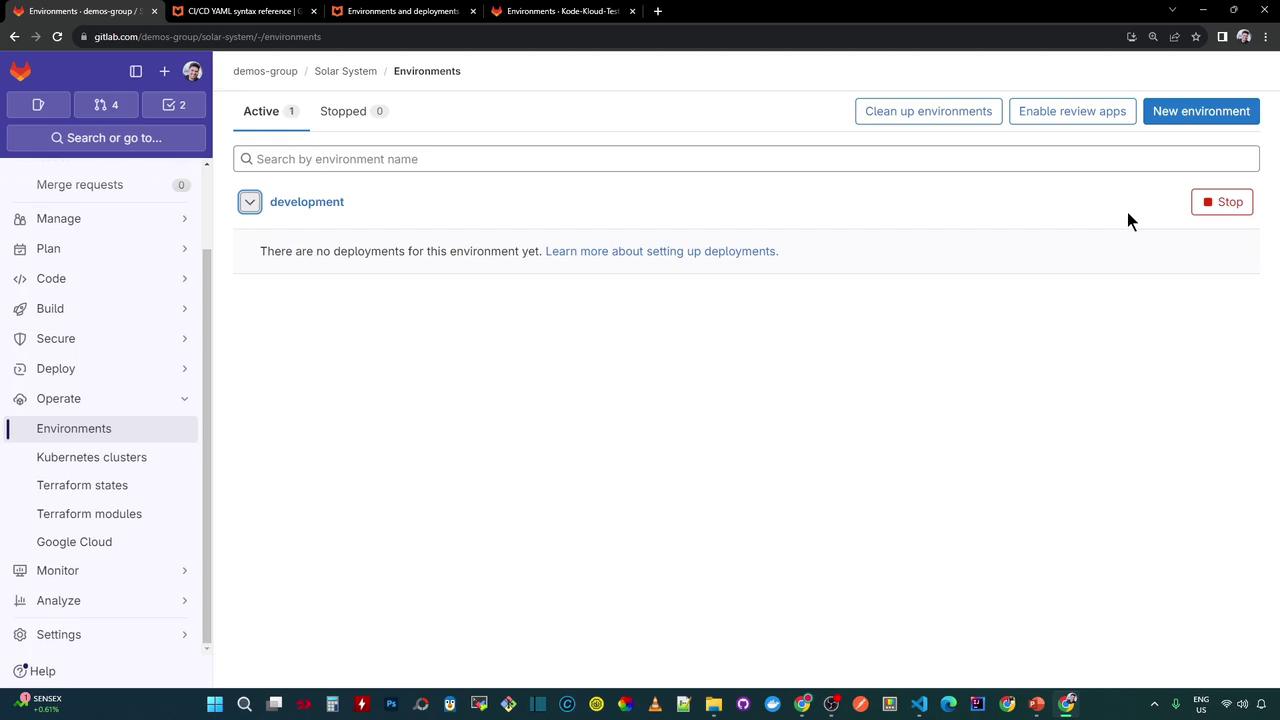
After saving, the new environment appears in the list (initially with no deployments):
***
## 5. Running the Pipeline & Viewing Deployments
Once you push changes or create a Merge Request, the pipeline executes:
* **Containerization**
* **Testing**
* **Deployment**
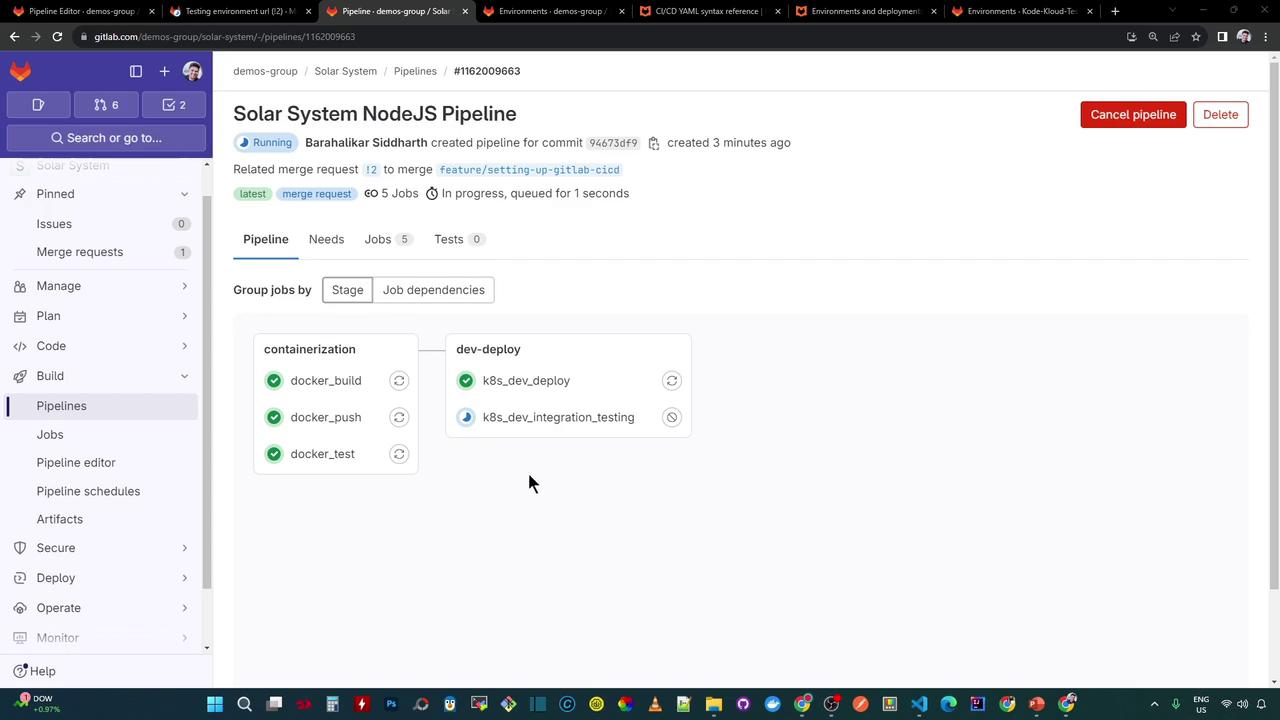
After a successful deployment, visit **Operations** > **Environments** to see deployment details: commit ID, job name, timestamp, and more.
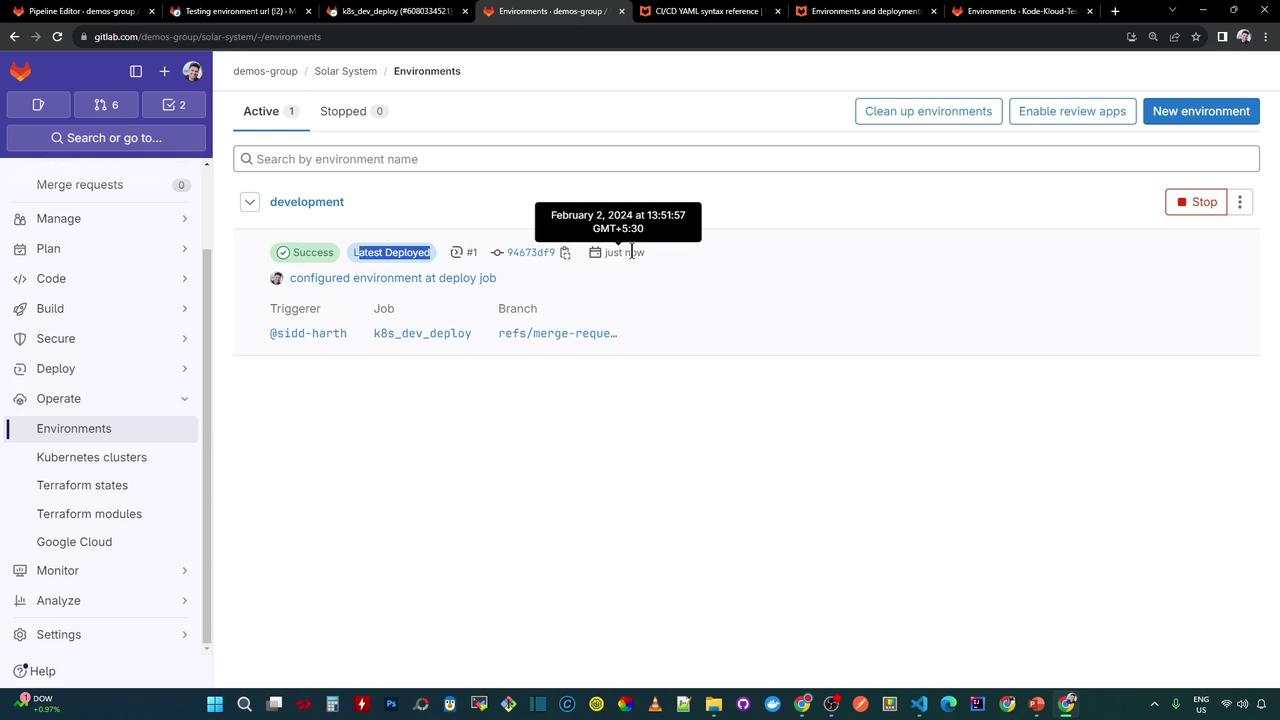
Click **Open live environment** to launch your application. This link uses the `url` specified in your job’s environment settings and is also visible in Merge Requests for quick previews.
***
## 6. Rollback and Redeploy
If a deployment fails or you need to revert changes, GitLab offers **Finish**, **Rollback**, and **Redeploy** actions:
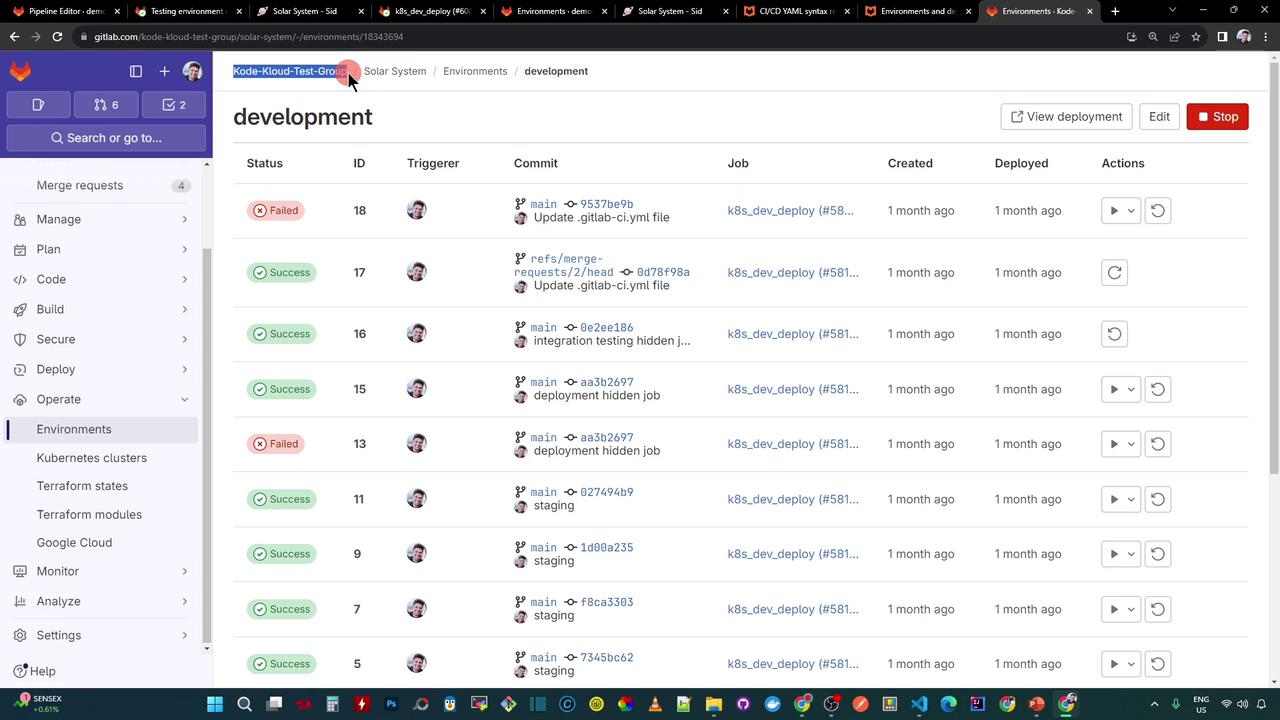
* **Rollback**: Reverts to the last successful deployment (using the recorded commit ID).
* **Redeploy**: Re-runs the deployment job for the same commit.
Use rollback carefully: any data migrations or schema changes may not be reversible.
***
## Links and References
* [GitLab CI/CD Environments Documentation](https://docs.gitlab.com/ee/ci/environments/)
* [Kubernetes Official Documentation](https://kubernetes.io/docs/)
* [Docker Hub](https://hub.docker.com/)
* [Terraform Registry](https://registry.terraform.io/)