> ## Documentation Index
> Fetch the complete documentation index at: https://notes.kodekloud.com/llms.txt
> Use this file to discover all available pages before exploring further.
# Exploring Kubernetes Cluster
> This guide covers inspecting a GKE cluster, listing nodes, viewing namespaces, deploying an NGINX app, and preparing namespaces for GitLab CI/CD.
This guide walks you through inspecting a Google Kubernetes Engine (GKE) cluster. You’ll learn how to list nodes, view namespaces, deploy a sample NGINX app with Ingress, verify your kubeconfig, and prepare namespaces for GitLab CI/CD.
## Inspecting Cluster Nodes on GKE
Make sure you’ve authenticated with GKE and set up `kubectl` (or aliased as `k`) using:
```bash theme={null}
gcloud container clusters get-credentials --zone --project
```
List your cluster’s worker nodes:
```bash theme={null}
k get nodes
```
Example output:
```bash theme={null}
NAME STATUS ROLES AGE VERSION
gke-cluster-1-default-pool-36b5f551-hzvn Ready 20m v1.29.0-gke.1381000
gke-cluster-1-default-pool-36b5f551-rsc0 Ready 20m v1.29.0-gke.1381000
```
These nodes are running Kubernetes v1.29.0.
## Viewing Namespaces and the NGINX Ingress Controller
Show all namespaces:
```bash theme={null}
k get namespaces
```
Locate the `ingress-nginx` namespace and inspect its resources:
```bash theme={null}
k -n ingress-nginx get all
```
You should see:
* A Deployment managing the Ingress Controller pod
* A `LoadBalancer` Service exposing a public IP
## Deploying a Sample NGINX Application
In the `default` namespace, the following resources route traffic through the Ingress Controller:
```bash theme={null}
k -n default get all
k -n default get ingress
```
Sample output:
```bash theme={null}
# Pods, Services, Deployments
pod/nginx-deploy-d845cc945-hnj2v 1/1 Running 0 8m
service/nginx-deploy ClusterIP 10.96.14.252 80/TCP 8m
deployment.apps/nginx-deploy 1/1 1 8m
# Ingress
nginx-demo nginx-default.34.82.207.123.nip.io 34.82.207.123 80,443 7m
```
Copy the Ingress host into your browser. You may encounter a security warning due to a self-signed certificate:
The default Ingress TLS certificate is self-signed. Browsers will warn before displaying the NGINX welcome page.
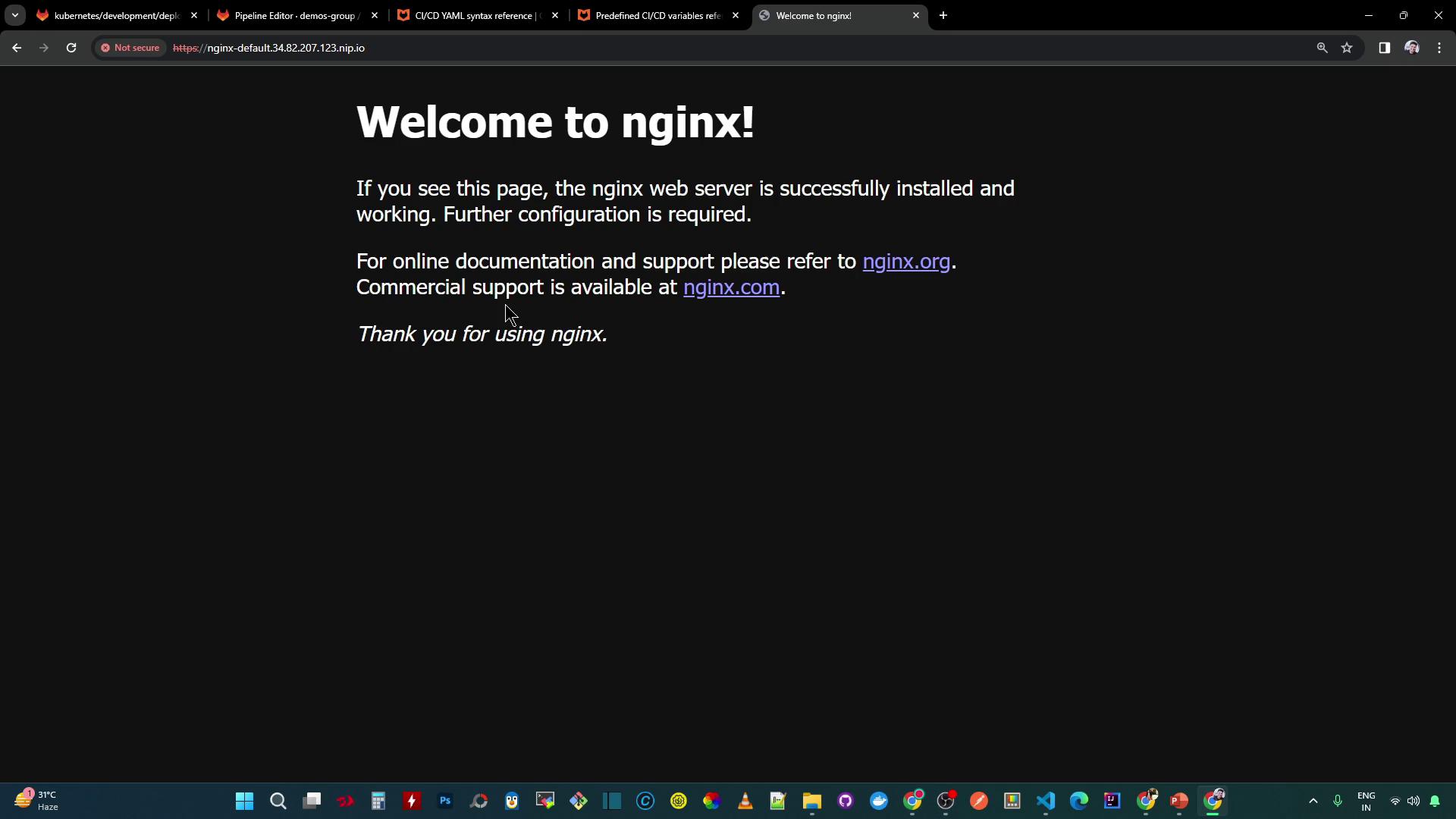
This confirms external traffic is routed correctly.
## Configuring kubectl and kubeconfig for CI/CD
To automate deployments in GitLab CI, ensure `kubectl` is installed and authenticated via kubeconfig.
Check client and server versions:
```bash theme={null}
kubectl version --short
```
```bash theme={null}
Client Version: v1.29.1
Server Version: v1.29.0-gke.1381000
```
View the active kubeconfig context:
```bash theme={null}
kubectl config view --minify
```
```yaml theme={null}
apiVersion: v1
clusters:
- cluster:
server: https://35.230.61.213
certificate-authority-data: DATA+OMITTED
name: gke_clgcporg8-090_us-west1-a_cluster-1
contexts:
- context:
cluster: gke_clgcporg8-090_us-west1-a_cluster-1
namespace: kube-system
user: gitlab-cluster-admin
name: gke_clgcporg8-090_us-west1-a_cluster-1
users:
- name: gitlab-cluster-admin
user:
token: REDACTED
```
A dedicated user or service account (e.g., `gitlab-cluster-admin`) should authenticate your GitLab CI jobs.
## Creating Namespaces for Environments
Instead of separate clusters, use dedicated namespaces to isolate **development** and **staging** workloads:
```bash theme={null}
k create namespace development
k create namespace staging
```
```bash theme={null}
namespace/development created
namespace/staging created
```
Verify all namespaces:
```bash theme={null}
k get namespaces
```
```bash theme={null}
NAME STATUS AGE
default Active 30m
development Active 1m
staging Active 1m
ingress-nginx Active 25m
kube-system Active 30m
```
Your cluster is now prepared for GitLab CI pipelines targeting **development** and **staging**.
## Kubernetes CLI Command Reference
| Command | Description |
| ---------------------------------- | ------------------------------------ |
| `kubectl get nodes` | List all cluster nodes |
| `kubectl get namespaces` | Show active namespaces |
| `kubectl -n ingress-nginx get all` | Inspect Ingress Controller resources |
| `kubectl get ingress` | Display all Ingress resources |
| `kubectl config view --minify` | Show current kubeconfig context |
| `kubectl create namespace ` | Create a new namespace |
## Links and References
* [Google Kubernetes Engine (GKE)](https://cloud.google.com/kubernetes-engine)
* [Kubernetes Ingress NGINX Controller](https://kubernetes.github.io/ingress-nginx/)
* [kubectl CLI Reference](https://kubernetes.io/docs/reference/kubectl/)
* [GitLab CI/CD Pipeline Configuration](https://docs.gitlab.com/ee/ci/)