> ## Documentation Index
> Fetch the complete documentation index at: https://notes.kodekloud.com/llms.txt
> Use this file to discover all available pages before exploring further.
# Artifacts Unit Test Reports
> This guide explains how to collect and visualize JUnit-style test results in GitLab CI/CD using Mocha and Node.js.
In this guide, you’ll learn how to collect JUnit-style XML results from a Node.js project using Mocha, upload them as artifacts in GitLab CI/CD, and visualize test reports in merge requests and pipelines. We’ll cover:
1. Basic `artifacts` configuration
2. Customizing retention and upload settings
3. Enabling `artifacts:reports` for JUnit
4. Available report types
5. Viewing failures in a merge request
6. Analyzing test summaries in the pipeline
***
## Prerequisites
* A GitLab project with CI/CD enabled
* A Node.js test suite configured with [mocha-junit-reporter](https://www.npmjs.com/package/mocha-junit-reporter)
Install the JUnit reporter locally:
```bash theme={null}
npm install --save-dev mocha-junit-reporter
```
Ensure your `package.json` test script invokes the reporter.
***
## 1. Basic CI/CD Job to Run Tests and Upload Artifacts
Start with a simple CI job that runs tests and uploads **all** generated files upon success:
```yaml theme={null}
stages:
- test
variables:
MONGO_URI: 'mongodb+srv://supercluster.d83jj.mongodb.net/superData'
MONGO_USERNAME: superuser
MONGO_PASSWORD: $M_DB_PASSWORD
unit_testing:
stage: test
image: node:17-alpine3.14
before_script:
- npm install
script:
- npm test
artifacts:
when: on_success
expire_in: 30 days
```
This configuration uploads every file created during the job and retains them for 30 days.
***
## 2. Always Upload & Customize Artifact Retention
To ensure test results are available even on failure, adjust the `artifacts` block:
```yaml theme={null}
unit_testing:
stage: test
image: node:17-alpine3.14
before_script:
- npm install
script:
- npm test
artifacts:
when: always
expire_in: 3 days
name: "Mocha-Test-Result"
paths:
- test-results.xml
```
* **when: always** – captures artifacts on success or failure
* **expire\_in: 3 days** – limits storage time to 3 days
* **name** – assigns a meaningful archive name
* **paths** – points to the JUnit XML file
### Generating the JUnit XML
Make sure your test command includes the JUnit reporter:
```bash theme={null}
npm test
# Output:
> mocha app-test.js --timeout 10000 --reporter mocha-junit-reporter --exit
```
A sample `test-results.xml`:
```xml theme={null}
```
***
## 3. Registering JUnit Reports with `artifacts:reports`
GitLab can parse JUnit XML and display it natively in merge requests and pipeline views. Extend your job:
```yaml theme={null}
unit_testing:
stage: test
image: node:17-alpine3.14
before_script:
- npm install
script:
- npm test
artifacts:
when: always
expire_in: 3 days
name: "Mocha-Test-Result"
paths:
- test-results.xml
reports:
junit: test-results.xml
```
This enables the **Test Reports** tab in merge requests and shows detailed test metrics in the pipeline.
***
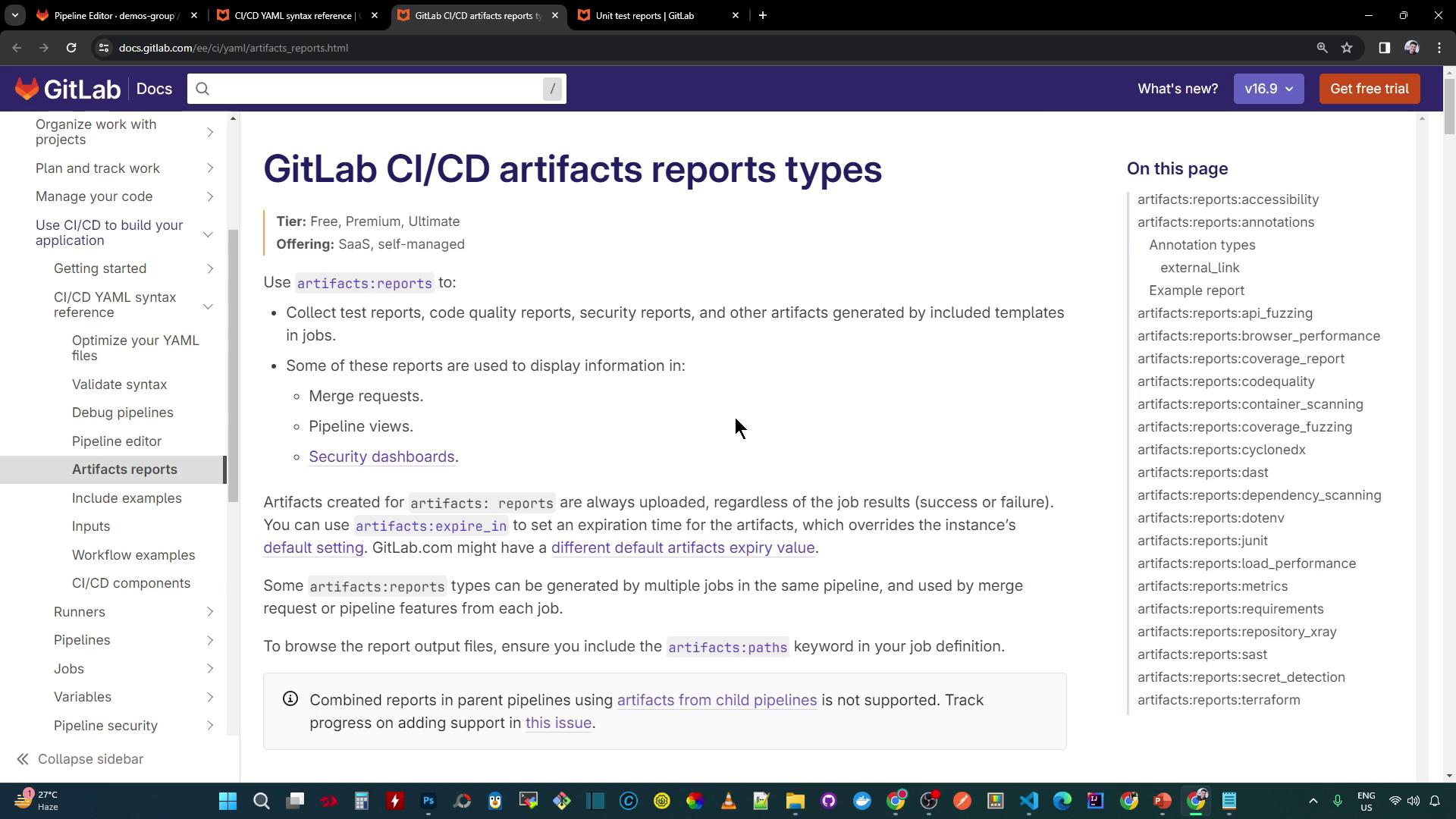
## 4. Available Artifact Report Types
GitLab supports a variety of built-in report types that surface in Merge Request widgets and the pipeline UI:
| Report Type | Use Case | File Format |
| ------------------- | -------------------------------- | ------------- |
| junit | Unit test results | JUnit XML |
| cobertura | Code coverage metrics | Cobertura XML |
| sast | Static Application Security Test | SARIF |
| dast | Dynamic Application Security | HTML / JSON |
| codequality | Code Quality analysis | JSON |
| license\_management | Dependency license scanning | JSON |
***
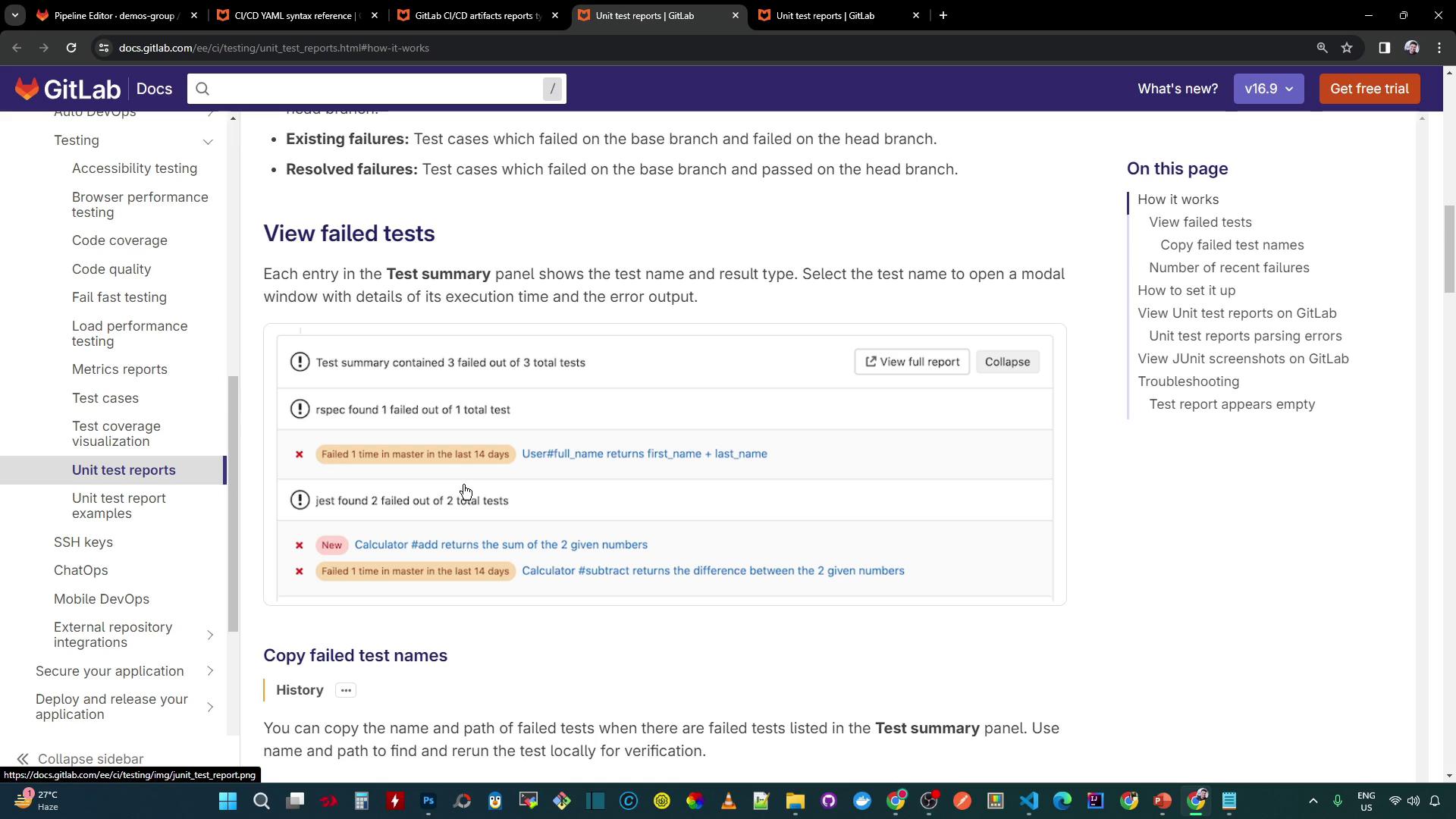
## 5. Viewing Failures in a Merge Request
When tests fail, GitLab surfaces a summary of the failures directly in the Merge Request:
***
## 6. Checking Test Summaries in the Pipeline
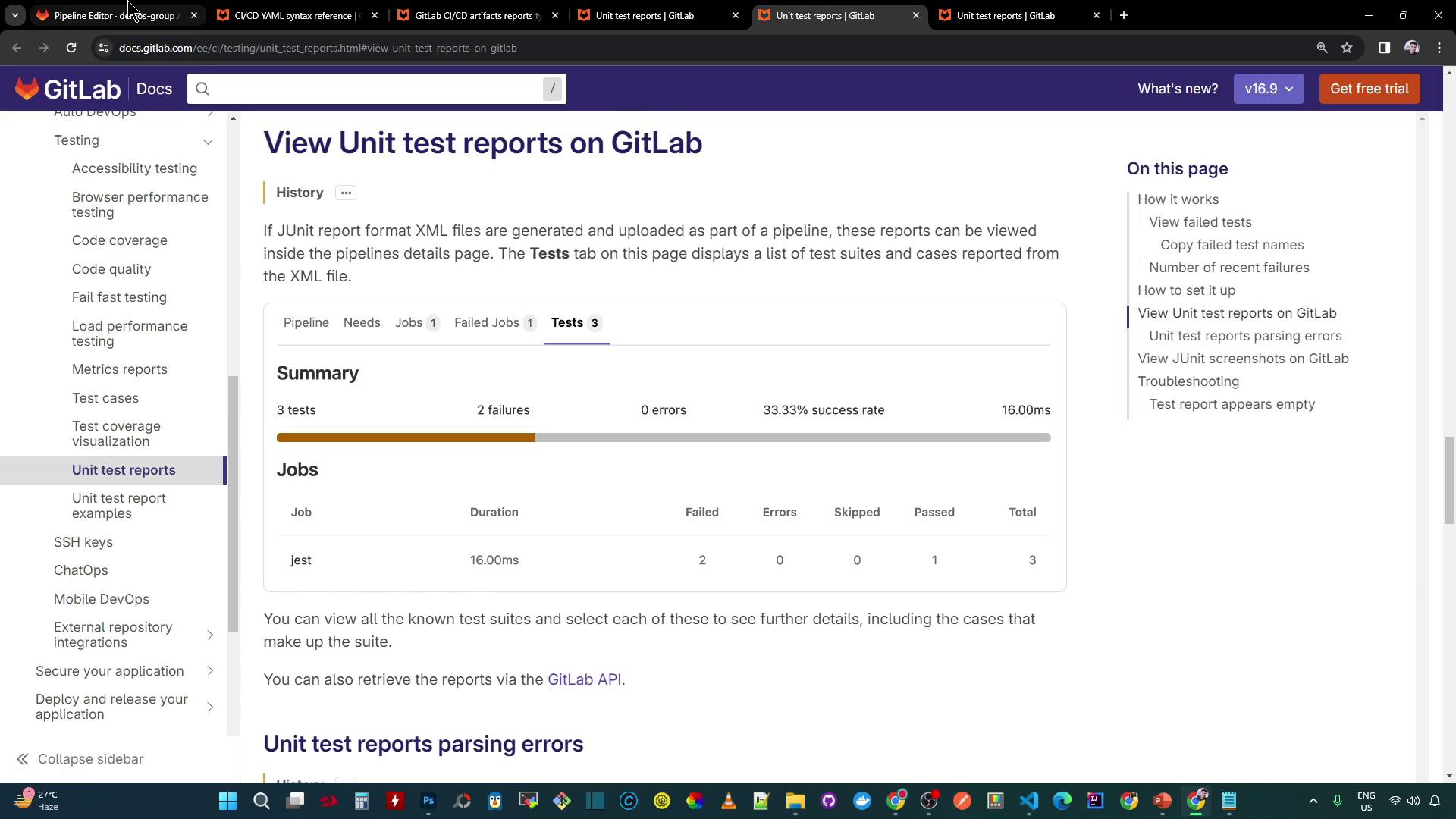
In the pipeline’s **Tests** tab, you’ll see:
* Total tests run
* Number of failures
* Success rate (%)
* Average test duration
After job completion, artifact upload logs appear:
```bash theme={null}
Uploading artifacts...
test-results.xml: found 1 matching artifact files and directories
Uploading artifacts as "archive" to coordinator... 201 Created
Uploading artifacts as "junit" to coordinator... 201 Created
Cleaning up project directory and file based variables
Job succeeded
```
You can browse or download the raw XML:
```bash theme={null}
Browsing artifacts…
test-results.xml
```
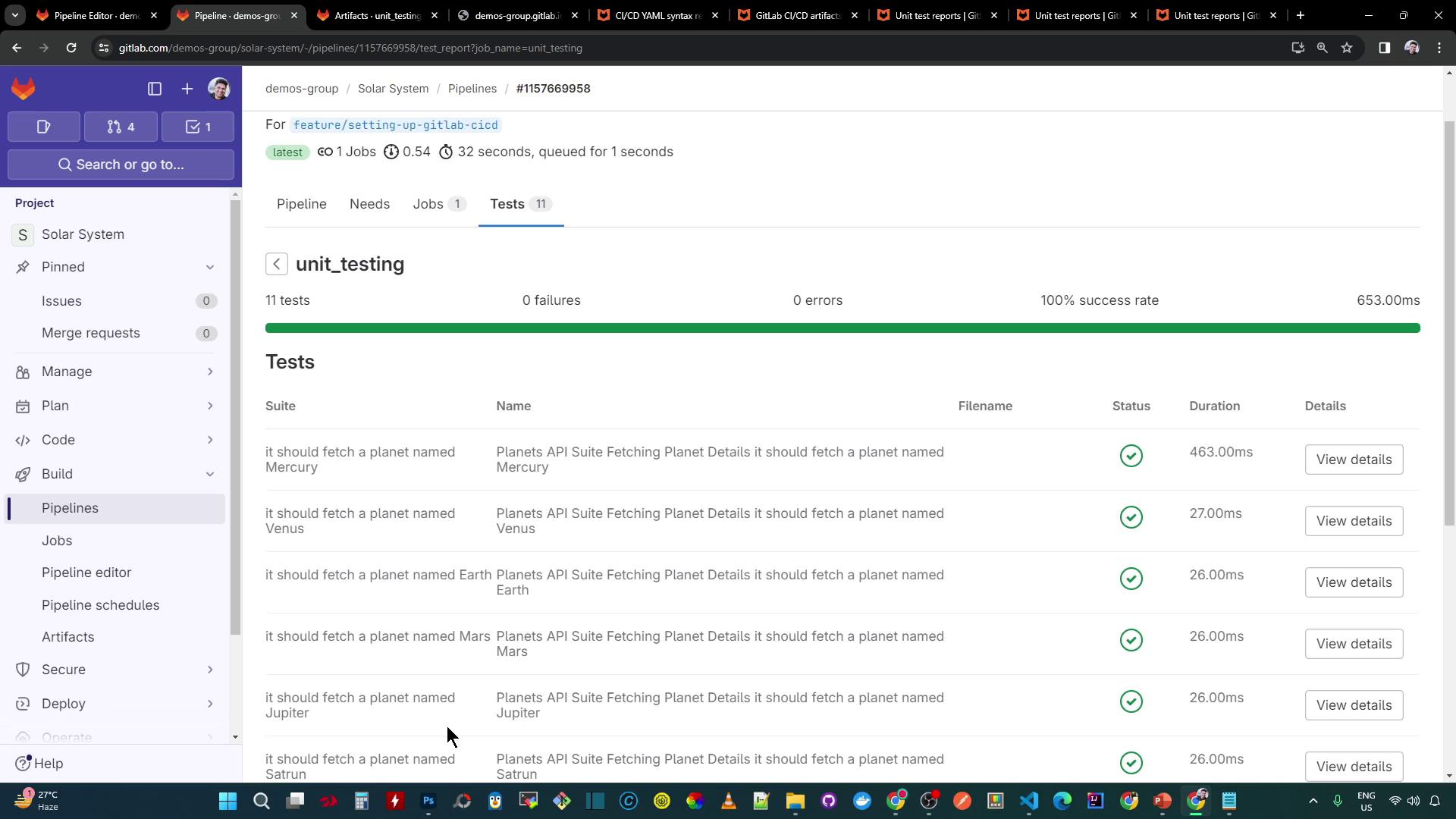
Or view it visually:
***
## References
* [GitLab CI/CD Pipelines](https://docs.gitlab.com/ee/ci/pipelines/)
* [Artifacts](https://docs.gitlab.com/ee/ci/pipelines/job_artifacts.html)
* [JUnit Test Reports in GitLab](https://docs.gitlab.com/ee/user/project/pipelines/test_reports.html)
* [mocha-junit-reporter on npm](https://www.npmjs.com/package/mocha-junit-reporter)
* [GitLab CI/CD YAML Configuration](https://docs.gitlab.com/ee/ci/yaml/)