> ## Documentation Index
> Fetch the complete documentation index at: https://notes.kodekloud.com/llms.txt
> Use this file to discover all available pages before exploring further.
# Docker Push
> This guide explains how to add a docker_push job to a GitLab CI/CD pipeline for automating image uploads to Docker Hub.
In this guide, we’ll extend our GitLab CI/CD pipeline by adding a **docker\_push** job that uploads your built image to Docker Hub. By the end, you’ll have a fully automated workflow—from unit tests to containerization and Docker pushes.
## 1. Existing Pipeline Overview
Here’s the current `.gitlab-ci.yml` with four jobs: `unit_testing`, `code_coverage`, `docker_build`, and `docker_test`. We run these on the `main` branch or any `feature/*` branch, including merge requests.
```yaml theme={null}
name: Solar System NodeJS Pipeline
rules:
- if: $CI_COMMIT_BRANCH == 'main' || $CI_COMMIT_BRANCH =~ /^feature/
when: always
- if: $CI_MERGE_REQUEST_SOURCE_BRANCH_NAME =~ /^feature/ && $CI_PIPELINE_SOURCE == 'merge_request_event'
when: always
stages:
- test
- containerization
variables:
DOCKER_USERNAME: siddharth67
IMAGE_VERSION: $CI_PIPELINE_ID
unit_testing:
# …
code_coverage:
# …
docker_build:
# …
docker_test:
# …
```
## 2. Adding the `docker_push` Job
We’ll append a fifth stage, **docker\_push**, under `containerization`. This job will:
* Depend on `docker_build` and `docker_test` via `needs`
* Leverage Docker-in-Docker (`dind`) for pushing images
* Load the previously saved artifact
* Authenticate to Docker Hub using CI/CD variables
* Push the image tagged with `$IMAGE_VERSION`
```yaml theme={null}
docker_push:
stage: containerization
needs:
- docker_build
- docker_test
image: docker:24.0.5
services:
- docker:24.0.5-dind
script:
# 1. Load the saved Docker image artifact
- docker load -i image/solar-system-image-$IMAGE_VERSION.tar
# 2. Authenticate with Docker Hub
- docker login --username=$DOCKER_USERNAME --password=$DOCKER_PASSWORD
# 3. Push the image to Docker Hub
- docker push $DOCKER_USERNAME/solar-system:$IMAGE_VERSION
```
Ensure your `DOCKER_PASSWORD` is masked and protected in GitLab. Never hard-code credentials in your `.gitlab-ci.yml`.
## 3. Defining CI/CD Variables
Navigate to **Settings → CI/CD → Variables** in your GitLab project and add:
| Variable Name | Value | Masked | Description |
| ---------------- | ----------------- | ------ | ---------------------------------------- |
| DOCKER\_USERNAME | `siddharth67` | No | Your Docker Hub username |
| DOCKER\_PASSWORD | `` | Yes | Your Docker Hub password or access token |
| M\_DB\_PASSWORD | `` | Yes | MongoDB connection password (if needed) |
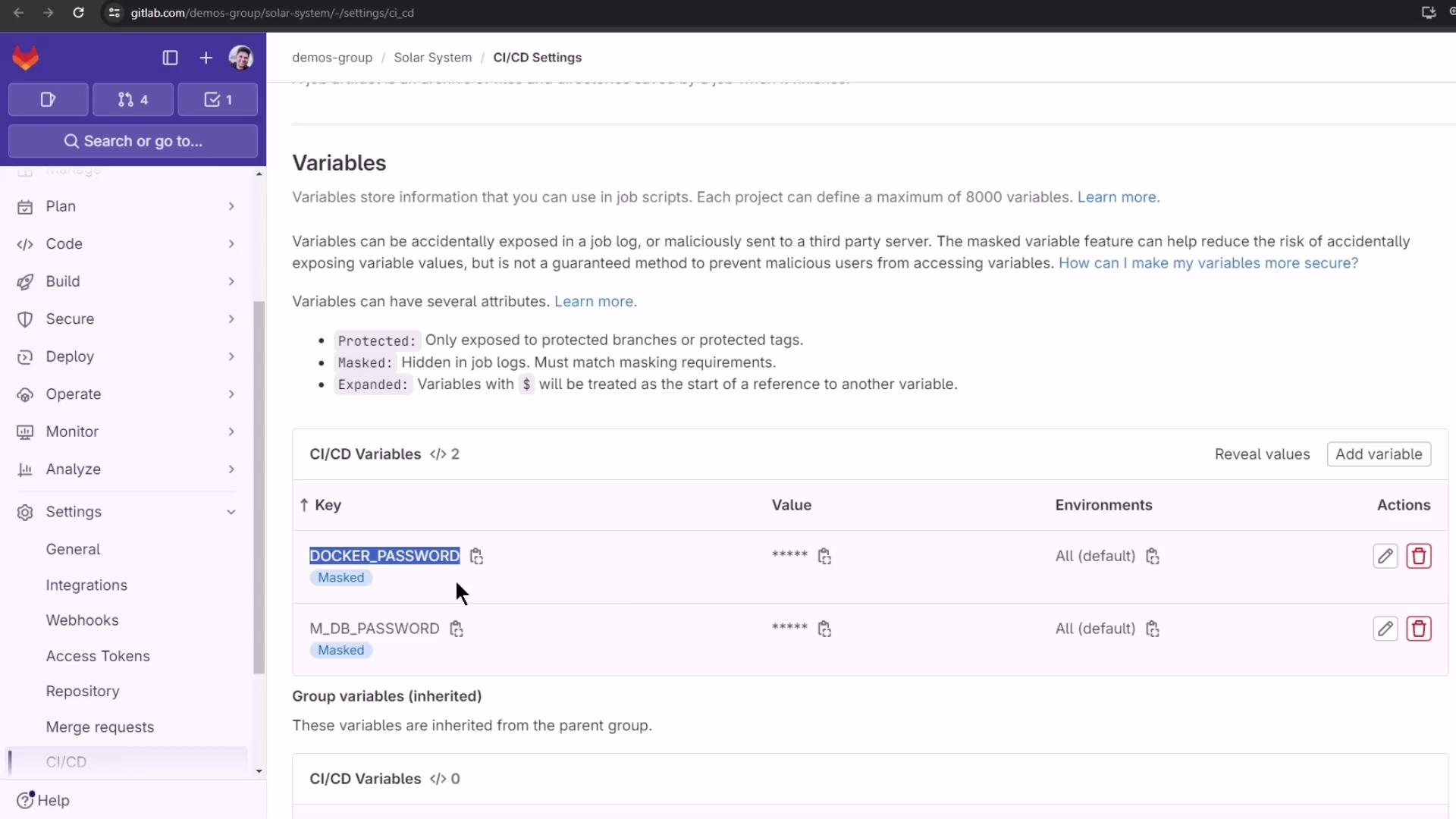
You can also set pipeline-level variables via the GitLab API or include them in a protected group for reuse across multiple projects.
## 4. Pipeline Visualization
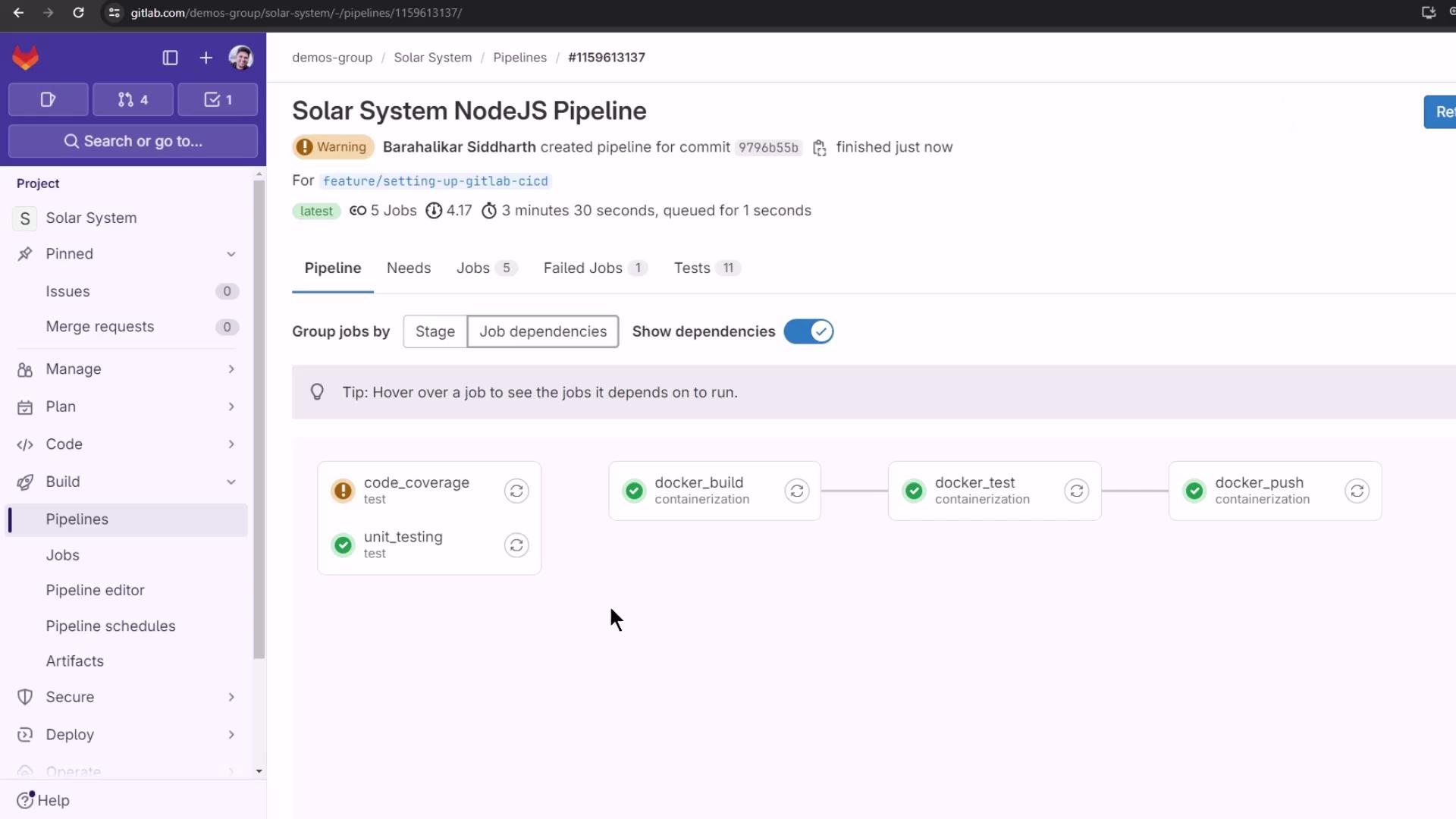
After pushing the updated `.gitlab-ci.yml`, GitLab will display five jobs in sequence. The **docker\_push** job runs last, once image build and tests complete.
## 5. Sample `docker_push` Logs
Below is an example of a successful Docker push in your CI logs:
```bash theme={null}
$ docker load -i image/solar-system-image-123.tar
Loaded image: solar-system:123
$ docker login --username=siddharth67 --password=$DOCKER_PASSWORD
Login Succeeded
$ docker push siddharth67/solar-system:123
The push refers to repository [docker.io/siddharth67/solar-system]
6bb3b914256b: Pushed
27ef56b51525: Pushed
cd949f4c979d: Pushed
f37b283f479c: Pushed
d324172c3753: Pushed
617df26c92eb: Pushed
ec438b31218: Pushed
1159613137: digest: sha256:55191c68759f6b36e12b0d3667c1b629d2947b25b297c7e05aed021971c09df5 size: 1997
Cleaning up project directory and file based variables
Job succeeded
```
Once the job completes successfully, visit your Docker Hub repository (`siddharth67/solar-system`) to confirm the newly pushed tags.
## Further Reading
* [GitLab CI/CD Variables Documentation](https://docs.gitlab.com/ee/ci/variables/)
* [Docker CLI Reference: `docker push`](https://docs.docker.com/engine/reference/commandline/push/)
* [Docker Hub Repository Management](https://docs.docker.com/docker-hub/repos/)