> ## Documentation Index
> Fetch the complete documentation index at: https://notes.kodekloud.com/llms.txt
> Use this file to discover all available pages before exploring further.
# Import Git Repo
> This article explains how to import a Node.js application repository into GitLab, detailing prerequisites and a step-by-step guide.
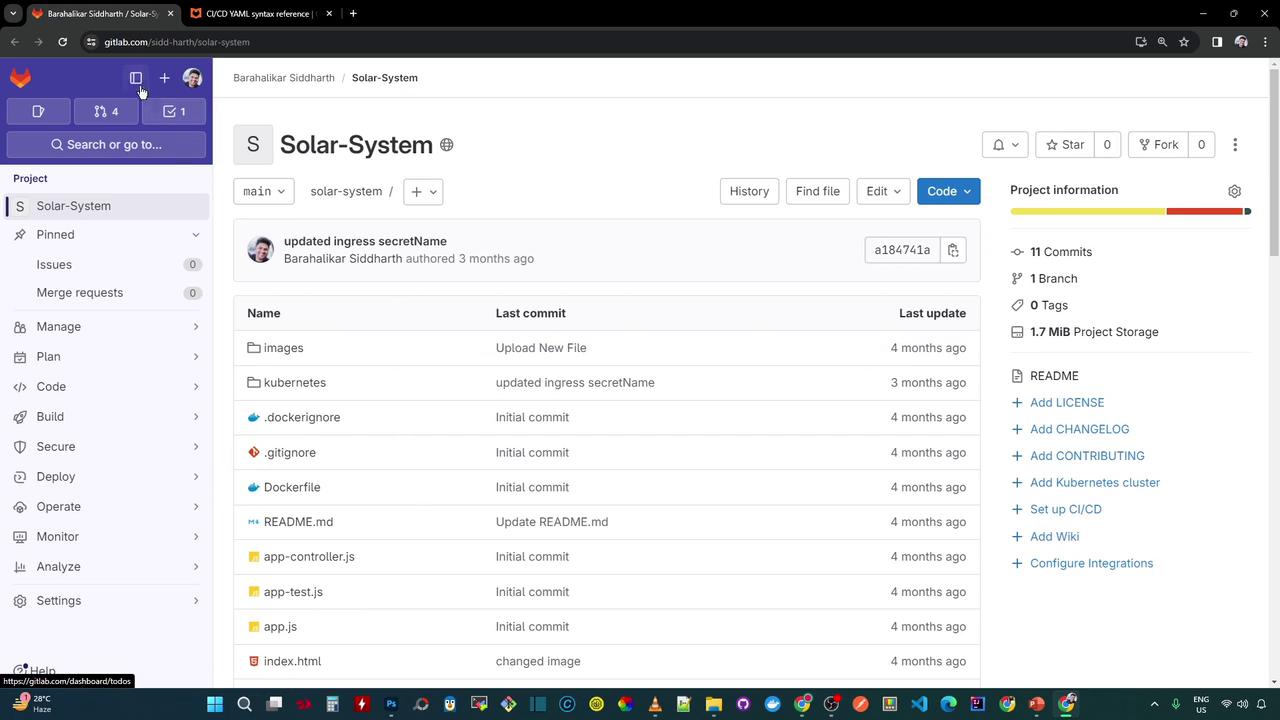
In this lesson, you’ll import your [Node.js](https://nodejs.org/) application’s source code—structured as the **Solar-System** project—into [GitLab](https://gitlab.com/). The repository contains application logic, test cases, a `Dockerfile`, and several [Kubernetes](https://kubernetes.io/) manifest files.
## Prerequisites
* A GitLab account with at least **Developer** access in your target group.
* The repository’s clone URL (ending in `.git`).
* *(Optional)* A [Personal Access Token](https://docs.gitlab.com/ee/user/profile/personal_access_tokens.html) if you’re importing a private repository.
If your source repo is private, create a Personal Access Token with the **read\_repository** scope and use it when prompted for credentials.
## Step-by-Step Import Guide
1. **Copy the Git URL**\
Grab the HTTPS or SSH clone URL of your source repository, ensuring it ends with `.git`.
2. **Start a New Project**\
In GitLab’s top bar, click the **+** icon and select **New project/repository**.
3. **Select Import Method**\
Choose **Import project**, then click **Repo by URL**.
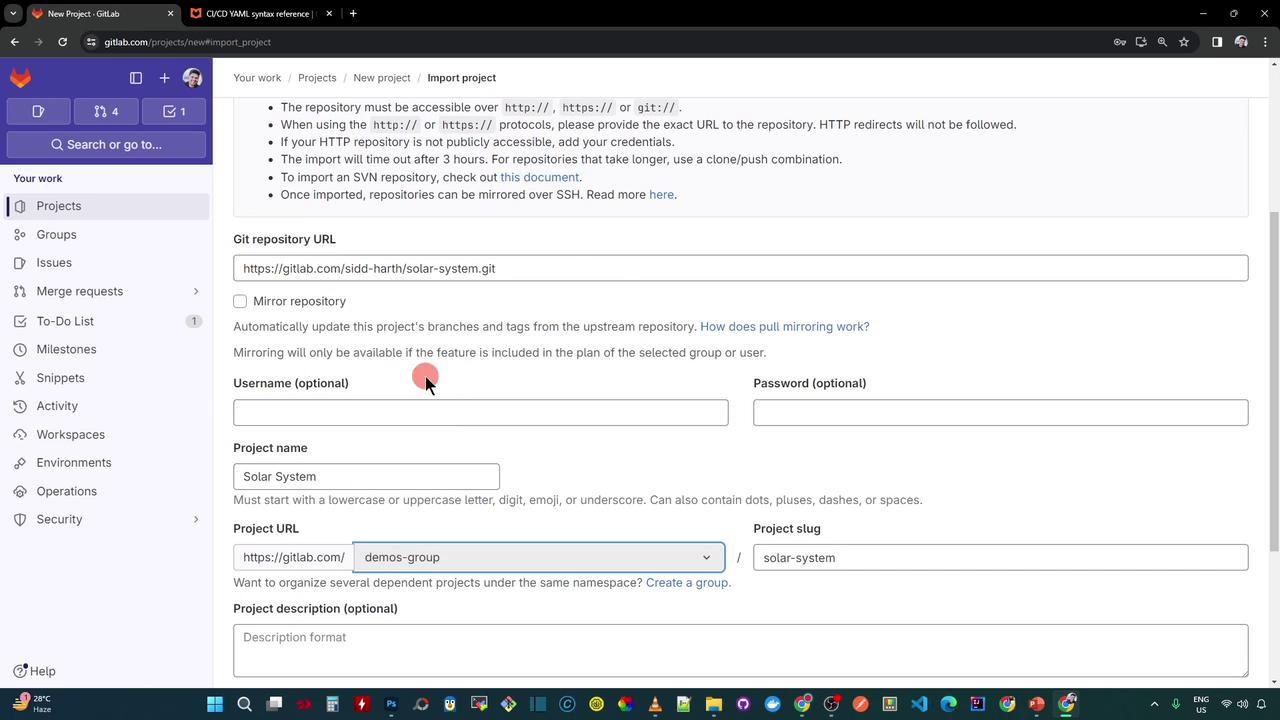
4. **Fill in Import Details**
* **Git repository URL**: Paste the `.git` link.
* **Project name**: Enter `Solar-System`.
* **Project slug**: Adjust only if you want a custom URL path.
* **Group (Namespace)**: Pick your target group, e.g., `demos`.
* **Visibility**: Set to **Public**, **Internal**, or **Private**.
5. **Create the Project**\
Click **Create project**. GitLab will clone and import your repository—this can take a few moments.
6. **Verify the Import**\
Once completed, you’ll see your full project structure exactly as it was in the source:
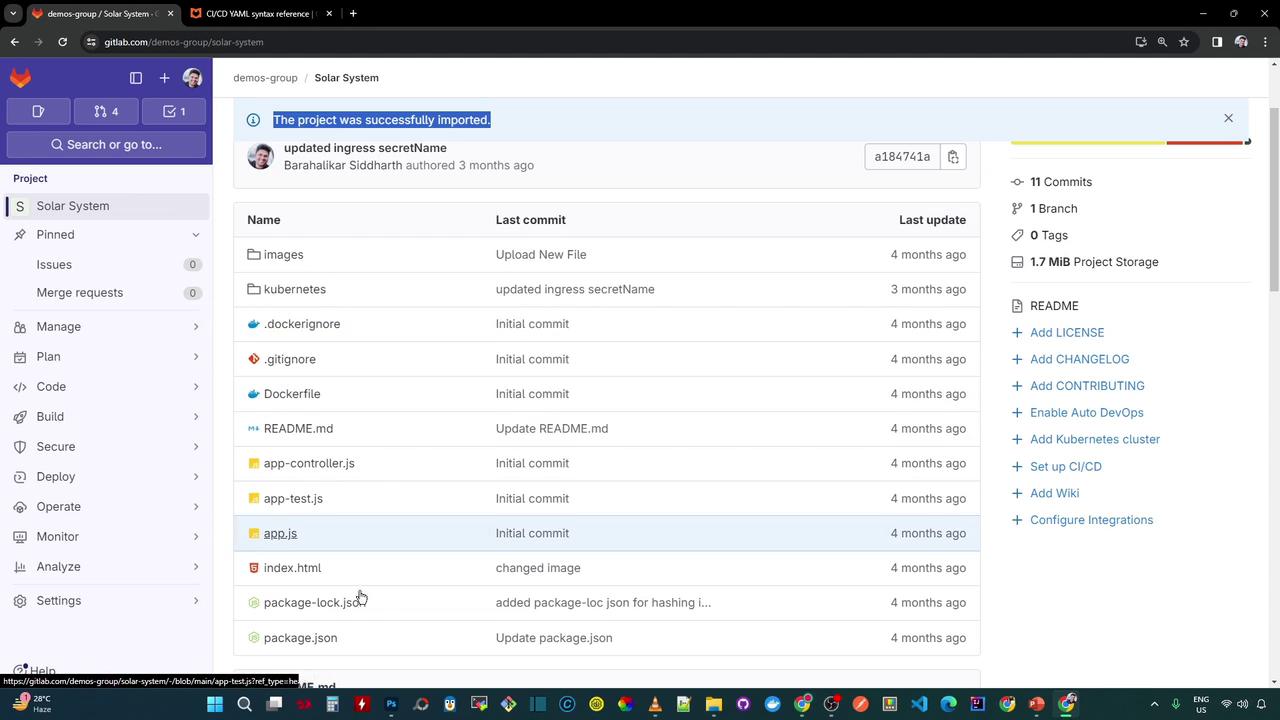
Your **Solar-System** repository now lives in the `demos` group on GitLab. Next, we’ll implement the CI/CD pipeline to run unit tests, measure code coverage, and deploy to Kubernetes.
## Import Form Field Reference
| Field | Description | Example |
| ------------------ | ------------------------------------------------- | ---------------------- |
| Git repository URL | Clone URL of the source repo (must end in `.git`) | `https://.../repo.git` |
| Project name | Display name in GitLab | `Solar-System` |
| Project slug | URL-friendly identifier | `solar-system` |
| Namespace (Group) | Target group or personal namespace | `demos` |
| Visibility Level | Public, Internal, or Private | `Public` |
## Links and References
* [Node.js Official Site](https://nodejs.org/)
* [GitLab Import Documentation](https://docs.gitlab.com/ee/user/project/import/)
* [Kubernetes Concepts](https://kubernetes.io/docs/concepts/overview/what-is-kubernetes/)