> ## Documentation Index
> Fetch the complete documentation index at: https://notes.kodekloud.com/llms.txt
> Use this file to discover all available pages before exploring further.
# Pipeline Configure Coverage and Archive Reports
> This guide explains setting up a parallel code coverage job in GitLab CI/CD alongside unit tests and archiving reports.
In this guide, you’ll learn how to set up a parallel code coverage job alongside unit tests in GitLab CI/CD, archive reports, and surface coverage metrics in the UI.
## Base Unit Testing Job
This `unit_testing` job runs in the `test` stage, installs dependencies, executes tests, and collects JUnit reports:
```yaml theme={null}
stages:
- test
variables:
MONGO_URI: 'mongodb+srv://superCluster.d83jj.mongodb.net/superData'
MONGO_USERNAME: superuser
MONGO_PASSWORD: $M_DB_PASSWORD
unit_testing:
stage: test
image: node:17-alpine3.14
before_script:
- npm install
script:
- npm test
artifacts:
when: always
expire_in: 3 days
name: Moca-Test-Result
paths:
- test-results.xml
reports:
junit: test-results.xml
```
## Adding a Parallel Code Coverage Job
Create a `code_coverage` job that reuses the Node.js image and installs dependencies. The `npm run coverage` command (powered by [NYC](https://github.com/istanbuljs/nyc)) generates a Cobertura XML report.
```yaml theme={null}
code_coverage:
stage: test
image: node:17-alpine3.14
before_script:
- npm install
script:
- npm run coverage
artifacts:
name: Code-Coverage-Result
when: always
expire_in: 3 days
reports:
coverage_report:
coverage_format: cobertura
path: coverage/cobertura-coverage.xml
coverage: '/All files[^|]*\|[^|]*\s+([0-9.]+)%/'
```
## Supported Artifact Report Types
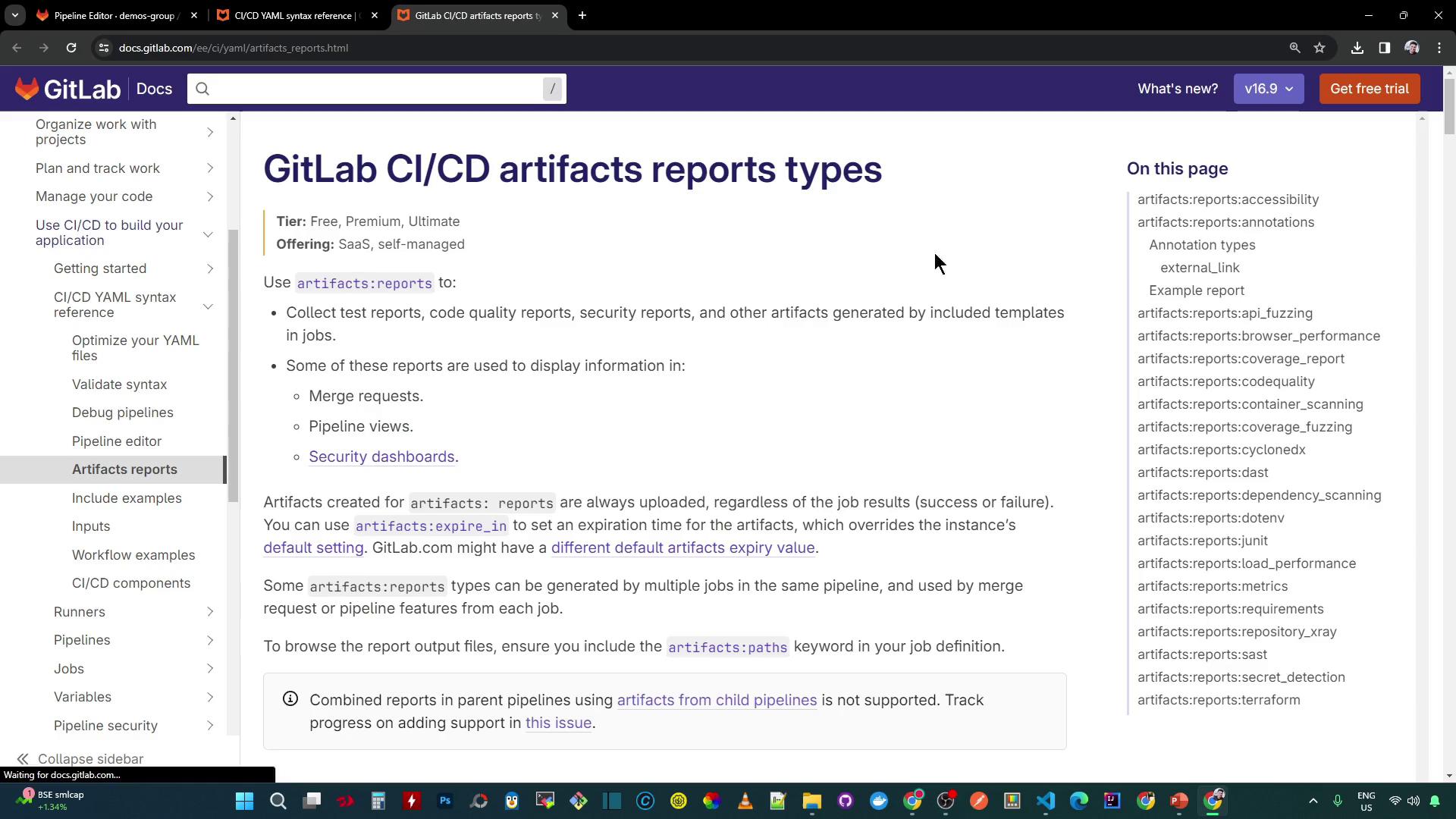
GitLab CI/CD supports multiple report formats under [`artifacts:reports`](https://docs.gitlab.com/ee/ci/yaml/#artifactsreports). Use the table below to choose the appropriate type:
| Report Type | Description | Example |
| -------------------- | ----------------------------------- | --------------------------------------------------------------------------------------------------------- |
| junit | JUnit XML test reports | `reports:\n junit: test-results.xml` |
| coverage\_report | Cobertura coverage results | `reports:\n coverage_report:\n coverage_format: cobertura\n path: coverage/cobertura-coverage.xml` |
| codequality | Static code analysis (Code Quality) | `reports:\n codequality: gl-code-quality-report.json` |
| dependency\_scanning | Dependency vulnerability report | `reports:\n dependency_scanning: gl-dependency-scanning-report.json` |
## Coverage Report Configuration
To enable GitLab’s built-in coverage display, specify the Cobertura format and the XML path in `artifacts:reports`:
```yaml theme={null}
artifacts:
reports:
coverage_report:
coverage_format: cobertura
path: coverage/cobertura-coverage.xml
```
## Extracting Coverage Percentage
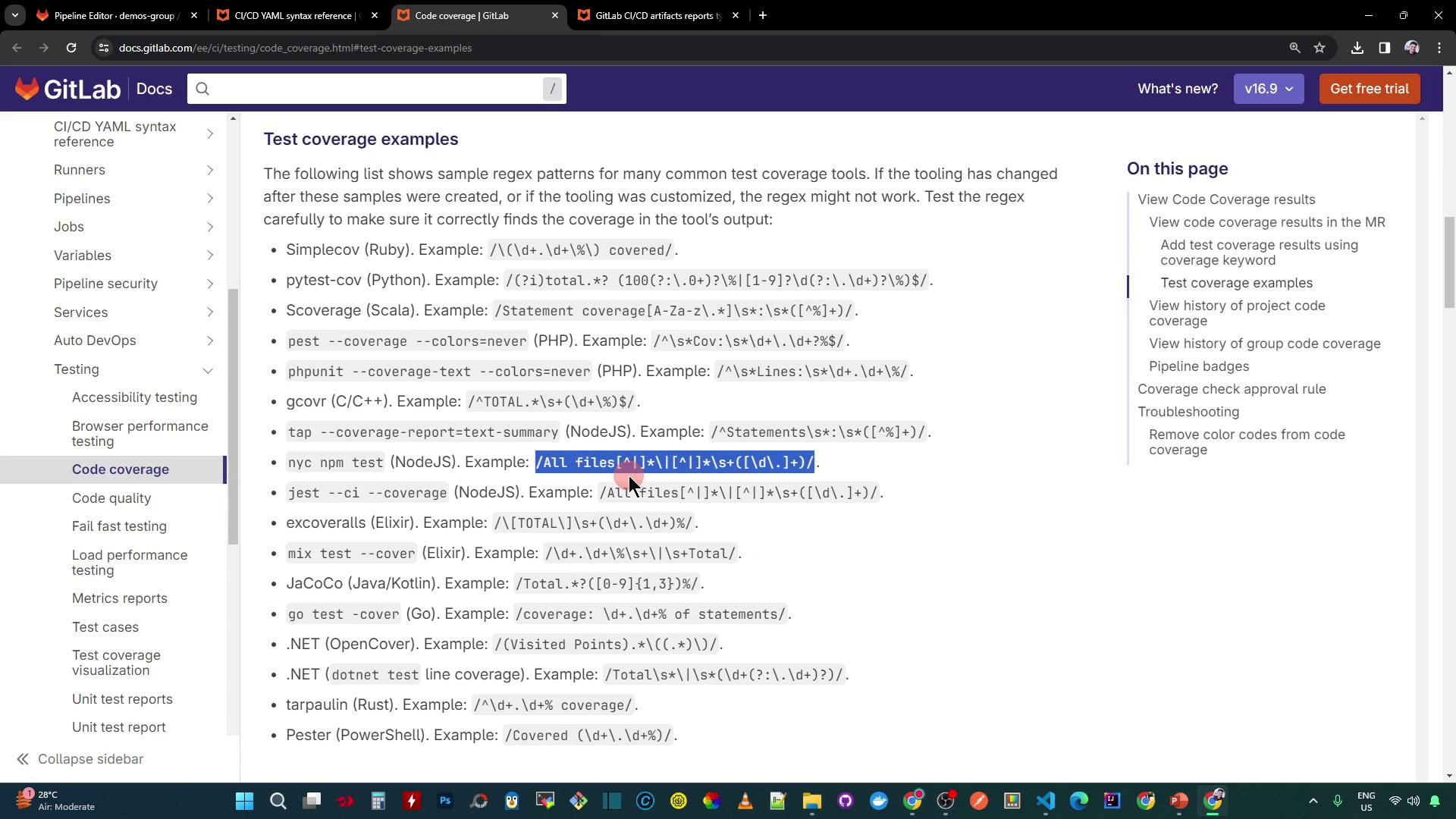
GitLab can parse test logs and extract a coverage percentage using a regular expression. For NYC’s “All files” summary line, use:
```yaml theme={null}
coverage: '/All files[^|]*\|[^|]*\s+([0-9.]+)%/'
```
Make sure your coverage tool prints a summary line matching this pattern. Adjust the regex if your output differs.
## Full CI Configuration with a Dependent Sample Job
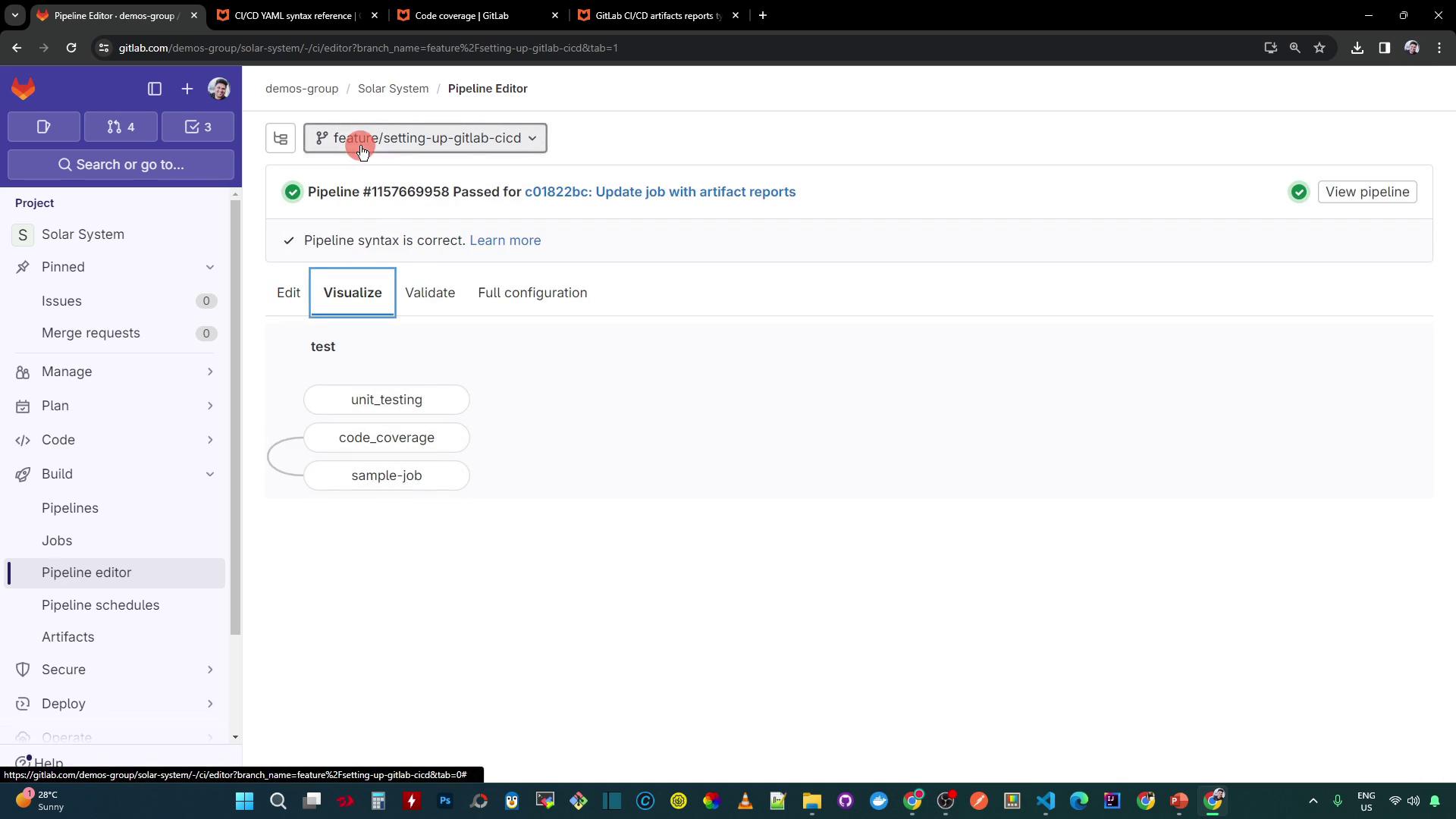
Combine both jobs and add a `sample-job` that depends on `code_coverage`. This ensures downstream work only runs if coverage passes (or you enable `allow_failure`).
```yaml theme={null}
stages:
- test
variables:
MONGO_URI: 'mongodb+srv://superCluster.d83jj.mongodb.net/superData'
MONGO_USERNAME: superuser
MONGO_PASSWORD: $M_DB_PASSWORD
unit_testing:
stage: test
image: node:17-alpine3.14
before_script:
- npm install
script:
- npm test
artifacts:
when: always
expire_in: 3 days
name: Moca-Test-Result
paths:
- test-results.xml
reports:
junit: test-results.xml
code_coverage:
stage: test
image: node:17-alpine3.14
before_script:
- npm install
script:
- npm run coverage
artifacts:
name: Code-Coverage-Result
when: always
expire_in: 3 days
reports:
coverage_report:
coverage_format: cobertura
path: coverage/cobertura-coverage.xml
coverage: '/All files[^|]*\|[^|]*\s+([0-9.]+)%/'
sample-job:
stage: test
needs:
- code_coverage
image: node:17-alpine3.14
script:
- echo "Running sample job"
```
Once you push this `.gitlab-ci.yml`, the GitLab pipeline graph clearly shows `unit_testing`, `code_coverage`, and `sample-job` in parallel:
## Pipeline Execution and Coverage Failure
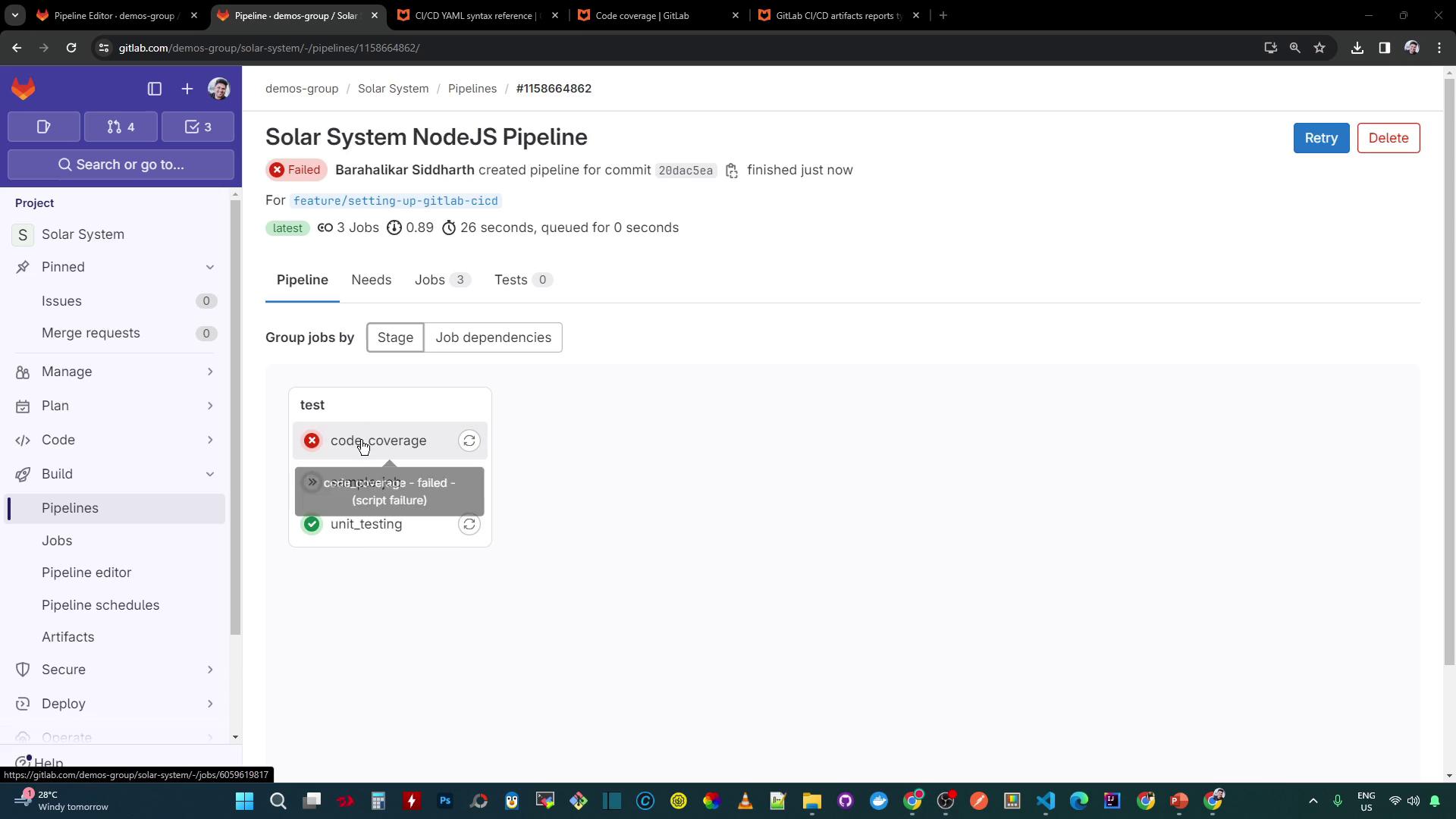
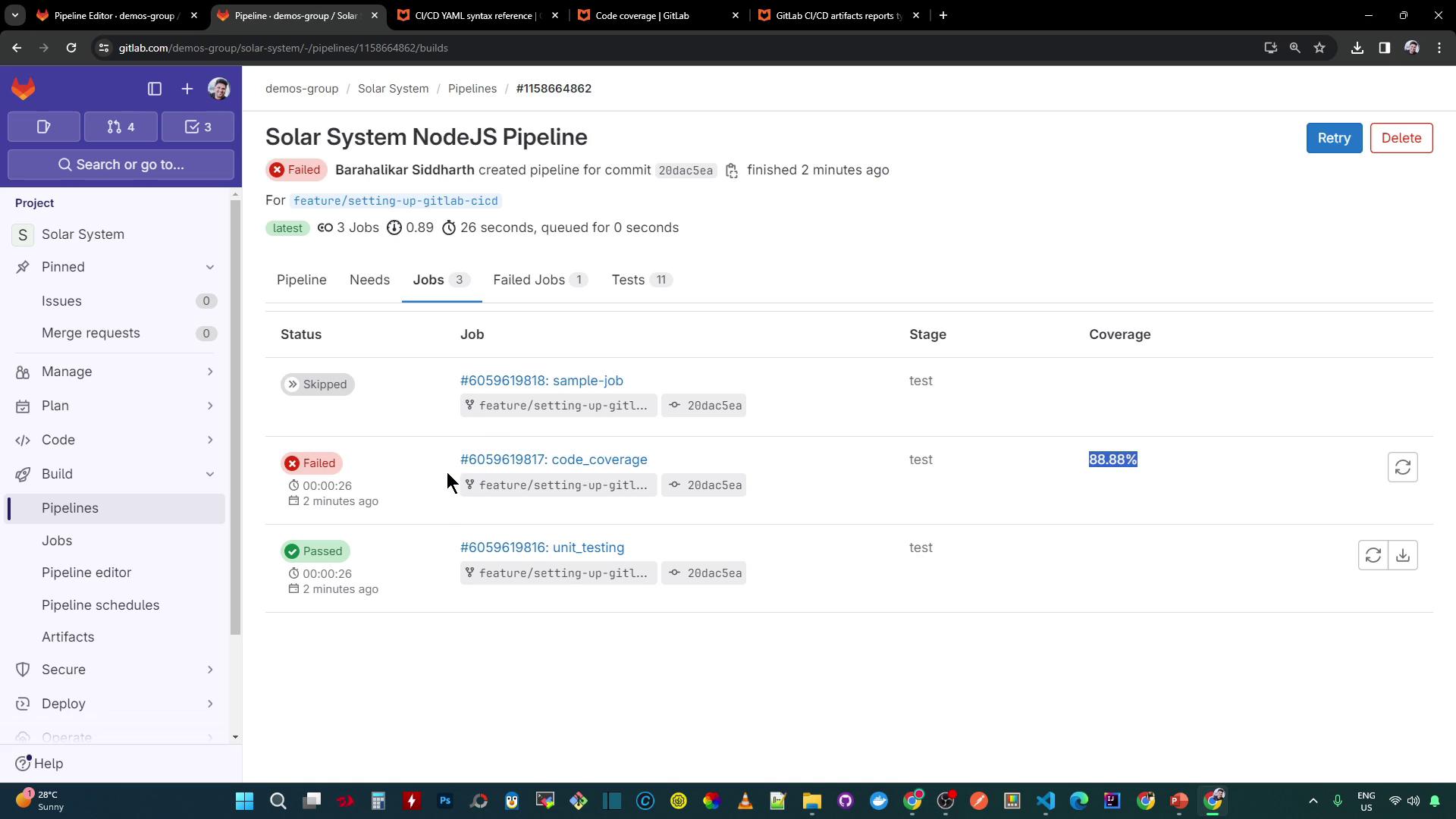
If the coverage threshold defined in your `package.json` isn’t met, the `code_coverage` job fails and downstream jobs are skipped by default.
A failed coverage check will block any jobs that depend on it. To continue the pipeline regardless of coverage, you can set `allow_failure: true` on the coverage job.
Example logs from NYC:
```bash theme={null}
> nyc --reporter cobertura --reporter lcov --reporter text --reporter json-summary mocha app-test.js --timeout 10000 --exit
...
ERROR: Coverage for lines (88.88%) does not meet global threshold (90%)
| File | % Branch | % Funcs | % Lines | Uncovered Line #s |
|------------|----------|---------|---------|-------------------|
| All files | 88.88 | 50 | 87.50 | 88.88 |
```
Your `package.json` might include:
```json theme={null}
{
"scripts": {
"coverage": "nyc --reporter cobertura --reporter lcov --reporter text --reporter json-summary mocha app-test.js"
},
"nyc": {
"check-coverage": true,
"lines": 90
}
}
```
## Coverage Percentage in the GitLab UI
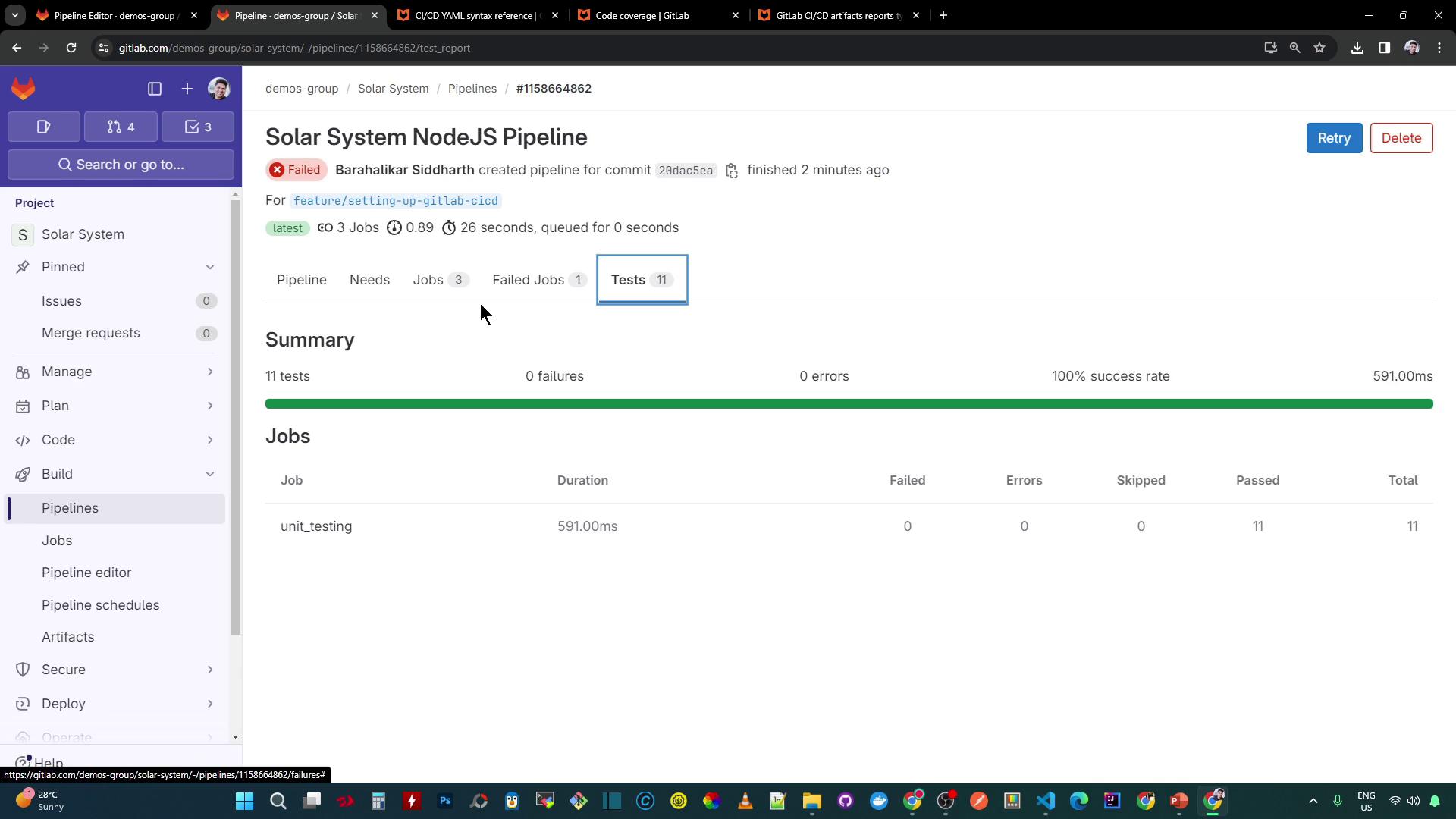
With the `coverage` regex in place, GitLab extracts the percentage (e.g., **88.88%**) and displays it in the pipeline view:
In this scenario, coverage is below the 90% threshold, causing `code_coverage` to fail and skipping `sample-job`:
***
Next, we’ll look at strategies to allow selective failures and continue pipeline execution even when coverage checks fail.