> ## Documentation Index
> Fetch the complete documentation index at: https://notes.kodekloud.com/llms.txt
> Use this file to discover all available pages before exploring further.
# Pipeline Configure Unit Testing
> This guide configures GitLab CI/CD for a NodeJS project and adds a unit testing job with environment variable management.
In this guide, we’ll configure GitLab CI/CD for the Solar System NodeJS project and add a robust unit testing job. You’ll learn how to create a structured `.gitlab-ci.yml`, manage sensitive MongoDB credentials via CI/CD variables, and ensure your NodeJS tests run reliably.
## 1. Initialize GitLab CI/CD Configuration
Start by creating a new file named `.gitlab-ci.yml` at your repository root. Define the pipeline stages and add a placeholder build job:
```yaml theme={null}
stages:
# Define the execution order of pipeline stages
- build
- test
- deploy
build-job:
stage: build
script:
- echo "Building the project..."
```
Explicit stages improve readability and make it easier to extend the pipeline with additional jobs.
## 2. Define Workflow Rules
Specify when the pipeline should trigger by adding a `workflow` section with conditional rules:
```yaml theme={null}
workflow:
name: Solar System NodeJS Pipeline
rules:
# Run on pushes to main or feature branches
- if: $CI_COMMIT_BRANCH == "main" || $CI_COMMIT_BRANCH =~ /^feature/
when: always
# Run on merge request events from feature branches
- if: $CI_MERGE_REQUEST_SOURCE_BRANCH_NAME =~ /^feature/ && $CI_PIPELINE_SOURCE == "merge_request_event"
when: always
stages:
- test
```
## 3. Add the Unit Testing Job
Next, define the `unit_testing` job in the `test` stage. This job uses the official NodeJS Docker image, installs dependencies, and runs tests with Mocha:
```yaml theme={null}
unit_testing:
stage: test
image: node:17-alpine3.14
before_script:
- npm install
script:
- npm test
```
Commit these changes to a new feature branch:
```bash theme={null}
git checkout -b feature/setup-gitlab-ci
git add .gitlab-ci.yml
git commit -m "chore: add GitLab CI/CD pipeline with unit testing"
git push -u origin feature/setup-gitlab-ci
```
Pushing to `feature/*` will trigger a pipeline run.
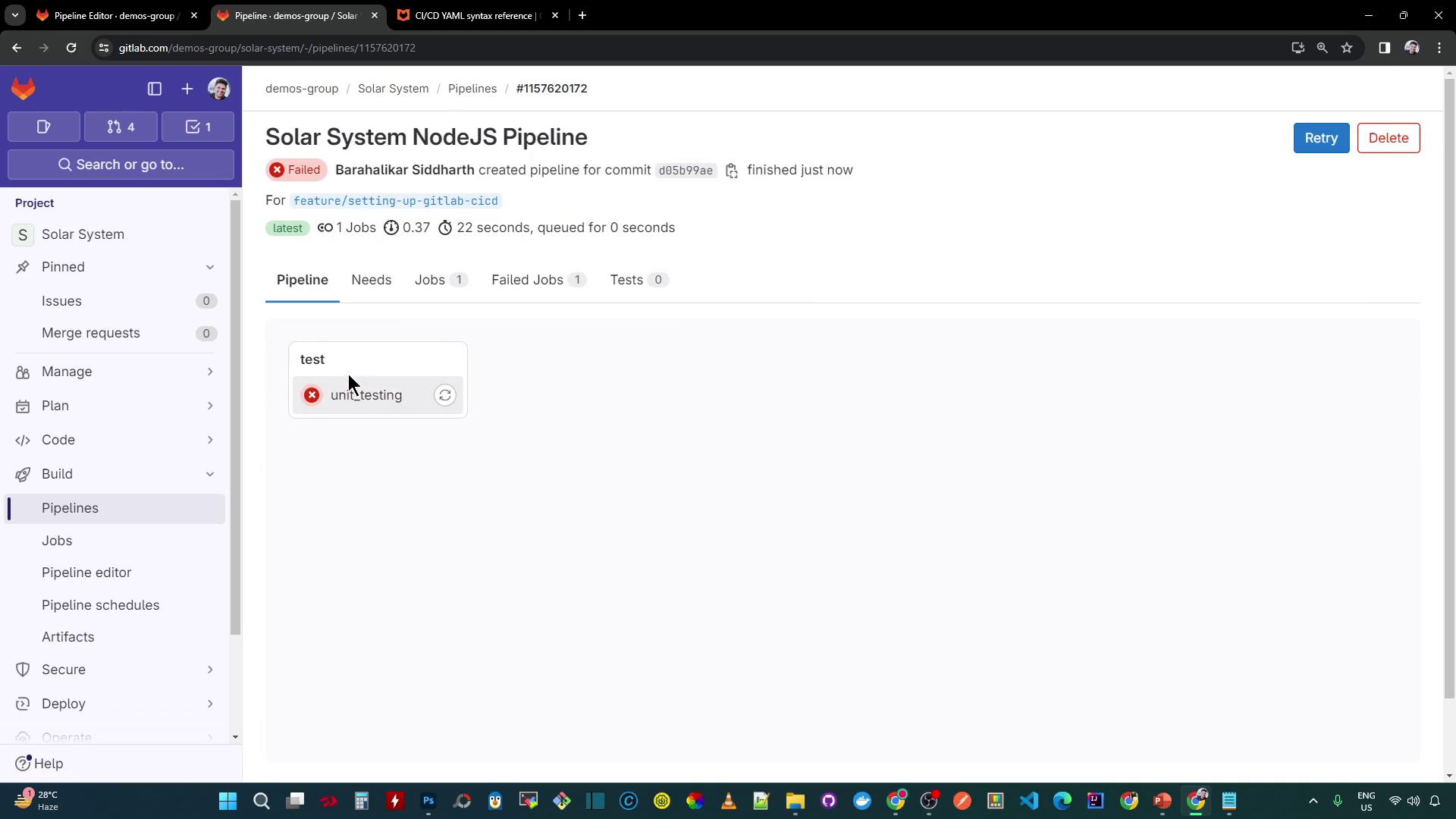
## 4. Diagnose the Test Failure
Inspect the job logs. The runner pulls the NodeJS image and installs packages, but `npm test` fails with a Mongoose connection error. Our application code in `app.js` relies on environment variables:
```javascript theme={null}
const mongoose = require('mongoose');
mongoose.connect(process.env.MONGO_URI, {
user: process.env.MONGO_USERNAME,
pass: process.env.MONGO_PASSWORD,
useNewUrlParser: true,
useUnifiedTopology: true,
}, err => {
if (err) {
console.error("Connection error:", err);
} else {
console.log("MongoDB Connection Successful");
}
});
```
Without the MongoDB credentials, tests cannot connect.
## 5. Supply Environment Variables
Add a `variables` section at the top of your `.gitlab-ci.yml` to inject the connection details:
```yaml theme={null}
variables:
MONGO_URI: 'mongodb+srv://supercluster.d83jj.mongodb.net/superData'
MONGO_USERNAME: superuser
MONGO_PASSWORD: $M_DB_PASSWORD
stages:
- test
unit_testing:
stage: test
image: node:17-alpine3.14
before_script:
- npm install
script:
- npm test
```
Never expose plain-text passwords in your repository. Always use masked CI/CD variables for credentials.
Here’s a quick reference for these variables:
| Variable Name | Purpose | Example |
| --------------- | ------------------------- | ----------------------------- |
| MONGO\_URI | MongoDB connection string | `mongodb+srv://.../superData` |
| MONGO\_USERNAME | Database user name | `superuser` |
| MONGO\_PASSWORD | Masked variable reference | `$M_DB_PASSWORD` |
## 6. Configure Masked Variables in GitLab
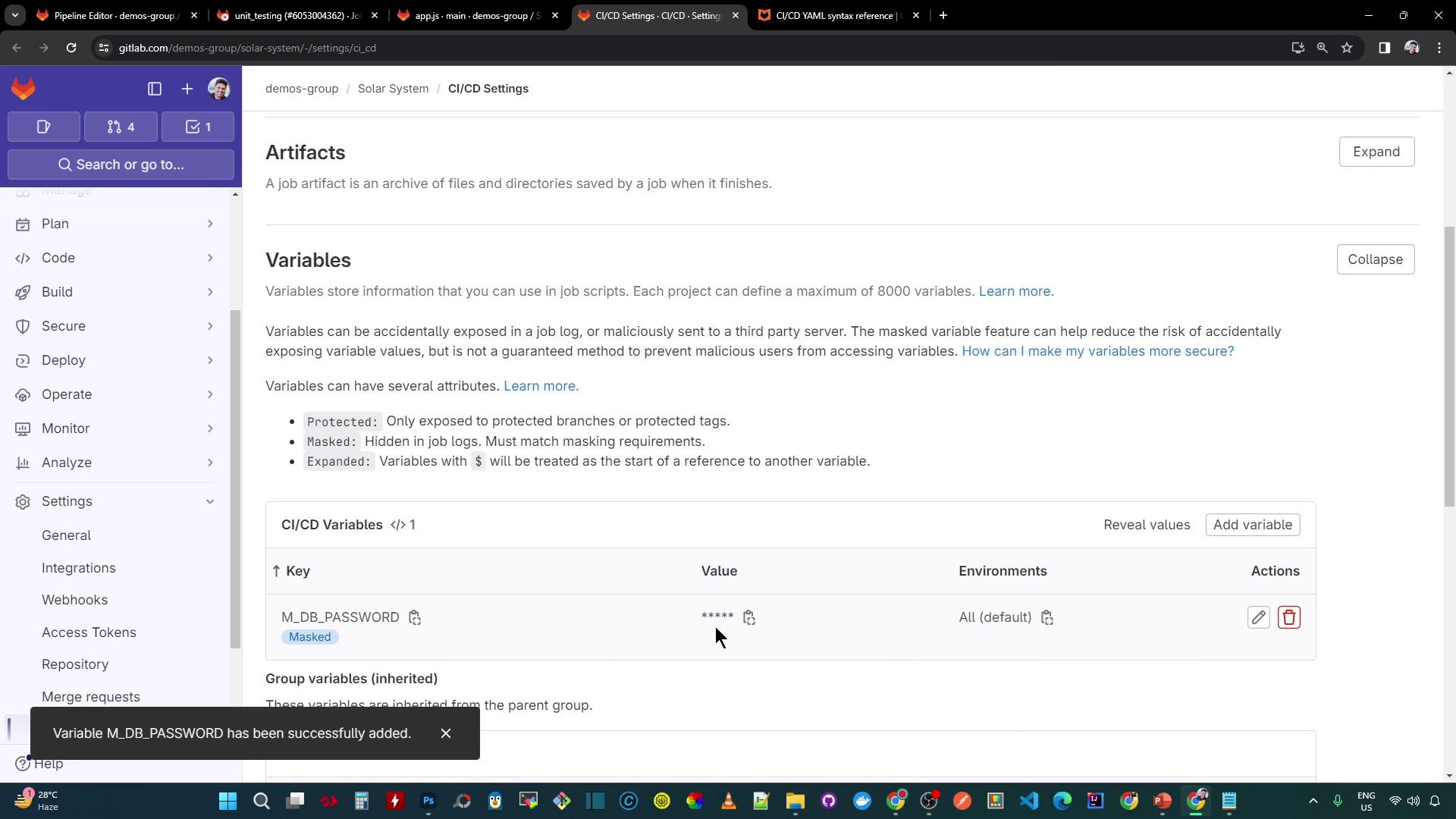
In your GitLab project, navigate to **Settings > CI/CD > Variables**. Create a new variable:
* **Key:** `M_DB_PASSWORD`
* **Value:** *(your database password)*
* **Masked:** ✔
* **Protected:** as required
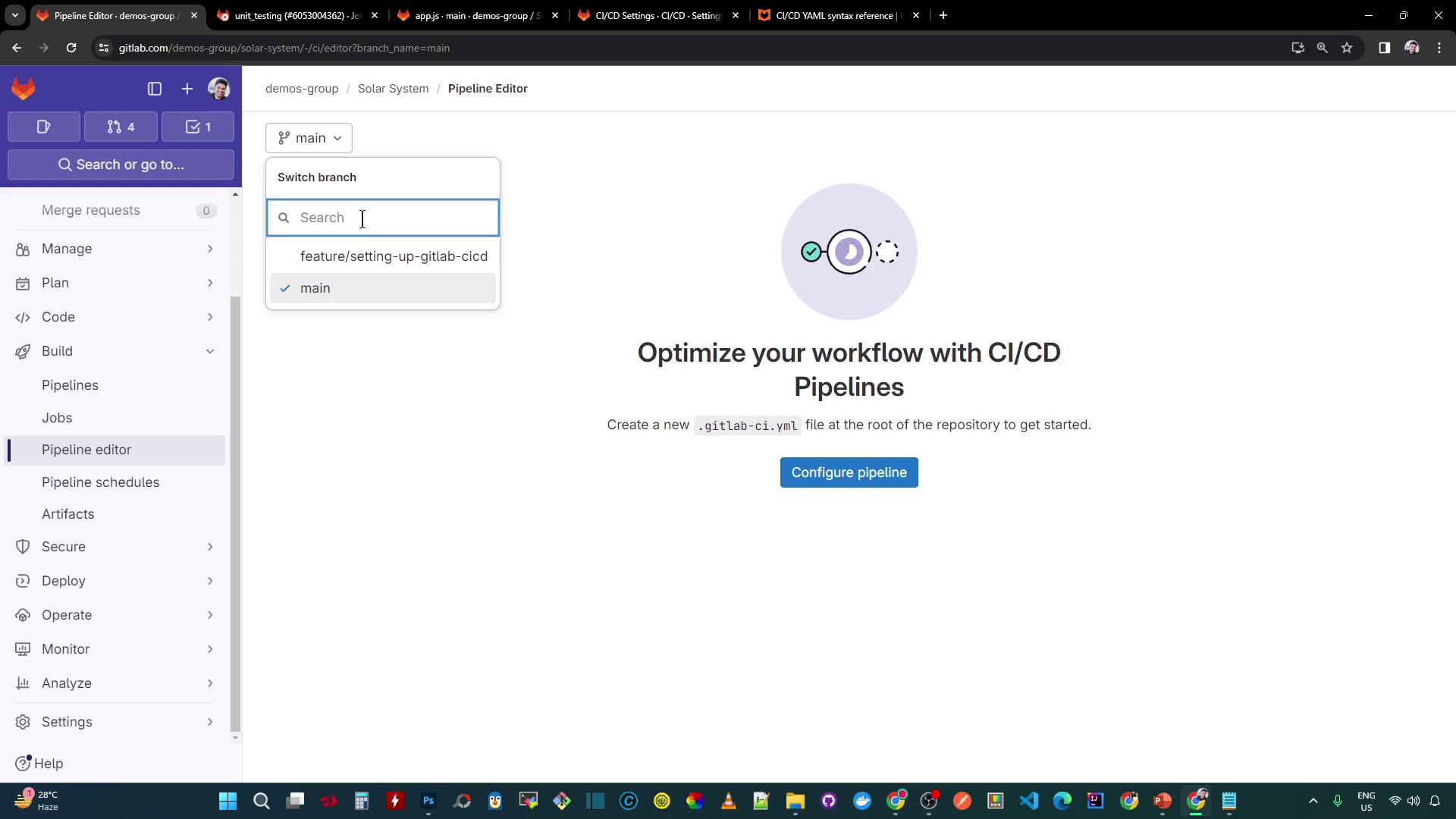
Return to the Pipeline Editor on your feature branch and commit the updated `.gitlab-ci.yml`:
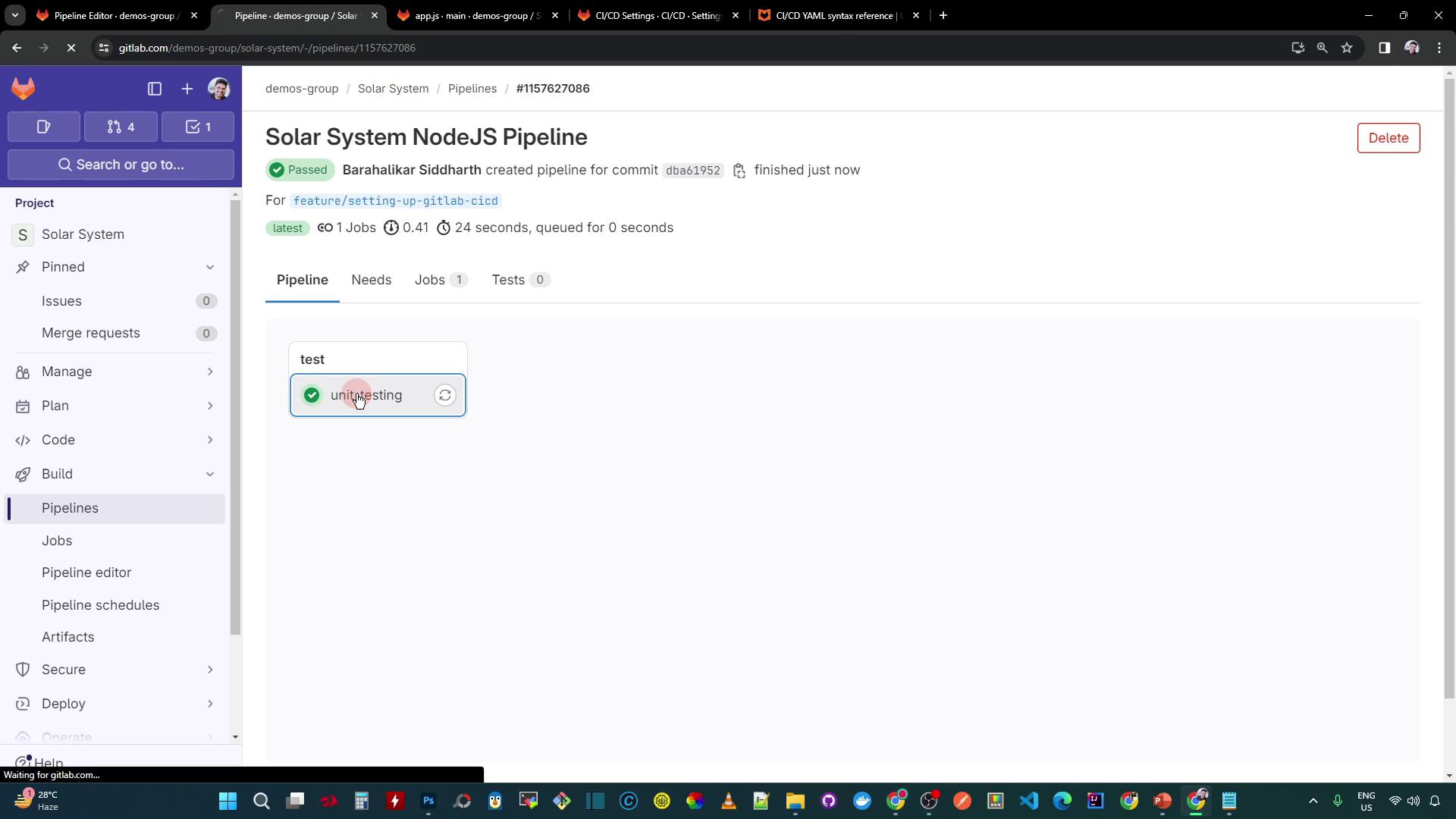
## 7. Verify the Successful Pipeline
A new pipeline should start automatically. This time, the `unit_testing` job completes successfully:
## 8. Review the Test Logs
The job log confirms the install and test steps:
```bash theme={null}
$ npm install
added 364 packages, and audited 365 packages in 8s
44 packages are looking for funding
Run `npm fund` for details
vulnerabilities (1 high, 1 critical)
To address all issues, run:
npm audit fix
$ npm test
> Solar System@6.7.6 test
> mocha app-test.js --timeout 10000 --reporter mocha-junit-reporter --exit
Server successfully running on port 3000
✓ should return all planets
✓ should return planet by ID
...
```
Now that unit tests are passing, the next step is to collect test reports using the `artifacts` keyword.
## References
* [GitLab CI/CD Documentation](https://docs.gitlab.com/ee/ci/)
* [Node.js Docker Images](https://hub.docker.com/_/node)
* [Mocha Test Framework](https://mochajs.org/)
* [Environment Variables in GitLab CI/CD](https://docs.gitlab.com/ee/ci/variables/)