> ## Documentation Index
> Fetch the complete documentation index at: https://notes.kodekloud.com/llms.txt
> Use this file to discover all available pages before exploring further.
# Publish Image to Gitlab Container Registry
> This guide explains how to authenticate and publish Docker images to GitLabs integrated Container Registry using various methods and CI/CD pipelines.
In this guide, you’ll learn how to authenticate with GitLab’s integrated Container Registry and publish your Docker images—both manually and via GitLab CI/CD pipelines. The Container Registry is available for every GitLab project, offering a secure, private registry alongside your code.
## Authentication Methods
GitLab supports several registry authentication methods:
* **Personal Access Tokens**
* **Deploy Tokens**
* **Project Access Tokens**
* **Group Access Tokens**
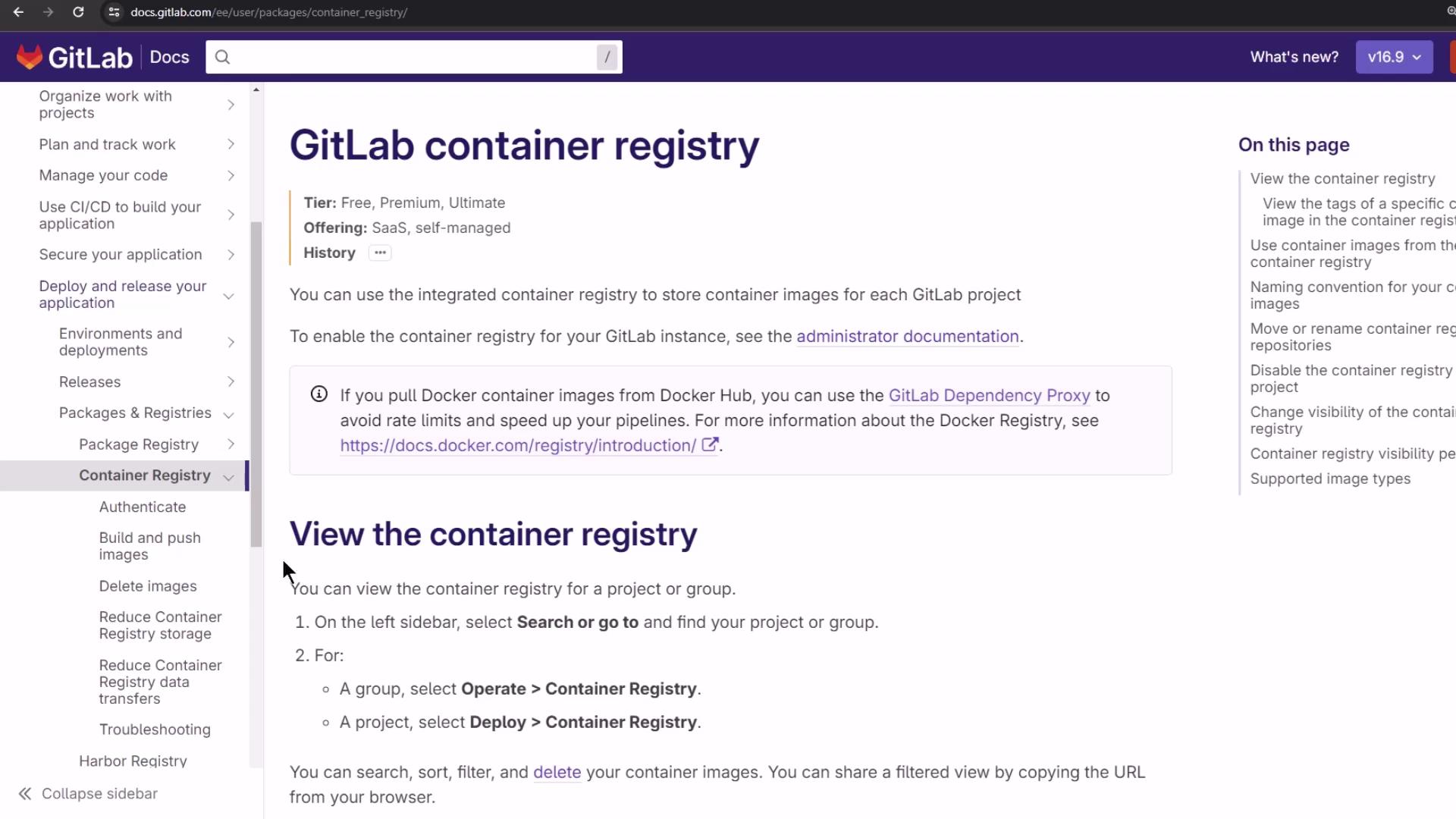
Refer to the [official GitLab Container Registry guide](https://docs.gitlab.com/ee/user/packages/container_registry/) for details on creating and managing tokens.
### Logging in with a Token
Locally, you can log in using any valid token:
```bash theme={null}
TOKEN=
docker login registry.example.com -u --password-stdin <<< "$TOKEN"
```
Within a GitLab CI/CD job, leverage predefined variables for seamless authentication:
```bash theme={null}
docker login $CI_REGISTRY -u $CI_REGISTRY_USER --password-stdin <<< "$CI_REGISTRY_PASSWORD"
docker login $CI_REGISTRY -u $CI_REGISTRY_USER --password-stdin <<< "$CI_JOB_TOKEN"
docker login $CI_REGISTRY -u $CI_DEPLOY_USER --password-stdin <<< "$CI_DEPLOY_PASSWORD"
```
Always keep your tokens secure. GitLab’s predefined variables (e.g., `CI_JOB_TOKEN`) expire automatically, reducing exposure risk.
## Building and Pushing Images Manually
If you prefer to build and push outside of CI/CD, follow these steps:
```bash theme={null}
docker build -t registry.gitlab.com/// .
docker push registry.gitlab.com///
```
Replace ``, ``, and `` with your specific values.
## GitLab CI/CD Job: `publish_gitlab_container_registry`
Below is an example `publish_gitlab_container_registry` job that:
1. Loads a prebuilt image archive
2. Authenticates to the registry
3. Tags the image
4. Pushes it upstream
```yaml theme={null}
publish_gitlab_container_registry:
stage: containerization
needs:
- docker_build
- docker_test
image: docker:24.0.5
services:
- docker:24.0.5-dind
script:
- docker load -i image/solar-system-image-$CI_PIPELINE_ID.tar
- echo "Registry: $CI_REGISTRY | User: $CI_REGISTRY_USER | Repo: $CI_REGISTRY_IMAGE"
- docker login $CI_REGISTRY -u "$CI_REGISTRY_USER" -p "$CI_REGISTRY_PASSWORD"
- docker tag $DOCKER_USERNAME/solar-system:$IMAGE_VERSION $CI_REGISTRY_IMAGE/ss-image:$IMAGE_VERSION
- docker images
- docker push $CI_REGISTRY_IMAGE/ss-image:$IMAGE_VERSION
```
### Predefined CI/CD Variables
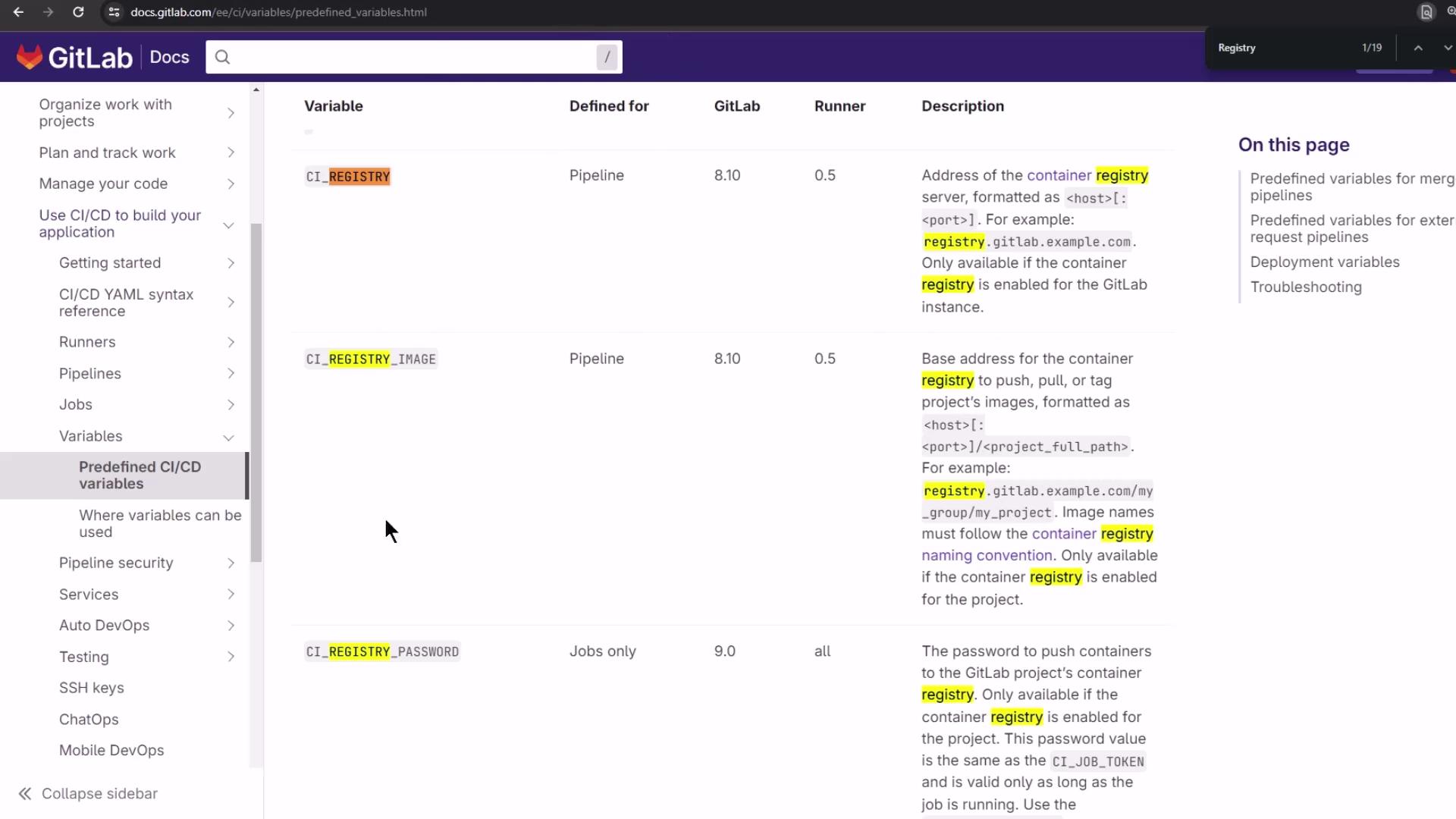
| Variable | Description | Example |
| ---------------------- | ---------------------------------------------------- | ----------------------------------- |
| CI\_REGISTRY | Hostname of the container registry | `registry.gitlab.com` |
| CI\_REGISTRY\_USER | Username for Docker login (typically a CI job token) | `$CI_REGISTRY_USER` |
| CI\_REGISTRY\_PASSWORD | Password or token for authentication | `$CI_REGISTRY_PASSWORD` |
| CI\_REGISTRY\_IMAGE | Full path to the project’s image repo | `registry.gitlab.com/group/project` |
## Viewing the Registry Before and After Push
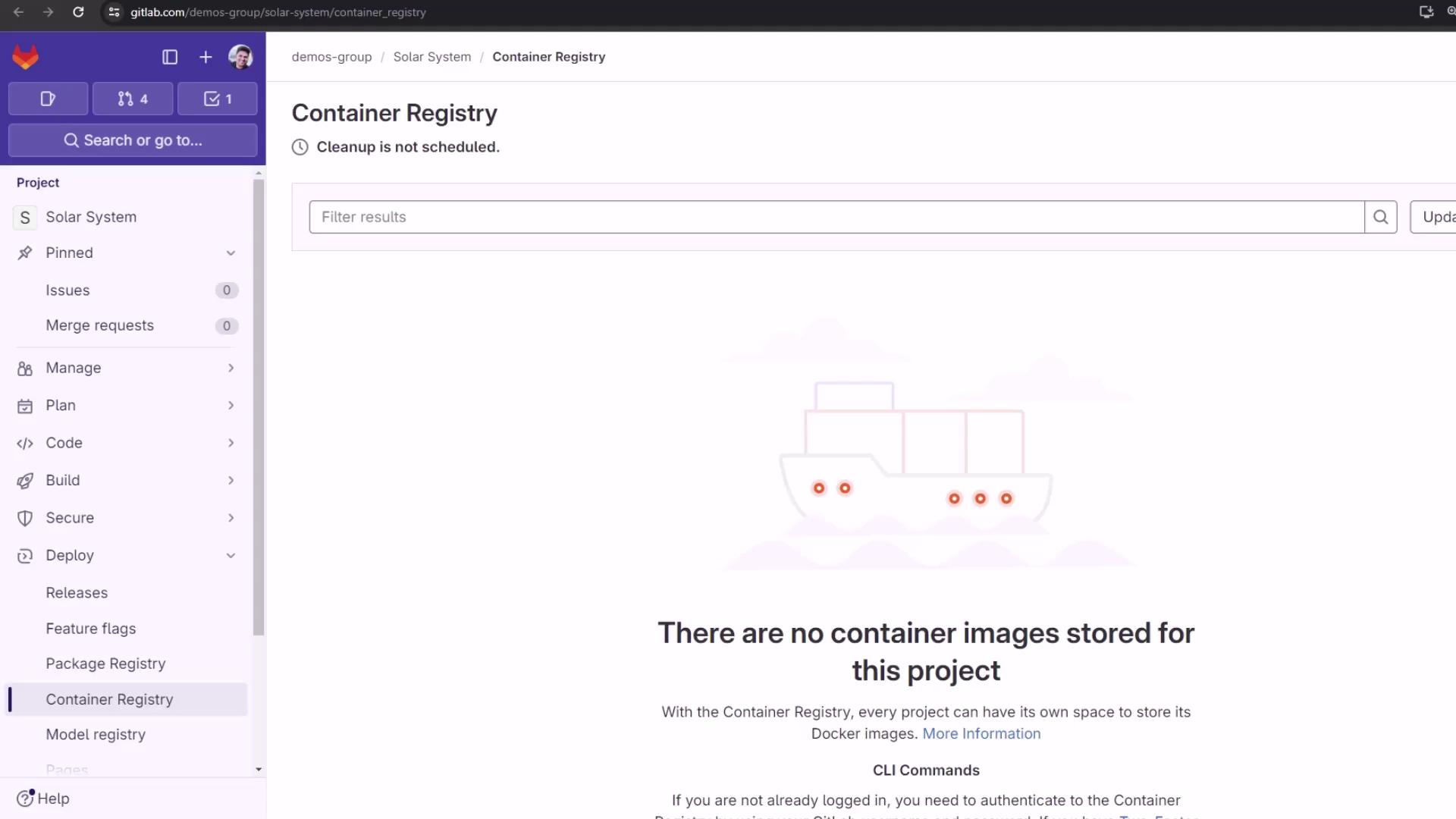
Before any push, the Container Registry is empty:
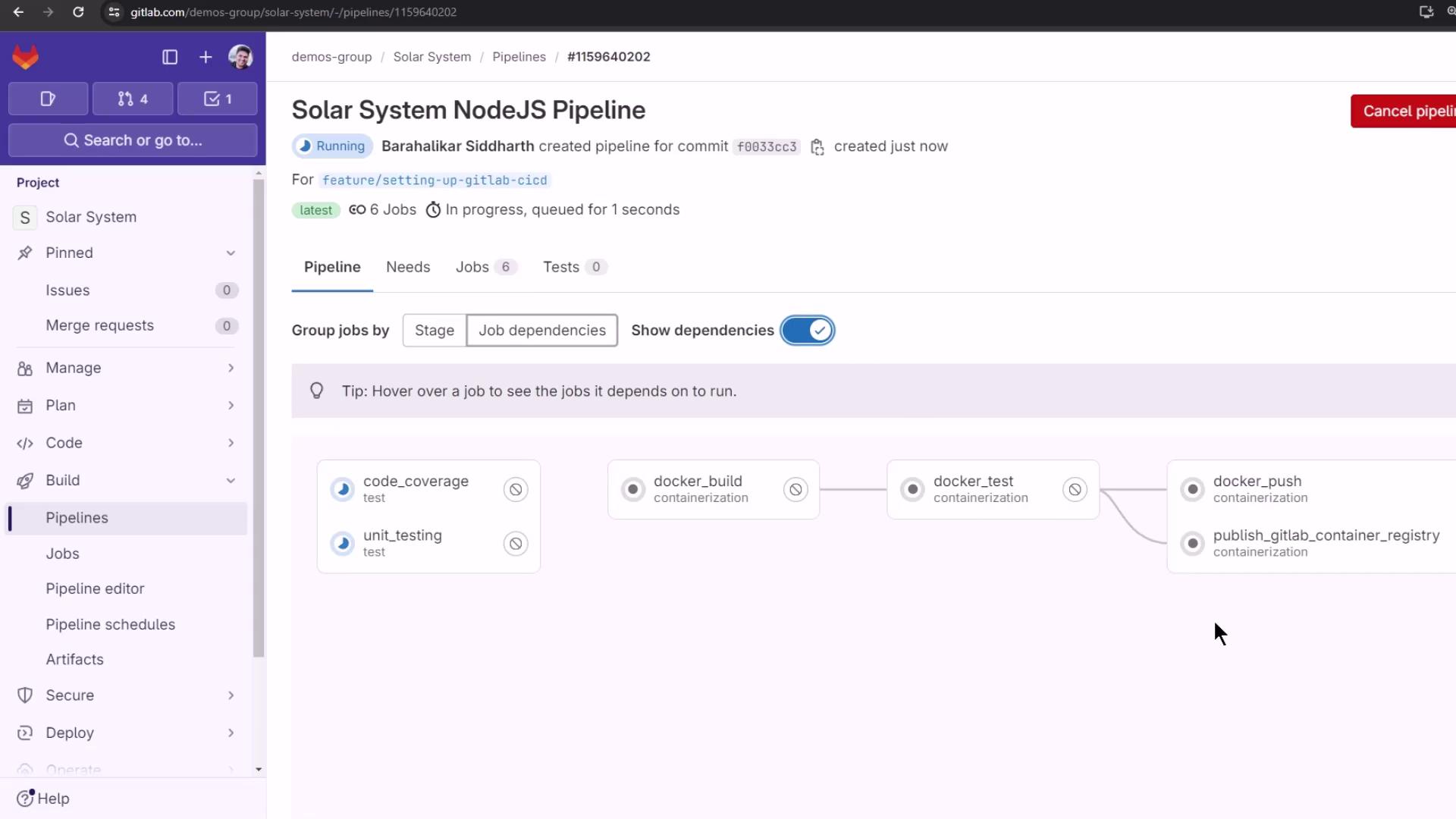
After committing your `.gitlab-ci.yml` and running the pipeline, the `publish_gitlab_container_registry` job executes in parallel with other containerization steps:
## Troubleshooting Login Errors
If you encounter a syntax error using `--password-stdin`, switch to the `-p` flag:
```diff theme={null}
-script:
- - docker login $CI_REGISTRY -u "$CI_REGISTRY_USER" --password-stdin <<< "$CI_REGISTRY_PASSWORD"
+script:
+ - docker login $CI_REGISTRY -u "$CI_REGISTRY_USER" -p "$CI_REGISTRY_PASSWORD"
```
Passing passwords directly via `-p` can be insecure. Use `--password-stdin` where possible, and ensure your CI logs are protected.
## Verifying a Successful Push
Once the job completes, your logs should look like this:
```bash theme={null}
$ docker load -i image/solar-system-image-$CI_PIPELINE_ID.tar
$ echo "Registry: $CI_REGISTRY = $CI_REGISTRY_USER = $CI_REGISTRY_IMAGE"
$ docker login $CI_REGISTRY --username="$CI_REGISTRY_USER" --password="$CI_REGISTRY_PASSWORD"
WARNING! Using --password via the CLI is insecure. Use --password-stdin.
$ docker tag $DOCKER_USERNAME/solar-system:$IMAGE_VERSION $CI_REGISTRY_IMAGE/ss-image:$IMAGE_VERSION
$ docker images
$ docker push $CI_REGISTRY_IMAGE/ss-image:$IMAGE_VERSION
```
Returning to the Container Registry now reveals the newly published image:
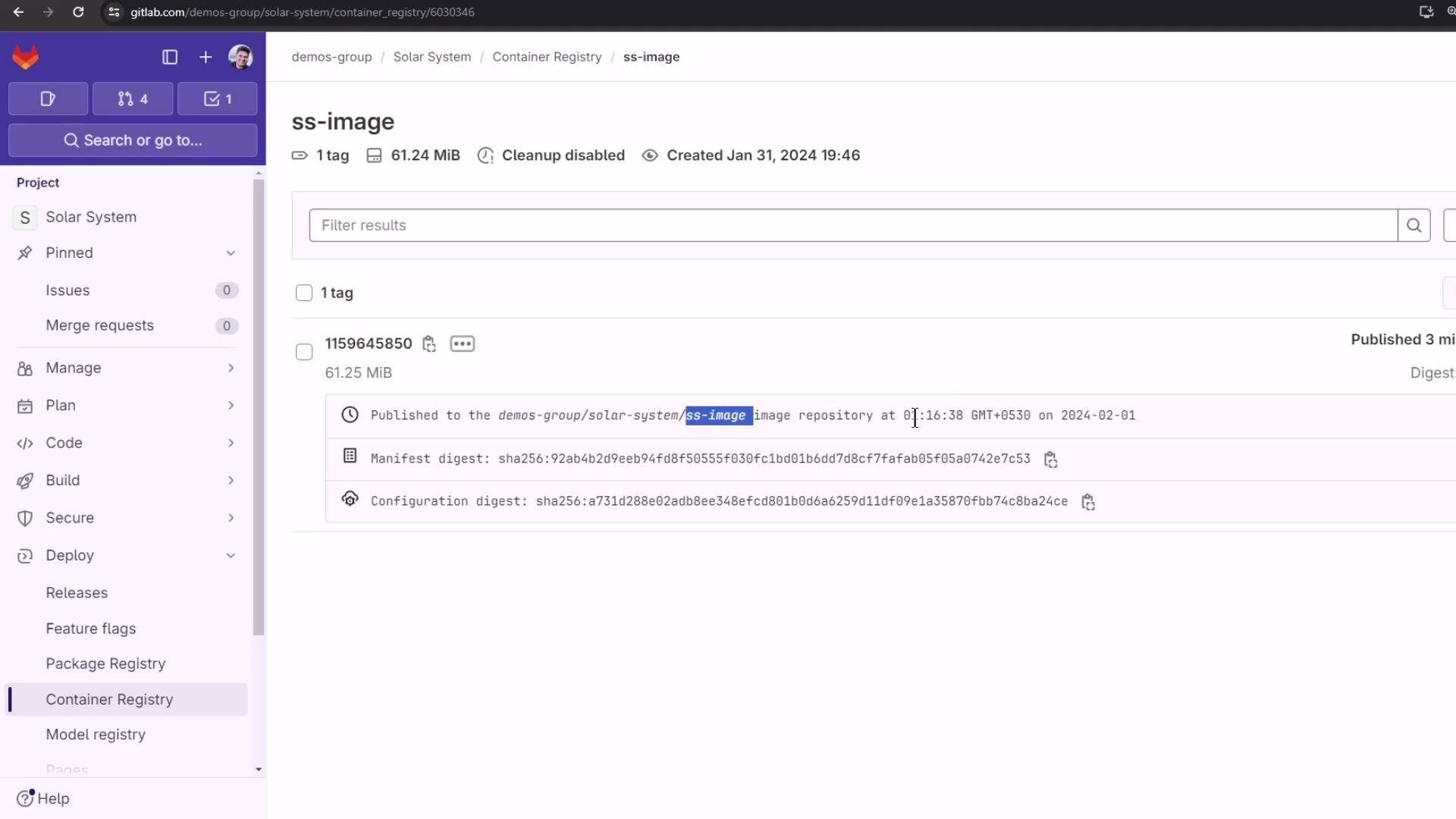
Here you can inspect tags, image sizes, and manifest digests. You’ve successfully published your Docker image to GitLab’s Container Registry!