> ## Documentation Index
> Fetch the complete documentation index at: https://notes.kodekloud.com/llms.txt
> Use this file to discover all available pages before exploring further.
# Run Unit Testing amp Code Coverage Jobs using Services
> This guide explains how to configure Docker-based services in a GitLab CI/CD pipeline for unit testing and code coverage.
In this guide, you’ll learn how to configure Docker-based services within a GitLab CI/CD pipeline. Services are Docker containers that provide network-accessible dependencies (e.g., databases, caches) so your jobs can execute tests against them.
## Understanding GitLab CI Services
GitLab CI services let your job containers connect to supporting containers on the same network. Common use cases include databases (PostgreSQL, MongoDB), message queues (RabbitMQ), or custom APIs.
### What Services Are—and What They Aren’t
You can use any Docker image—public or private—as a service. However, services are **not** a way to install CLI tools for your job container. For example:
```yaml theme={null}
job:
services:
- php:7
- node:latest
- golang:1.10
image: alpine:3.7
script:
- php -v # ❌ Error: no PHP binary
- node -v # ❌ Error: no Node.js binary
- go version # ❌ Error: no Go binary
```
To run language-specific commands, always specify the language image under `image:`, not under `services:`.
Use services for networked dependencies only. Put build tools and language runtimes in the `image:` section of your job.
## Defining & Connecting to Services
A minimal service definition looks like this:
```yaml theme={null}
job:
image: alpine:3.7
services:
- name: tutum/wordpress:latest
script:
- curl http://tutum-wordpress
```
By default, each service is reachable via two hostnames:
* Replace `/` with `__` (double underscore): `tutum__wordpress`
* Replace `/` with `-` (single dash): `tutum-wordpress`
Tags (the part after `:`) are dropped. Because underscores aren’t valid under [RFC 1123](https://tools.ietf.org/html/rfc1123), it’s best to assign a custom alias:
```yaml theme={null}
job:
image: alpine:3.7
services:
- name: tutum/wordpress:latest
alias: wordpress
script:
- curl http://wordpress
```
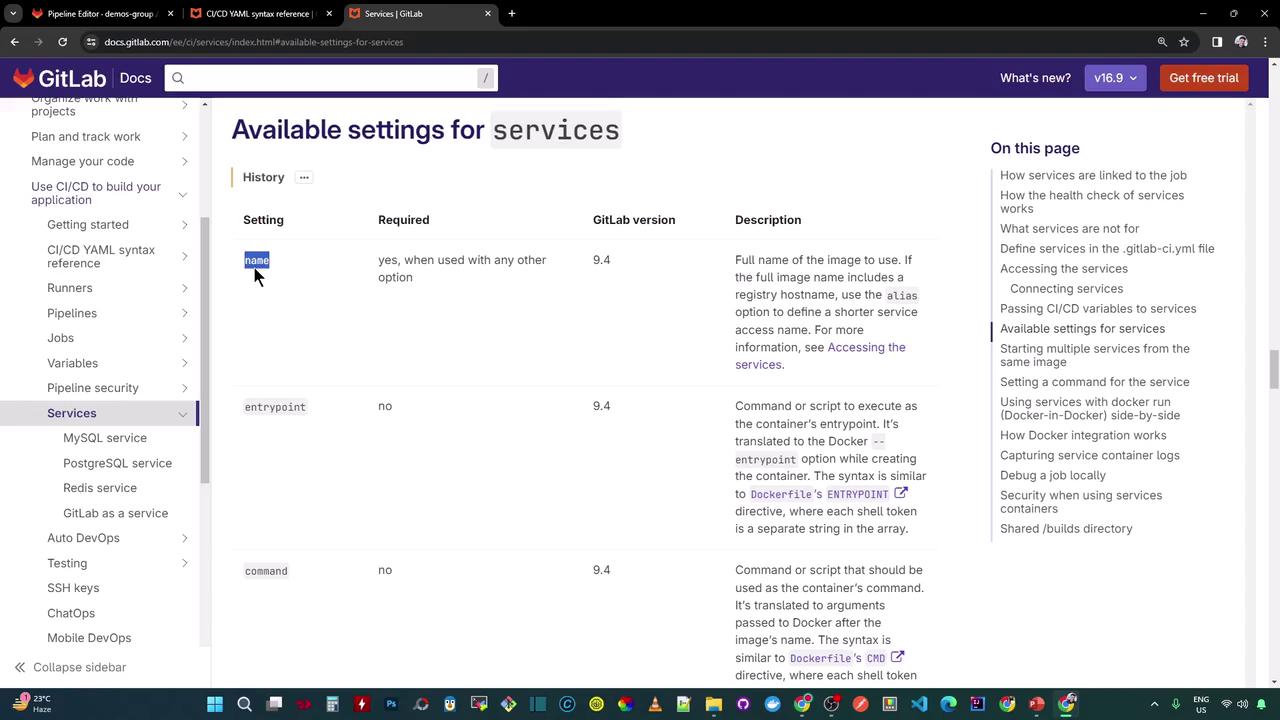
## Service Configuration Options
| Setting | Required | Description |
| ------------- | -------- | -------------------------------------------------------------------------- |
| `name` | Yes | Full image name, including registry and tag (e.g., `postgres:13-alpine`). |
| `alias` | No | Custom hostname for the service container. |
| `entrypoint` | No | Override the Docker entrypoint. |
| `command` | No | Override the Docker command. |
| `variables` | No | Environment variables to pass into the service container. |
| `pull_policy` | No | When to pull the image: `always`, `if-not-present`, or a list of policies. |
### Example: Entrypoint, Command & Variables
```yaml theme={null}
default:
image: ruby:2.6
entrypoint: ["bash"]
services:
- name: my-postgres:11.7
alias: db-postgres
entrypoint: ["/usr/local/bin/docker-entrypoint.sh"]
command: ["postgres"]
variables:
POSTGRES_DB: test
POSTGRES_USER: user
POSTGRES_PASSWORD: secret
```
### Setting Pull Policies
Control when the Runner pulls service images:
```yaml theme={null}
job1:
script: echo "Using if-not-present pull policy"
services:
- name: postgres:11.6
pull_policy: if-not-present
job2:
script: echo "Using always pull policy"
services:
- name: postgres:11.6
pull_policy: [always, if-not-present]
```
## CI/CD Jobs: Unit Testing & Code Coverage with MongoDB Service
The example below shows two jobs—`unit_testing` and `code_coverage`—both using a MongoDB service from `siddharth67/mongo-db:non-prod`. We set an alias `mongo` and always pull the image on self-managed runners.
```yaml theme={null}
variables:
# Define CI/CD variables in Settings → CI/CD
MONGO_PASSWORD: $M_DB_PASSWORD
unit_testing:
stage: test
image: node:17-alpine3.14
services:
- name: siddharth67/mongo-db:non-prod
alias: mongo
pull_policy: always
variables:
MONGO_URI: 'mongodb://mongo:27017/superData'
MONGO_USERNAME: non-prod-user
MONGO_PASSWORD: $M_DB_PASSWORD
cache:
key:
files:
- package-lock.json
prefix: node_modules
policy: pull-push
when: on_success
paths:
- node_modules
before_script:
- npm install
script:
- npm test
artifacts:
when: always
expire_in: 3 days
name: Moca-Test-Result
paths:
- test-results.xml
reports:
junit: test-results.xml
code_coverage:
stage: test
image: node:17-alpine3.14
services:
- name: siddharth67/mongo-db:non-prod
alias: mongo
pull_policy: always
variables:
MONGO_URI: 'mongodb://mongo:27017/superData'
MONGO_USERNAME: non-prod-user
MONGO_PASSWORD: $M_DB_PASSWORD
cache:
key:
files:
- package-lock.json
prefix: node_modules
policy: pull-push
when: on_success
paths:
- node_modules
before_script:
- npm install
script:
- npm run coverage
```
### How It Works
1. **Service Startup**\
The GitLab Runner pulls and starts the MongoDB container (`siddharth67/mongo-db:non-prod`), then waits for it to become healthy.
2. **Job Container Launch**\
The Runner pulls the Node.js image and initializes the job container.
3. **Networking**\
Both containers share a Docker network. The job container connects to MongoDB via `mongo:27017`.
4. **Caching & Artifacts**\
Node modules and test reports are cached/restored and archived, speeding up subsequent pipelines.
### Sample Job Logs
```text theme={null}
Running with gitlab-runner 16.6.0...
Using Docker executor with image node:17-alpine3.14 ...
Starting service siddharth67/mongo-db:non-prod ...
Pulling docker image siddharth67/mongo-db:non-prod ...
Waiting for services to be up and running (timeout 30 seconds)...
Pulling docker image node:17-alpine3.14 ...
Preparing environment
Running on runner-xyz...
Getting source from Git repository
Restoring cache
Executing "step_script" stage of the job script
$ npm test
✓ should connect to MongoDB at mongo:27017
...
Saving cache for successful job
Uploading artifacts for successful job
Job succeeded
```
## References
* [GitLab CI/CD Services Documentation](https://docs.gitlab.com/ee/ci/services/)
* [CI/CD Variables | GitLab](https://docs.gitlab.com/ee/ci/variables/)
* [Docker Pull Policy Options](https://docs.gitlab.com/ee/ci/docker/using_docker_images.html#image-pull-policy)