> ## Documentation Index
> Fetch the complete documentation index at: https://notes.kodekloud.com/llms.txt
> Use this file to discover all available pages before exploring further.
# Create GitLab Account
> Learn to set up and navigate your GitLab SaaS account, covering sign-in methods, namespaces, projects, CI/CD usage quotas, and compute usage calculation.
In this lesson, you’ll learn how to set up and navigate your GitLab SaaS account—no self-hosted installation required. We’ll cover sign-in methods, namespaces, projects, CI/CD usage quotas, and how compute usage is calculated.
## 1. Sign In to GitLab
Begin by visiting the GitLab login page. You can authenticate with your email and password or leverage single sign-on providers:
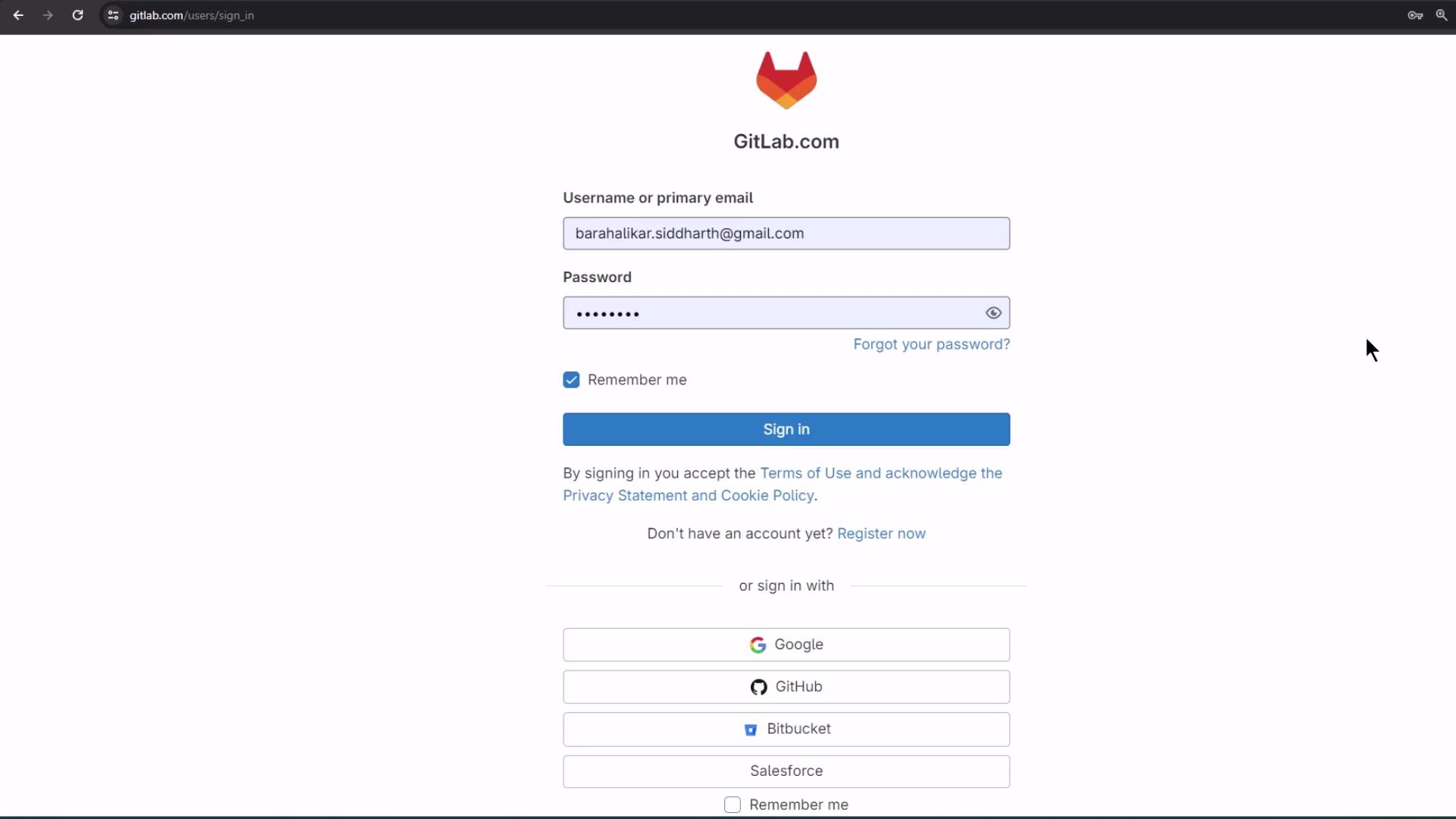
Available sign-in options include:
* Email and password
* Google
* GitHub
* Bitbucket
* Salesforce
In this tutorial, we’ll continue with an existing trial account.
## 2. Your Dashboard and Namespaces
After logging in, GitLab displays all your projects grouped by namespace:
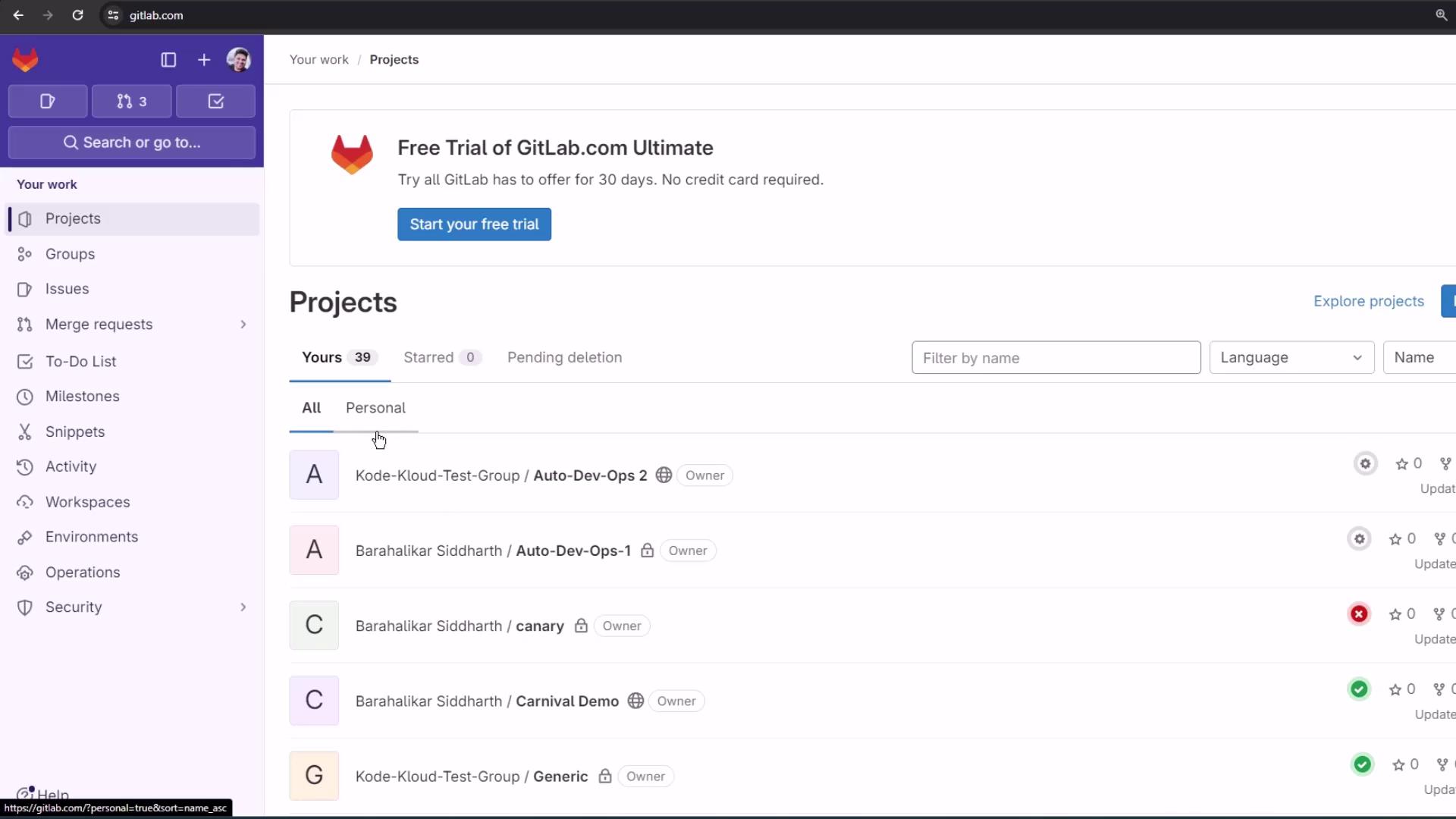
By default, GitLab creates two namespace types:
| Namespace Type | Description |
| ------------------ | --------------------------------------------------------------------------- |
| Personal namespace | Named after your username and contains only projects you own |
| Group namespace | A folder for related projects that share permissions, settings, and members |
## 3. Understanding GitLab Projects
A **project** in GitLab is equivalent to a repository on other platforms. Within each project, you can:
* Host your code and assets
* Track issues, boards, and merge requests
* Collaborate on code reviews
* Build, test, and deploy with integrated CI/CD pipelines
Projects in GitLab combine repository management, issue tracking, and CI/CD in one place—no extra setup required.
This guide will later show you how to configure CI/CD pipelines, review environment dashboards, and explore security insights.
## 4. Viewing Usage Quotas
To monitor your CI/CD consumption, go to **Edit Profile > Usage Quotas**:
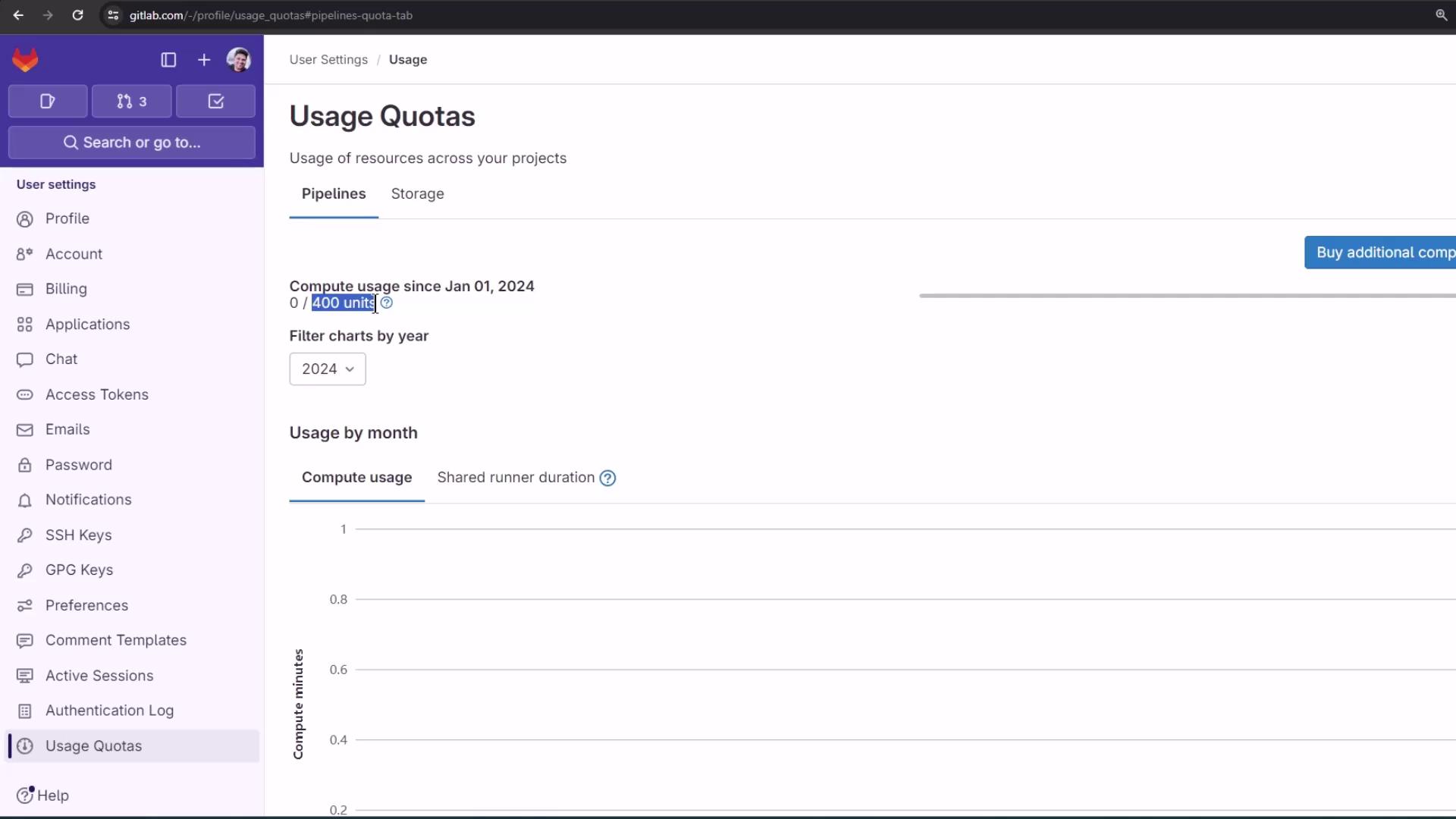
GitLab trial accounts include 400 compute units per month. Compute units measure the time your jobs run on GitLab’s shared runners.
> Compute usage = job duration × cost factor
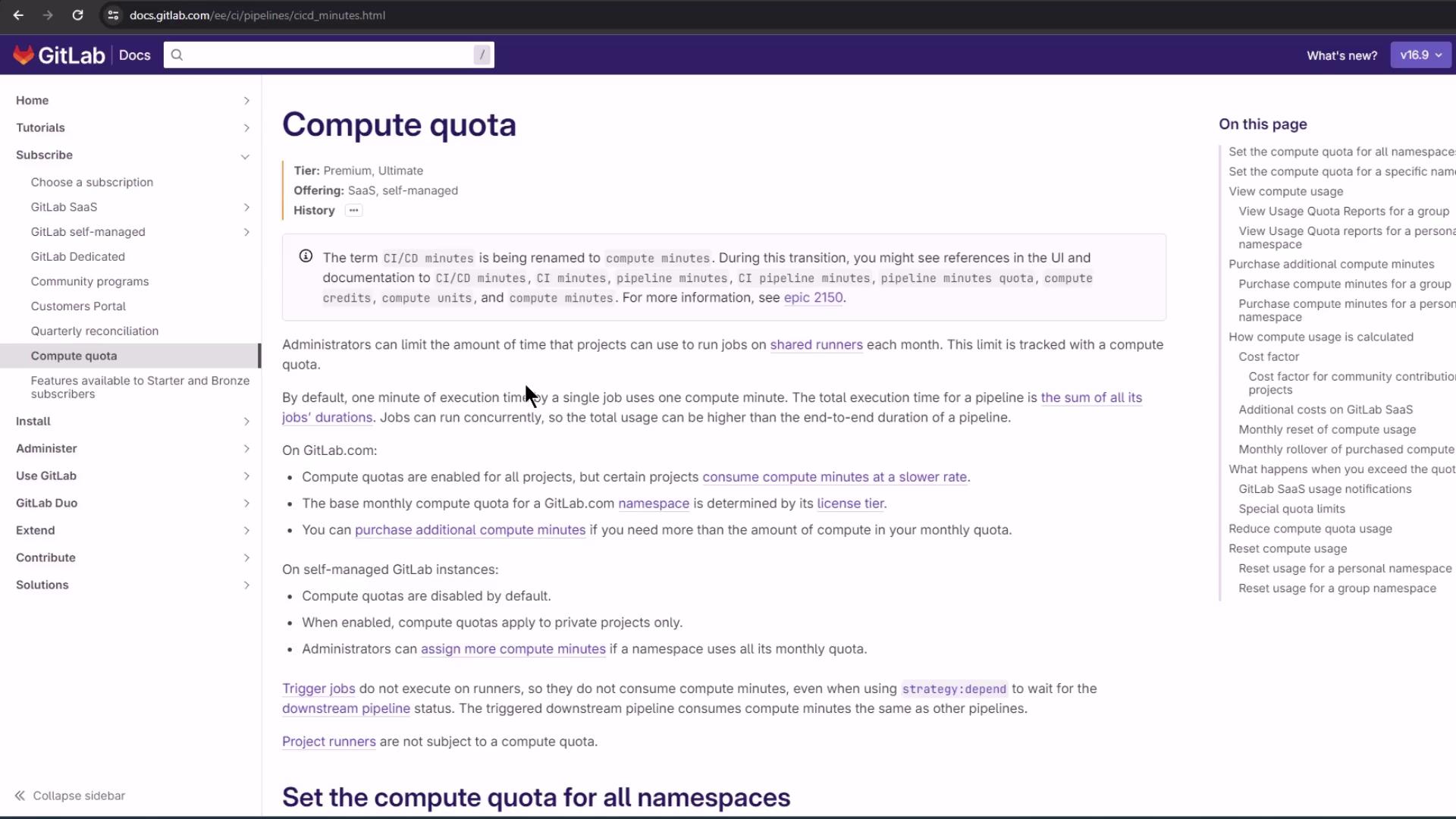
For full details on compute quotas and billing, see the official documentation:
## 5. How Compute Usage Is Calculated
GitLab multiplies each job’s runtime by a cost factor that depends on:
* Project visibility (public, internal, private, open source)
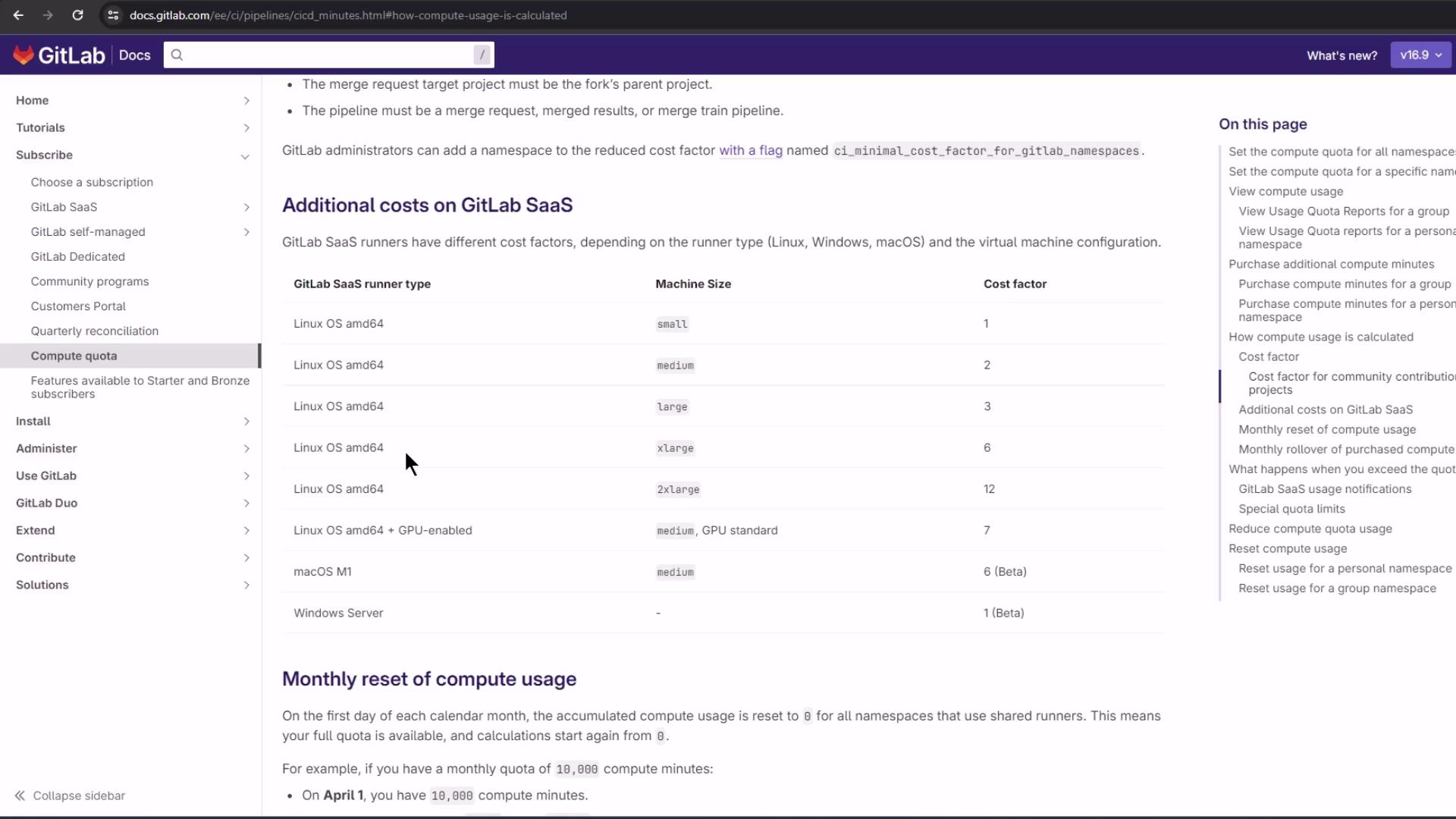
* Runner type and size (Linux, Windows, macOS, GPU-enabled, etc.)
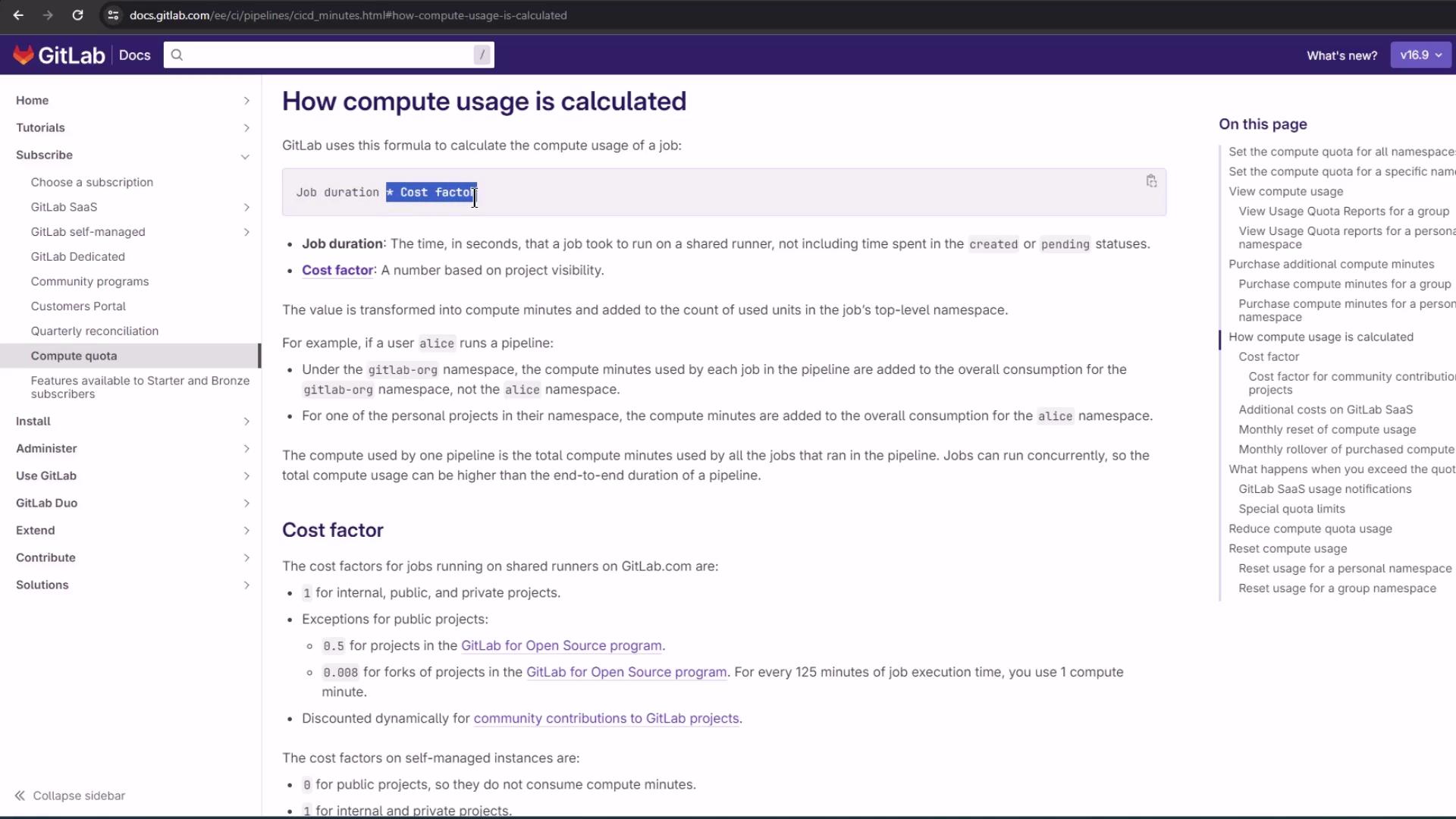
Different VM types incur varying cost factors. Review the example table in GitLab’s docs:
Exceeding your monthly compute quota may incur additional charges. Monitor usage regularly and consider adding more runners or optimizing job durations.
## 6. Next Steps
You’re all set to explore deeper GitLab CI/CD features:
* Configure custom runners and tags
* Define advanced pipeline stages and triggers
* Use environment and operations dashboards
* Integrate security and compliance scans
***
## Links and References
* [GitLab CI/CD Usage Quotas](https://docs.gitlab.com/ee/ci/usage_quotas.html#compute-quota)
* [GitLab SaaS Pricing](https://about.gitlab.com/pricing/)
* [Kubernetes Basics](https://kubernetes.io/docs/concepts/overview/what-is-kubernetes/)
* [Docker Hub](https://hub.docker.com/)