> ## Documentation Index
> Fetch the complete documentation index at: https://notes.kodekloud.com/llms.txt
> Use this file to discover all available pages before exploring further.

# Adding a Pipeline status amp Code Coverage Badge

> This article explains how to add pipeline status and code coverage badges in GitLab to display project metrics visually.

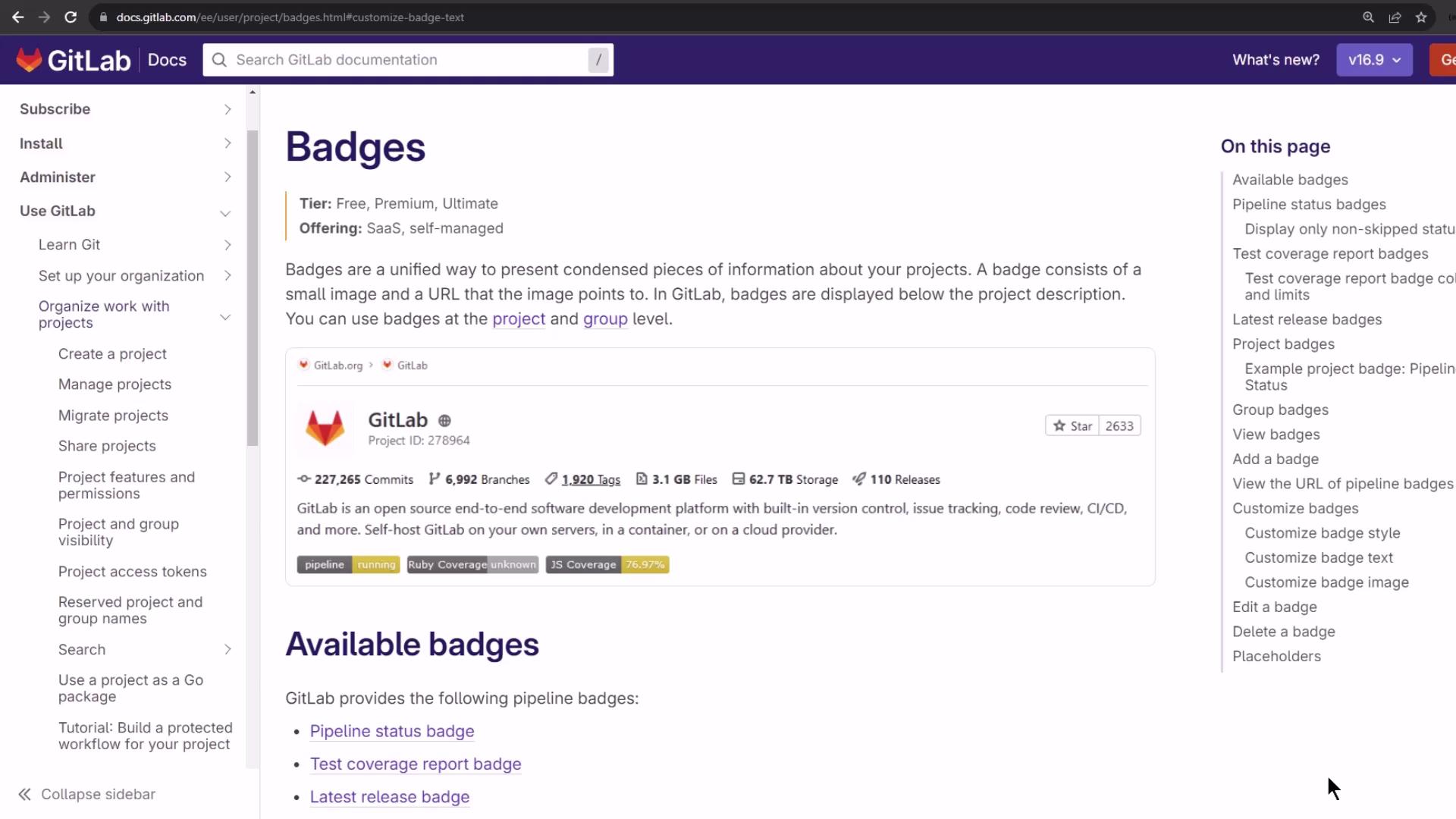
Badges in GitLab offer a concise, visual way to display essential project metrics—such as build health and test coverage—directly in your repository. Each badge is a small image that links to a URL, and you can define them at either the project or group level. They appear right below your project description, keeping stakeholders informed at a glance.
<Frame>
  ![The image shows a GitLab documentation page about badges, detailing their purpose and types, with a sidebar for navigation and a section on available badges.](https://kodekloud.com/kk-media/image/upload/v1752877316/notes-assets/images/GitLab-CICD-Architecting-Deploying-and-Optimizing-Pipelines-Adding-a-Pipeline-status-amp-Code-Coverage-Badge/gitlab-badges-documentation-sidebar.jpg)
</Frame>

## Types of GitLab Badges

Use GitLab’s built-in badges or roll your own to surface the data your team cares about:

| Badge Type           | Description                                                                          |
| -------------------- | ------------------------------------------------------------------------------------ |
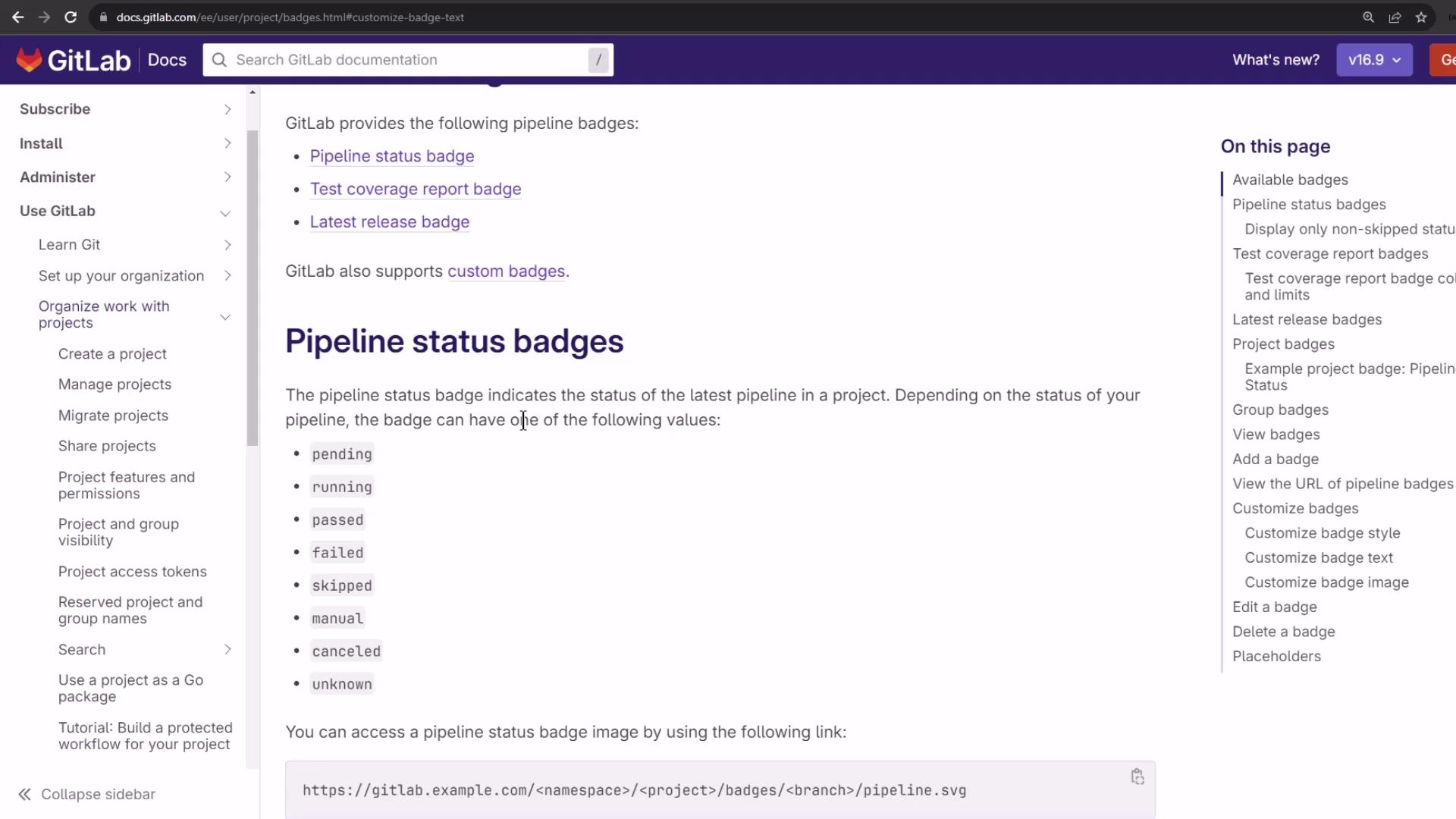
| Pipeline status      | Shows the latest pipeline state (pending, running, passed, failed, etc.).            |
| Test coverage report | Displays the percentage of code covered by tests, based on your coverage job output. |
| Latest release       | Indicates your project’s most recent release version.                                |
| Custom badge         | Let you specify any image URL and link for other metrics (e.g., security scan).      |

You can also adjust badge colors and styles to match your organization’s branding.
<Frame>
  ![The image shows a GitLab documentation page about pipeline status badges, listing different badge statuses like pending, running, and passed. It includes navigation links on the left and a table of contents on the right.](https://kodekloud.com/kk-media/image/upload/v1752877318/notes-assets/images/GitLab-CICD-Architecting-Deploying-and-Optimizing-Pipelines-Adding-a-Pipeline-status-amp-Code-Coverage-Badge/gitlab-pipeline-status-badges-doc.jpg)
</Frame>

## Badge URL Example

If you prefer hosting your own SVG badges in the repository, reference them with a raw file URL:

```text theme={null}
https://gitlab.example.com/<project_path>/-/raw/<default_branch>/my-image.svg
```

<Callout icon="lightbulb" color="#1CB2FE">
  Hosting badges in your repo makes them versioned alongside your code. Just ensure the branch name and file path are correct.
</Callout>

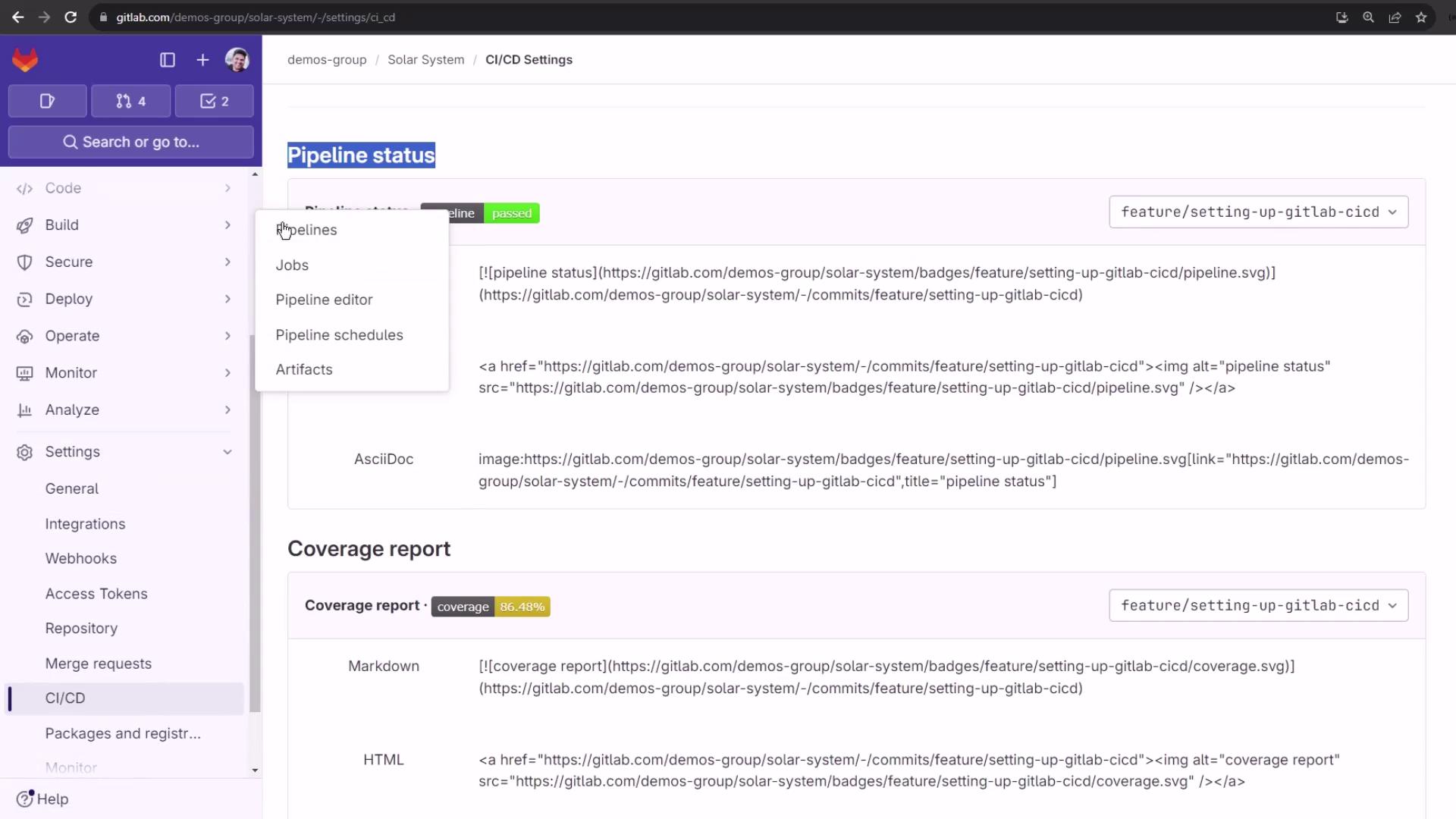
## Configuring Pipeline Status & Coverage Badges

1. Navigate to **Settings ➔ CI/CD** in your project.
2. Expand the **General pipelines** section.
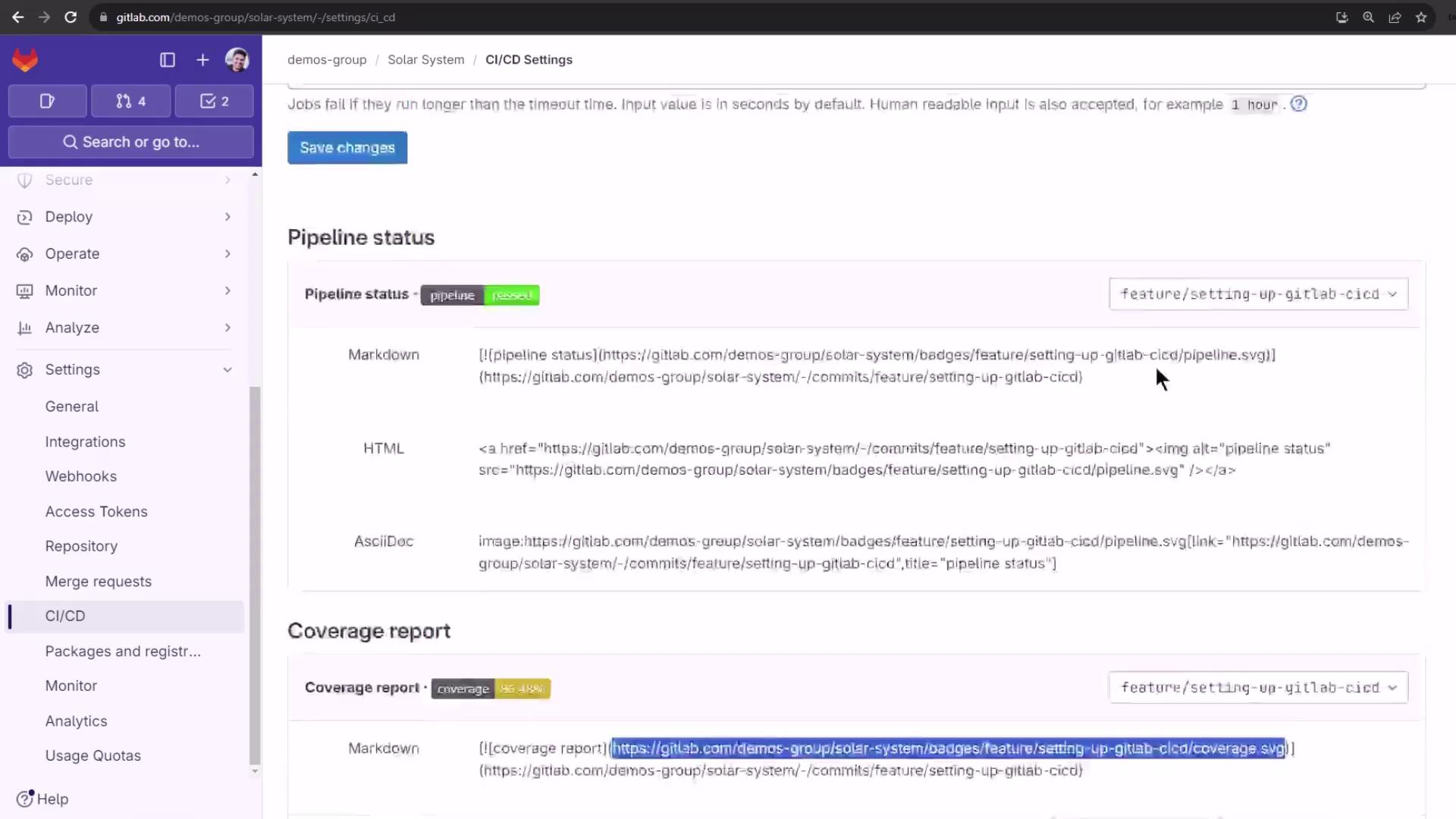
3. Scroll down to **Pipeline status** and **Coverage report**.

GitLab will automatically generate two badge URLs:

* **Pipeline status**: Reflects the last pipeline’s outcome.
* **Coverage report**: Shows the test coverage percentage only if a coverage job exists.
<Frame>
  ![The image shows a GitLab CI/CD settings page with sections for pipeline status and coverage report, including dropdown menus and code snippets.](https://kodekloud.com/kk-media/image/upload/v1752877319/notes-assets/images/GitLab-CICD-Architecting-Deploying-and-Optimizing-Pipelines-Adding-a-Pipeline-status-amp-Code-Coverage-Badge/gitlab-ci-cd-settings-pipeline-coverage.jpg)
</Frame>

<Callout icon="triangle-alert" color="#FF6B6B">
  The coverage badge will appear only when your pipeline includes a job that outputs a coverage metric. Ensure you’ve configured a `coverage: /regex/` in your job definition.
</Callout>

<Frame>
  ![The image shows a GitLab pipeline interface for a NodeJS project, indicating a failed job with a code coverage of 86.48%.](https://kodekloud.com/kk-media/image/upload/v1752877320/notes-assets/images/GitLab-CICD-Architecting-Deploying-and-Optimizing-Pipelines-Adding-a-Pipeline-status-amp-Code-Coverage-Badge/gitlab-pipeline-nodejs-failed-job.jpg)
</Frame>

## Badge Formats & Customization

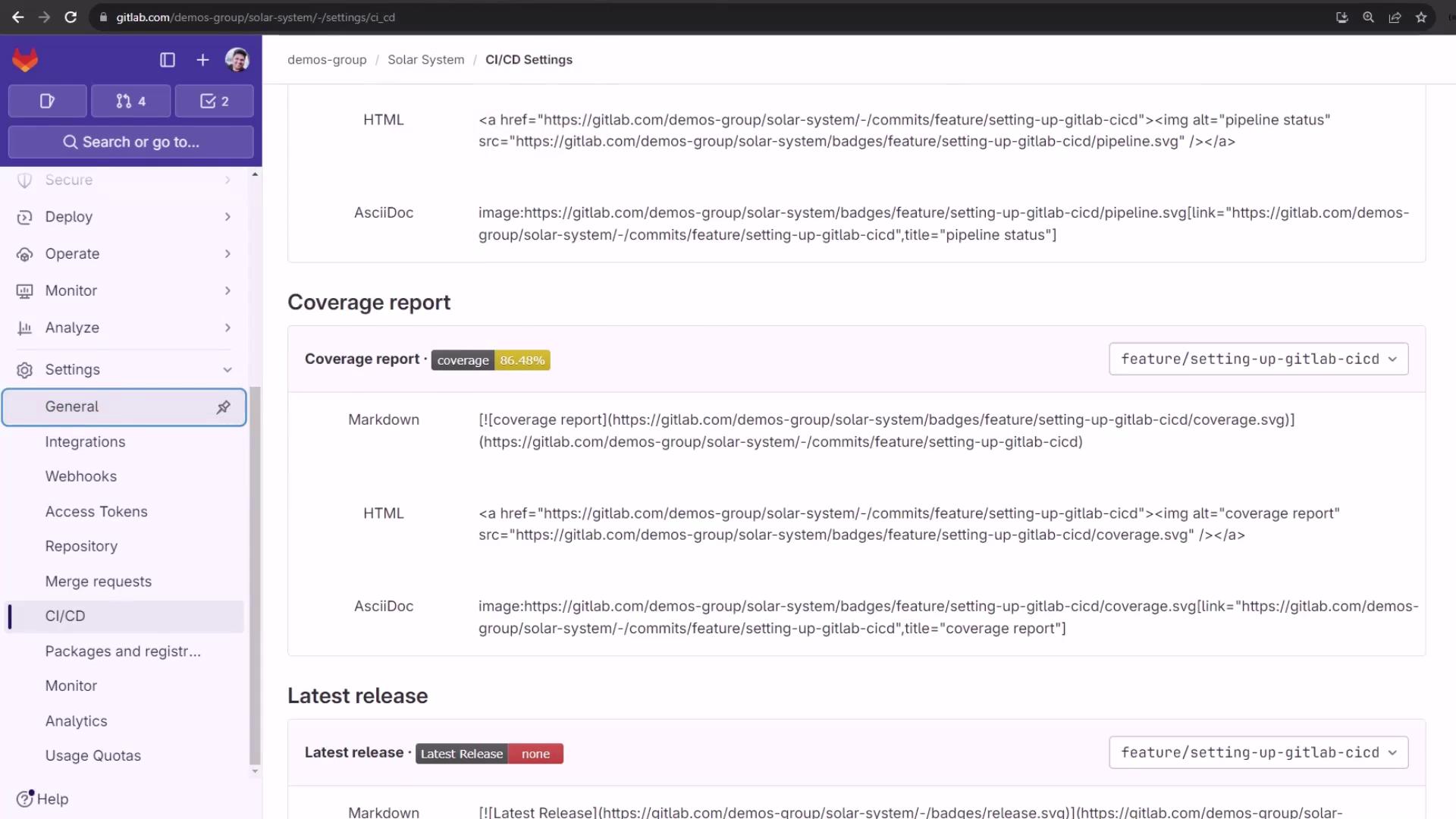
Badges support Markdown, HTML, and AsciiDoc embed formats. You can also target specific branches by appending `?ref=<branch>` to the badge URL. Coverage badges change color based on percentage thresholds—up to five levels—which you can customize via URL parameters.
<Frame>
  ![The image shows a GitLab CI/CD settings page with sections for coverage report and latest release, displaying HTML, Markdown, and AsciiDoc code snippets. The coverage report shows a coverage percentage of 86.48%.](https://kodekloud.com/kk-media/image/upload/v1752877323/notes-assets/images/GitLab-CICD-Architecting-Deploying-and-Optimizing-Pipelines-Adding-a-Pipeline-status-amp-Code-Coverage-Badge/gitlab-ci-cd-settings-coverage-report.jpg)
</Frame>

## Adding Badges to Your Project

To add badges under your project description:

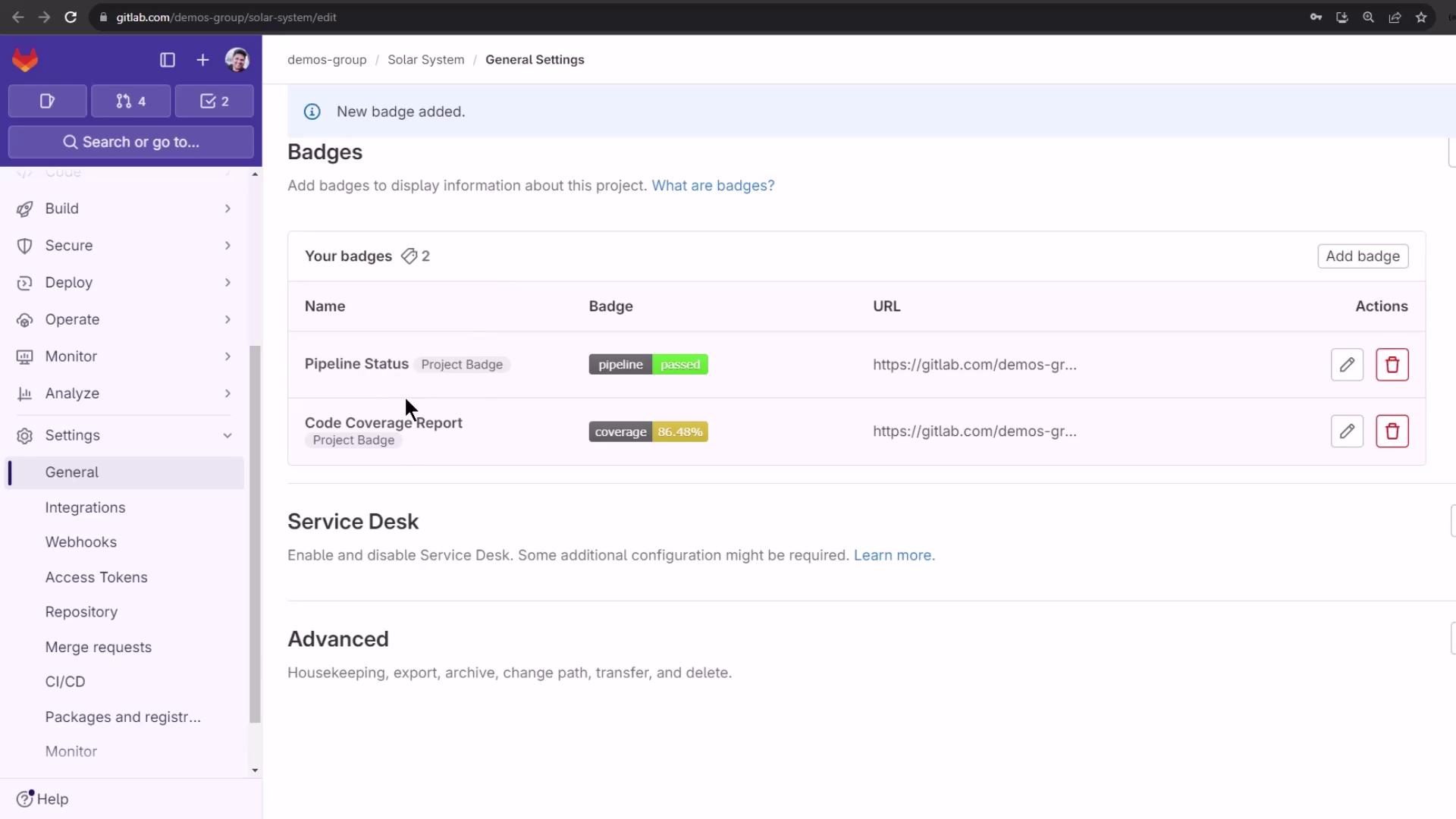
1. Go to **Settings ➔ General**.
2. Find the **Badges** section and click **Add badge**.
3. Complete the fields:
   * **Name**: A descriptive label (e.g., `Pipeline Status`).
   * **Link URL**: Destination when the badge is clicked.
   * **Badge image URL**: The SVG endpoint generated by GitLab.
4. Click **Add badge** to save and preview.
<Frame>
  ![The image shows a GitLab CI/CD settings page with sections for pipeline status and coverage report, displaying their respective statuses and code snippets for integration.](https://kodekloud.com/kk-media/image/upload/v1752877324/notes-assets/images/GitLab-CICD-Architecting-Deploying-and-Optimizing-Pipelines-Adding-a-Pipeline-status-amp-Code-Coverage-Badge/gitlab-ci-cd-settings-pipeline-status.jpg)
</Frame>

### Example Configuration

1. **Pipeline Status**
   * **Name**: Pipeline Status
   * **Link**: `https://gitlab.example.com/<project_path>/pipelines`
   * **Image**: Paste your pipeline status `.svg` URL.

2. **Code Coverage**
   * **Name**: Code Coverage
   * **Link**: `https://gitlab.example.com/<project_path>/pipelines`
   * **Image**: Paste your coverage report `.svg` URL.

After saving, you’ll see a live preview. Confirm and you’re done!
<Frame>
  ![The image shows a GitLab interface displaying project settings, including badges for pipeline status and code coverage report. The sidebar menu includes options like Code, Build, Secure, and Deploy.](https://kodekloud.com/kk-media/image/upload/v1752877325/notes-assets/images/GitLab-CICD-Architecting-Deploying-and-Optimizing-Pipelines-Adding-a-Pipeline-status-amp-Code-Coverage-Badge/gitlab-project-settings-interface.jpg)
</Frame>

## Viewing Badges in Your Project

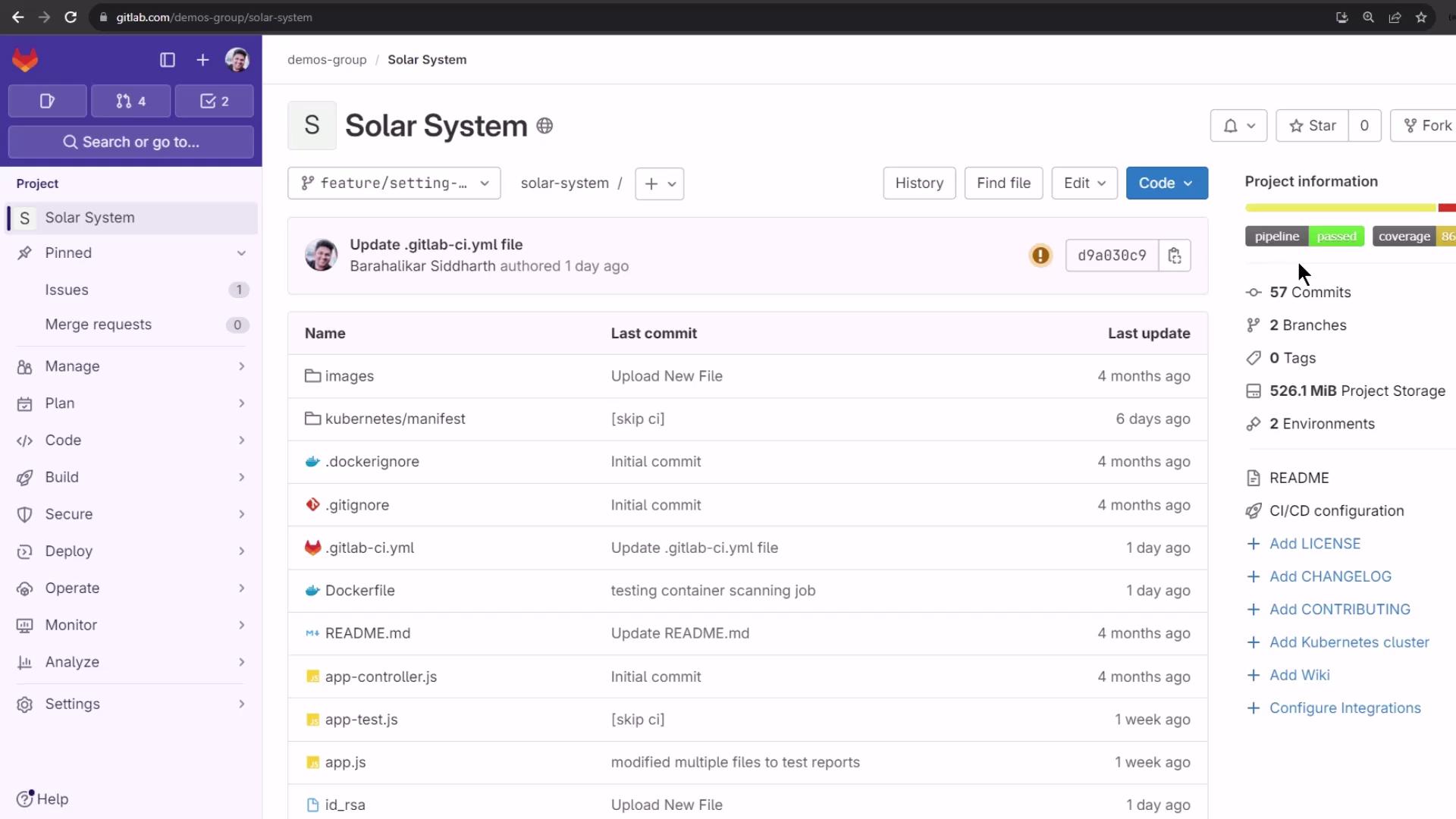
Return to your project’s main page. The badges now appear beneath the project description, instantly communicating your build health and code coverage to every visitor.
<Frame>
  ![The image shows a GitLab repository interface for a project named "Solar System," displaying files, commit history, and project information such as branches and storage usage.](https://kodekloud.com/kk-media/image/upload/v1752877326/notes-assets/images/GitLab-CICD-Architecting-Deploying-and-Optimizing-Pipelines-Adding-a-Pipeline-status-amp-Code-Coverage-Badge/gitlab-solar-system-repo-interface.jpg)
</Frame>

***

## Links and References

* [GitLab Badges Documentation](https://docs.gitlab.com/ee/user/project/badges.html)
* [GitLab CI/CD Settings](https://docs.gitlab.com/ee/ci/)

<CardGroup>
  <Card title="Watch Video" icon="video" cta="Learn more" href="https://learn.kodekloud.com/user/courses/gitlab-ci-cd-architecting-deploying-and-optimizing-pipelines/module/1573bc2e-563a-424a-a558-2081416601b3/lesson/ce3251cc-2474-416b-b51b-dbe382bf029b" />

  <Card title="Practice Lab" icon="installation" cta="Learn more" href="https://learn.kodekloud.com/user/courses/gitlab-ci-cd-architecting-deploying-and-optimizing-pipelines/module/1573bc2e-563a-424a-a558-2081416601b3/lesson/73db6476-ded7-4eae-a407-1ffe0ddd0915" />
</CardGroup>
