> ## Documentation Index
> Fetch the complete documentation index at: https://notes.kodekloud.com/llms.txt
> Use this file to discover all available pages before exploring further.
# ChatOps with Slack
> This guide demonstrates integrating GitLab ChatOps into Slack for triggering CI/CD pipelines, managing issues, and reviewing job outputs.
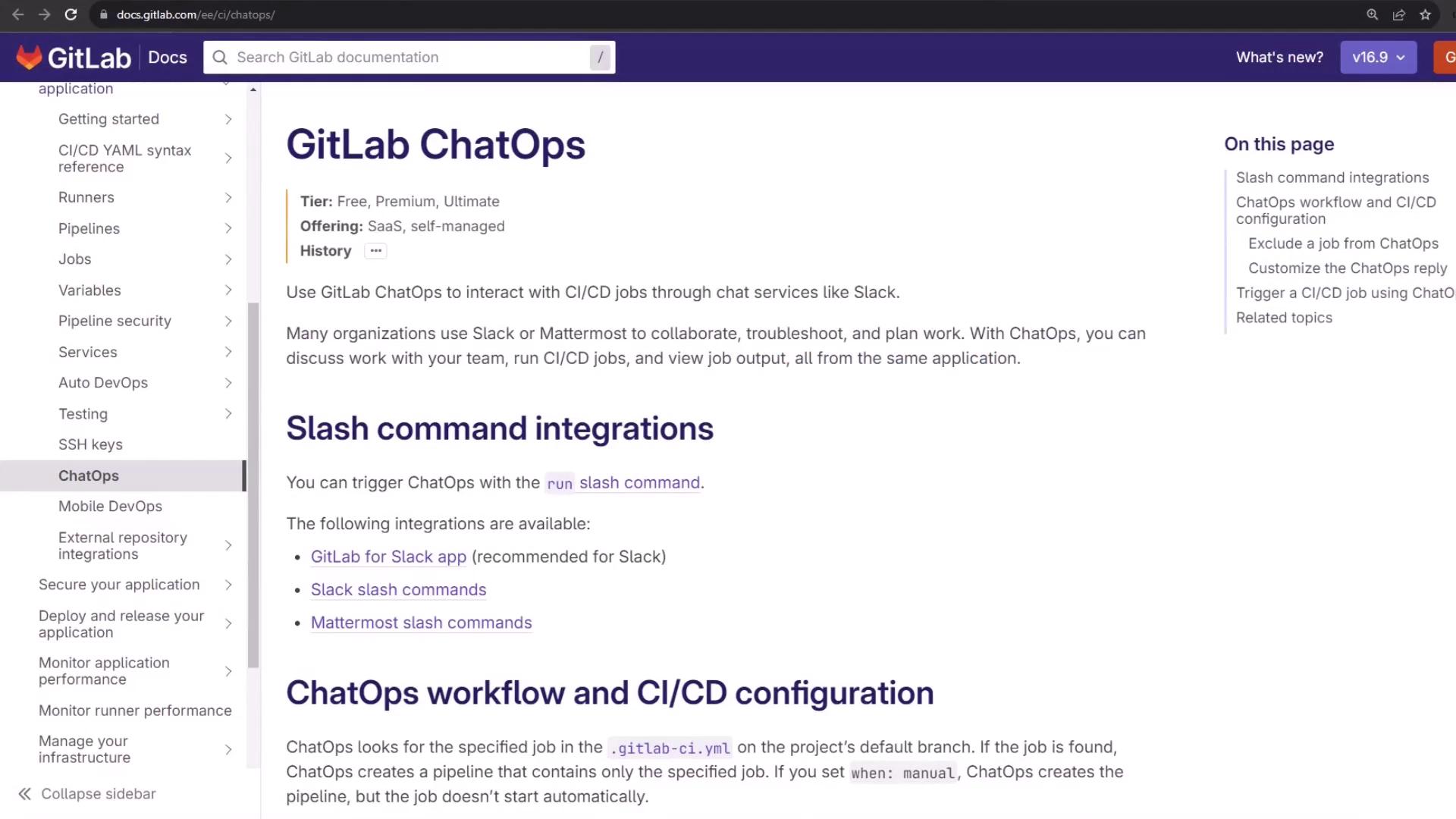
In this guide, we’ll demonstrate how to integrate GitLab ChatOps into your Slack workspace. With GitLab ChatOps, you can trigger CI/CD pipelines, manage issues, and review job outputs—all without leaving Slack.
## Requirements
* A GitLab project with the **GitLab for Slack** app installed and configured
* Enabled slash commands in Slack (Mattermost uses different commands)
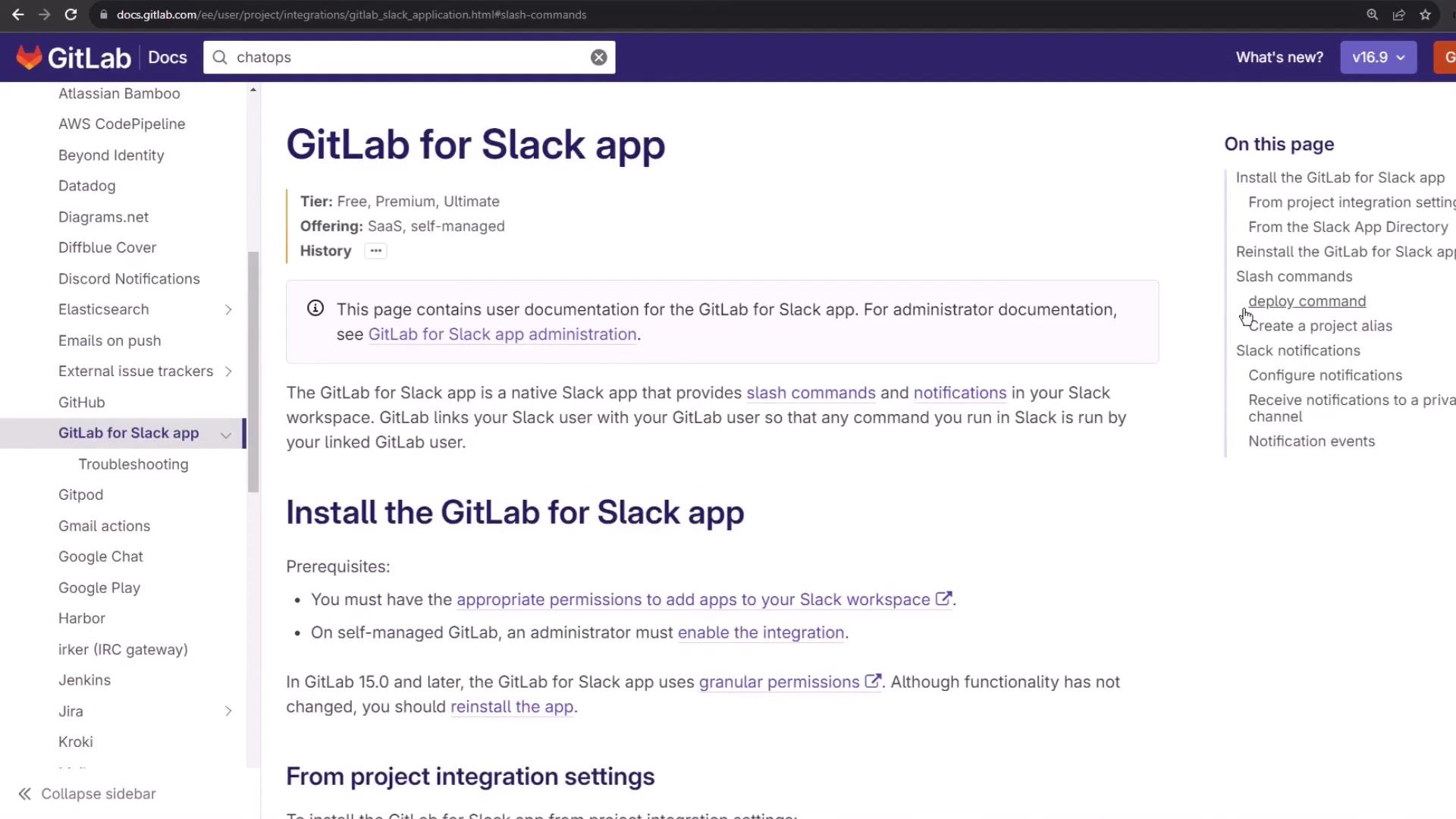
## Available Slash Commands
Use the `/gitlab help` command to list all supported GitLab ChatOps slash commands in your workspace.
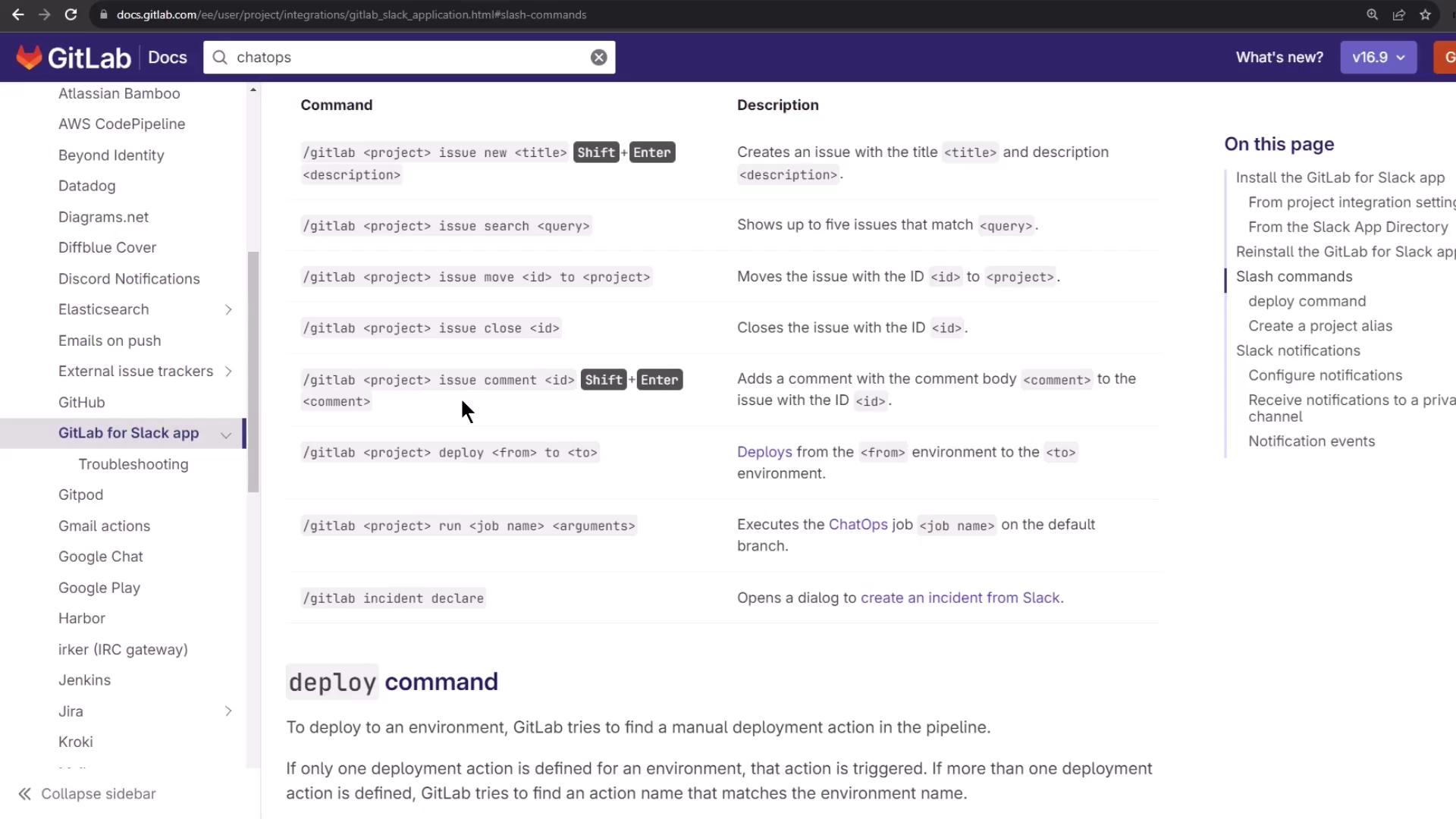
| Slash Command | Description | Example |
| ---------------------------------------------------- | --------------------- | --------------------------------------------------------- |
| `/gitlab [alias] issue show ` | Display issue details | `/gitlab demo-group/solar-system issue show 42` |
| `/gitlab [alias] issue new <description>` | Create a new issue | `/gitlab demo-group/solar-system issue new "Bug" "Steps"` |
| `/gitlab [alias] issue close <id>` | Close an issue | `/gitlab demo-group/solar-system issue close 42` |
| `/gitlab [alias] run <job-name> [--branch=<branch>]` | Trigger a CI job | `/gitlab demo-group/solar-system run test-suite` |
| `/gitlab [alias] deploy <env> to <target-env>` | Deploy environment | `/gitlab demo-group/solar-system deploy staging to prod` |
### List Commands in Slack
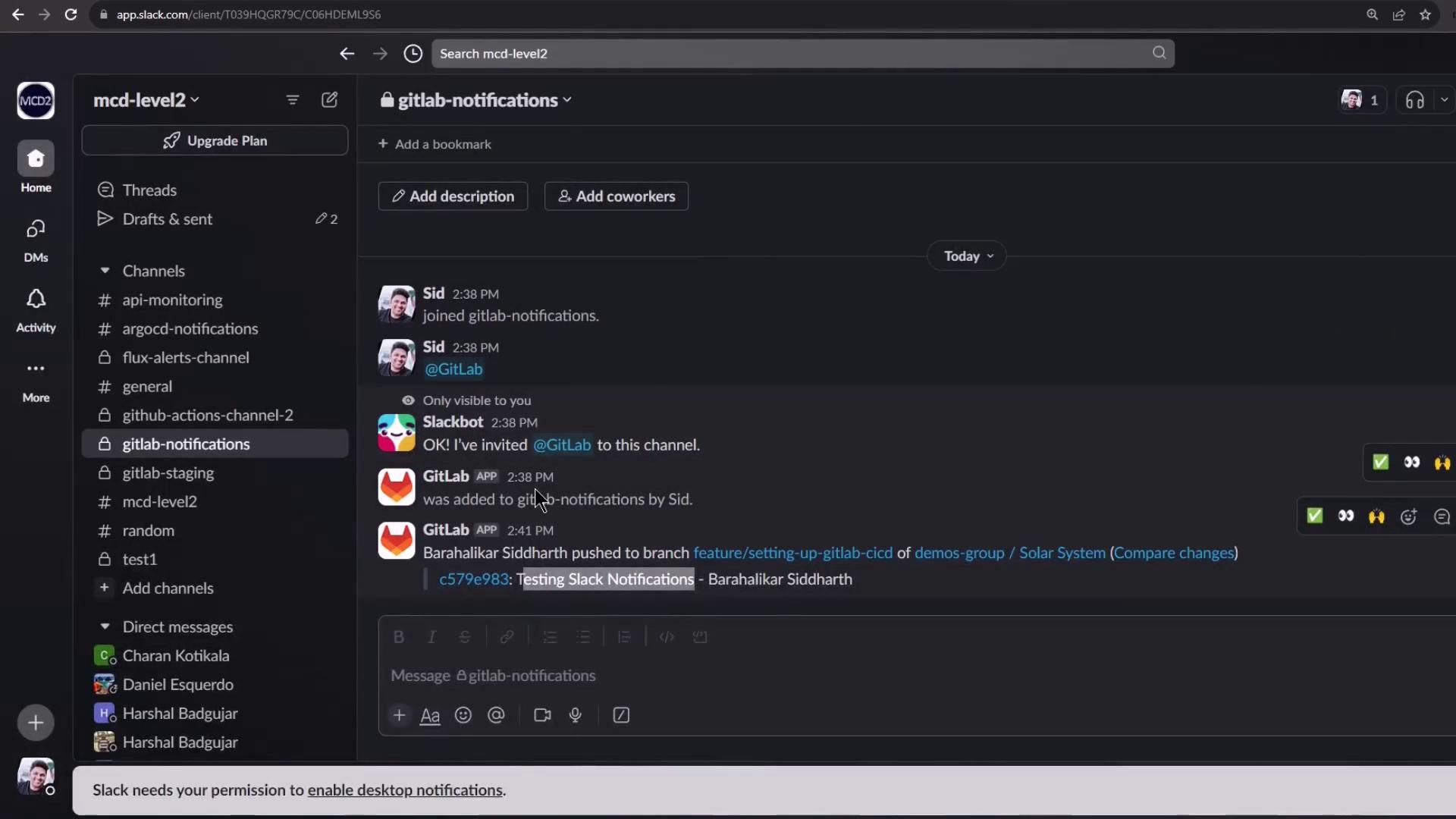
In your GitLab notification channel (e.g., `#gitlab-notifications`), type:
```bash theme={null}
/gitlab help
```
<Frame>
</Frame>
## Creating an Issue via ChatOps
You can quickly create issues directly in Slack:
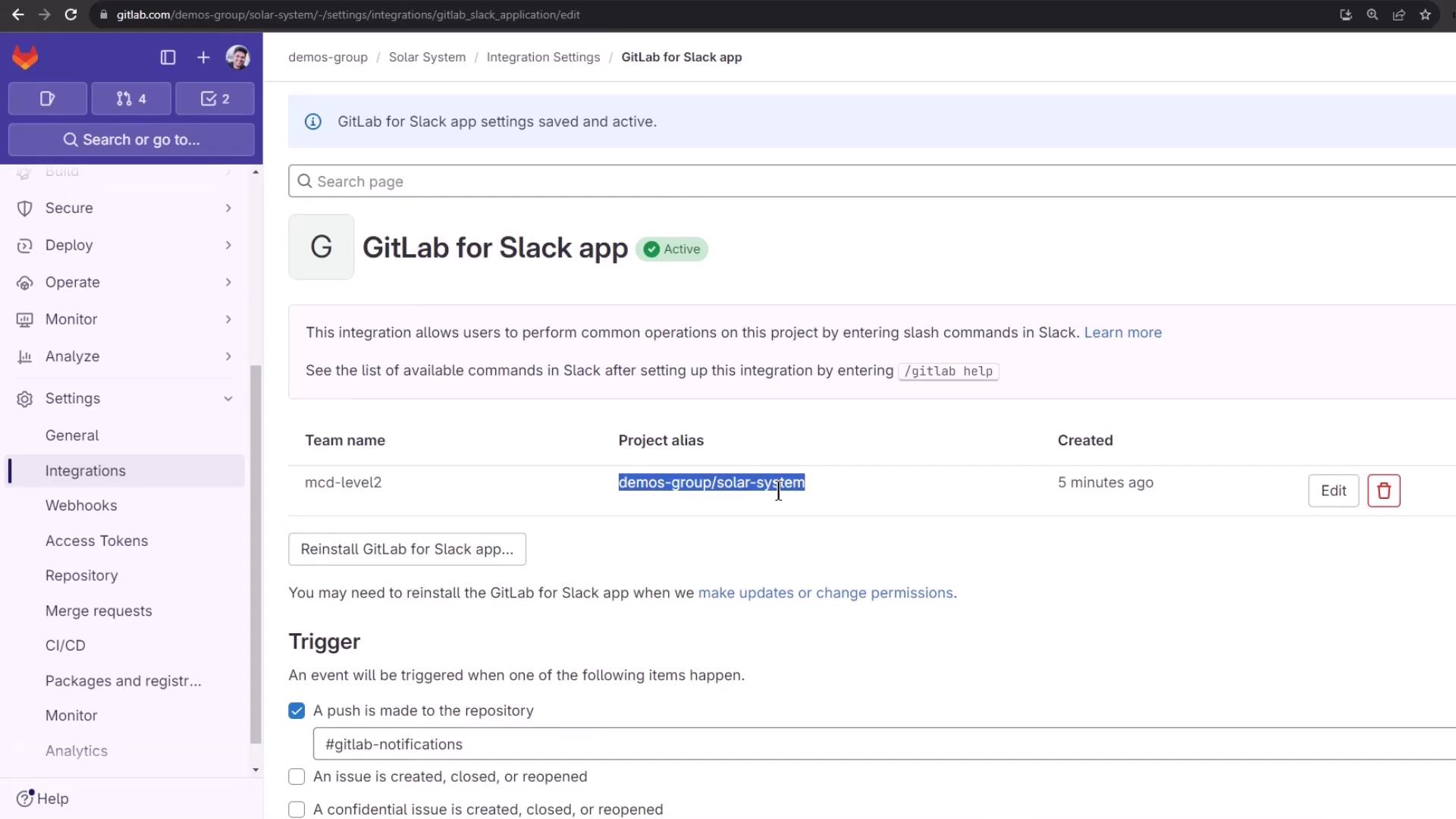
1. Identify your **project alias** (group/project) set up during Slack integration.
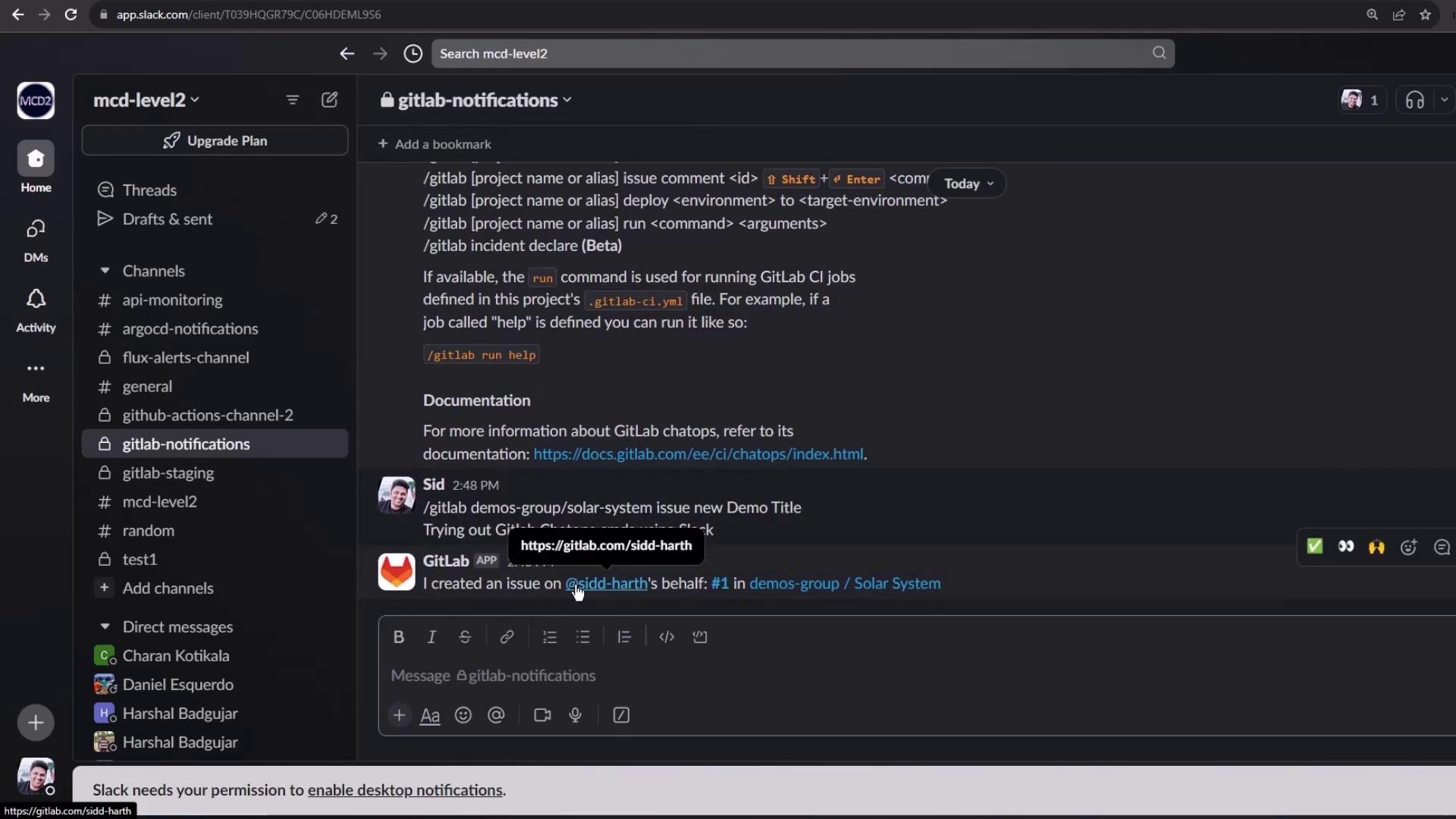
2. Run the new-issue command:
```shell theme={null}
/gitlab demos-group/solar-system issue new "Demo Title" <<Shift+Enter>>
Trying out GitLab ChatOps commands using Slack.
```
<Frame>
</Frame>
<Frame>
</Frame>
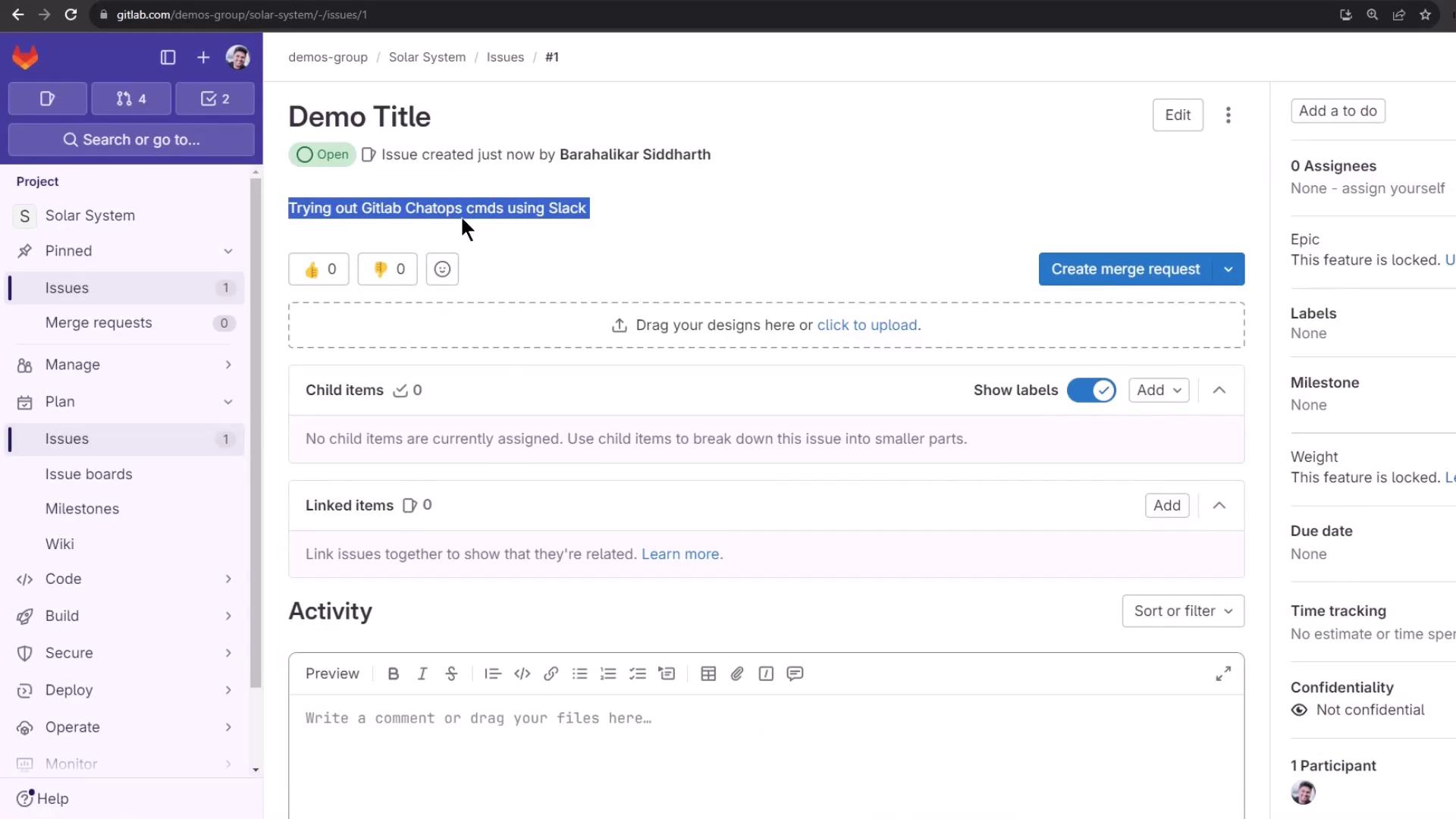
Slack will confirm the issue creation. You can verify it in GitLab:
<Frame>
</Frame>
## Running CI Jobs via ChatOps
Assuming your `.gitlab-ci.yml` defines a `unit_testing` job:
```yaml theme={null}
unit_testing:
stage: test
extends: .prepare_nodejs_environment
script:
- npm test
artifacts:
when: always
expire_in: 3 days
name: Moca-Test-Result
paths:
- test-results.xml
reports:
junit: test-results.xml
```
Trigger this job in Slack:
```shell theme={null}
/gitlab demos-group/solar-system run unit_testing
```
If you need to run the job on a feature branch:
```shell theme={null}
/gitlab demos-group/solar-system run unit_testing --branch="feature/setting-up-gitlab-ci"
```
<Callout icon="triangle-alert" color="#FF6B6B">
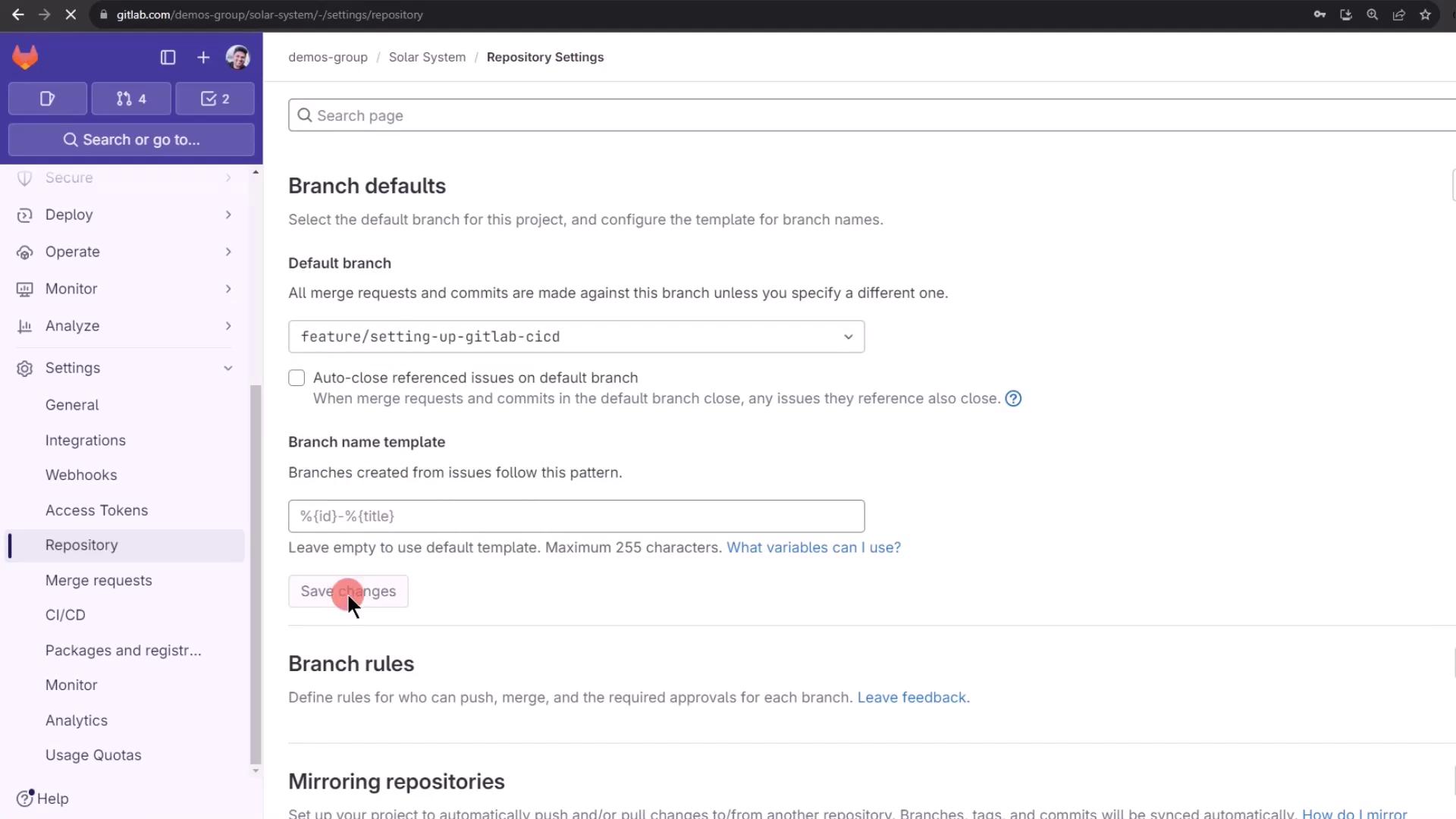
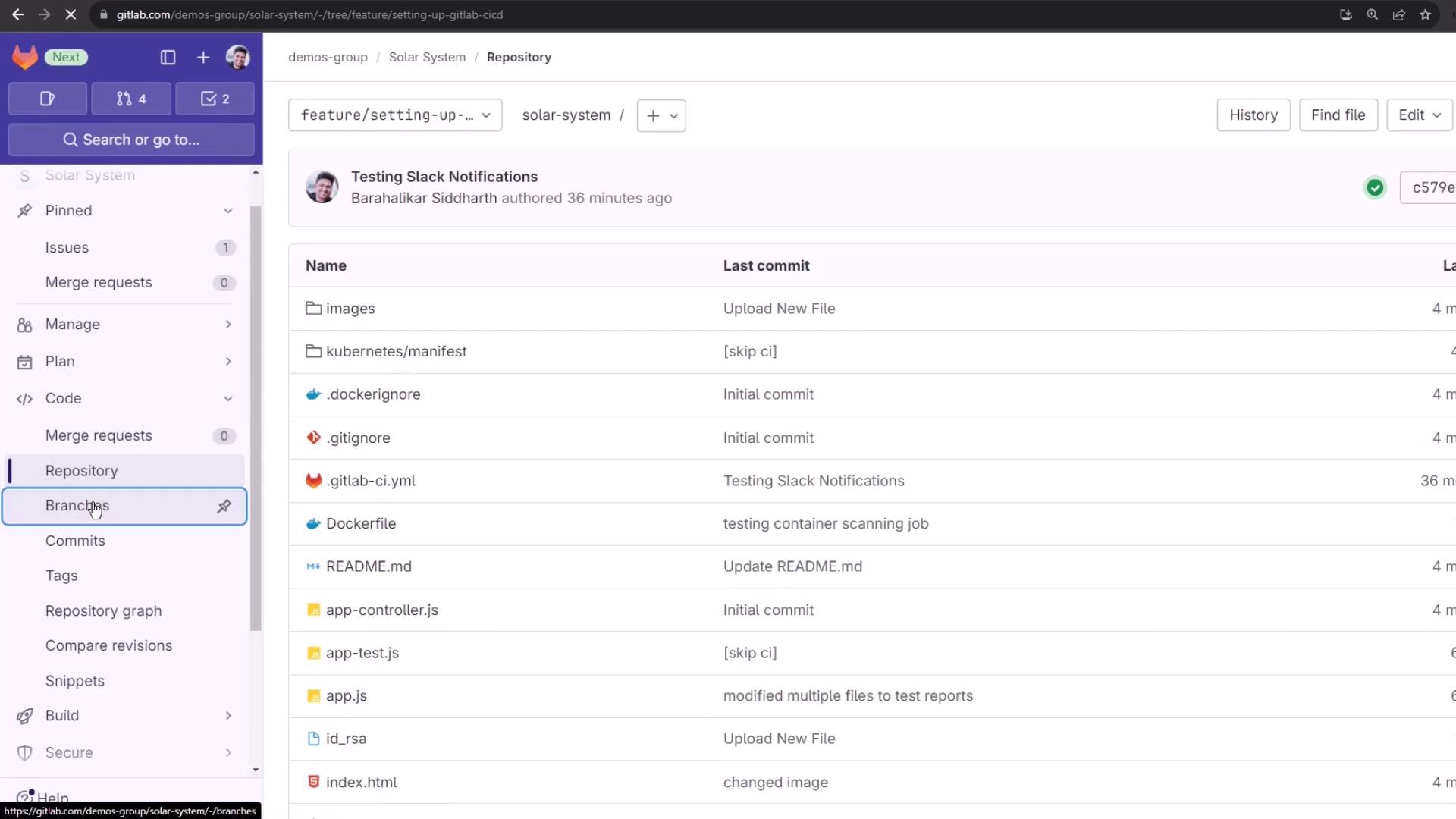
If escaping special characters in branch names fails, you may temporarily change your project’s default branch in GitLab.
1. Go to **Settings > Repository > Default branch**
2. Select your feature branch and save
</Callout>
<Frame>
</Frame>
<Frame>
</Frame>
Once the default branch is updated, rerun without `--branch`:
```shell theme={null}
/gitlab demos-group/solar-system run unit_testing
```
Back in GitLab you’ll see the new pipeline logs:
```plaintext theme={null}
Using docker image sha256:b20b249d538a41dfa3e9fd70479cad96a73240fc7df1eacd8de45 for node:17-alpine3.14 ...
$ npm install
up to date, audited 385 packages in 2s
45 packages are looking for funding
run `npm fund` for details
2 vulnerabilities (1 high, 1 critical)
...
$ npm test
> Solar System@6.7.6 test
> mocha app-test.js --timeout 10000 --reporter mocha-junit-reporter --exit
Server successfully running on port - 3000
```
You’ll also receive job-completion notifications directly in Slack, keeping you informed without context switching.
## References
* [GitLab ChatOps Documentation](https://docs.gitlab.com/ee/user/project/integrations/chatops.html)
* [Slack Apps Integration Guide](https://api.slack.com/apps)
* [GitLab CI/CD Overview](https://docs.gitlab.com/ee/ci/)
<CardGroup>
<Card title="Watch Video" icon="video" cta="Learn more" href="https://learn.kodekloud.com/user/courses/gitlab-ci-cd-architecting-deploying-and-optimizing-pipelines/module/1573bc2e-563a-424a-a558-2081416601b3/lesson/2b348ddc-3550-4672-85a1-6bce061d53d7" />
</CardGroup>