> ## Documentation Index
> Fetch the complete documentation index at: https://notes.kodekloud.com/llms.txt
> Use this file to discover all available pages before exploring further.
# Slack Channel Notifications
> Integrating GitLab with Slack for receiving notifications and monitoring CI/CD pipelines within your messaging workspace.
Integrating GitLab with Slack lets you receive push notifications and monitor CI/CD pipelines without leaving your messaging workspace. This guide walks you through creating a Slack channel, installing the GitLab app, configuring triggers, and verifying notifications.
**Prerequisites**
* A Slack workspace with appropriate permissions
* A GitLab project with repository access
***
## 1. Create a Slack Channel
1. In Slack, click the **+** next to **Channels**.
2. Name it `gitlab-notifications` (or **GitLab Notifications**).
3. Optionally set it to **Private** to restrict access.
4. Skip adding members for this demo.
Use a clear, descriptive name (like `gitlab-notifications`) so team members know exactly where to find CI/CD alerts.
Once the channel is ready, proceed to install the GitLab app in Slack.
***
## 2. Install GitLab for Slack
In your GitLab project:
1. Navigate to **Settings** → **Integrations**.
2. Scroll to **GitLab for Slack** and click **Install**.
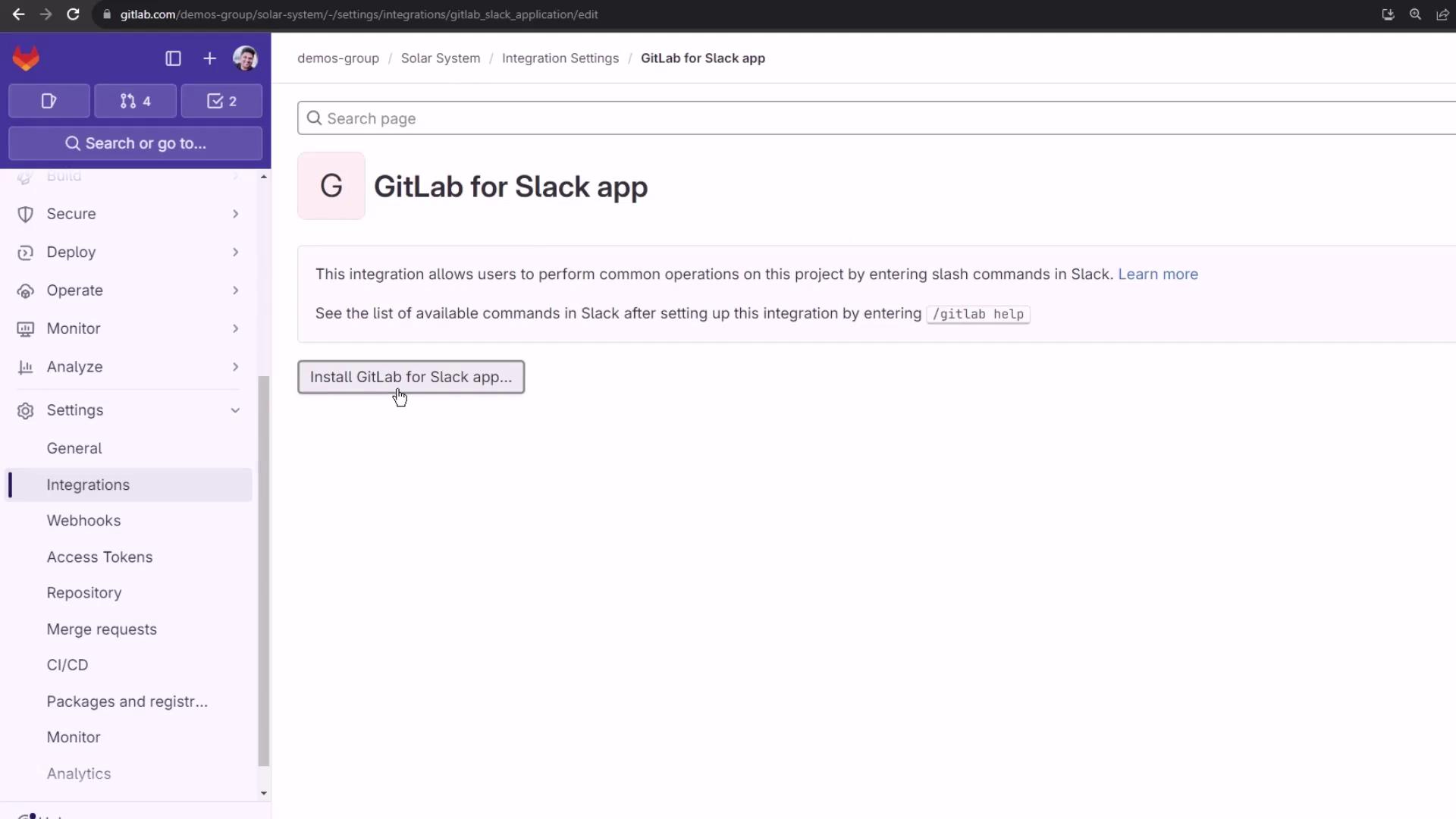
You’ll be redirected to Slack to authorize GitLab’s access:
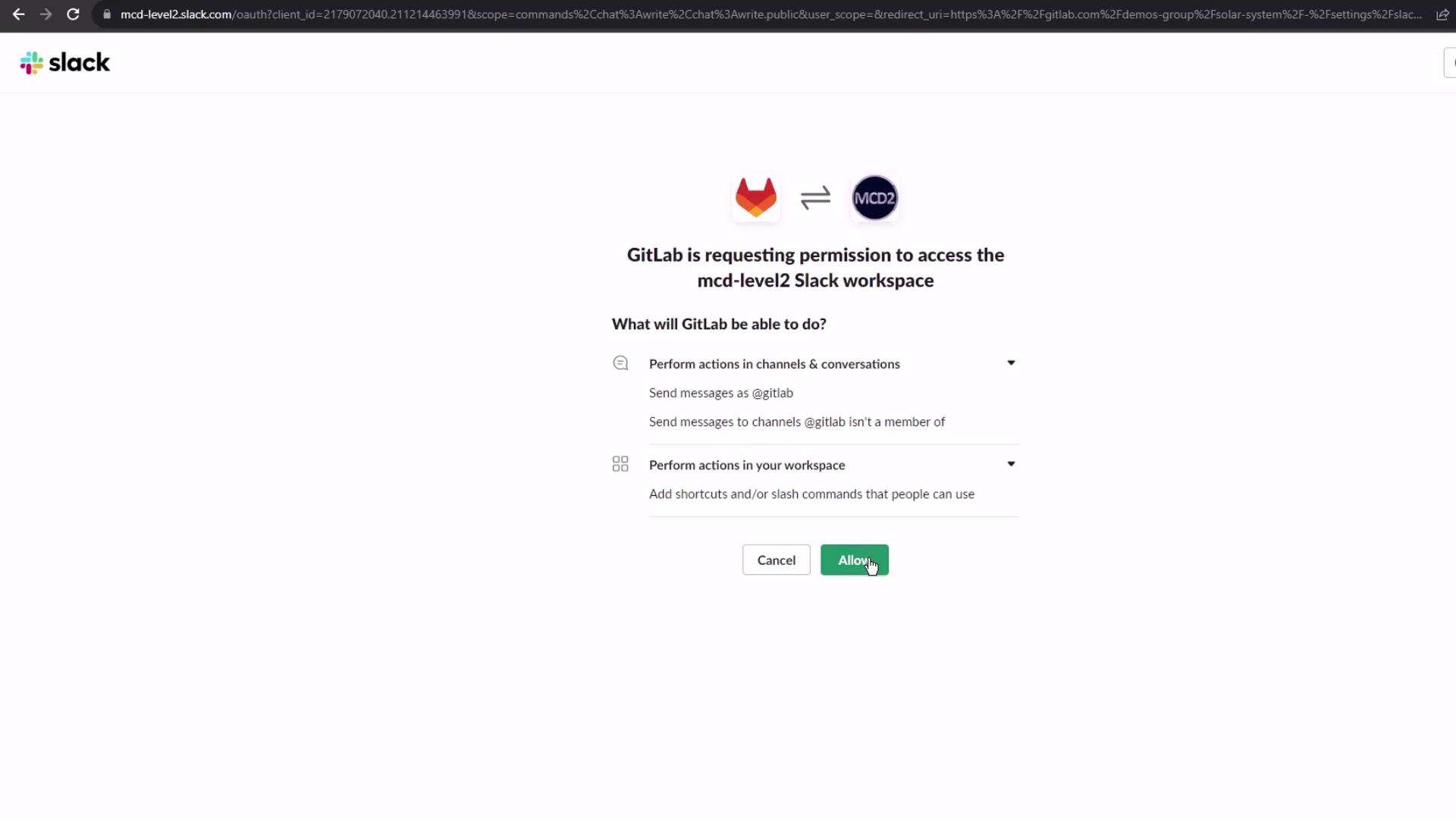
Ensure you have admin privileges in Slack. Without proper scope, GitLab cannot post notifications.
***
## 3. Configure Notification Triggers
Back in GitLab’s integration settings:
1. Verify or edit the **Project alias** (e.g., `group/project@timestamp`).
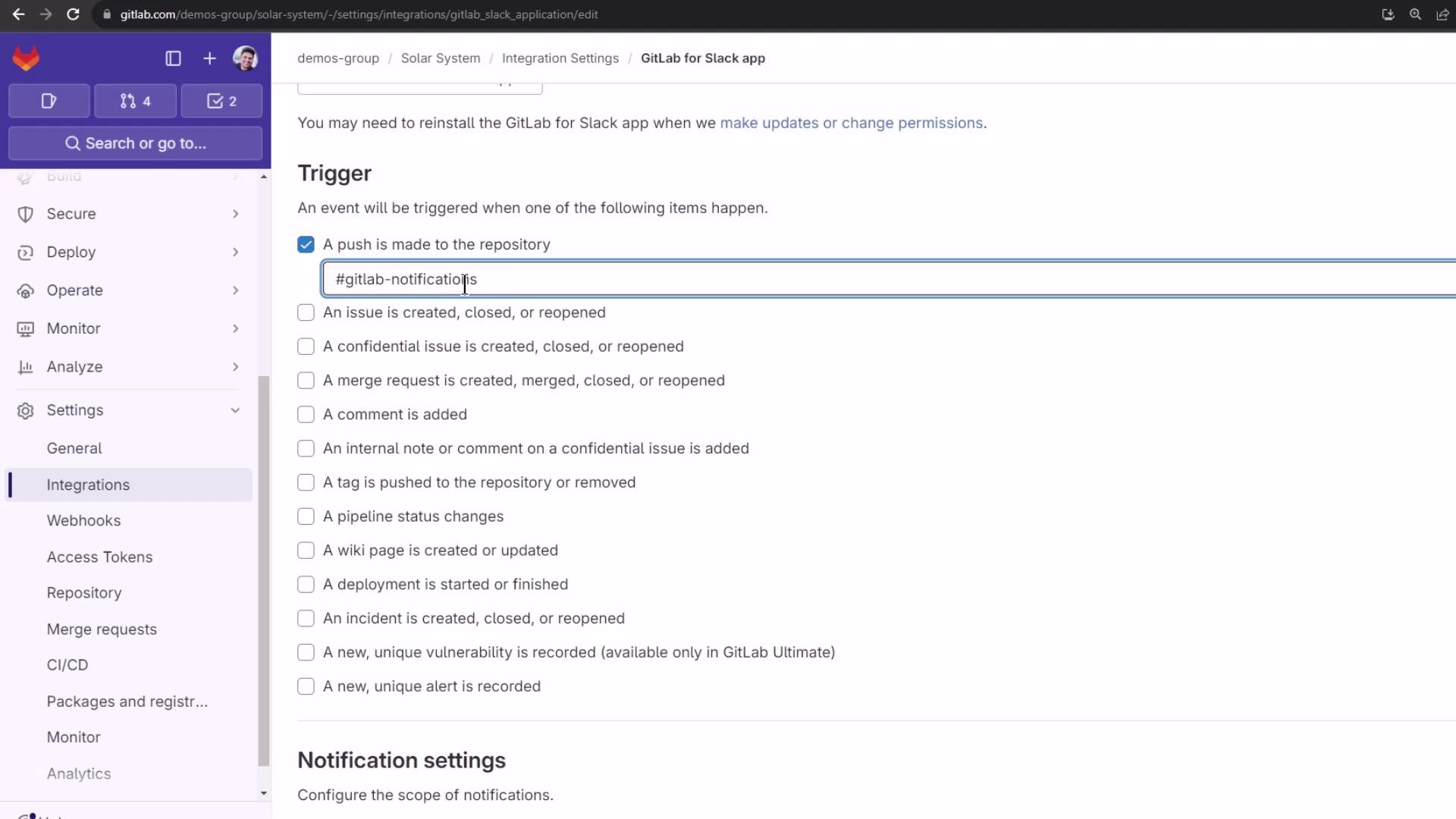
2. Under **Triggers**, select **Push events**.
3. Enter your Slack channel name: `gitlab-notifications`.
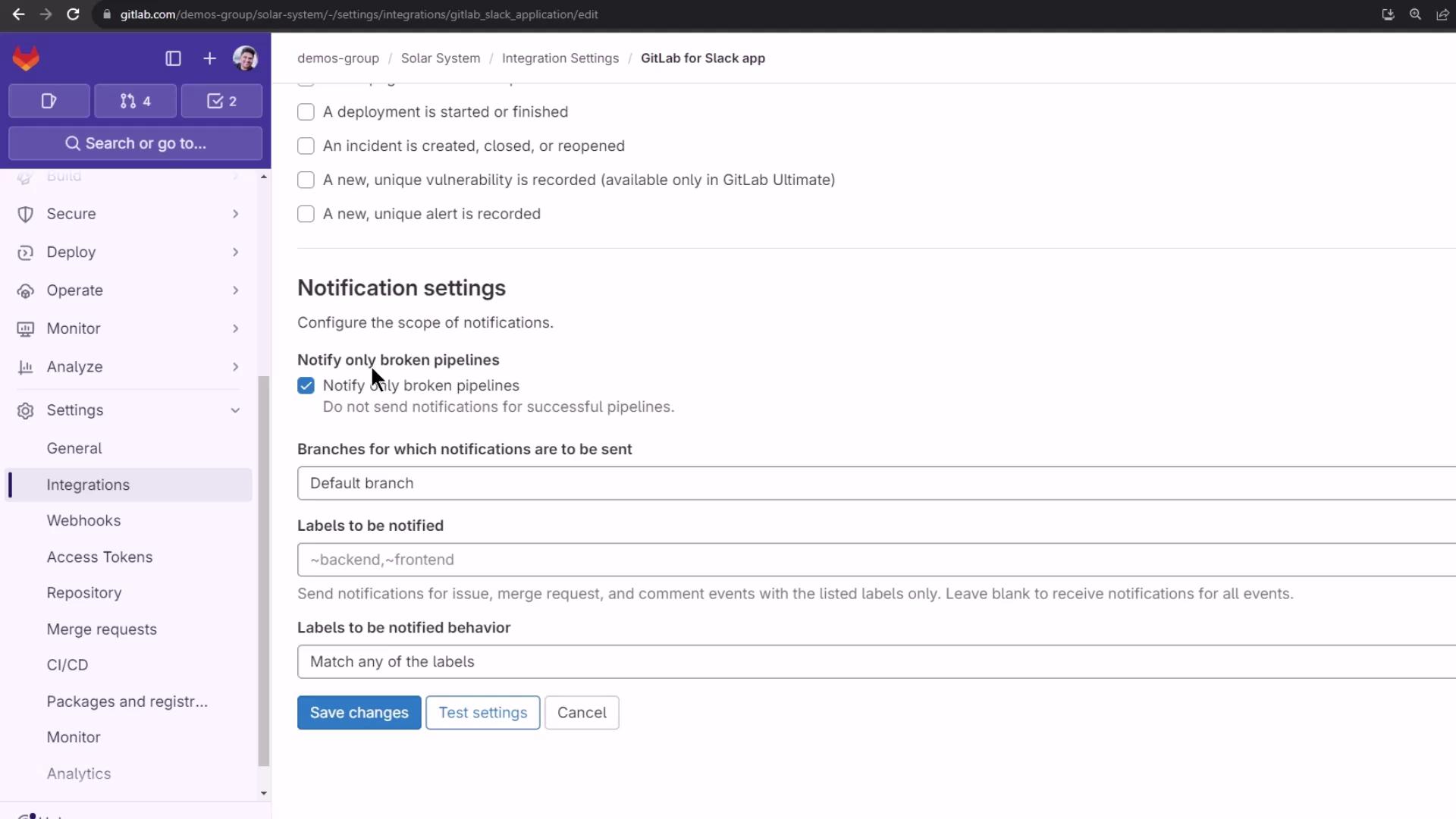
4. In **Notifications**, deselect **Notify only for broken pipelines** if you want updates on all statuses.
5. Under **Branches**, choose **All branches** (or specify a subset).
6. Click **Test settings** to send a sample alert.
7. Finally, click **Save changes**.
| Trigger Event | Description |
| -------------- | ------------------------------------------------------------- |
| Push events | Notify on every repository push in the project. |
| Merge requests | (Optional) Alerts when a merge request is created or updated. |
| Pipeline | Stream pipeline status changes to Slack. |
***
## 4. Commit Changes to Trigger Notifications
To test notifications, add or update your `.gitlab-ci.yml`:
```yaml theme={null}
variables:
DOCKER_USERNAME: siddharth67
IMAGE_VERSION: $CI_PIPELINE_ID
K8S_IMAGE: $DOCKER_USERNAME/solar-system:$IMAGE_VERSION
MONGO_URI: 'mongodb+srv://supercluster.d83jj.mongodb.net/superData'
MONGO_USERNAME: superuser
MONGO_PASSWORD: $M_DB_PASSWORD
SCAN_KUBERNETES_MANIFESTS: "true"
.prepare_nodejs_environment:
image: node:17-alpine3.14
services:
- name: siddharth67/mongo-db:non-prod
alias: mongo
pull_policy: always
variables:
MONGO_URI: 'mongodb://mongo:27017/superData'
MONGO_USERNAME: non-prod-user
MONGO_PASSWORD: non-prod-password
```
Commit and push to your feature branch:
```bash theme={null}
git add .gitlab-ci.yml
git commit -m "Testing Slack notifications to feature branch"
git push origin feature-branch
```
***
## 5. Review the Slack Notification
In the `#gitlab-notifications` channel, you’ll see a message containing:
* Who pushed the changes
* Target branch
* Project alias (group/project)
* Commit ID and summary
This real-time overview keeps your team in sync without switching contexts.
***
## 6. Monitor the Pipeline in GitLab
While Slack delivers alerts, you can still manage your pipeline in GitLab. For example, a `docker_push` job might look like:
```yaml theme={null}
docker_push:
stage: containerization
needs:
- docker_build
- docker_test
image: docker:24.0.5
services:
- docker:24.0.5-dind
script:
- docker load -i image/solar-system-image:$IMAGE_VERSION.tar
- docker login --username=$DOCKER_USERNAME --password=$DOCKER_PASSWORD
- docker push $DOCKER_USERNAME/solar-system:$IMAGE_VERSION
```
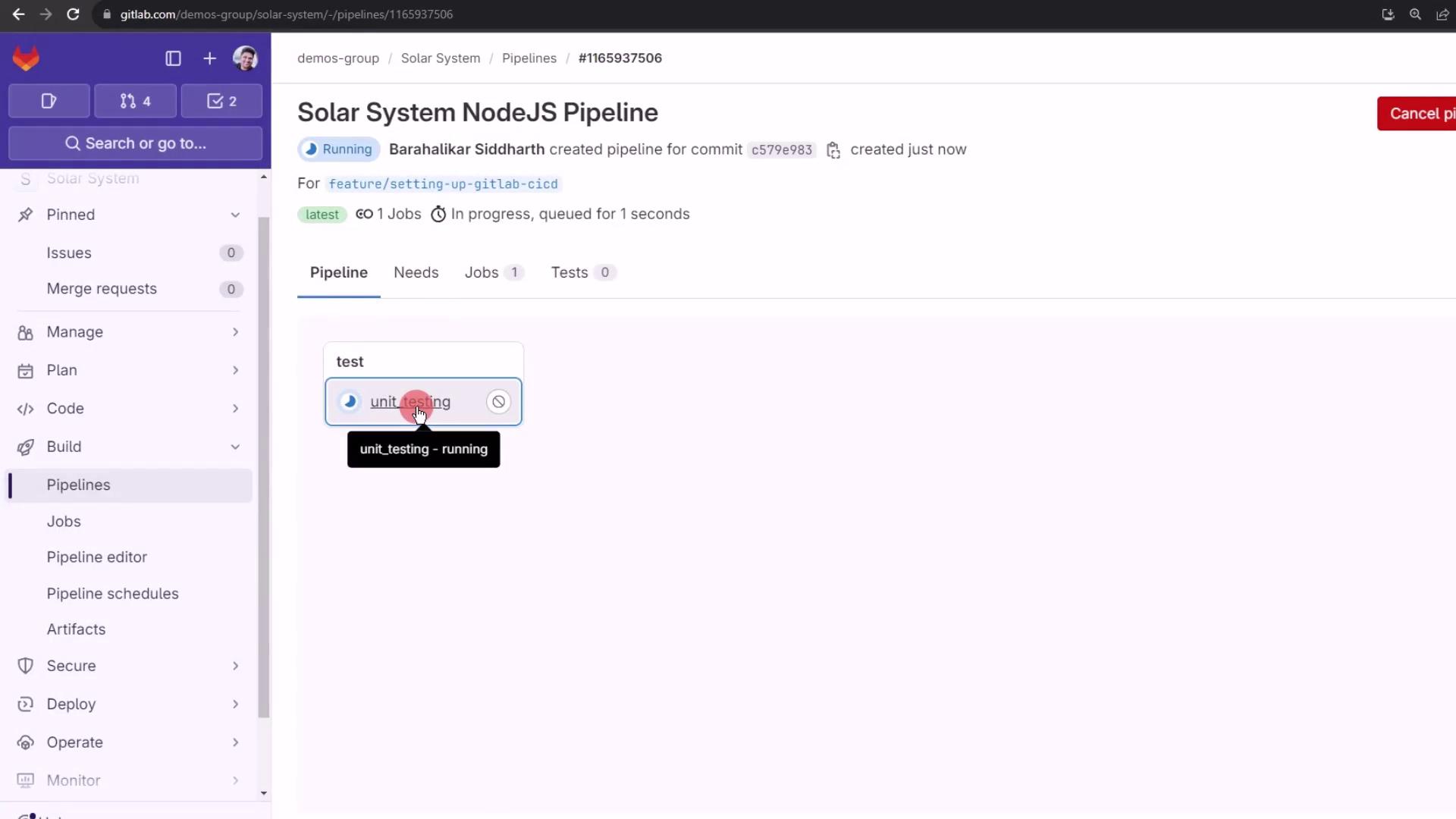
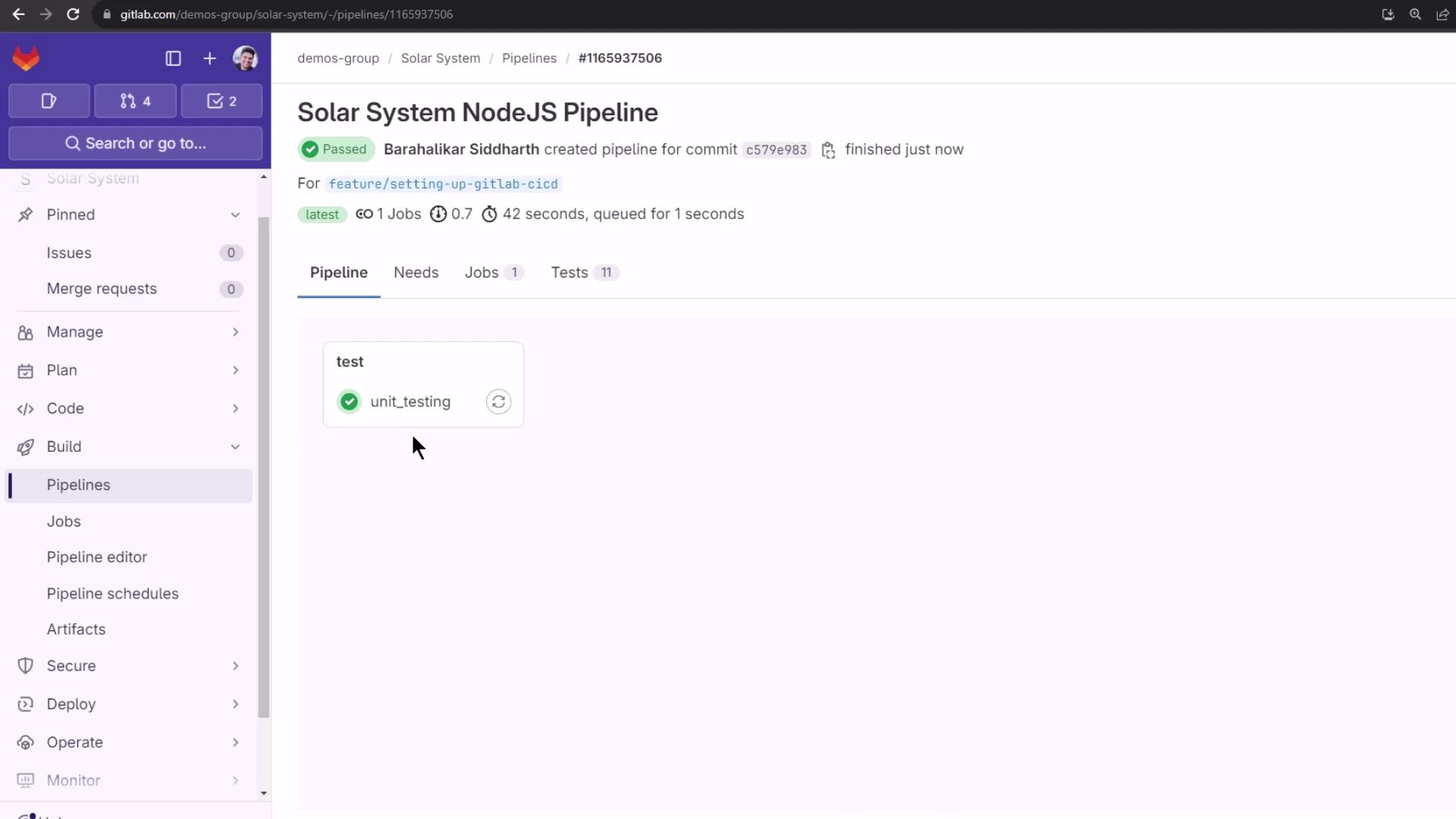
Once the pipeline finishes, you’ll see the success or failure status in GitLab:
***
## Next Steps
* Use [slash commands](https://docs.gitlab.com/ee/user/project/integrations/slack.html#using-slash-commands) in Slack to trigger pipelines and view statuses.
* Explore additional event triggers (merge requests, pipeline updates, issue events).
## Links and References
* [GitLab for Slack Integration](https://docs.gitlab.com/ee/user/project/integrations/slack.html)
* [Slack App Directory](https://slack.com/apps)
* [GitLab CI/CD Documentation](https://docs.gitlab.com/ee/ci/)