> ## Documentation Index
> Fetch the complete documentation index at: https://notes.kodekloud.com/llms.txt
> Use this file to discover all available pages before exploring further.
# Install Group Runner on Linux Machine with Docker Executor
> This guide explains how to install and configure a group-level GitLab runner on a Linux machine using Docker.
Enable all projects in a GitLab group to share a single runner powered by Docker. This guide walks you through creating a **group-level runner**, registering it on a Linux host, and verifying its status.
## Table of Contents
1. [Create a Group-Level Runner](#1-create-a-group-level-runner)
2. [Register the Runner on Your Linux Host](#2-register-the-runner-on-your-linux-host)
3. [Check Runner Status in GitLab](#3-check-runner-status-in-gitlab)
4. [Review the Runner Configuration](#4-review-the-runner-configuration)
5. [Verify Runner in a Project](#5-verify-runner-in-a-project)
6. [Links and References](#6-links-and-references)
***
## 1. Create a Group-Level Runner
1. Sign in to GitLab and navigate to your target group (e.g., `demos`).
2. In the left sidebar, select **CI/CD > Runners**.
3. Under **Group runners**, click **New group runner**.
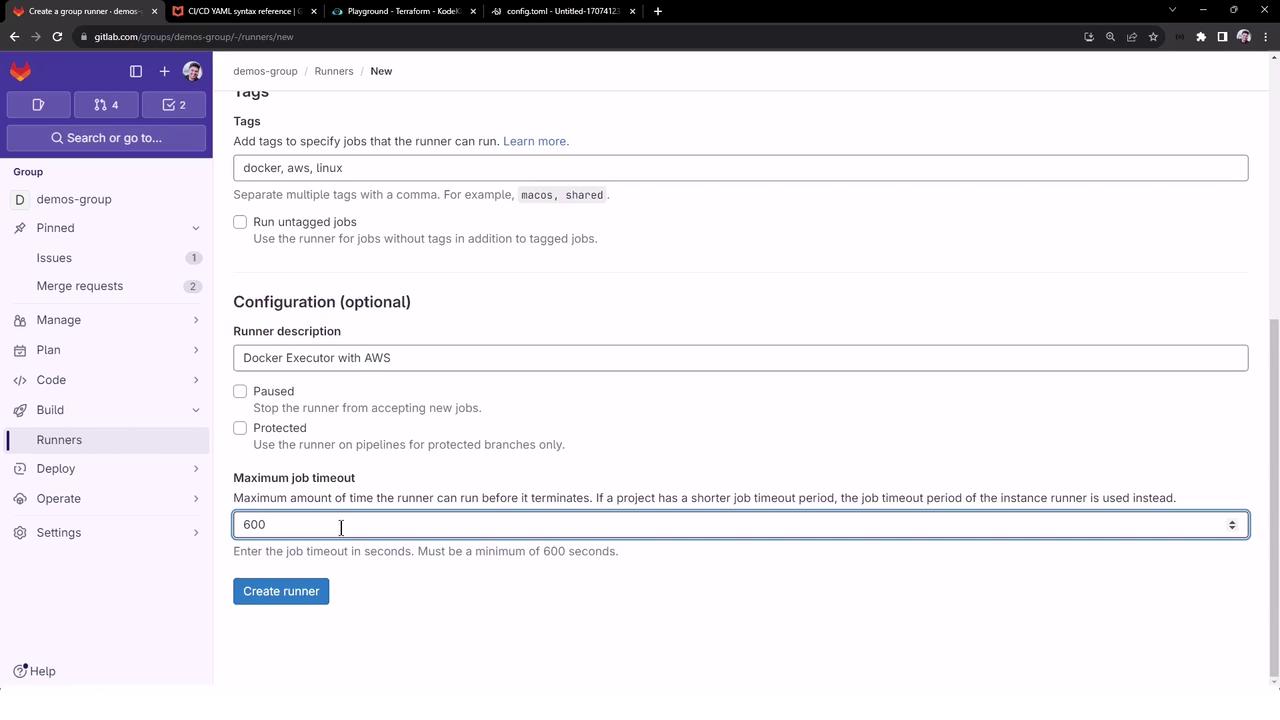
4. Enter the runner details:
| Field | Value |
| ------------------- | --------------------------------- |
| Runner description | Docker executor with AWS on Linux |
| Tags | `docker`, `aws`, `linux` |
| Maximum job timeout | 10 minutes |
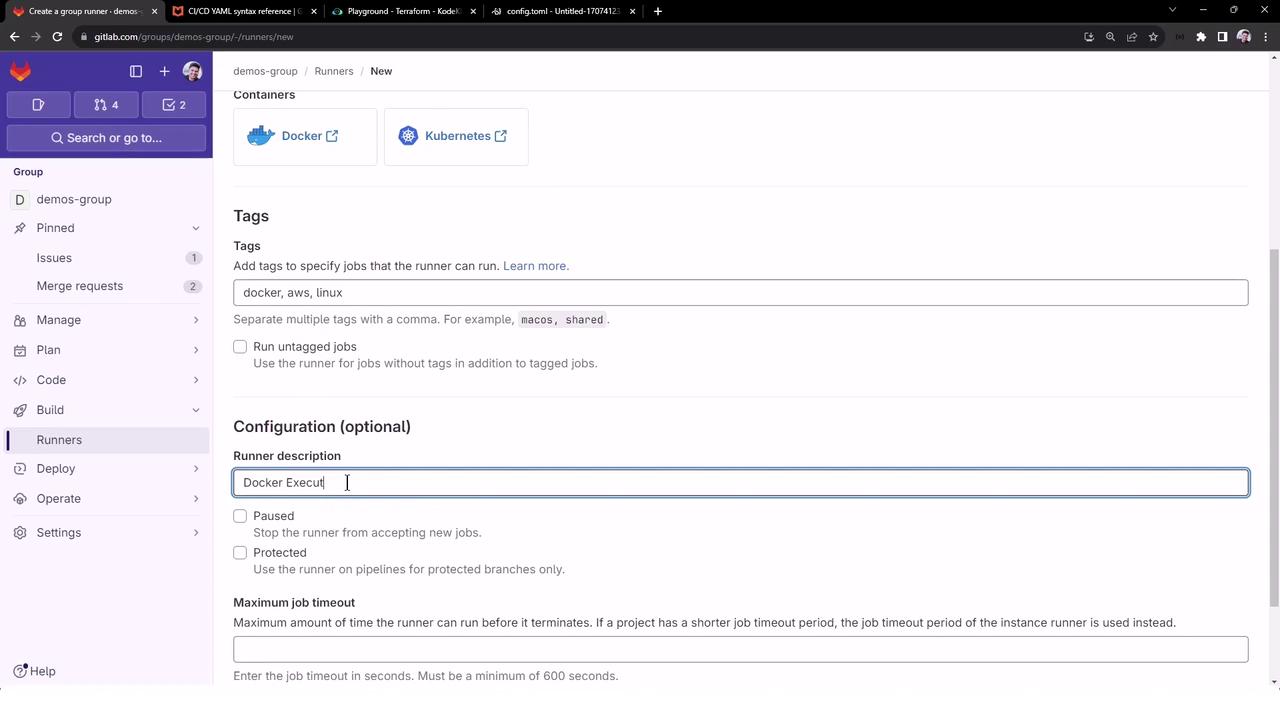
5. Click **Create runner**. GitLab will display a **registration token**—copy it for the next step.
Keep your registration token secure. Anyone with this token can register additional runners to your group.
## 2. Register the Runner on Your Linux Host
If GitLab Runner is not yet installed, install and start it as a system service:
```bash theme={null}
# Download the latest GitLab Runner binary
sudo curl -L --output /usr/local/bin/gitlab-runner \
https://gitlab-runner-downloads.s3.amazonaws.com/latest/binaries/gitlab-runner-linux-amd64
# Make it executable
sudo chmod +x /usr/local/bin/gitlab-runner
# Create a dedicated service user
sudo useradd --comment 'GitLab Runner' --create-home gitlab-runner --shell /bin/bash
# Install and start GitLab Runner as a service
sudo gitlab-runner install --user=gitlab-runner --working-directory=/home/gitlab-runner
sudo gitlab-runner start
```
Register the group runner using the token you copied:
```bash theme={null}
gitlab-runner register \
--url https://gitlab.com \
--token
```
When prompted:
* **Enter a name for the runner**: `aws-docker-runner`
* **Enter an executor**: `docker`
* **Enter the default Docker image**: `ruby:2.7`
You can customize the default image per job in your `.gitlab-ci.yml` using the `image:` keyword.
## 3. Check Runner Status in GitLab
After registration, GitLab lists the runner under **Group > CI/CD > Runners**, but it will show **“Never contacted”** until the service connects.
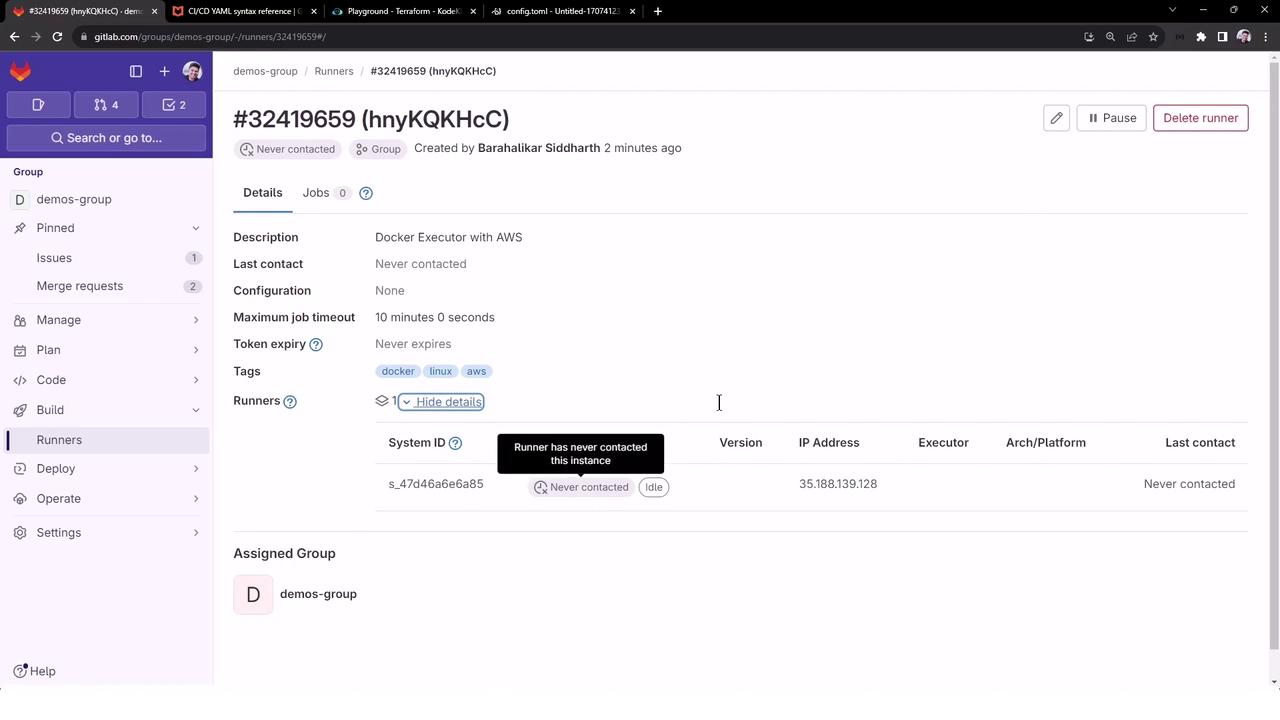
On your Linux host, verify both shell and Docker runners are registered:
```bash theme={null}
gitlab-runner list
# Sample output:
Runtime platform arch=amd64 os=linux pid=123610 revision=c72a09b6 version=16.8.0
ConfigFile=/etc/gitlab-runner/config.toml
Executor=shell Token=glrt-3iCBsGsPFN6WBGmaps5B URL=https://gitlab.com
Executor=docker Token=glrt-hnyKQKHcCoxosWLEssKc URL=https://gitlab.com
```
Once the runner service starts successfully, the status will update to **online** in GitLab.
## 4. Review the Runner Configuration
Open `/etc/gitlab-runner/config.toml` to inspect both runners:
```toml theme={null}
concurrent = 1
check_interval = 0
[[runners]]
name = "nodejs-runner"
url = "https://gitlab.com"
id = 32418121
token = "glrt-3iCBsGsPFN6WBGmaps5B"
executor = "shell"
cache_dir = "/home/gitlab-runner/builds"
[[runners]]
name = "aws-docker-runner"
url = "https://gitlab.com"
id = 32418122
token = "glrt-hnyKQKHcCoxosWLEssKc"
executor = "docker"
[runners.cache]
MaxUploadedArchiveSize = 0
[runners.docker]
tls_verify = false
image = "ruby:2.7"
privileged = false
disable_entrypoint_overwrite = false
oom_kill_disable = false
disable_cache = false
volumes = ["cache"]
shm_size = 0
network_mtu = 0
```
## 5. Verify Runner in a Project
The group runner is now available to every project in the `demos` group.
1. Open a project (e.g., **Solar System**).
2. Navigate to **Settings > CI/CD > Runners**.
3. Optionally disable shared runners to ensure jobs use your group runner exclusively.
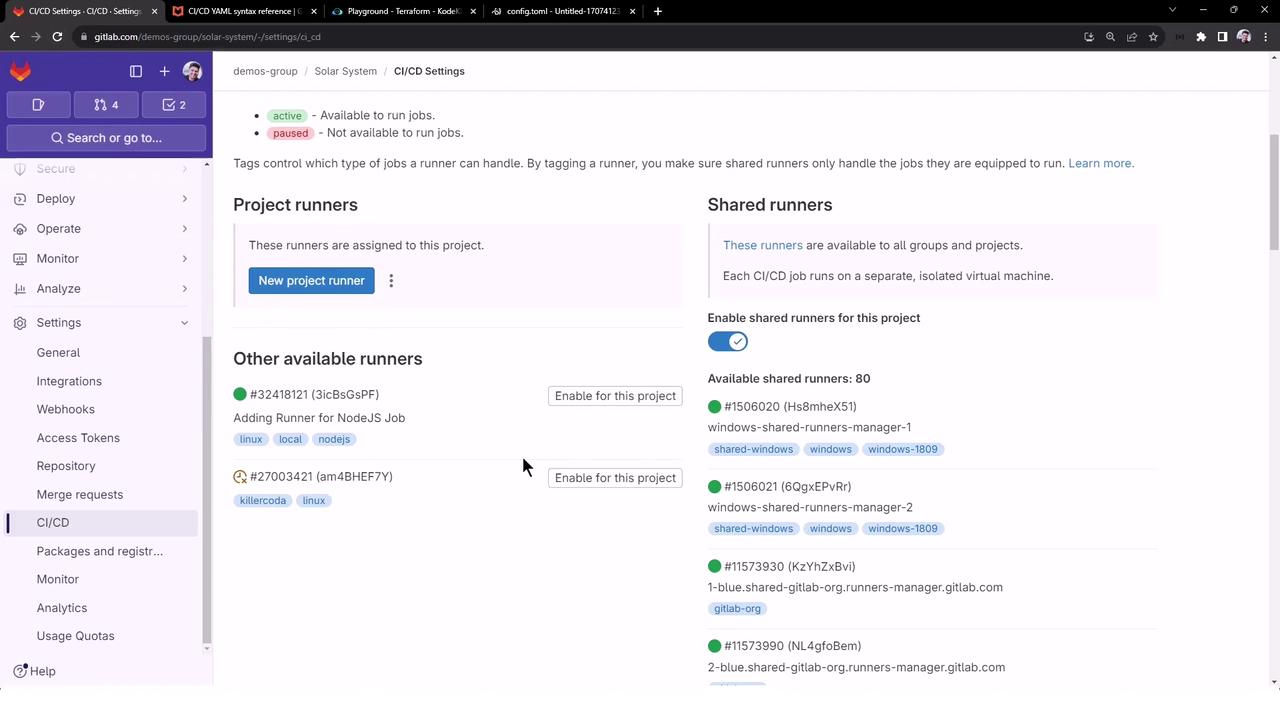
Jobs tagged with `docker`, `aws`, and `linux` will now execute on your Docker-based group runner.
***
## 6. Links and References
* [GitLab Runner Documentation](https://docs.gitlab.com/runner/)
* [Docker Executor for GitLab Runner](https://docs.gitlab.com/runner/executors/docker.html)
* [Managing Runners in GitLab](https://docs.gitlab.com/ee/ci/runners/)