> ## Documentation Index
> Fetch the complete documentation index at: https://notes.kodekloud.com/llms.txt
> Use this file to discover all available pages before exploring further.
# Install Project Runner on Linux Machine with Shell Executor
> This tutorial explains setting up a self-managed GitLab Runner on Linux using the Shell executor for a NodeJS application.
In this tutorial, you’ll learn how to set up a self-managed GitLab Runner on a Linux VM using the Shell executor. We’ll use a simple NodeJS application (`runner-demo`) that runs unit tests against MongoDB.
## Table of Contents
* [1. Import the `runner-demo` Project](#1-import-the-runner-demo-project)
* [2. Define the CI/CD Pipeline](#2-define-the-cicd-pipeline)
* [3. Disable Shared Runners (and Observe a Stuck Pipeline)](#3-disable-shared-runners-and-observe-a-stuck-pipeline)
* [4. Register a New Project Runner](#4-register-a-new-project-runner)
* [5. Install GitLab Runner on Linux VM](#5-install-gitlab-runner-on-linux-vm)
* [6. Register the Runner with GitLab](#6-register-the-runner-with-gitlab)
* [7. Verify Runner in the GitLab UI](#7-verify-runner-in-the-gitlab-ui)
* [8. Examine `config.toml`](#8-examine-configtoml)
* [9. Explore Available Executors](#9-explore-available-executors)
* [10. List Registered Runners Locally](#10-list-registered-runners-locally)
* [References and Further Reading](#references-and-further-reading)
***
## 1. Import the runner-demo Project
First, create or import a GitLab project named `runner-demo` in your group. Make the project **public** to simplify access.
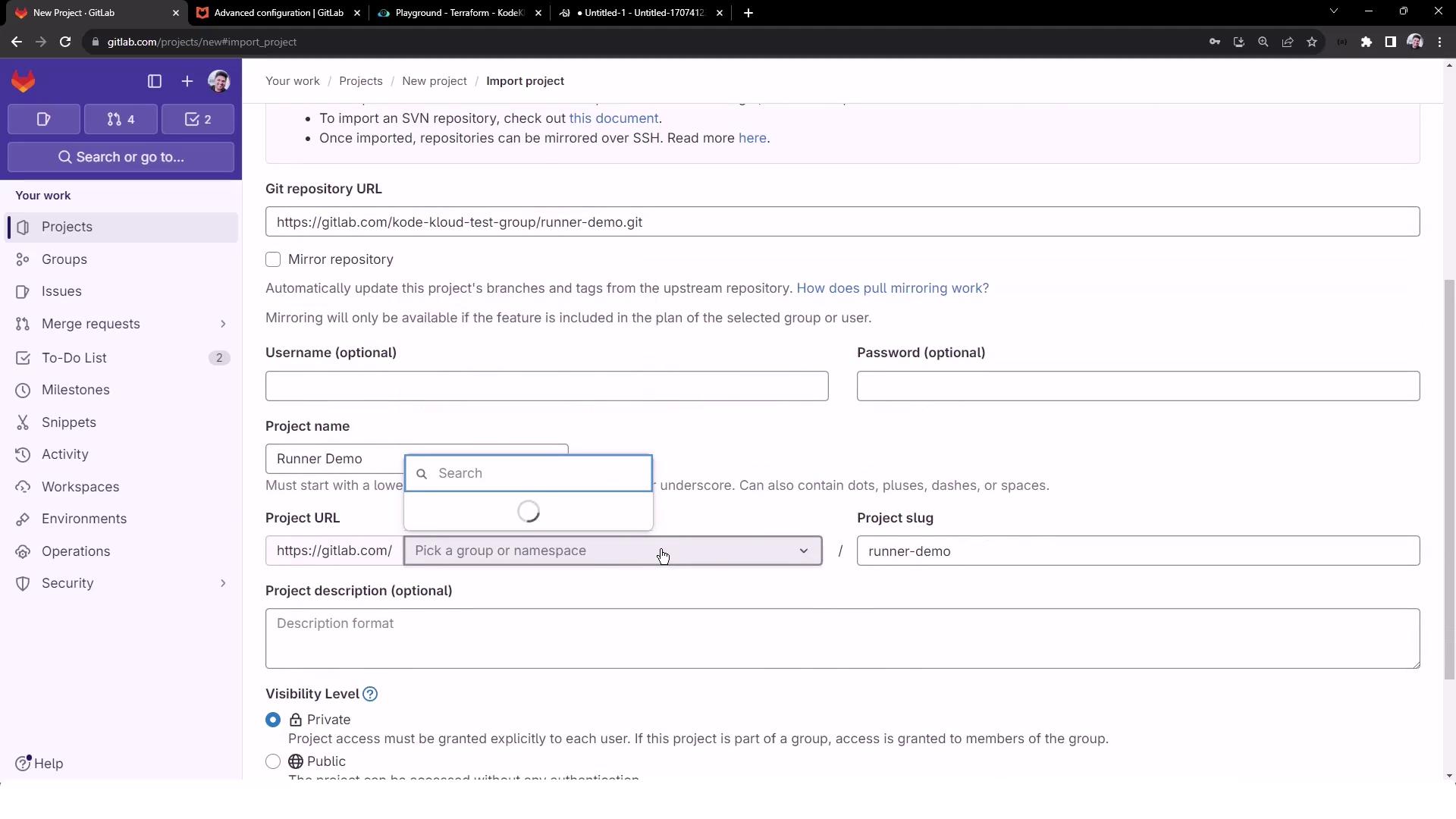
This project contains a NodeJS app that connects to MongoDB and executes unit tests.
Ensure your MongoDB URI, username, and password are secured via CI/CD variables or a secrets manager—avoid hardcoding sensitive credentials.
***
## 2. Define the CI/CD Pipeline
In the root of `runner-demo`, add a file named `.gitlab-ci.yml`:
```yaml theme={null}
workflow:
name: Project Level Runner Demo
variables:
MONGO_URI: 'mongodb+srv://supercluster.d83jj.mongodb.net/superData'
MONGO_USERNAME: superuser
MONGO_PASSWORD: SuperPassword
stages:
- test
unit_testing:
stage: test
cache:
key:
files:
- package-lock.json
prefix: node-modules
policy: pull-push
paths:
- node_modules
before_script:
- npm install
script:
- npm test
```
This pipeline defines a single `unit_testing` job:
| Stage | Job Name | Actions |
| ----- | ------------- | -------------------------------------- |
| test | unit\_testing | Installs dependencies, runs `npm test` |
***
## 3. Disable Shared Runners and Observe a Stuck Pipeline
GitLab projects default to using shared runners. To demonstrate a self-managed runner, disable them:
1. Navigate to **Settings > CI/CD > Runners**.
2. Toggle **Shared runners** off.
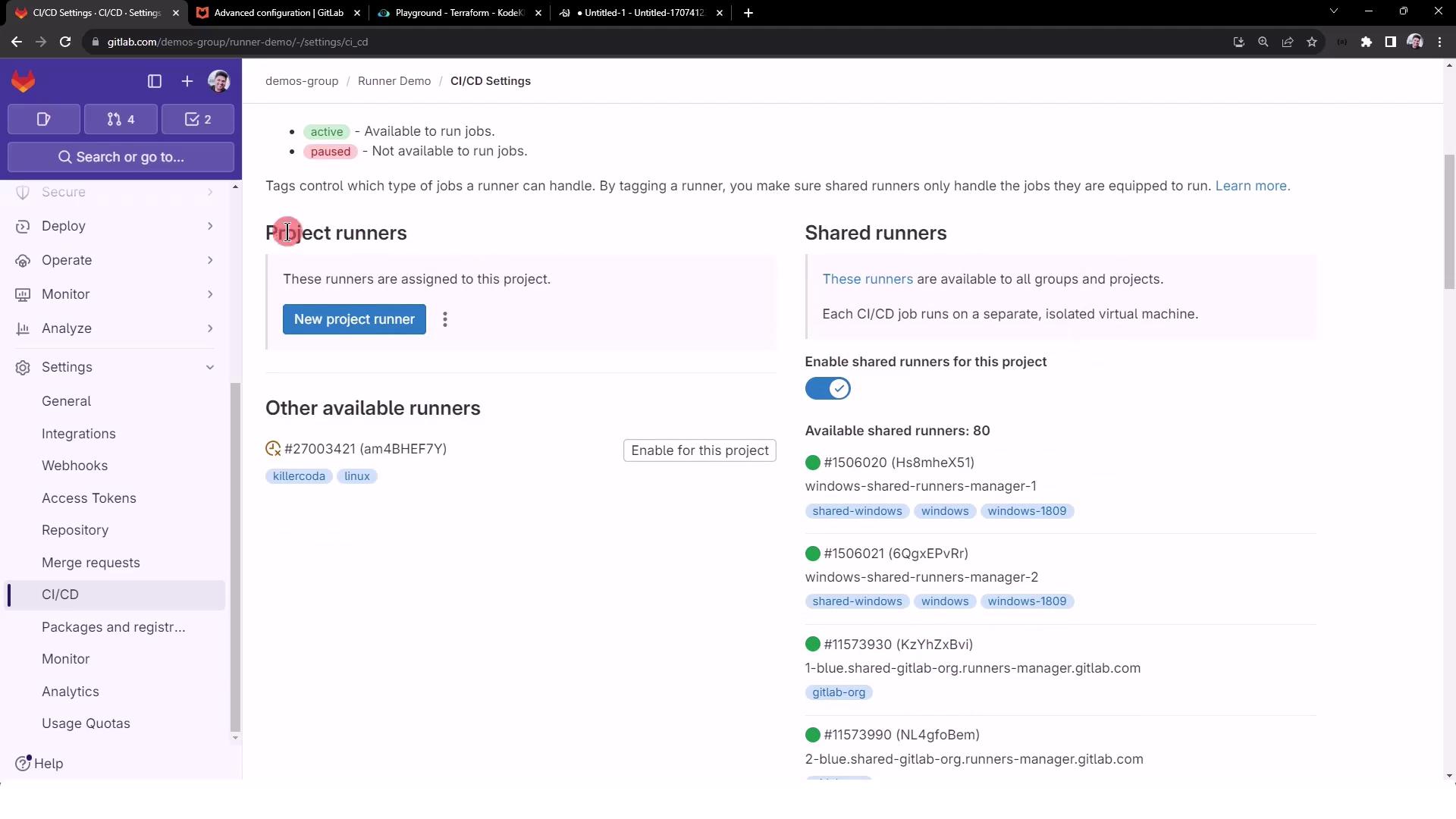
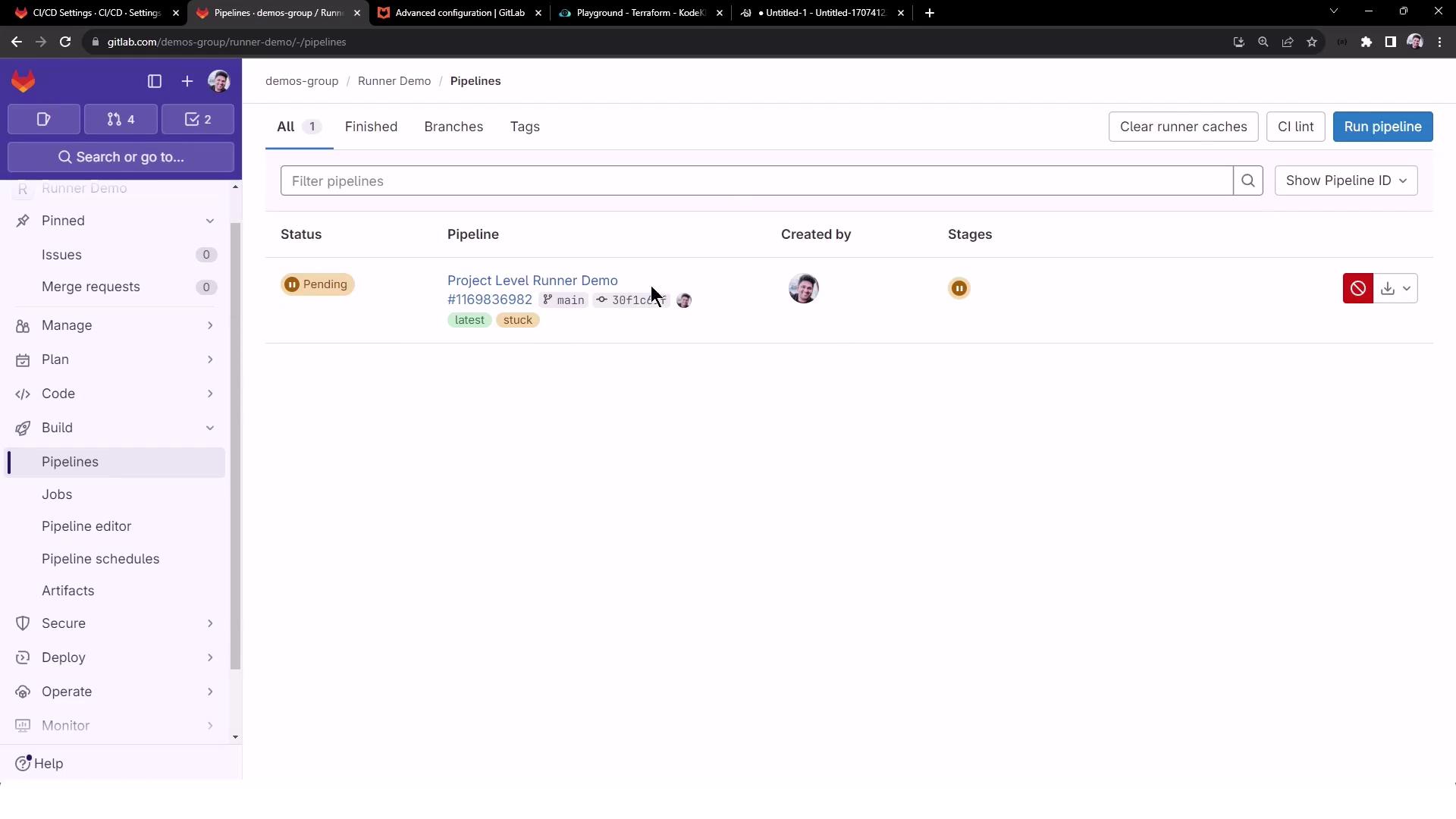
Commit and push your `.gitlab-ci.yml` to the `main` branch. The new pipeline will queue but remain **stuck**:
The `unit_testing` job stays pending due to no active runners:
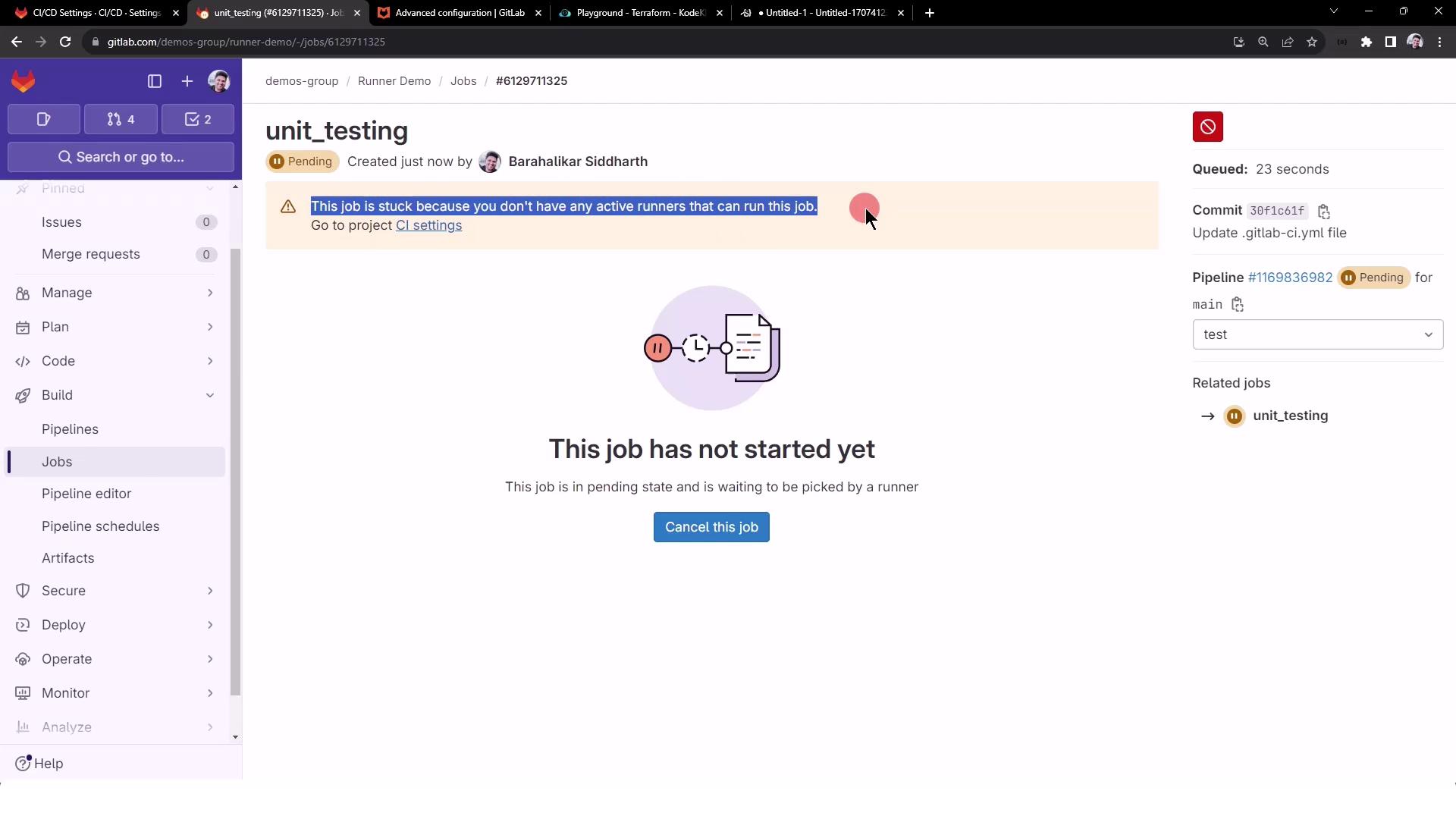
Until you register a runner, all CI/CD jobs will remain in a pending state. Make sure to add a project-level runner or re-enable shared runners.
***
## 4. Register a New Project Runner
In **Settings > CI/CD > Runners > Project Runners**, click **New runner**. Select **Linux** as the operating system and add a tag to scope job assignment (e.g., `NodeJS`).
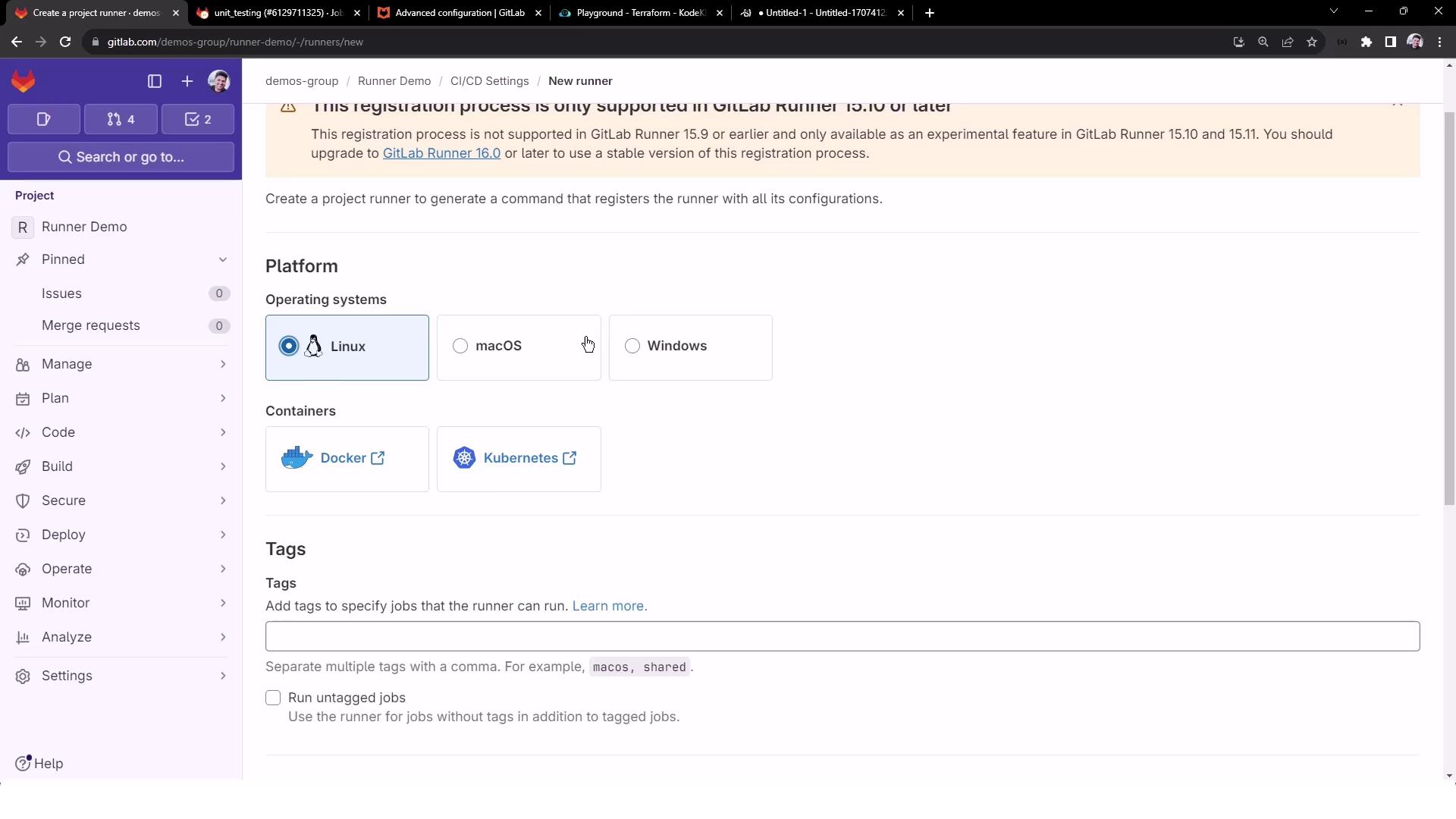
Use the **NodeJS** tag to target your `unit_testing` job:

Optionally, configure:
* Runner description
* Maximum job timeout
* Protection & pausing settings
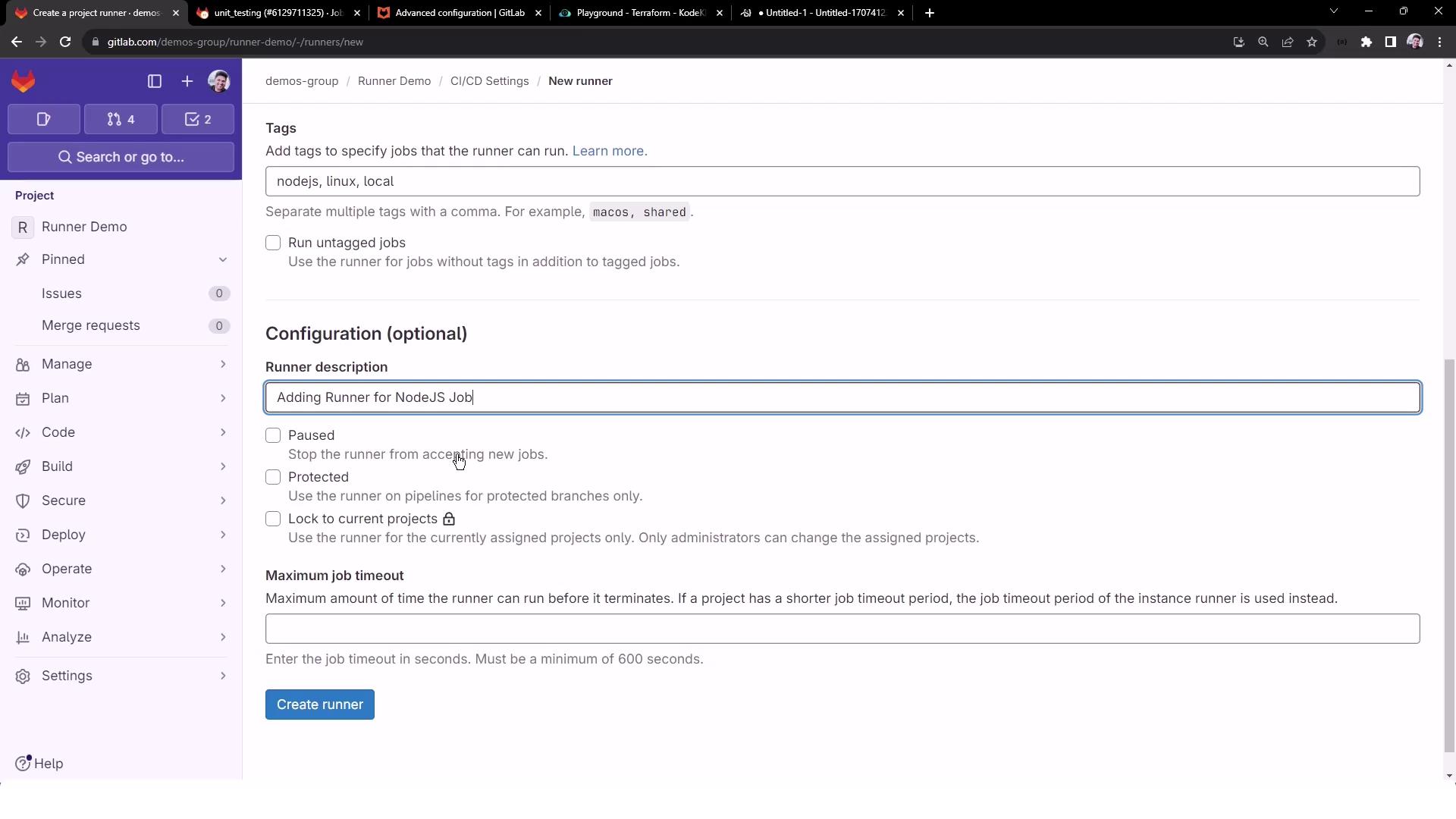
Click **Create runner** to display the registration token and commands.
***
## 5. Install GitLab Runner on Linux VM
On your Linux VM (e.g., Ubuntu), execute the following steps:
```bash theme={null}
# 1. Download the GitLab Runner binary
sudo curl -L --output /usr/local/bin/gitlab-runner \
https://gitlab-runner-downloads.s3.amazonaws.com/latest/binaries/gitlab-runner-linux-amd64
# 2. Make it executable
sudo chmod +x /usr/local/bin/gitlab-runner
# 3. Create a runner user
sudo useradd --comment 'GitLab Runner' --create-home gitlab-runner --shell /bin/bash
# 4. Install and start as a service
sudo gitlab-runner install --user=gitlab-runner --working-directory=/home/gitlab-runner
sudo gitlab-runner start
```
Verify the installation:
```bash theme={null}
gitlab-runner -v
# Expected output:
# Version: 16.8.0
# Git revision: c72a09b6
# Git branch: 16-8-stable
# GO version: go1.21.5
# Built: 2024-01-18T22:42:25+0000
# OS/Arch: linux/amd64
```
***
## 6. Register the Runner with GitLab
Use the registration token from the project UI:
```bash theme={null}
sudo gitlab-runner register \
--url https://gitlab.com/ \
--token
```
Interactive prompts:
1. Confirm the GitLab URL (`https://gitlab.com/`).
2. Provide a runner name (e.g., `nodejs-runner`).
3. Enter tags (`NodeJS`).
4. Select executor: `shell`.
```bash theme={null}
Enter the GitLab instance URL (for example, https://gitlab.com/):
Verifying runner... is valid
Enter a name for the runner: nodejs-runner
Enter tags for the runner (comma-separated): NodeJS
Enter an executor: shell
Runner registered successfully.
```
***
## 7. Verify Runner in the GitLab UI
Return to **Settings > CI/CD > Runners**. You should see your new runner listed as **active**:

You can **edit**, **pause**, or **protect** this runner from the UI.
***
## 8. Examine `config.toml`
The runner’s settings live in `/etc/gitlab-runner/config.toml`:
```toml theme={null}
concurrent = 1
check_interval = 3
shutdown_timeout = 0
[session_server]
session_timeout = 1800
[[runners]]
name = "nodejs-runner"
url = "https://gitlab.com/"
token = "glrt-..."
executor = "shell"
[runners.cache]
MaxUploadedArchiveSize = 0
```
| Setting | Description |
| -------------------------------- | --------------------------------------- |
| `concurrent` | Max parallel jobs (default: `1`) |
| `check_interval` | Poll interval in seconds (default: `3`) |
| `session_server.session_timeout` | Web terminal session timeout (seconds) |
| `[[runners]].executor` | Executor type (e.g., `shell`, `docker`) |
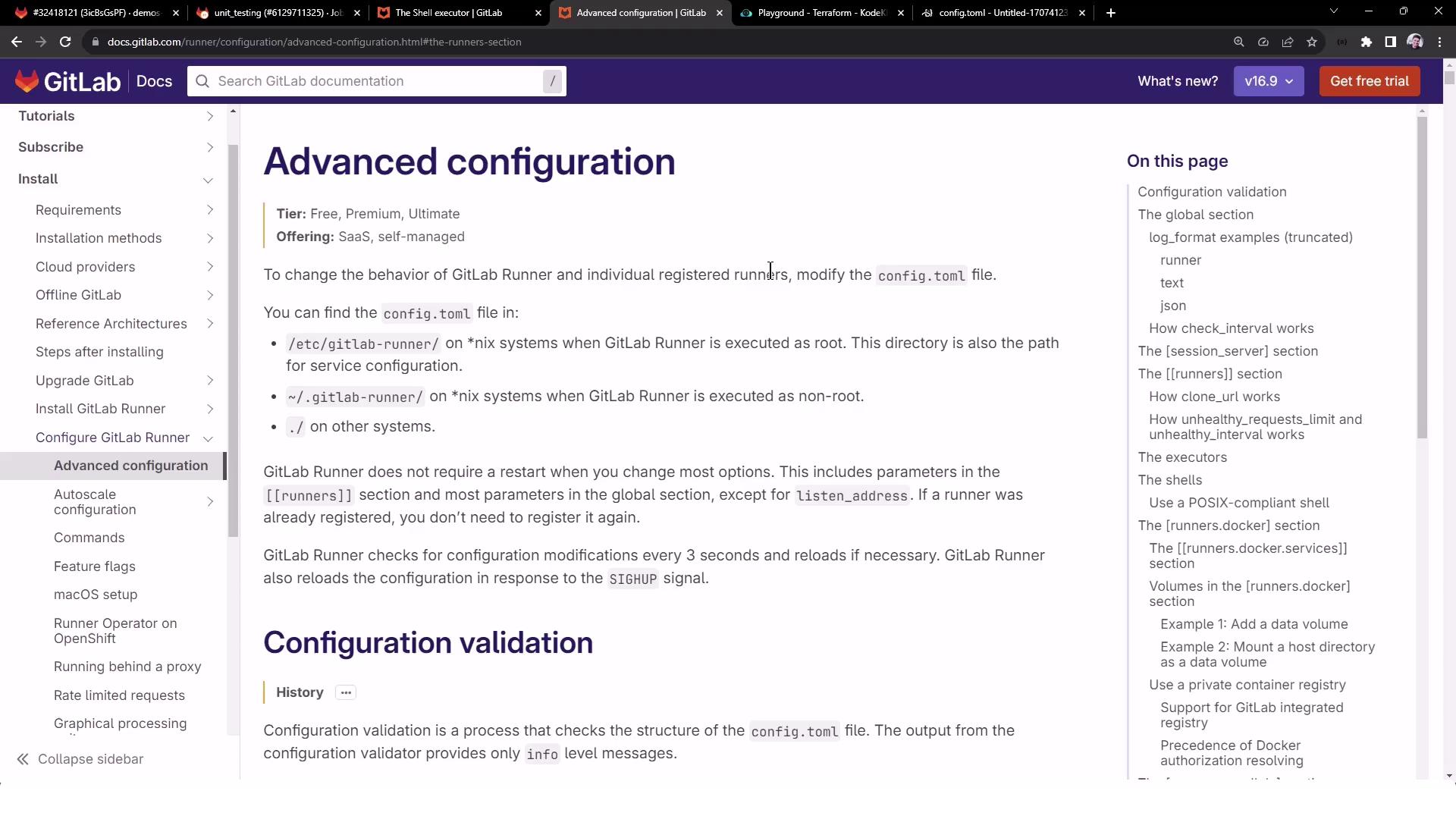
For advanced options, see [Advanced Configuration Documentation](https://docs.gitlab.com/runner/configuration/advanced-configuration.html).
***
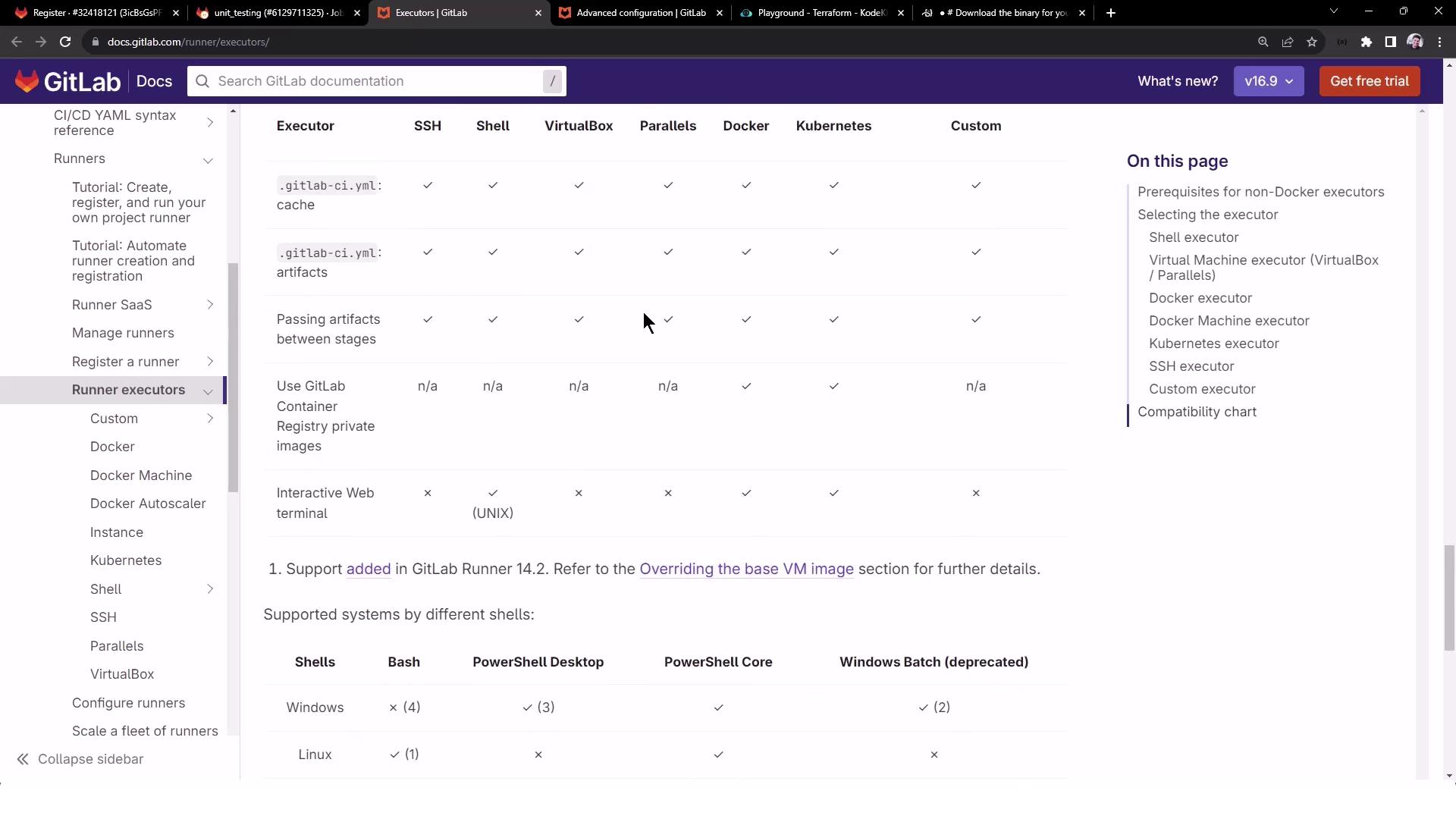
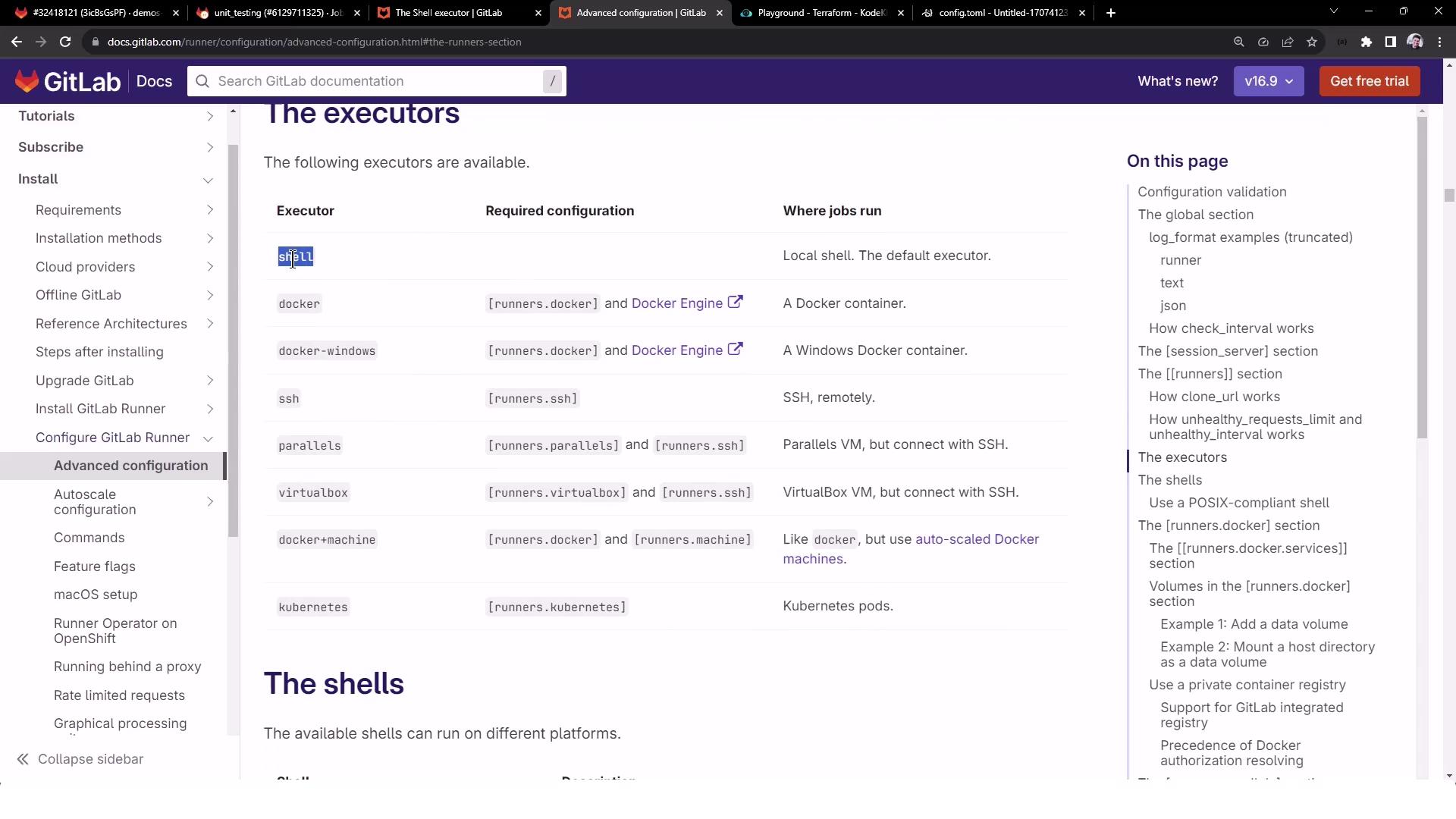
## 9. Explore Available Executors
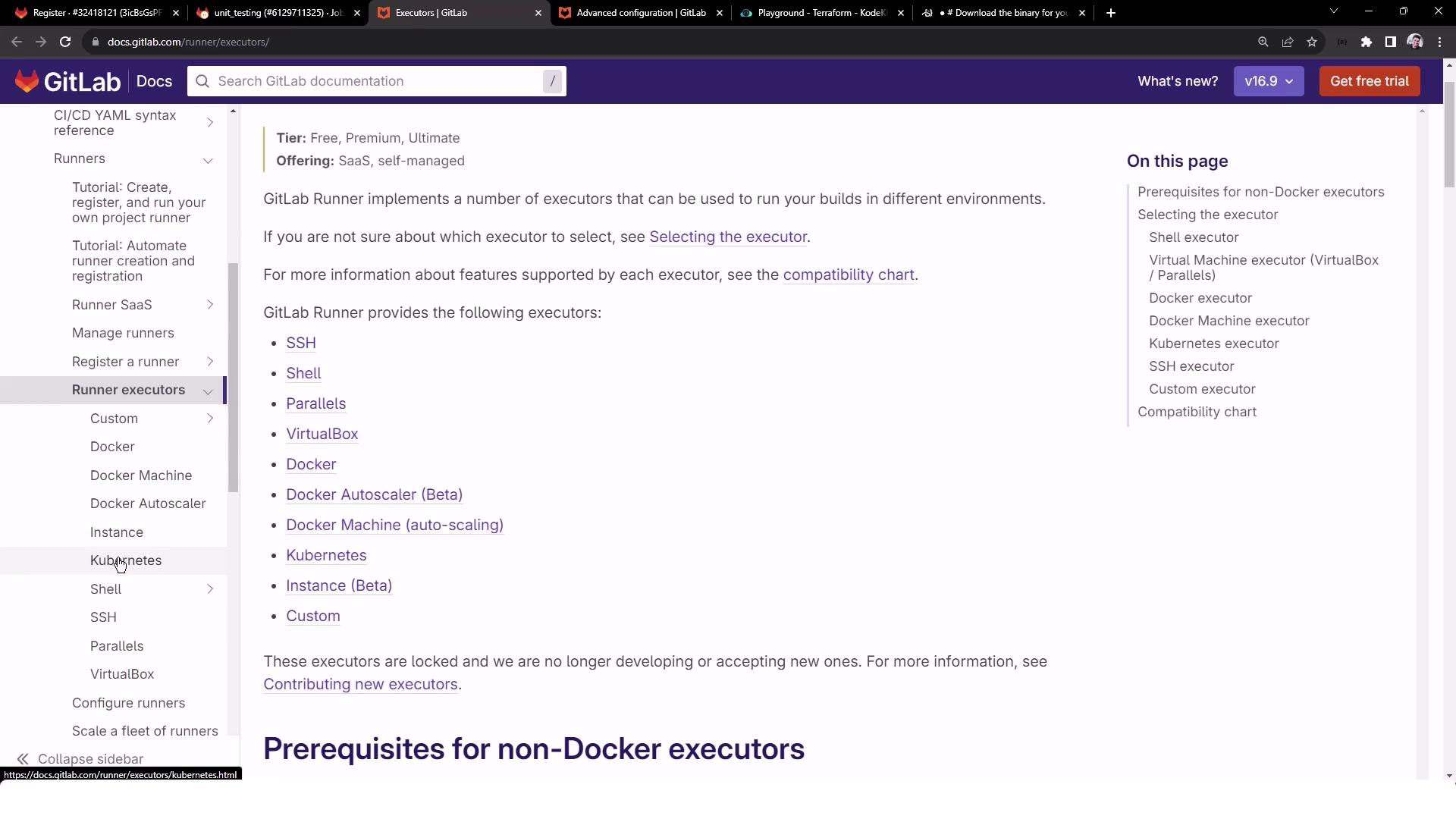
GitLab Runner supports multiple executors. Review and choose the one that best fits your environment:
* Shell
* Docker
* Kubernetes
* SSH
* VirtualBox
* Parallels
[Executors Documentation](https://docs.gitlab.com/runner/executors/)

***
## 10. List Registered Runners Locally
On your runner VM, confirm the registration:
```bash theme={null}
gitlab-runner list
# Example output:
# Runtime platform arch=amd64 os=linux pid=46330 revision=c72a09b6 version=16.8.0
# ConfigFile=/etc/gitlab-runner/config.toml
# Executor=shell Token= URL=https://gitlab.com/
# nodejs-runner
```
Your self-managed Shell executor runner is now operational. In the next guide, we’ll cover running pipelines and job debugging.
***
## References and Further Reading
* [GitLab Runner Official Documentation](https://docs.gitlab.com/runner/)
* [Advanced Runner Configuration](https://docs.gitlab.com/runner/configuration/advanced-configuration.html)
* [CI/CD Variables](https://docs.gitlab.com/ee/ci/variables/)
* [GitLab CI/CD Pipeline Configuration](https://docs.gitlab.com/ee/ci/yaml/)